Build your digital library with Komga
Komga is a specialized, open-source media server designed to manage your digital collection of comics, manga, Bandes Dessinées (BD), magazines, and e-books.
This guide shows you how to install Komga on Olares, organize your media files for automatic scanning, and use the built-in reader and metadata editors to enhance your digital reading experience.
Learning objectives
In this guide, you will learn how to:
- Install Komga and set up an administrator account.
- Prepare and organize media files in the Olares Files app for automatic detection.
- Create and configure libraries to categorize content.
- Read books and refine their metadata.
Install Komga
Open Olares Market and search for "Komga".
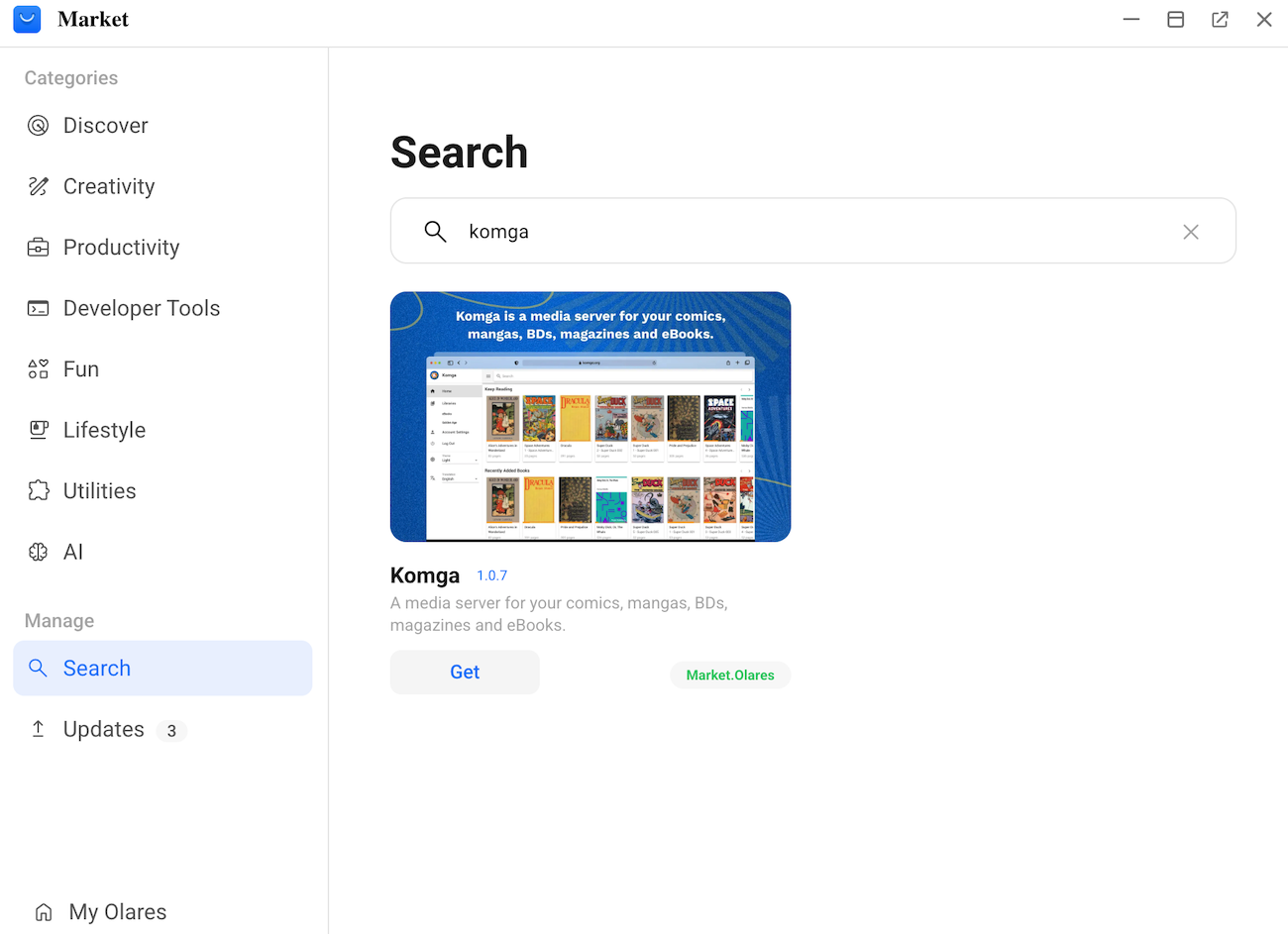
Click Get, and then click Install. Wait for the installation to finish.
Set up the admin account
When opening Komga for the first time, you must register an account. This is the administrator account that gives you full control over the server settings, libraries, and user management.
Open Komga.
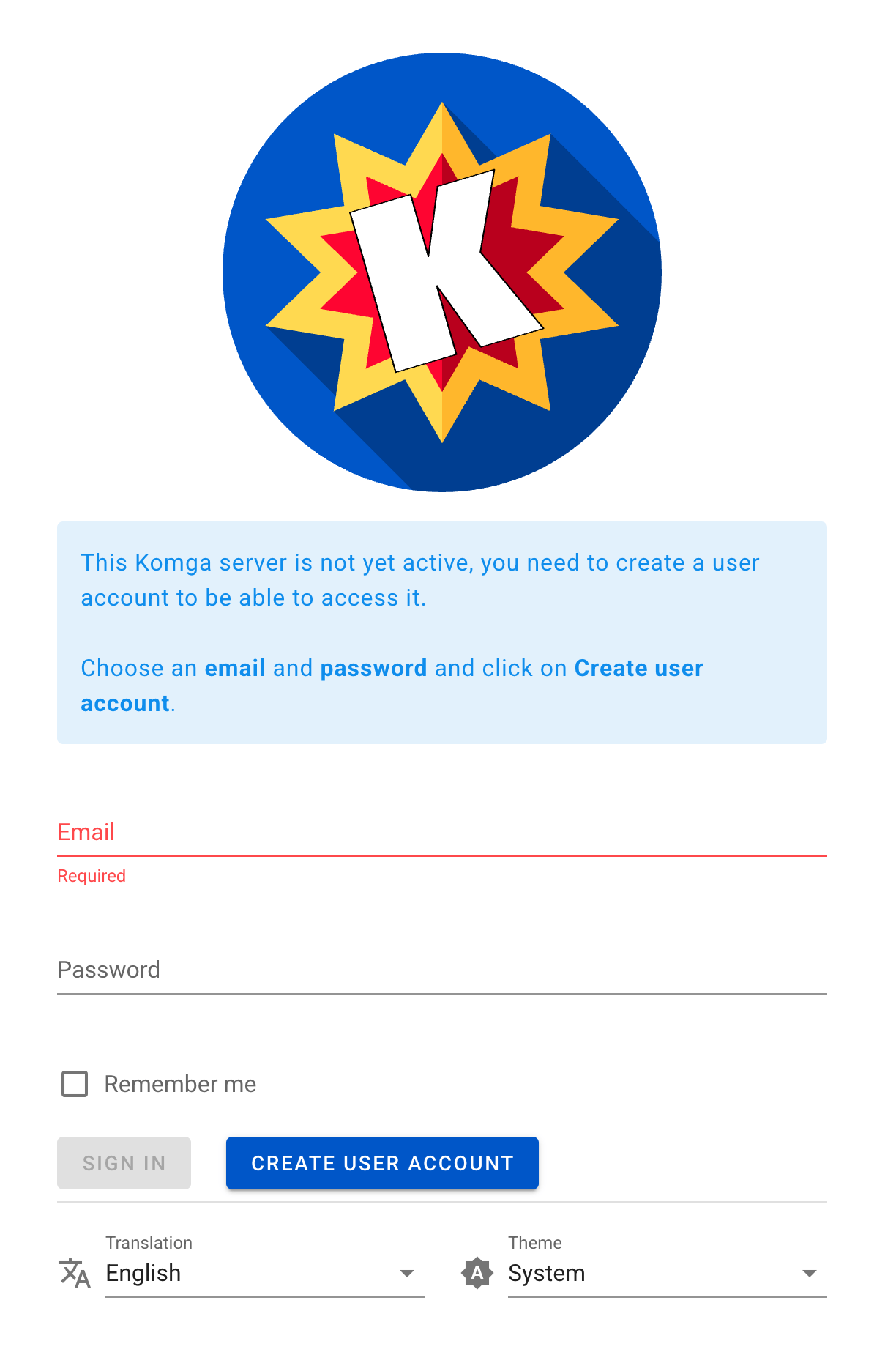
Enter the email and password to create your primary administrator account.
(Optional) From the Translation list, select your preferred language.
(Optional) From the Theme list, select your preferred background color mode.
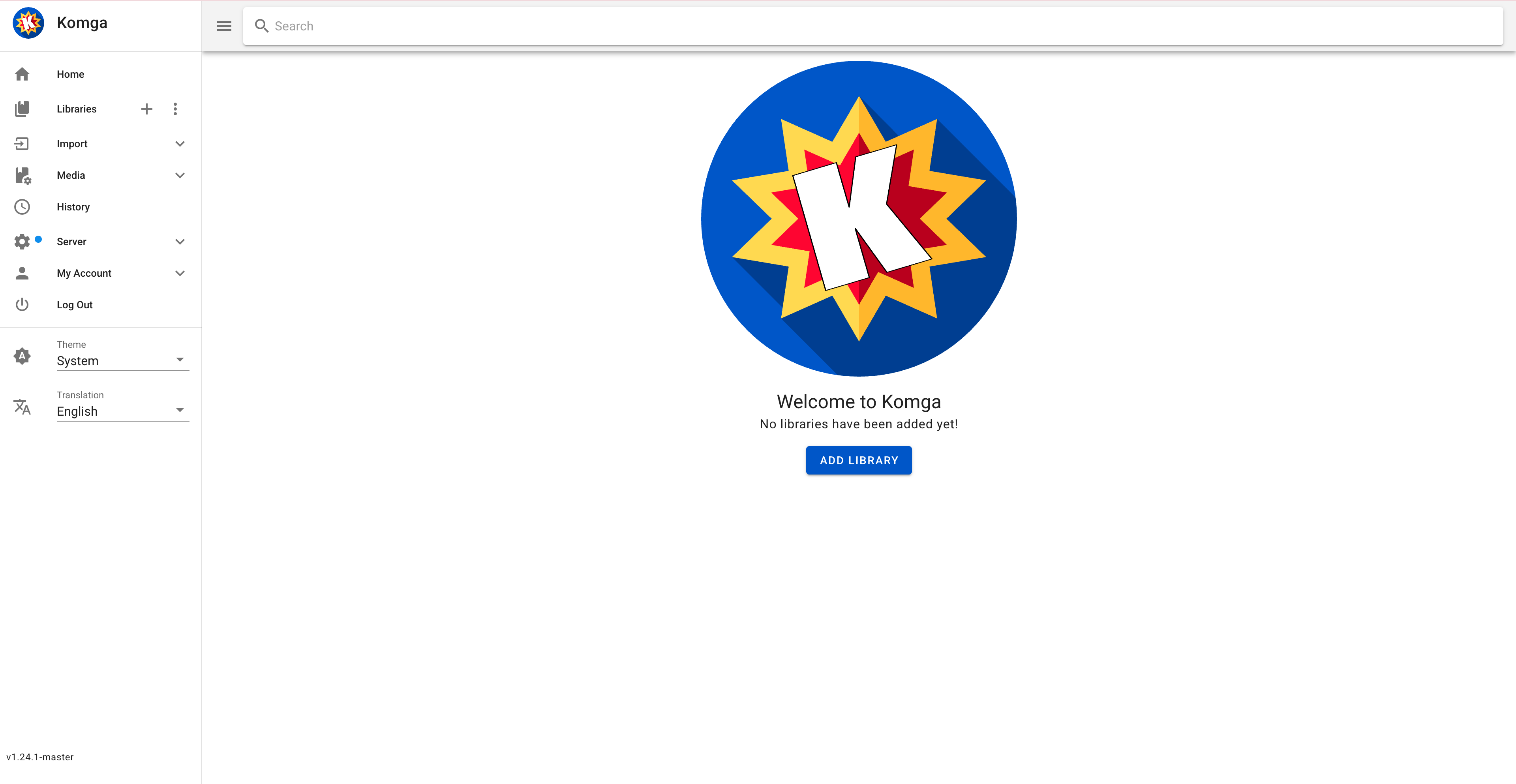
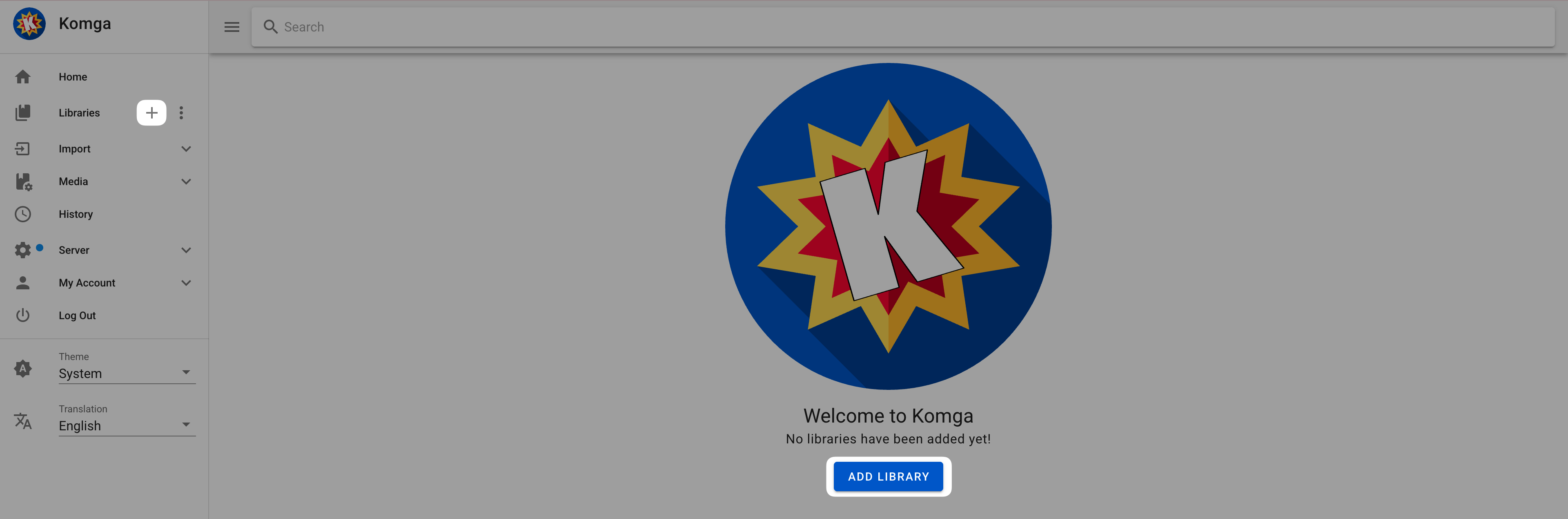
Click CREATE USER ACCOUNT. The Welcome to Komga page appears.
Prepare your media files
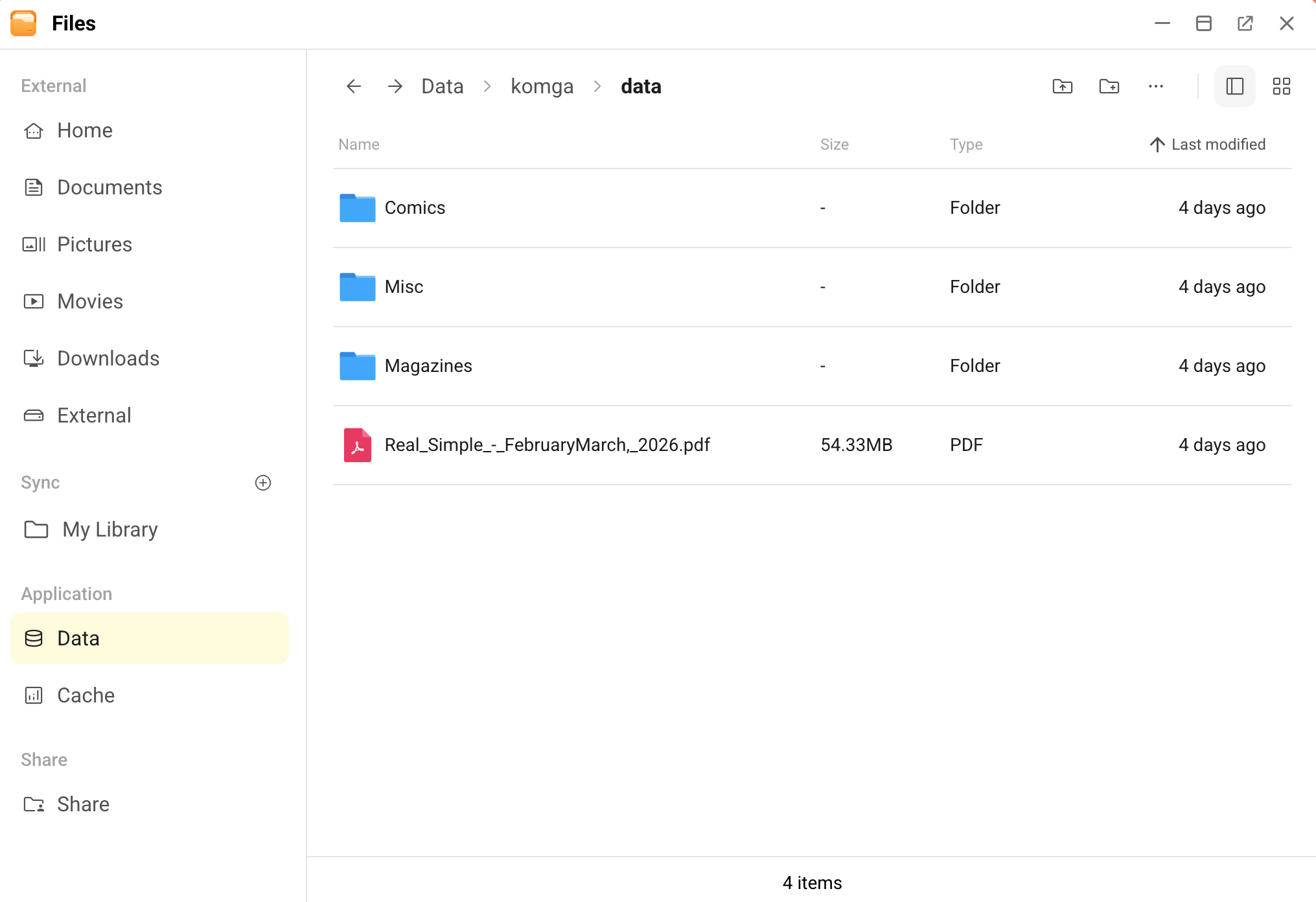
Komga scans a dedicated Olares directory to populate your library. You must place your media files in the designated folder for the application to detect them.
Open the Files app from Launchpad.
Navigate to
Application/Data/komga/data/.Upload your media files to this directory, or create sub-folders in it to categorize your files.
Create a library
After uploading your files, connect them to the Komga interface by creating libraries. A library is a group of books. You can create multiple libraries to separate different types of content.
In Komga, click ADD LIBRARY on the main screen, or click add_2 next to Libraries on the left sidebar. The Add Library window appears.
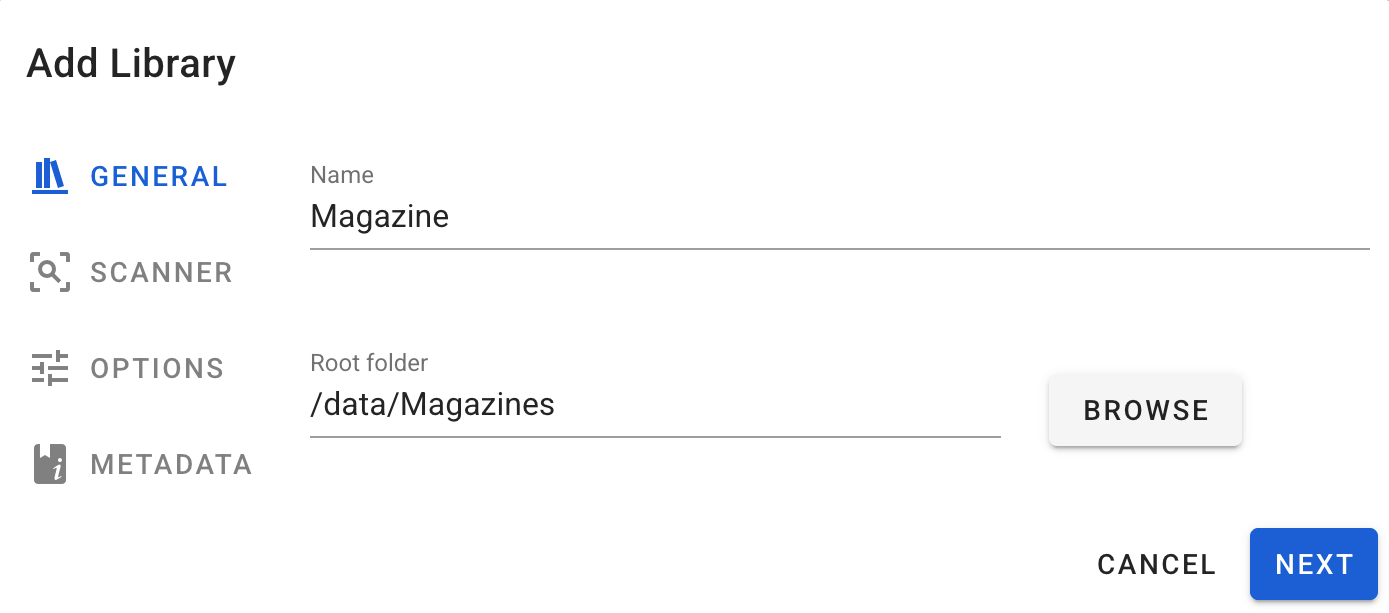
On the GENERAL tab, configure the following settings, and then click NEXT:
- Name: Specify a name for the library.
- Root folder: Click BROWSE to choose the file location.
- To include all media files and sub-folders into one large library, select the
/datafolder. - To limit the library's content to a specific category, select a sub-folder such as
/data/{sub-folder-name}.
- To include all media files and sub-folders into one large library, select the
On the SCANNER tab, configure how Komga identifies your media files, such as the scan interval and file types. Click NEXT.
On the OPTIONS tab, set preferences for file analysis and cover image generation. Click NEXT.
On the METADATA tab, select the metadata types to import, and then click ADD.
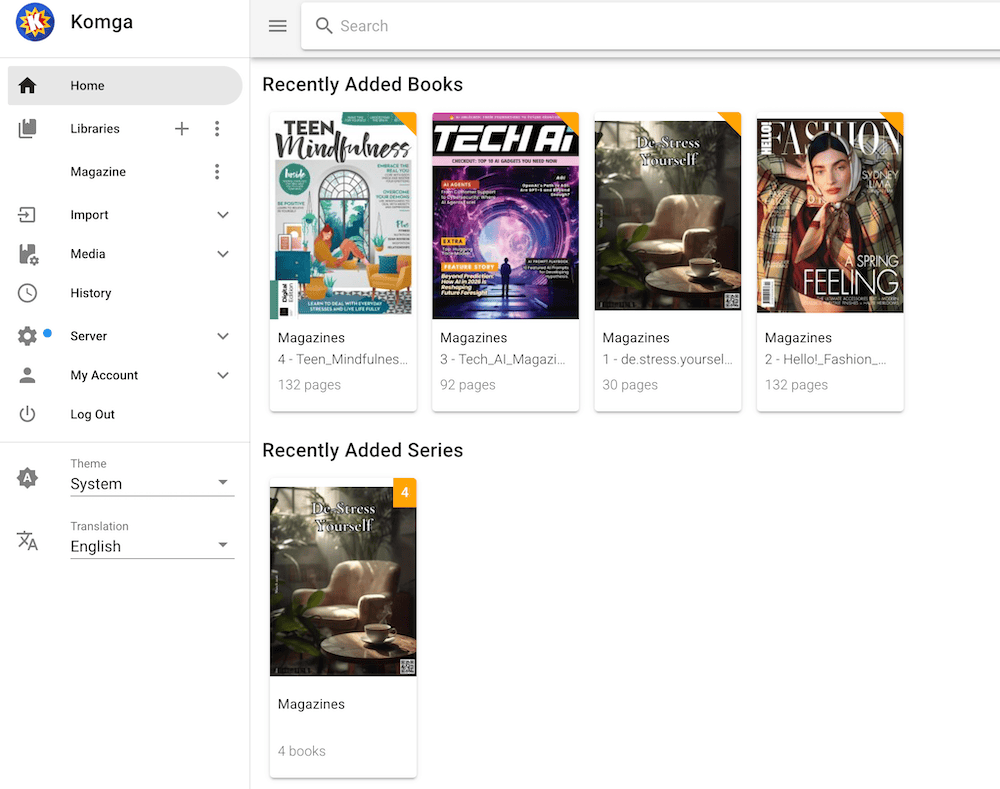
Komga automatically scans the associated directory and displays your books with cover images and titles.
Edit metadata
Komga automatically pulls embedded metadata from your media files, such as summaries and release dates. But you can manually refine this data to polish your library's appearance and make your library easier to browse.
Hover over the book cover, and then click edit.
In the Edit metadata window, use the following tabs to customize your content:
Tab What you can do General Define how your books appear in the library list: - Enter the Title and Summary to provide context for your collection.
- Use Number to set the volume number of a book within a series.
For example, "1" for the first book, "2" for the second one. - Use Sort Number to specify the order in which books are displayed in the
series list regardless of titles or dates. - Enter the Release Date and ISBN to track collection history.
Authors Add contributors by role, such as Writers, Pencillers, and Inkers.
This allows you to filter libraries by specific artists.Tags Create custom tags to group books by themes, such as "90s Aesthetics".
This allows you to search based on tags.Links Click the plus icon to add external URLs, such as official series websites.
This allows for quick access to more information about the book.Poster Drag and drop a new image or choose a file to replace the default book cover.
This allows you to personalize your digital shelf looks.
Read books
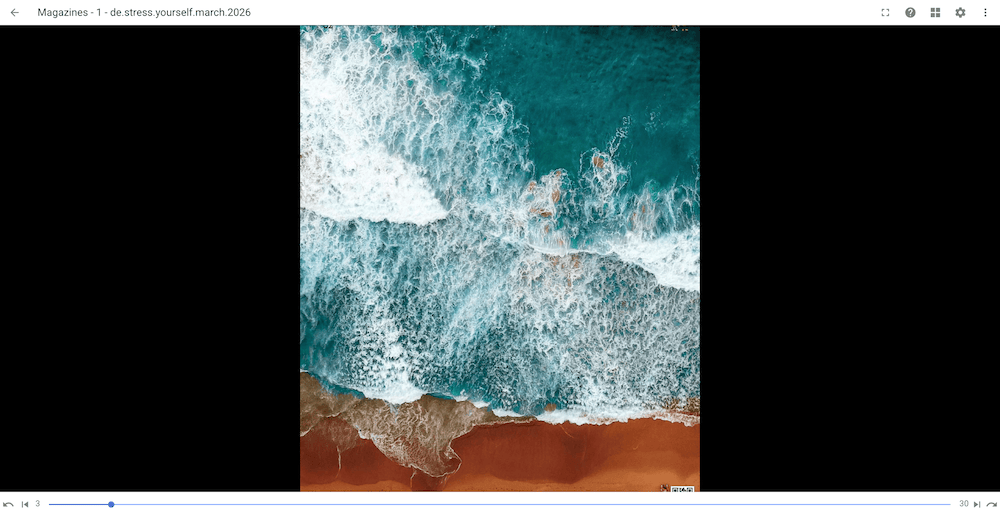
Once your library is organized, you can start reading using the built-in Webreader.
Find your target book.
Open the book using one of the following methods:
- Hover over the book cover and click auto_stories.
- Click the book title, and then click READ on the book details page.
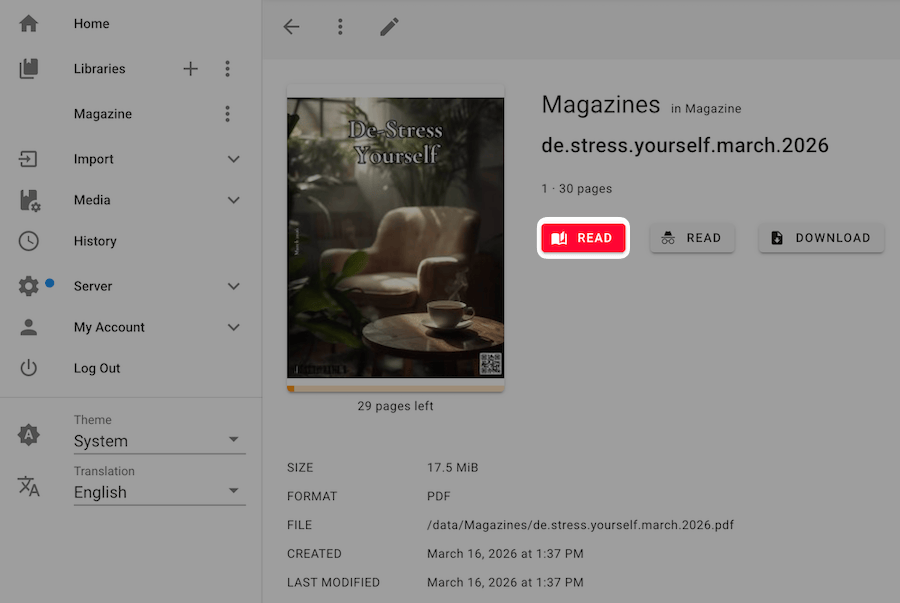
The book is opened in the Webreader immediately.
Scan library files
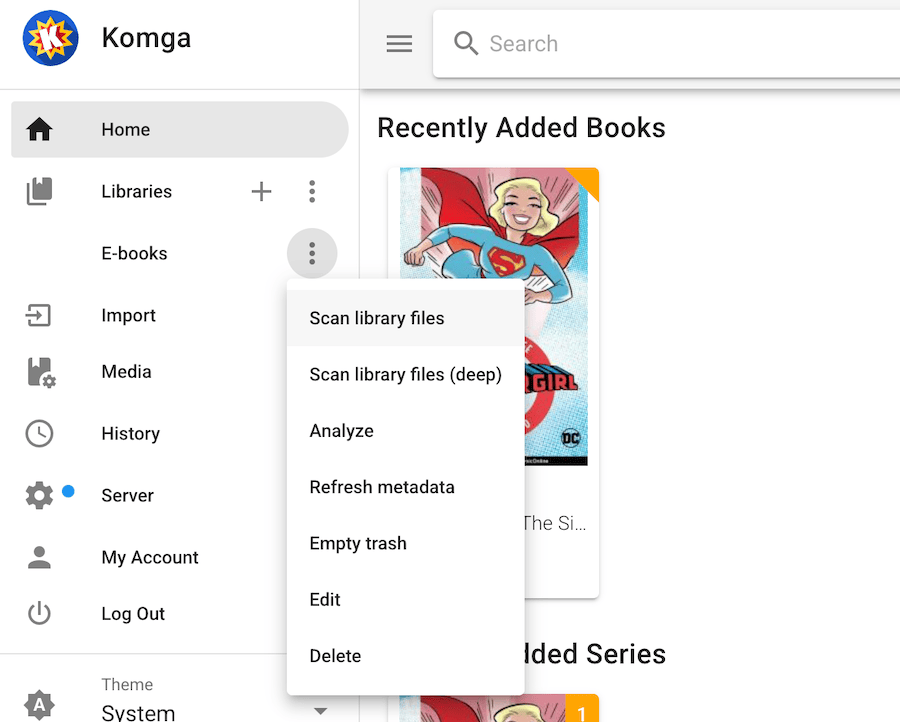
By default, Komga scans your libraries regularly based on the interval you set during library creation. However, if you add, rename, or move media files and want them to appear immediately, you can trigger a manual scan.
Find the target library from the left sidebar.
Click more_vert next to it, and then select Scan library files. The library refreshes and pulls in any new or changed content.
FAQs
How to perform a clean uninstallation?
If you uninstall Komga and want to remove all remaining data:
- Open the Files app, and go to Application > Data
- Delete the
komgafolder. This removes all database configurations and cached metadata.
Why can't I use the "Import" function in Komga?
The Import feature is designed to move or copy files from a location outside your library (such as the Downloads folder) into an existing series. In the Olares environment, the file picker is restricted to the /data directory for security and privacy. Since your libraries already reside in this directory, there are no external files for the system to detect, making the import tool unusable.
To add new files, use the Files app to upload your media files to: Application/Data/komga/data/.
Once uploaded, Komga detects them during the next scheduled scan, or you can trigger a manual scan by selecting Scan library files.