Build your local AI agent with LobeHub (LobeChat)
LobeHub (previously LobeChat) is an open‑source framework for building secure, local AI chat experiences. It supports file handling, knowledge bases, and multimodal inputs, and it supports Ollama to run and switch local LLMs.
Olares streamlines and simplifies the deployment of both, allowing you to skip complex manual environment configurations.
This guide covers the installation, configuration, and practical usage of these tools to create your personalized AI agents.
About the product name
LobeHub is the official platform name, but the application is currently listed as "LobeChat" in the Olares Market. We use both names in this guide to match exactly what you will see on your screen. The Market will be updated to reflect the new LobeHub branding in the future release.
Learning objectives
- Configure LobeHub to communicate with your local Ollama instance.
- Create specialized agents tailored to specific tasks and equip them with specific skills.
Prerequisites
- Ollama is installed and running in your Olares environment.
- The models you want to use are downloaded and run using Ollama. This tutorial uses
llama3.1:8bandqwen2.5. For more information, see Download and run local AI models via Ollama.
Install LobeHub
From the Olares Market, search for "LobeChat".
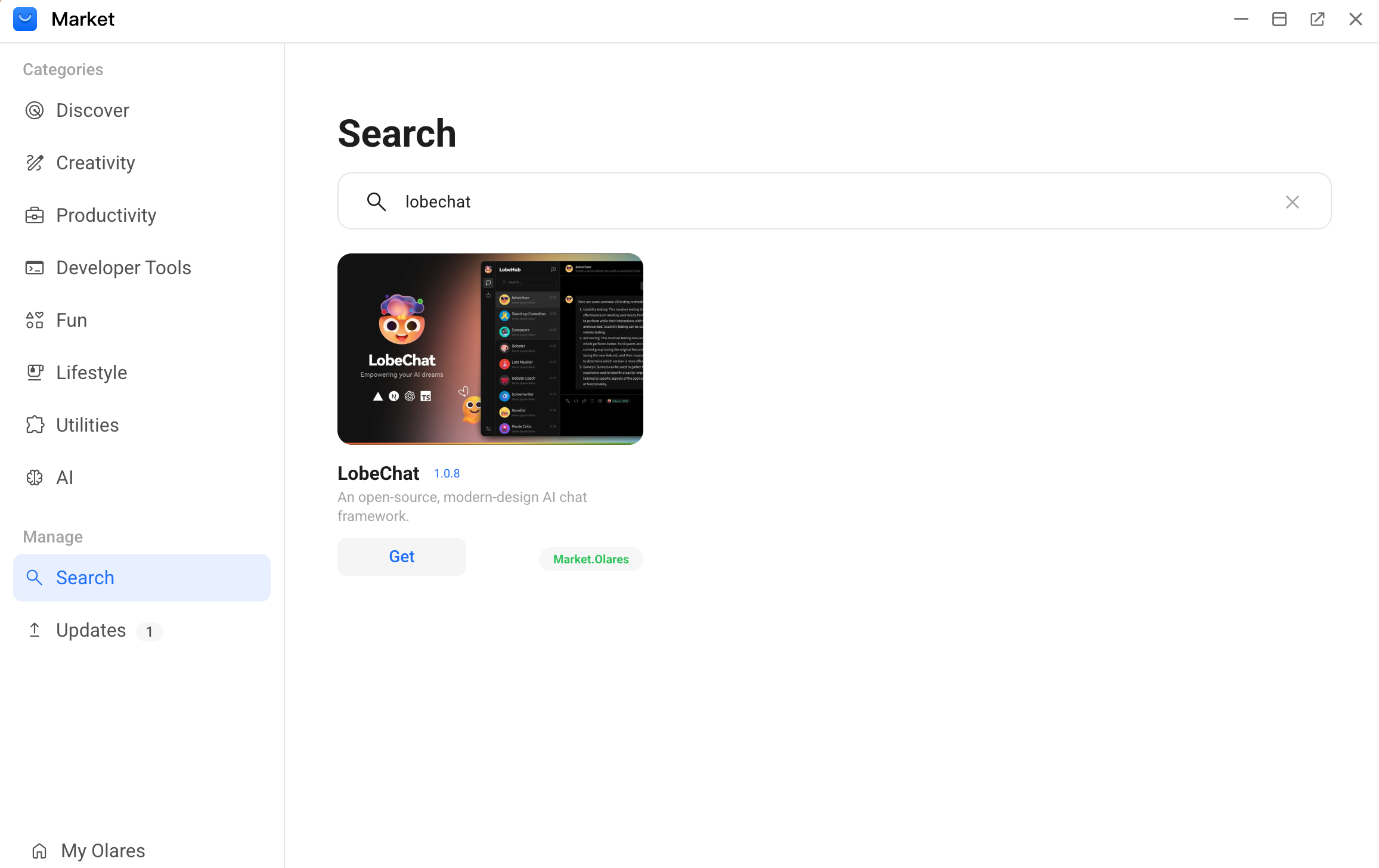
Click Get, and then click Install. Wait for the installation to finish.
Sign in to LobeHub
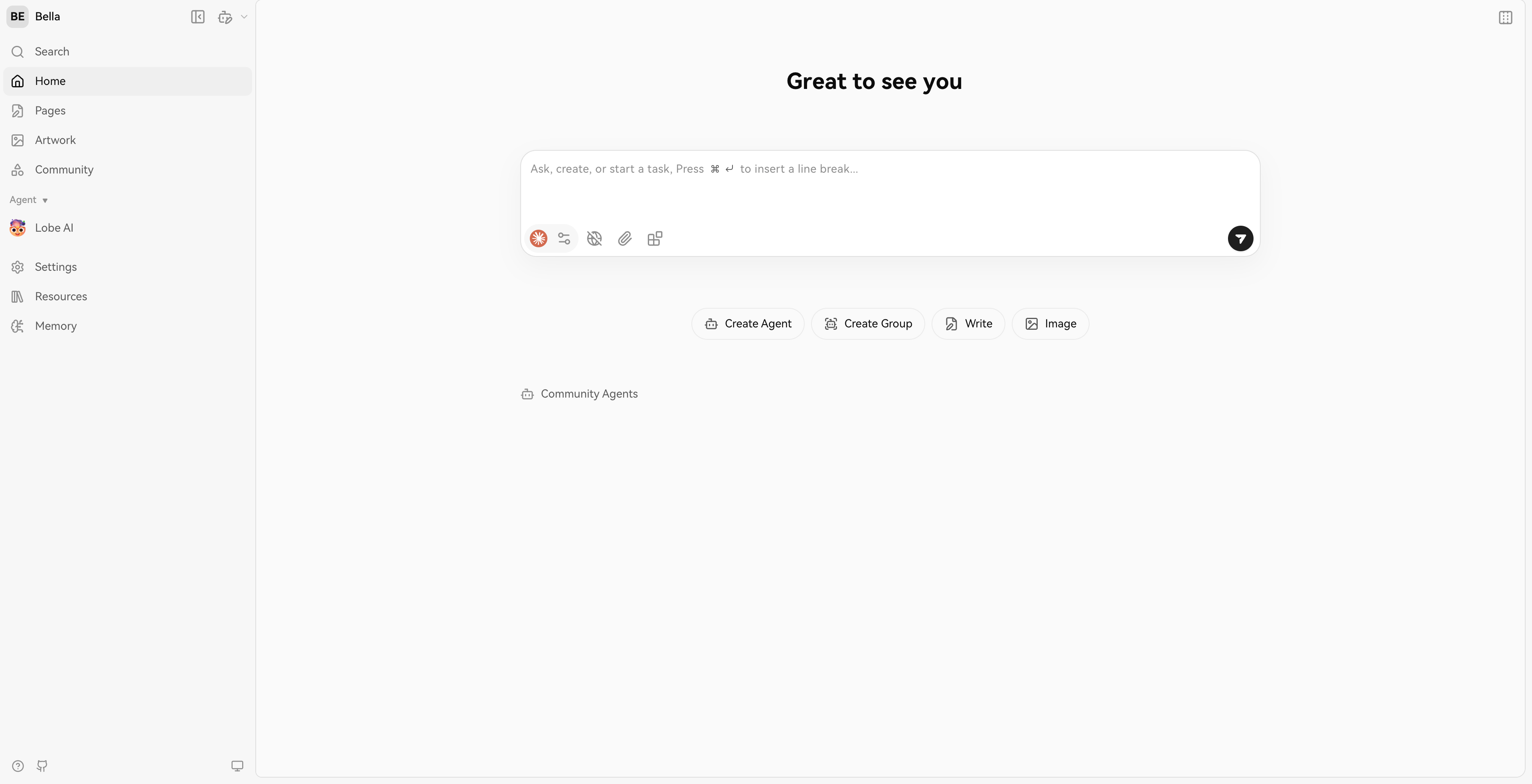
Open LobeChat from the Launchpad.
Enter your email address, and then follow the prompts on the page to create a LobeHub account and sign in.
Configure the connection
Connect LobeHub to Ollama to make the chat interface work.
From the left sidebar, go to Settings > AI Service Provider > Ollama.
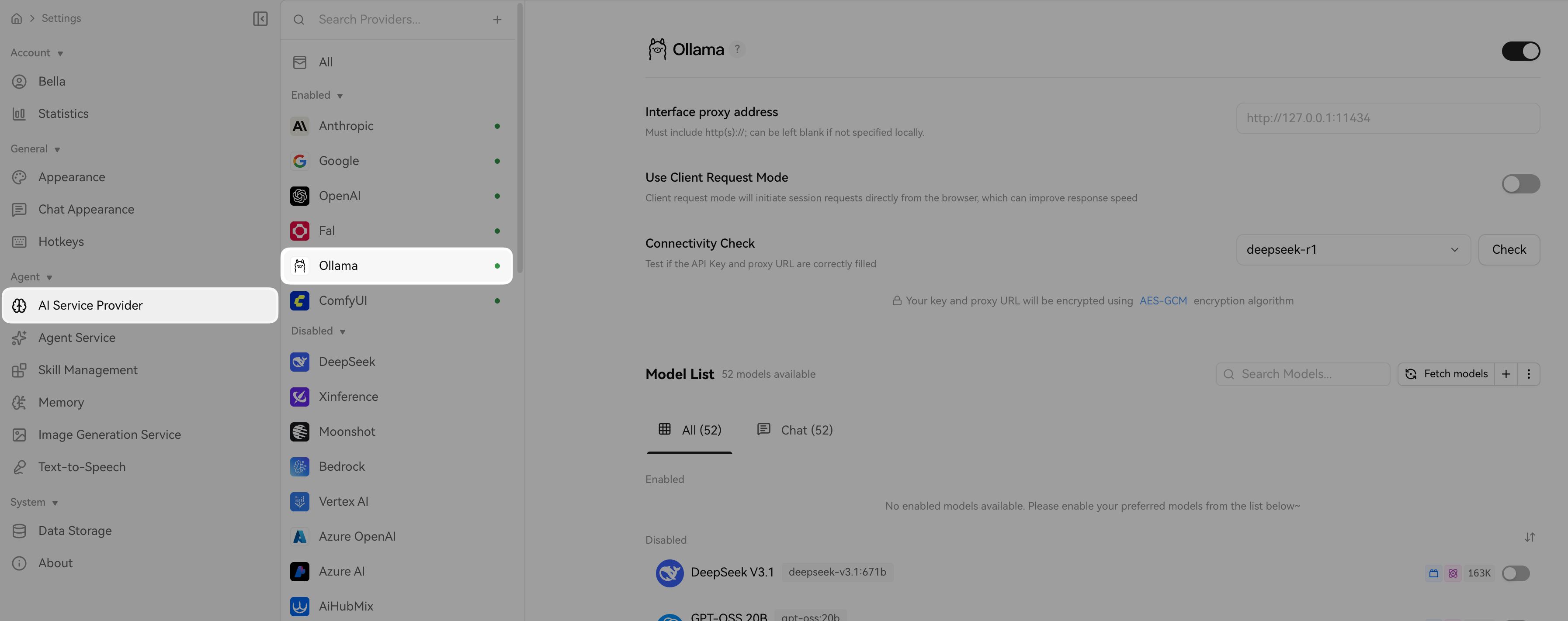
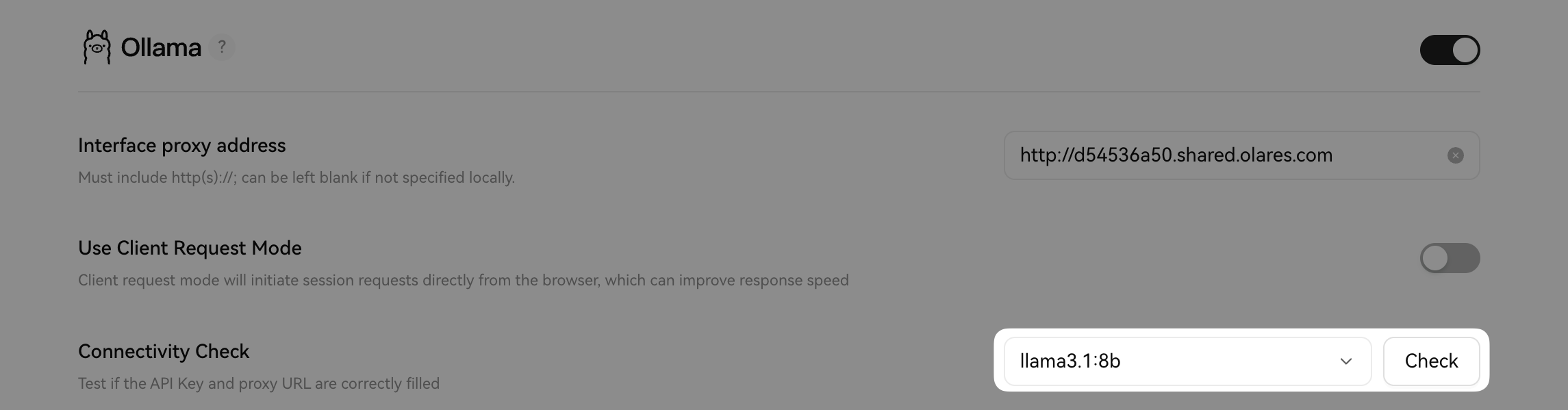
Obtain and enter your local Ollama address:
a. Open Olares Settings, and then go to Applications > Ollama.
b. Under Shared entrances, click Ollama API, and then copy the endpoint address.
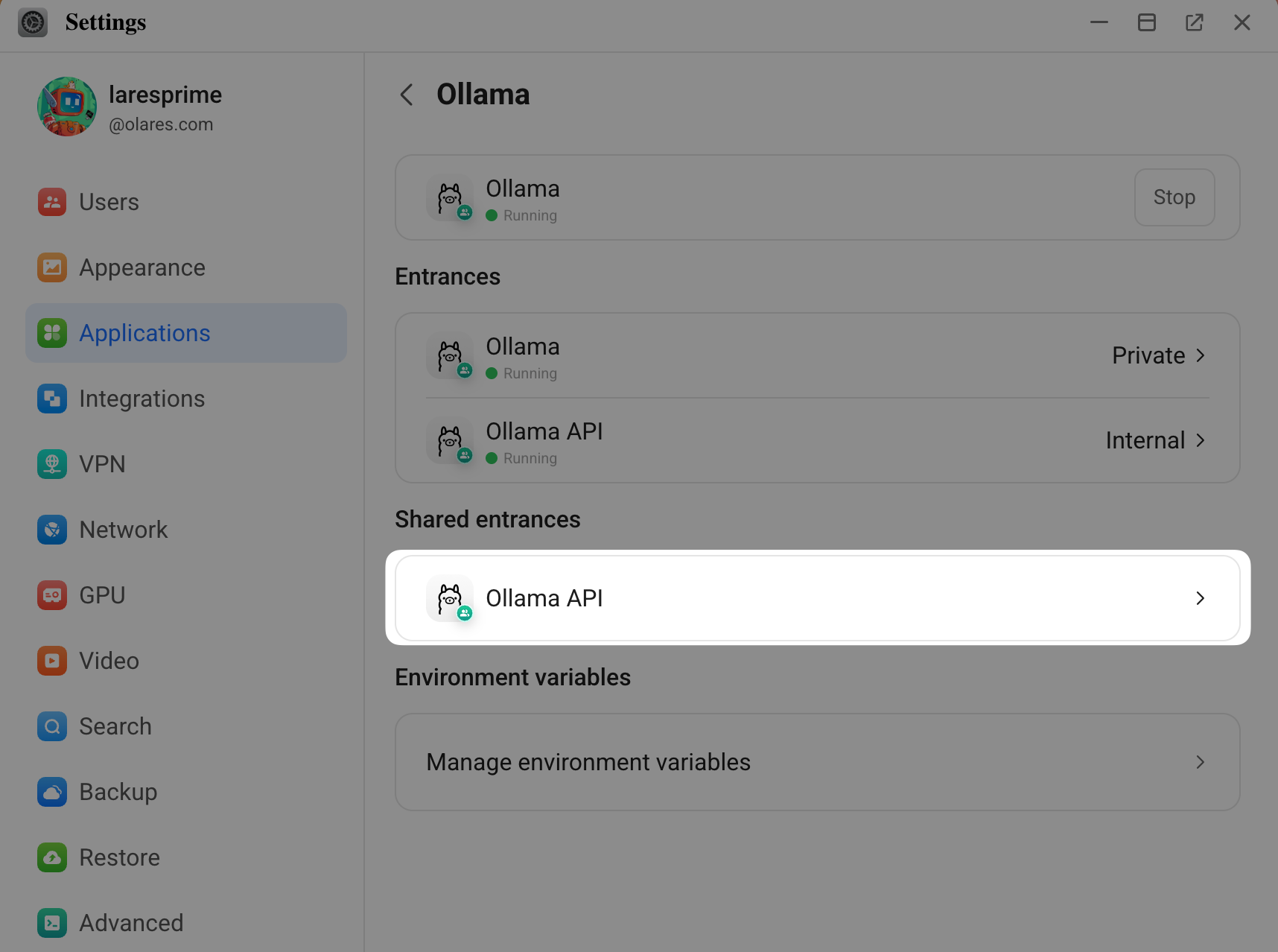
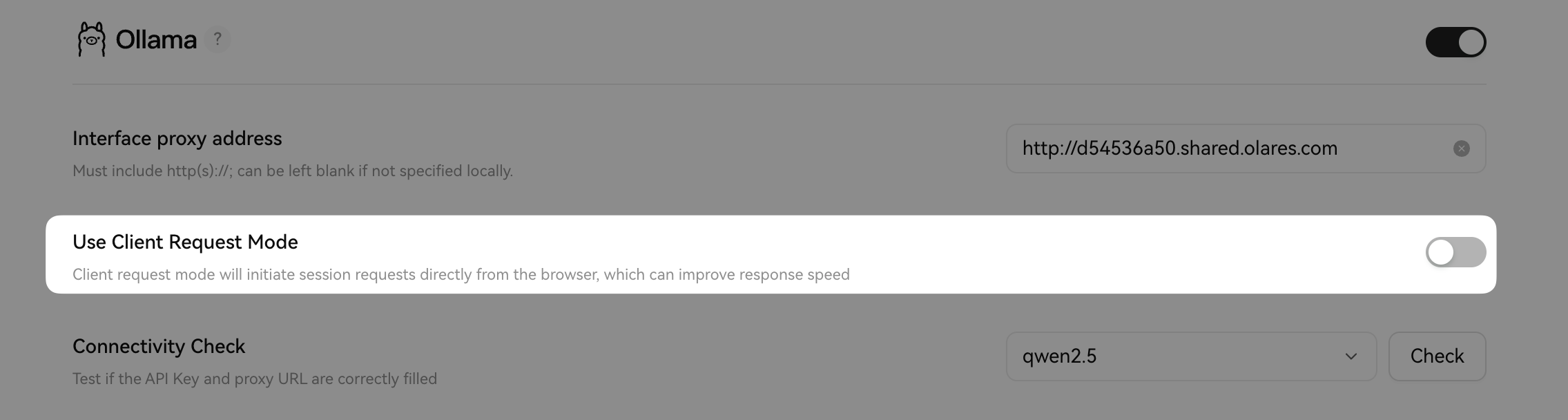
c. Return to LobeHub, and then enter the endpoint address in the Interface proxy address field.
Disable the Use Client Request Mode option.
TIP
Do not enable the Use Client Request Mode option when running local models. This mode is designed for remote API calls and might cause connection errors.
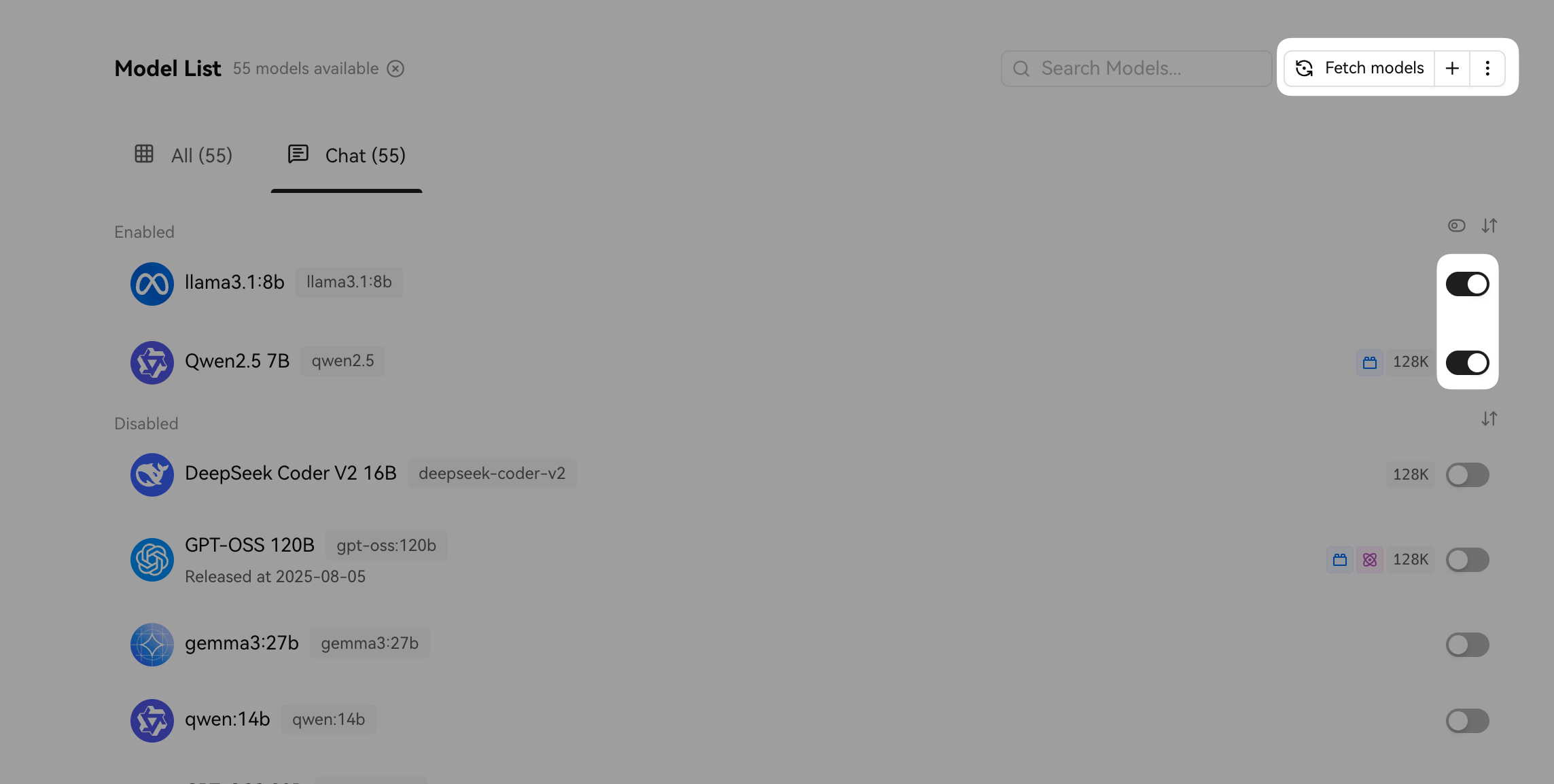
In the Model List section, click Fetch models to pull the list of supported models, and then click toggle_off to enable the models you want to use.
In the Connectivity Check section, select the model you just enabled from the list, and then click Check to verify the connection. If the model is large, it might take a little longer to load.
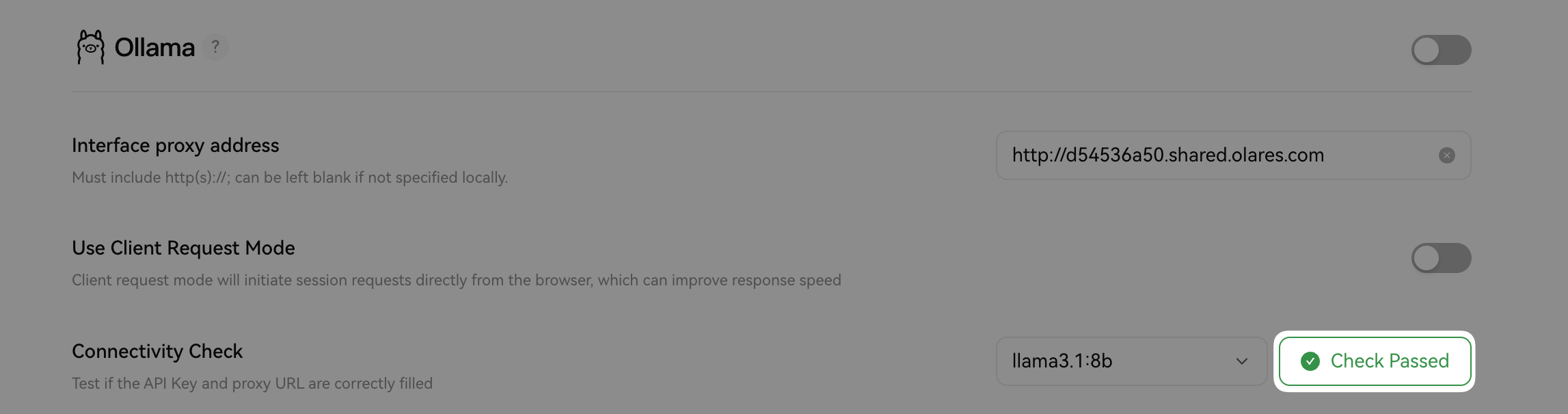
The button changes to Check Passed, indicating that the proxy address is correct.
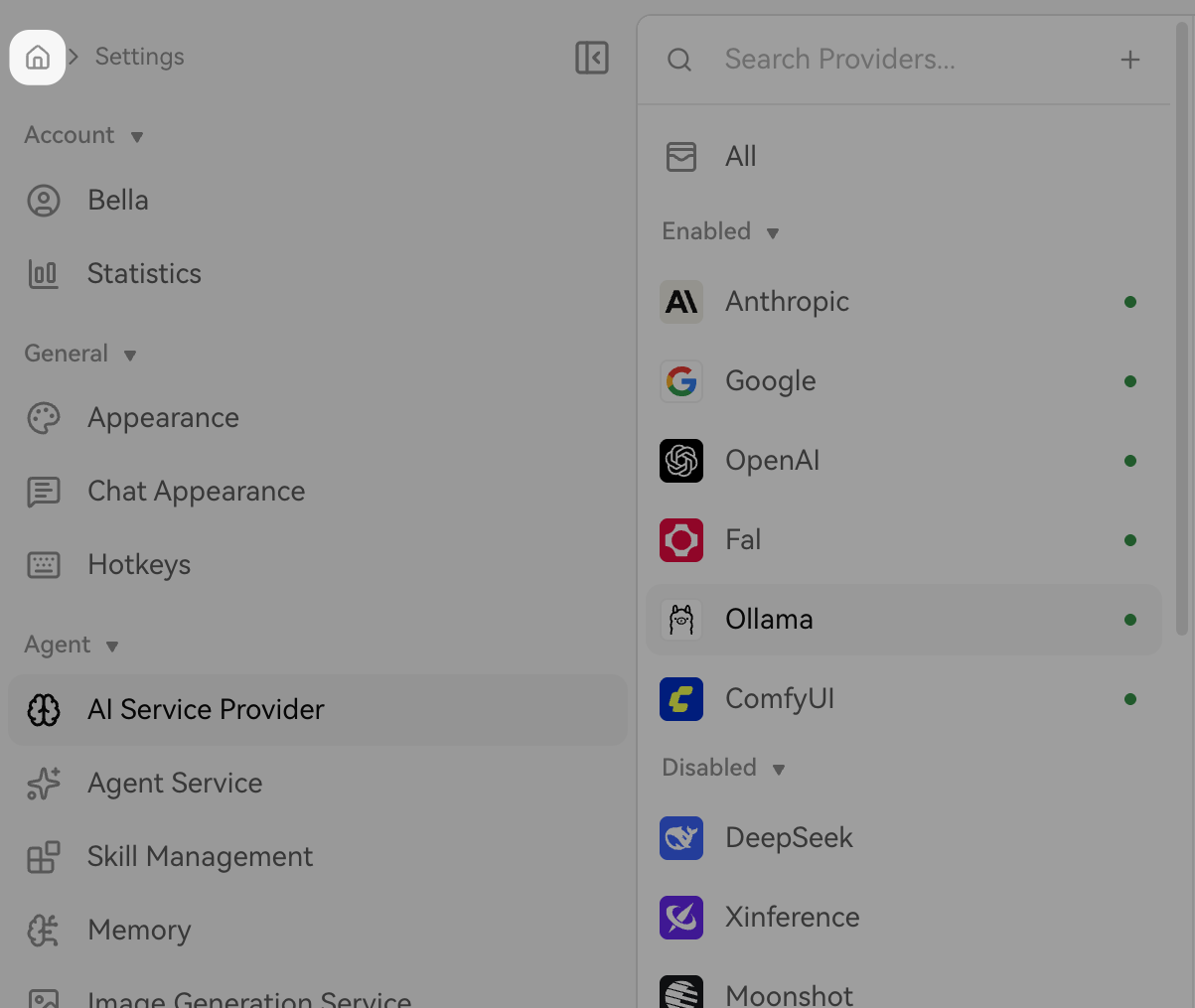
Click the home icon at the upper-left corner to return to the LobeHub home page.
Use Lobe AI
Lobe AI is the official default agent from LobeHub. It is designed to help you accomplish a wide range of tasks without the need for complex setup, such as software development, learning support, creative writing, data analysis, and daily personal tasks.
If Lobe AI does not meet your specific workflow needs, you can build your own specialized agents. For more information, see Create an agent.
From the left sidebar, click Lobe AI.
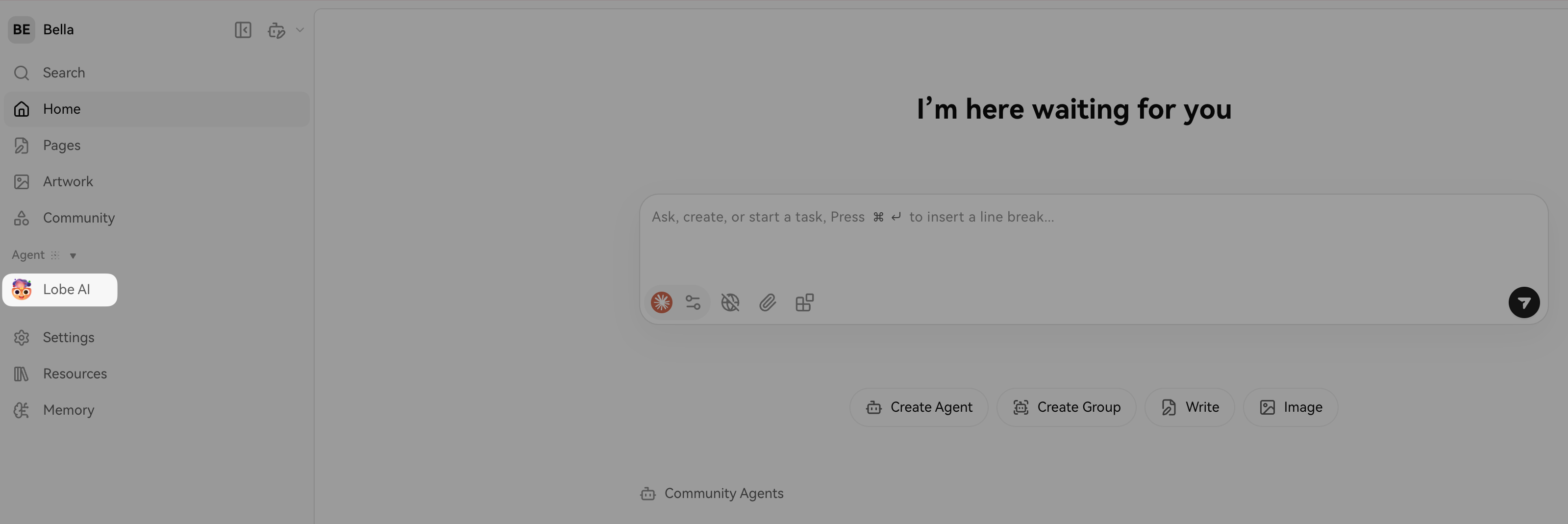
In the chat window, click the model selector and select a local language model.
Chat as you would with any standard conversational AI.
Create an agent
Create your own specialized agents by using the conversational Agent Builder or by manually configuring the settings from scratch.
LobeHub allows you to create specialized assistants to handle specific tasks by leveraging various language models and combining them with skills.
- Flexible model switching: You can switch language models instantly within the same chat to achieve the best results. For example, if you are not satisfied with a response, you can select a different model from the list to leverage their unique strengths.
- Skill extensions: You can also install additional skills to extend and enhance the capabilities of your agent. To install skills, ensure that you select a model compatible with Function Calling. Look for brick next to the model name, which indicates the model supports function calls.
Create using Agent Builder
Agent Builder is LobeHub's built-in assistant that helps you create specialized agents through conversations. Describe your needs, and it will automatically generate a complete agent configurations, including role settings, system prompts, and skills.
On the home page, click Create Agent under the chat box.
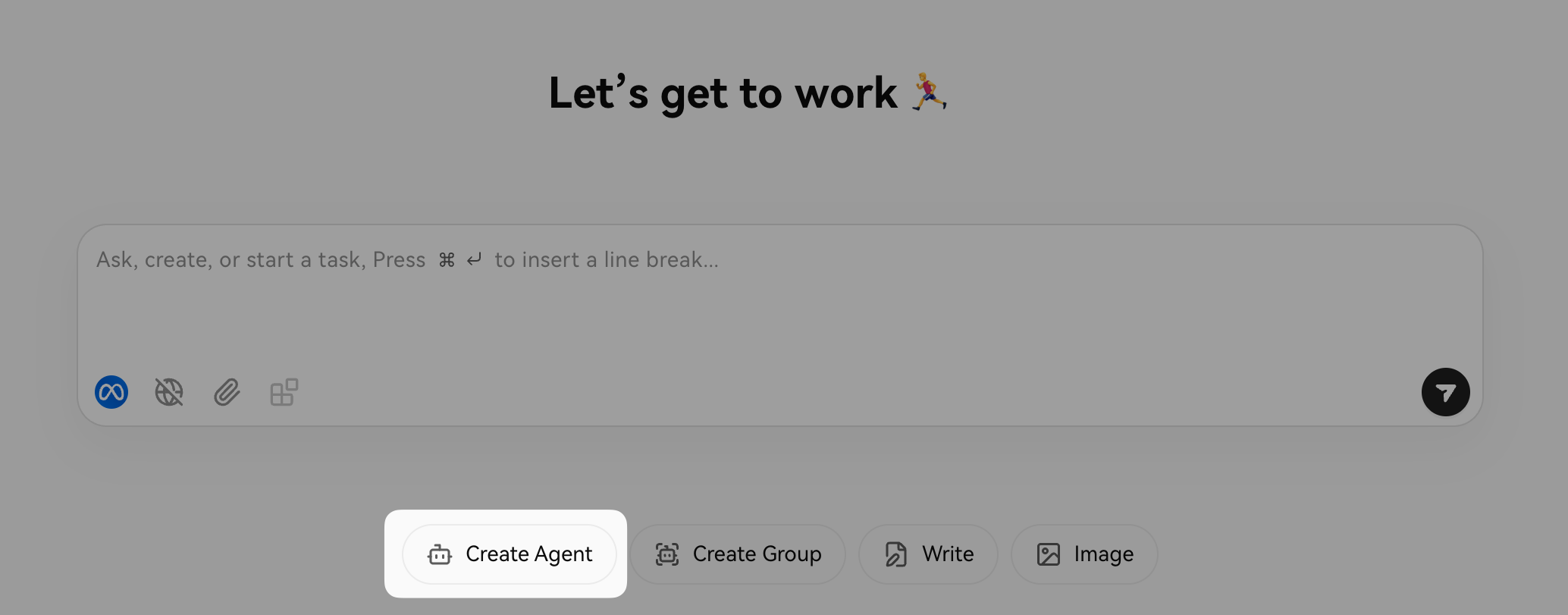
In the chat box, describe the specific task you want the agent to handle. For example,
I need an agent to review my daily work items and summarize them.
The summary should focus on the overall purpose of the tasks and
highlight specific action items.
Select the language model. For example,
llama3.1:8b.Press Enter. The profile page of the new agent opens, and you can see the Agent Builder starts configuring your agent automatically.
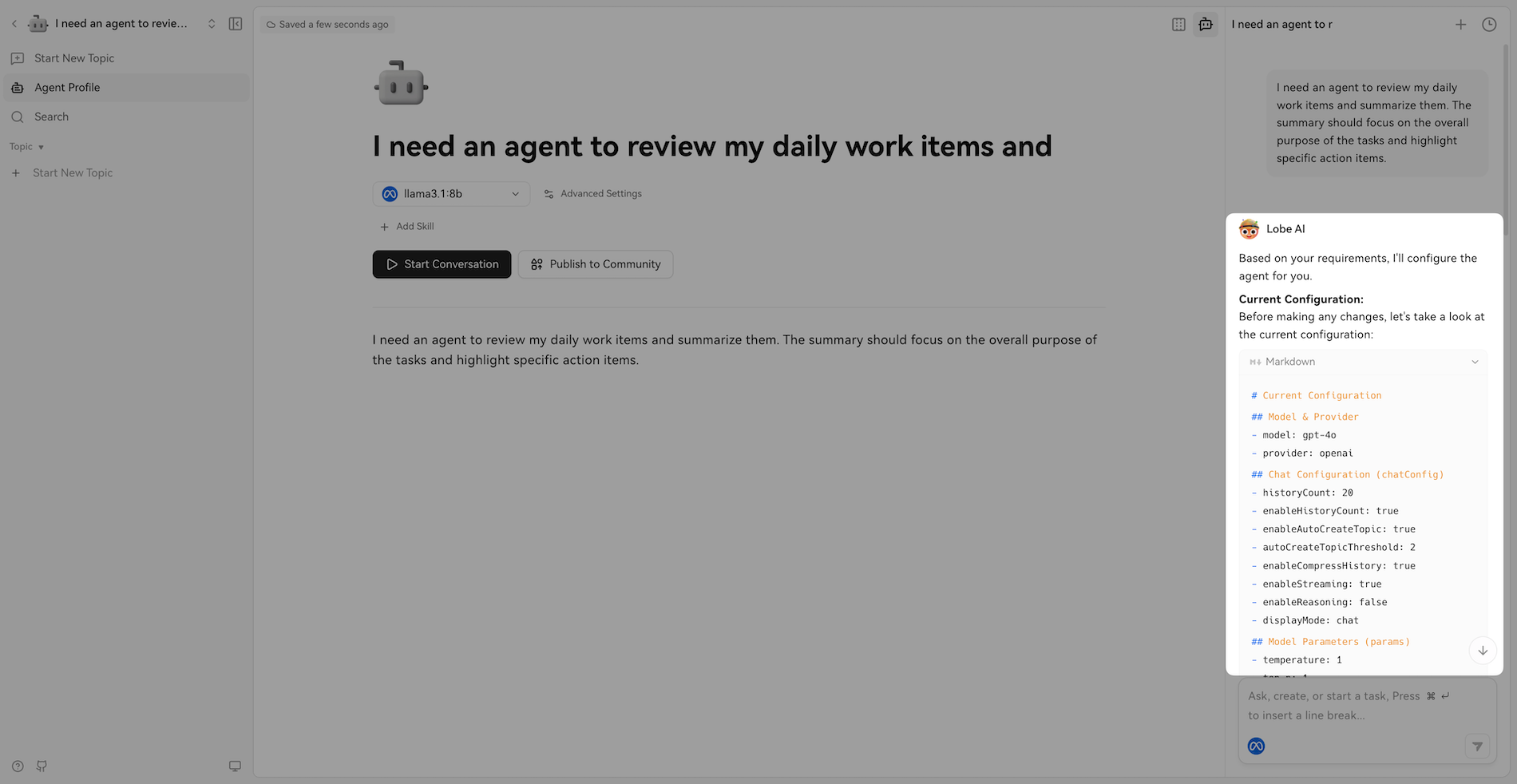
Use the chat interface on the lower right to interact with the Agent Builder. As you provide more details or refine your requirements, the Agent Builder automatically drafts and updates accordingly.
After the creation is completed, click Start Conversation to use the agent.
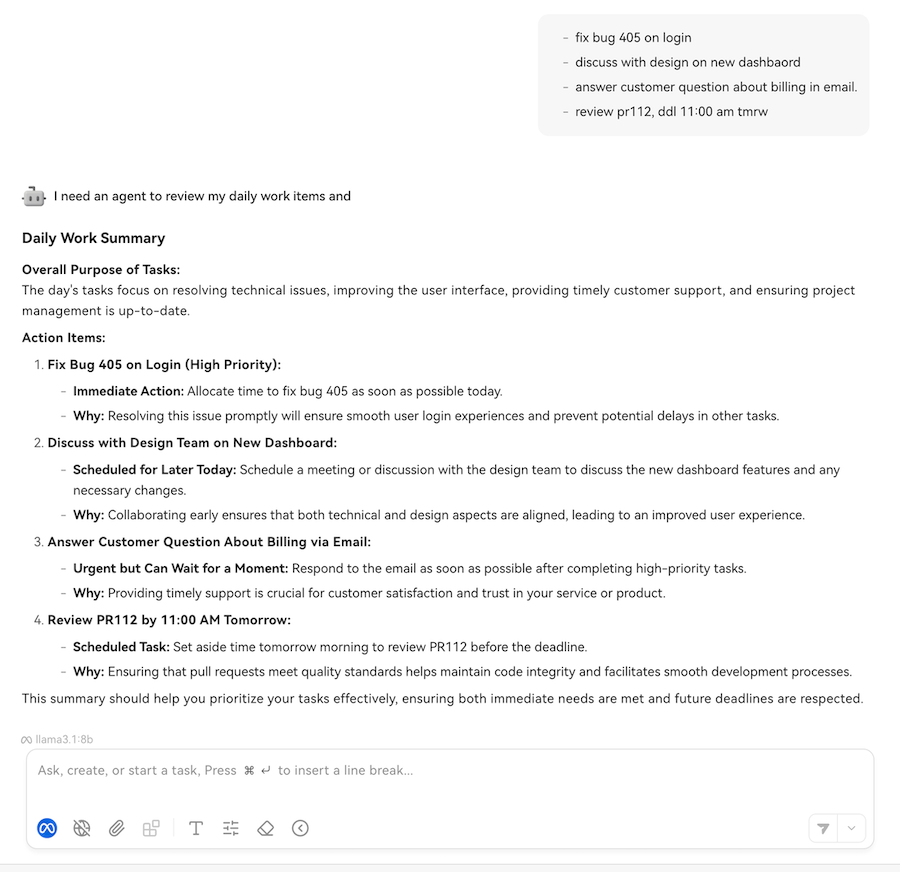
Provide your text in the chat, and then you can get the refined results. For example,
- fix bug 405 on login
- discuss with design on new dashboard
- answer customer question about billing in email.
- review pr112, ddl 11:00 am tmrw
You get the output:
If you are satisfied with the agent's performance, pin it for quick access:
a. Return to the home page.
b. Hover over the agent from the left sidebar, click more_horiz, and then click Pin.
Create a custom agent
If you have specific requirements and prefer to configure the agent entirely manually, create a custom agent.
Custom agents offer the highest level of personalization. You can set the agent's avatar, name, AI model, skills, and prompt to create a unique AI agent.
On the home page, click the robot icon in the upper left corner, and then select Create Agent.
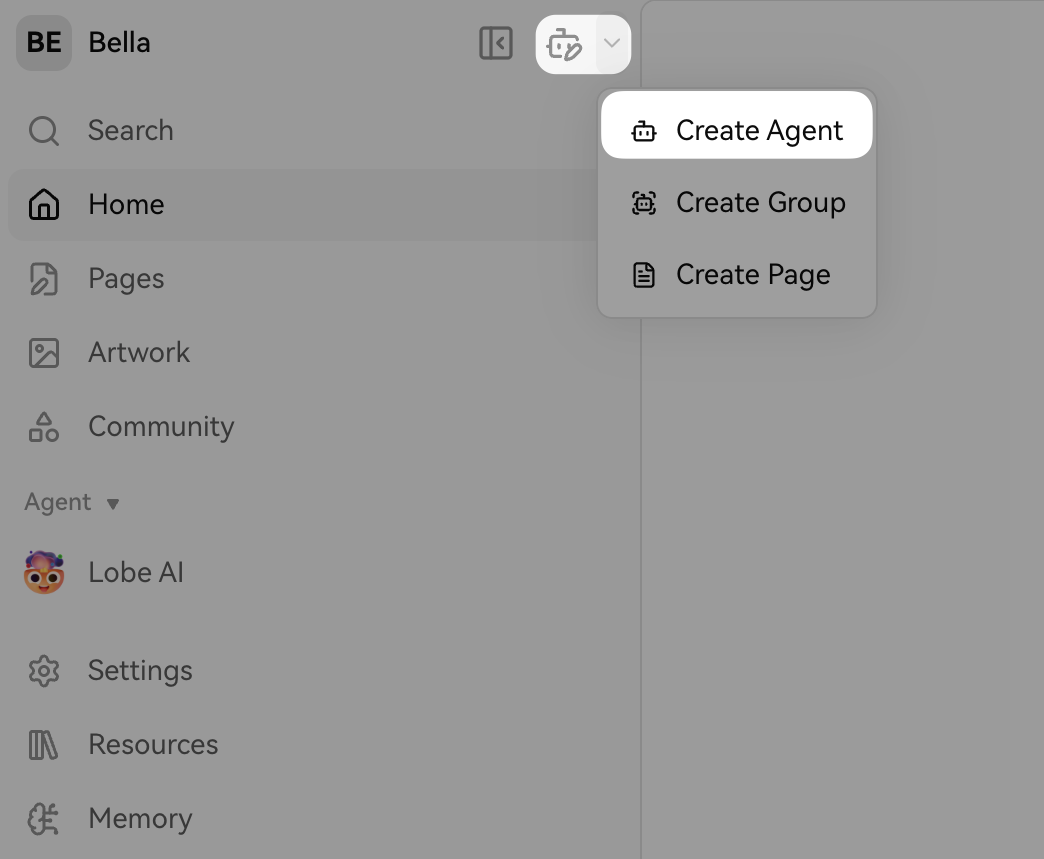
The Agent Profile page opens.
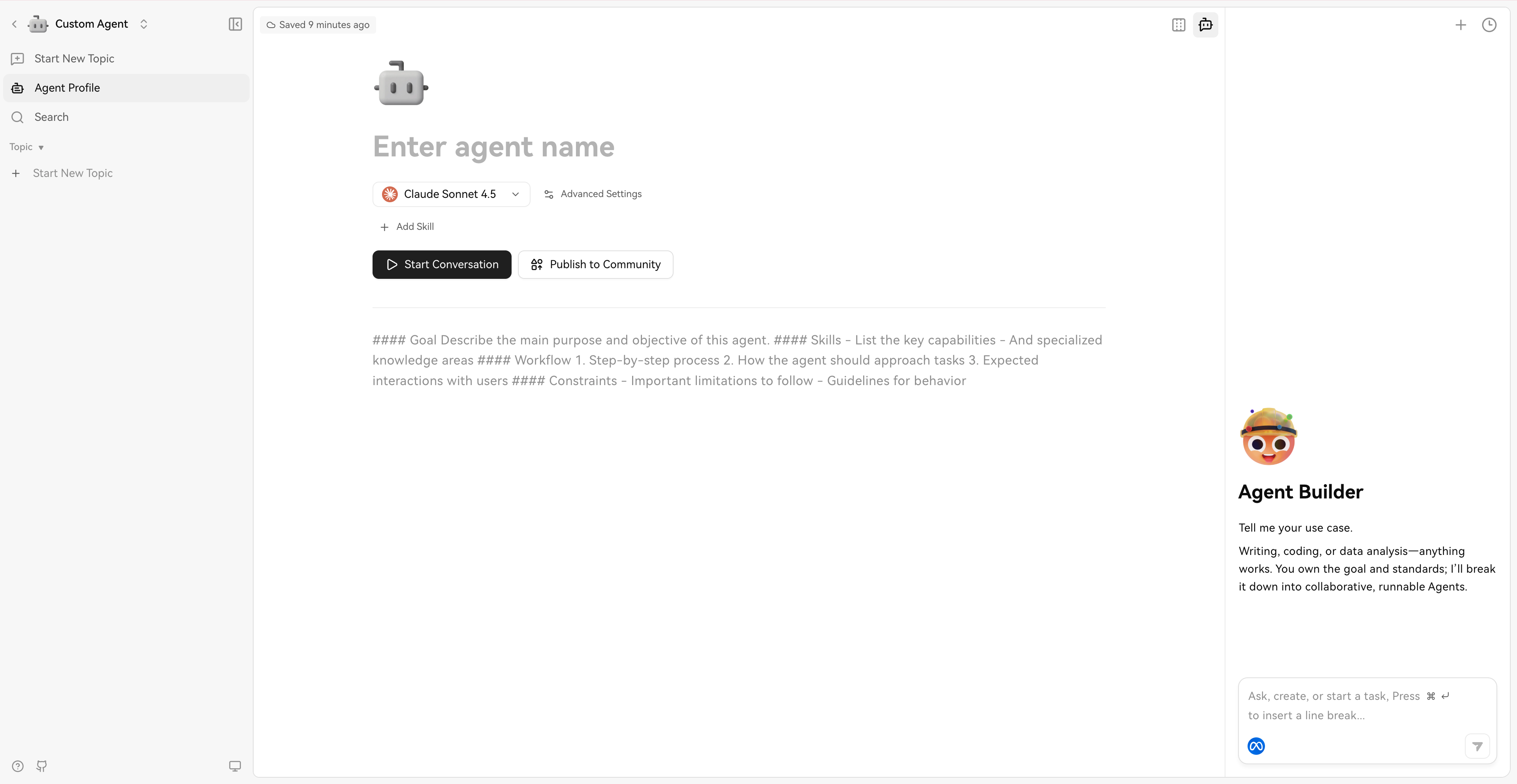
Click the default robot avatar to select a new icon for your agent.
Enter the agent name. For example,
SEO Copywriter.Select the language model. For example,
qwen 2.5.Click + Add Skill to equip the agent with additional tools. For example, select Web Browsing for gathering SEO data.
Define role and behavior by filling out the structured markdown template to define exactly how the agent operates. For example,
#### Goal
Write SEO-optimized blog posts based on the user-provided topic.
#### Skills
- Keyword research, deployment, and and density optimization
- Engaging headline generation
- Markdown formatting
#### Workflow
1. Ask the user for a topic.
2. Suggest target keywords, an H1 title, and an optimal meta description.
3. Generate a structured outline designed for google's featured snippets.
4. Generate a structured outline for approval.
5. Write the full blog post once the outline is approved.
#### Constraints
- Use simple language and avoid technical jargon.
- Focus on user values instead of listing product features.
- Avoid using passive voice.
- Target users with the second person "you"
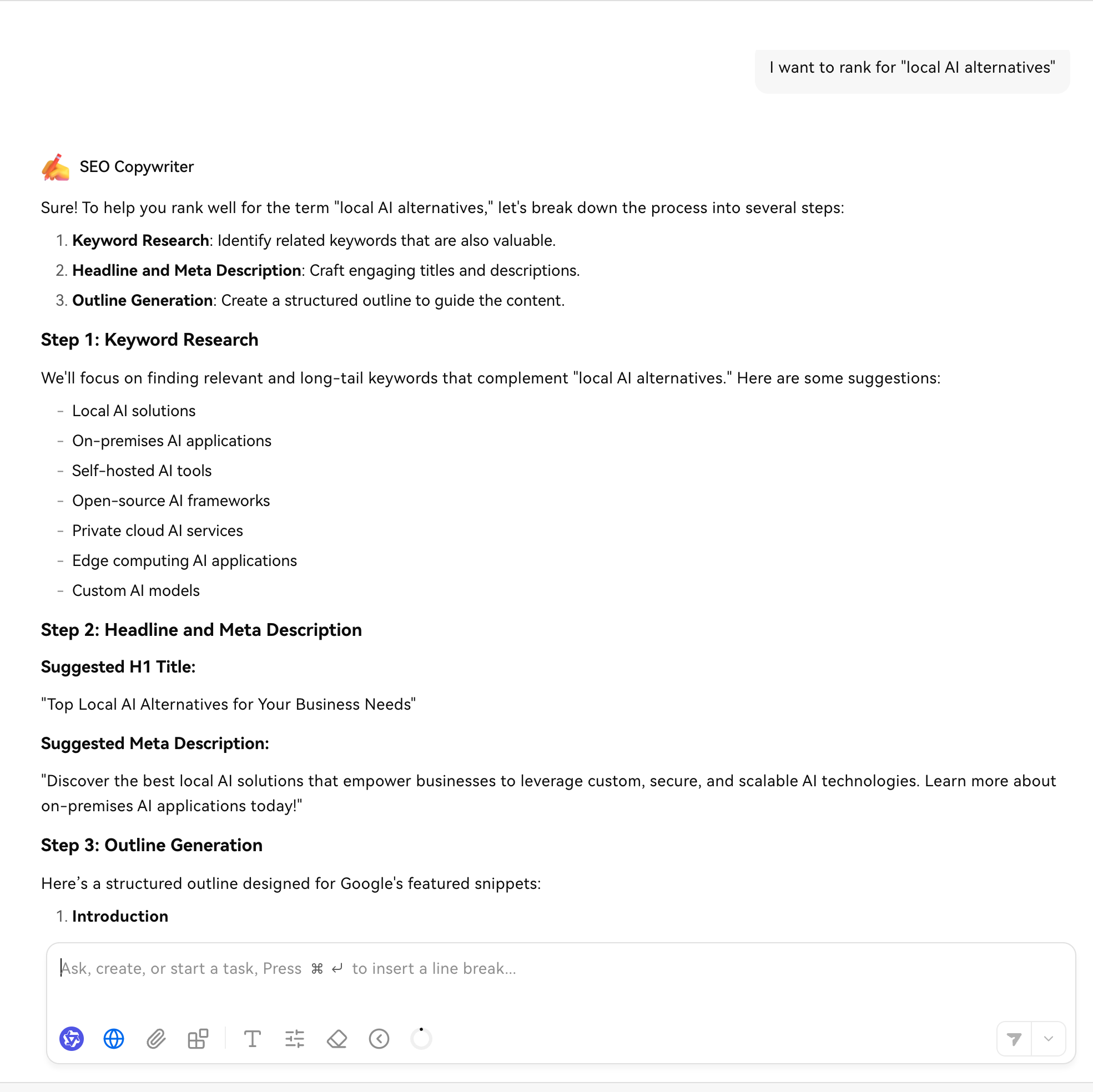
Click Start Conversation to use it. For example, type the following request:
I want to rank for "local AI alternatives"Review the proposal and output, and then iterate with it until you are satisfied with the results.
If you are satisfied with the agent's performance, pin it for quick access:
a. Return to the home page.
b. Hover over the agent from the left sidebar, click more_horiz, and then click Pin.
FAQ
Why did the connection check fail when I connected to Ollama?
If you encounter the Error requesting Ollama service error, troubleshoot as follows and retry:
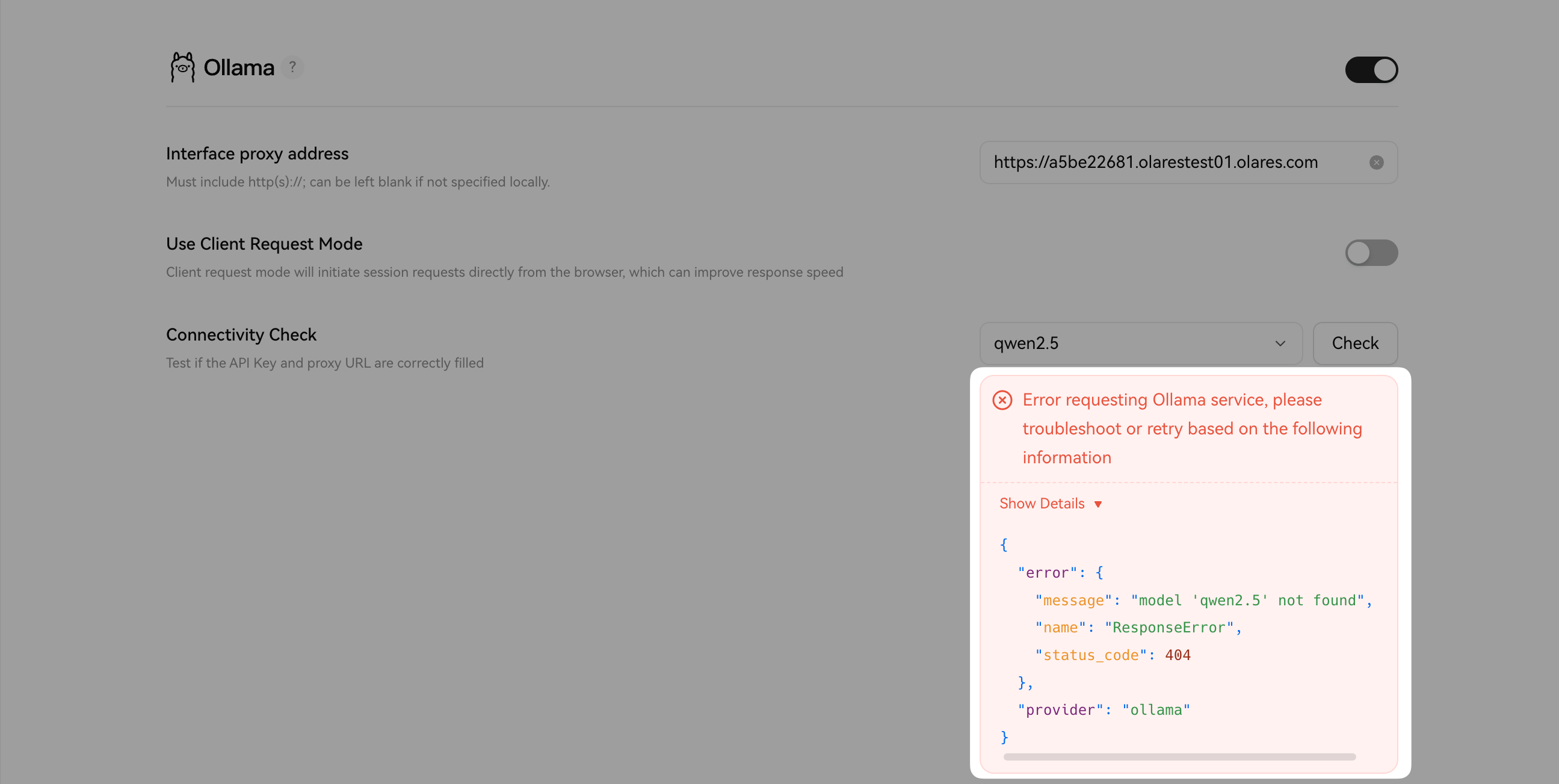
Ensure the specific model you are using is downloaded using Ollama.
Ensure the Use Client Request Mode option on the Ollama settings page is disabled.