Access Olares services remotely via LarePass VPN
Your Olares device hosts critical applications intended for personal or internal use, such as Vault and Ollama. To ensure security, these applications are accessed via private or internal entrances.
To ensure the best connection to these apps, it's recommended to enable LarePass VPN. Once enabled, LarePass uses Tailscale to establish a secure network and automatically selects the fastest route based on location:
- At home: The app connects directly via the local network for maximum speed.
- Remote: The app creates a direct, encrypted P2P tunnel to the device.
If the VPN is disabled, traffic routes through standard public internet tunnels using Cloudflare or FRP.
Enable VPN on LarePass
iOS and macOS setup
On iOS or macOS, you may be prompted to add a VPN Configuration to your system settings the first time you enable the feature. Allow this to complete the setup.
Understand connection status
LarePass displays the connection status between your device and Olares, helping you understand or diagnose your current network connection.
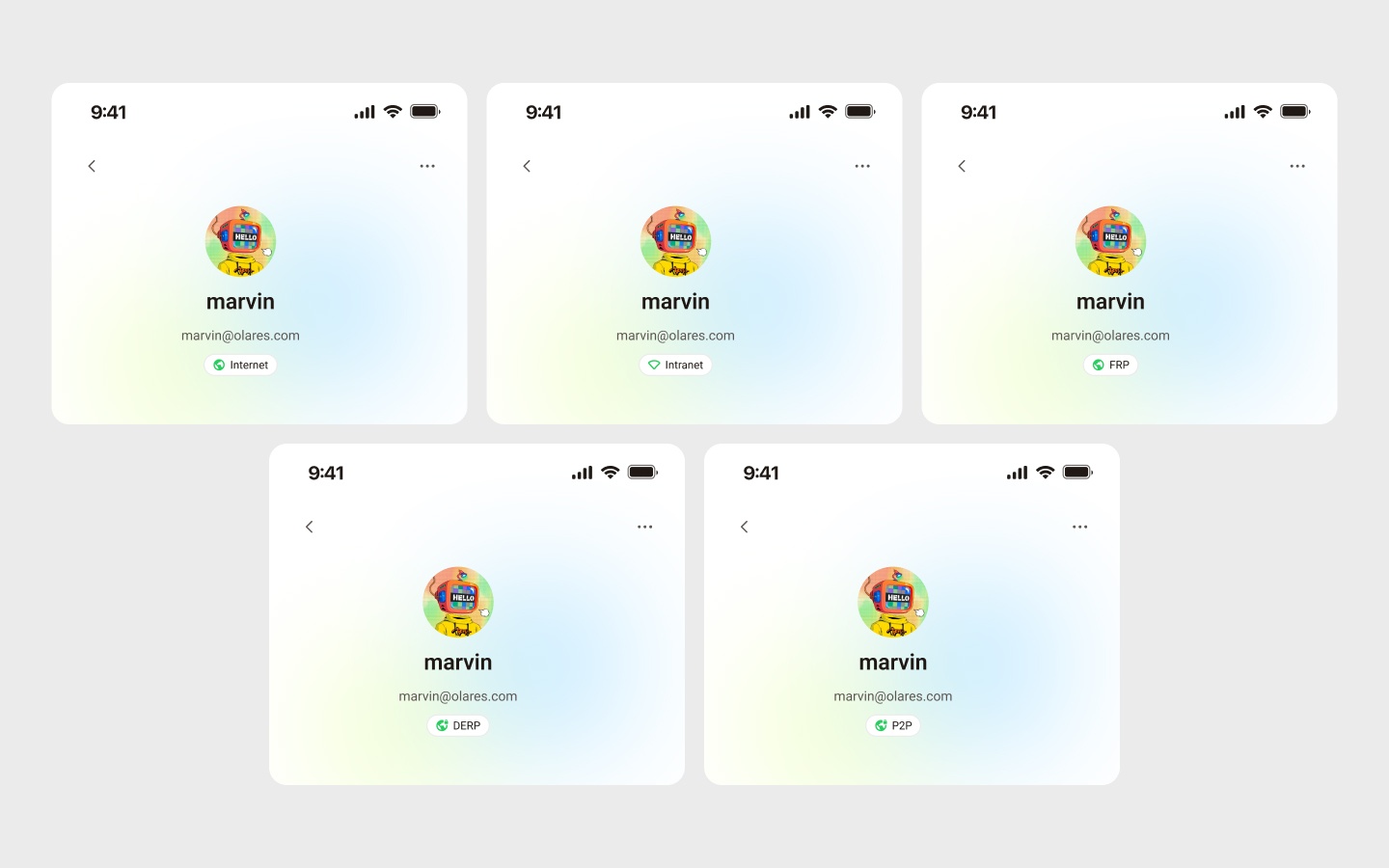
| Status | Description |
|---|---|
| Internet | Connected to Olares via the public internet |
| Intranet | Connected to Olares via the local network |
| FRP | Connected to Olares via FRP |
| DERP | Connected to Olares via VPN using DERP relay |
| P2P | Connected to Olares via VPN using P2P connection |
| Offline mode | Currently offline, unable to connect to Olares |
INFO
When accessing private entrances from an external environment through VPN, if the status shows "DERP", it indicates that the VPN cannot directly connect to Olares via P2P and must use Tailscale's relay servers. This status may affect connection quality. If you constantly encounter this situation, please contact Olares support for assistance.
Troubleshoot connection issues
If you encounter connection problems, LarePass will display diagnostic messages to help you resolve the issue. Here are some common scenarios and how to address them:
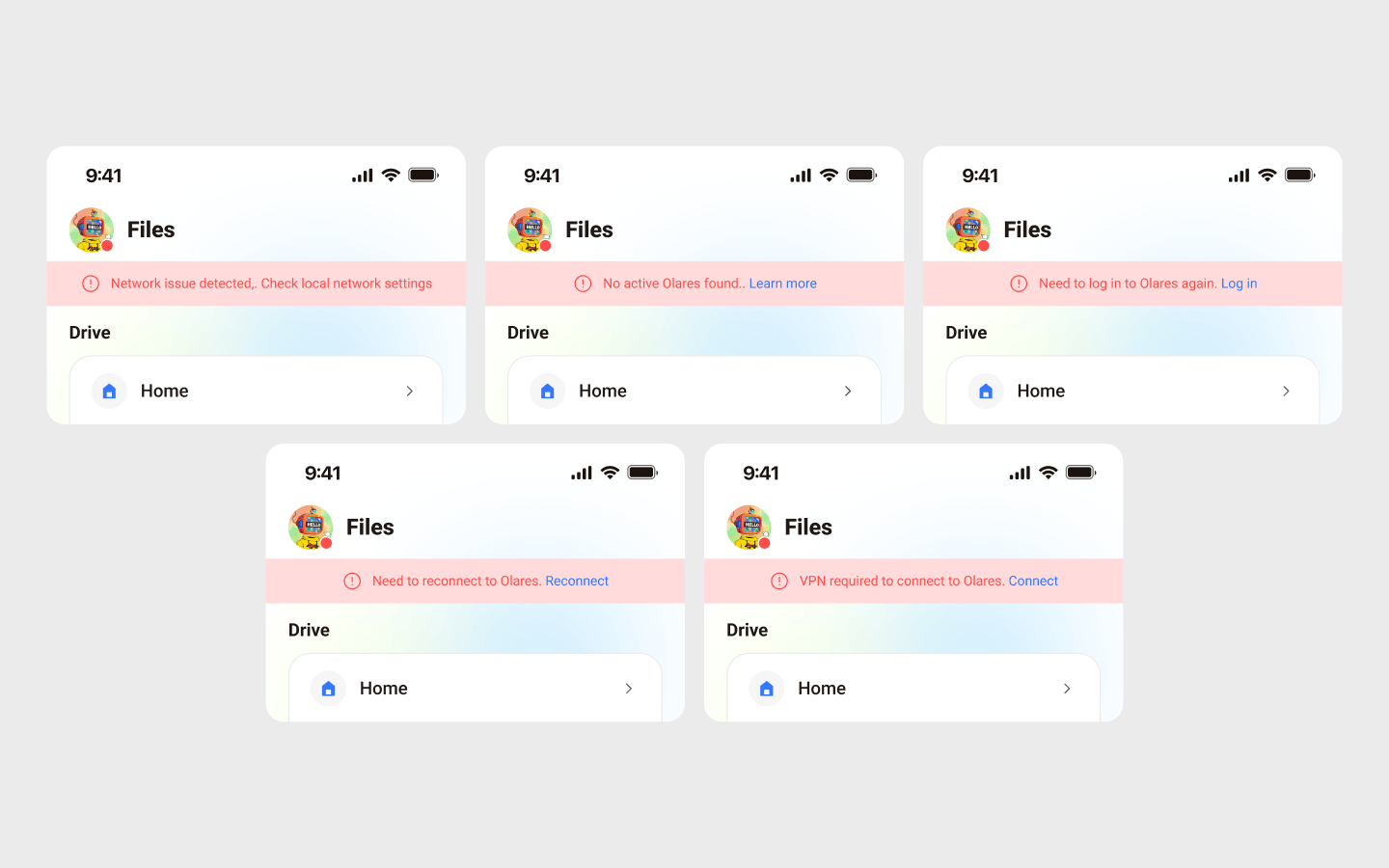
| Status message | Possible cause and recommended actions |
|---|---|
| Network issue detected. Check local network settings. | Local network issue 1. Wait for automatic reconnection. The system will detect network recovery and sync data. 2. Check your local network settings if the issue persists. |
| VPN required to connect to Olares. | VPN not enabled Click the notification banner and follow prompts to enable VPN connection. |
| Need to log in to Olares again. | Session expired or authentication issue Click the notification banner and follow prompts to log in. |
| Need to reconnect to Olares. | Connection interrupted or timed out Click the notification banner and follow prompts to log in. After re-login, Vault data will sync and merge with the server. |
| No active Olares found. | Temporary network issue or Olares is restarting or shutting down Wait for automatic recovery. This usually resolves shortly. Olares instance no longer exists 1. Click the notification banner and follow prompts to reactivate Olares, enable offline mode or ignore notification. 2. Contact Olares Admin if the issue persists. |