Install Windows on Olares One 30 min
Install Windows on the primary drive of Olares One when you want to use the device as a dedicated Windows machine.
This process replaces Olares OS. If you want to keep Olares OS and Windows on the same device, use a dual-boot setup instead.
This erases Olares OS
Installing Windows on the primary drive permanently deletes Olares OS, local accounts, installed apps, settings, and data stored on that drive. Back up anything you need before continuing.
Learning objectives
By the end of this guide, you will learn how to:
- Create a bootable Windows installation USB drive.
- Boot Olares One from the Windows USB drive.
- Install Windows on the primary drive by removing the existing Olares OS partitions.
- Install the Windows drivers provided for Olares One.
Prerequisites
Hardware
- A USB flash drive, 8 GB or larger, for Windows installation media.
- A wired keyboard and mouse connected to Olares One.
- A monitor connected to Olares One.
- Connect an Ethernet cable to Olares One, as a wired internet connection is required during Windows setup.
- A Microsoft account for completing the Windows setup process.
Step 1: Create a bootable Windows USB drive
Download the Windows 11 ISO from the official Microsoft website.
Download and install balenaEtcher.
Insert the USB flash drive into your computer.
Open balenaEtcher and follow these steps:
a. Click Flash from file and select the ISO you downloaded.
b. Click Select target and select your USB drive.
c. Click Flash! to write the installer to the USB drive.
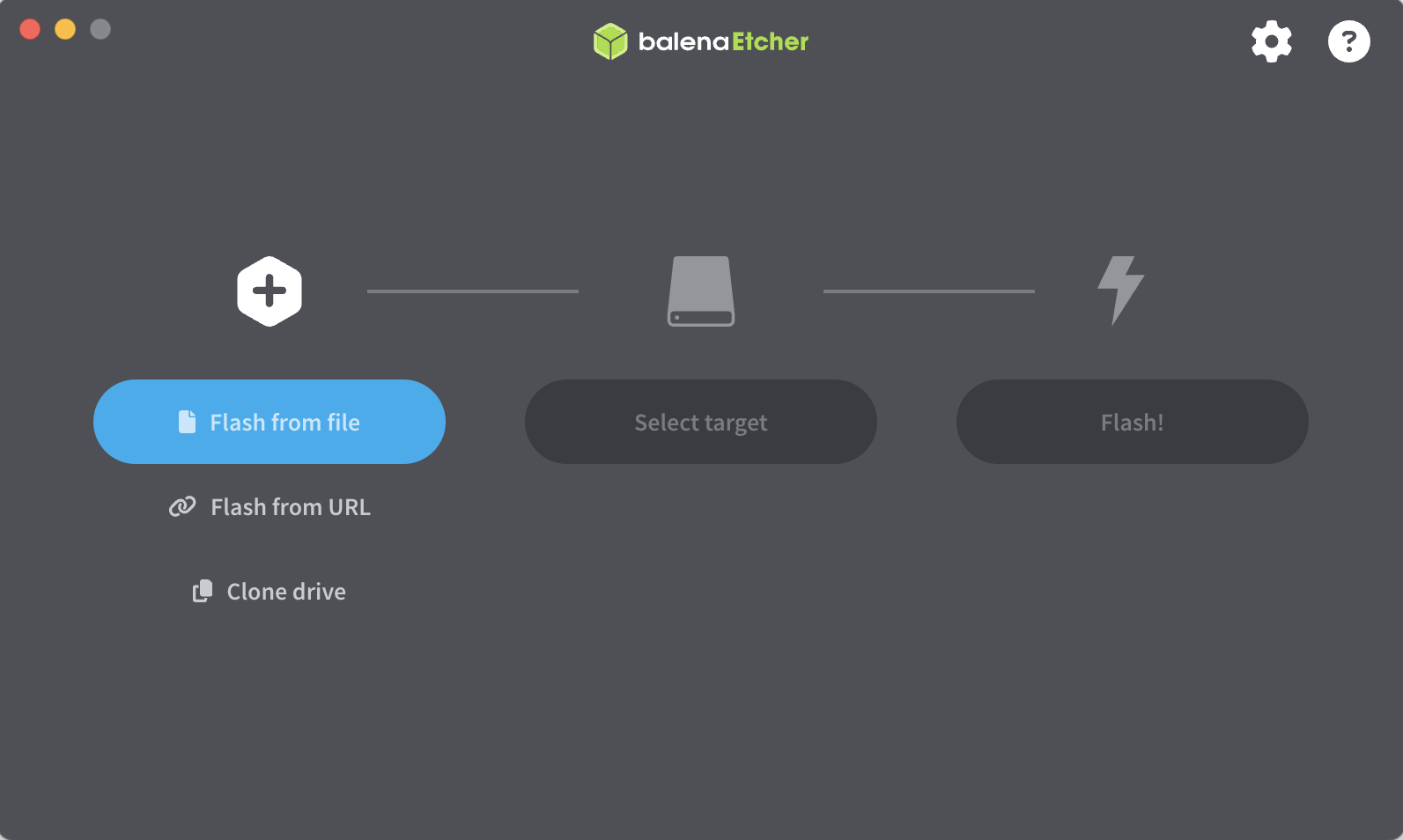
Wait for the flashing and validation to finish, and then safely eject the USB drive.
Step 2: Boot from the Windows USB drive
Insert the Windows USB drive into a USB port on Olares One.
Power on Olares One, or restart it if it is already running.
When the Olares logo appears, press the Delete key repeatedly to enter BIOS setup.
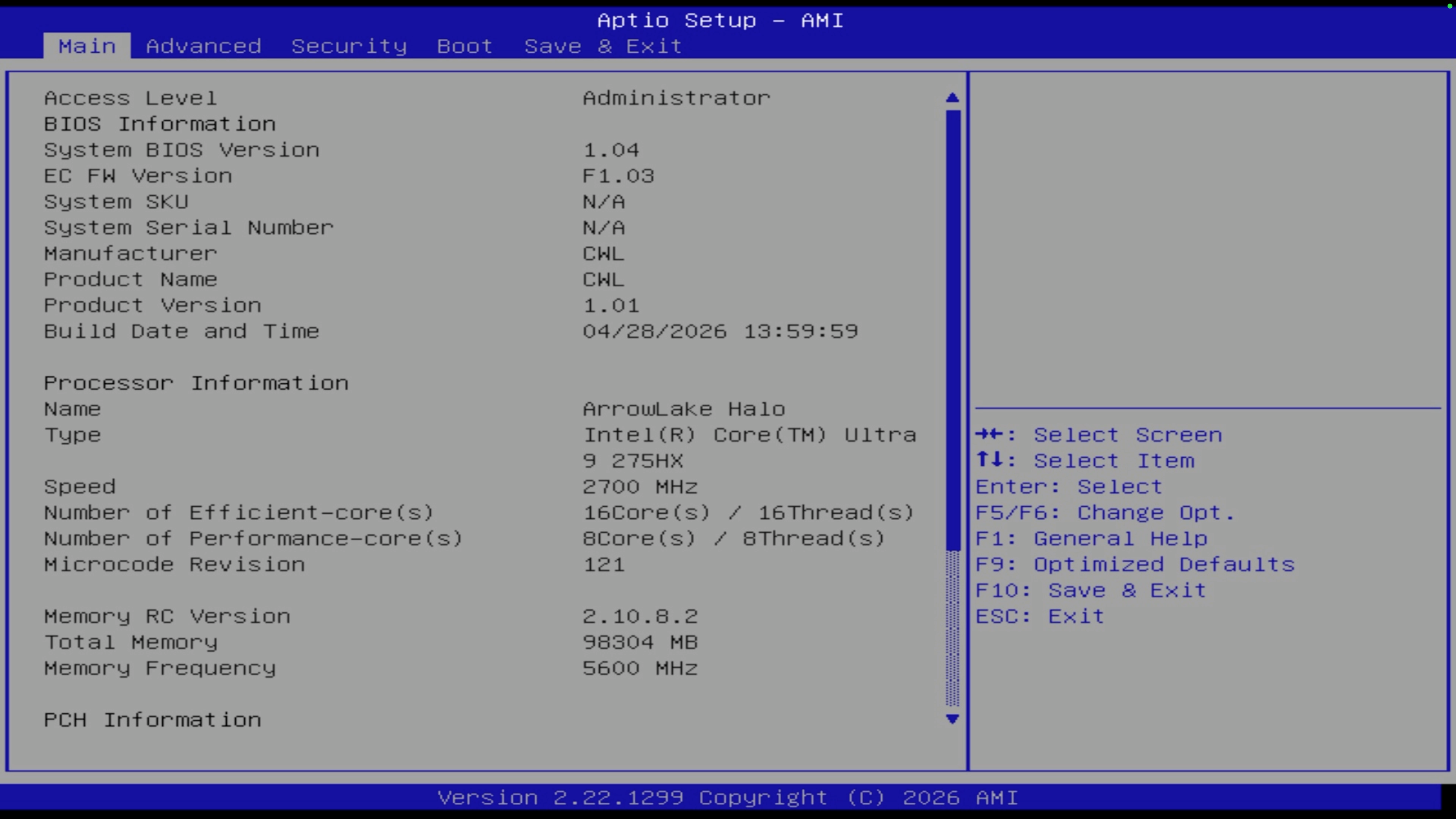
Go to the Save and Exit tab.
Under Boot Override, select the Windows USB drive, and then press Enter.
Olares One restarts and boots into the Windows installer.
TIP
If a Ventoy screen appears, select the Windows ISO file, and then select Boot in normal mode.
Step 3: Install Windows on the primary drive
The Windows setup wizard guides you through the installation.
Follow the on-screen prompts until you reach the Select location to install Windows 11 screen.
Select each existing partition on the primary drive, and then click Delete.
DO NOT DELETE "Ventoy" or "VTOYEFI" PARTITIONS
These partitions belong to your USB installer, not the primary drive. Deleting them can corrupt your installation media.
After all partitions on the primary drive are deleted, select the resulting Unallocated Space.
Click Next to install Windows.
Wait while Windows copies files and restarts several times.
When the final setup process starts, follow the on-screen prompts to configure Windows.
After the Windows desktop appears, unplug the Windows USB drive.
Step 4: Install Olares One Windows drivers
Install the tested Olares One driver package after Windows starts. The package includes audio, network, chipset, and NVIDIA graphics drivers.
- Follow Install drivers on Windows to download and install the all-in-one driver package.
- Restart Windows if the driver installer prompts you to do so.
- After Windows restarts, check that network, audio, display, and GPU devices are working normally.