Install and activate Olares
Same network required
To avoid activation failures, ensure that both your phone and the Olares device are connected to the same network.
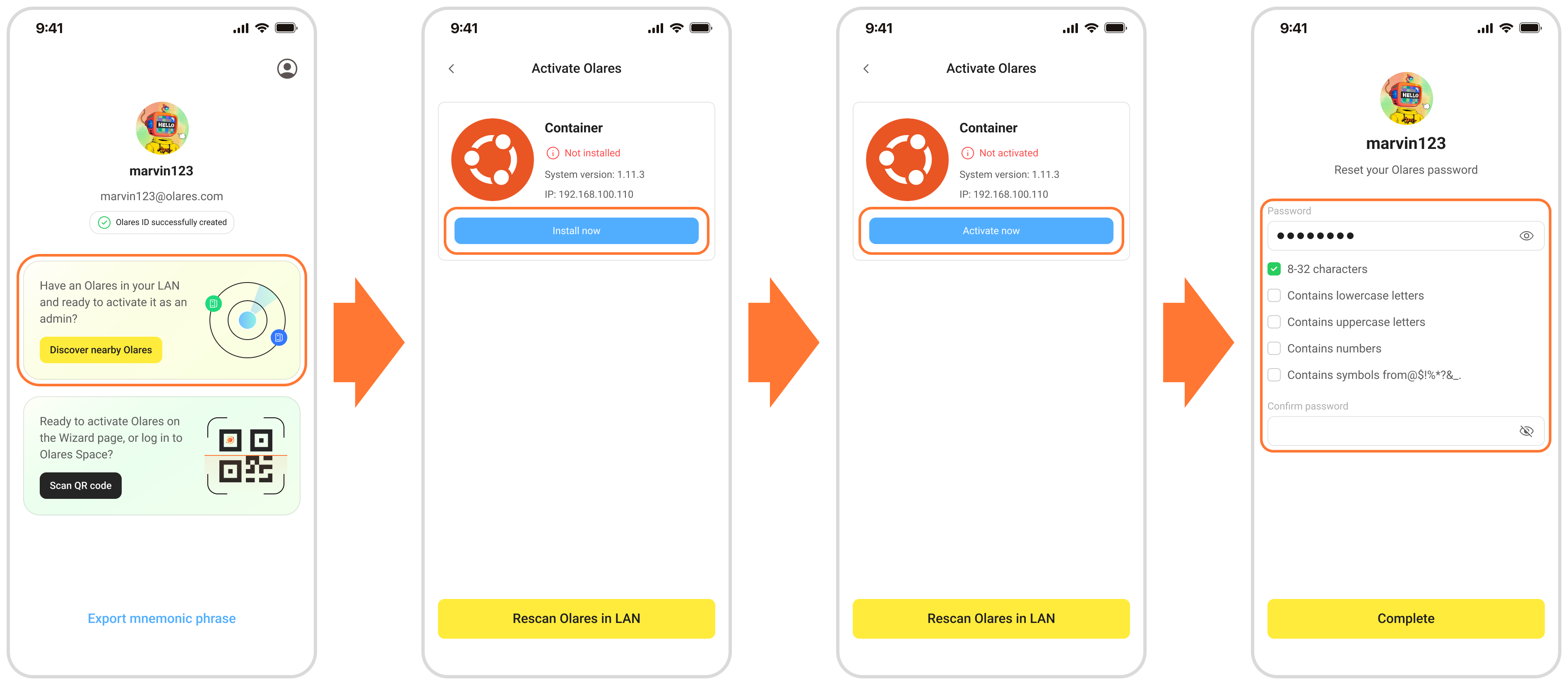
- Open LarePass, on your Olares activation page, tap Discover nearby Olares. LarePass will list the detected Olares instances in the same network.
- Select the target Olares device from the list and tap Install now.
- When the installation completes, tap Activate now. Olares will enter the activation process, including initial configuration and network setup.
- Follow the on-screen instructions to reset the login password for Olares, then tap Complete.
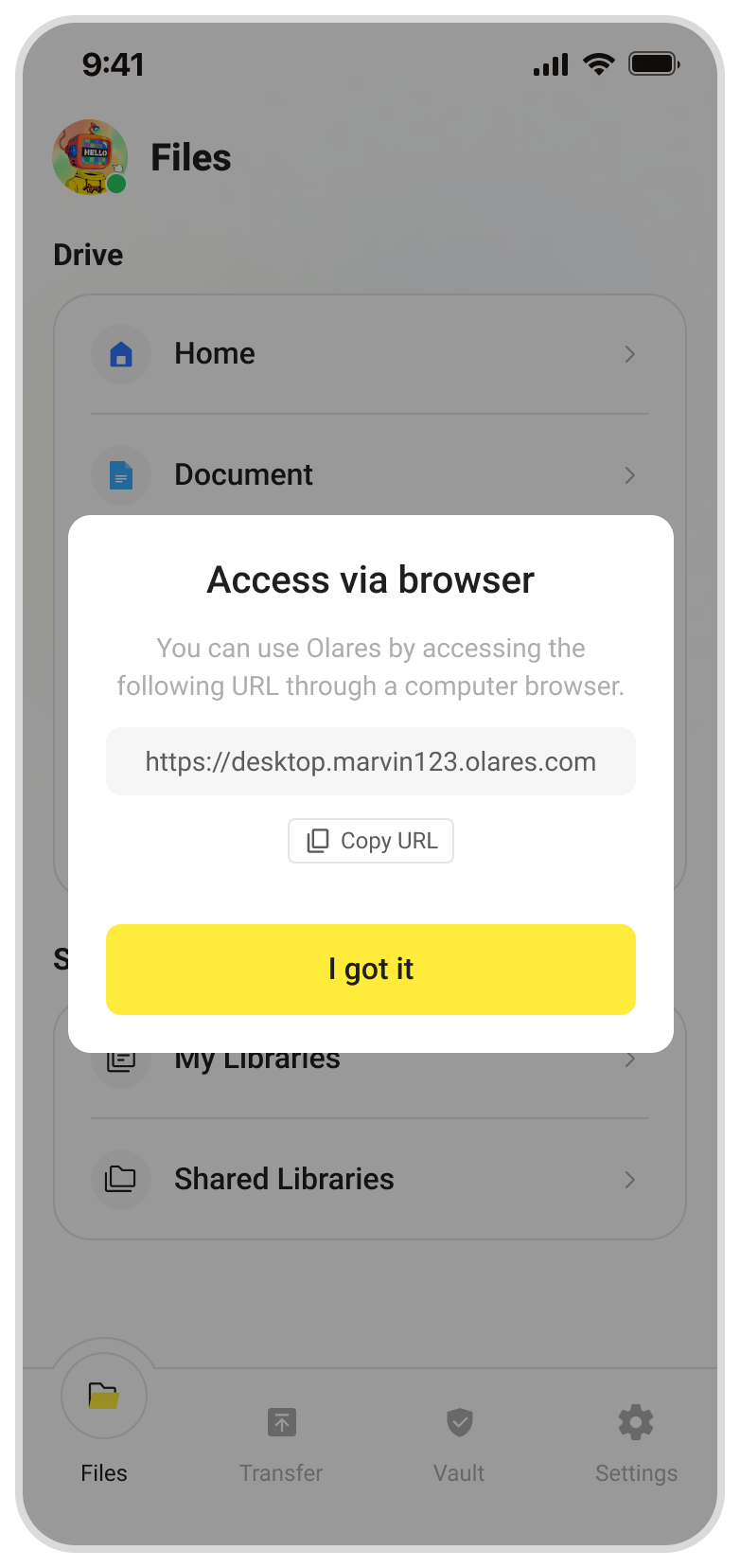
Once activation is complete, LarePass will display the desktop address of your Olares device, such as https://desktop.marvin123.olares.com.
Log in to Olares
Enter the Olares desktop address in your browser, and press any key to continue.
On the login page, enter your Olares login password.

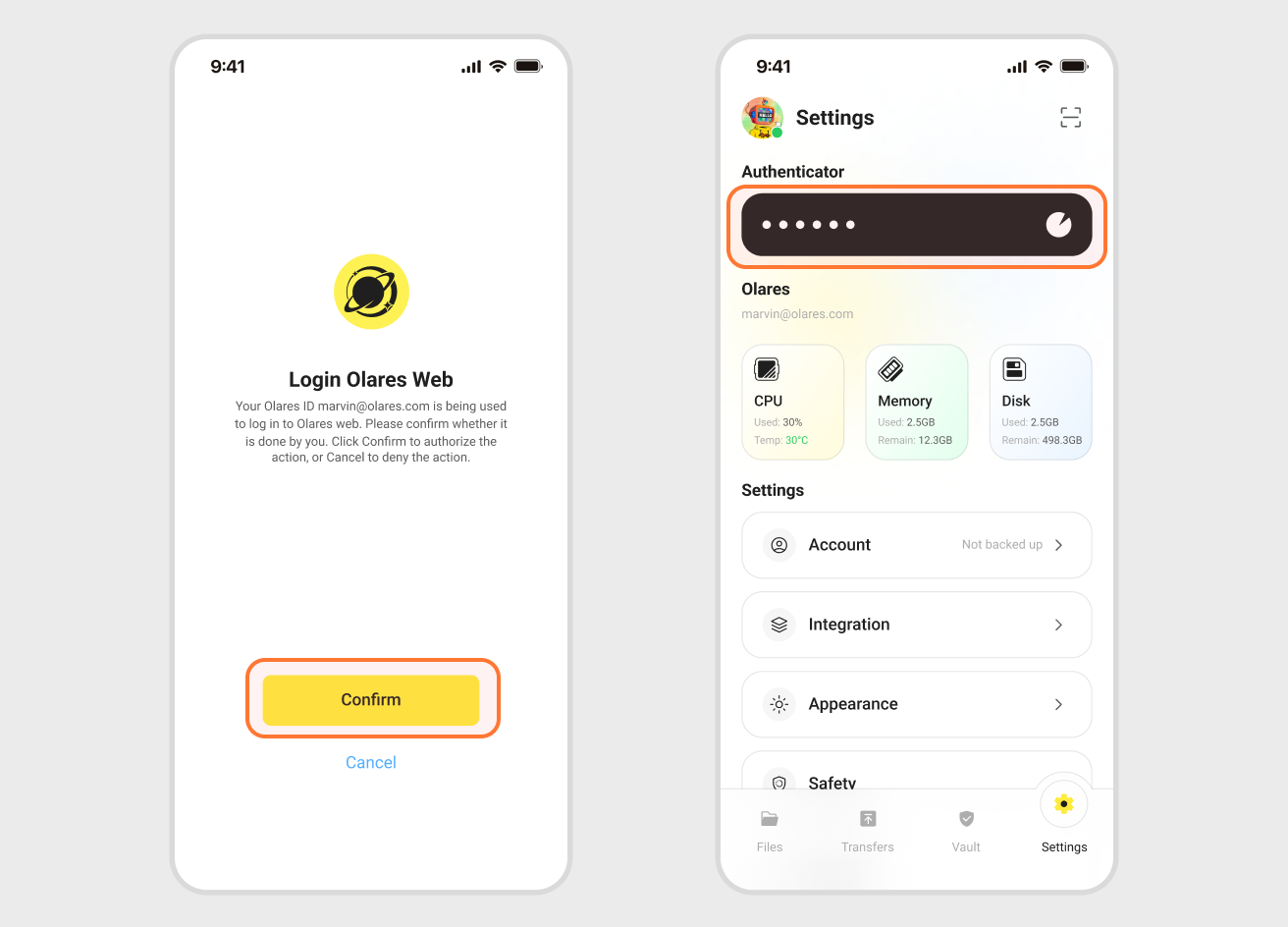
You will be prompted to complete the two-factor verification. You can confirm login on LarePass, or manually enter the 6-digit verification code.
INFO
The verification code is time-sensitive. Ensure you enter it before it expires. If it does, you will need to generate a new code.
Once you've logged in, you'll be directed to the Olares desktop.🎉