Access Olares One terminal via network (SSH)
Secure Shell (SSH) establishes an encrypted session over the network, allowing you to run command-line operations on Olares One from your own computer.
You can connect over your local network, or use LarePass VPN to connect securely from a different location.
Prerequisites
Hardware
- Your Olares One is set up and connected to a network.
- A client device, such as a computer, to access the terminal.
- A mobile device with the LarePass app installed.
Experience
- Basic familiarity with terminal commands and the command-line interface (CLI).
Connect over your local network
Follow these steps if your device and your Olares One are on the same local network.
Step 1: Get the local IP address of Olares One
Open the LarePass app on your mobile device, and then go to Settings > System.
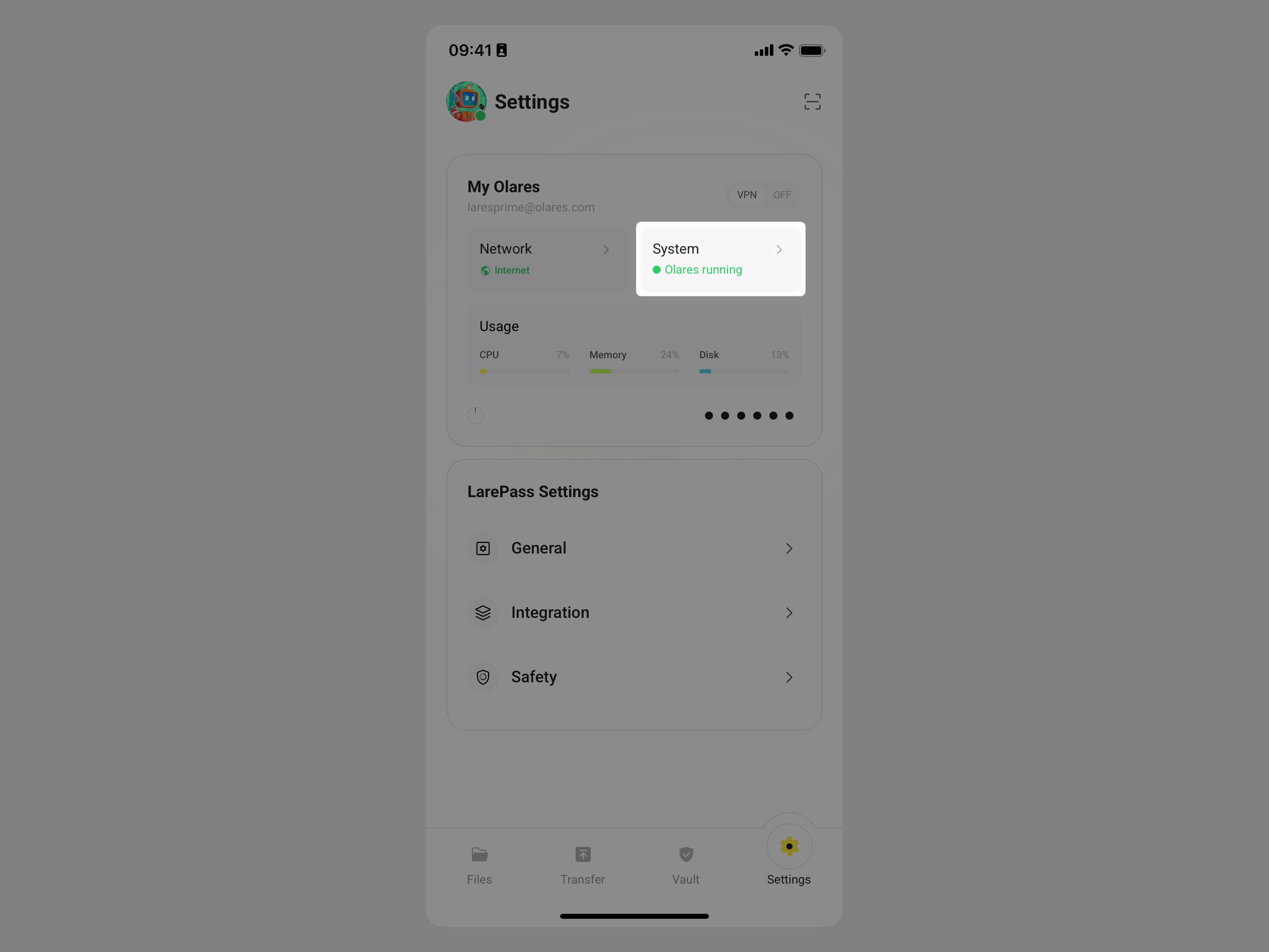
Tap the Olares One device card.
Scroll down to the Network section, and then note down the Intranet IP.
Check via Control Hub
You can check the IP using the
ifconfigcommand in the Control Hub terminal.Look for your active interface, typically
enp3s0(wired) orwlo1(wireless). The IP address appears afterinet.
Step 2: Get the login password from Vault
Not the same as your Olares Desktop password
This password logs you in to the Olares One host system over SSH. It's different from the password you use to sign in to the Olares Desktop in your browser.
After you activate Olares, you will be prompted to reset the SSH password on the LarePass app. The password is automatically generated and saved to your Vault.
To view the saved password in Vault:
Open the LarePass mobile app, and then tap the Vault tab.
When prompted, enter your local password to unlock.
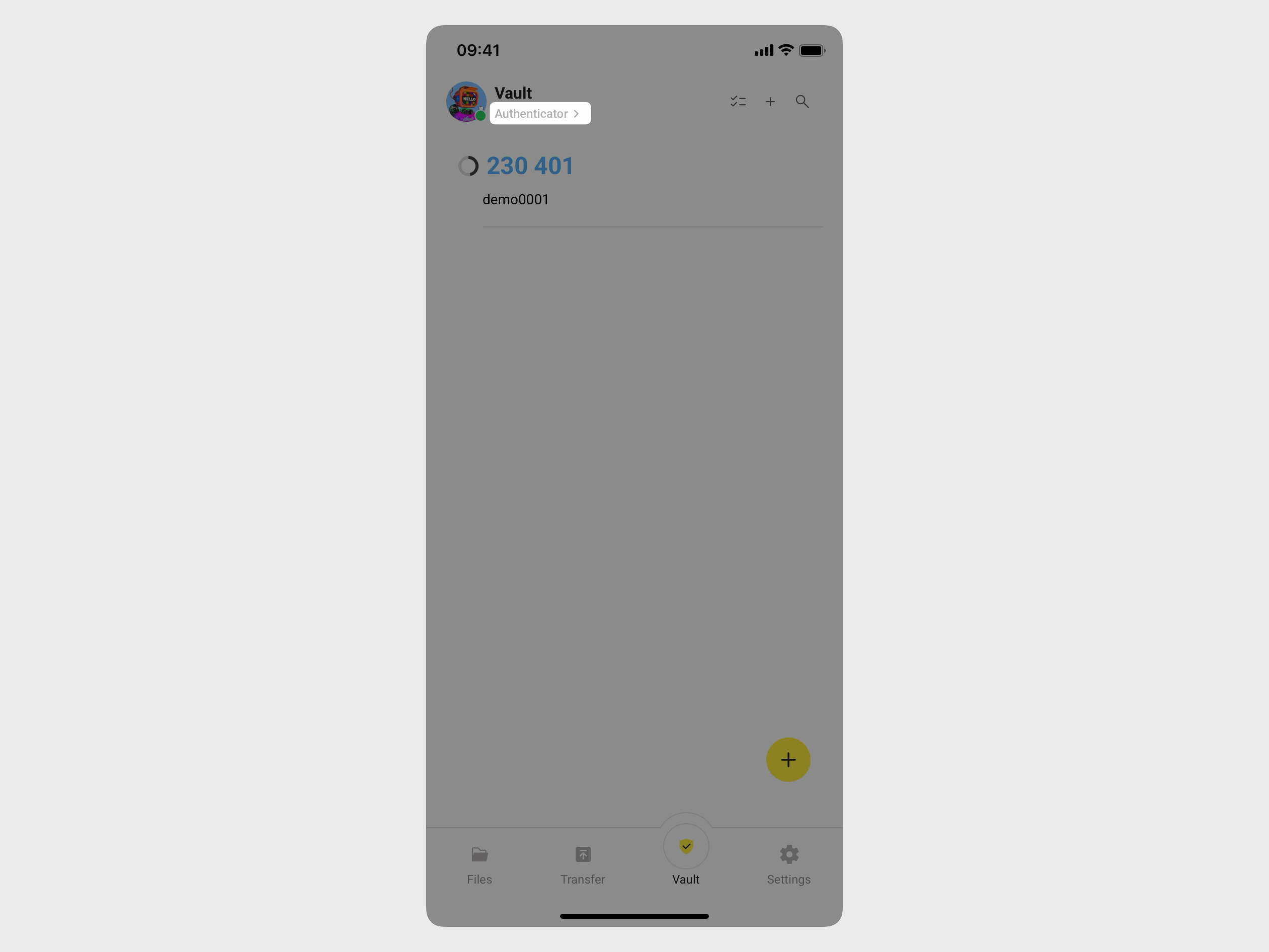
In the top-left corner, tap Authenticator to open the side navigation, and then tap All vaults to display all saved items.
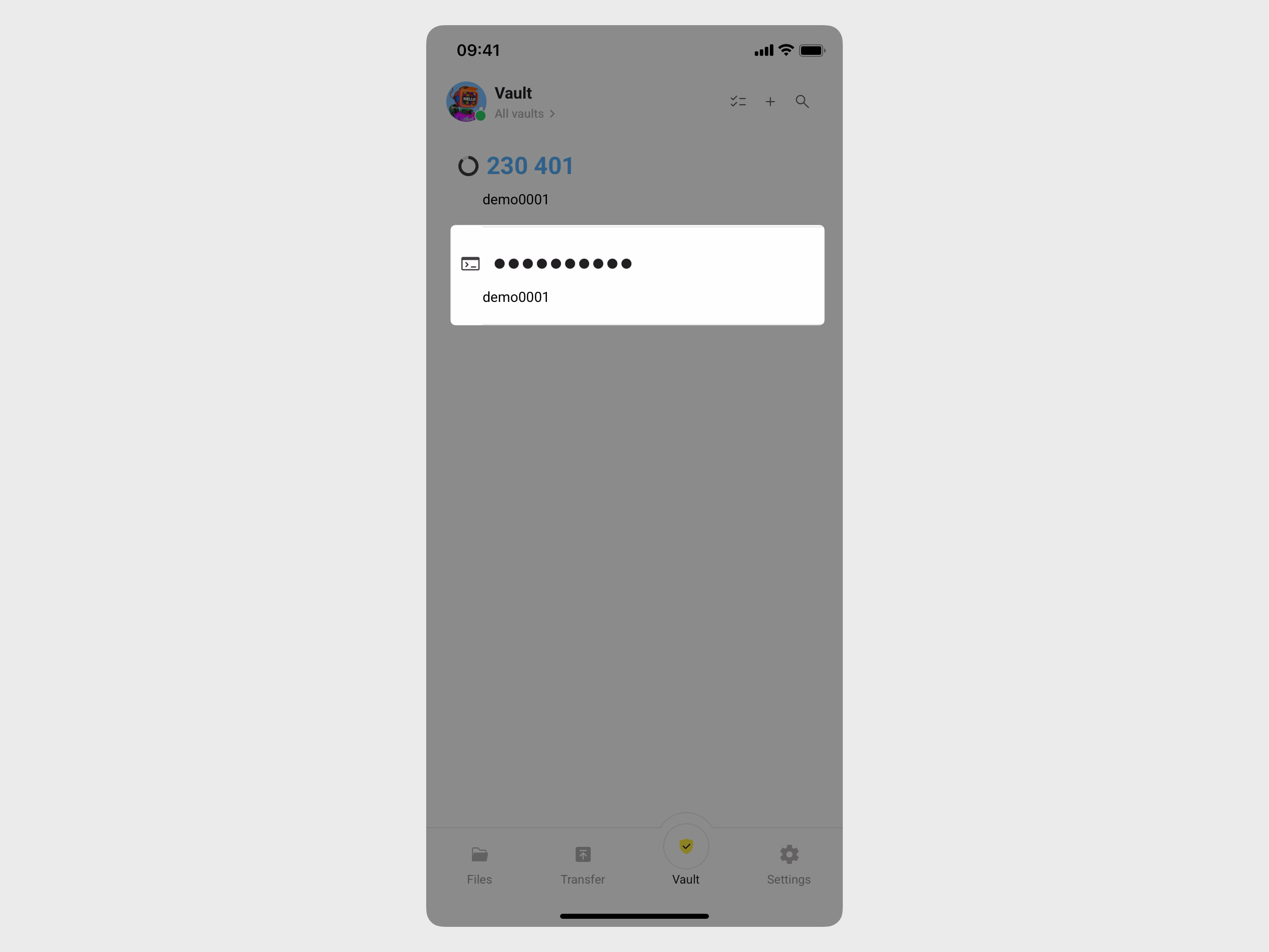
Find the item with the terminal icon and tap it to reveal the password.
Step 3: Connect via SSH
The default username for Olares One is olares.
- Open a terminal on your computer.
- Run the following command, replacing
<local_ip_address>with the Intranet IP you noted down:bashssh olares@<local_ip_address> - When prompted, enter the password obtained in Step 2.
Advanced: Connect remotely from a different network
If your device is not on the same local network as your Olares One, use LarePass VPN to establish a secure tunnel to Olares One without exposing it to the internet. LarePass VPN uses Tailscale, a mesh VPN that assigns each connected device a stable IP address in the 100.64.0.0/10 range (the Tailscale IP) to enable direct, encrypted communication between them.
Step 1: Enable SSH via VPN
- Open your Olares desktop, and then go to Settings > VPN.
- Toggle on Allow SSH via VPN.
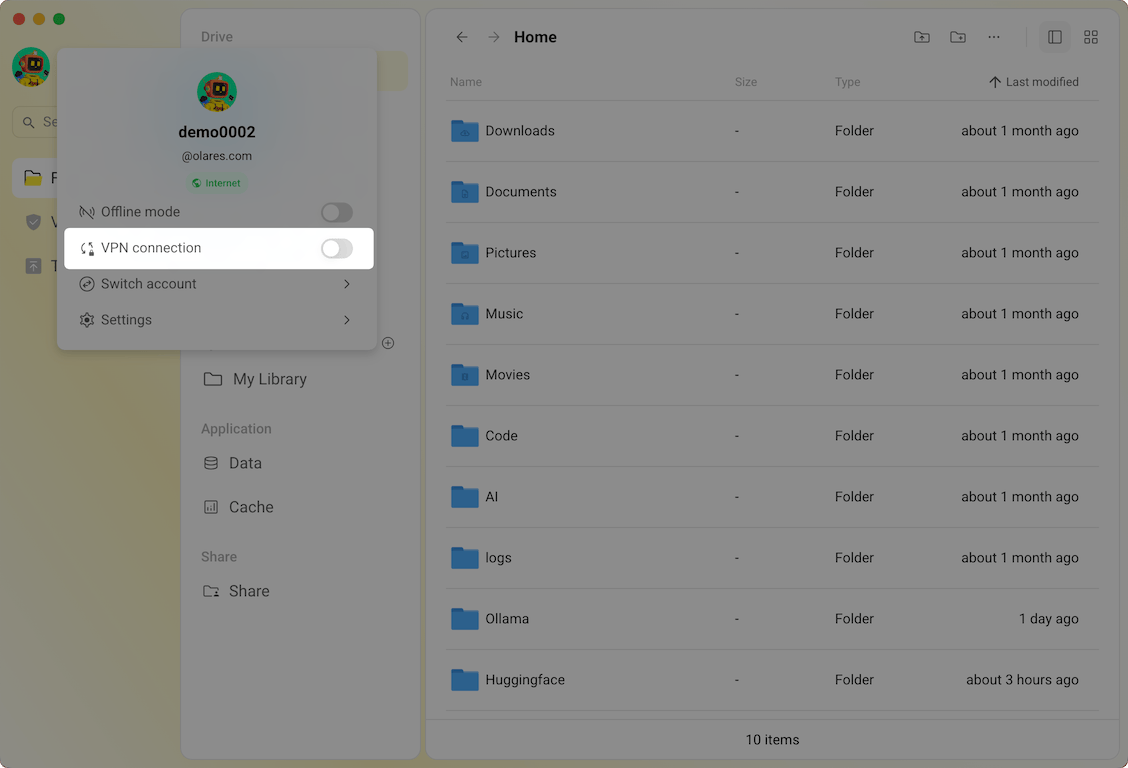
- On your computer, open the LarePass desktop client.
- Click your avatar in the top-left corner and toggle on VPN connection.
Step 2: Find the Tailscale IP address
On your Olares desktop, go to Settings > VPN > View VPN connection status.
Find olares, and then click it to expand the connection details.
Locate the IP address that starts with
100.64, and then note it down.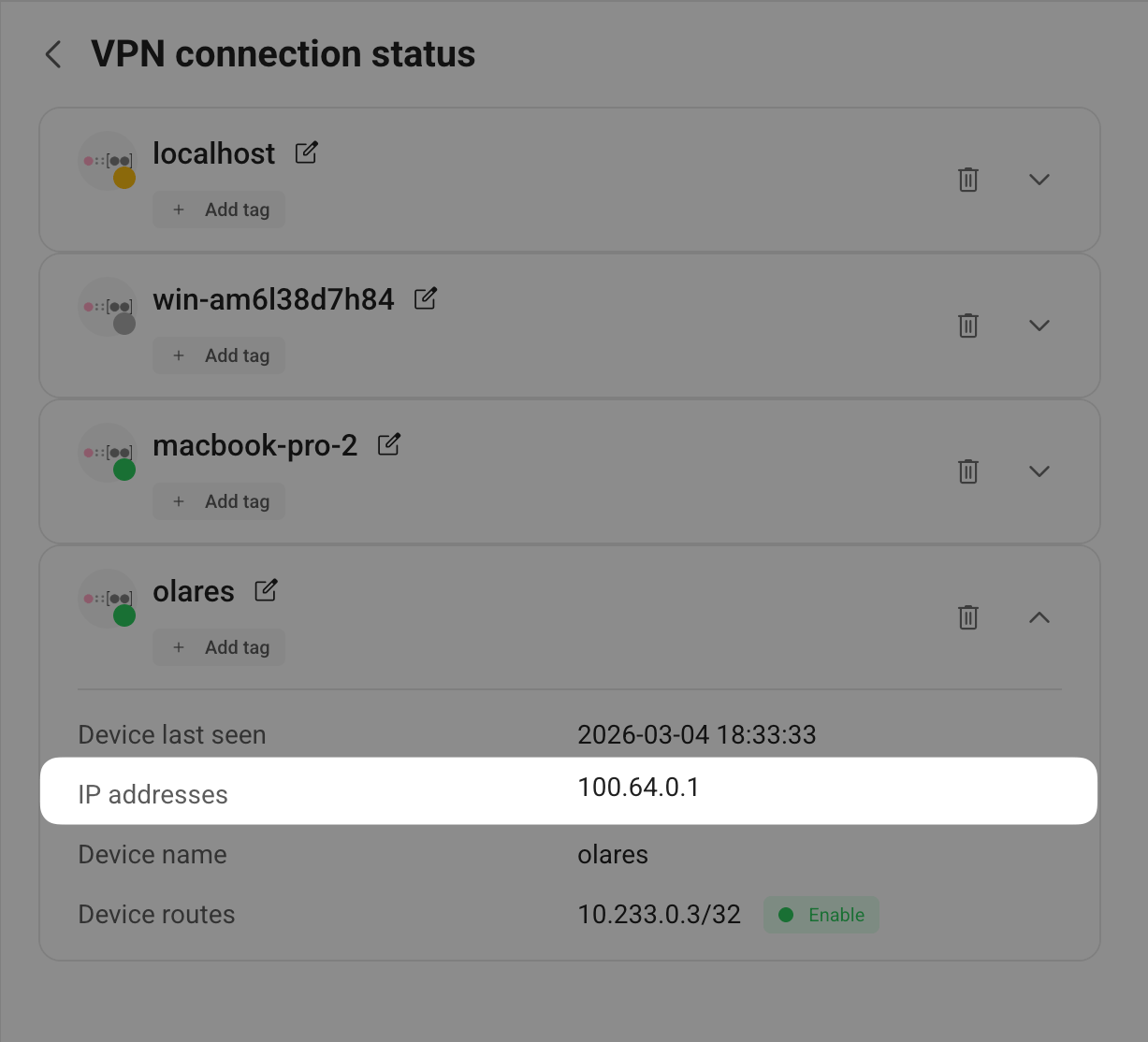
Step 3: Get the login password from Vault
After you activate Olares, you will be prompted to reset the SSH password on the LarePass app. The password is automatically generated and saved to your Vault.
To view the saved password in Vault:
Open the LarePass mobile app, and then tap the Vault tab.
When prompted, enter your local password to unlock.
In the top-left corner, tap Authenticator to open the side navigation, and then tap All vaults to display all saved items.
Find the item with the terminal icon and tap it to reveal the password.
Step 4: Connect via SSH
The default username for Olares One is olares.
- Open a terminal on your computer.
- Run the following command, replacing
<tailscale_ip_address>with the Tailscale IP address you noted down:bashssh olares@<tailscale_ip_address>INFO
After you enable SSH via VPN, the first connection is slower because VPN routes are being applied. Wait a short time for the connection to complete.
- When prompted, enter the password obtained in Step 3.
Connect using the local IP address instead
If Subnet routes is enabled in Settings > VPN, all devices on Olares One's local network become reachable through the VPN. You can then SSH using the local IP address (192.168.x.x) instead of the Tailscale IP (100.64.x.x), even when accessing from a different network.
Reset SSH password
Reset in Olares Settings
If you prefer to use an SSH password instead of the automatically generated one, you can manually reset the password in Settings.
Open Settings. On the My Olares page, select My hardware.
Select Reset SSH login password at the bottom.
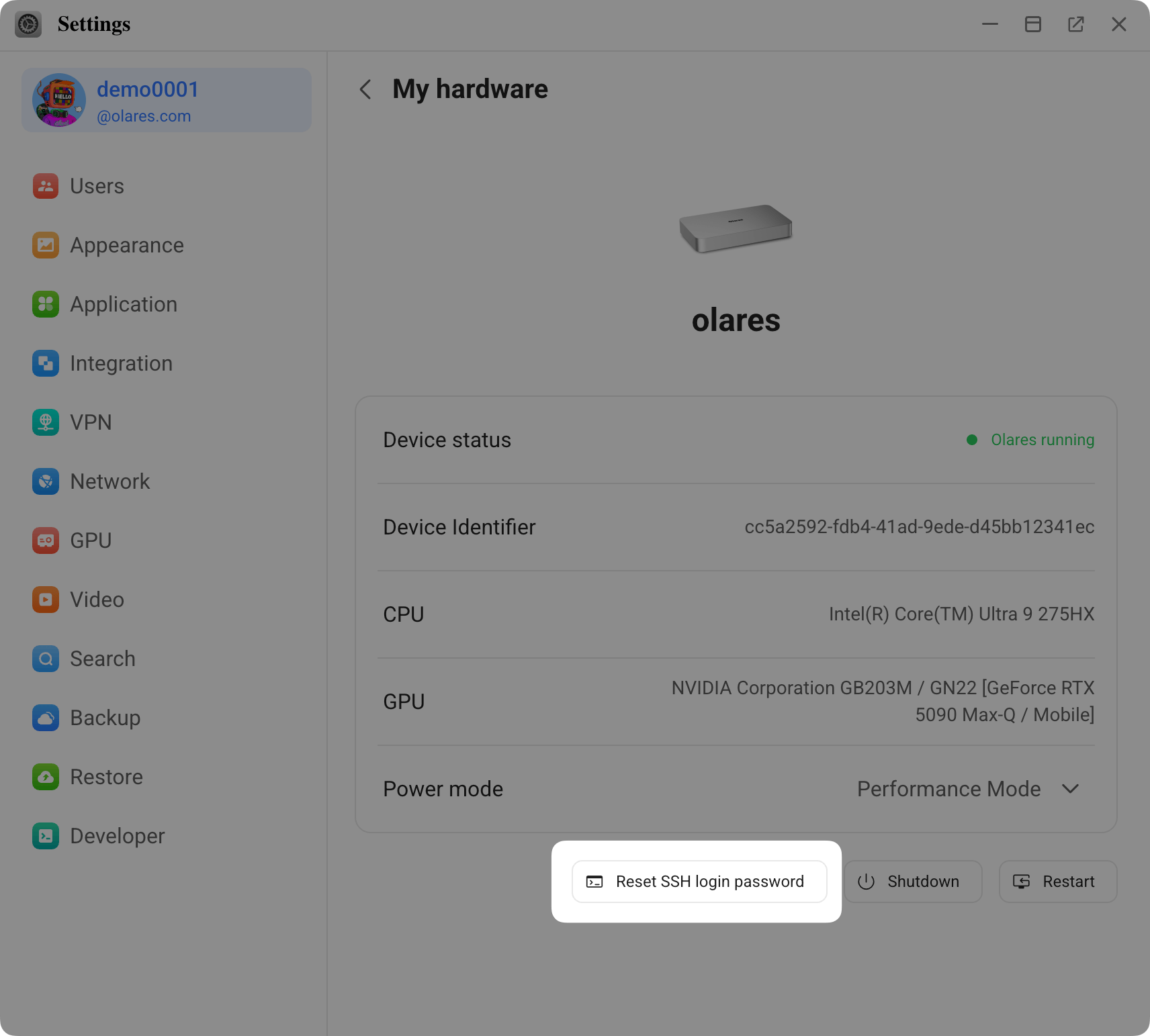
In the dialog, enter a new SSH password that meets all strength requirements, then click OK.
Open the LarePass app and scan the QR code shown on the screen.
Click Confirm on LarePass to finish. Your reset SSH password will be saved to Vault.