Play Steam games locally on Olares
While Olares is typically used as a headless system, you can connect a monitor, keyboard, and mouse to play games directly on the device.
However, simply plugging in a monitor is not enough. Because Steam Headless is optimized for remote streaming by default, you must manually configure the display and audio settings for local gameplay.
Olares One users
Olares One has display and audio pre-configured for local gaming, so no manual setup is required. For Olares One, see Play Steam games locally on Olares One.
Learning objectives
By the end of this tutorial, you will learn how to:
- Grant the application permission to access the host sound card.
- Modify display and audio settings for local gameplay.
Prerequisites
Before you begin, ensure you have:
- Olares version 1.12.3 or later.
- Olares running on a machine equipped with an NVIDIA GPU.
- A valid Steam account to access your games.
- A monitor, keyboard, and mouse connected to the Olares device.
1. Install and configure Steam Headless
Install the app from the Olares Market and then complete the initial setup within the Steam client itself.
Install Steam Headless
Follow these steps to install and configure Steam Headless:
- Open the Market, and search for "Steam".
- Click Get, then Install.
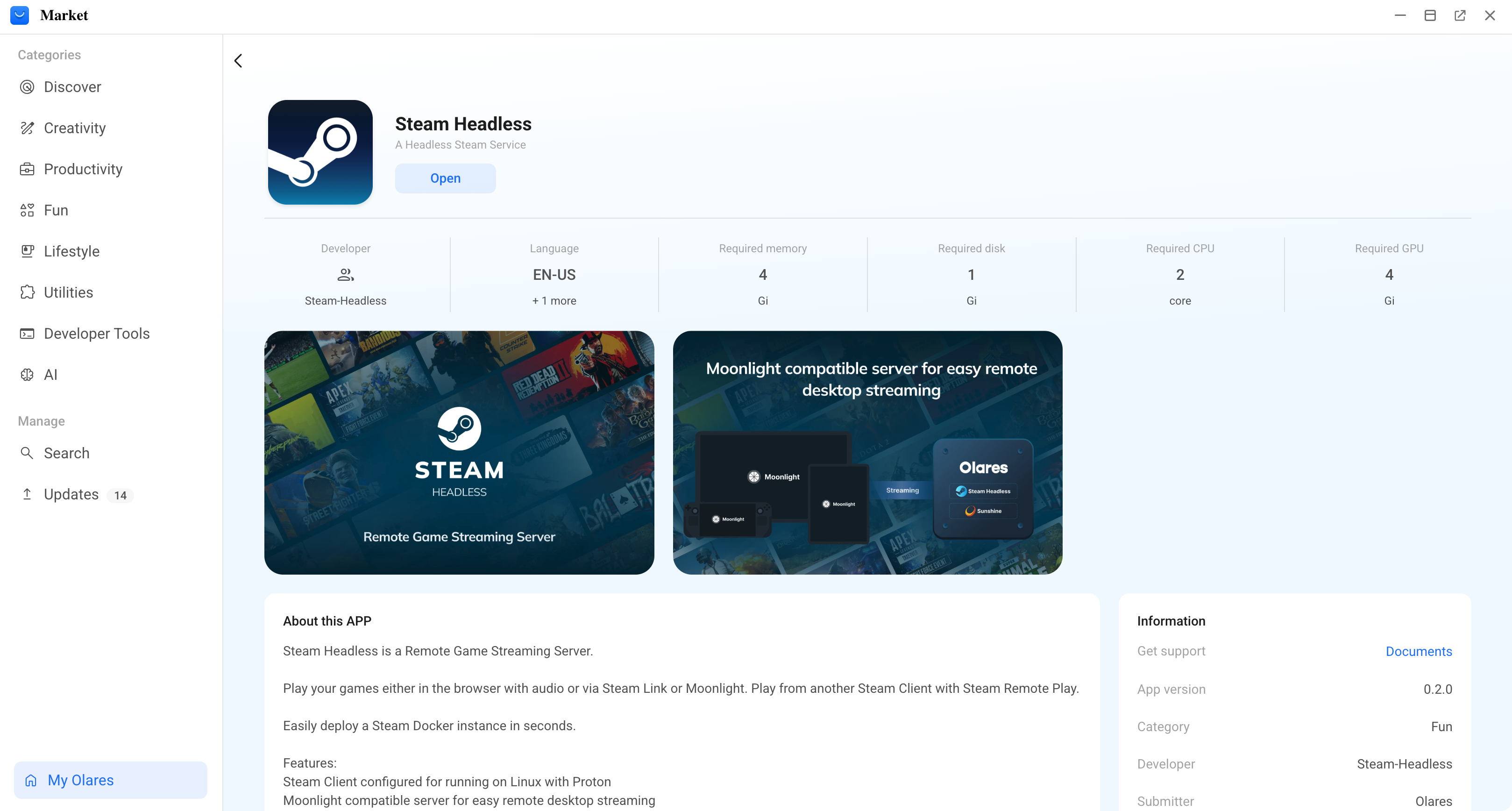
- A prompt will appear asking you to configure environment variables. This creates your login credentials for the Sunshine Web UI:
SUNSHINE_USER: Set the username for Sunshine access.SUNSHINE_PASS: Set the corresponding password.Remember your login credentials
These are the initial login credentials for Sunshine. You will need them if you access the Sunshine dashboard later.
- Wait for the installation to complete.
Complete the initial Steam setup
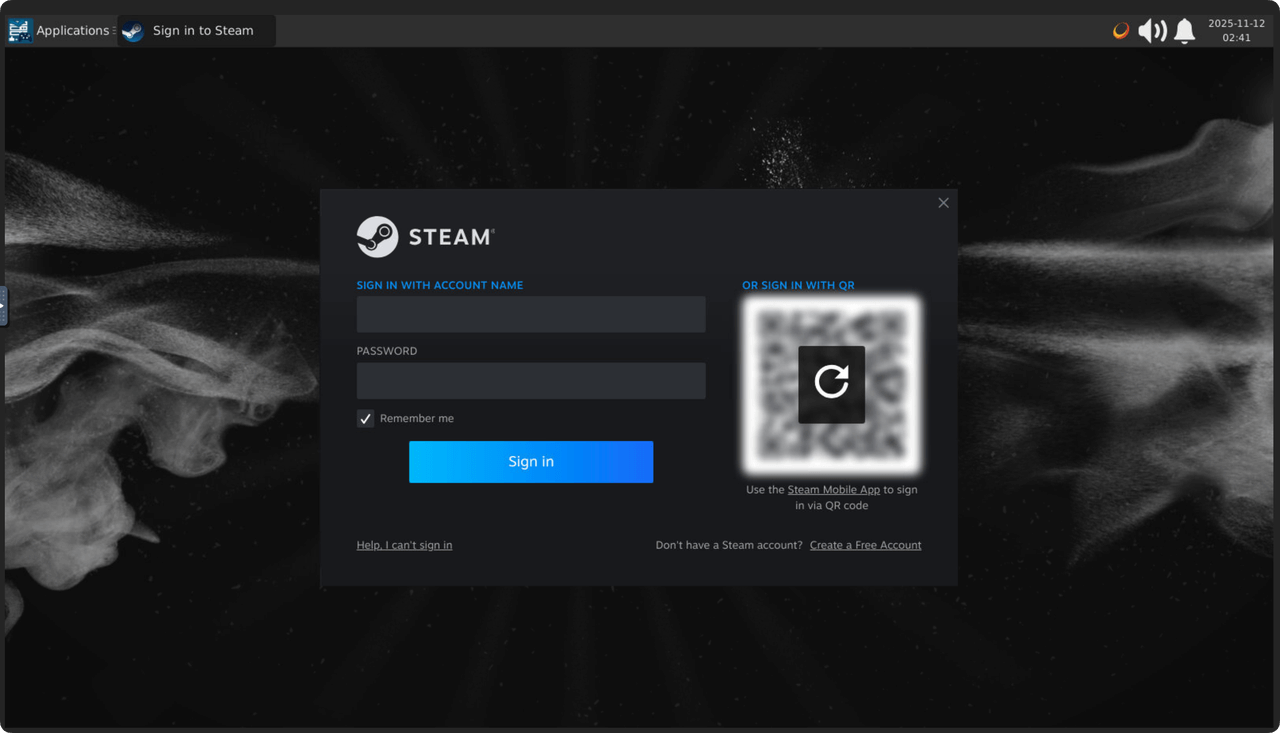
Sign in to Steam to complete setup and access your game library.
Retry installation upon failures
If Steam installation or update fails due to network issues, go to the top-left menu in the Steam Headless console and navigate to Applications > Internet > Steam to restart the installation.
- Once installed, open Steam Headless and click Connect.
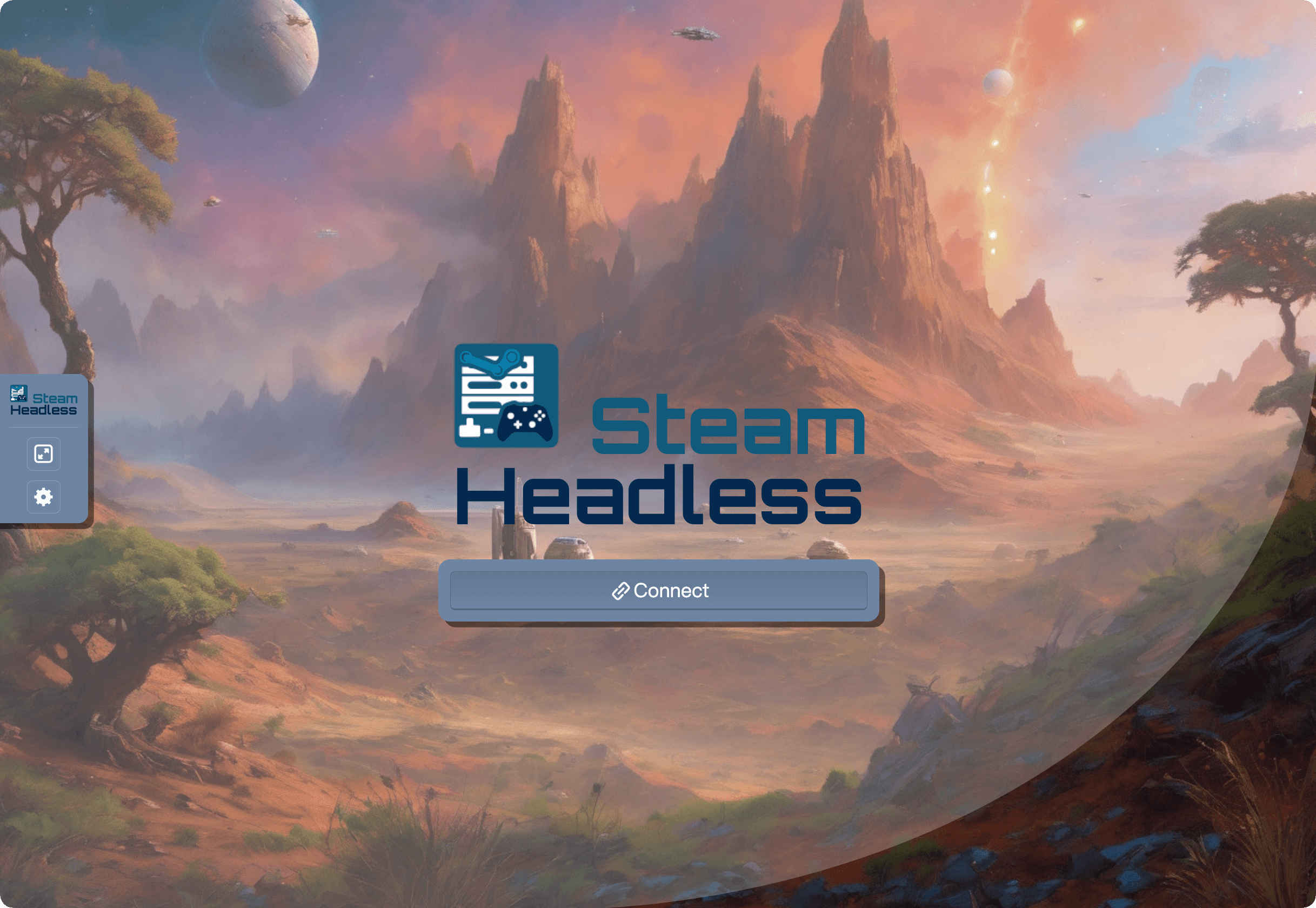
- The Steam client will automatically install and update. This process may take several minutes.
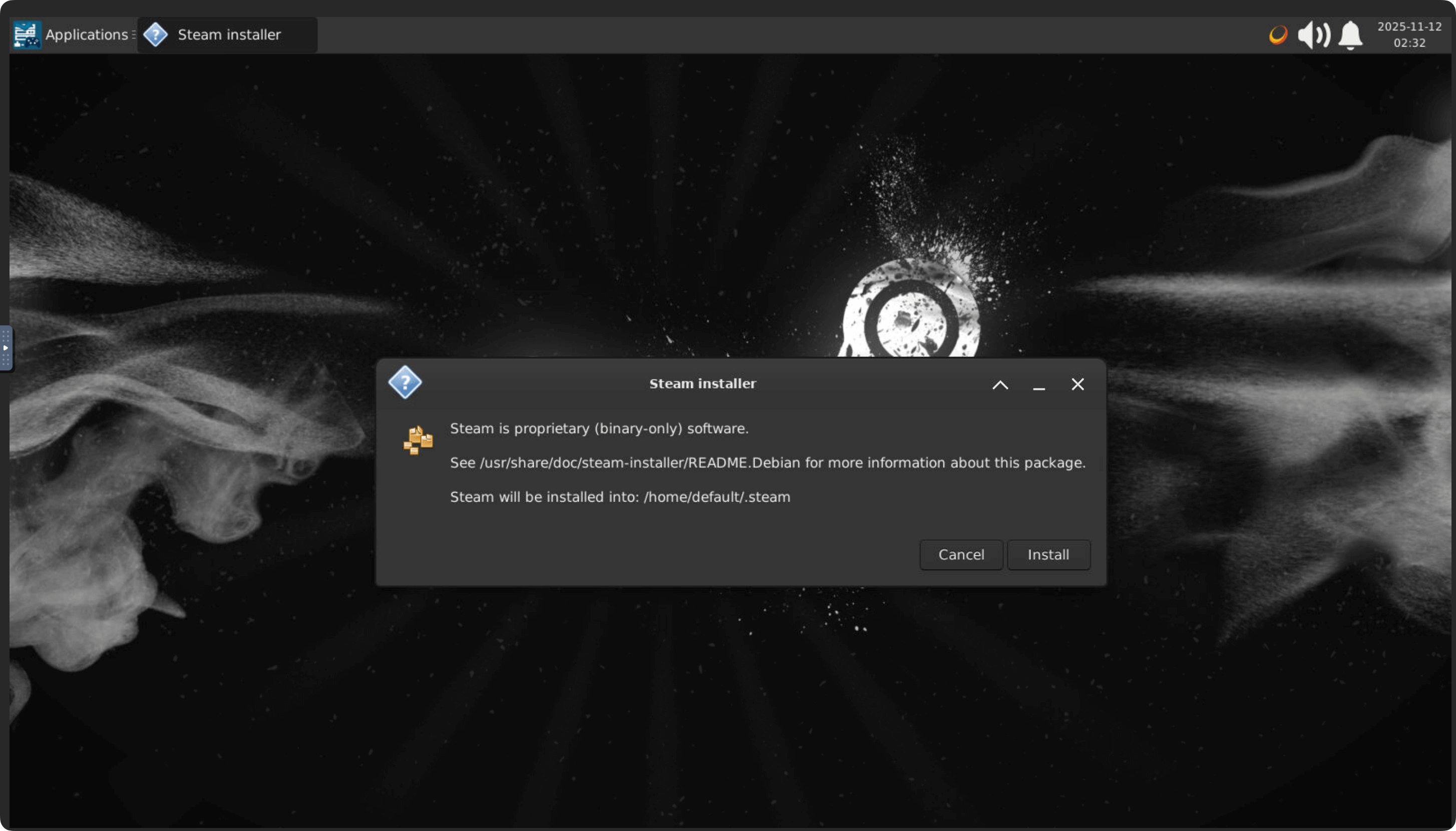
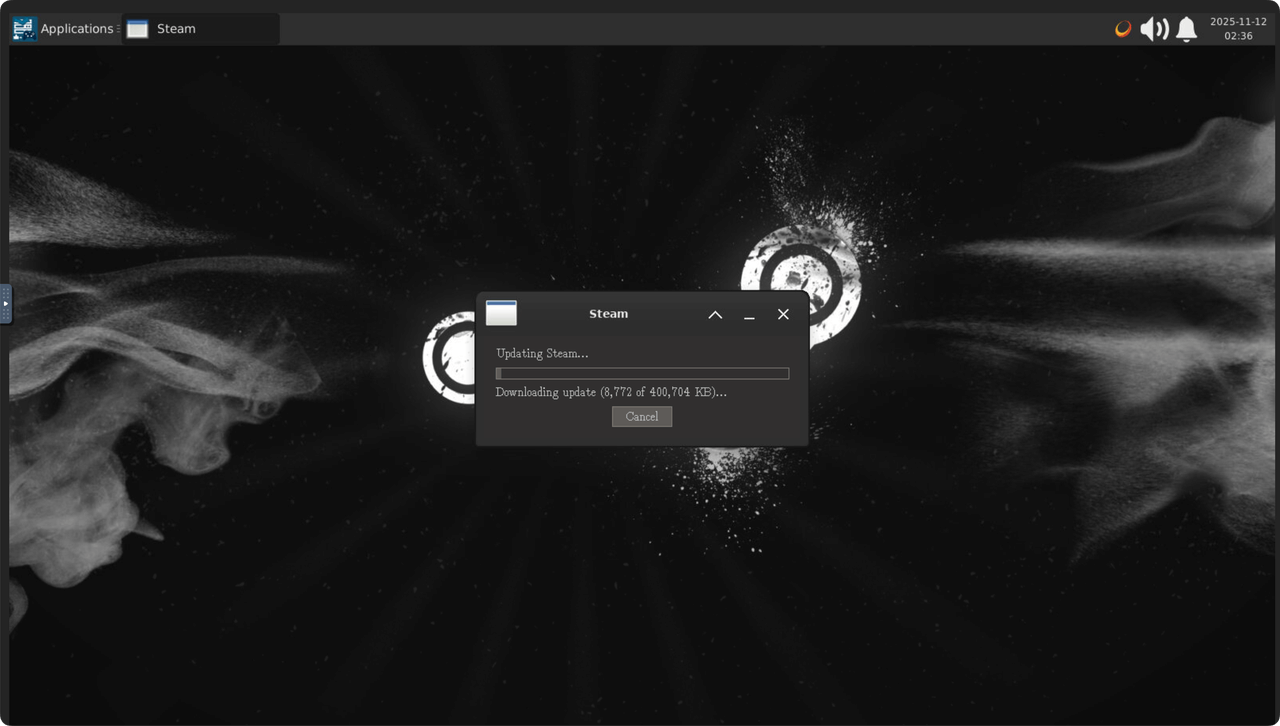
- When the installation completes, the Steam login screen appears. Sign in with your Steam account.
2. Grant sound card permissions
To output audio to your monitor, the Steam container needs direct access to your sound card. You must edit the deployment configuration to "pass through" these hardware components.
Edit with caution
Incorrect YAML syntax or indentation may prevent the application from starting.
- Verify changes: Double-check that your indentation matches the existing lines.
- Revert when necessary: If the app fails to start after applying changes, check Revision records and simply delete the lines you added to restore the previous configuration.

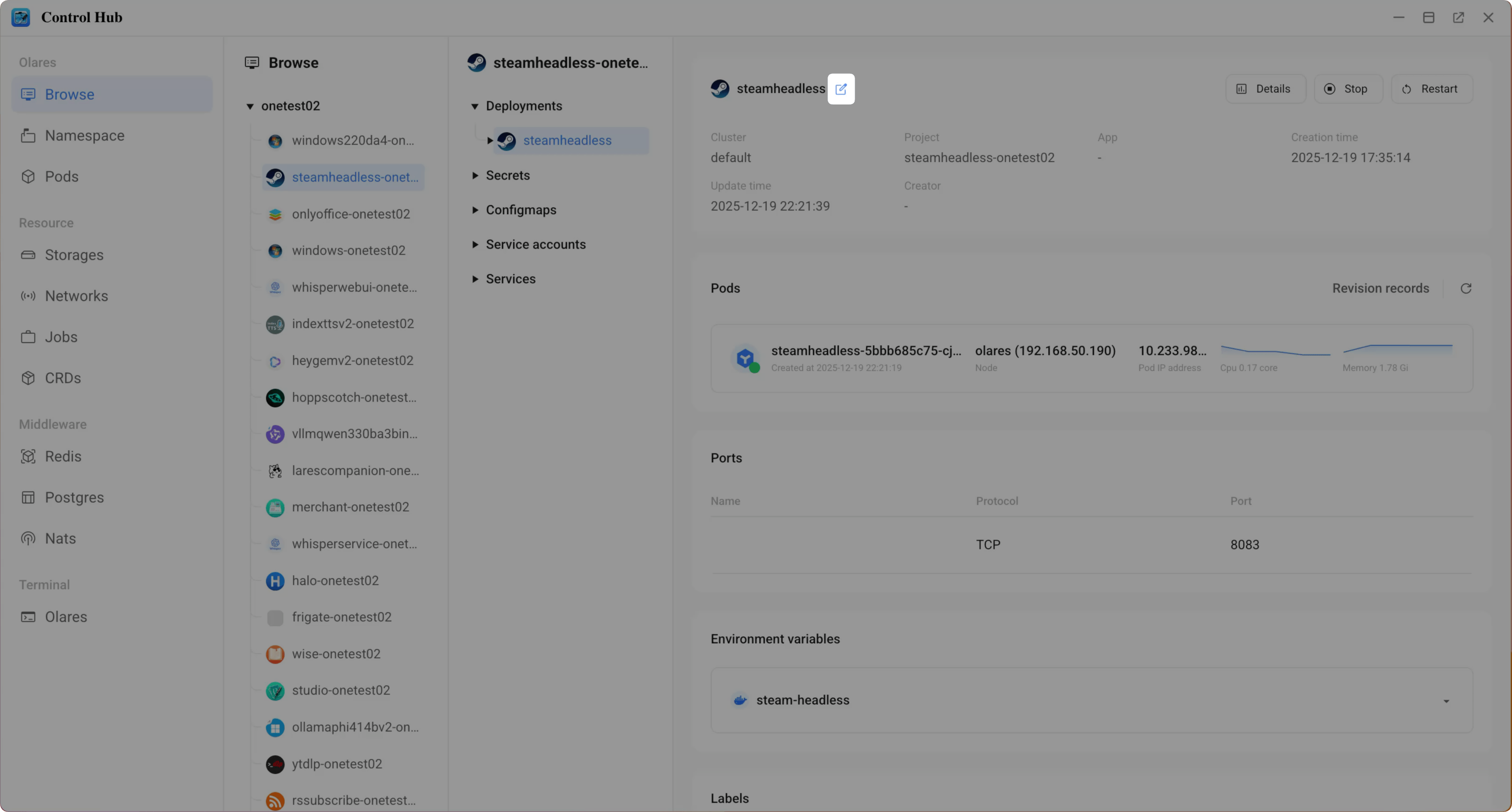
Open Control Hub, then select the Steam project from the sidebar.
Navigate to Deployments > steamheadless, and click edit_square to open the editor.
Locate the
volumessection and append the following entry to the list.yamlspec: volumes: # Keep existing volumes like steam-headless-claim0 # ... # Add the following entry at the end: - name: snd hostPath: path: /dev/snd type: ''Locate the
volumeMountssection and append the following mounting point:yamlvolumeMounts: # Keep existing mounts like steam-headless-claim0 # ... # Add the following entry at the end: - name: snd mountPath: /dev/sndClick Confirm to apply the changes. The container will restart with the new permissions.
3. Configure display and input
By default, the system is configured for streaming. You need to modify the X11 configuration to use your physical monitor and peripherals.
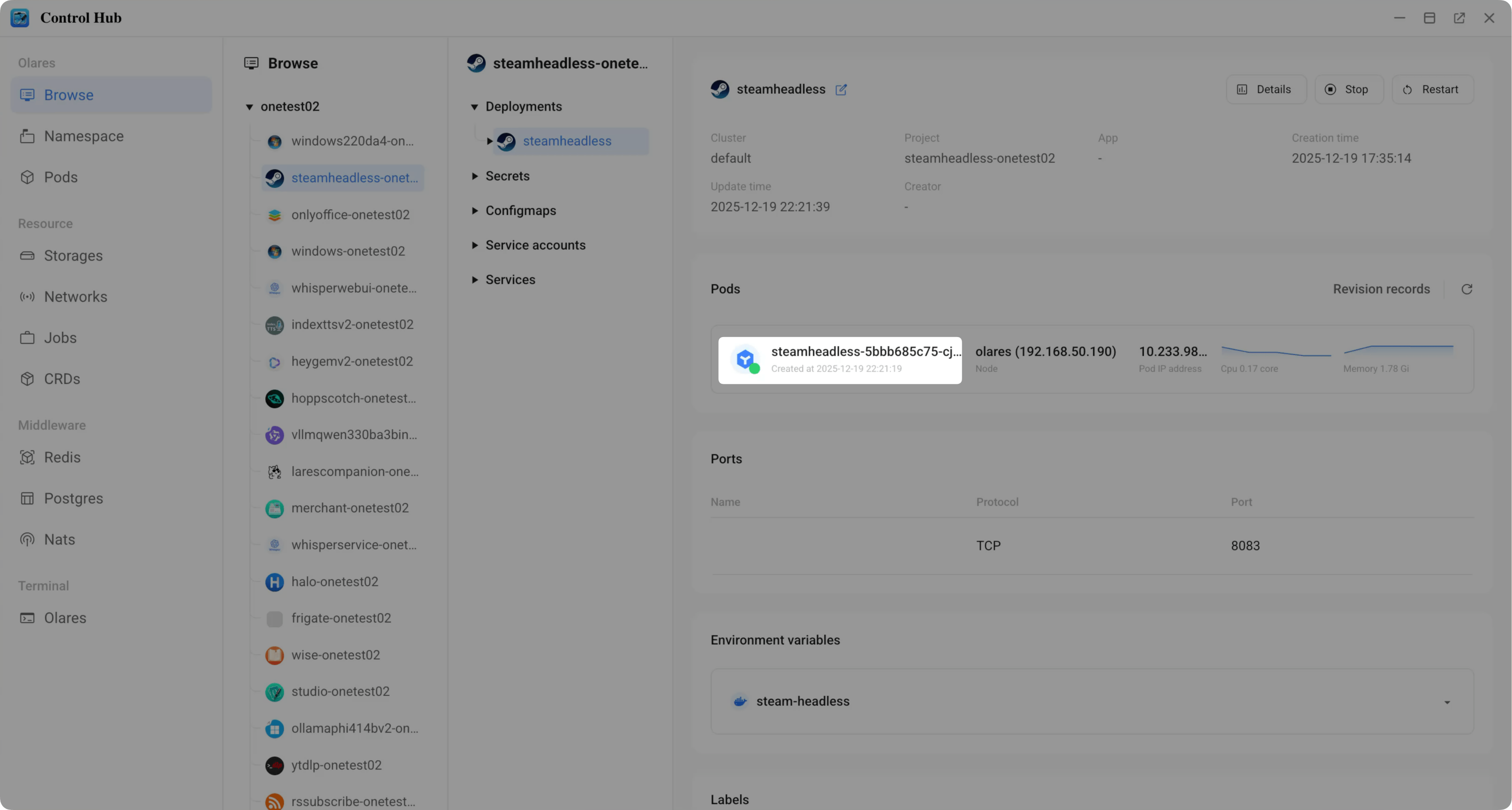
In Control Hub, click on the running Pod to view its details.
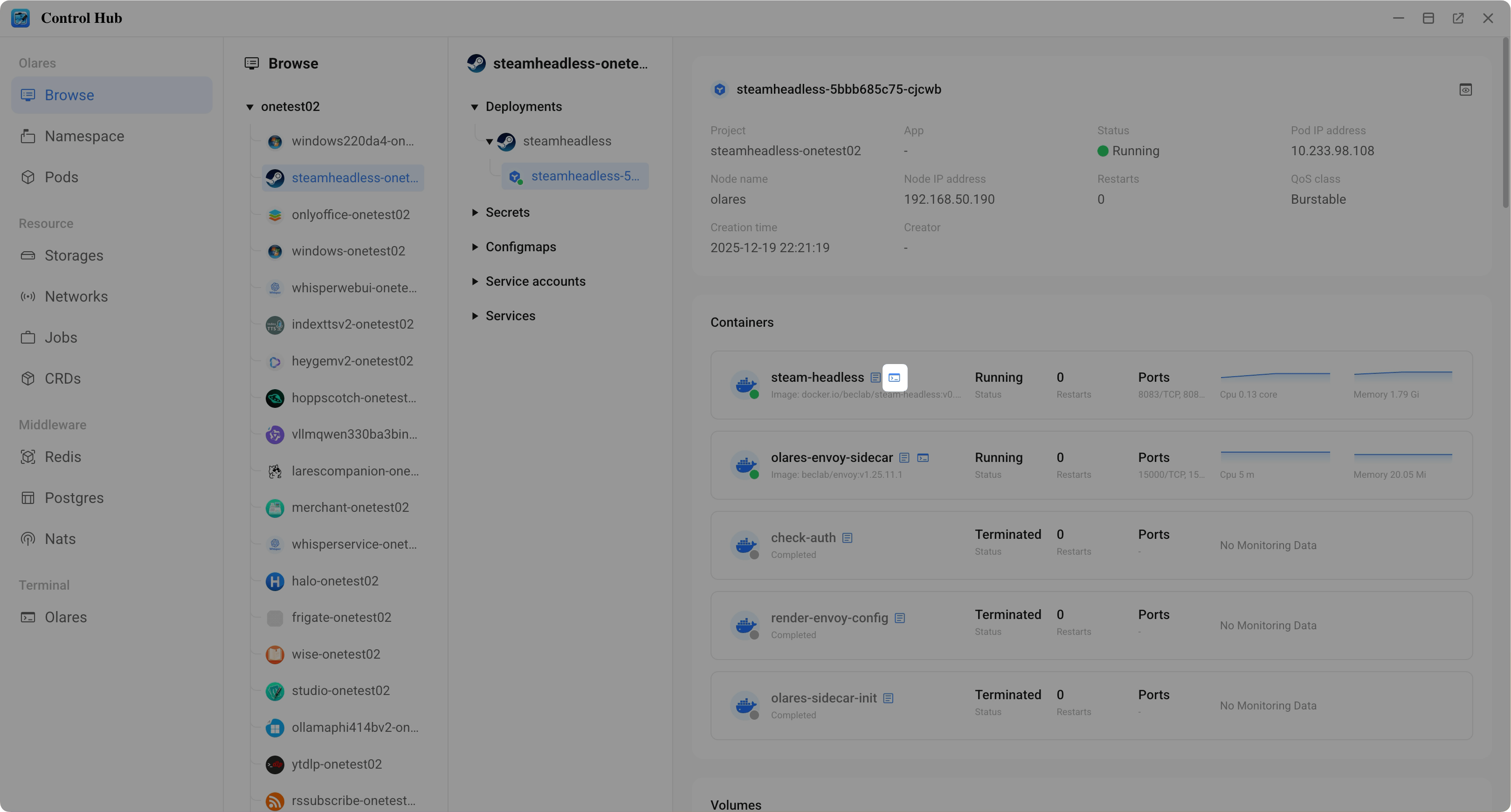
Click the Terminal icon next to steam-headless to access the container's shell.
Open the X configuration file:
bashnano /etc/X11/xorg.confModify the file to match the configuration below.
a. Delete the
Section "InputDevice"blocks to stop using virtual inputs.b. Update the
Displaysubsection to match your monitor's resolution. For example:bashSubSection "Display" Virtual 1920 1080 Depth 24 Modes "1920x1080R" "1920x1080" "1280x800" "1024x768" "1920x1080" "1600x900" "1440x900"Reference
xorg.confconfigurationbashSection "ServerLayout" Identifier "Default Layout" Screen 0 "Default Screen" EndSection Section "Monitor" Modeline "1920x1080R" 138.50 1920 1968 2000 2080 1080 1083 1088 1111 +hsync -vsync Identifier "Configured Monitor" HorizSync 5.0 - 1000.0 VertRefresh 5.0 - 200.0 ModeLine "1920x1080" 148.50 1920 2448 2492 2640 1080 1084 1089 1125 +hsync +vsync EndSection Section "Device" Identifier "Configured Video Device" Driver "nvidia" Option "ModeValidation" "NoMaxPClkCheck, NoEdidMaxPClkCheck, NoMaxSizeCheck, NoHorizSyncCheck, NoVertRefreshCheck, NoVirtualSizeCheck, NoTotalSizeCheck, NoDualLinkDVICheck, NoDisplayPortBandwidthCheck, AllowNon3DVisionModes, AllowNonHDMI3DModes, AllowNonEdidModes, NoEdidHDMI2Check, AllowDpInterlaced" Option "AllowEmptyInitialConfiguration" Option "PrimaryGPU" "yes" Option "AllowExternalGpus" "True" BusID "PCI:1:0:0" EndSection Section "Screen" Identifier "Default Screen" Device "Configured Video Device" Monitor "Configured Monitor" DefaultDepth 24 Option "ProbeAllGpus" "False" Option "BaseMosaic" "False" Option "AllowEmptyInitialConfiguration" "True" Option "ConnectedMonitor" "DFP" SubSection "Display" Virtual 1920 1080 Depth 24 Modes "1920x1080R" "1920x1080" "1280x800" "1024x768" "1920x1080" "1600x900" "1440x900" EndSubSection EndSection Section "ServerFlags" Option "AutoAddGPU" "false" EndSectionPress
Ctrl+Oto save, thenCtrl+Xto exit.Restart the display server to apply changes:
bashsupervisorctl stop xorg supervisorctl start xorg
4. Enable audio output
Finally, you must manually select the correct audio output channel.
Identify your sound card. Run the following command inside the container terminal:
bashaplay -lLook for your monitor name in the output. For example:
bash**** List of PLAYBACK Hardware Devices **** card 0: NVidia [HDA NVidia], device 3: HDMI 0 [U2790B] Subdevices: 0/1 Subdevice #0: subdevice #0 card 0: NVidia [HDA NVidia], device 7: HDMI 1 [HDMI 1] Subdevices: 1/1 Subdevice #0: subdevice #0 card 0: NVidia [HDA NVidia], device 8: HDMI 2 [HDMI 2] Subdevices: 1/1 Subdevice #0: subdevice #0 card 1: PCH [HDA Intel PCH], device 3: HDMI 0 [HDMI 0] Subdevices: 1/1 Subdevice #0: subdevice #0 card 1: PCH [HDA Intel PCH], device 7: HDMI 1 [HDMI 1] Subdevices: 1/1 Subdevice #0: subdevice #0 card 1: PCH [HDA Intel PCH], device 8: HDMI 2 [HDMI 2] Subdevices: 1/1 Subdevice #0: subdevice #0 card 1: PCH [HDA Intel PCH], device 9: HDMI 3 [HDMI 3] Subdevices: 1/1 Subdevice #0: subdevice #0Look for your monitor name in the output. In this example, the output corresponds to
card 0,device 3.Load the audio module. Replace
0,3with your specific card and device numbers:bashpactl load-module module-alsa-sink device=plughw:0,3 sink_name=nvhdmiCheck the audio channel status (use the same card number you selected above):
bashamixer -c 0 scontentsExample output:
bashSimple mixer control 'IEC958',0 Capabilities: pswitch pswitch-joined Playback channels: Mono Mono: Playback [off] Simple mixer control 'IEC958',1 Capabilities: pswitch pswitch-joined Playback channels: Mono Mono: Playback [off] Simple mixer control 'IEC958',2 Capabilities: pswitch pswitch-joined Playback channels: Mono Mono: Playback [off]If the output contains
Mono: Playback [off], it means the channel is muted. Unmute it by running:bashamixer -c 0 sset 'IEC958' on
Audio now plays directly from your monitor or speakers. You are ready to play.
Optional: Enable audio for remote streaming
INFO
For detailed streaming and pairing instructions, refer to Stream your games with Steam Headless.
Local play and remote streaming use exclusive audio modes.
Local play requires the
module-alsa-sinkmodule loaded.Remote streaming requires this module unloaded so Sunshine can capture the audio.
If you decide to stream games to another device later, you must unload the local audio module to restore sound to the stream.
To enable audio for streaming:
- Open the container terminal via Control Hub.
- Unload the local audio module:bash
pactl unload-module module-alsa-sink
FAQs
Why does my monitor show the Steam interface even when I'm not playing?
The Olares device usually displays a terminal prompt. However, running the Steam application activates a graphical interface that takes over the display.
To return the monitor to the standard terminal view, you must stop the Steam application from Olares Market or Settings.