Skip to content

OpenClaw

OpenClaw is a personal AI assistant that is designed to run on your local device. It connects directly to the messaging apps like Discord and Slack, and allows you to interact with it right in the app.

It acts as an "always-on" operator that can execute real tasks, such as searching and sending documents, managing calendars, or browsing webpages.

Learning objectives

  • Install and initialize the OpenClaw environment.
  • Pair and connect the OpenClaw CLI and the Control UI.
  • Configure OpenClaw to use the local AI model Ollama.
  • Personalize OpenClaw to establish its identity and behavior.
  • Integrate OpenClaw with Discord.
  • Enable the web search capability using Brave Search.
  • Manage skills and plug-ins.

Prerequisites

  • Local model: Ensure Ollama is installed and running. You must have a tool-capable model installed, such as glm-4.7-flash, qwen3.5:27b, and gpt-oss:20b. This tutorial uses qwen3.5:27b.

    TIP

    OpenClaw requires a large "context window" (that is the AI's short-term memory) to handle complex tasks without forgetting your previous instructions. If you are using local models, it is recommended to select a model that natively supports a context window of at least 64K tokens.

  • Discord account: Required to create the bot application.

  • Discord server: A server where you have permissions to add bots.

  • (Optional) Brave search API key: Required for the agent to search the web for real-time information.

    TIP

    You can obtain a free API key from the Brave Search API. The free tier of the "Data for Search" plan is usually sufficient for personal use.

Upgrade notes

If you are upgrading an existing OpenClaw installation, review the following version-specific changes and troubleshooting steps before proceeding.

Upgrade to 2026.02.25

The OpenClaw 2026.02.25 update introduced a security enhancement that requires existing users to explicitly declare the allowed Control UI access address. Therefore, if your Control UI fails to start after the upgrade, follow these steps to resolve the issue.

  1. Open Control Hub on your desktop to check the container logs for clawdbot.

    Check container logs

  2. Look for the following error message. If it appears, proceed to the next step.

    text
    Gateway failed to start: Error: non-loopback Control UI requires gateway.controlUi.allowedOrigins (set explicit origins), or set gateway.controlUi.dangerouslyAllowHostHeaderOriginFallback=true to use Host-header origin fallback mode

    Error logs

  3. Open Settings, go to Application > OpenClaw > Control UI > Set up endpoint, and then copy the endpoint address.

    OpenClaw endpoint address

  4. Open Files, go to Application > Data > clawdbot > config, right-click the openclaw.json file, and then download it.

    OpenClaw configuration file

  5. Open the downloaded file in a text editor, find the gateway section, and then add a controlUi block with your endpoint address.

    json
    "controlUi": {
      "allowedOrigins": ["Endpoint-Address"]
    },

    Update configuration file

    INFO

    If you access the Control UI using multiple addresses such as local URLs or custom domains, add them to the allowedOrigins array separated by commas. For example, ["https://url-one.com", "https://url-two.com"].

  6. Return to Files, rename the original openclaw.json file to keep it as a backup, and then upload your modified openclaw.json file.

  7. Return to Control Hub, click clawbot under Deployments, and then click Restart in the upper-right corner.

    Restart OpenClaw

  8. In the Restart clawdbot window, type clawdbot exactly as shown, and then click Confirm. Wait for the program status to show as Running, which is indicated by a green dot.

    Restart finish

  9. Check the container logs again to verify the gateway has started successfully.

    Verify container logs

  10. Open the Control UI. Refresh the browser page if an error still displays.

Install OpenClaw

  1. From the Olares Market, search for "OpenClaw".
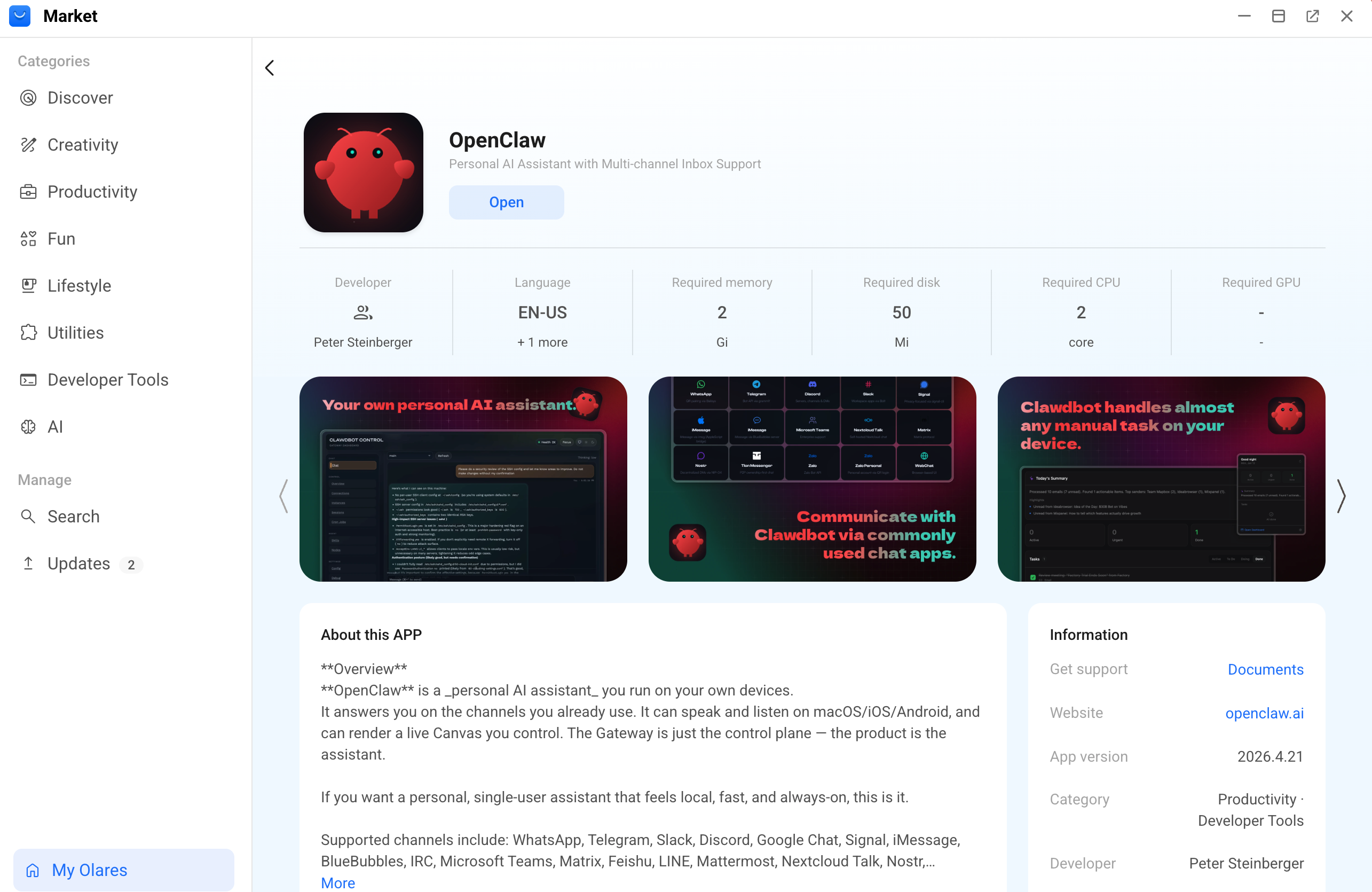
    Search for OpenClaw from Market

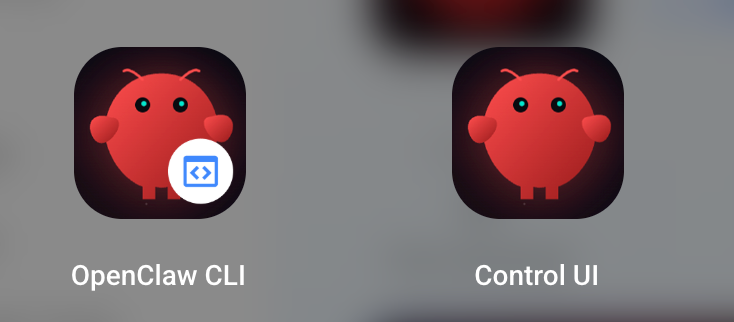
  2. Click Get, and then click Install. When the installation finishes, two shortcuts appear in the Launchpad:

    • OpenClaw CLI: The command line interface
    • Control UI: The graphical dashboard

    OpenClaw entry points

Run multiple OpenClaw agents

Olares supports app cloning. If you want to run multiple independent AI agents for different tasks, you can clone the OpenClaw app. For more information, see Clone applications.

Initialize OpenClaw

Run a quick setup for the agent in the OpenClaw CLI.

  1. Open the OpenClaw CLI app from the Launchpad.

  2. Enter the following command to generate the dashboard access credentials:

    bash
    openclaw dashboard --no-open
  3. Locate the Dashboard URL in the terminal output.

  4. Find and copy the token at the end of the URL (the text immediately following #token=). This is your Gateway Token.

    Obtain gateway token

  5. Open the Control UI app from the Launchpad.

  6. On the Overview page, in the Gateway Access panel, specify the following settings:

    • Gateway Token: Enter the token you copied in the previous step.
    • Default Session Key: Enter agent:main:main.
  7. Click Connect.

    The connection error pairing required occurs. This is expected and means the device connection is waiting for approval.

  8. Return to the OpenClaw CLI window and enter the following command:

    bash
    openclaw devices approve --latest
  9. When the terminal displays the approval message, return to the Control UI. Pair sucess

    Now the STATUS in the Snapshot panel should be OK.

    Health OK

For advanced users

If you prefer to fully customize your initial setup, you can run the openclaw onboard command instead to launch the interactive configuration wizard.

(Optional) Pair device manually

When to use manual pairing

The quick setup in the previous section uses the openclaw devices approve --latest command to automatically approve the most recent pairing request. If you have multiple pending requests and need to manually select which device to approve, follow the steps in this section instead.

Connect the Control UI to the OpenClaw CLI to use the graphical dashboard.

  1. Open the Control UI app from the Launchpad.

  2. On the Overview page, in the Gateway Access panel, specify the following settings:

    • Gateway Token: Enter the token you copied in the previous step.
    • Default Session Key: Enter agent:main:main.
  3. Click Connect.

    The connection error pairing required occurs. This is expected and means the device connection is waiting for approval.

  4. Return to the OpenClaw CLI window and enter the following command:

    bash
    openclaw devices list
  5. In the Pending table, find the Request ID associated with your current device.

    INFO

    The Request ID has a time limit. If the authorization fails, re-run openclaw devices list to obtain a new valid ID.

    View pending device request

  6. Authorize the device by entering the following command:

    bash
    openclaw devices approve {RequestID}
  7. When the terminal displays the approval message, return to the Control UI. Now the STATUS in the Snapshot panel should be OK.

    Health OK

Configure local AI model

  1. In the Control UI, select Config from the left sidebar.

  2. Switch to the Raw tab to edit the configuration JSON file directly.

  3. Find the agents section and update the defaults block to specify your primary model. Ensure that the model name matches the one installed in Ollama.

    json
    "agents": {
        "defaults": {
            "model": {
                "primary": "ollama/qwen3.5:27b"
            },
            "workspace": "/home/node/.openclaw/workspace",
            "maxConcurrent": 4,
            "subagents": {
                "maxConcurrent": 8
            }
        }
    },
  4. Click Save in the upper-right corner. The system validates the config and restarts automatically to apply the changes.

    Manual restart

    If you need to restart OpenClaw manually, do not use the OpenClaw CLI. Use one of the following methods:

    • Restart the app from Settings or Market:
      • Open Settings, go to Applications > OpenClaw, click Stop, and then click Resume.
      • Open Market, go to My Olares, find OpenClaw, click keyboard_arrow_down next to the operation button, select Stop, and then select Resume.
    • Restart the container: Open Control Hub, click clawdbot under Deployments, and then click Restart.

(Optional) Personalize OpenClaw

To make your OpenClaw bot more personalized, it is highly recommended to complete the persona setup process.

This process establishes the agent's identity, behavioral boundaries, and long-term memory through persona files. These files keep your agent's behavior consistent across all platforms and channels.

  1. In the Control UI, select Chat from the left sidebar.

  2. Ensure neurology at the upper-right corner is enabled. This allows you to watch the agent think and edit persona files in real time.

  3. Enter and send the following message to start:

    text
    Wake up please!

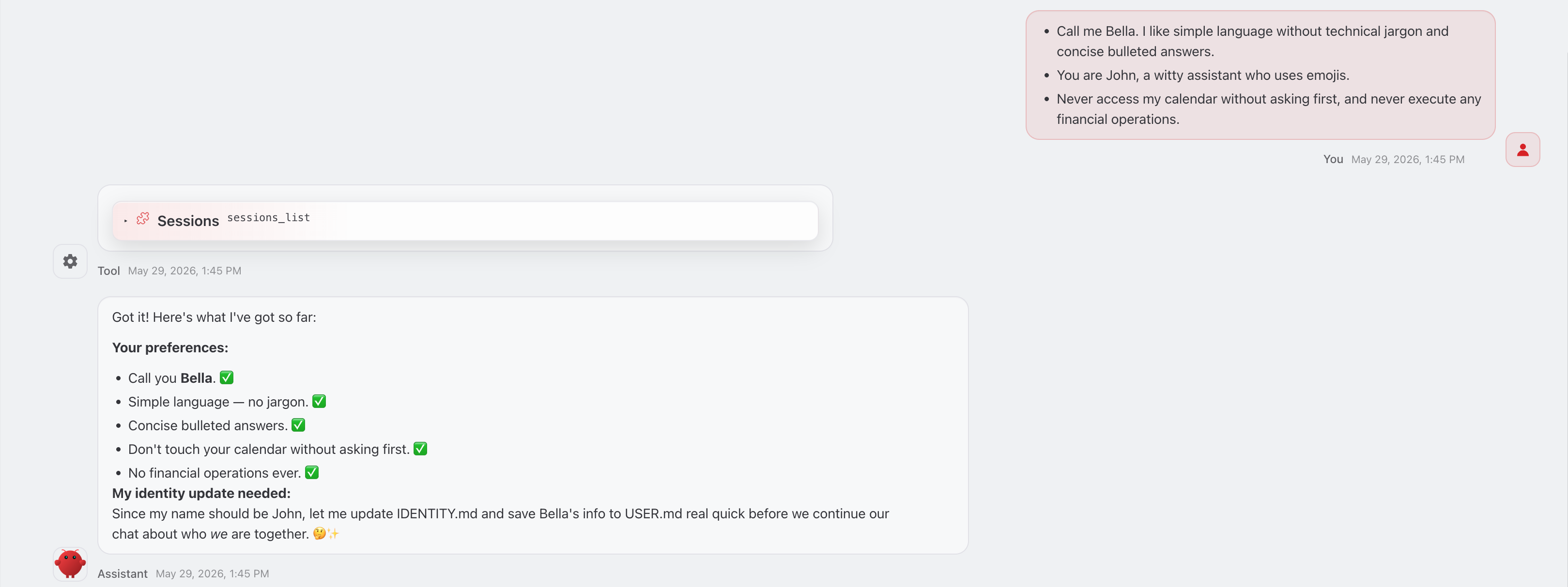
    The agent responds and starts interviewing you. You can establish rules, personality traits, and preferences. For example,

    text
    - Call me Bella. I like simple language without technical jargons and 
    concise bulleted answers.
    - You are John, a witty assistant who uses emojis.
    - Never access my calendar without asking first, and never execute any 
    financial operations.
  4. As you chat with the agent, look for the Edit messages. These indicate the agent is successfully writing your preferences to its core persona files, such as IDENTITY.md, USER.md, and SOUL.md.

    Persona files editing by OpenClaw

    TIP

    If you do not see the intermediate persona file operations, refresh the page by clicking refresh at the upper-right corner or by pressing F5.

  5. Continue the conversation until the agent gathers enough information. Then, it automatically deletes the temporary BOOTSTRAP.md file to finish the personalization process.

    Finish hatch agent

  6. (Optional) If the agent fails to update the persona files or delete BOOTSTRAP.md, explicitly instruct it to do so in the chat.

    If the issue persists, resolve it using one of the following methods:

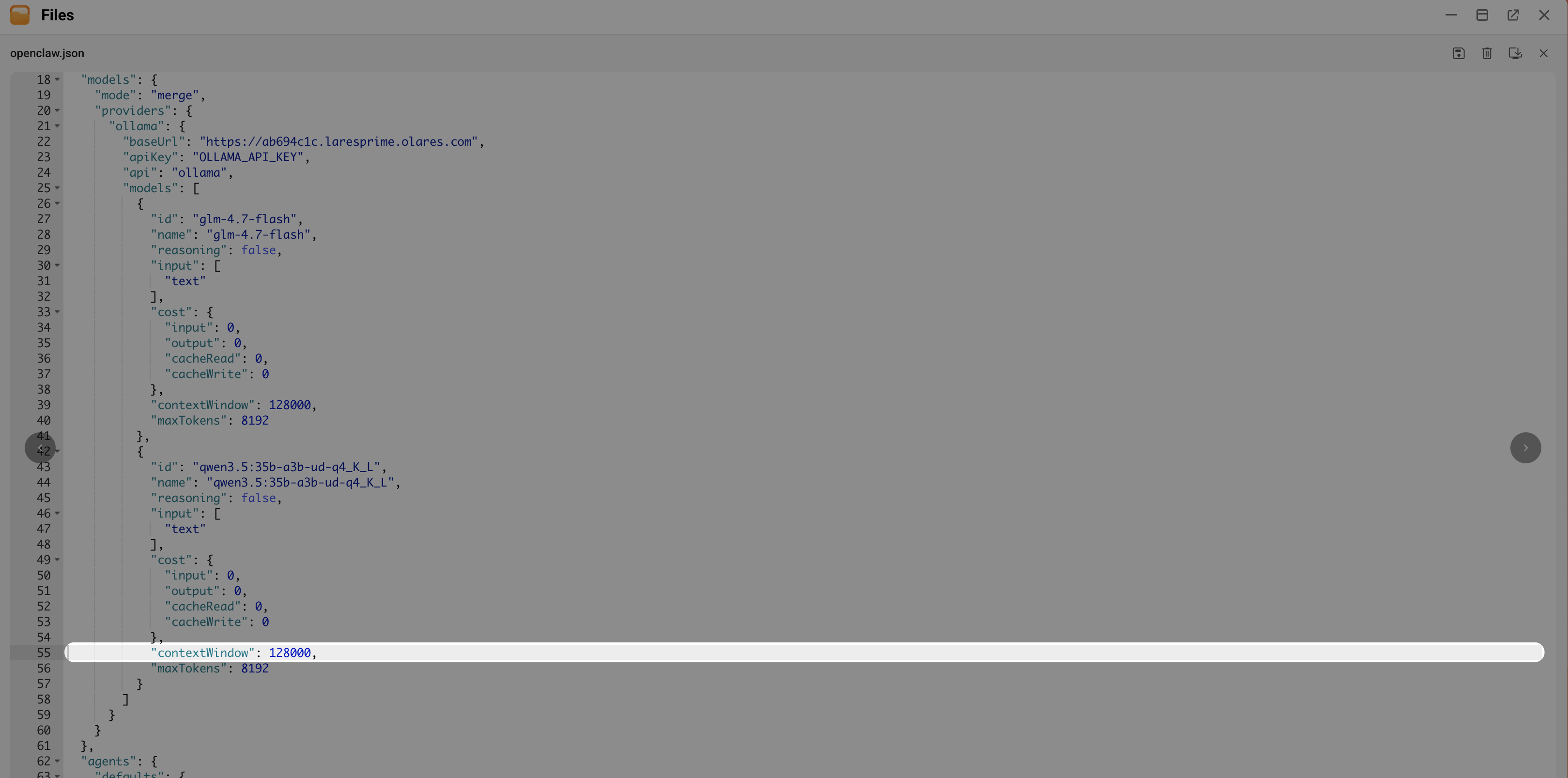
    • Increase the context window: Select Config from the left sidebar, switch to the Raw tab, find the models section, and then increase the contextWindow value to at least 64K (200K is recommended).

      TIP

      Note that a larger context window consumes more VRAM, so choose a value that your hardware can support.

    • Change the model: Switch to a model with better tool-calling and instruction‑following capabilities.

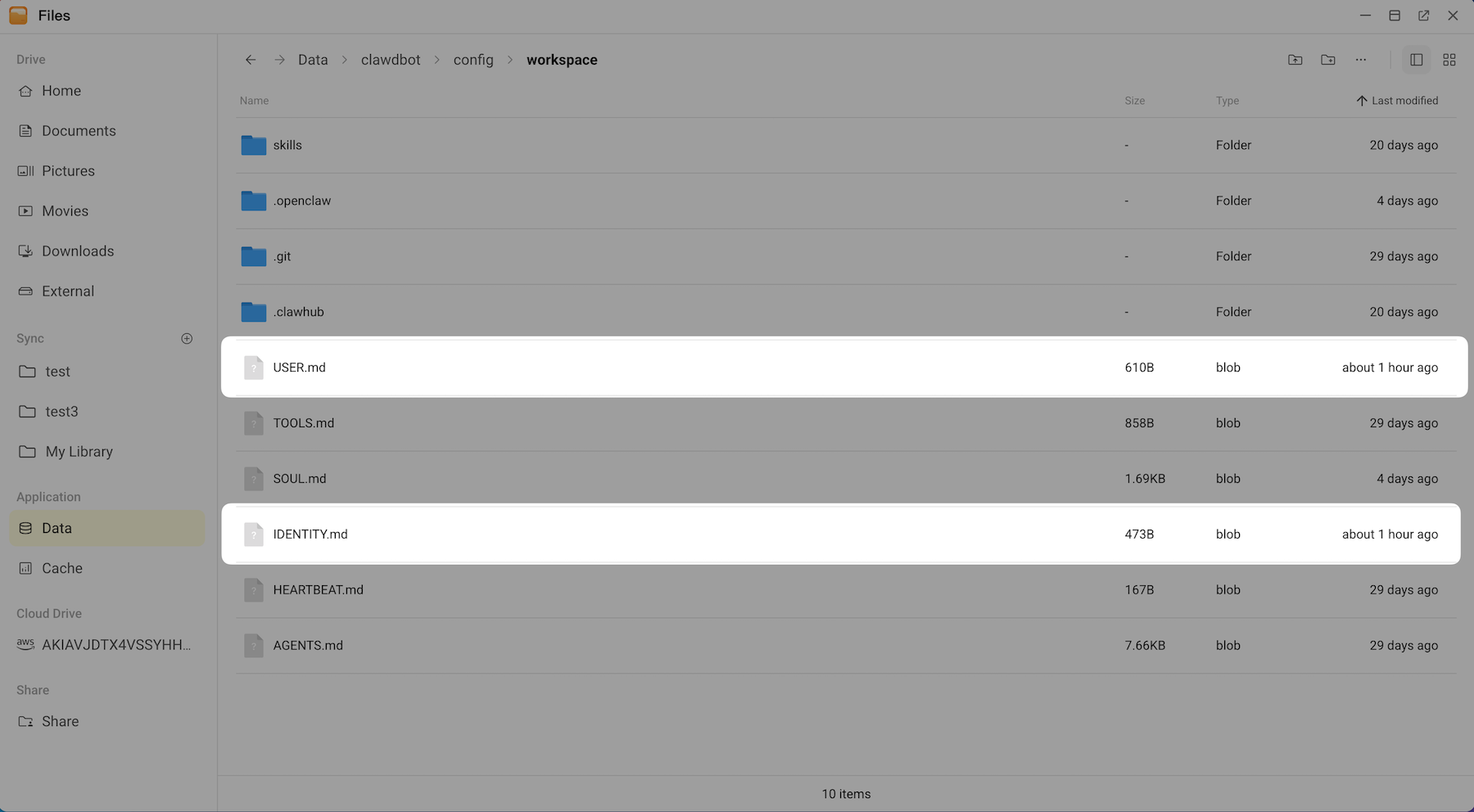
  7. Verify your agent's persona files are updated:

    a. Open Files from the Launchpad.

    b. Go to Application > Data > clawdbot > config > workspace.

    c. Check the modified time of the .md files to identify which ones were recently updated, such as USER.md and IDENTITY.md.

    Persona files generated by OpenClaw

    d. (Optional) Double-click a file to verify that it contains your newly established rules such as name, language style, and restrictions.

    Modify persona settings

    To change these settings in the future, use one of the following methods:

    • Ask the agent in the chat to update its rules.
    • Download the .md files from this folder, edit them in a text editor, and re-upload them to overwrite the old ones.

Integrate with Discord

To chat with your agent remotely, connect it to a Discord bot.

Step 1: Create a Discord bot

  1. Log in to the Discord Developer Portal with your Discord account.

  2. Click New Application. Search for OpenClaw from Market

  3. Enter a name for the new app, agree to terms, and then click Create.

    Search for OpenClaw from Market

  4. From the left sidebar, select Bot.

  5. Scroll down to the Privileged Gateway Intents section and enable the following settings:

    • Presence Intent
    • Server Members Intent
    • Message Content Intent
  6. Click Save Changes.

  7. Scroll up to the Token section, click Reset Token, and then copy the generated token for your Discord bot. You need the token for channel configuration later in Control UI.

    Reset token

Step 2: Invite the bot to server

  1. From the left sidebar, select OAuth2, and then find the OAuth2 URL Generator section:

    a. In Scopes, select Bot and applications.commands.

    OAuth2 URL Generator

    b. In Bot Permissions, set as the following image. You can modify the settings later.

    Bot permissions

  2. Copy the Generated URL at the bottom.

  3. Paste the URL into a new browser tab, select your Discord server, and then click Authorize. The bot is added to your server.

    Bot added to server

Step 3: Configure channel

Connect OpenClaw to your Discord bot by adding its configuration in the Control UI.

About channel configuration

This tutorial provides the basic setup to get your bot running in Discord quickly. For more detailed configurations, see the official OpenClaw documentation.

  1. Return to the Control UI > Config > Raw tab.

  2. Add the following channels section to the configuration file.

    This configuration enables Discord Direct Messages (DMs) and sets the DM policy to pairing for security.

    json
    "channels": {
        "discord": {
        "enabled": true,
        "token": "{YOUR_BOT_TOKEN}",
        "allowBots": true,
        "dm": {
            "enabled": true,
            "policy": "pairing"
        }
        }
    },

    Discord channel added

  3. Replace {YOUR_BOT_TOKEN} with your Discord bot token.

  4. Click Save.

  5. From the left sidebar, select Channels. On the Discord card, Probe ok indicates successful connection.

    Probe OK

Step 4: Authorize your account

For security, the bot does not talk to unauthorized users. You must pair your Discord account with the bot.

  1. Open Discord and send a Direct Message to your new bot. The bot will reply with an error message containing a Pairing Code.

  2. Open the OpenClaw CLI and enter the following command:

    bash
    openclaw pairing approve discord {Your-Pairing-Code}
  3. Once approved, you can start chatting with your agent in Discord.

By default, OpenClaw answers questions only based on its training data, which means it doesn't know about current events or real-time news. To give your agent access to the live internet, you can enable the web search tool.

OpenClaw officially recommends Brave Search. It uses an independent web index optimized for AI retrieval, ensuring your agent finds accurate information.

  1. Open the OpenClaw CLI.

  2. Run the following command to start the web configuration wizard:

    bash
    openclaw configure --section web
  3. Configure the basic settings as follows:

    SettingsOption
    Where will the Gateway runLocal (this machine)
    Enable web_search (Brave Search)Yes
    Brave Search API keyYour BraveSearchAPIkey
    Enable web_fetch (keyless HTTP
    fetch)
    Yes
  4. Finalize the configuration in Control UI.

    The CLI wizard sets up the API key, but you can customize specific tool parameters such as timeouts and limits in the Control UI.

    a. Return to the Control UI > Config > Raw tab.

    b. Find the tools section and update as follows:

    json
    "tools": {
        "web": {
        "search": {
            "enabled": true,
            "provider": "brave",
            "apiKey": "{Your-Brave-Search-API-Key}",
            "maxResults": 10,
            "timeoutSeconds": 30
        },
        "fetch": {
            "enabled": true,
            "timeoutSeconds": 30
        }
        }
    },
  5. Now you can ask the agent in Discord to answer questions that require real-time internet data.

Manage skills and plugins

OpenClaw can be extended using skills and plugins:

  • Skills add new capabilities to the AI. For example, managing Model Context Protocol servers.
  • Plugins extend the system to support additional channels or community features. For example, adding iMessage via BlueBubbles.

Why manual installation required

To protect your device, OpenClaw runs in a restricted, non-root environment without administrative privileges. This prevents the agent from modifying your system or self-installing software.

Step 1: Install ClawHub

To manage skills and plugins, install ClawHub. It is the package manager for OpenClaw.

  1. Open the OpenClaw CLI.

  2. Enter the following command:

    bash
    npx clawhub
  3. When prompted to proceed, press Y.

Step 2: Install and enable skills

  1. Check the list of available skills by entering the following command:

    bash
    openclaw skills

    View skills

  2. Find the target skill name in the Skill column, and then install by entering the following command:

    bash
    npx clawhub install {SkillName}

    For example, to install mcporter, enter the following command:

    bash
    npx clawhub install mcporter
  3. If prompted to Install anyway, select Yes.

  4. When the installation is completed, verify by entering the following command:

    bash
    openclaw skills

    The status of mcporter is ready, indicating the installation is successful.

    Skill installed

  5. Open the Control UI, go to the Skills page and find mcporter:

    • If it is enabled, click Disable, and then click Enable again to force the system to save the configuration.
    • If it is disabled, click Enable.

    Enable skill

  6. Click Save in the upper-right corner. The system validates the config and restarts automatically to apply the changes.

Step 3: Install plug-ins

  1. In the OpenClaw CLI, check the list of compatible plug-ins by entering the following command:

    bash
    openclaw plugins list
  2. Find the target plug-in name in the Name column, and then install by entering the following command:

    bash
    openclaw plugins install {Name}

    For example, to install BlueBubbles, enter the following command:

    bash
    openclaw plugins install @openclaw/bluebubbles
  3. When the installation is completed, close OpenClaw CLI and open it again to load the new plug-in.

  4. Verify by checking the plugin status:

    bash
    openclaw plugins list

    Now the status of the plug-in is loaded.

  5. Open the Control UI, go to Config > Plugins, and then find @openclaw/bluebubbles on the All tab:

    • If it is enabled, turn off the toggle switch, and then turn on again to force the system to explicitly save the configuration.
    • If it is disabled, turn on the toggle switch.

    Toggle on plugin

  6. Click Save in the upper-right corner. The system validates the config and restarts automatically to apply the changes.

    Manual restart

    If you need to restart OpenClaw manually, do not use the OpenClaw CLI. Use one of the following methods:

    • Restart the app from Settings or Market:
      • Open Settings, go to Applications > OpenClaw, click Stop, and then click Resume.
      • Open Market, go to My Olares, find OpenClaw, click keyboard_arrow_down next to the operation button, select Stop, and then select Resume.
    • Restart the container: Open Control Hub, click clawdbot under Deployments, and then click Restart.

FAQ

Cannot restart OpenClaw in CLI

If you attempt to manually start, stop, or restart OpenClaw using commands like openclaw gateway or openclaw gateway stop in the OpenClaw CLI, you receive the following error messages:

  • Gateway failed to start: gateway already running (pid 1); lock timeout after 5000ms
  • Gateway service check failed: Error: systemctl --user unavailable: spawn systemctl ENOENT

Cause

OpenClaw is deployed as a containerized app in Olares, where the gateway runs as the primary container process pid 1 and is always active. This environment does not use standard Linux system and service management tools such as systemd and systemctl, so these commands do not work.

Solution

Do not use the OpenClaw CLI to manage the gateway service. Instead, restart OpenClaw using one of the following methods:

  • Restart OpenClaw from Settings or Market:
    • Open Settings, go to Applications > OpenClaw, click Stop, and then click then Resume.
    • Open Market, go to My Olares, find OpenClaw, click keyboard_arrow_down next to the operation button, select Stop, and then select Resume.
  • Restart the container: Open Control Hub, click clawdbot under Deployments, and then click Restart.

Resources