Set up an autonomous AI trading agent with NOFX
NOFX is an open-source autonomous AI trading agent. Unlike traditional AI tools that require you to configure models, manage API keys, and wire up data sources, NOFX senses the market, picks a model, and pulls the data on its own. You set the strategy, and the agent handles the rest.
Disclaimer
NOFX is an open-source AI trading aid. It does not provide investment advice or any guarantee of returns.
Olares provides the platform to run NOFX but does not operate, endorse, or control the NOFX software or any trading activities conducted through it. Olares is not a party to any transaction and assumes no responsibility for the software's functionality, security, or trading outcomes.
Digital asset trading carries high risk, and market volatility can lead to partial or total loss of funds. The strategies, parameters, and examples in this guide are for technical demonstration only and do not represent trading advice. Ensure you fully understand the risks before trading, and bear the full consequences of your trading decisions.
The NOFX project developers, contributors, and Olares are not responsible for any direct or indirect losses resulting from the use of this project.
Learning objectives
In this guide, you will learn how to:
- Install NOFX on Olares.
- Create an account and fund your AI wallet.
- Connect an exchange account for trading.
- Create a trading strategy and configure your trading bot.
- Start the trading bot and monitor its performance.
Prerequisites
- An active exchange account funded with USDC on the corresponding chain. For example, Hyperliquid requires USDC on the Arbitrum chain.
Install NOFX
Open Market and search for "NOFX".
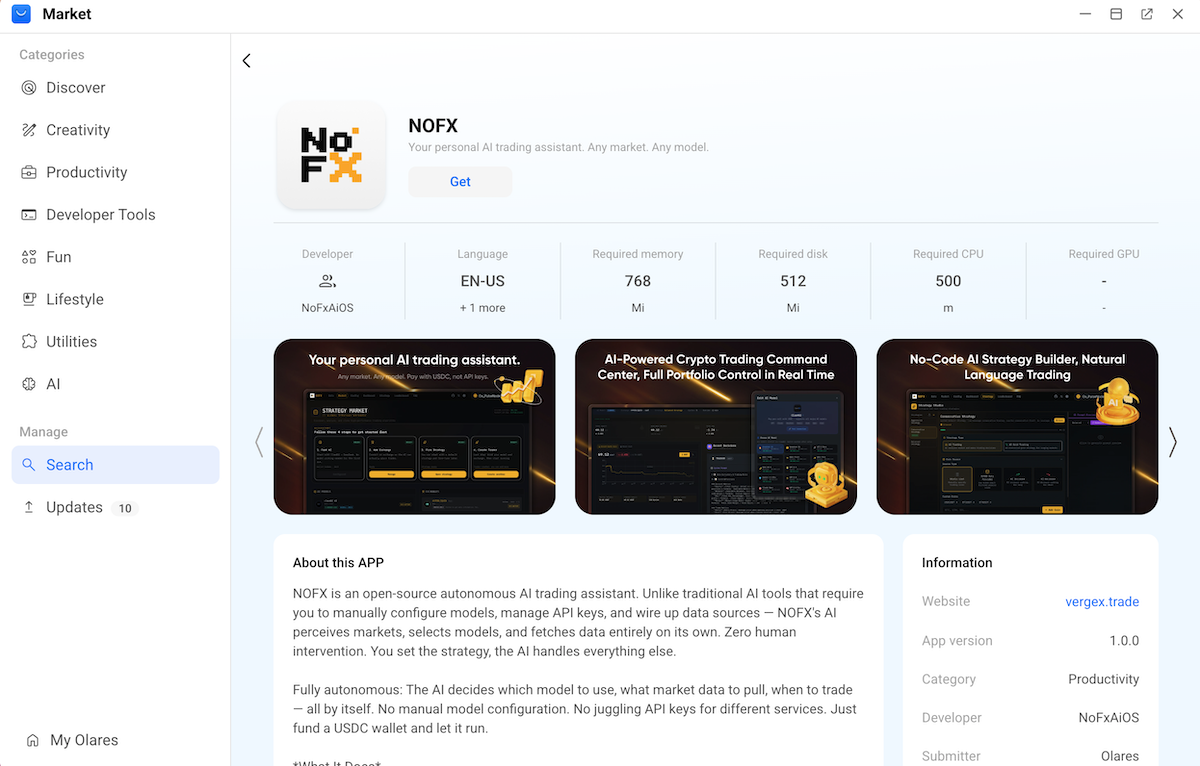
Click Get, and then click Install. Wait for installation to finish.
Sign up and fund the AI wallet
NOFX uses an internal AI wallet to pay for model calls through the x402 protocol. You fund this wallet with USDC on the Base chain. NOFX automatically pays per call when the agent invokes a model.
Open NOFX from the Launchpad. On first launch, register with your email and password.
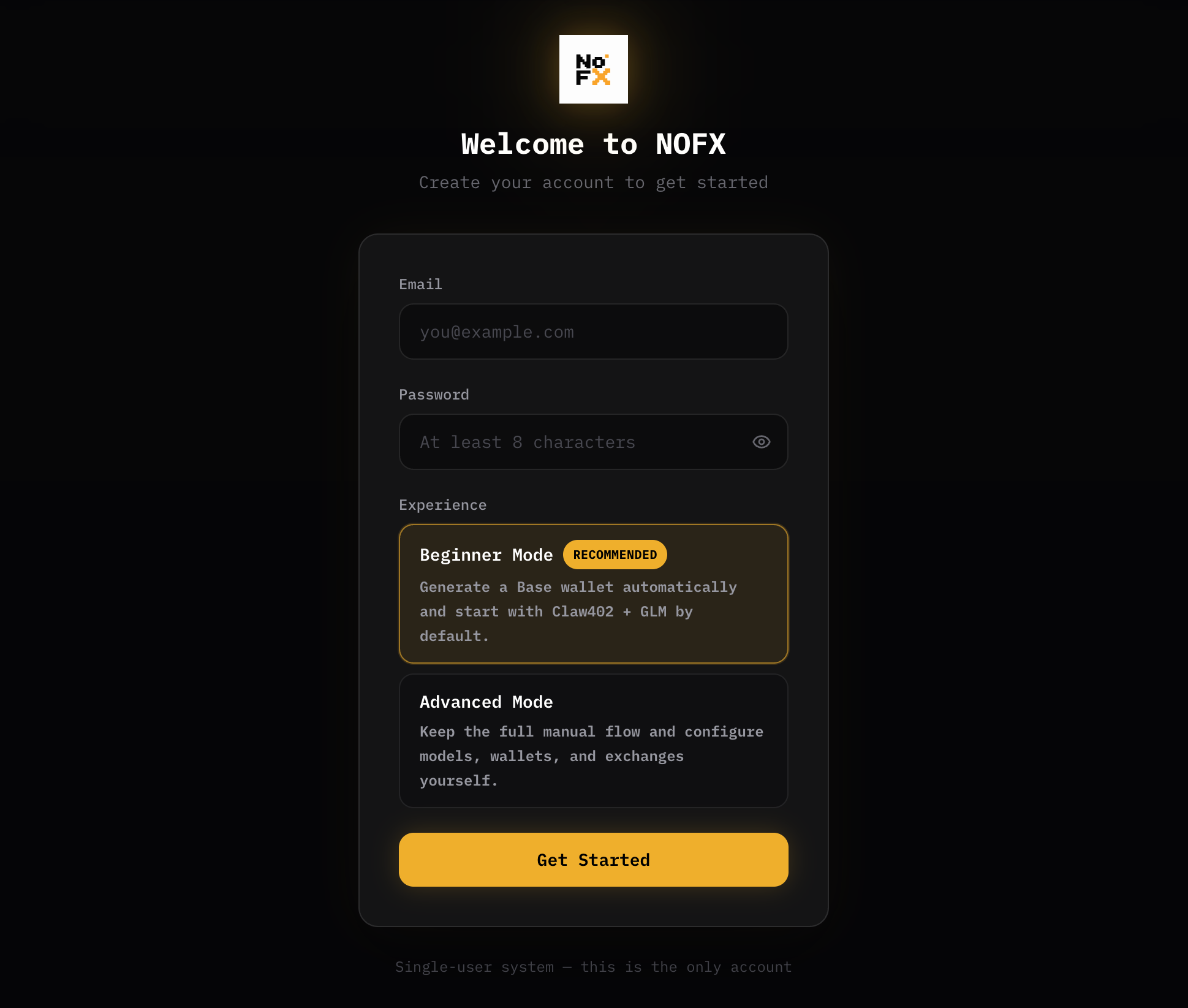
After you sign up, NOFX generates a wallet address and the corresponding private key. Store the private key in a secure location and never share it with anyone.
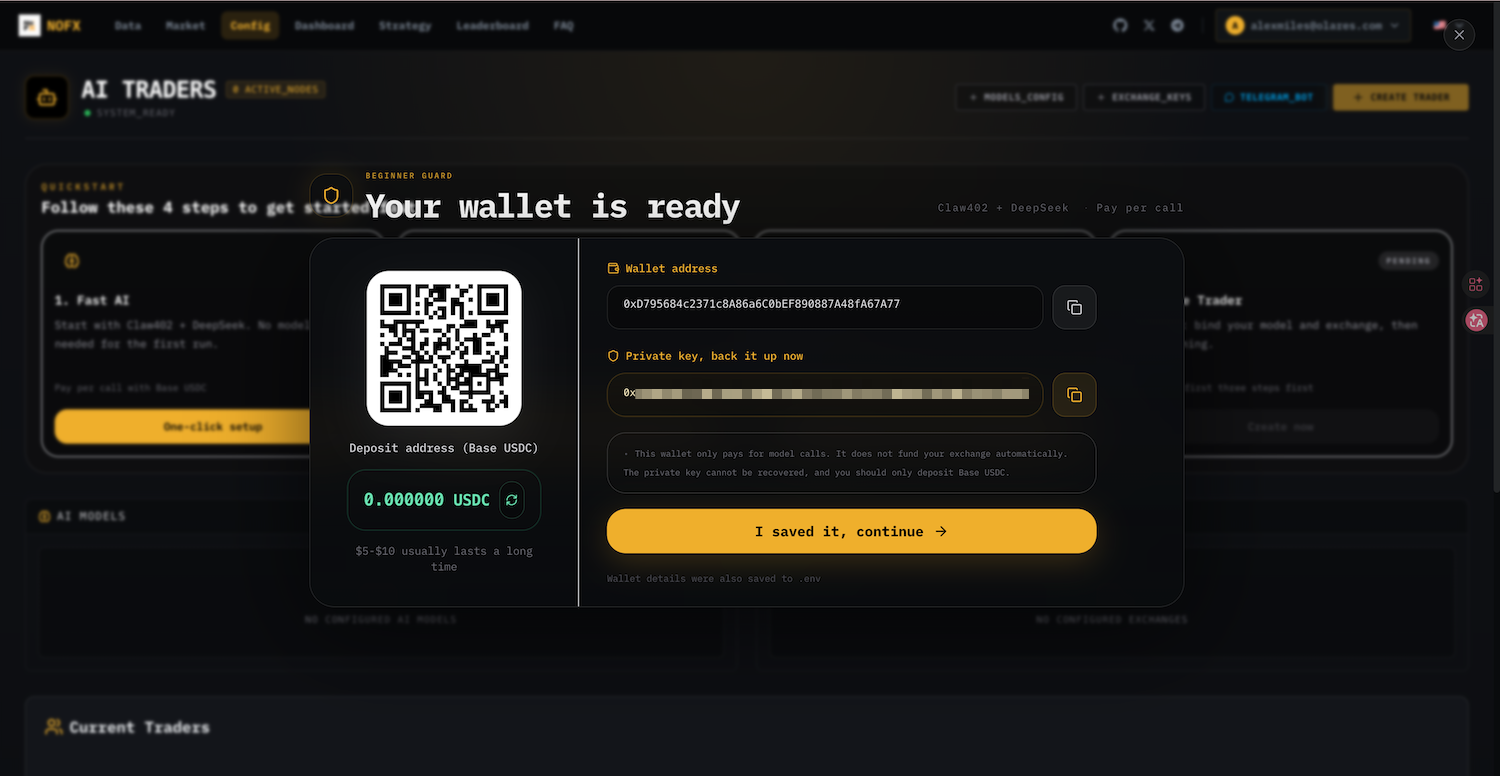
Click I saved it, continue.
On the Config page, click OPEN AI WALLET.
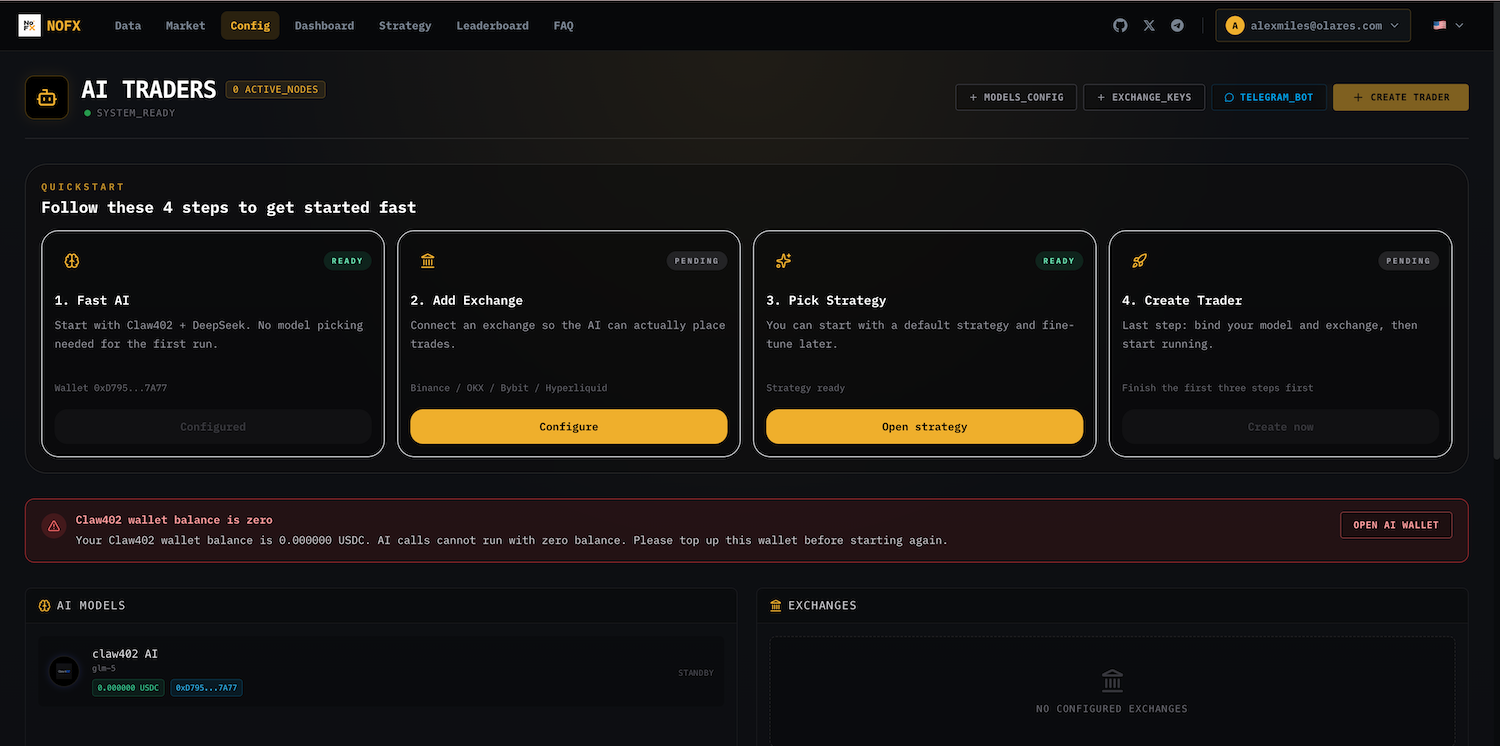
In the Edit AI Model window, scroll down to the Deposit USDC (Base Chain) section, and then deposit USDC into the wallet. Start with about 10 USDC to test the flow before depositing the amount you plan to use for live strategies.
Use USDC on the Base chain
Only USDC on the Base chain is recognized. If your USDC is on another chain, use the wallet's swap feature to bridge it to Base first.
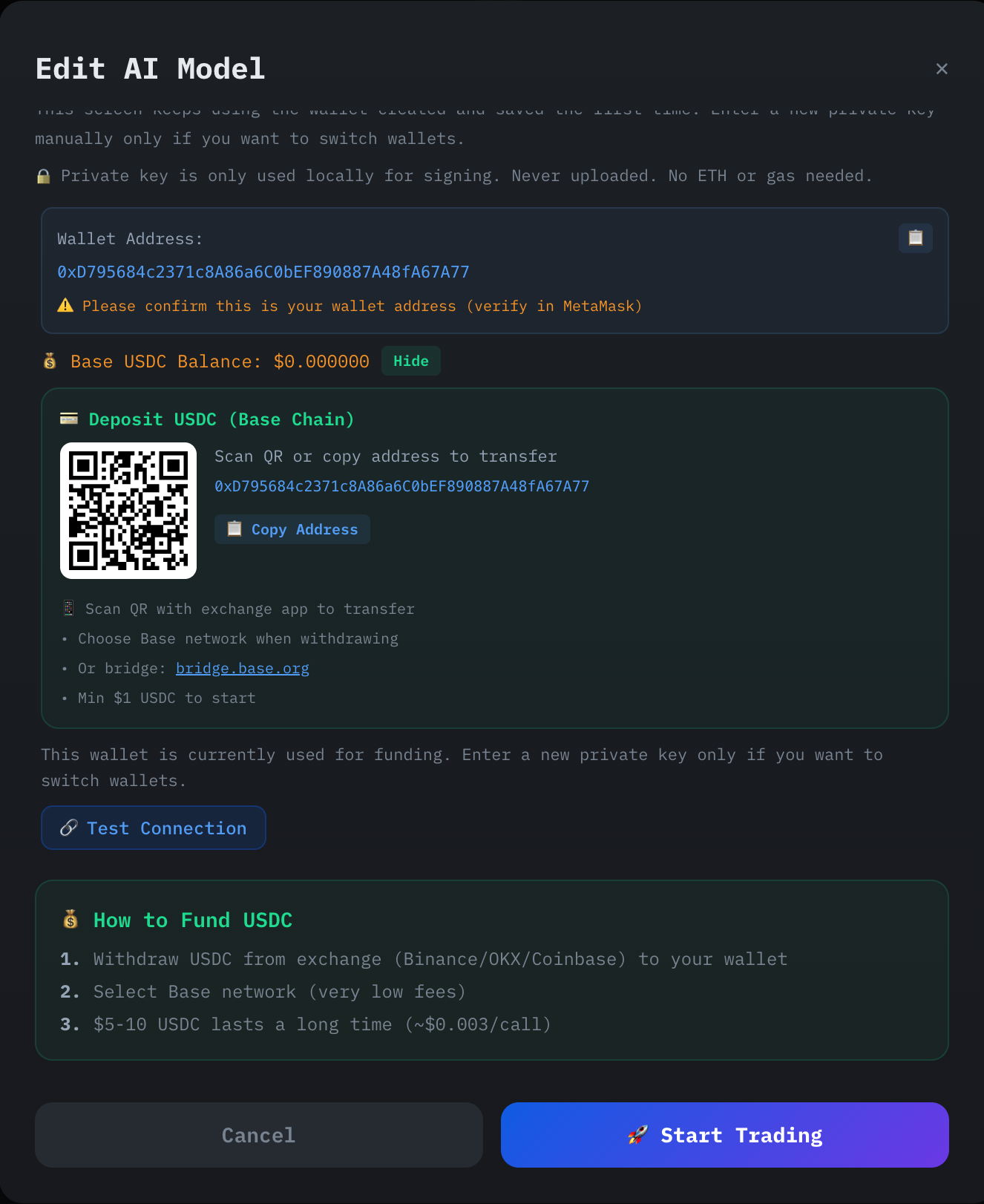
After the deposit transaction completes, refresh the page to update the balance. If the balance does not update, click Test Connection to check the connectivity.
Once funded, your balance appears in the AI MODELS section.

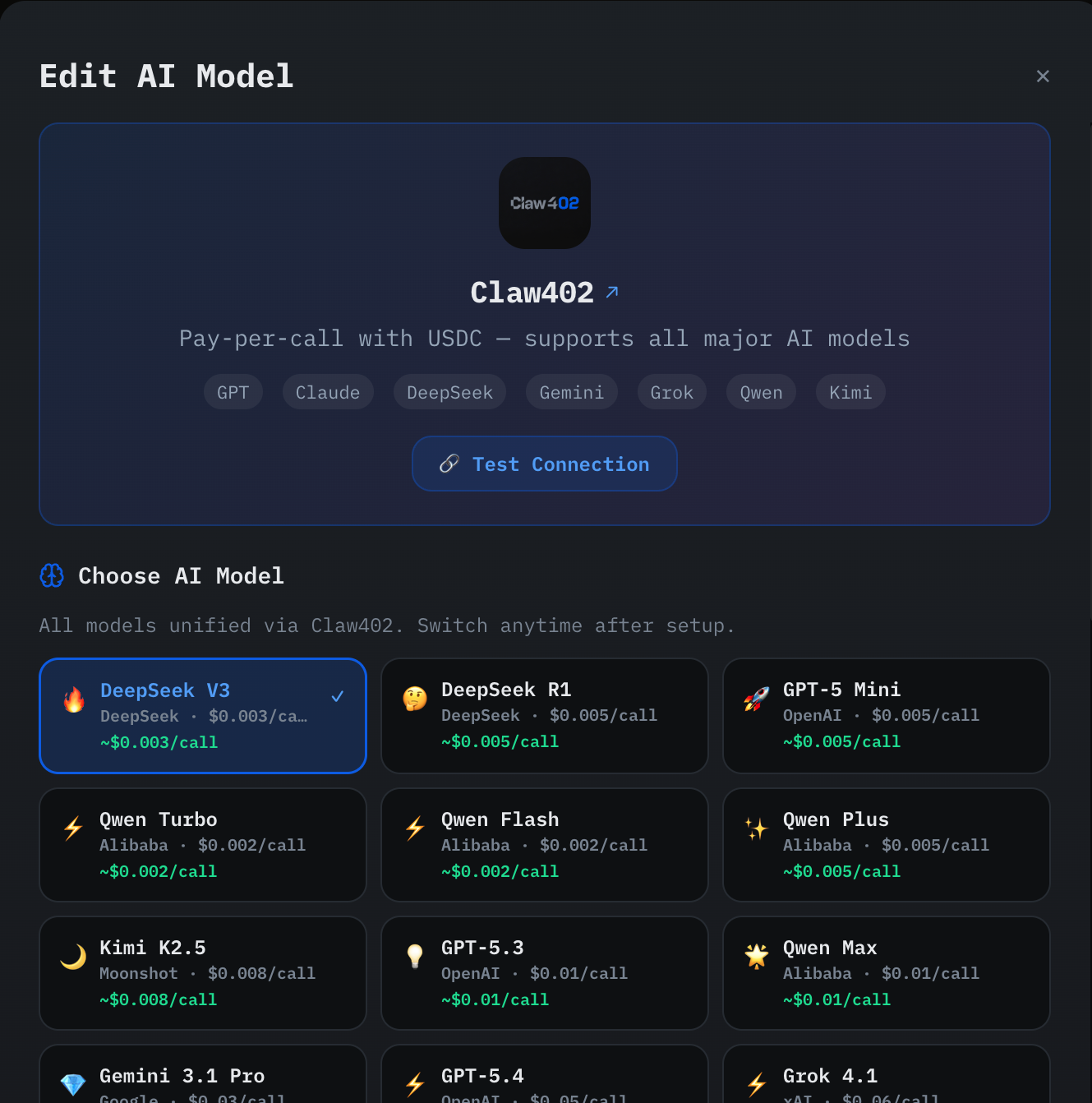
Click OPEN AI WALLET again, select an AI model to use, scroll down to the bottom of the window, and then click Start Trading.
Connect an exchange account
To allow NOFX to execute trades on your behalf securely, you must connect it to your exchange. This is a two-part process: first, you create a dedicated API wallet on the exchange to generate access keys, and then you add those keys to NOFX.
NOFX supports multiple exchanges, which all share the same configuration process. The following steps use Hyperliquid as the example.
Create a Hyperliquid API wallet
An API wallet acts as a secure bridge, allowing NOFX to trade without ever exposing your main account credentials.
Prerequisite
Before you create an API wallet, ensure you have an active Hyperliquid account funded with at least 10 USDC on the Arbitrum chain. Hyperliquid requires this minimum balance to unlock the ability to create API wallets.
If you are new to Hyperliquid, follow the Hyperliquid onboarding guide to get started.
Open the Hyperliquid web interface at https://app.hyperliquid.xyz, and then log in to your account.
On the top menu bar, go to More > API.
Create a new API wallet.

Authorize the API wallet by signing the prompt with your main Hyperliquid wallet.
Copy the API wallet address and private key, and store them in a secure location. You need these credentials for the next step.
Add Hyperliquid to NOFX
Now that you have your API credentials, you add them to NOFX so the agent can actively communicate with your exchange.
In NOFX, go to the Config page.
On the Add Exchange card, click Configure.
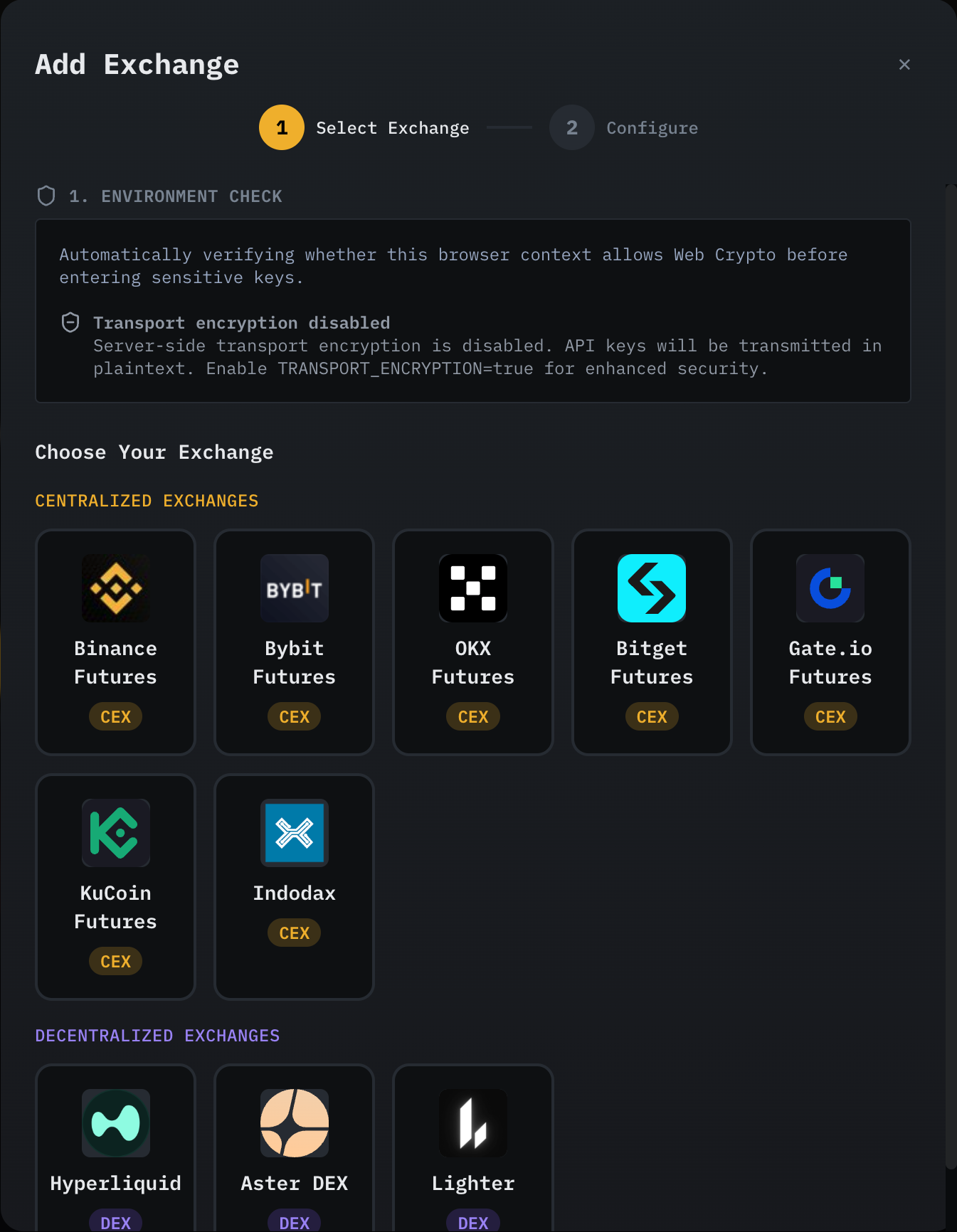
On the Select Exchange screen, choose Hyperliquid.
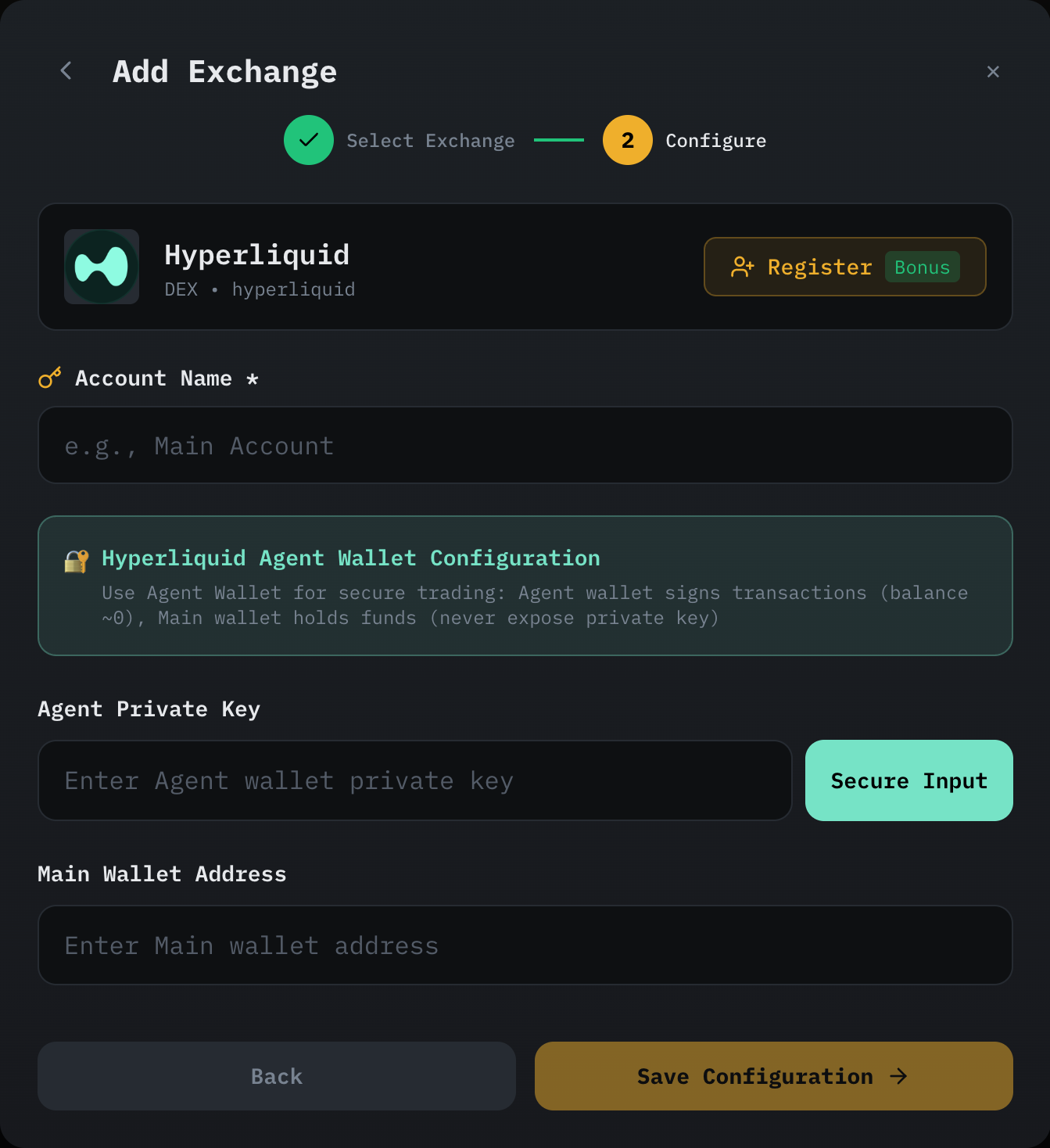
On the Configure screen, fill in the following fields:
- Account Name: Enter a memorable name for this exchange account, such as
Main Account. - Agent Private Key: Enter the private key of the API wallet you created on Hyperliquid.
- Main Wallet Address: Enter the address of your main Hyperliquid trading account that holds the funds. The Agent wallet signs transactions, while the main wallet keeps the balance and remains unexposed.
- Account Name: Enter a memorable name for this exchange account, such as
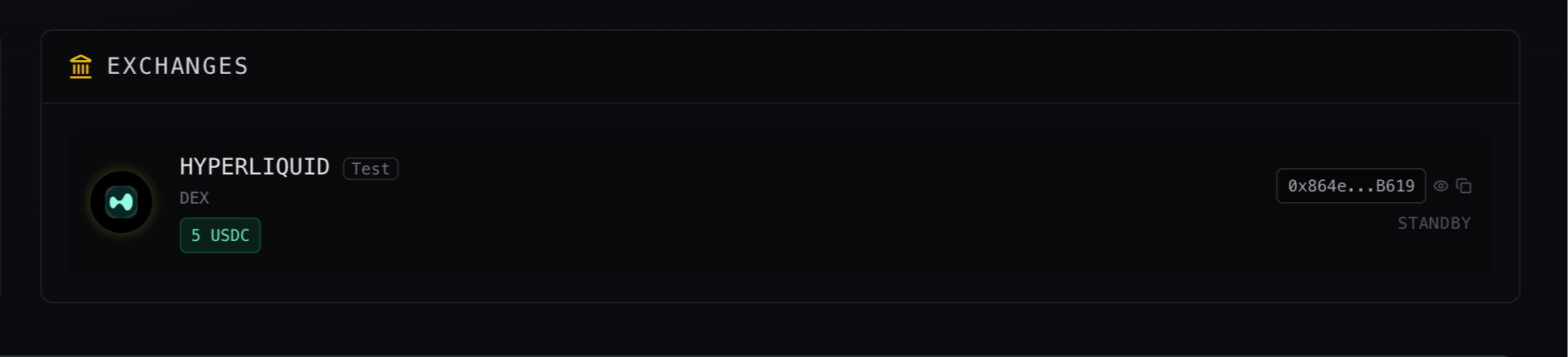
Click Save Configuration. Once finished, Hyperliquid appears in the EXCHANGES section.
Create a trading strategy
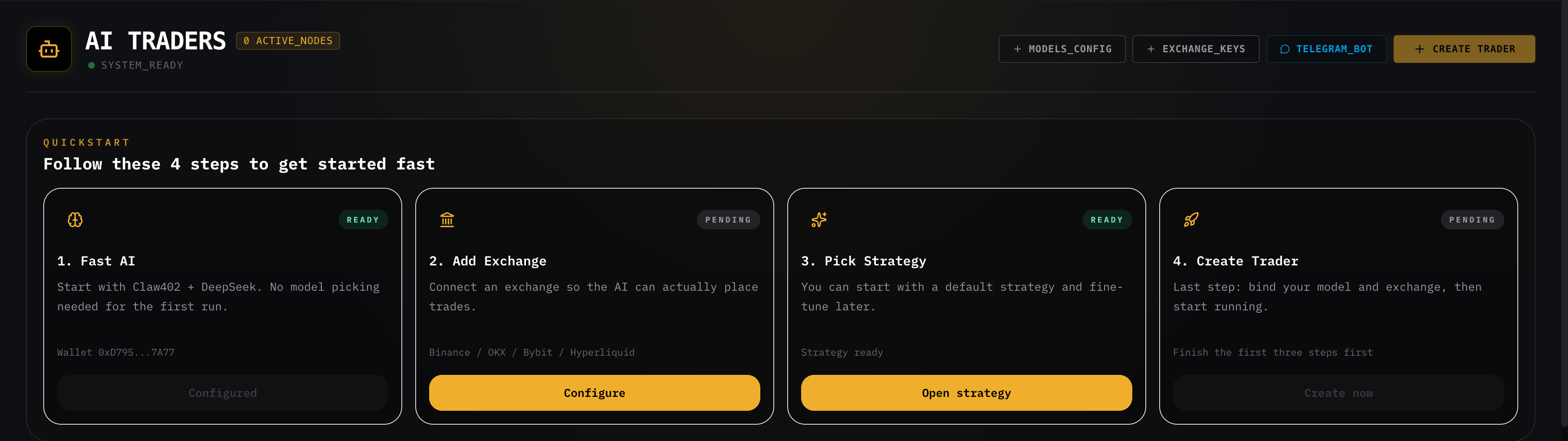
On the Pick Strategy card, click Open strategy to open the strategy editor.
Select a default strategy from the left panel, select Static List as the coin source, and add BTC and ETH as the trading pairs.
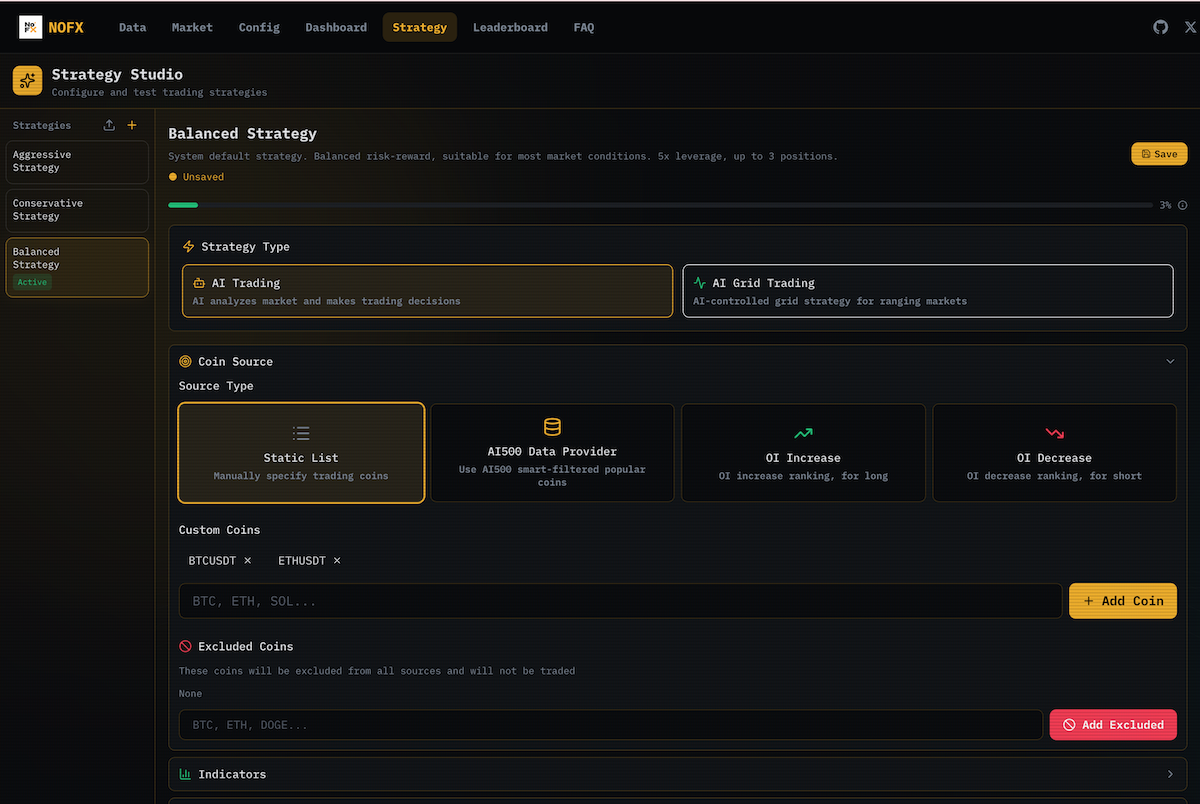
To fine-tune the strategy, configure the following panels:
- Indicators: Choose the technical indicators the strategy uses.
- Risk control: Set risk management rules.
- Prompt Editor: Edit the prompt the AI uses for decision-making.
- Extra Prompt: Enter an extra prompt appended to the System Prompt for a personalized trading style.
Click Save, and then click Activate to enable the strategy.
Configure your trading bot
A Trader represents your automated trading bot. Creating a Trader combines your chosen AI model, exchange connection, and trading strategy into a single runnable trading bot.
On the Create Trader card, click Create now.
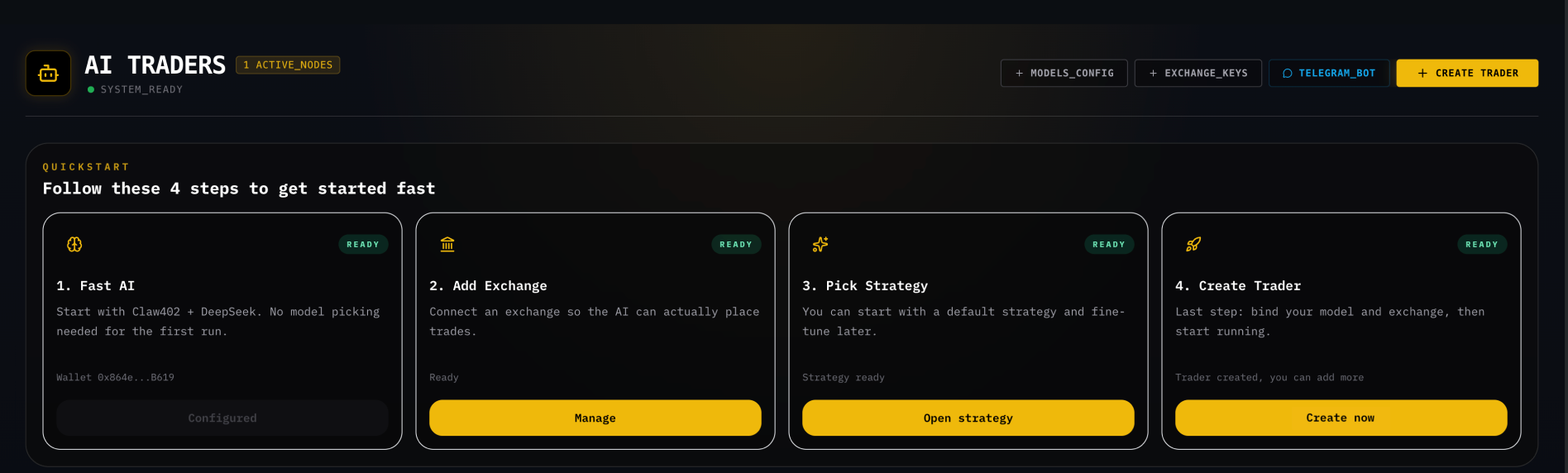
Enter the trader name, and select the AI model and exchange you configured earlier.
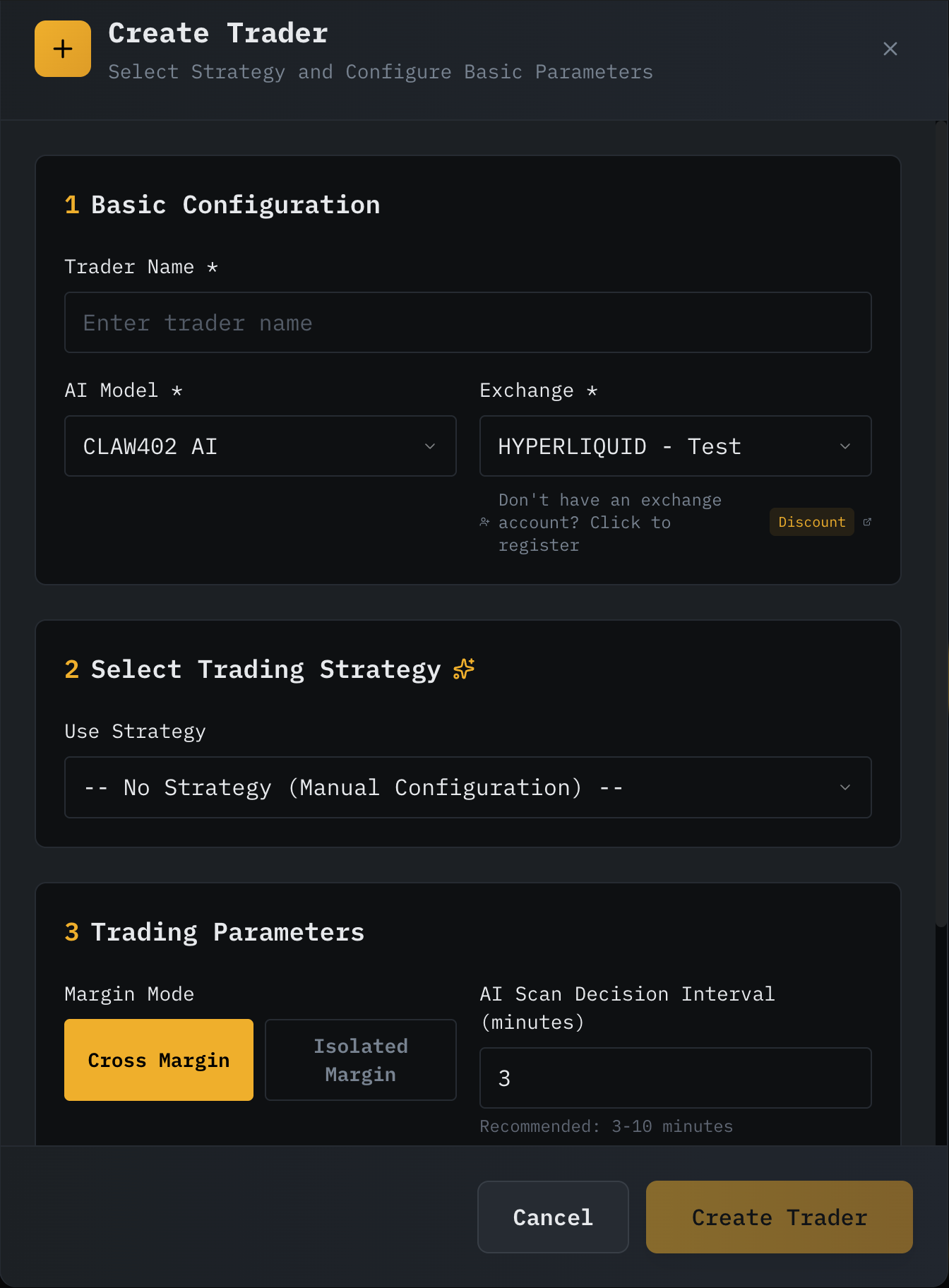
Select the trading strategy you configured earlier.
Specify the trading parameters.
Click Create Trader.
Start and monitor your trading bot
In the Current Traders section, find the new Trader you just created.

Start the Trader by clicking Start.
Go to the Dashboard page to watch the strategy run in real time.
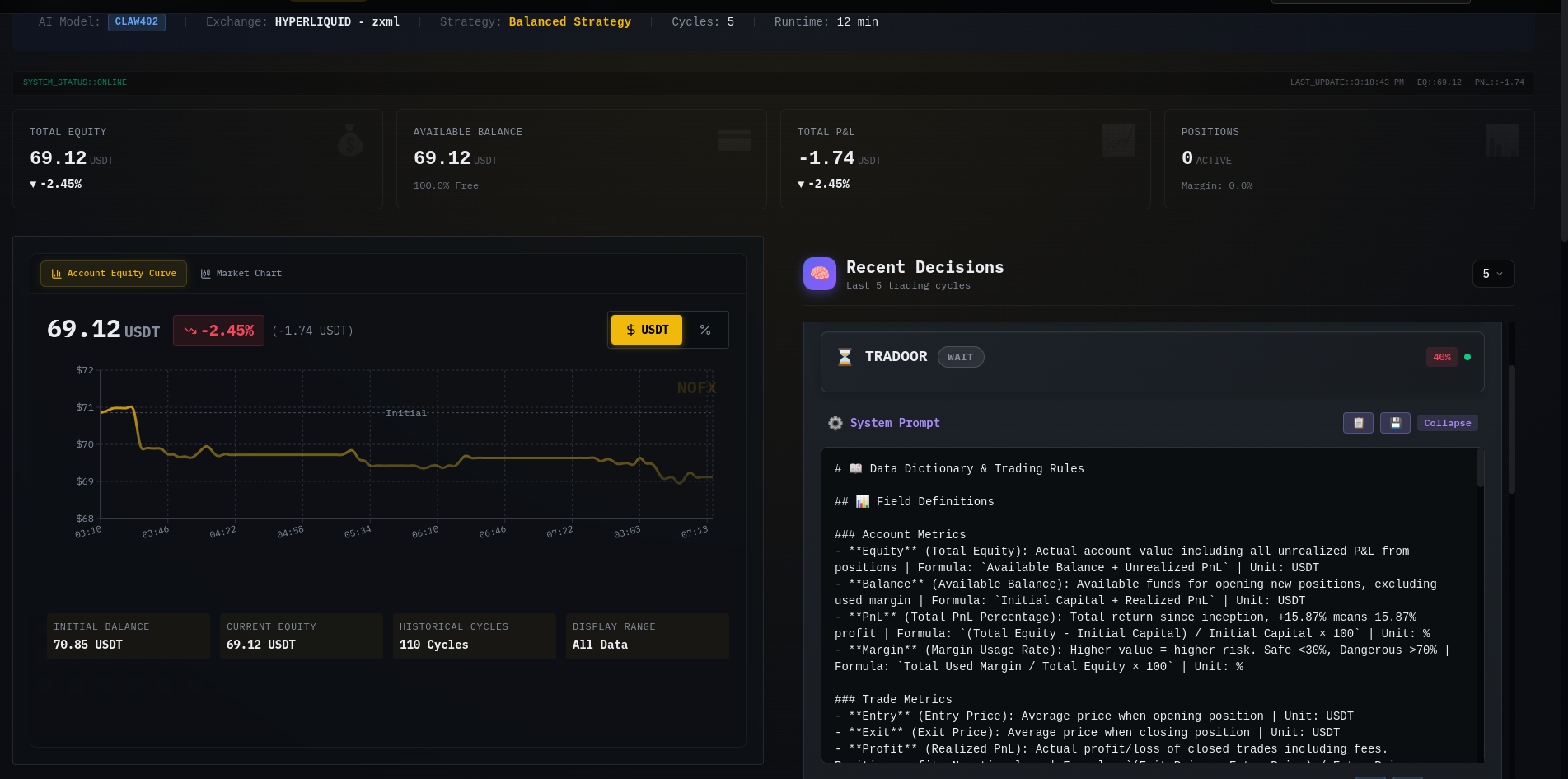
To stop the Trader, return to the Config page, and then click Stop in the same section.
FAQs
What is the difference between the AI wallet and the API wallet?
NOFX requires two different wallets for distinct purposes:
- AI wallet: Lives inside NOFX and pays for the AI model's data analysis and decision-making process. You fund this wallet with USDC on the Base chain.
- API wallet: Lives on your exchange, such as Hyperliquid. It does not hold funds. Instead, it securely grants NOFX permission to execute trades using the funds in your main exchange account.
How to switch models?
INFO
If you configure your own API key, NOFX routes the requests directly through your provider. This means NOFX will not deduct model call fees from your internal AI wallet.
On the Config page, click + MODELS_CONFIG.

Click Other API Providers, and then select another provider. For example, Qwen.
Enter the API key. The base URL and model name are optional.
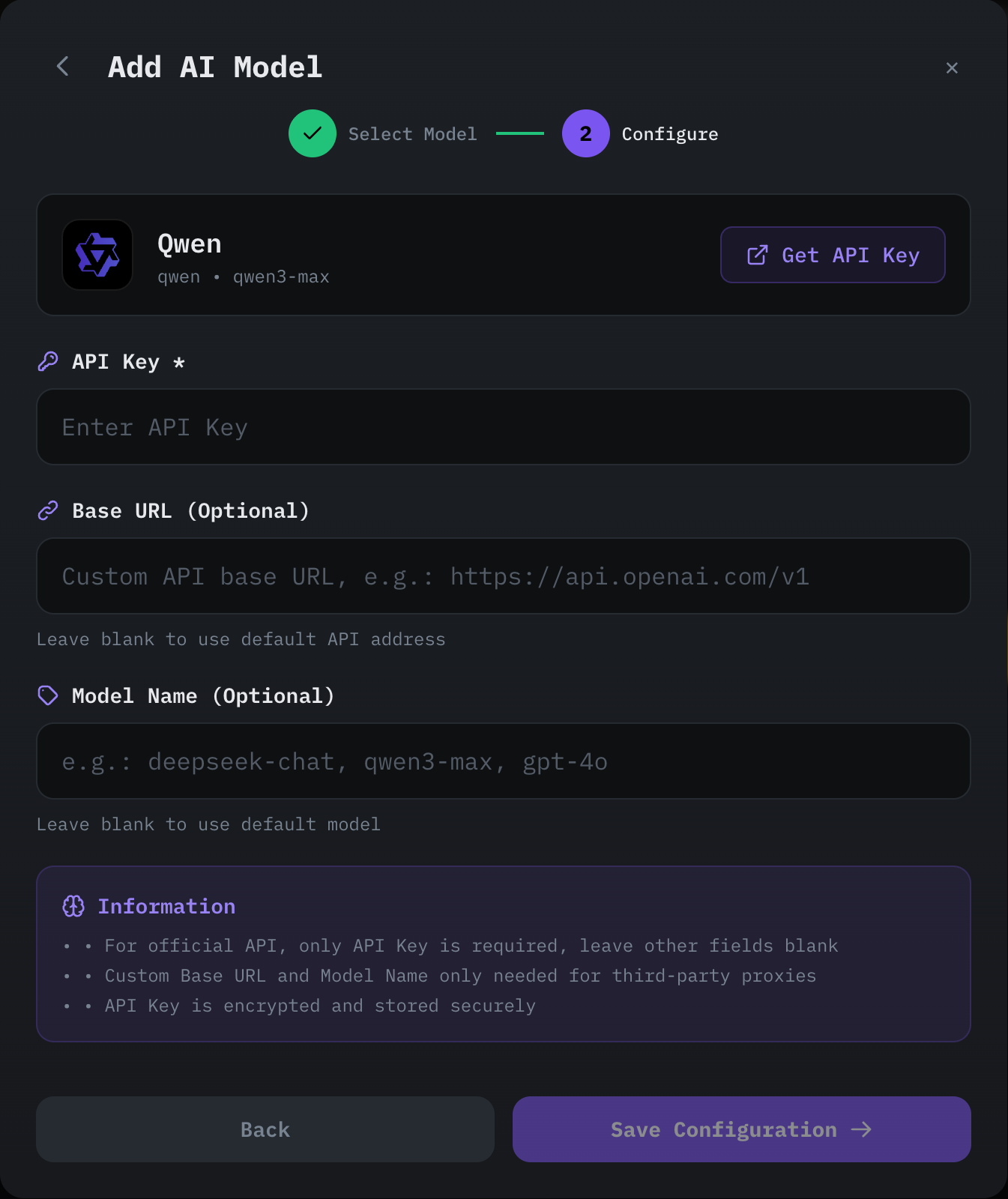
Click Save Configuration. API keys are encrypted before storage. After saving, test the connection to verify it works.
Can I use a local model?
The current version does not support local models.
Model didn't output structured JSON decision
Some models cannot reliably produce decisions in JSON format. To work around this issue, try one of the following methods:
- Switch to a different model.
- Adjust the model parameters.
- Edit the prompt below the model settings to instruct the model to output valid JSON format.