Set up OpenCode as your AI coding agent
OpenCode is an AI-powered coding agent that lets you write, test, and manage code through natural language. It supports multiple AI providers and can run shell commands, create files, and install development environments from a chat interface.
On Olares, you can use OpenCode in two ways:
- Browser: Install OpenCode as an app on Olares and access it through your browser.
- Local CLI: Install OpenCode on your computer and connect it to Ollama on Olares for a native terminal experience.
Learning objectives
By the end of this tutorial, you will learn how to:
- Install OpenCode on Olares and connect it to an Ollama-hosted model or OpenAI.
- Create projects and run coding tasks through the chat interface or the terminal-based UI (TUI).
- Use OpenCode from your local computer over the LarePass VPN or from inside VS Code.
- Edit the OpenCode configuration file to manage providers, models, and tools.
Prerequisites
- An Olares device with sufficient disk space and memory
- Ollama installed on Olares with at least one model downloaded, if you plan to use local models
- A ChatGPT Plus/Pro account or an OpenAI API key, if you plan to use OpenAI
- Admin privileges to install apps from Market
- LarePass VPN enabled on your computer (for local CLI usage only)
Run OpenCode in the browser
This option installs OpenCode as an application on your Olares device. You access it through your browser.
Install OpenCode
Open Market and search for "OpenCode".
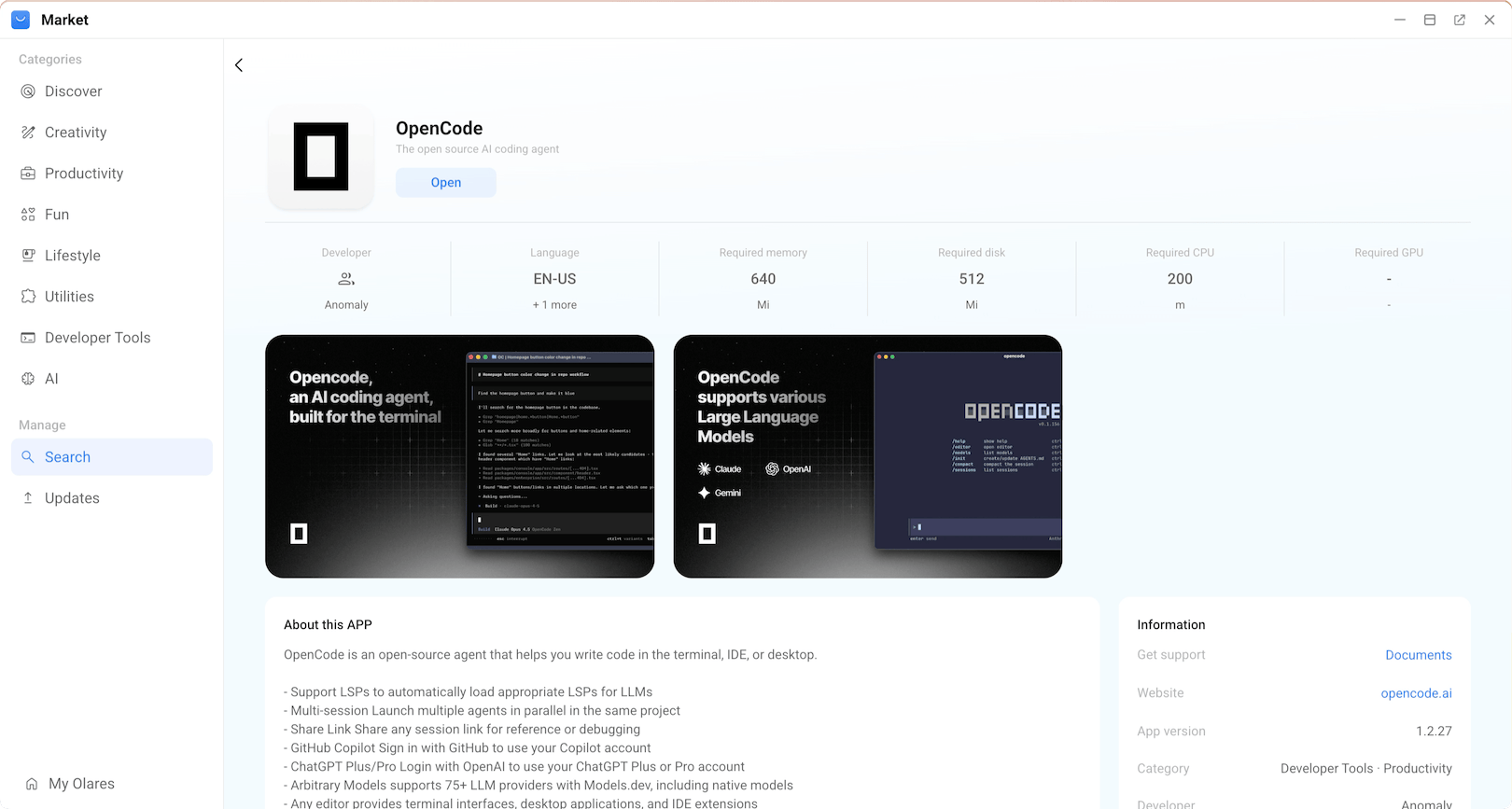
Click Get, then Install, and wait for installation to complete.
After installation, you will see two icons on Launchpad:
- OpenCode: The main interface for OpenCode.
- OpenCode Terminal: A command-line terminal for OpenCode. Use this if you prefer working in the TUI.
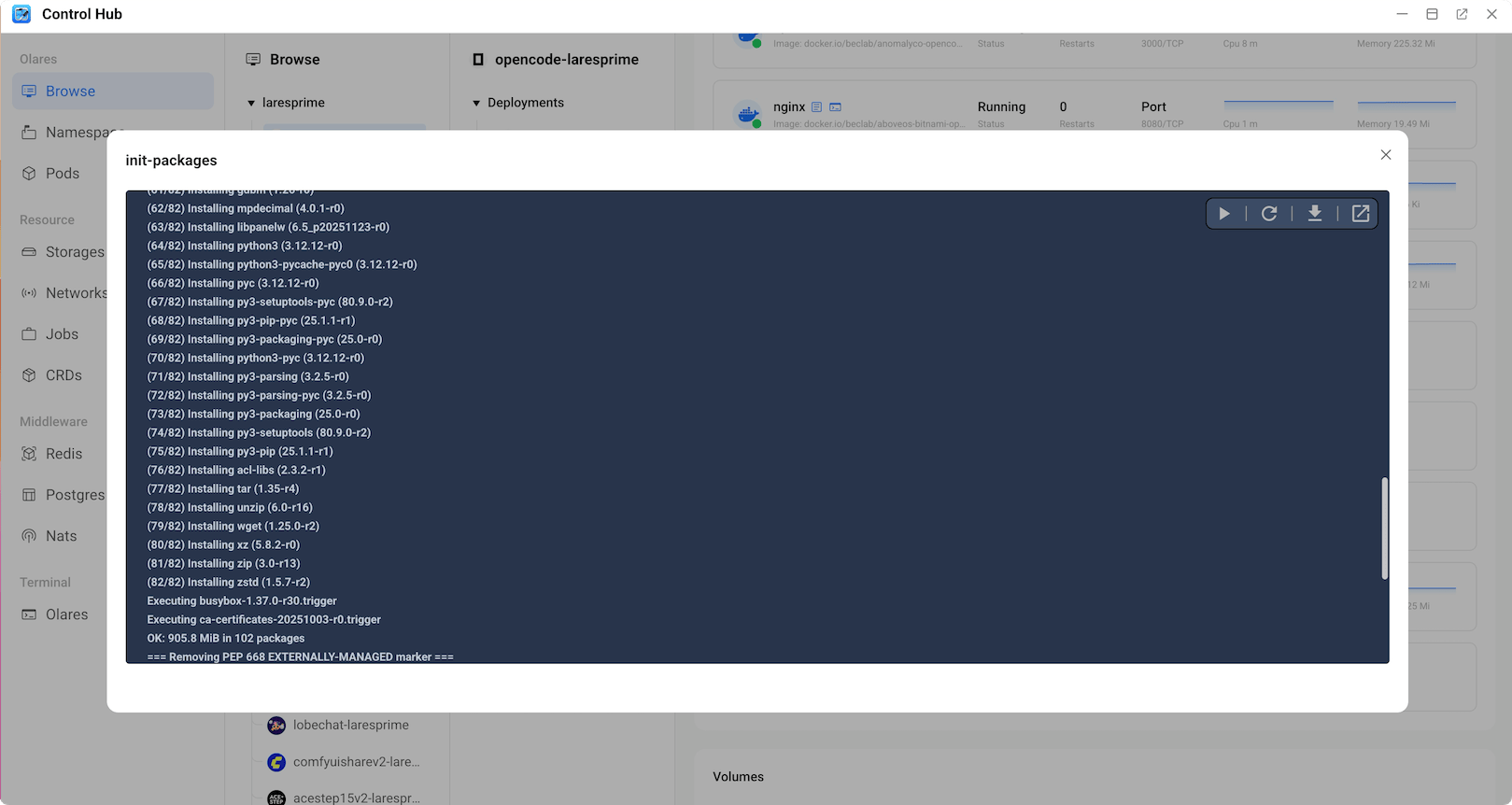
Open OpenCode from Launchpad. On first launch, OpenCode needs to download dependency packages. This might take 10 to 30 minutes depending on your network conditions.
To track the download progress:
- Open Control Hub and select the OpenCode project from the sidebar.
- Navigate to Deployments > opencode and click the running pod.
- Under Containers, locate the init-packages container, and click article to open the log window.
Get the model endpoint
Olares offers two ways to serve local models:
- Ollama app: One app that hosts multiple models behind a single shared endpoint.
- Single-model app: Each app packages one specific model and exposes its own shared endpoint.
OpenCode connects to both through a shared entrance URL.
Planning to use oh-my-openagent?
For multi-local-model setups under oh-my-openagent, use single-model apps. Each model gets its own endpoint, which lets you register it as a separate provider and tune per-model settings like concurrency limits.
Ollama
To connect OpenCode to Ollama, get the shared entrance URL:
Open Settings, then navigate to Applications > Ollama.
In Shared entrances, select Ollama API to view the shared endpoint URL.
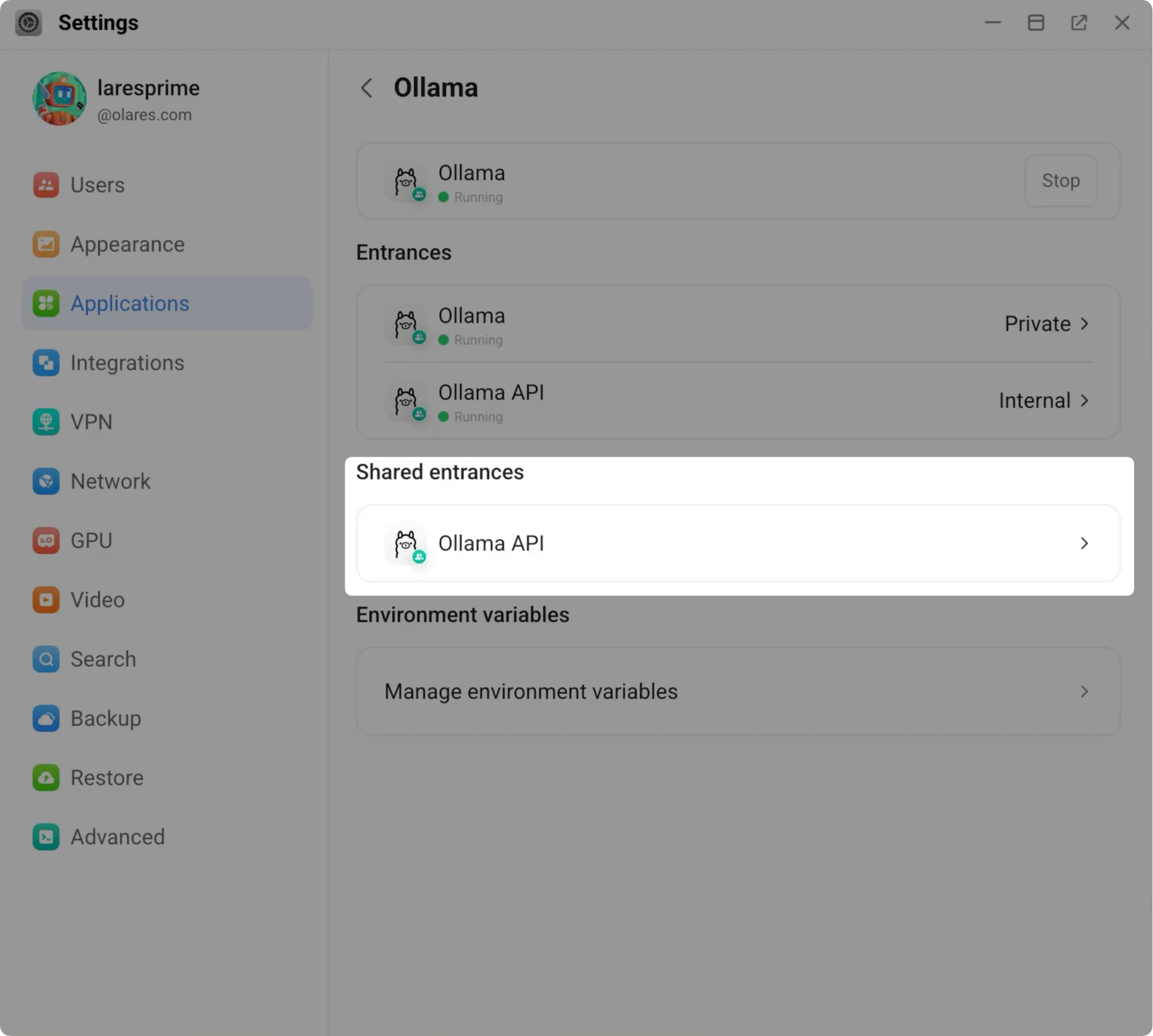
Copy the shared endpoint. For example:
plainhttp://d54536a50.shared.olares.com
Single-model apps
To connect OpenCode to a single-model app, get its shared entrance URL. The example below uses Qwen3.5 9B Q4_K_M:
Open Settings, go to Applications > Qwen3.5 9B Q4_K_M (Ollama), and then click the model name under Shared entrances.
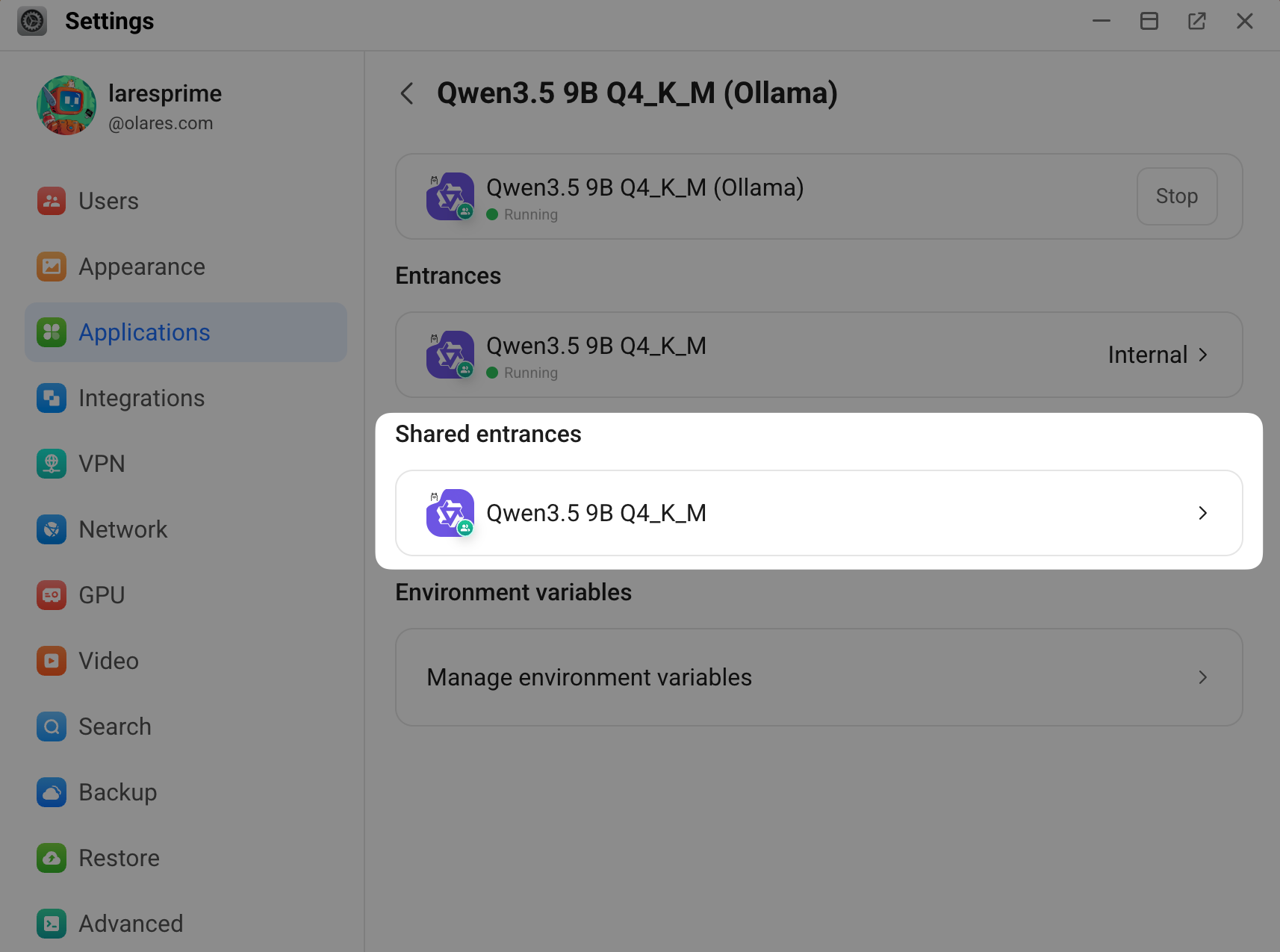
Copy the shared endpoint. For example:
plainhttp://bd5355000.shared.olares.com
Connect to a custom provider
Add your endpoint as a custom provider in OpenCode. The steps are the same for the Ollama app and single-model apps, but the Model ID you enter differs based on the app type.
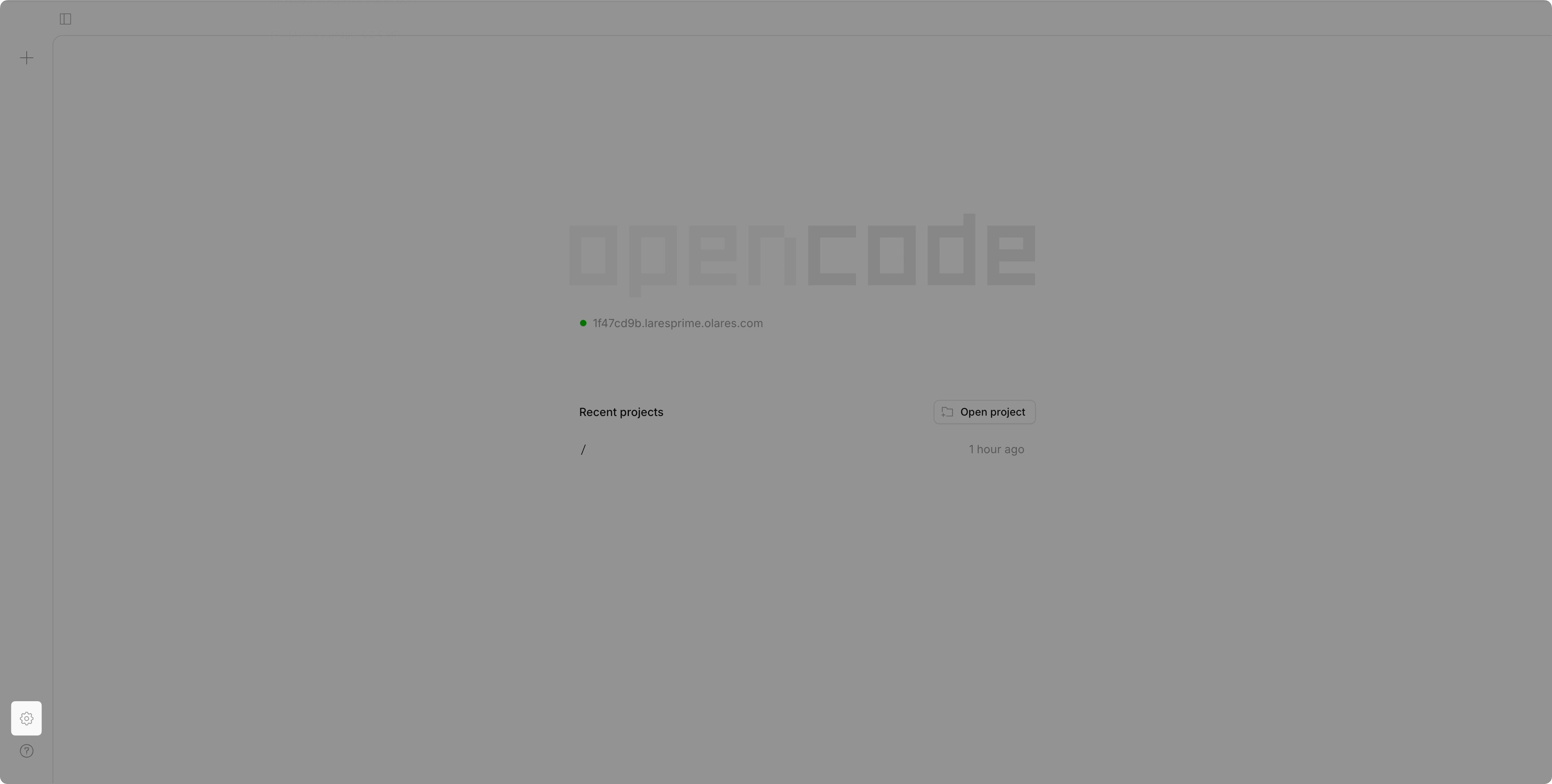
In OpenCode, click settings in the bottom-left corner.
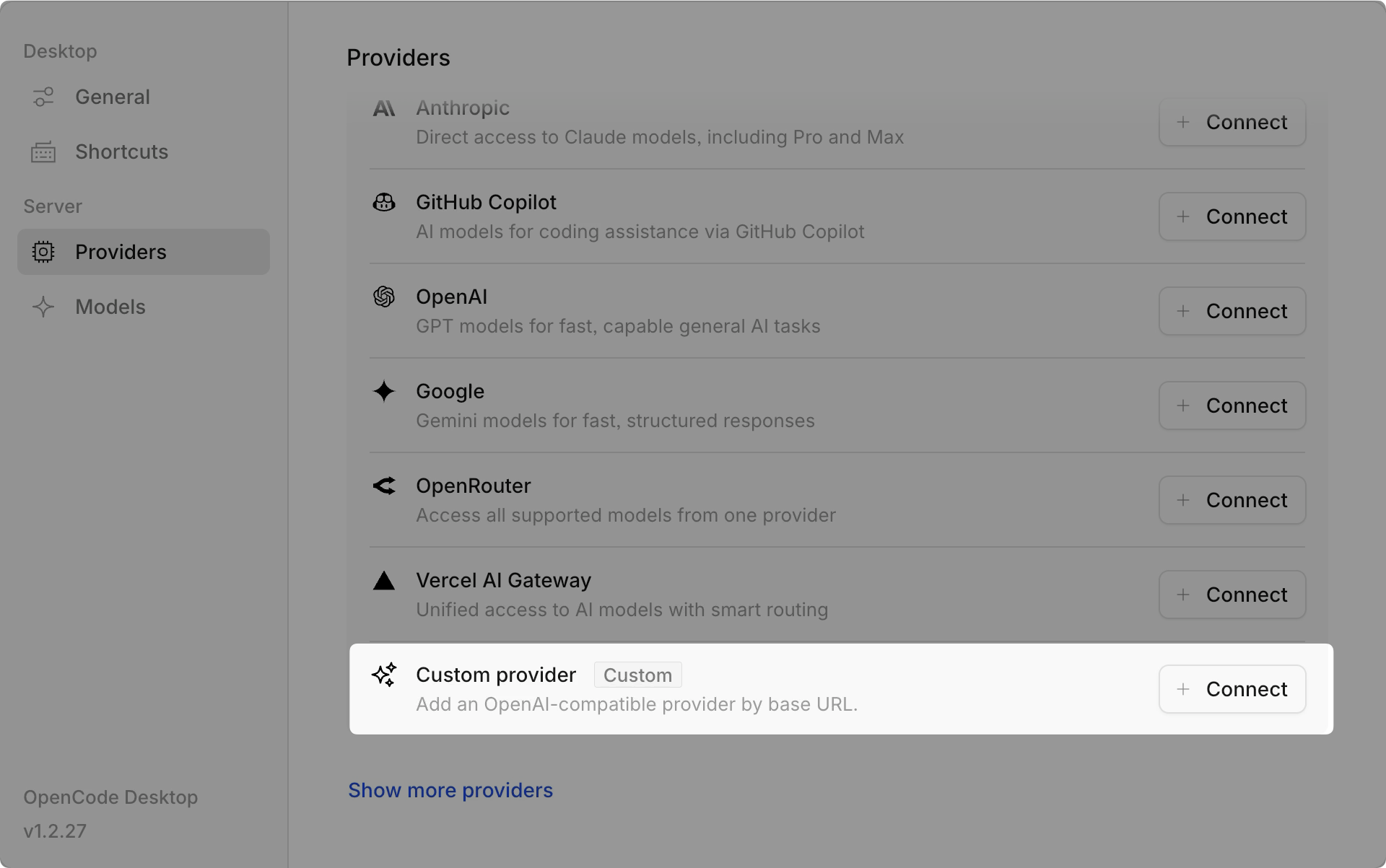
Select Providers, then scroll down and select Connect next to Custom Provider.
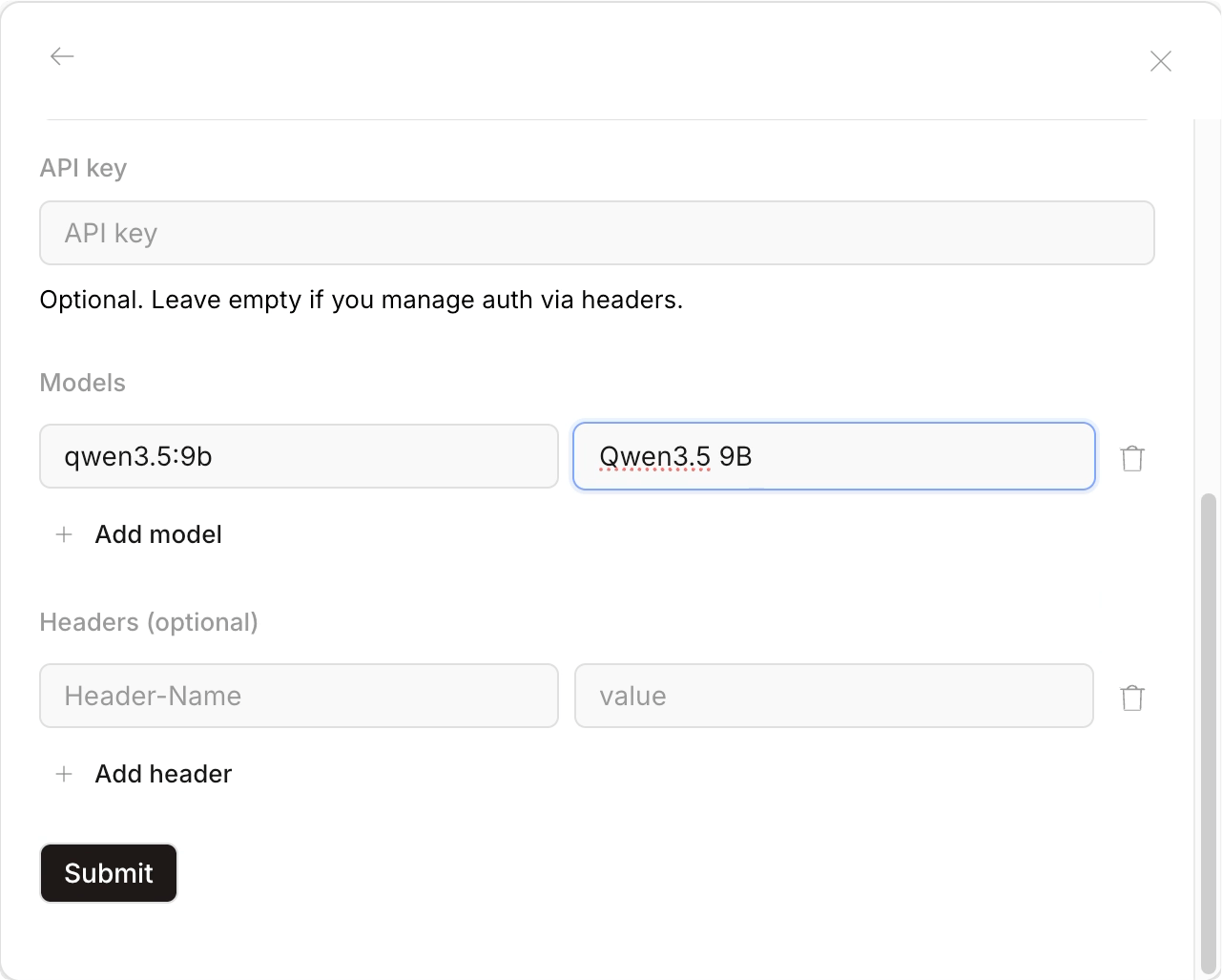
Enter the following details:
- Provider ID: A unique identifier for this provider. For example,
olares-ollamafor the Ollama app orollama-9bfor a single-model app. - Display name: The name shown in the provider list. For example,
Olares OllamaorOllama 9B. - Base URL: The endpoint URL you copied above, with
/v1appended. - Models:
- Model ID: The model to use. For the Ollama app, enter the ID of any model you've downloaded, such as
qwen3.5:9b. For a single-model app, enter the exact model name shown for the app since the app serves only that model. - Display Name: The name shown for this model. For example,
Qwen3.5 9B.
- Model ID: The model to use. For the Ollama app, enter the ID of any model you've downloaded, such as
- Provider ID: A unique identifier for this provider. For example,
To add more models under the same Ollama app provider, click Add model and enter the model ID and display name. Skip this step for single-model app providers.
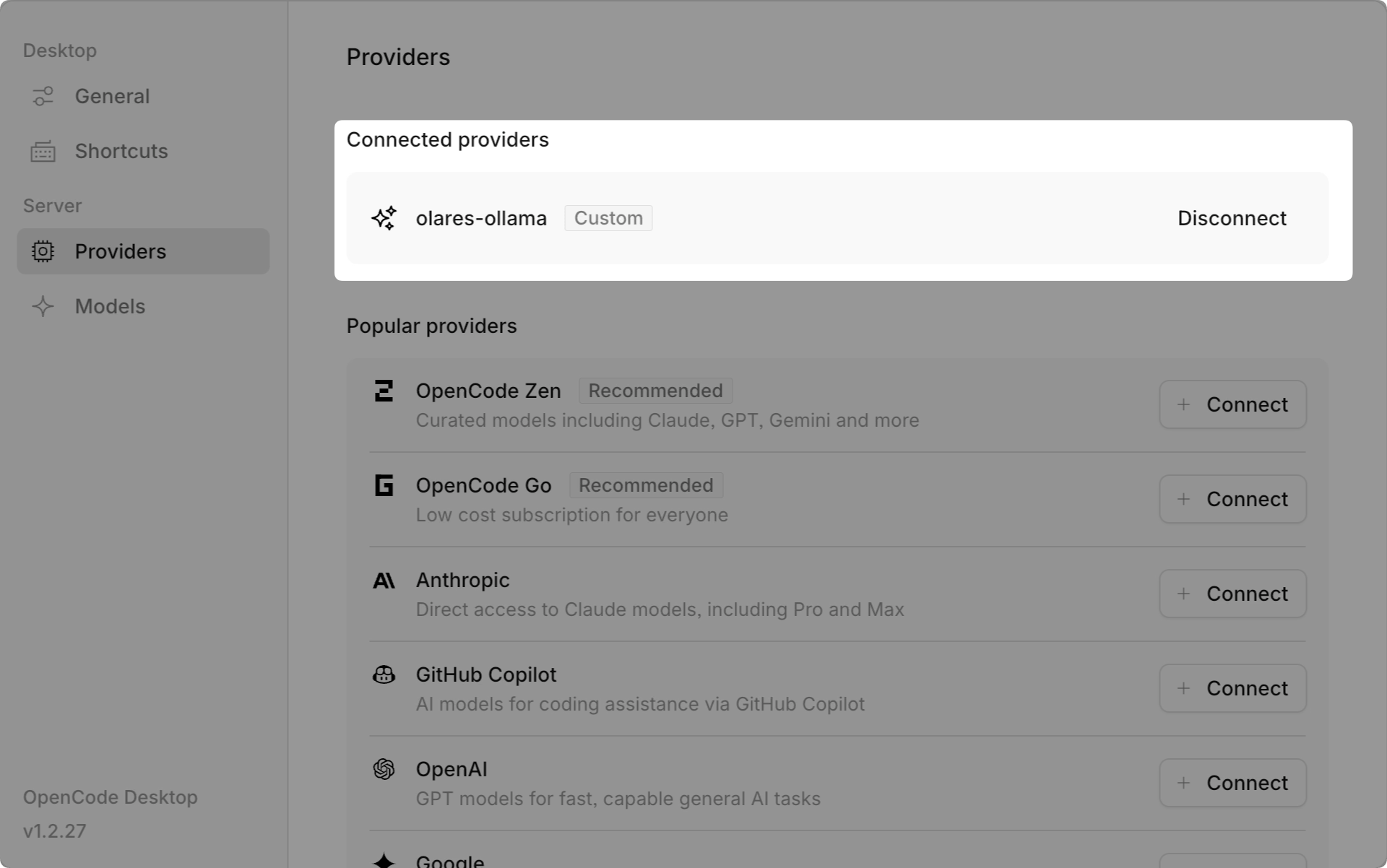
Click Submit to save the configuration. Your newly added provider will appear in the provider list.
Connect to OpenAI
OpenCode supports two practical ways to connect OpenAI:
- Browser sign-in: Recommended for ChatGPT Plus or Pro accounts.
- API key: Simple and direct. Usage is billed separately by OpenAI based on token usage, even if you also have a ChatGPT subscription.
Do not use headless sign-in
The headless sign-in method is prone to known failures caused by OpenAI security checks. After a failed attempt, the sign-in flow might not recover for a short period of time. Use browser sign-in or an API key instead.
Create a project
The default workspace is Home/Code in Files. Click + in the left navigation bar to create a project.
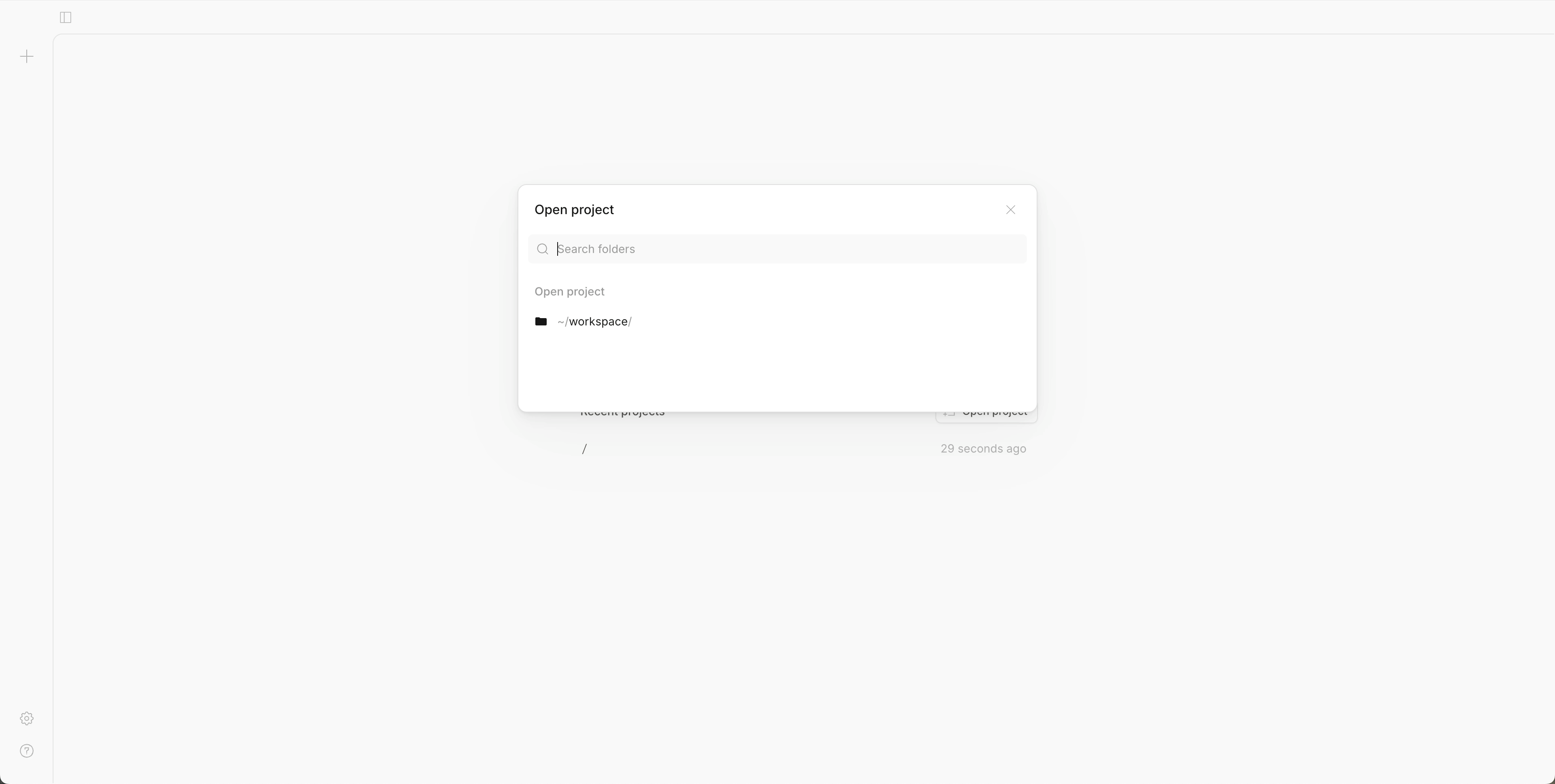
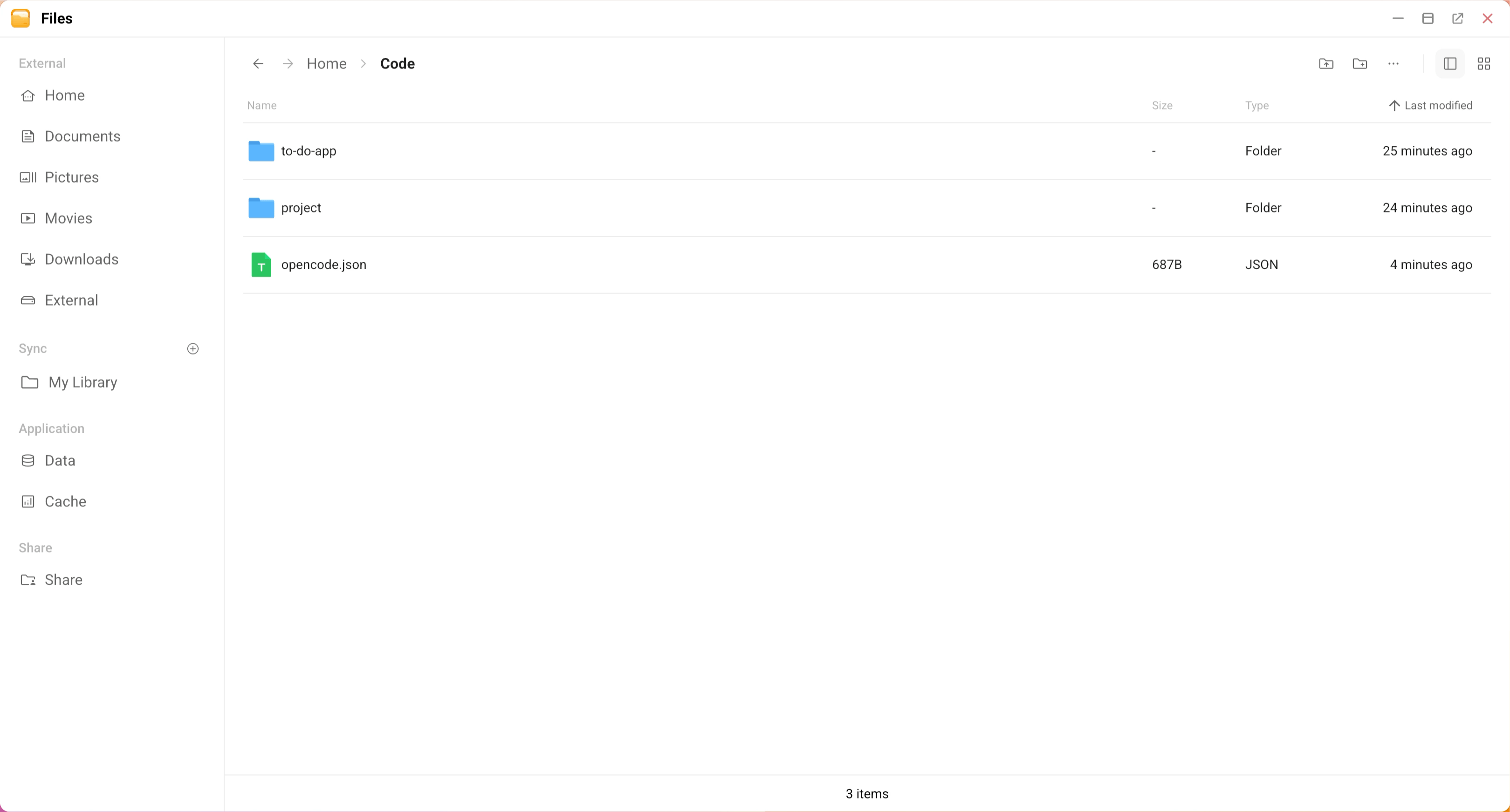
To work with multiple projects, create subfolders under Home/Code first:
Open Files and navigate to
Home/Code/.Create a subfolder for each project.
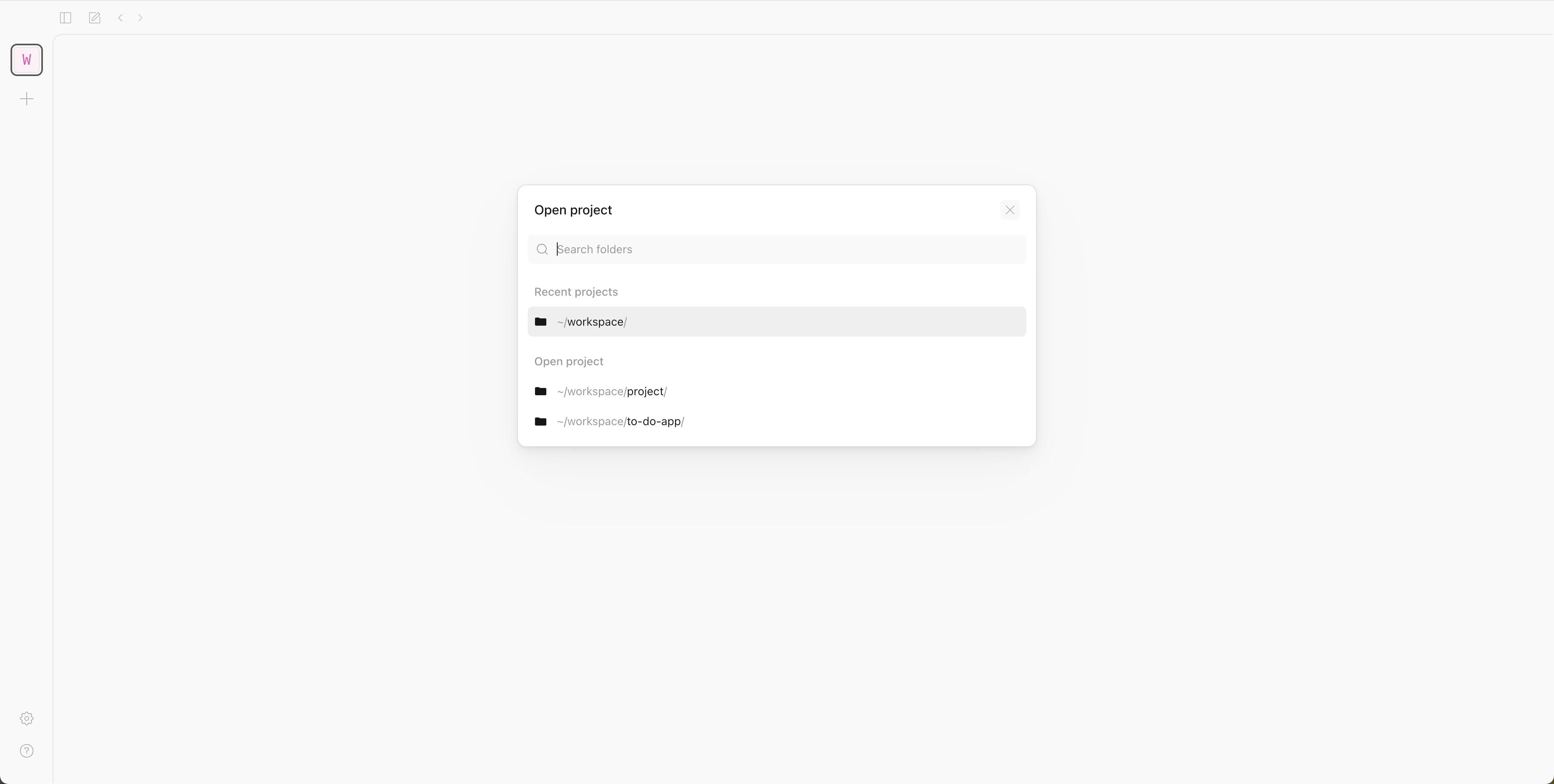
Go back to OpenCode, click +, and open the project with the subfolder name.
Start coding
You can now interact with OpenCode through the chat interface.
Select a project to open the coding agent interface.
Below the chat box, select Big Pickle to open the model selector, and select Qwen3.5 9B from the list.
Type a coding task in natural language.
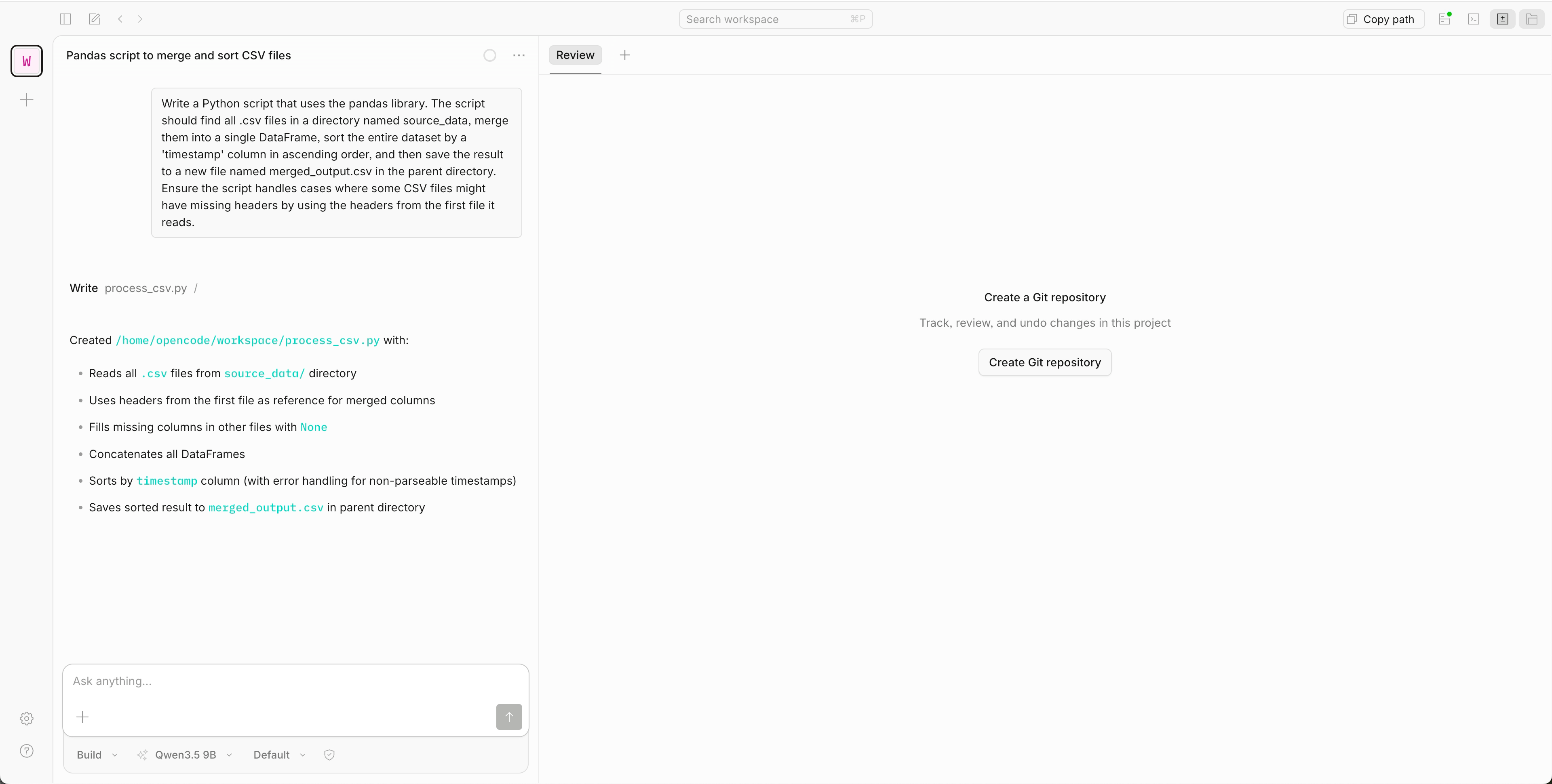
Click folder_open to open the file browser and review the generated code.
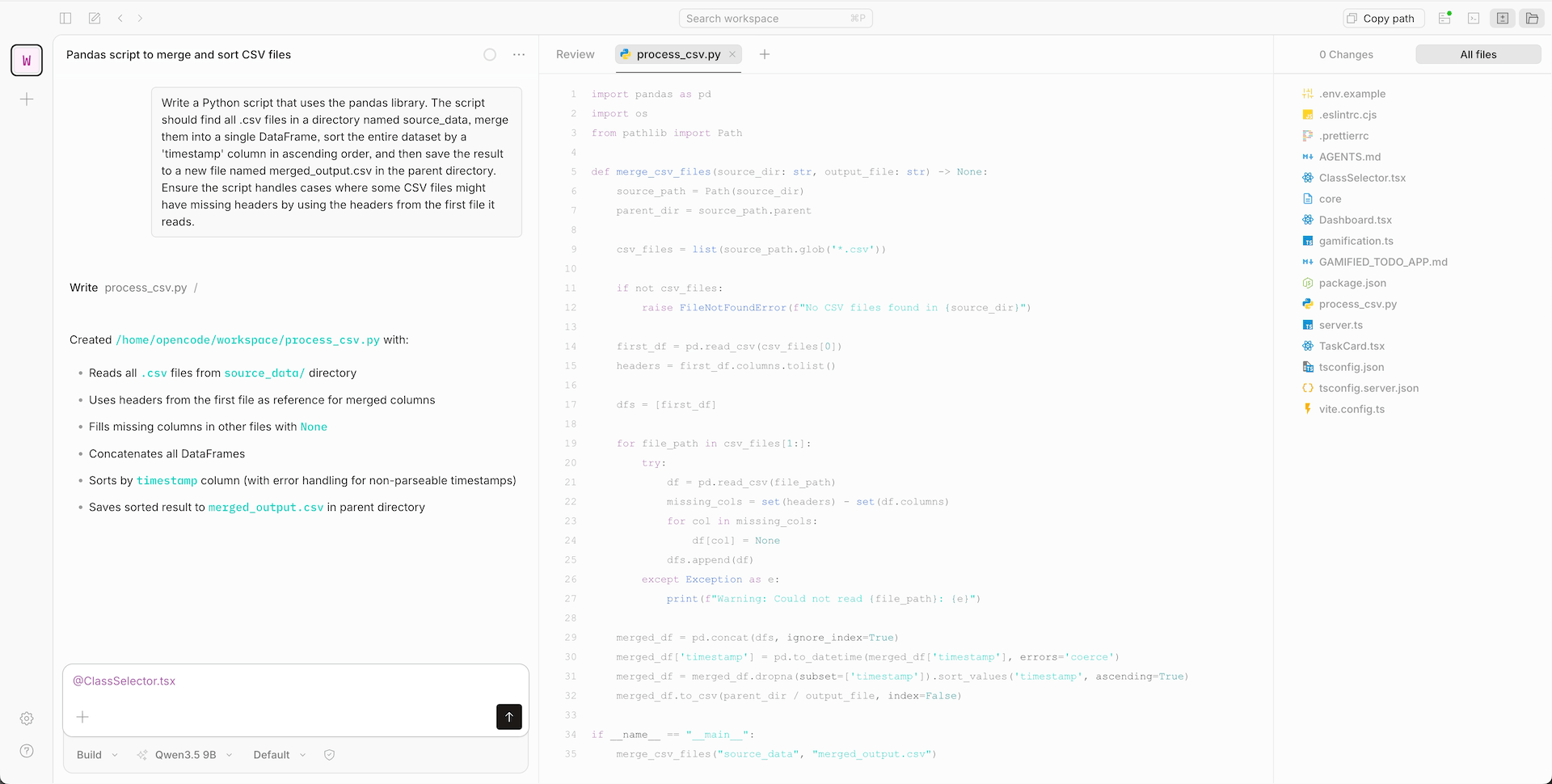
Use
@to mention a file in the chat window and ask OpenCode to edit it.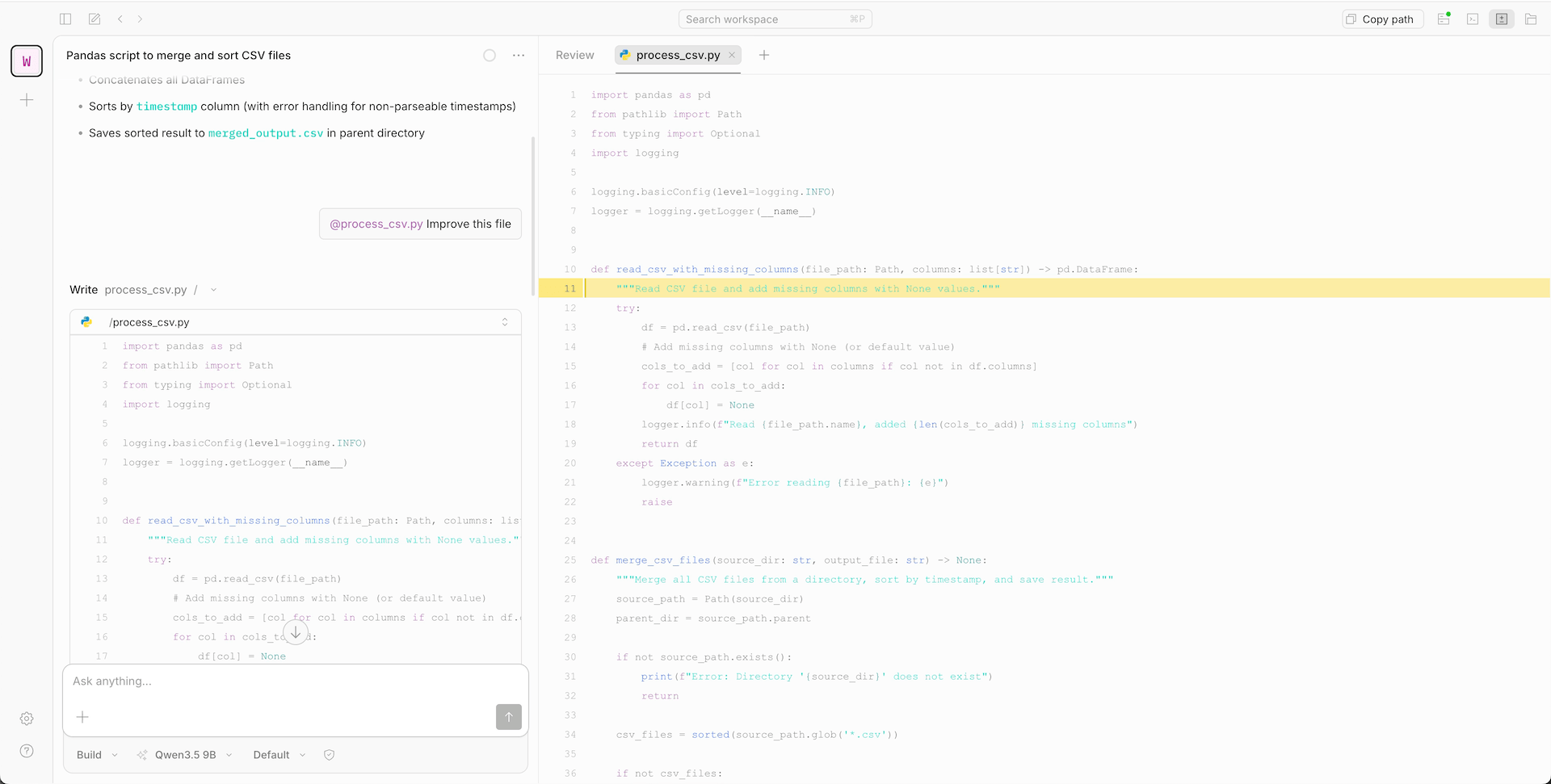
Use the TUI
OpenCode also offers a terminal-based UI (TUI). You can launch it in two ways:
- Inside the OpenCode UI: Open a terminal panel at the bottom of the OpenCode UI, similar to VS Code's integrated terminal. The agent chat stays visible above while the TUI runs in the panel.
- From OpenCode Terminal: Open OpenCode Terminal from Launchpad. It opens straight into a command line, without the chat UI.
Run OpenCode from your computer
This option installs the OpenCode CLI on your local machine and connects it to Ollama on Olares via LarePass VPN for a native terminal experience.
Install OpenCode CLI
Install the CLI using the official installer:
bashcurl -fsSL https://opencode.ai/install | bash(Optional) If you encounter the
No config file found for zsherror, add the export line to your~/.zshrcfile by running:bashecho 'export PATH="$HOME/.opencode/bin:$PATH"' >> ~/.zshrcError message example:
textNo config file found for zsh. You may need to manually add to PATH: export PATH=/Users/{username}/.opencode/bin:$PATHReload your shell configuration:
bashsource ~/.zshrcVerify the installation:
bashopencode --versionThe version is displayed, such as
1.15.6.Run the following command to initialize OpenCode and create the configuration file:
bashopencodeThe config file is created at
~/.config/opencode/opencode.jsonc.
Get the Ollama endpoint
The local CLI requires the Ollama API endpoint. The shared entrance URL does not work for CLI connections.
Open Settings, then navigate to Applications > Ollama.
In Entrances, select Ollama API to view the endpoint URL.
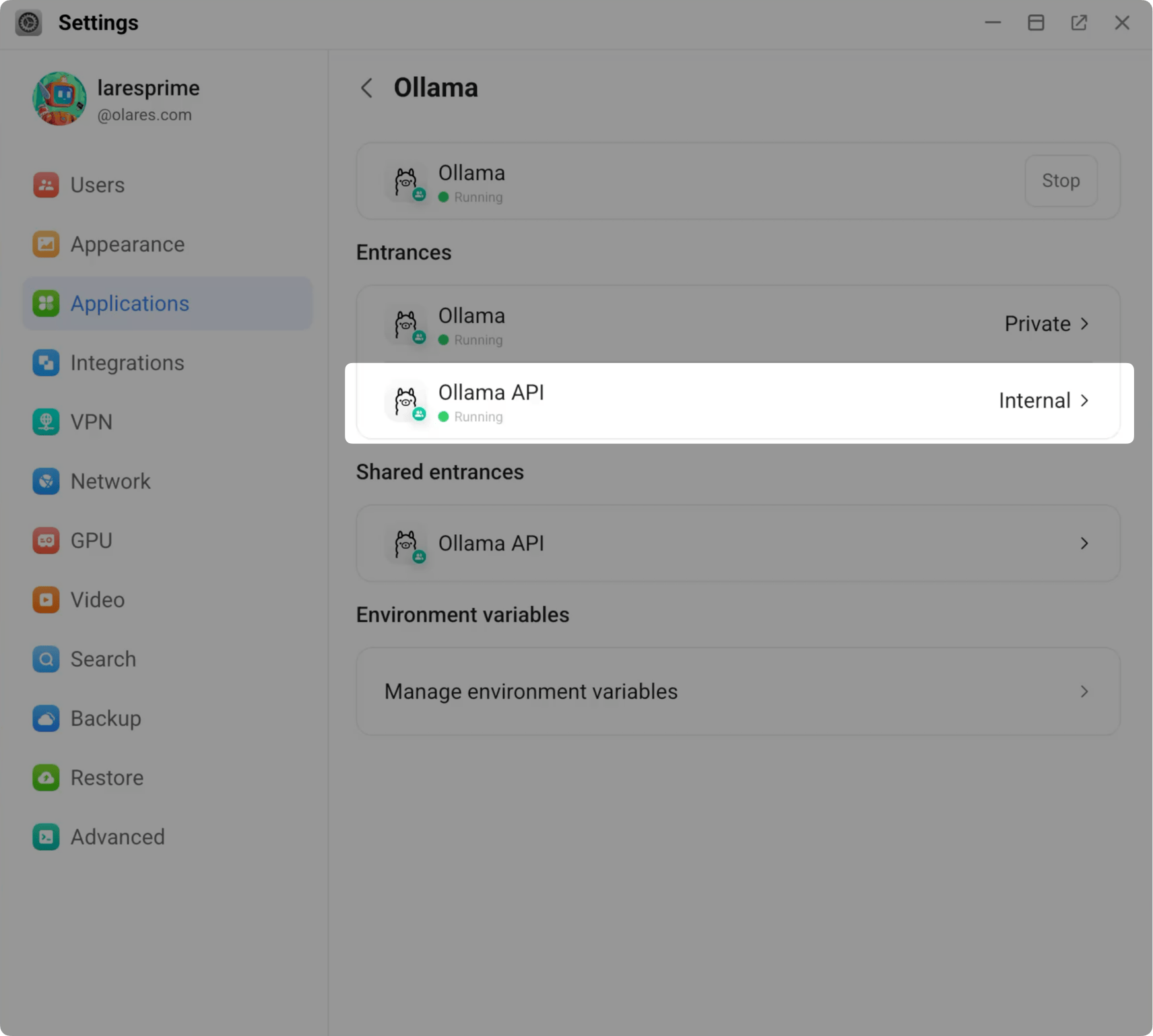
Copy the endpoint URL. For example:
plainhttps://a5be22681.laresprime.olares.com
Configure the connection
Enable LarePass VPN on your computer to connect to Olares.
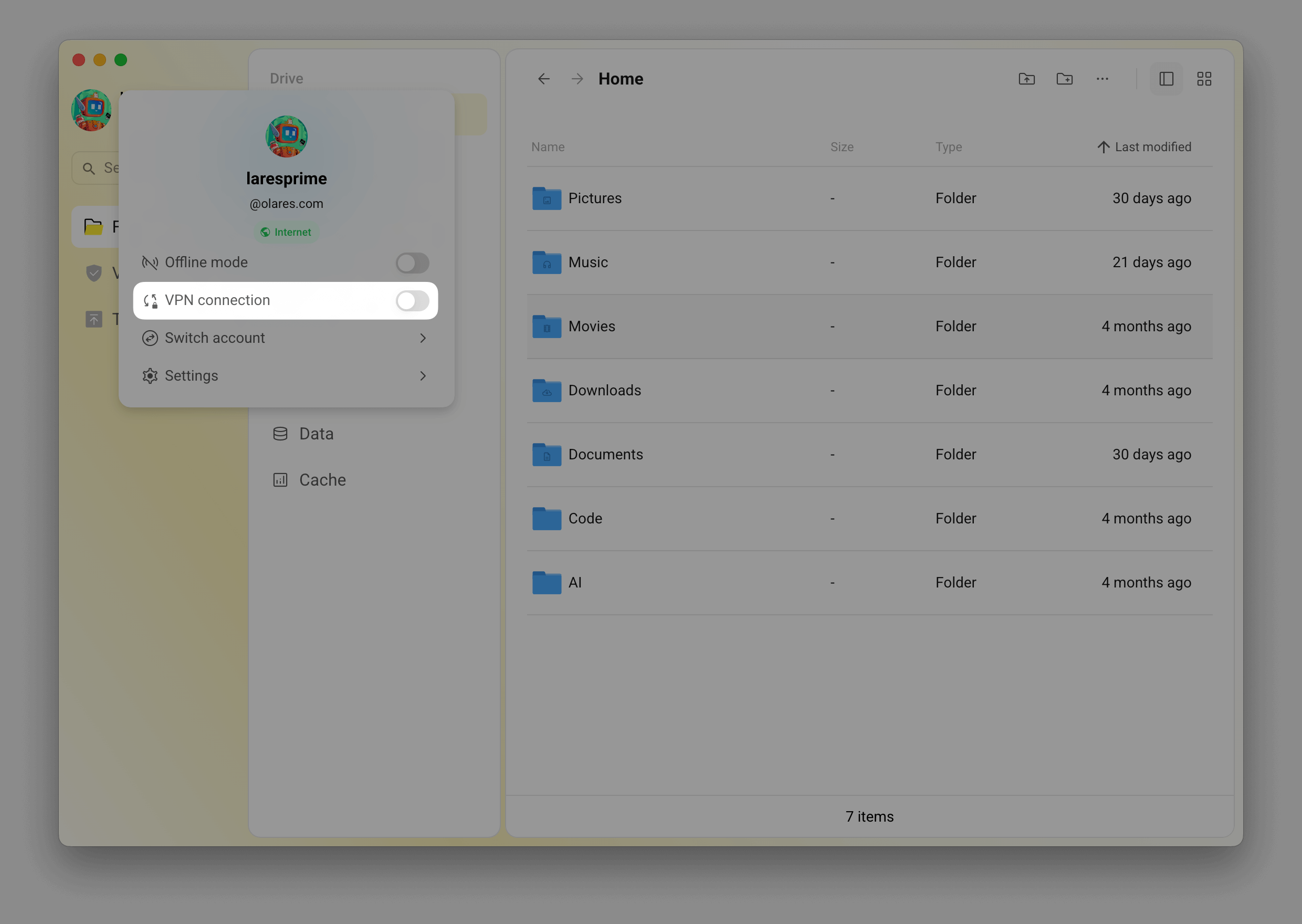
On the same local network?
If your computer and Olares are on the same LAN, you can skip VPN and use the
.localdomain instead. Replacehttps://a5be22681.{username}.olares.comwithhttp://a5be22681.{username}.olares.localin the config below. For details, see Use.localdomain.Open the OpenCode config file at
~/.config/opencode/opencode.jsoncin a text editor. Add a custom provider with your Ollama endpoint and model. The general format is:json{ "$schema": "https://opencode.ai/config.json", "provider": { "<provider-id>": { "npm": "@ai-sdk/openai-compatible", "name": "<display-name>", "options": { "baseURL": "<your-endpoint>/v1" }, "models": { "<model-id>": { "name": "<model-display-name>" } } } } }For example, to connect to Ollama on Olares with the Qwen3.5 9B model:
json{ "$schema": "https://opencode.ai/config.json", "provider": { "olares-ollama": { "name": "olares-ollama", "npm": "@ai-sdk/openai-compatible", "models": { "qwen3.5:9b": { "name": "Qwen3.5 9B" } }, "options": { "baseURL": "https://a5be22681.laresprime.olares.com/v1" } } } }Windows WSL users
If you installed OpenCode in WSL, the config file path is
~/.local/share/opencode/config.json.Save the file.
Launch OpenCode TUI
In your terminal, run
opencodeto launch the TUI: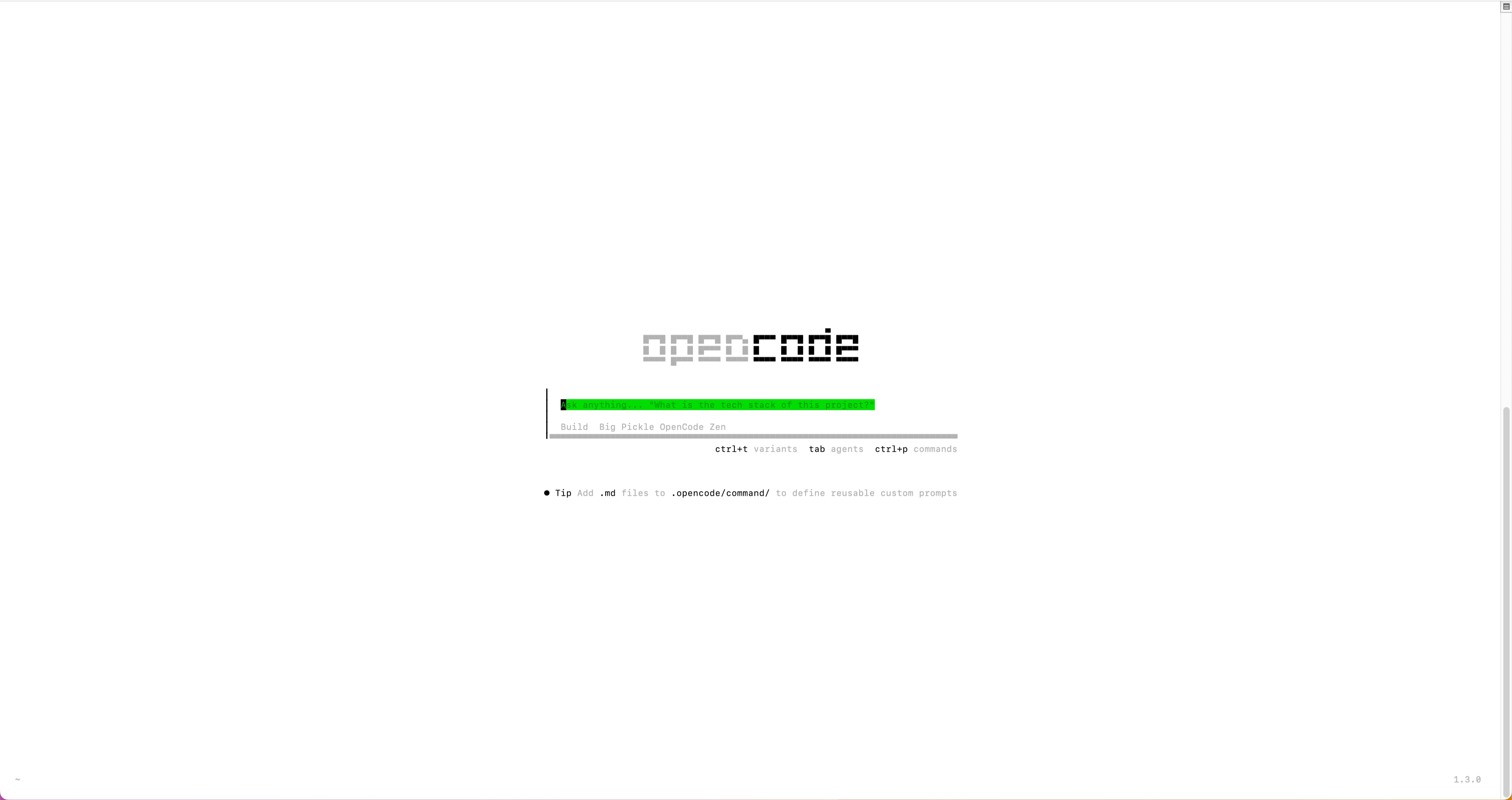
Use the
/modelscommand to switch to Qwen3.5 9B.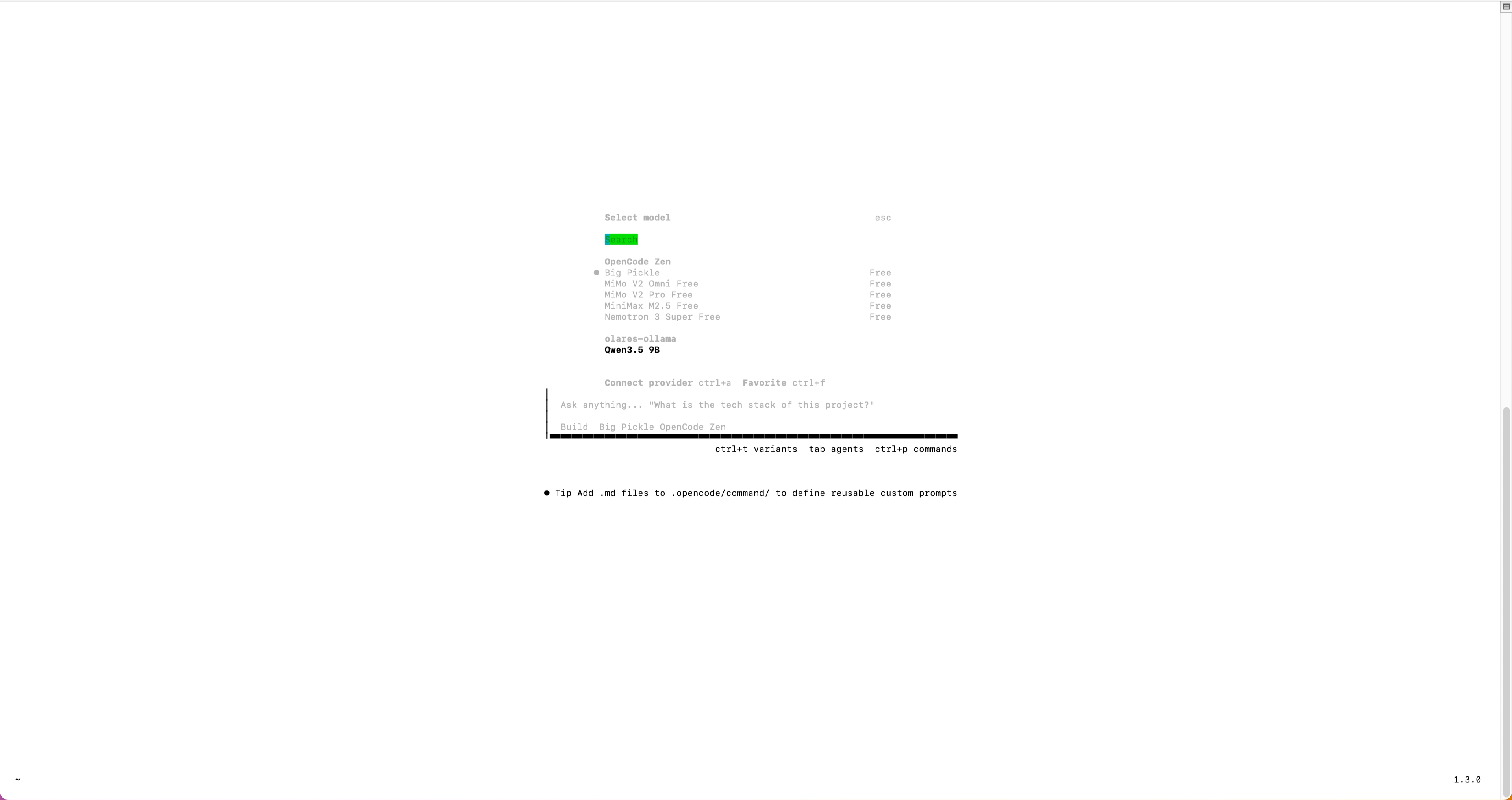
Start chatting with your self-hosted models.
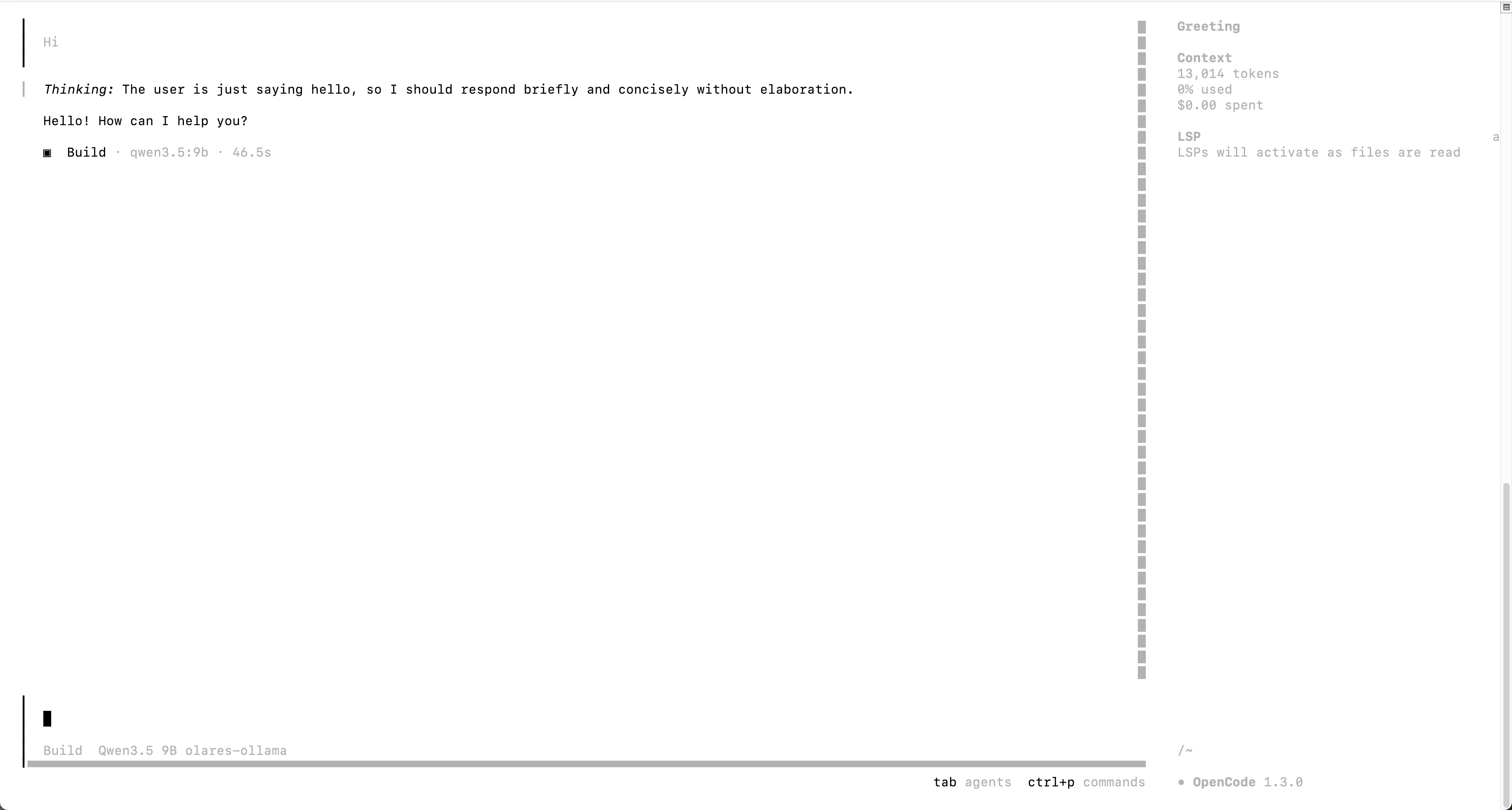
First connection
The first connection might take longer to establish.
Use OpenCode in VS Code
To work with your codebase directly, open a terminal in VS Code and run opencode from your project directory.
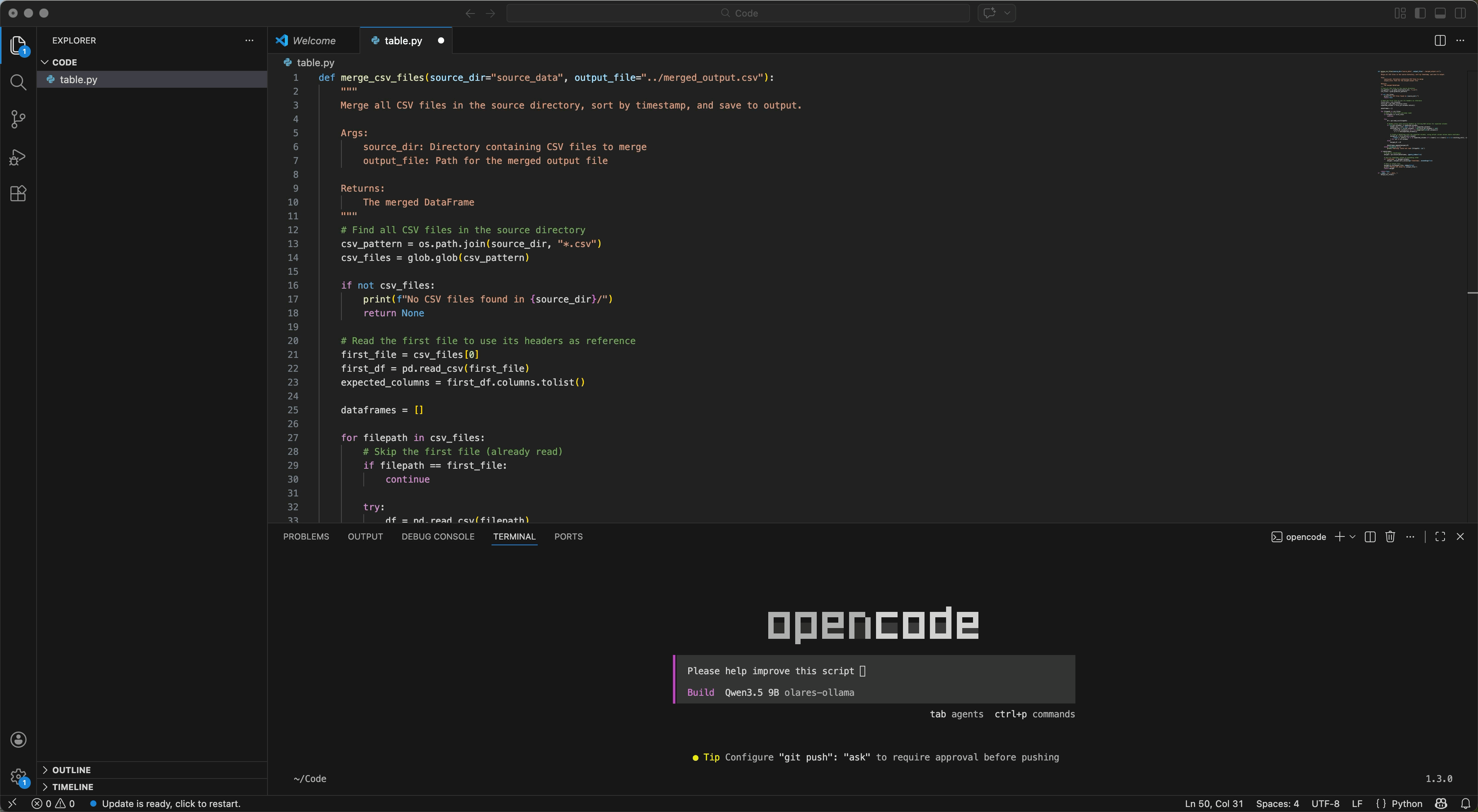
Edit the config file
OpenCode stores its configuration in a JSON file. You can edit this file directly to manage providers, models, and tools.
Open Files and navigate to
Application/Data/opencode/.config/opencode/.Right-click
opencode.jsoncand select Rename.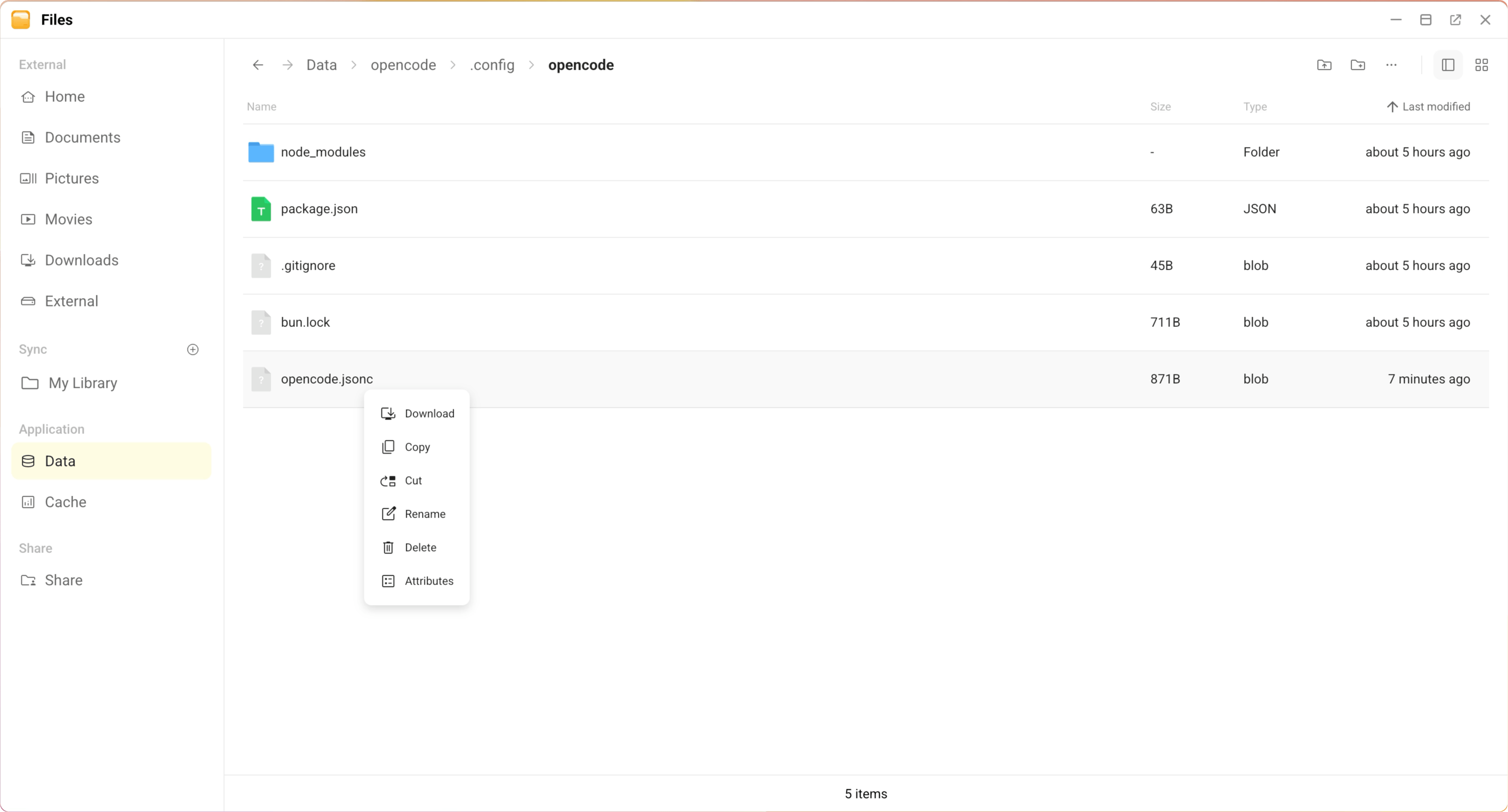
Rename the file to
config.jsonso you can edit it directly in Files. OpenCode recognizes both extensions.Open
config.jsonand click edit_square to edit it.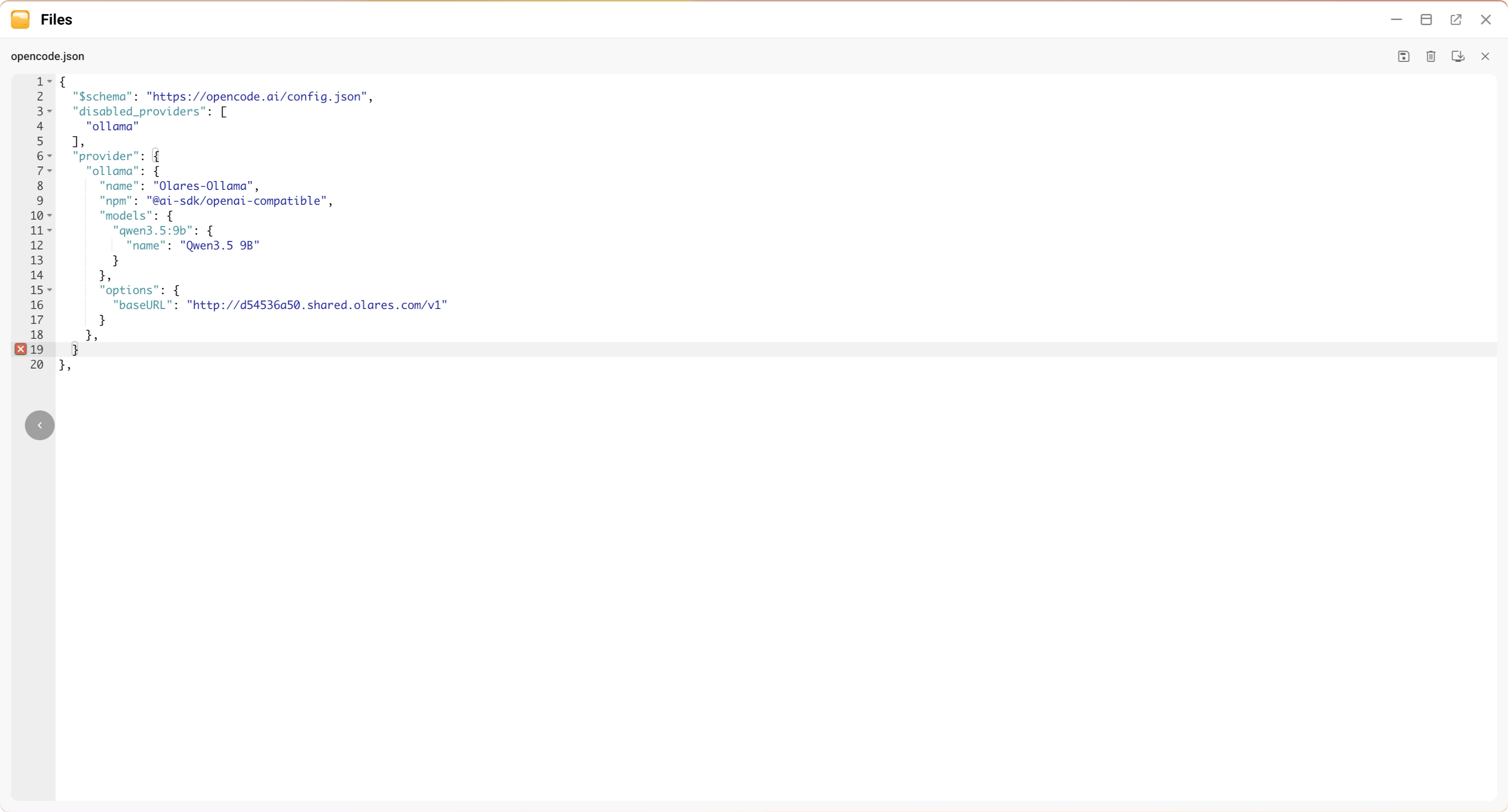
Save the changes.
Restart OpenCode from Settings > Applications to apply the changes.
Learn more
- Manage packages: Install system-level and language-specific packages.
- Skills and plugins: Add capabilities through skills and plugins.
- Orchestrate multi-agent workflows with oh-my-openagent: Enable OMO to run multi-agent collaboration in OpenCode.
- Common issues: Solutions for known problems.
- Connect AI coding assistants to up-to-date docs with Context7: Register Context7 as a remote MCP server in OpenCode.
- OpenCode official documentation