Run robot simulations with Isaac Lab
Isaac Lab is NVIDIA's open-source framework for robot learning. On Olares, it runs as a terminal-based app where you start demos, training tasks, or the bundled Isaac Sim simulator from the command line.
Use this guide to install Isaac Lab, run Isaac Lab workloads, start Isaac Sim, connect to WebRTC streaming, and manage background processes.
Learning objectives
In this guide, you will learn how to:
- Install Isaac Lab on Olares.
- Prepare the Isaac Lab terminal and get the WebRTC endpoint address.
- Run Isaac Lab demos and reinforcement learning tasks.
- Start the bundled Isaac Sim simulator.
- Connect to simulations with the NVIDIA WebRTC Streaming Client.
- Manage background workloads, GPU processes, and runtime logs.
Prerequisites
Before you begin, make sure:
- Olares is running on a machine with an NVIDIA GPU.
- The Olares host uses an AMD64 architecture if you want to use WebRTC streaming. ARM64 hosts (such as DGX Spark) support only non-streaming workloads.
- NVIDIA's WebRTC Streaming Client is installed on your local computer.
Host vs. local computer architecture
The AMD64 requirement applies to the Olares host where Isaac Lab runs, not to the local computer used for streaming.
For example, if Isaac Lab runs on an Olares One with an Intel CPU and NVIDIA GPU, the Olares host is AMD64. Your local computer can use a different architecture, but it must be able to run NVIDIA's WebRTC Streaming Client.
Recommended GPU mode
Isaac Lab and Isaac Sim use significant GPU resources. For better stability, set the GPU mode to App exclusive and bind the GPU to Isaac Lab before running workloads. This helps reduce resource contention with other GPU apps.
Understand Isaac Lab and Isaac Sim
Isaac Lab and Isaac Sim serve different purposes:
| Component | Description | Use it when |
|---|---|---|
| Isaac Lab | A robot learning framework built on Isaac Sim. | Run predefined demos, reinforcement learning tasks, or training scripts. |
| Isaac Sim | The underlying simulator bundled with Isaac Lab. | Start the simulator directly for scene exploration, simulation testing, or interactive use. |
- To run an Isaac Lab demo or training task, use the commands in Run Isaac Lab workloads.
- To start the Isaac Sim simulator itself, use Run Isaac Sim.
Install Isaac Lab
Open Market and search for "IsaacLab".
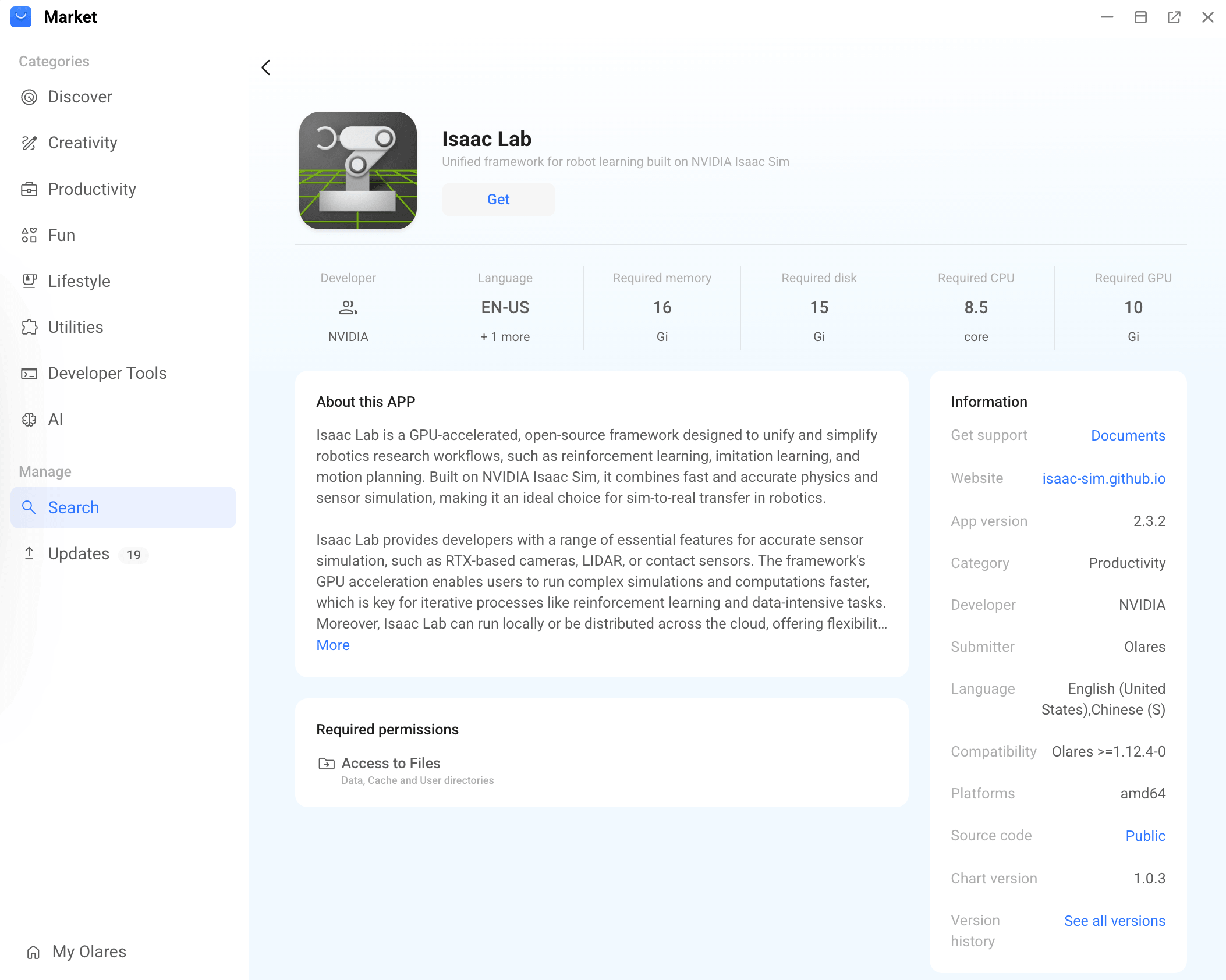
Click Get, then Install, and wait for installation to complete.
Prepare Isaac Lab terminal
Whenever you open Isaac Lab or want to switch to a new task, prepare your terminal environment first.
Open Isaac Lab from Launchpad to access its terminal interface for running command-line scripts.

Get the public endpoint address used for WebRTC streaming.
bashecho $PUBLIC_IPExample output:
plain192.168.50.169Save the output value. You will need it later to connect the WebRTC Streaming Client.
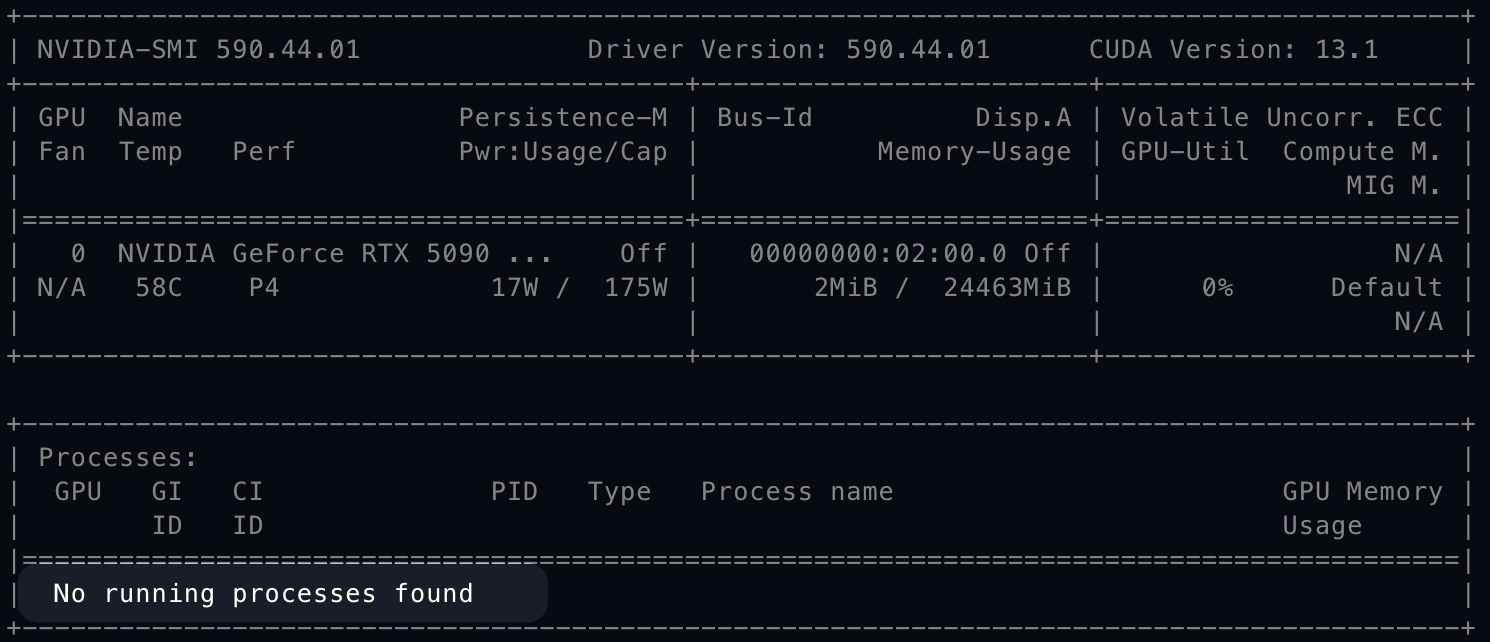
Check the GPU status and look for existing workloads.
bashnvidia-smi- If no workload is running, the
Processessection showsNo running processes found.
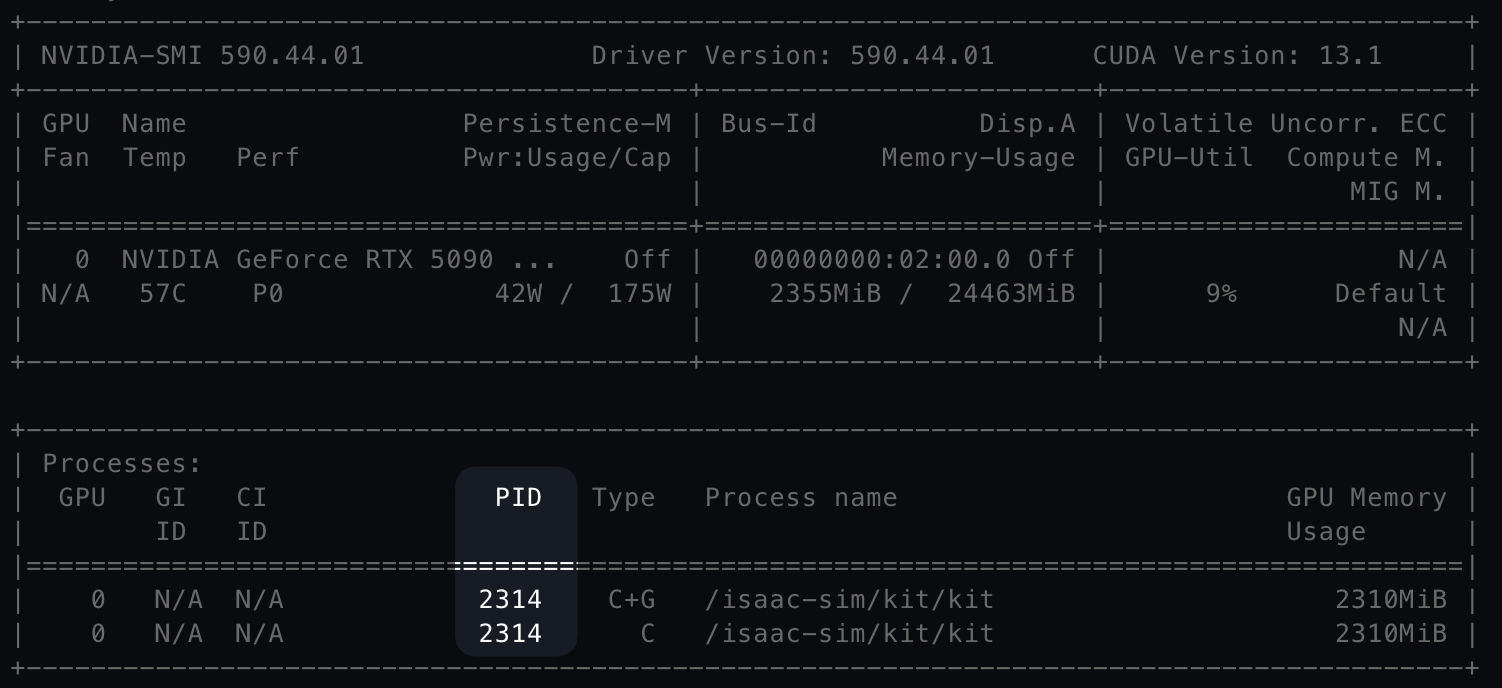
- If the
Processessection lists an Isaac Lab or Isaac Sim process, note itsPIDbefore starting a new workload. In this example, the active process uses PID2314.
- If no workload is running, the
If an existing workload is running, stop it before starting a new one:
bashkill -9 <PID>Replace
<PID>with the actual process ID shown in your terminal.Optional: Clear the existing log file before starting a new workload.
bash> nohup.out
Run Isaac Lab workloads
Isaac Lab workloads are started from the terminal. The command you use depends on the architecture of the Olares host where Isaac Lab is installed.
Stop any existing workload before starting a new demo or task.
Commands ending with & run in the background. A message like [1] 580 means the workload has started. The numbers may differ in your terminal.
Run a demo
Run a reinforcement learning task
For more scripts, tasks, and environment configuration, refer to:
Run Isaac Sim
Isaac Lab includes the Isaac Sim simulator. Start Isaac Sim directly when you want to use the simulator itself instead of running a specific Isaac Lab demo or training script.
Stop any existing workload before starting Isaac Sim.
Terminal command reference
Isaac Lab and Isaac Sim commands started with nohup ... & run in the background. Closing the WebRTC Streaming Client does not stop the running workload.
Use these commands for quick terminal management and troubleshooting:
| Task | Command |
|---|---|
| Get the WebRTC endpoint address | echo $PUBLIC_IP |
| Check GPU processes | nvidia-smi |
| Stop a background process | kill -9 <PID> |
| Clear old logs | > nohup.out |
| Follow live logs | tail -f nohup.out |
Troubleshooting
WebRTC Client cannot connect
Check the following:
Make sure the workload is still running:
bashnvidia-smiConfirm that you entered the correct
PUBLIC_IPvalue:bashecho $PUBLIC_IPMake sure only one WebRTC Streaming Client is connected.
Check the logs for fatal errors:
bashtail -f nohup.out
Look for errors such as:
Error
Traceback
CUDA out of memory
Segmentation fault
Killed
If none of these errors appear and the process is still running, wait for the logs to stabilize, then reconnect or click Reload in the WebRTC Streaming Client.
The streaming view turns gray
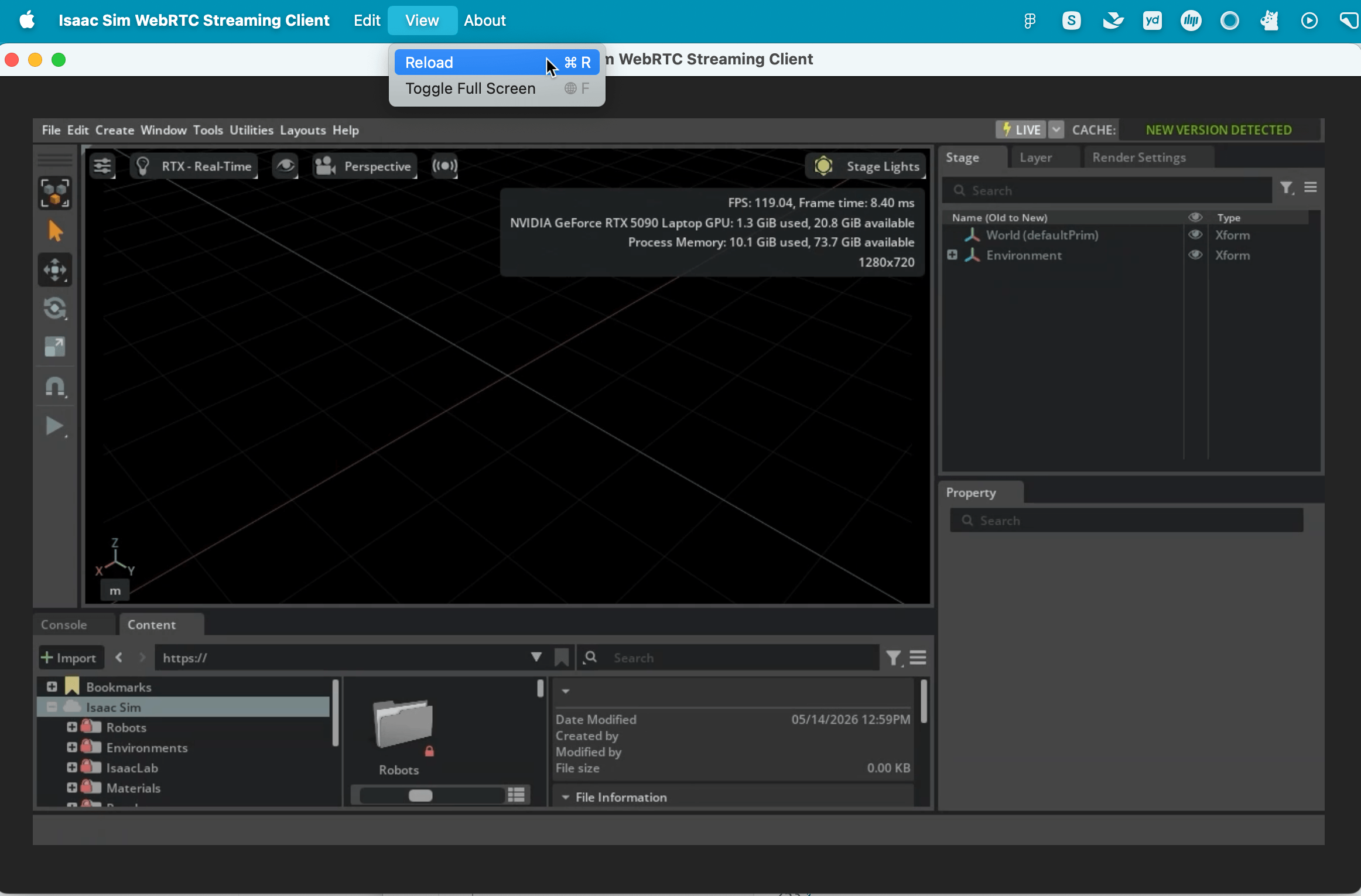
When loading a complex scene, the streaming view might turn gray or stop responding temporarily. Wait for the terminal logs to stabilize. Depending on the scene complexity, this may take one to several minutes.
After the logs become stable, click View > Reload in the WebRTC Streaming Client to reconnect to the stream.
Logs show warnings during startup
Warnings from Isaac Sim, Omniverse, or PyTorch may appear while a workload is starting. These warnings do not always mean the workload has failed.
If the process remains running in nvidia-smi and no fatal error appears in the logs, continue with the WebRTC connection step.
Learn more
- Isaac Lab documentation: Official Isaac Lab documentation, including tutorials, environments, reinforcement learning workflows, and API references.
- Isaac Sim documentation: NVIDIA Isaac Sim user guide.