Integrate with Google Workspace
The gog skill lets your NemoClaw agent interact with Google Workspace services such as Gmail, Google Calendar, and Google Drive. Once configured, you can ask your agent to search emails, schedule meetings, or access files in natural language. This guide uses Google Calendar as the example.
Prerequisites
- NemoClaw installed and running on Olares.
- A Google Workspace or personal Google account.
- Admin access to the Google Cloud Console to create an OAuth application.
Step 1: Create a Google Cloud OAuth application
Go to the Google Cloud Console and sign in with your Google account.
Navigate to Console, and create a new project or select an existing one.
Navigate to APIs and services > Library.
From the filter on the left, select Google Workspace and enable the Google Workspace APIs you need. For example:
- Gmail API
- Google Drive API
- Google Calendar API
- Google People API (for contacts)
- Google Sheets API and Google Docs API
If this is your first time configuring OAuth, navigate to APIs and services > OAuth consent screen, and follow the on-screen instructions to set up the OAuth consent screen first.
Personal Google accounts
If you use a personal Gmail account (not a Google Workspace organization), select External for Audience. After publishing the app, go to Audience > Test users and add your own email address. Without this step, authentication will fail for unauthorized users.
Go to APIs and services > Credentials, click Create credentials, and select OAuth client ID.
For Application type, select Web application.
Configure the authorized origins and redirect URIs:
- Authorized JavaScript origins: Your OpenClaw Web UI URL. You can copy it directly from the address bar. For example,
https://d38aad901.laresprime.olares.com. - Authorized redirect URIs: Your OpenClaw Web UI URL with
/oauth2/callbackappended. For example,https://d38aad901.laresprime.olares.com/oauth2/callback.
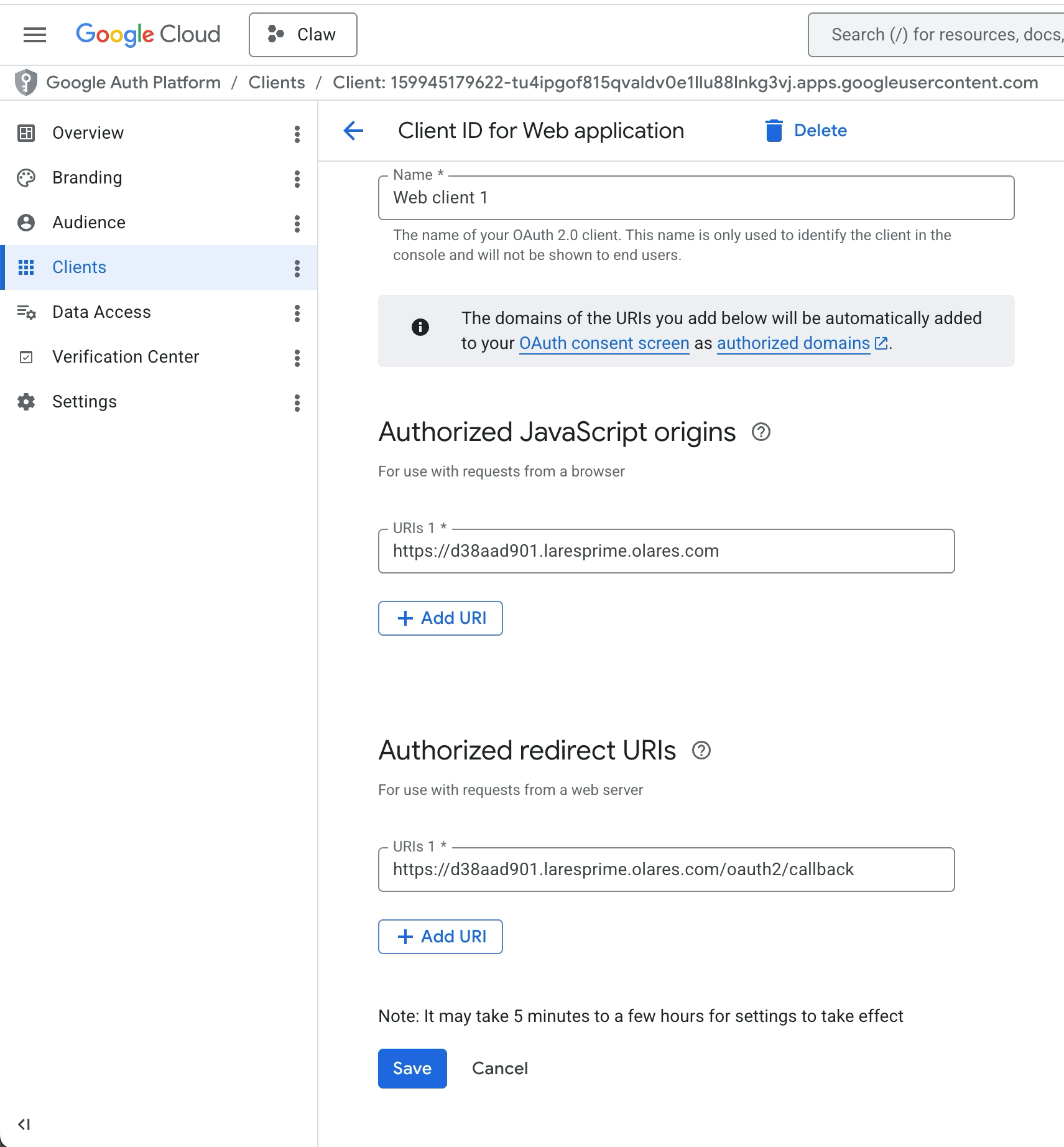
- Authorized JavaScript origins: Your OpenClaw Web UI URL. You can copy it directly from the address bar. For example,
Click Create, then click Download JSON to save the client secrets file.
Step 2: Install the gog skill
Open the NemoClaw CLI app from Launchpad.
Connect to the runtime sandbox:
bashnemoclaw my-assistant connectRun the skills configuration wizard:
bashopenclaw config --section skillsFollow the prompts to configure your installation. Use the arrow keys to navigate and press Enter to confirm.
Settings Option Where will the Gateway run Local (this machine) Configure skills now Yes Install missing skill dependencies Navigate to the skill gog, press Space to select it, then press Enter. Set [API_KEY] for [skill] Select No for all these settings. Open the chat page in the OpenClaw Web UI and run
/resetto start a new session so the agent picks up the newly installed skill. If you've configured channels such as Discord, also run/resetin each channel conversation.TIP
You can also install skills from the OpenClaw Web UI. Go to Skills, search for
gogin ClawHub, and click Install.
Step 3: Authenticate with Google
Upload the downloaded JSON file to the directory that NemoClaw can access:
a. Open Files and navigate to
Data/nemoclaw/openclaw-config/inbox/.b. Upload the JSON file.
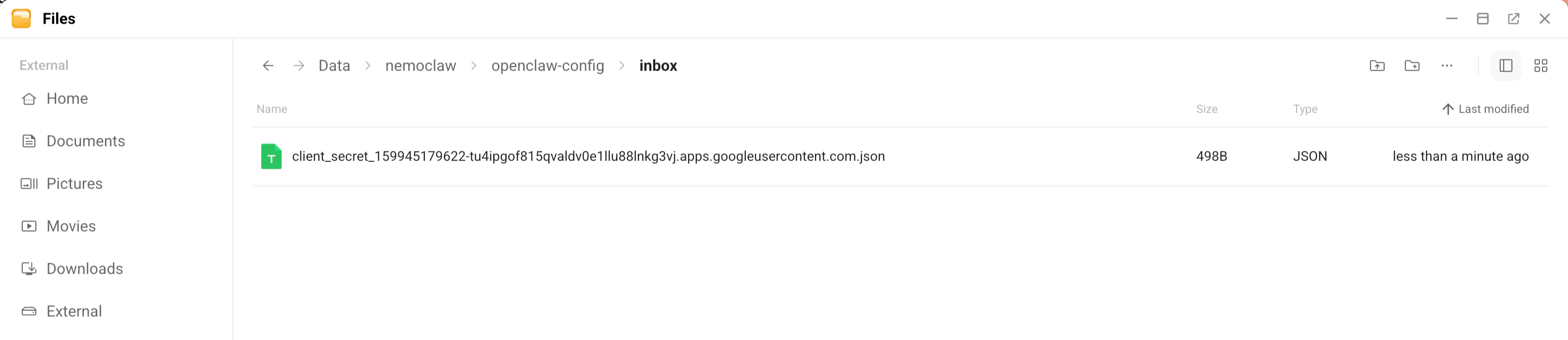
In the NemoClaw CLI sandbox, add the credentials file, and use Tab to autocomplete the name of the JSON file:
bashgog auth credentials inbox/client_secret_....jsonExample output:
textpath /sandbox/.config/gogcli/credentials.json client defaultStart the authentication flow. Replace the email, services, and redirect host values with your own:
bashgog auth add [email protected] --services gmail,calendar,drive,contacts,sheets,docs \ --listen-addr 0.0.0.0:8080 \ --redirect-host <your-control-ui-domain> \ --force-consentTIP
Do not include
https://in the--redirect-hostvalue. Use only the domain, such asd38aad901.laresprime.olares.com.For example:
bashgog auth add [email protected] --services calendar \ --listen-addr 0.0.0.0:8080 \ --redirect-host d38aad901.laresprime.olares.com \ --force-consentClick the URL that appears in the terminal and complete the Google authentication within 3 minutes.
TIP
The final callback URL should look like
https://d38aad901.{username}.olares.com/oauth2/callback?state=.... If your browser appends/chatto the URL due to cache, complete the authentication in an incognito window.When authentication succeeds, you see a confirmation message in the terminal.
Example output:
textemail [email protected] services calendar client default
Step 4: Use Google Workspace with your agent
You can use Google Workspace either from the NemoClaw CLI sandbox directly or through the OpenClaw agent in chat.
Learn more
- Run NemoClaw with a local LLM: Set up NemoClaw with a local model.
- Manage skills and plugins: Install and manage other OpenClaw skills.