Configure advanced settings in TREK
As your TREK workspace grows, you might want to integrate third-party services, strengthen your account security, and safeguard your data.
Use TREK's administrative settings to configure single sign-on (SSO), improve map features, enable two-factor authentication (2FA), and set up backups.
Learning objectives
In this guide, you will learn how to:
- Set up third-party single sign-on to streamline user logins.
- Connect Google API keys to improve map search results.
- Secure user accounts with two-factor authentication.
- Back up and restore your workspace data.
Set up third-party single sign-on
Simplify the login experience for your travel companions by allowing them to sign in using their existing Google, Apple, or other OIDC provider accounts.
The following workflow demonstrates how to set up Google SSO.
Step 1: Set up a Google Cloud project
Prepare a dedicated project in Google Cloud to manage your TREK authentication credentials.
- Sign in to the Google Cloud console using your Google account.
- Create a new project, or select an existing project from the top navigation bar.
Step 2: Configure the OAuth consent screen
Define the authorization screen that users will see when they select to sign in with Google.
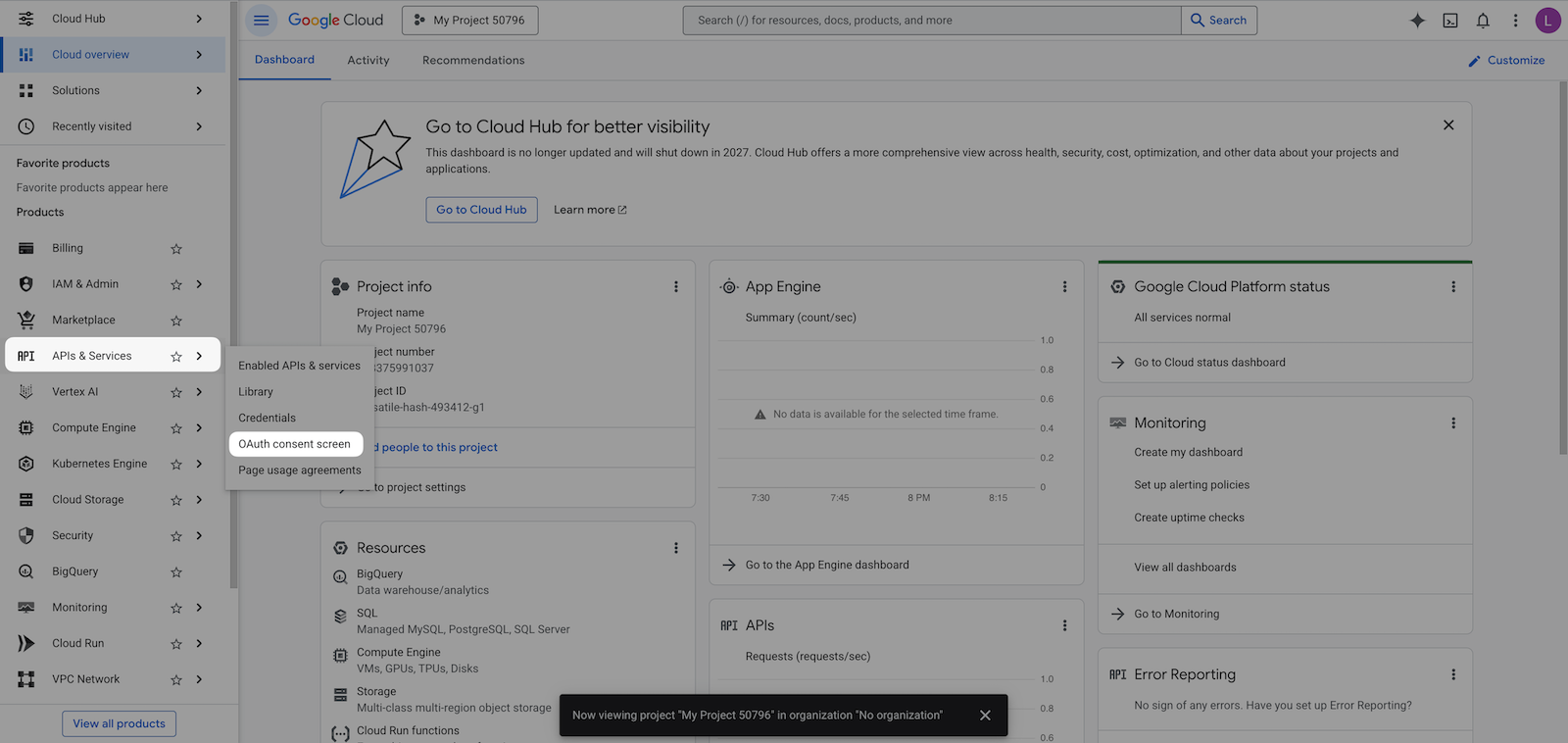
In the left sidebar, hover over APIs & Services, and then select OAuth consent screen.
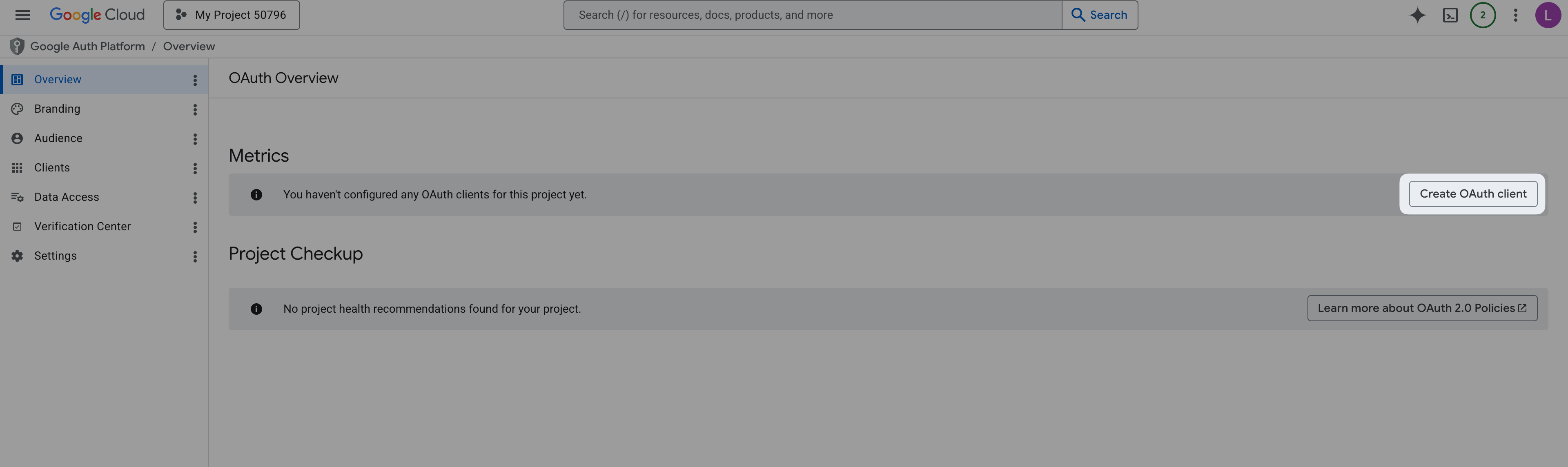
On the OAuth Overview page, click Get started.
Complete the following project configurations, and then click Create:
- App Information: Enter an app name such as
TREK, select a user support email, and then click Next. - Audience: Select External as your target audience type, and then click Next.
- Contact Information: Enter an email for receiving project updates, and then click Next.
- Finish: Select Agree to the Google API Services: User Data Policy, and then click Continue.
- App Information: Enter an app name such as
Step 3: Create the OAuth client ID
Generate the credentials that TREK needs to communicate with Google.
In the Metrics section, click Create OAuth client.
Specify the following settings, and then click Create:
Application type: Select Web application.
Name: Enter a name for the OAuth 2.0 client for easy identification.
Authorized JavaScript origins: Click ADD URI, and then enter your TREK domain.
For example,
https://8eb06391.alexmiles.olares.com.Authorized redirect URIs: Click ADD URI, and then enter your callback URL in the format of
https://<your-trek-domain>/api/auth/oidc/callback.For example,
https://8eb06391.alexmiles.olares.com/api/auth/oidc/callback.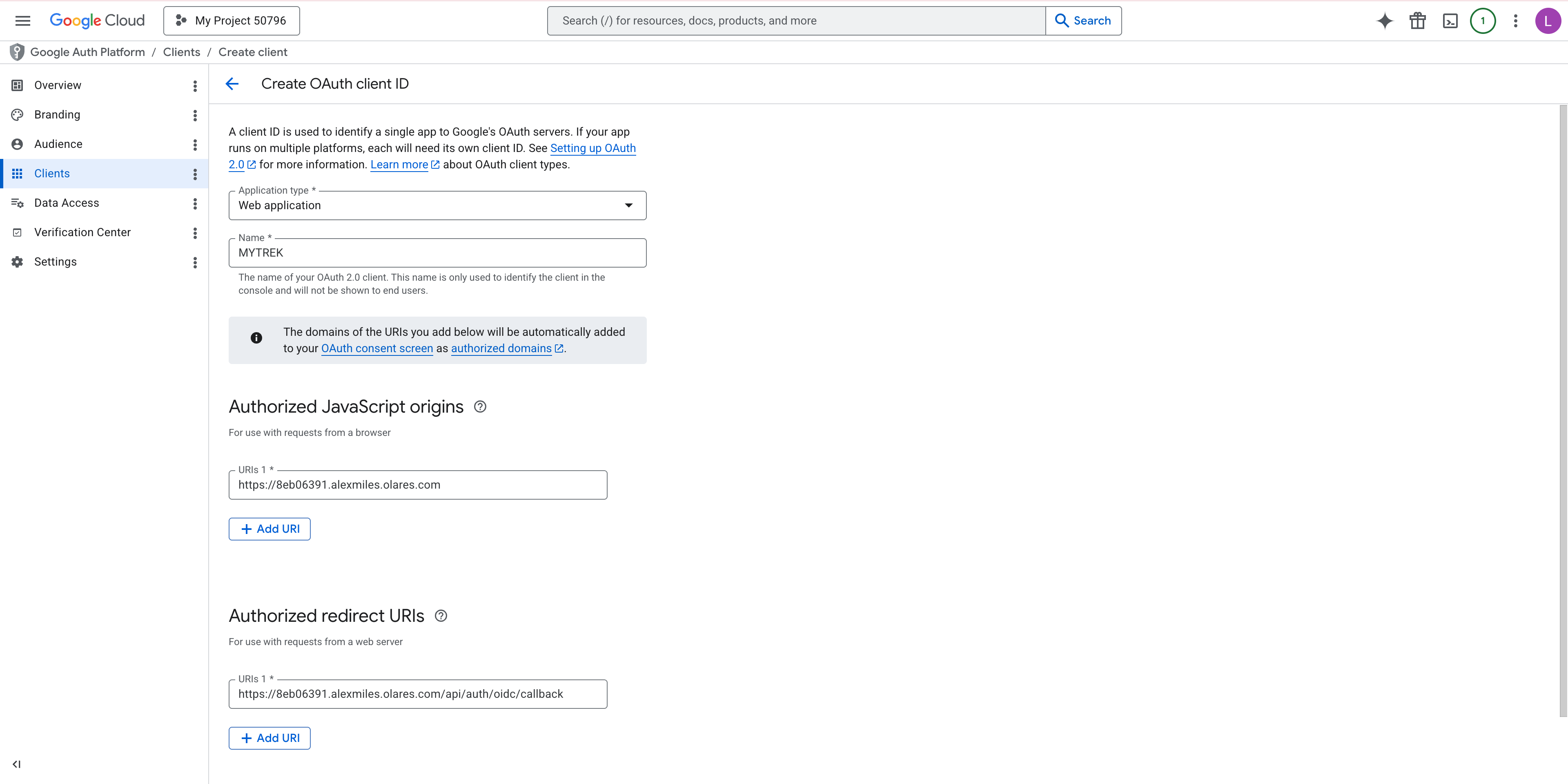
In the OAuth client created window, copy the Client ID and Client secret, and then click OK. The new client ID appears on the OAuth 2.0 Client IDs page.

Step 4: Connect Google SSO to TREK
Integrate the credentials you generated in Google Cloud with your TREK admin settings.
Go back to TREK, click your user avatar, and then select Admin.
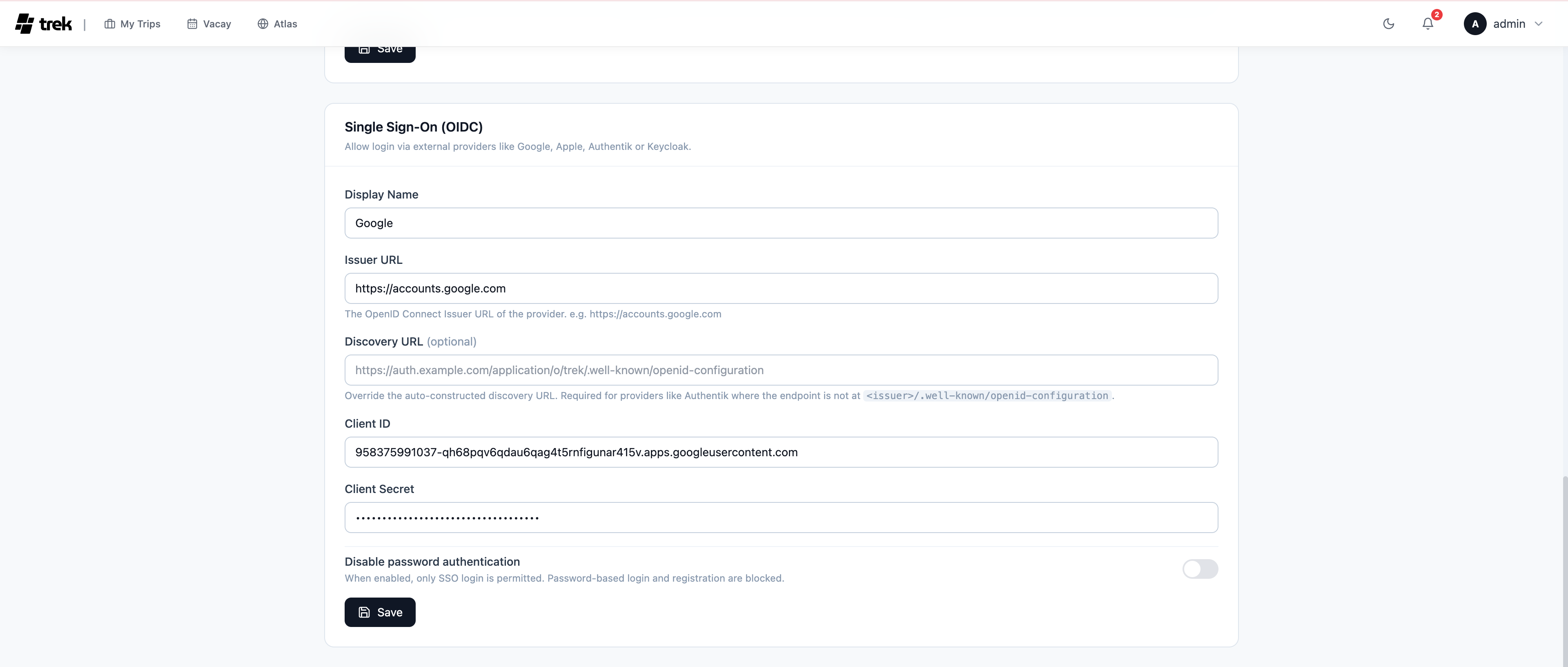
Click the Settings tab, and then locate the Single Sign-On (OIDC) panel.
Specify the following settings, and then click Save:
- Display Name: Enter
Google. - Issuer URL: Enter
https://accounts.google.com. - Client ID: Enter the client ID you copied.
- Client Secret: Enter the client secret you copied.
- Display Name: Enter
Log out of TREK.
On the Sign In page, select Sign in with Google.
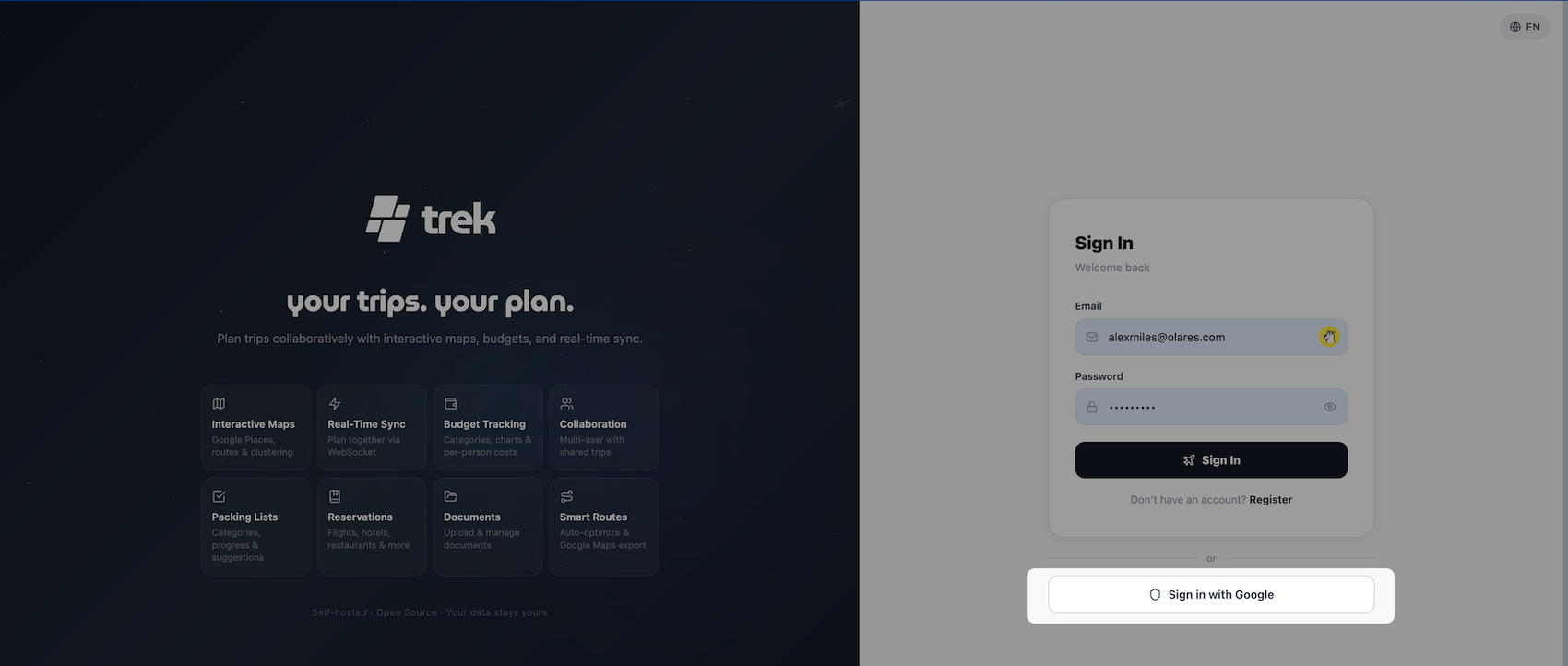
Select your Google account to log in.
Click Continue when prompted to Sign in to olares.com. You are now logged in to TREK.
Improve map search with Google API keys
By default, TREK uses basic maps. To display rich place details such as photos, ratings, and opening hours, connect a Google Places API key to your workspace.
Ensure you have created an API key in Google Cloud console. For more information, see Create an API key.
Required Google APIs
For the best search experience, ensure that these APIs are enabled: Directions API, Geocoding API, Geolocation API, Maps Elevation API, Maps Embed API, Maps JavaScript API, Maps SDK for Android, Places API, Places API (New), Roads API, and Time Zone API.
Log in to TREK, click your user avatar, and then select Admin.
Click the Settings tab, and then locate the API Keys panel.
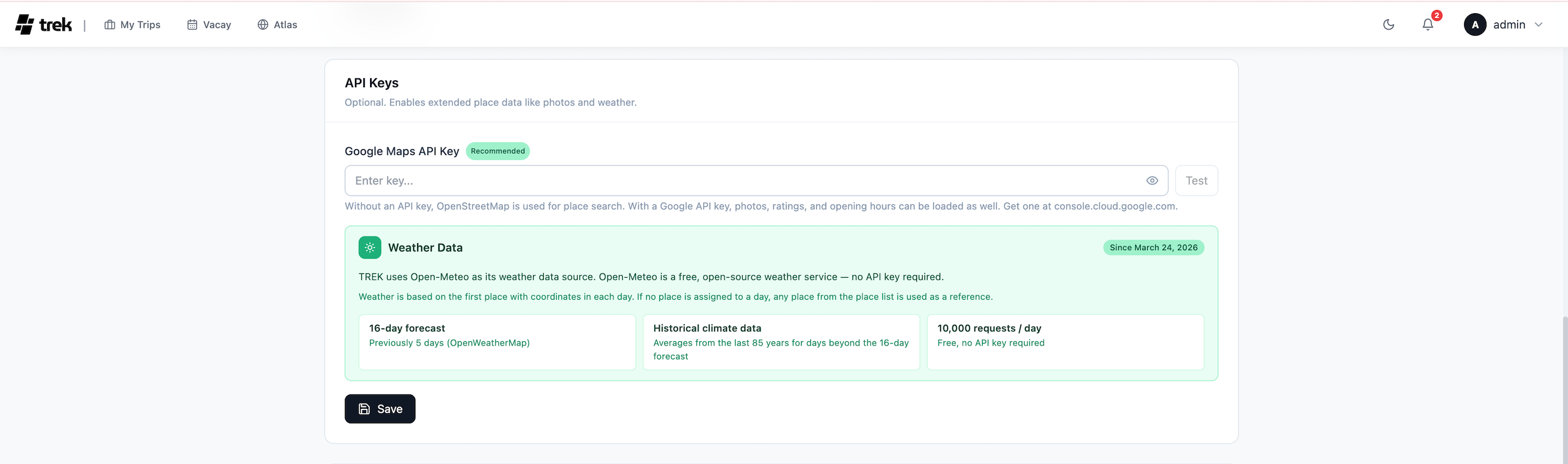
Under Google Maps API Key, enter your API key, and then click Test. The Connected status is displayed, indicating that the key is valid.
Click Save.
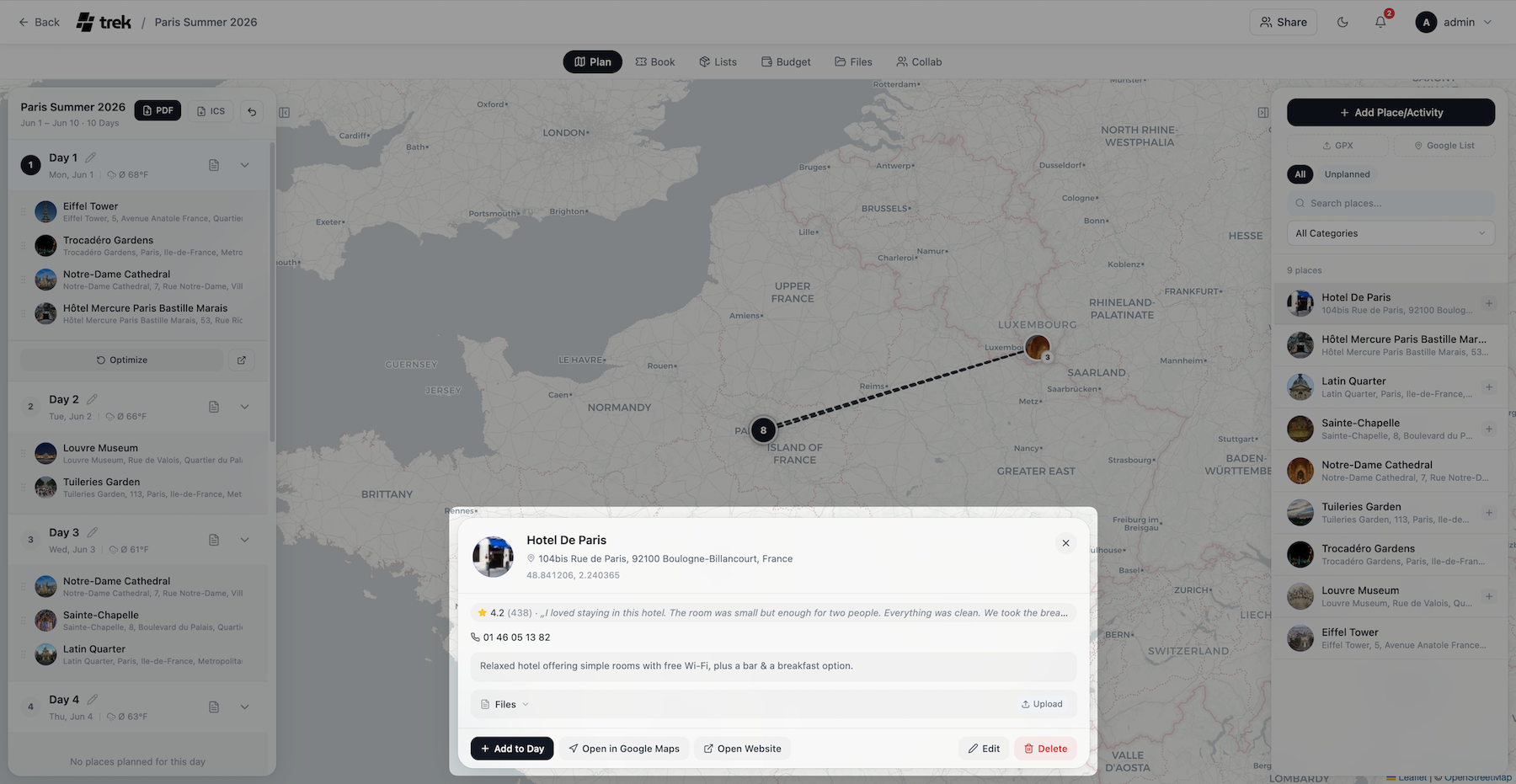
Open your trip and add a new place. The results now display additional context, such as photos, ratings, and opening hours.
Secure your account with two-factor authentication
Protect your travel data by adding a second layer of security to your login process. TREK supports TOTP-based two-factor authentication (2FA) using apps like Google Authenticator or Authy.
Enable 2FA
You can choose to secure only your personal account, or mandate 2FA for your entire workspace. You must enable 2FA on your own admin account before you can require it for all your workspace members.
Enable 2FA for your admin account
Set up an authenticator app to require a 6-digit code alongside your password.
Log in to TREK, click your user avatar, and then select Settings.
Click the Account tab, and then locate the Two-factor authentication (2FA) section.
Click Set up authenticator.
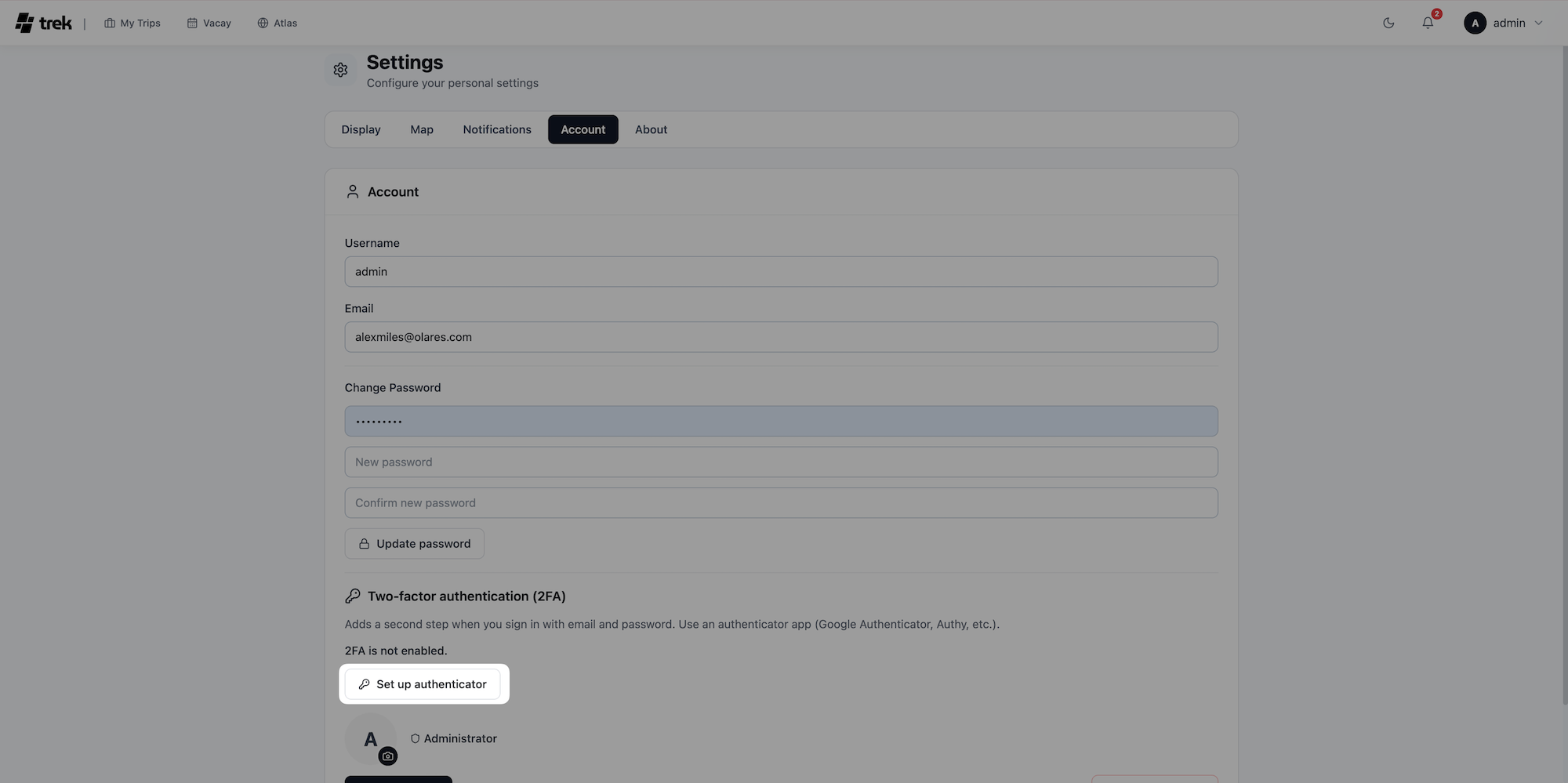
Scan the QR code with your authenticator app, enter the generated 6-digit code in TREK, and then click Enable 2FA.
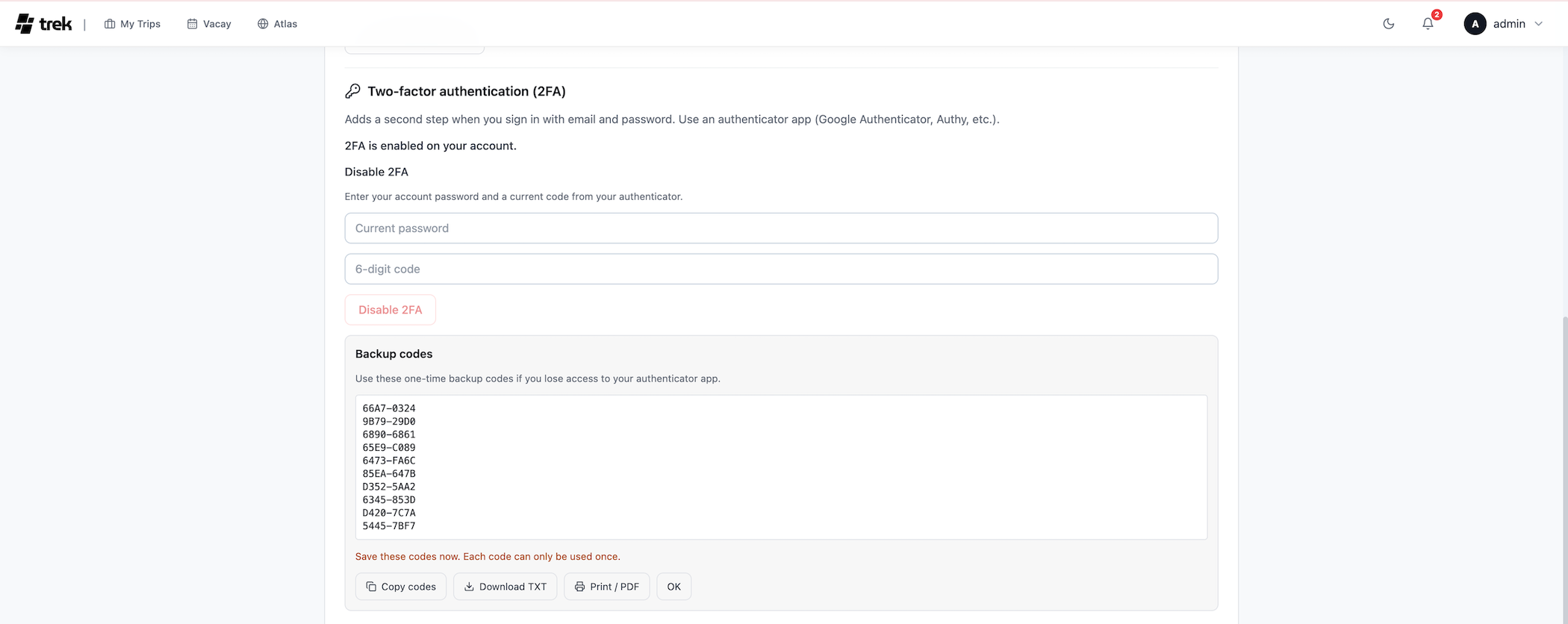
Save the backup codes displayed on screen, store them in a safe place, and then click OK.
Log out of TREK, and then log in again.
Enter your credentials, and then click Sign in.
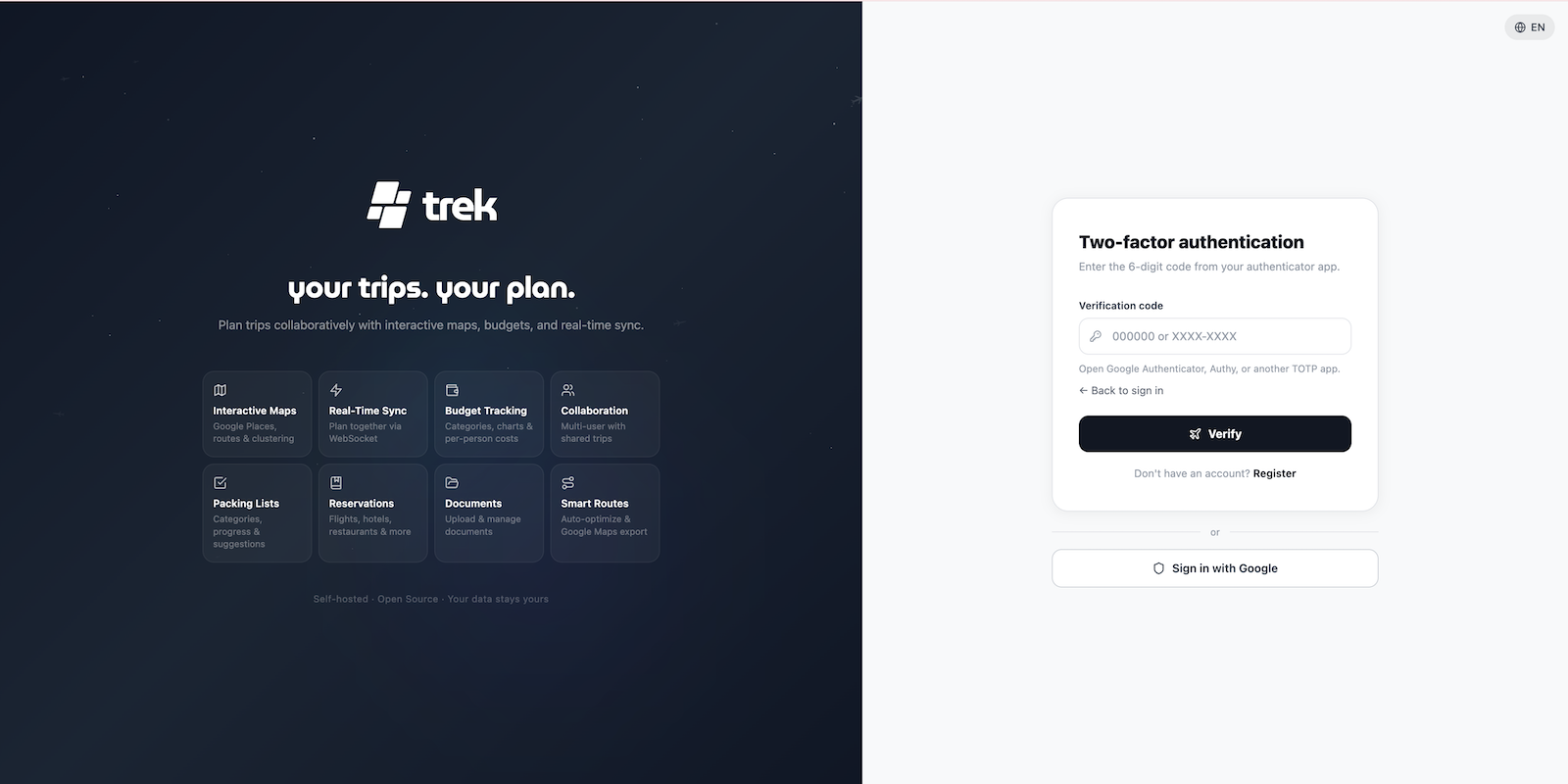
Enter the verification code from your authenticator app, and then click Verify.
Enable 2FA for members
After you enable 2FA on your admin account, you can enforce a mandatory 2FA policy for all members who access your TREK workspace.
In TREK, click the user avatar, and then select Admin.
Click the Settings tab, locate the Require two-factor authentication (2FA) panel, and then toggle it on.

When workspace members log in, TREK directs them to the Settings page with the message:
Your administrator requires two-factor authentication. Set up an authenticator app below before continuing. They must click Set up authenticator, scan the QR code, and configure their authenticator app before they can view or edit any trips.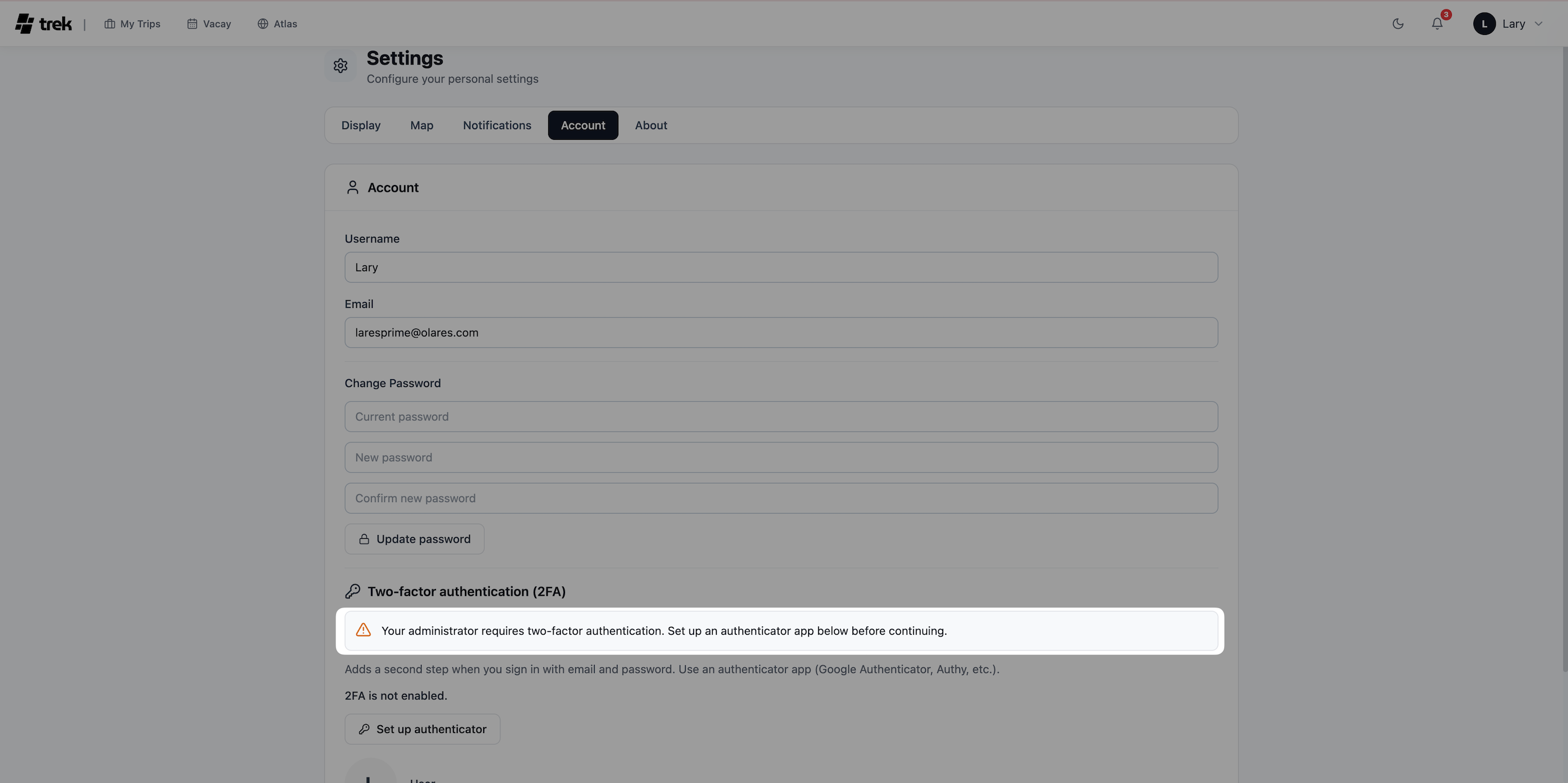
Disable 2FA
Removing 2FA is a two-part process if it was enforced globally. Turning off the workspace requirement does not automatically delete members' 2FA configurations. Each user must still manually disable it on their own account.
Disable the workspace-wide 2FA requirement
As an admin, if you enforced 2FA globally, you must turn off this requirement before anyone (including yourself) can disable personal 2FA.
Log in to TREK, select your user avatar, and then select Admin.
Select the Settings tab, locate the Require two-factor authentication (2FA) section, and then toggle it off.

Disable 2FA for your personal account
Remove the 2FA step from your login process.
Workspace restrictions
If you are a workspace member, you cannot disable your personal 2FA until your admin turns off the global requirement.
Log in to TREK using your password and current 2FA code.
Select your user avatar, and then select Settings.
Select the Account tab, and then locate the Two-factor authentication (2FA) section.
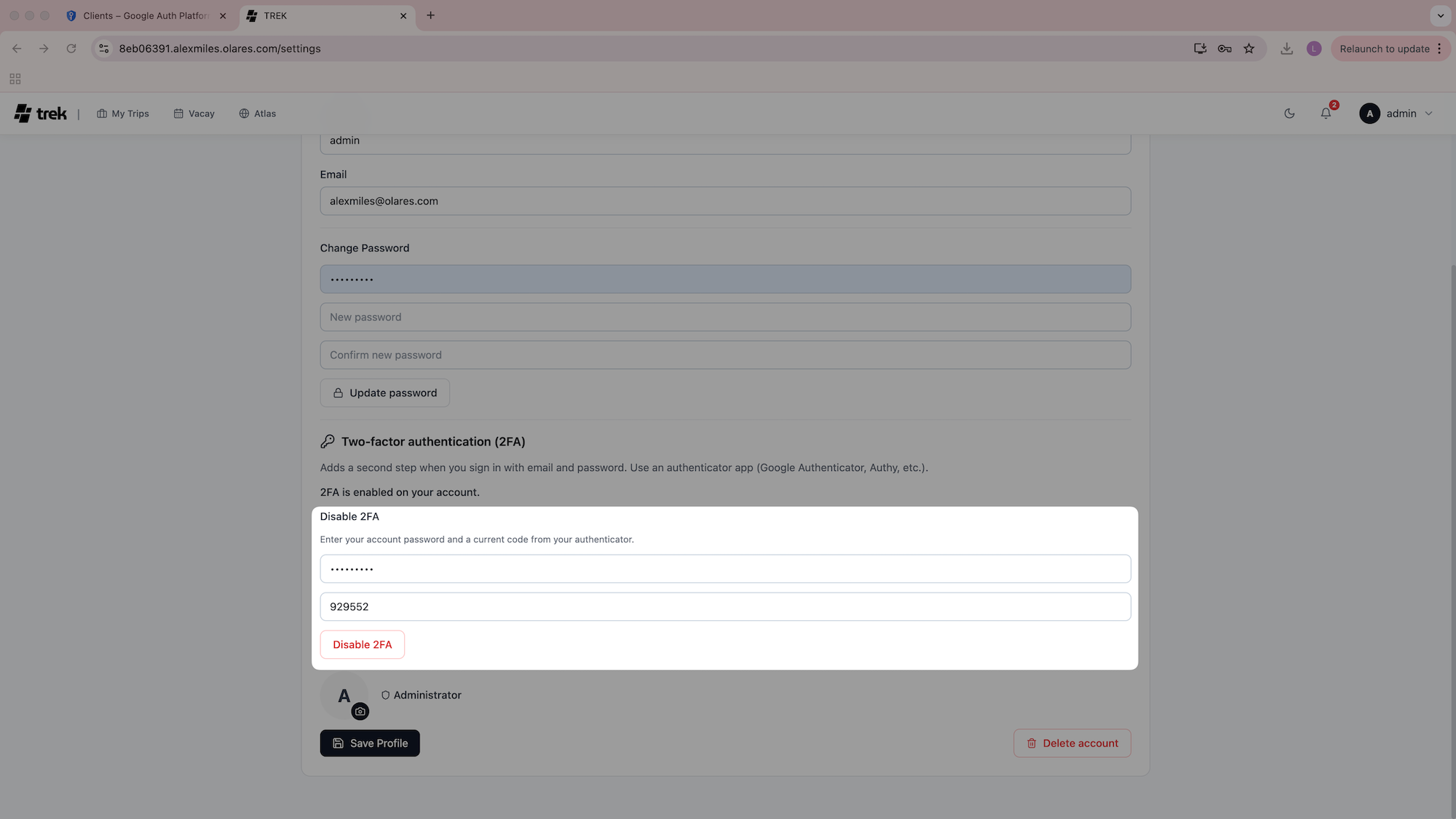
Enter your login password.
Enter the verification code from your authenticator app.
Select Disable 2FA.
Log out of TREK, and then log in again. The verification step is no longer required.
Back up and restore your data
Regularly save your itineraries, notes, and budgets to prevent data loss. TREK allows you to create manual backups or schedule automated ones.
Back up your workspace data
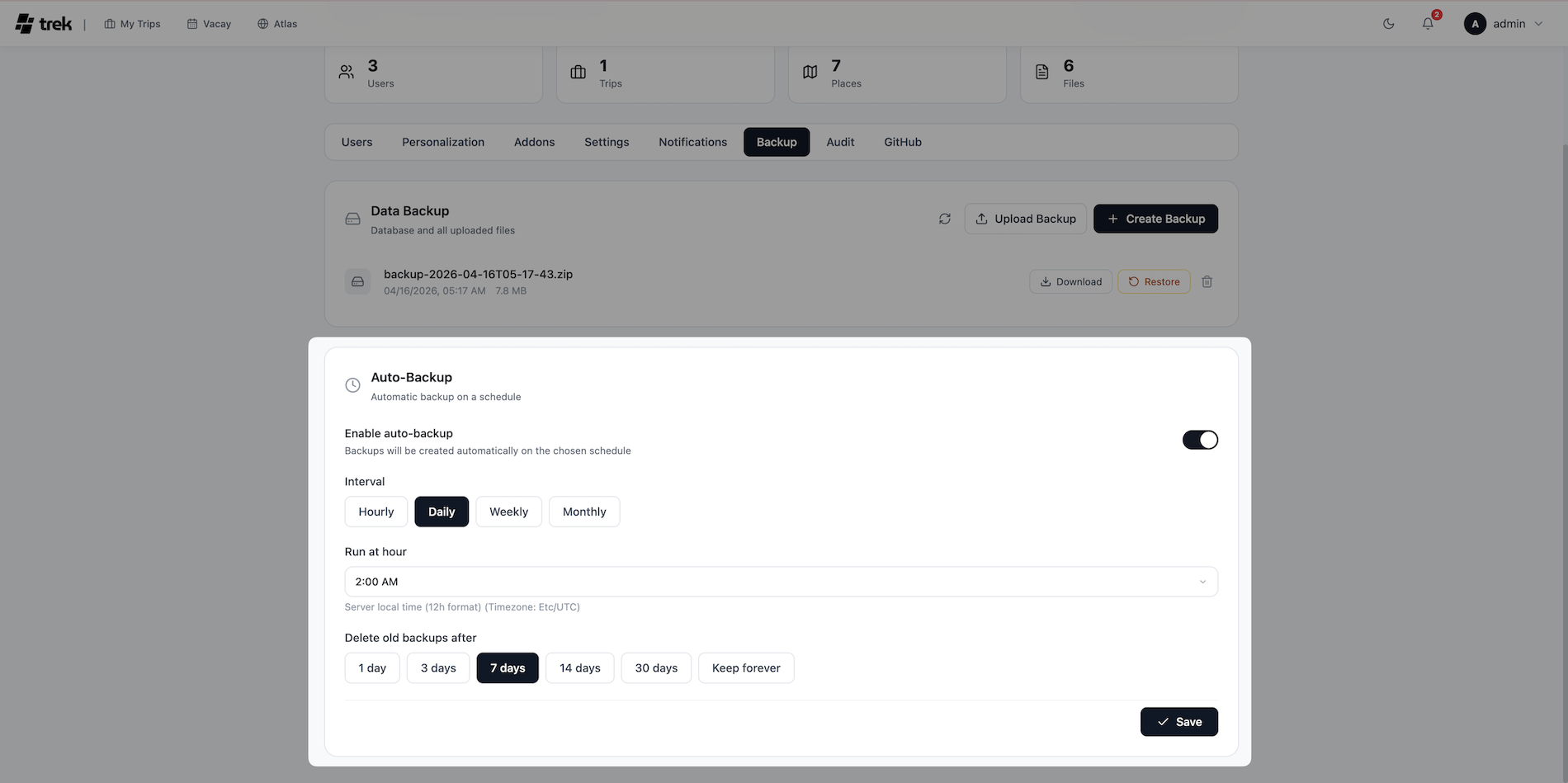
Choose to trigger a backup immediately or set up a recurring schedule.
Create a backup:
Manual backup: Click user avatar, select Admin, go to the Backup tab, and then click Create Backup.
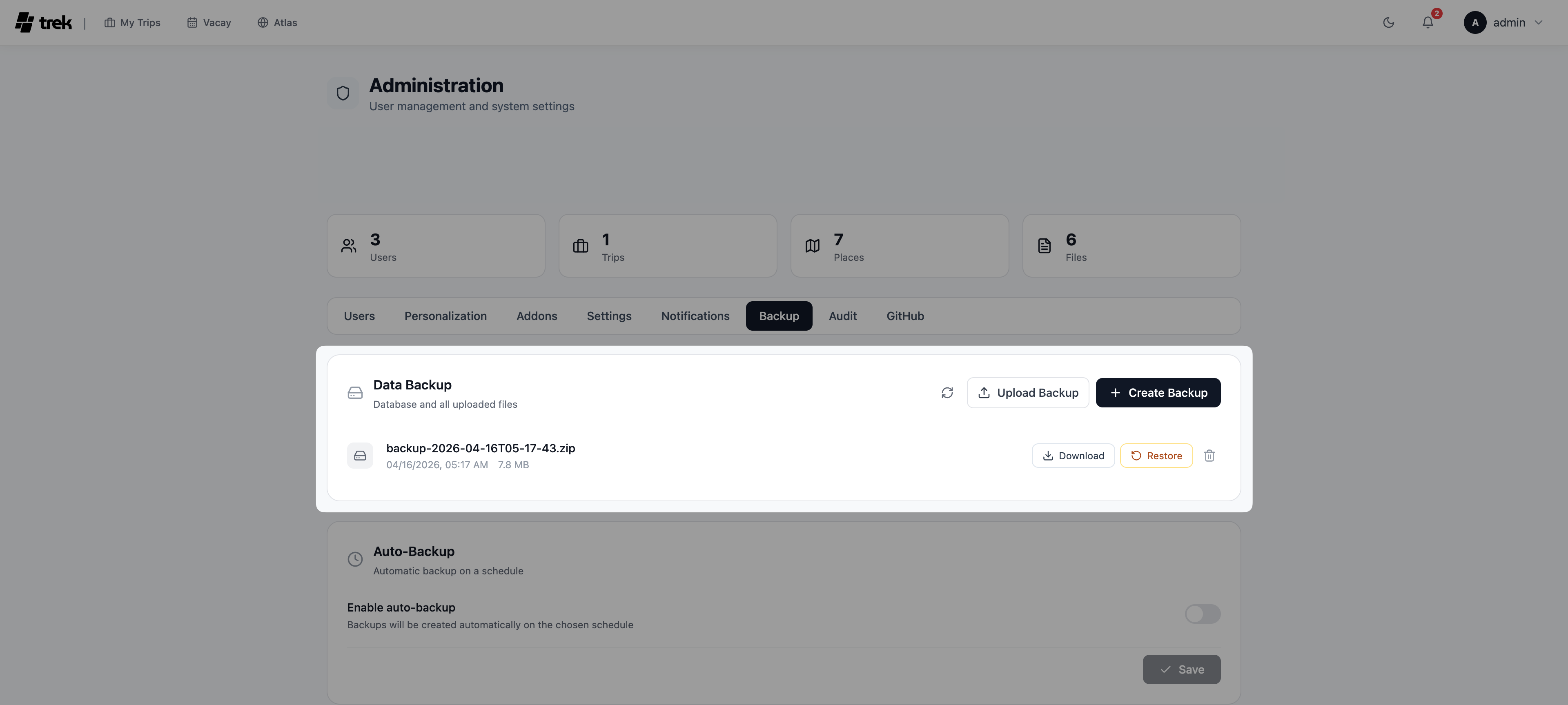
Auto backup: Configure scheduled backups under Admin > Backups > Auto Backup settings.
Click Download to save your backup package locally.
Restore data from a backup
If you need to recover lost information, you can upload a previously saved backup file.
- On the Backup page, click Upload Backup, and then select your local package.
- When prompted, review the Restore Backup warning, and then confirm your restore to overwrite the current workspace with the backup data.