Optional: Enable web search in OpenClaw
By default, OpenClaw answers questions using only its training data. It cannot access current events, real-time news, or live web content. To give your agent internet access, connect it to a web search provider.
This guide uses SearXNG, a privacy-focused meta-search engine that aggregates results from multiple sources without tracking users. You can install SearXNG as a self-hosted instance from the Olares Market.
Learning objectives
In this guide, you will learn how to:
- Install SearXNG from the Olares Market.
- Obtain the shared endpoint URL for SearXNG.
- Configure OpenClaw to use SearXNG for web search and fetching.
- Verify that the web search tool is working.
Step 1: Install SearXNG
Install SearXNG and obtain its shared endpoint URL.
Open Market, and search for "SearXNG".
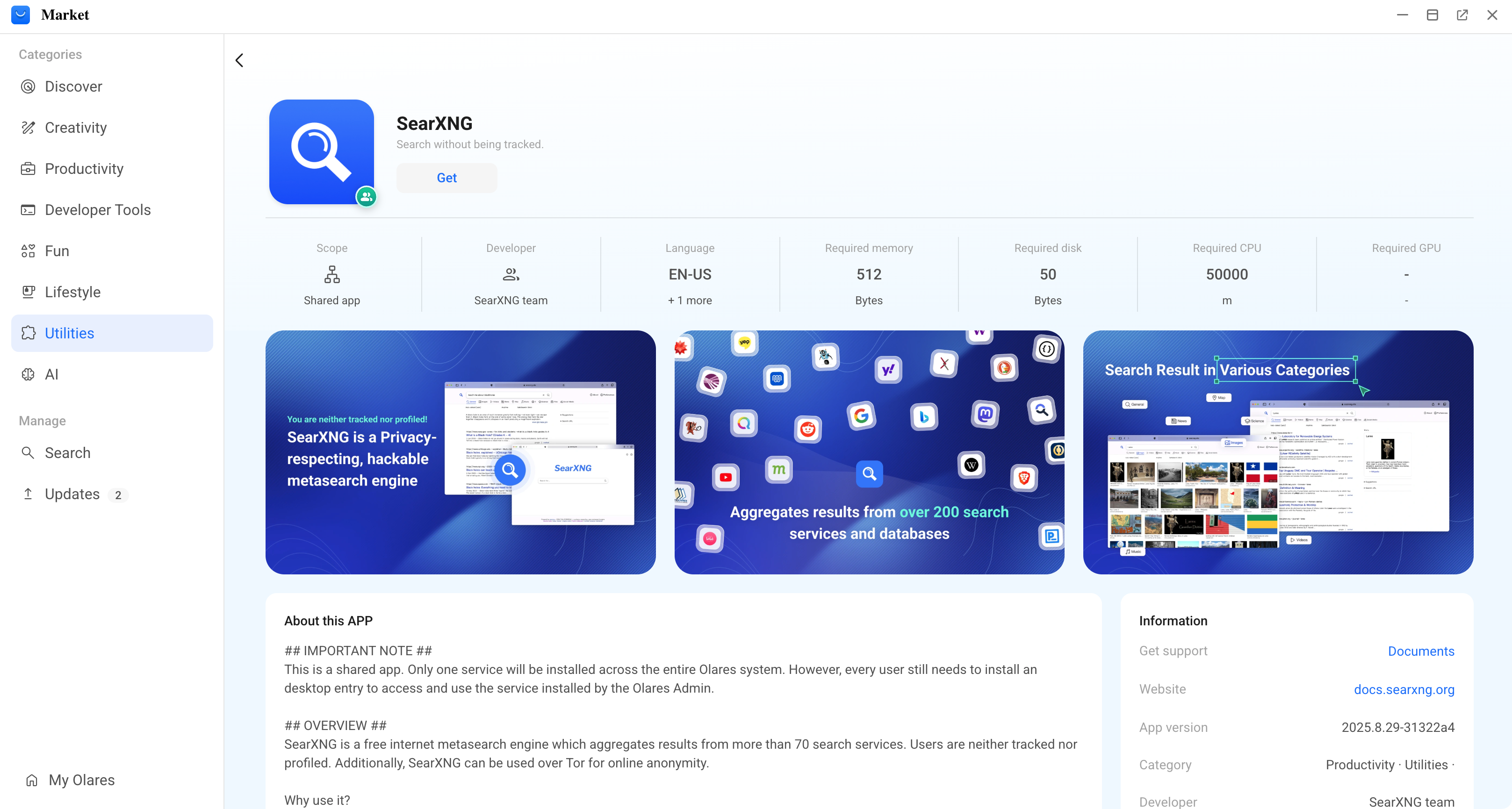
Click Get, and then click Install. Wait for the installation to finish.
Open Settings, and then go to Applications > SearXNG.
In Shared entrances, click SearXNG.
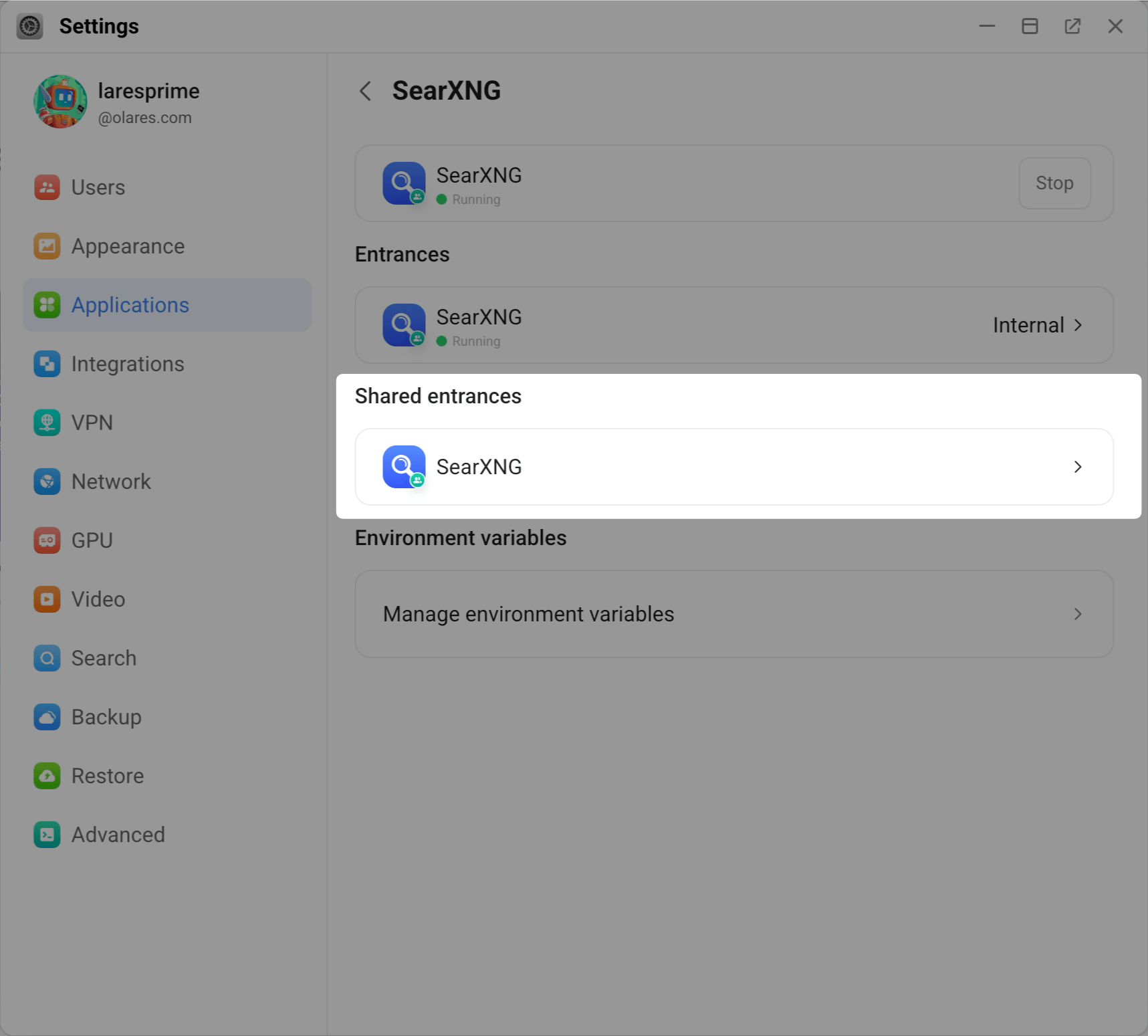
Copy the shared endpoint URL. For example:
texthttp://d1236e020.shared.olares.com
Step 2: Configure OpenClaw
Connect OpenClaw to SearXNG.
Open the OpenClaw CLI.
Run the following command to start the configuration wizard:
bashopenclaw configure --section webConfigure the settings as follows:
Settings Option Where will the Gateway run Local (this machine) Enable web_search Yes Search provider SearXNG Search SearXNG Base URL Paste the shared SearXNG endpoint URL you copied earlier. Enable web_fetch (keyless HTTP fetch) Yes
Step 3: Verify web search
Test that your agent can retrieve real-time information from the internet.
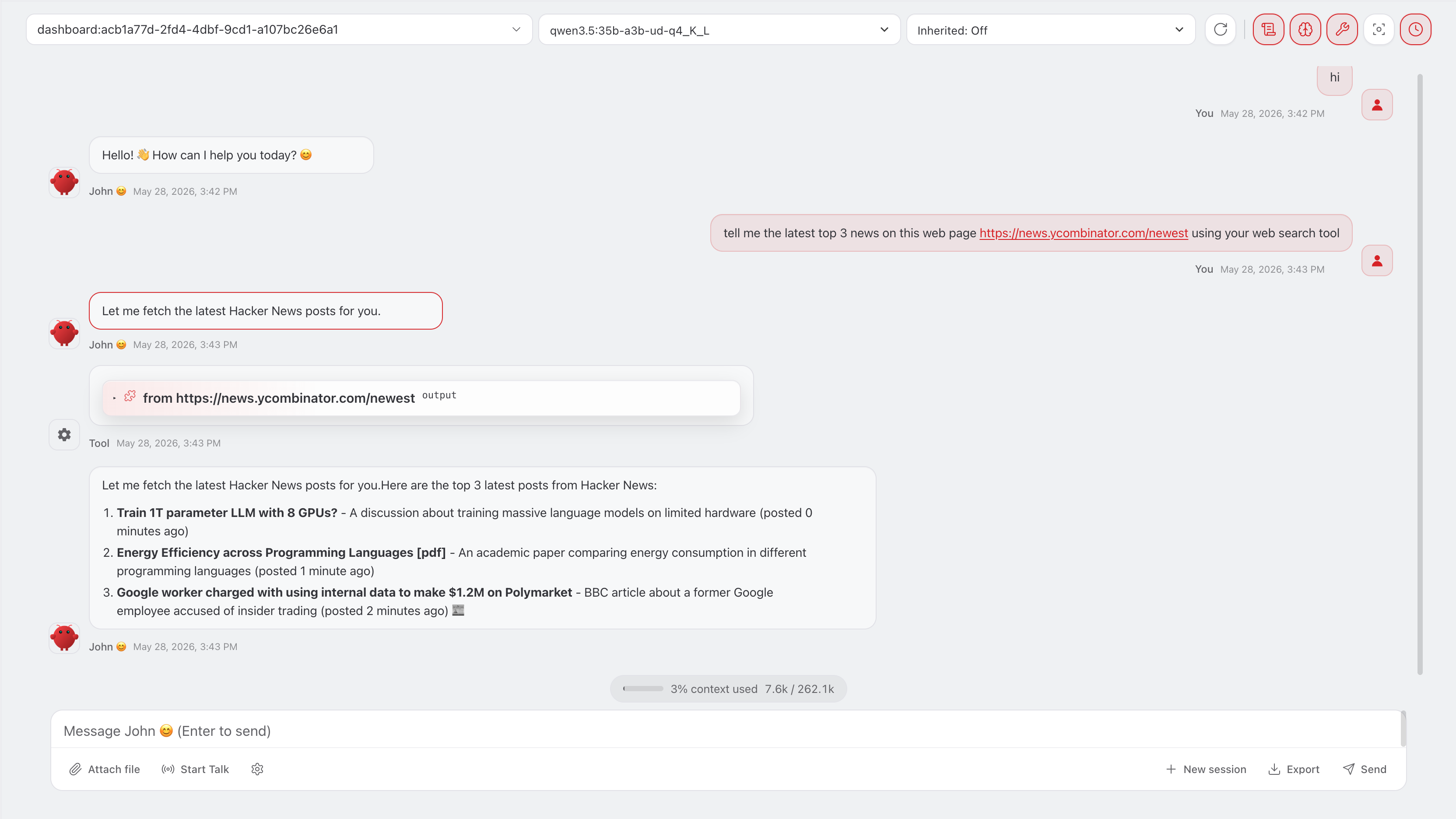
Open the Control UI and start a chat with your agent.
Ask a question that requires current information.
Check the response. If the agent returns up-to-date information, the web search integration is working.
Full-text retrieval
SearXNG returns only titles, URLs, and snippets, not full page content. Fetching the full text might be blocked by anti‑scraping measures. If you need the agent to read the full contents of web pages, use an online web service. We recommend Firecrawl and Tavily. They return full text or answer snippets and offer free quotas for web search.