Set up Bifrost as an AI model gateway
Bifrost is an AI gateway that sits between your client applications and multiple model providers, such as OpenAI, Anthropic, and local engines like Ollama. It exposes a single OpenAI-compatible endpoint and routes each request to the right backend based on the model name.
Use Bifrost to achieve high request throughput, built-in MCP gateway access, semantic response caching, and automatic provider fallbacks.
Learning objectives
In this guide, you will learn how to:
- Install Bifrost.
- Add Ollama or a single-model app as a model provider in Bifrost.
- Locate the Bifrost endpoint URL.
- Route models from Bifrost to OpenCode.
- Route models from Bifrost to Open WebUI.
- Verify model connections using Bifrost's observability logs.
Prerequisites
Ensure you have a local AI model running on Olares using one of the following methods:
- Ollama application: One app that hosts multiple models. Ensure Ollama is installed with at least one model downloaded, such as
llama3.1:8b. - Single-model application: Runs one specific model as a standalone application. Ensure a model app is installed from Market with the model fully downloaded, such as Qwen3.5 9B Q4_K_M (Ollama).
Install Bifrost
Open Market and search for "Bifrost".
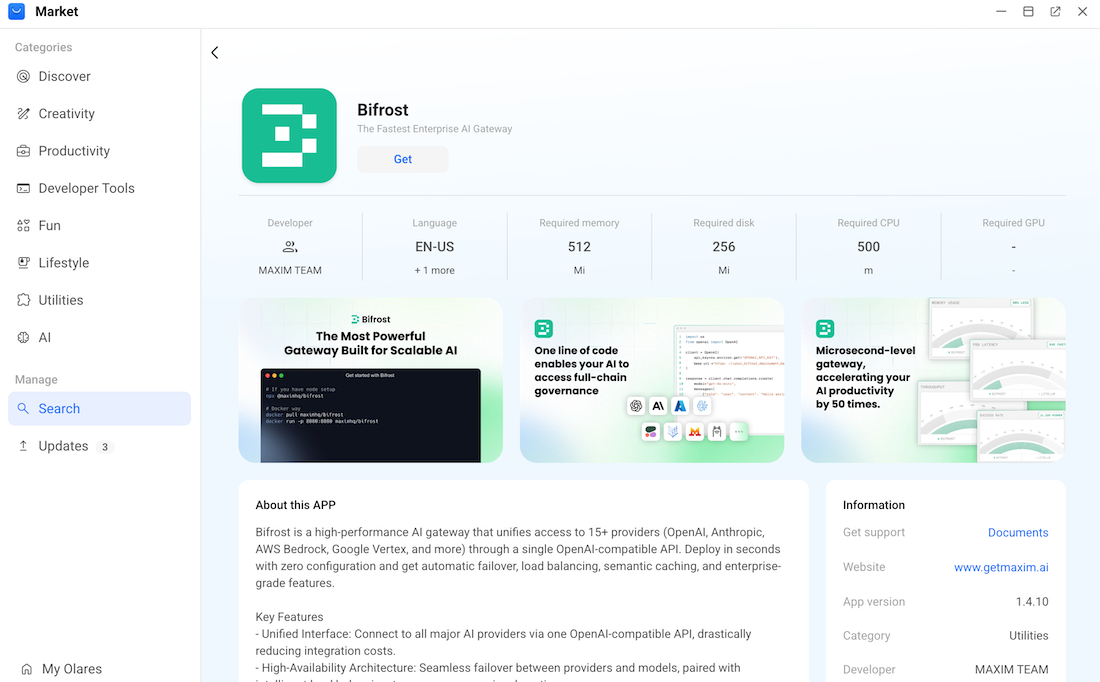
Click Get, and then click Install. Wait for the installation to finish.
Add model providers in Bifrost
In Bifrost, a model provider represents the engine hosting your AI models. You configure a provider by supplying the endpoint URL of the application running the models.
You can connect the Ollama application to route every model running inside it, or connect a single-model application to expose just that specific model.
In this tutorial, since both the example models run on the Ollama engine, select Ollama as the provider type for both scenarios.
Obtain the Bifrost endpoint
Client applications connect to Bifrost through the Bifrost endpoint URL, not the model provider URLs you configured earlier.
Open Settings, go to Applications > Bifrost > Entrances > Bifrost, and then copy the endpoint URL. For example:
plainhttps://44039dc0.laresprime.olares.com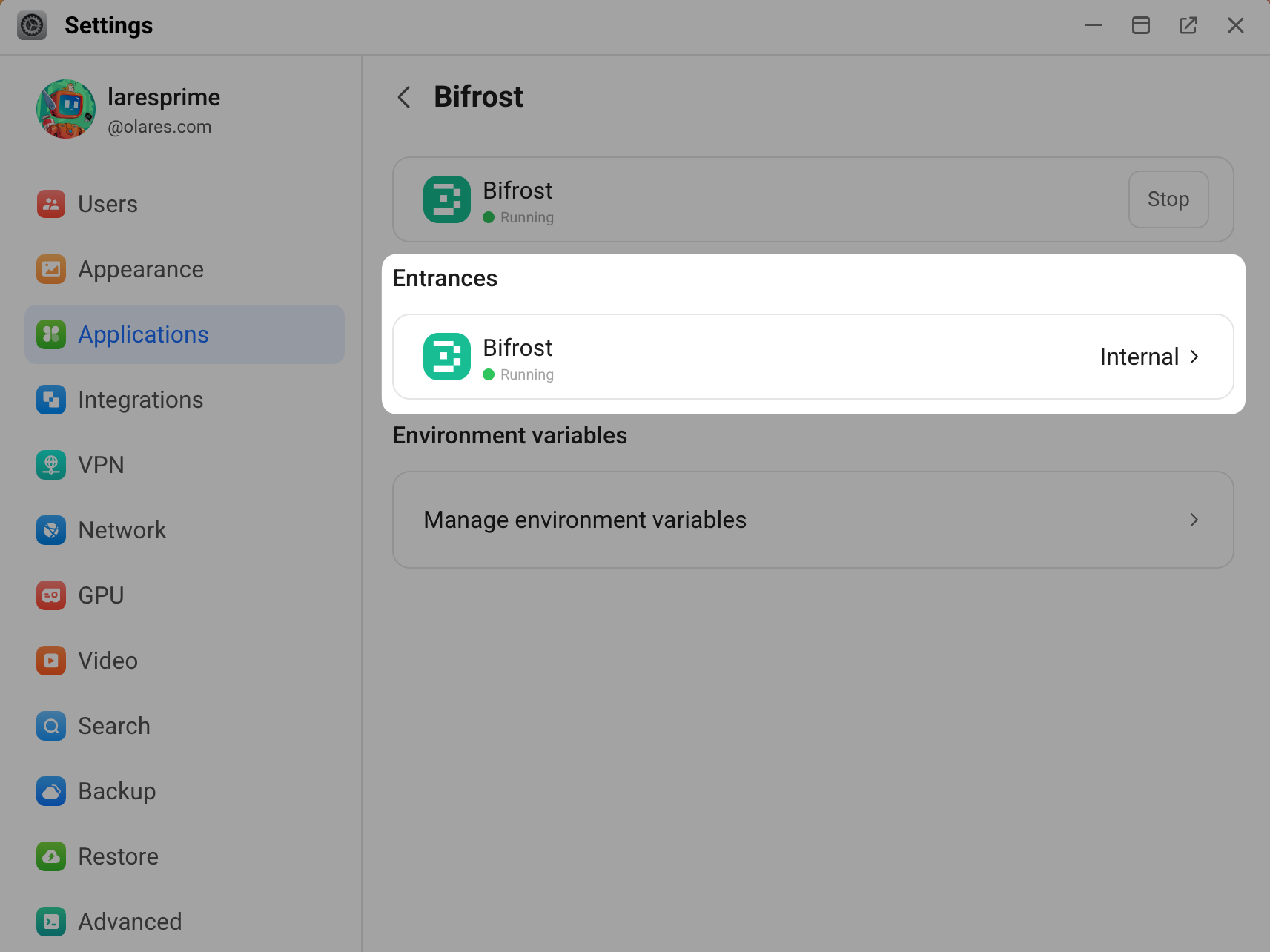
When you configure a client, always append
/v1to this Bifrost endpoint URL. For example:plainhttps://44039dc0.laresprime.olares.com/v1
WARNING
The /v1 suffix is required for OpenAI-compatible clients. Without it, requests fail.
Route models to OpenCode
In OpenCode, register Bifrost as a custom provider and add your example models (from Ollama and the single-model app) under it.
Step 1: Connect OpenCode to Bifrost
Open OpenCode, and then go to Settings > Providers > Custom provider > Connect.
Enter the following details:
- Provider ID: A unique identifier. For example,
olares-bifrost. - Display name: The name shown in the provider list. For example,
Olares Bifrost. - Base URL: Paste the Bifrost endpoint URL with
/v1appended.
- Provider ID: A unique identifier. For example,
Add one row per model. Click Add model to insert more rows as needed, and specify each row as follows:
- Model ID: Use the format
ollama/<model-name>, where<model-name>is the exact model name on the backend.- For an Ollama model, use the name shown in Ollama. For example,
ollama/llama3.1:8b. - For a single-model app, use the model name shown on the app page. For example,
ollama/qwen3.5:9b.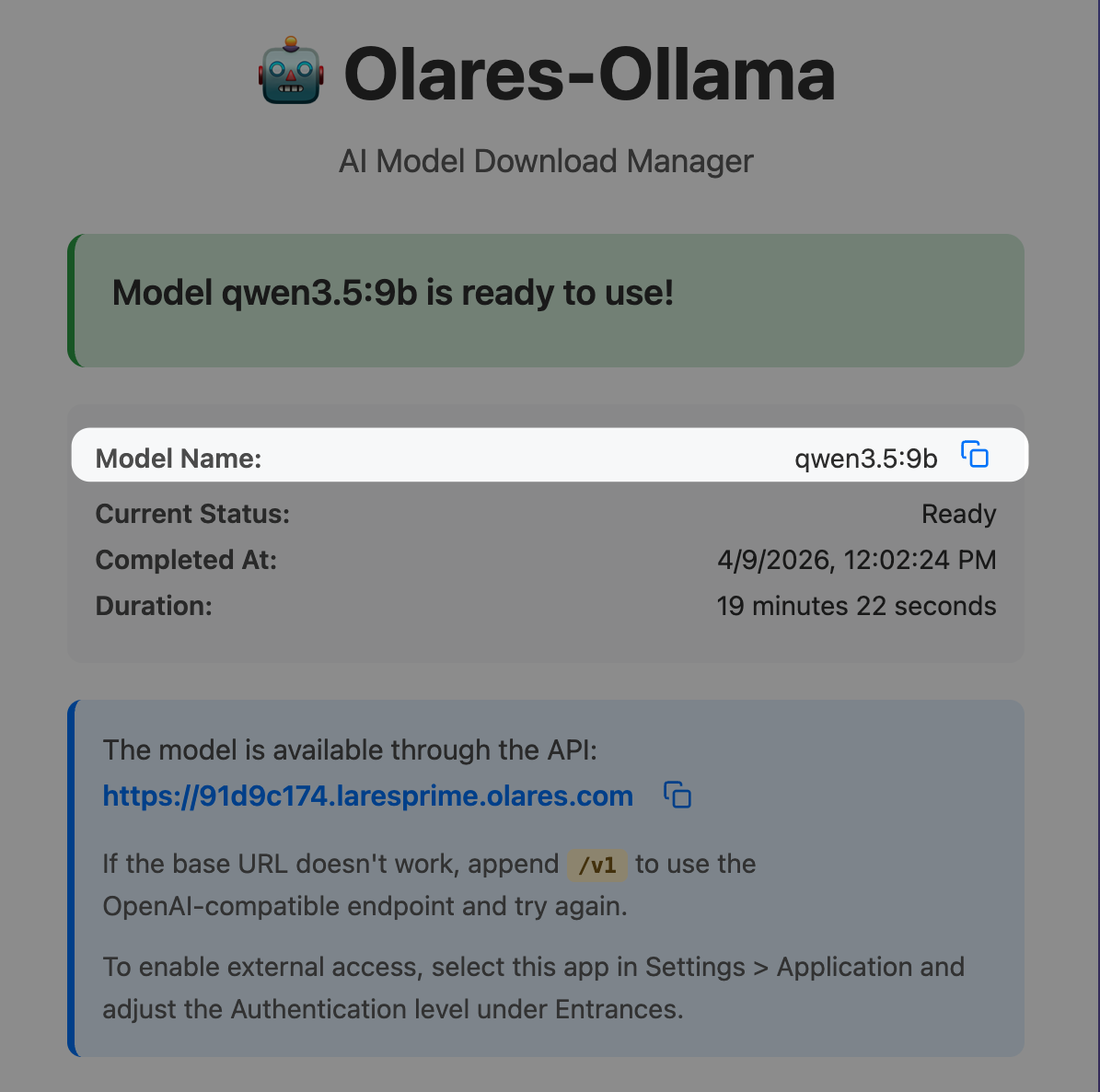
- For an Ollama model, use the name shown in Ollama. For example,
- Display name: Any friendly label, such as
Llama 3.1 8BorQwen3.5 9B.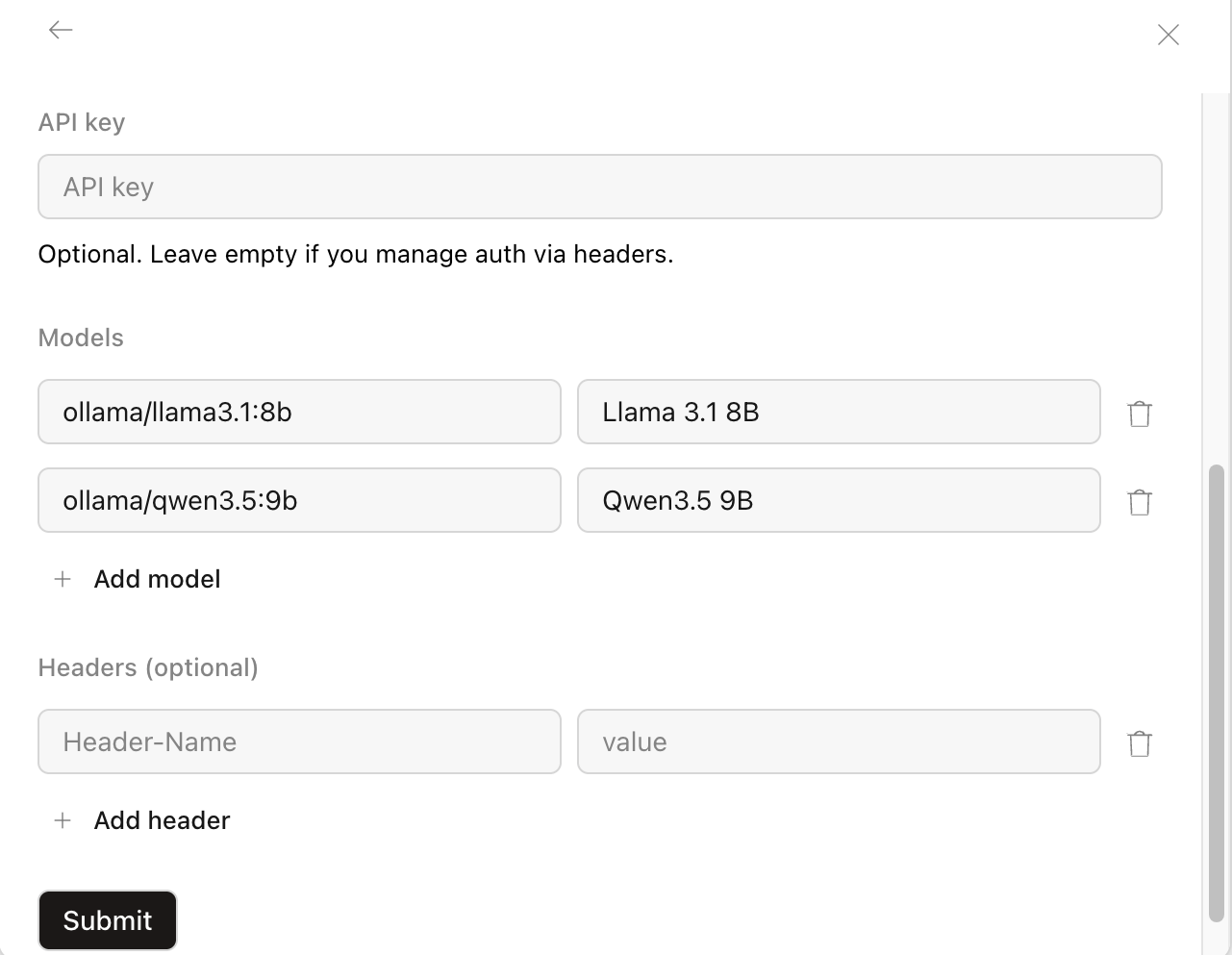
WARNING
- You must append
/v1to the Bifrost URL. Without it, OpenCode returns an error. - You must include the
ollama/prefix on model IDs. Without it, API calls fail. - The model name you enter must exactly match the name of the downloaded model in your Ollama instance. To find the exact names of your downloaded models, run
ollama listin the Ollama terminal.
- Model ID: Use the format
Click Submit. The message "Olares Bifrost connected" is displayed.
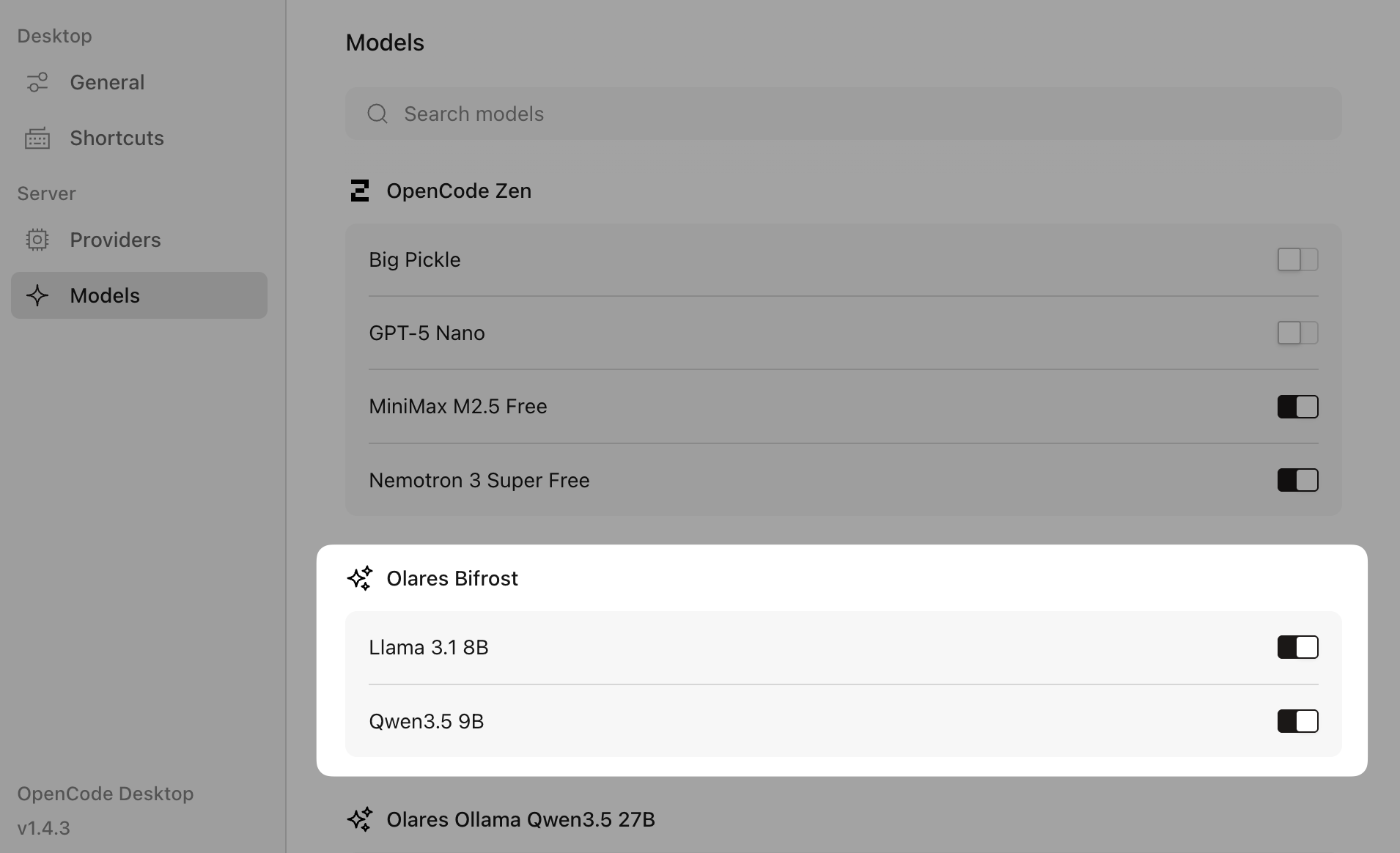
Return to OpenCode, and then go to Settings > Models > Olares Bifrost.
Verify the models you added are enabled.
Step 2: Chat and verify
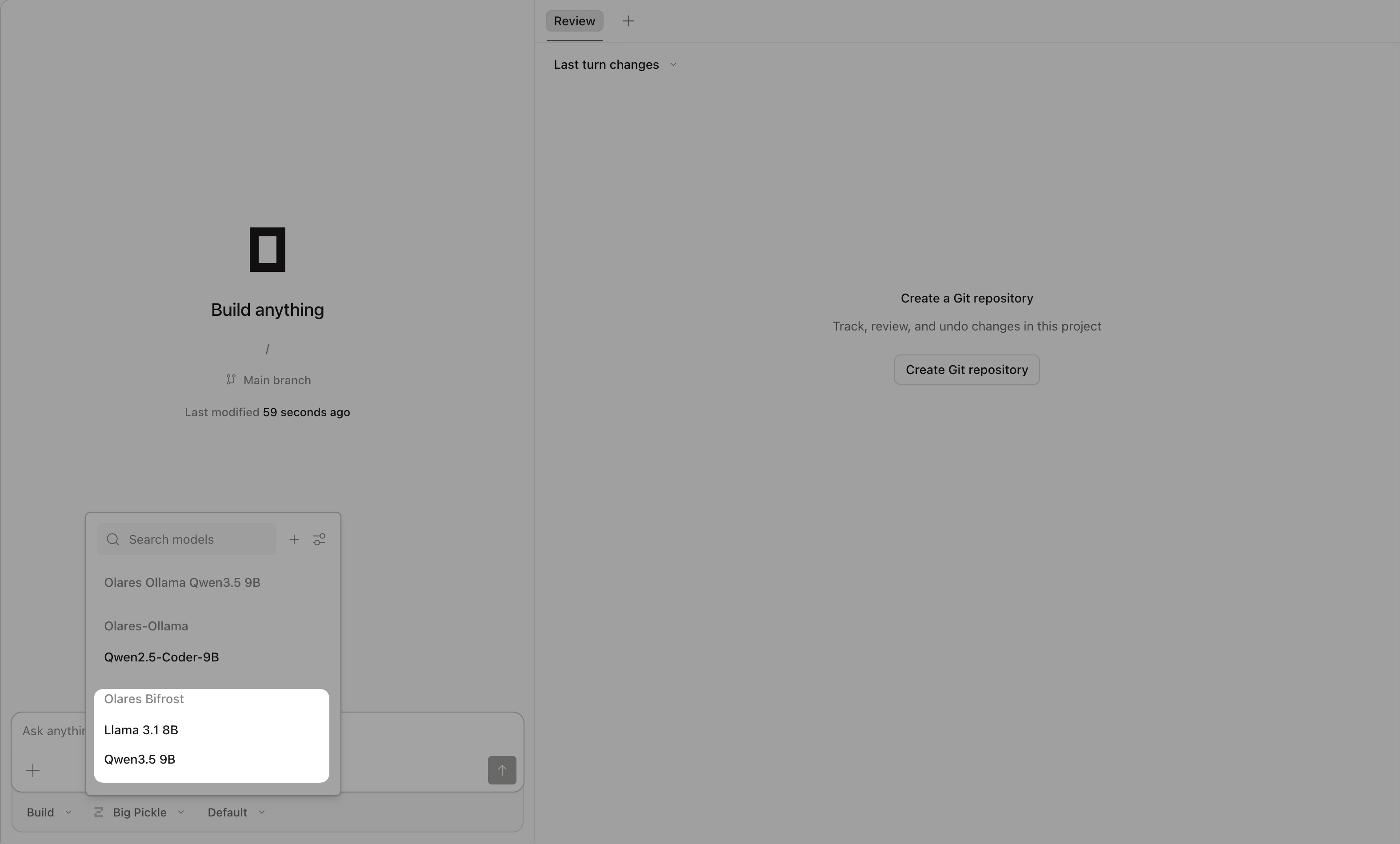
Start a new session in OpenCode, and select one of the Bifrost-managed models to begin a chat.
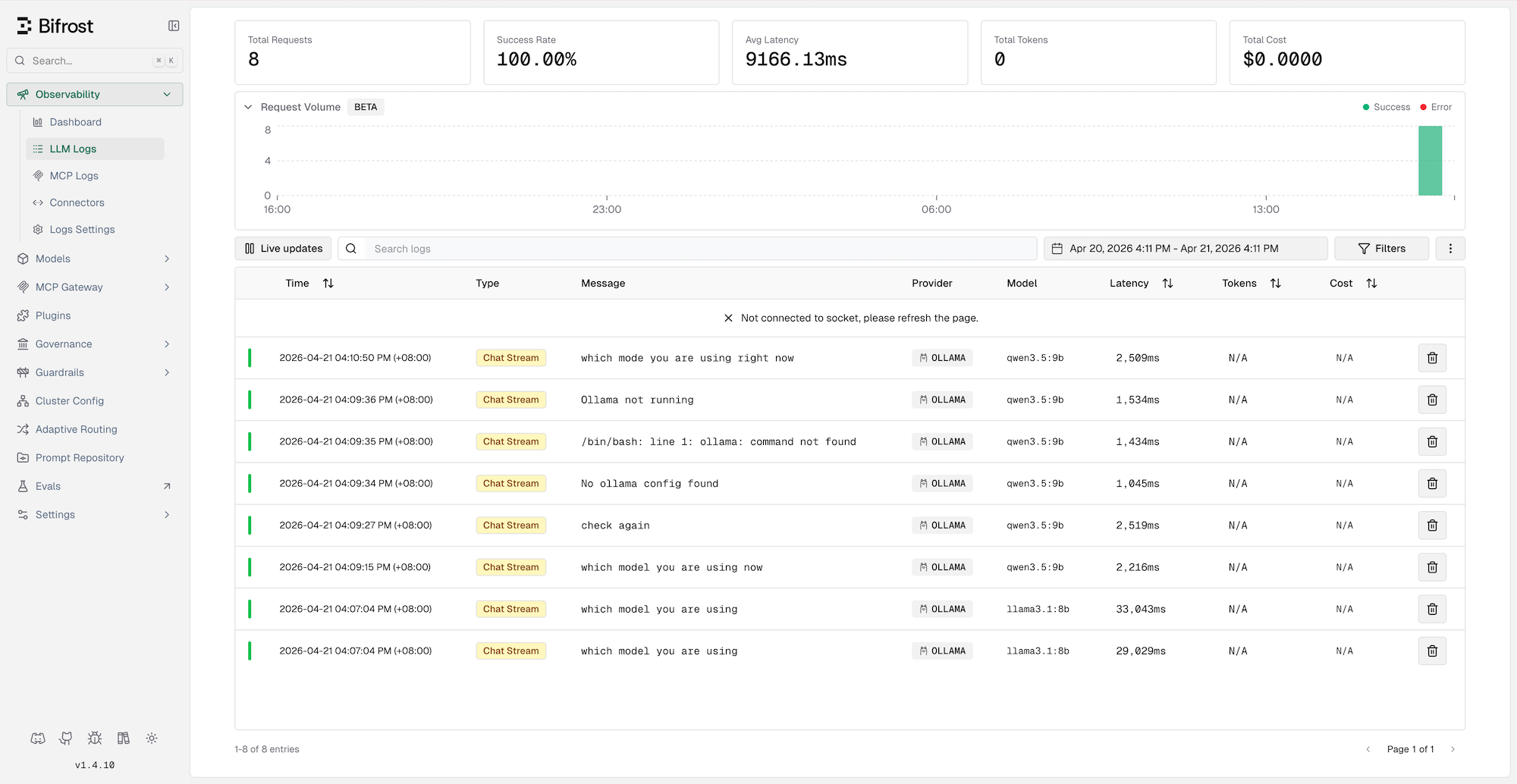
Open Bifrost, and then go to Observability > LLM Logs.
Each request you send appears as a log entry, which confirms that Bifrost routes the traffic successfully.
Route models to Open WebUI
In Open WebUI, add Bifrost as a direct external connection and add both example models under it.
Step 1: Connect Open WebUI to Bifrost
In Open WebUI, click your user avatar, and then select Admin Panel.
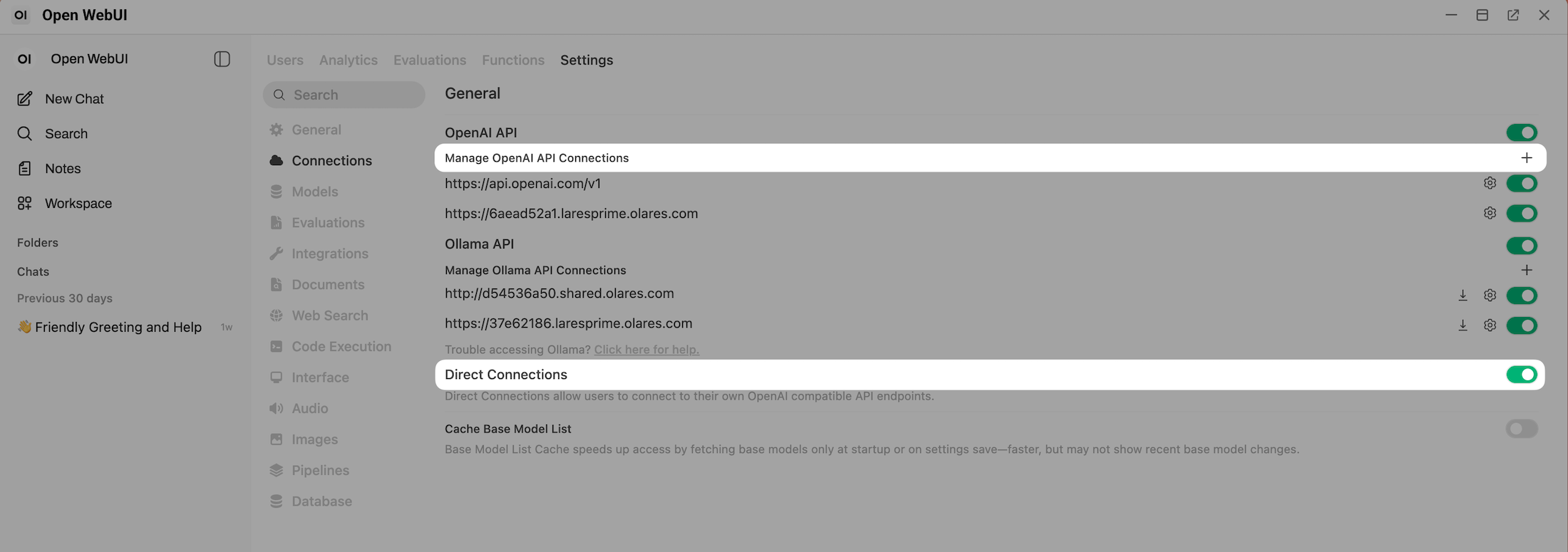
Click the Settings tab, and then select Connections.
Enable Direct Connection, and then click add on the right of Manage OpenAI Connections.
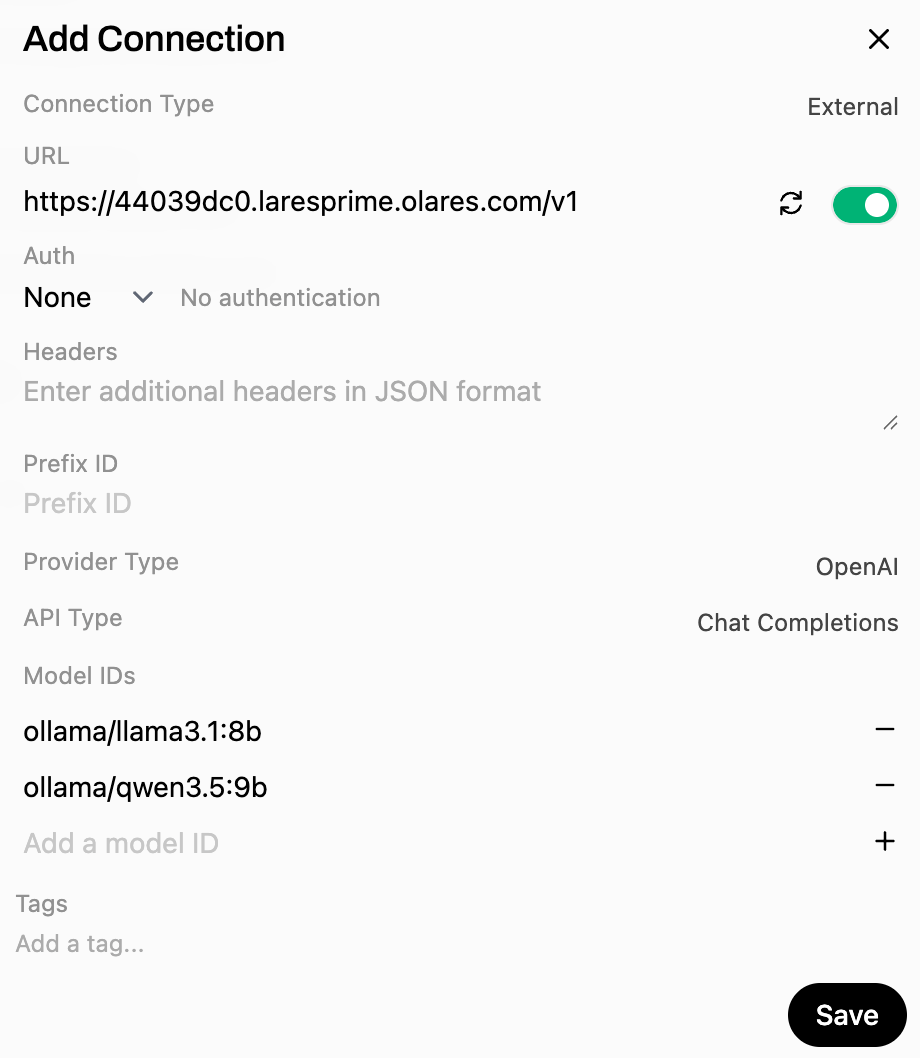
In the Add Connection window, specify the following settings:
- URL: Paste the Bifrost endpoint URL with
/v1appended. - Auth: Select None.
- Add a Model ID: Enter each model ID in the
ollama/<model-name>format, and then click add to add it. For example:ollama/llama3.1:8bollama/qwen3.5:9b
- URL: Paste the Bifrost endpoint URL with
Click refresh to verify the connection, and then click Save.
Step 2: Chat and verify
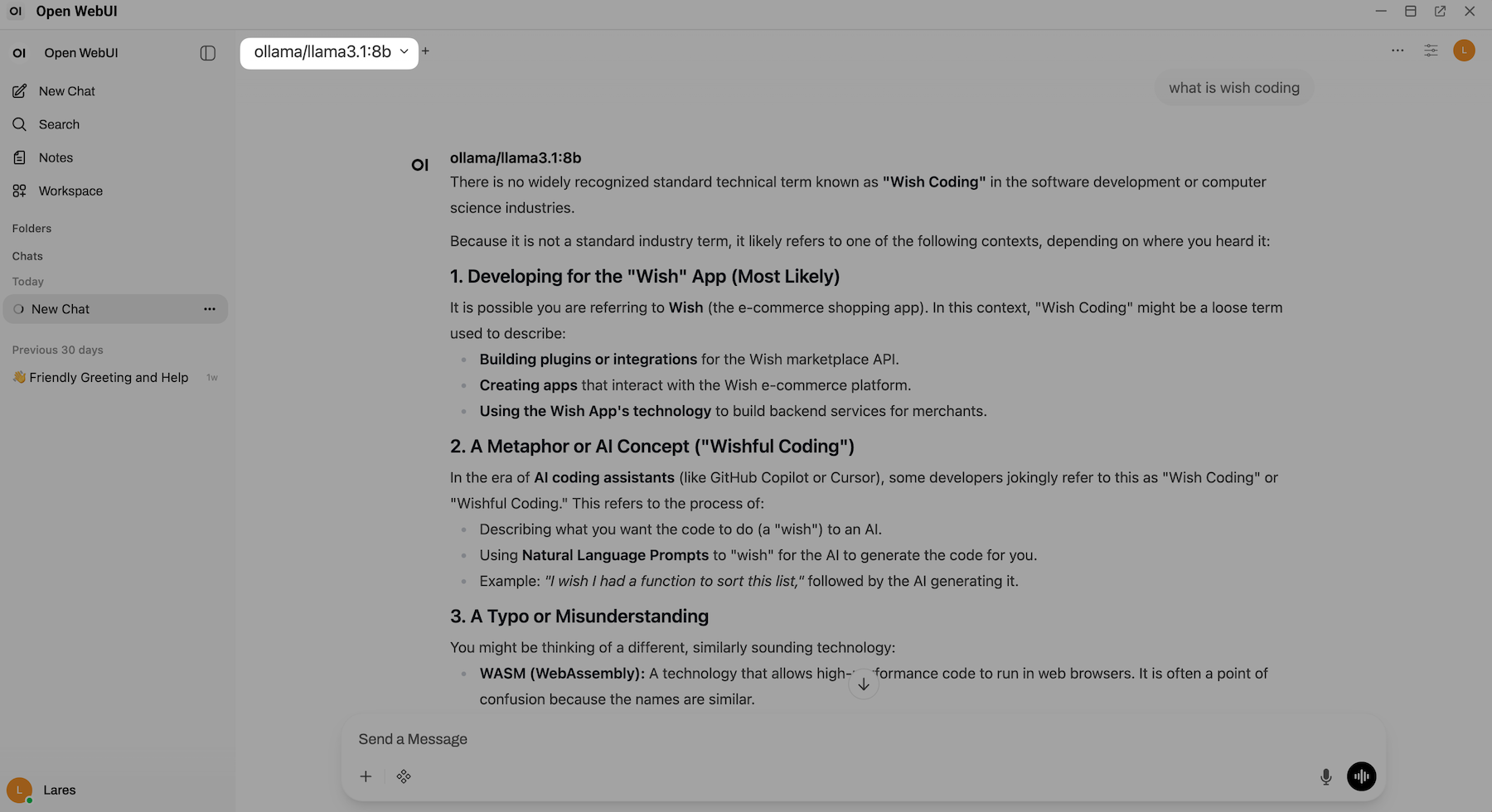
In Open WebUI, go to the New Chat page.
Select one of the configured models, and then start a conversation.
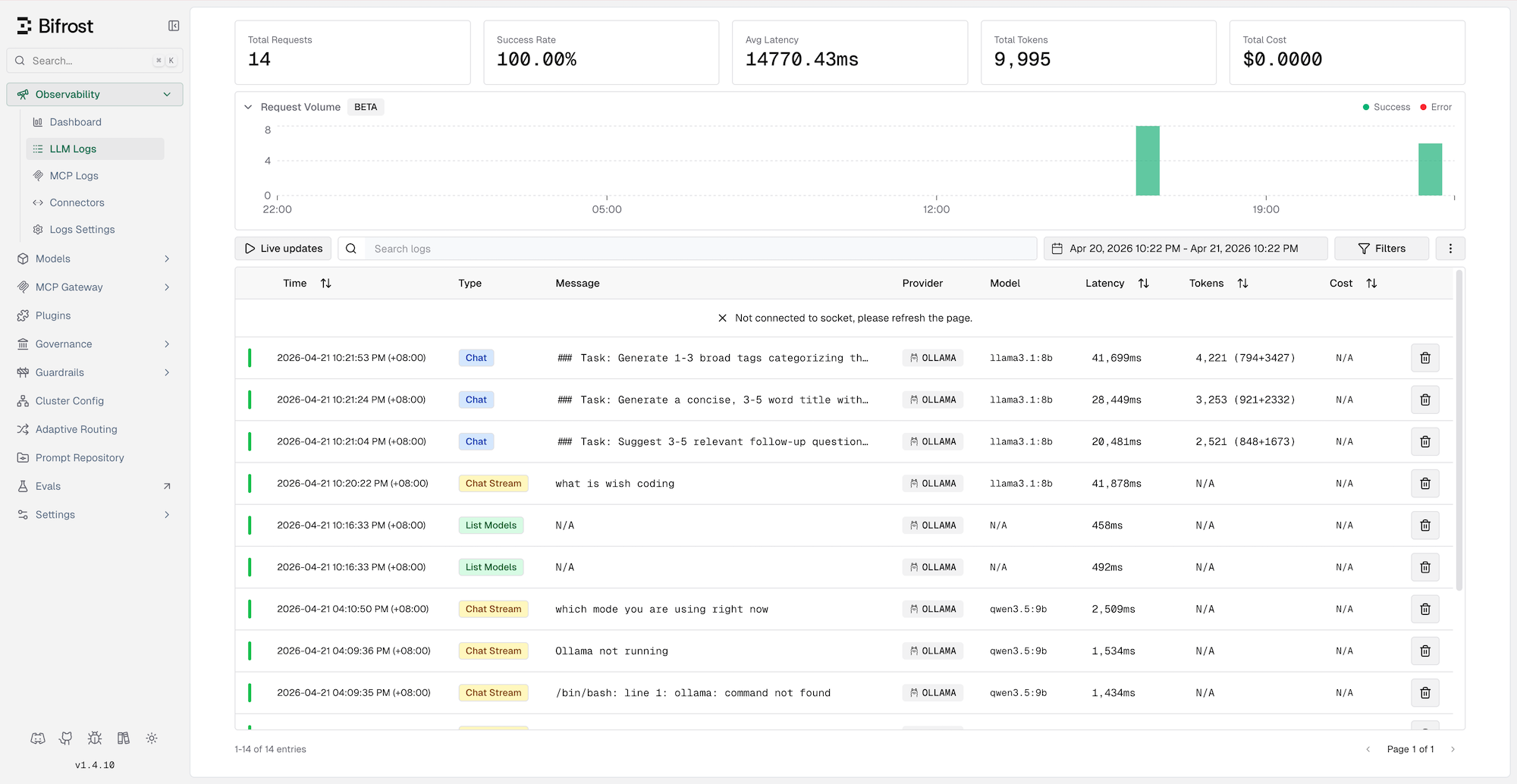
Open Bifrost, and then go to Observability > LLM Logs.
Each request you send appears as a log entry, which confirms that Bifrost routes the traffic successfully.
FAQs
Use Bifrost or LiteLLM?
Olares offers multiple AI gateways. Use Bifrost if you require high request throughput, built-in MCP gateway access, semantic caching, or advanced rate limiting. For a simpler setup without these advanced features, consider using LiteLLM.
Why does OpenCode return an error when connecting to Bifrost?
Ensure you appended /v1 to the Bifrost endpoint URL in your client configuration. Without the /v1 suffix, requests from OpenAI-compatible clients fail.
Why do my model calls fail even though the connection is successful?
- Check model IDs: You must include the
ollama/prefix on model IDs. For example,ollama/llama3.1:8b. - Check model names: Ensure the model name perfectly matches the name downloaded in your Ollama instance.
Why do I get errors when calling a model through Bifrost in OpenCode?
Certain models have their own native output formats such as custom tags or reasoning blocks, or lack support for features the client expects, such as tool calling. When Bifrost routes these requests, the models might return responses that OpenAI-compatible clients like OpenCode fail to parse, resulting in failures.
If you encounter this issue:
- Review the model documentation for special output formats or capability limitations.
- Verify the model supports the specific features your client requests.
- Switch to a model that fully complies with the OpenAI API standard.
Learn more
- Download and run local AI models via Ollama: Install Ollama and pull models for Bifrost to route to.
- Set up OpenCode as your AI coding agent: Full OpenCode setup and project workflow.
- Chat with local LLMs using Open WebUI: Configure Open WebUI against your Olares-hosted models.
- Use LiteLLM as a unified AI model gateway: Compare with Bifrost to choose the right gateway for your stack.
- Bifrost official documentation: Full reference for providers, MCP, caching, and governance features.