Enable Intel integrated GPU passthrough for Windows VM
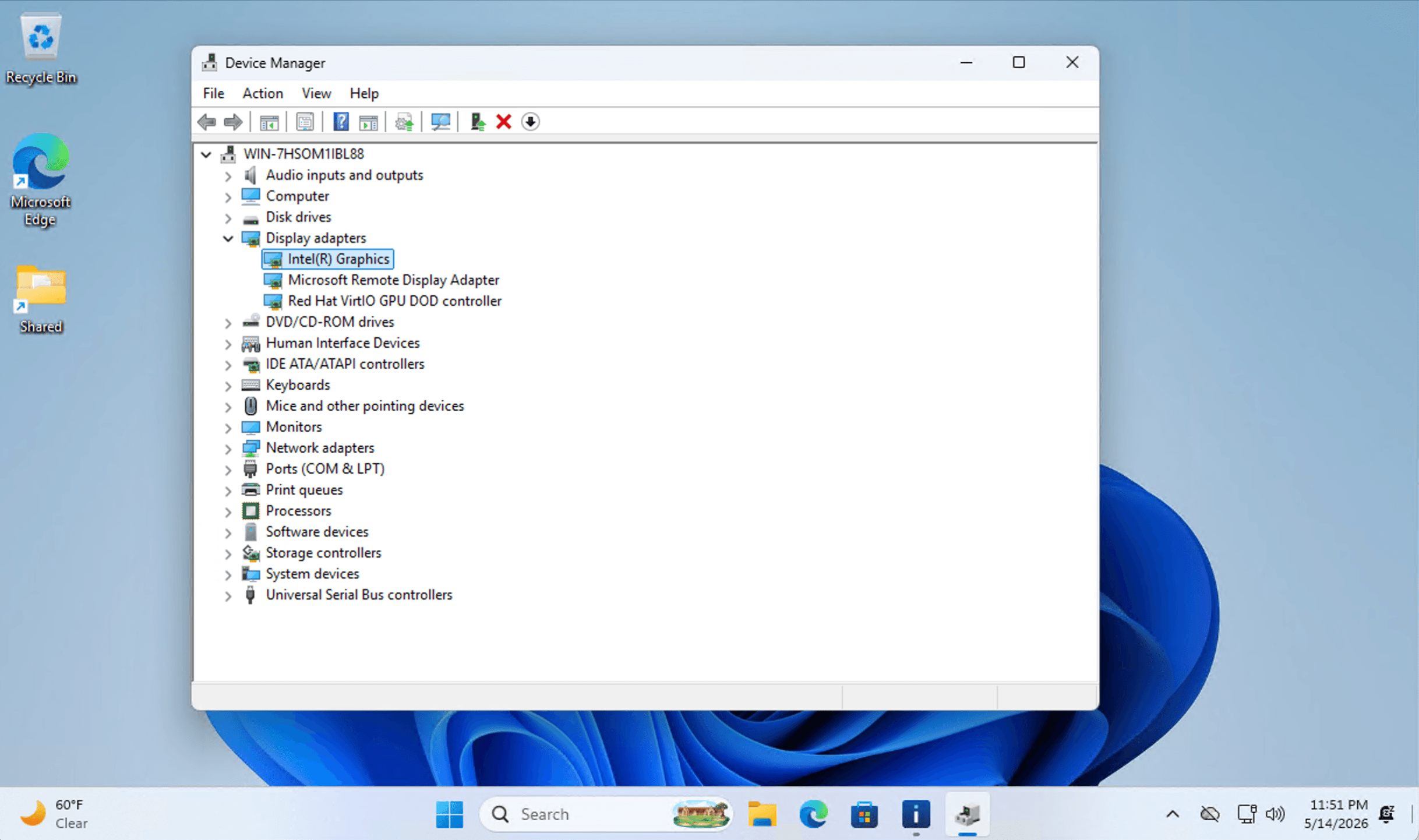
You can pass an Intel integrated GPU (iGPU) from the Olares host to the Windows VM on supported devices. After configuration, Windows can detect the Intel graphics device through RDP.
Using Olares One
Olares One does not require BIOS, SR-IOV, VFIO, or Windows app environment variable setup. The Windows app deployed from the Olares Market already includes the required GPU configuration by default.
If you use Olares One, skip directly to Install the Intel graphics driver in Windows.
Supported devices
Intel integrated GPU support is available only when the Olares host meets one of the following conditions:
- Olares One: You are using the official Olares One device.
- Self-hosted devices: You are using a host with an Intel CPU that includes Intel integrated graphics, running Ubuntu 24.04 or later, and Intel VT-d / IGD is supported and enabled in BIOS.
If the host does not have an Intel iGPU, the Windows VM cannot create one from software alone.
Configure the host environment
Use this workflow to configure the BIOS and operating system on a self-hosted Olares device.
Make sure you can access the Olares host terminal through SSH before continuing. This setup changes BIOS settings, kernel parameters, DKMS modules, SR-IOV virtual functions, and VFIO device binding. Incorrect configuration may affect host startup or device availability.
Configure the BIOS
Restart the host and enter the BIOS/UEFI settings. The exact menu names vary by motherboard vendor. Look for these options under menus such as Advanced, Chipset, System Agent, PCIe, or Graphics:
- Enable Intel VT-d.
- Enable the integrated graphics device, if it is disabled.
- Set the primary display or initial display output to IGD, Integrated Graphics, or a similar option.
- Save the settings and restart the host.
If you cannot find an integrated graphics or IGD option, confirm that your Intel CPU includes integrated graphics, then check your motherboard manual for the exact BIOS option name.
Verify the iGPU
Access the Olares host terminal through SSH and run:
lspci -nn | grep VGAConfirm that the output includes an Intel integrated GPU and that the device type is VGA compatible controller.
Example output:
00:02.0 VGA compatible controller [0300]: Intel Corporation AlderLake-S GT1 [8086:4680] (rev 0c)Enable IOMMU and Intel vGPU
This step installs the Intel SR-IOV DKMS module, writes the required IOMMU and iGPU parameters to GRUB, and creates the vGPU virtual functions.
Install the DKMS module
Run the following commands to update the host, install dependencies, and build the Intel SR-IOV DKMS module:
sudo apt update && sudo apt upgrade -y

sudo apt update && sudo apt install git sysfsutils dkms -y

sudo rm -rf /var/lib/dkms/i915-sriov-dkms*
sudo rm -rf /usr/src/i915-sriov-dkms*
rm -rf ~/i915-sriov-dkms

cd ~
git clone https://github.com/strongtz/i915-sriov-dkms.git
cd ~/i915-sriov-dkms
git checkout 2025.07.22

cp -a dkms.conf{,.bak}
KERNEL=$(uname -r)
sed -i 's/"@_PKGBASE@"/"i915-sriov-dkms"/g' dkms.conf
sed -i "s/PACKAGE_VERSION=\".*\"/PACKAGE_VERSION=\"$KERNEL\"/g" dkms.conf
sed -i 's/ -j$(nproc)//g' dkms.conf
cat dkms.conf

sudo apt install --reinstall dkms -y
sudo dkms add .
cd /usr/src/i915-sriov-dkms-$KERNEL
sudo dkms status
sudo dkms install -m i915-sriov-dkms -v $KERNEL -k $(uname -r) --force -j 1
sudo dkms status
Update GRUB
Add or modify GRUB_CMDLINE_LINUX_DEFAULT in /etc/default/grub. Use the command line that matches your Ubuntu version.
For Ubuntu 24.10 or later, use:
GRUB_CMDLINE_LINUX_DEFAULT="quiet intel_iommu=on iommu=pt i915.enable_guc=3 i915.max_vfs=7"For Ubuntu 24.04, add i915.force_probe=7d67:
GRUB_CMDLINE_LINUX_DEFAULT="quiet intel_iommu=on iommu=pt i915.enable_guc=3 i915.max_vfs=7 i915.force_probe=7d67"If the line already contains other parameters, keep them and add the new parameters inside the quotation marks.
In this example, i915.max_vfs=7 configures up to 7 Intel vGPU virtual functions.
Update the GRUB configuration and restart the host:
sudo update-grub && sudo rebootAdd the SR-IOV configuration
After the host restarts, add the SR-IOV configuration to /etc/sysfs.conf.
The command below uses 00:02.0, which should match the Intel iGPU PCI address shown in the earlier lspci output. If your Intel iGPU uses a different PCI address, update the path accordingly.
sudo sh -c 'echo "devices/pci0000:00/0000:00:02.0/sriov_numvfs = 7" > /etc/sysfs.conf'

cat /etc/sysfs.conf

sudo reboot
Verify the vGPU devices
After the host restarts, verify that the vGPU devices were created:
lspci -nn | grep VGAYou should see additional virtual VGA devices.
Bind one vGPU to VFIO
Bind one vGPU, such as 0000:00:02.1, to the VFIO driver:
sudo apt install -y driverctl

sudo driverctl set-override 0000:00:02.1 vfio-pci
In this example, 0000:00:02.1 is the vGPU device that will be assigned to the Windows VM. The override persists across host reboots.
Configure the Windows app
For self-hosted devices, add the GPU-related environment variables to the Windows Deployment. Make sure the host= value matches the vGPU device you bound to vfio-pci earlier. The example below uses 0000:00:02.1.
Open Control Hub from the Launchpad.
Under Browse, select the windows project from the list.
Under Deployments, select
windows.In the upper-right corner of the details pane, click edit_square to edit the YAML.
Under the
envsection, add or update the following variables:yamlenv: - name: GPU value: 'Y' - name: VGA value: 'vfio-pci,host=0000:00:02.1,multifunction=on,x-vga=on -vga virtio'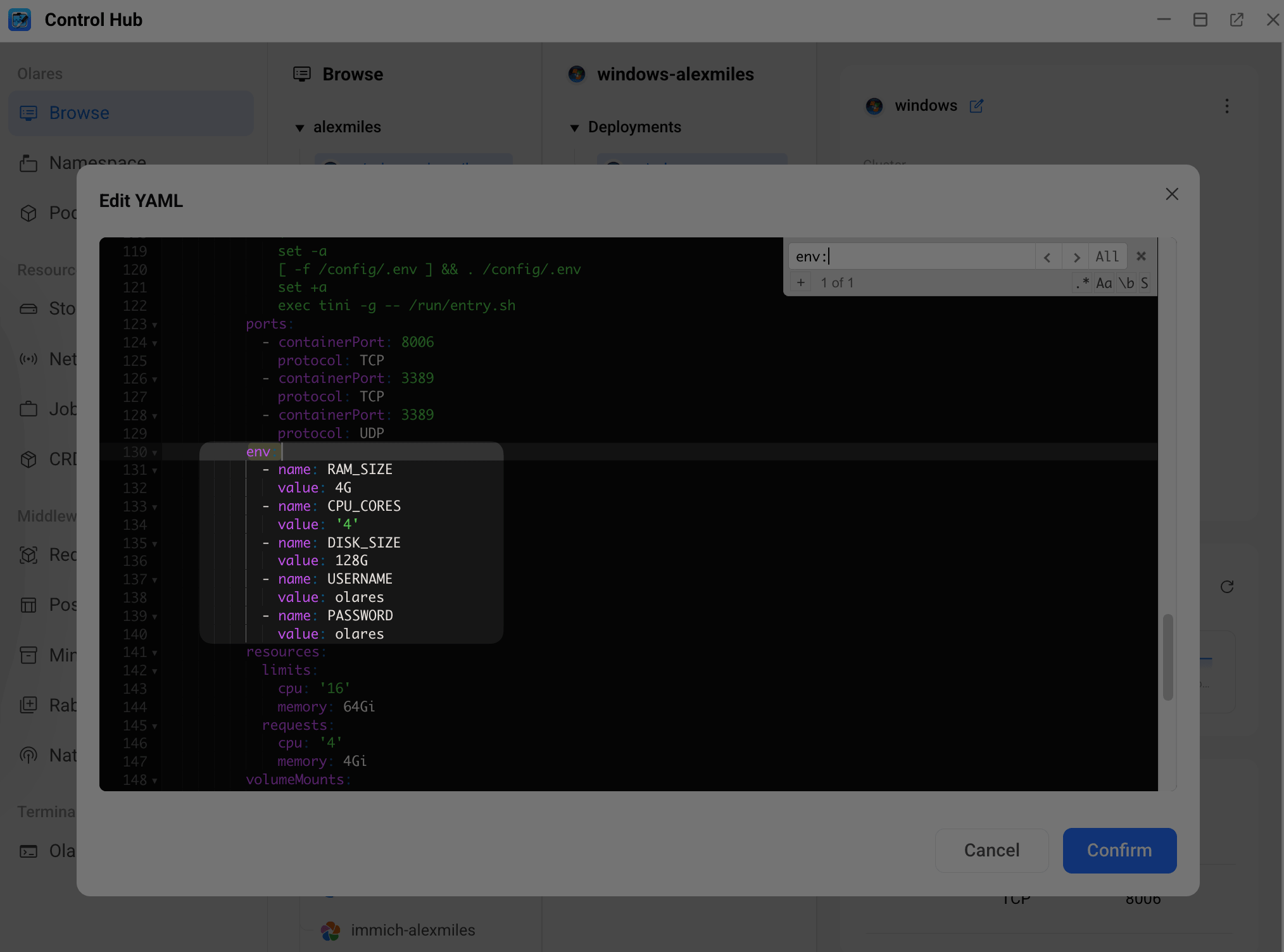
Click Confirm to save the changes, and restart the Windows app.
Install the Intel graphics driver in Windows
Connect to the Windows VM using RDP.
Open a browser in Windows.
Download the latest Intel graphics driver from Intel:
plainhttps://www.intel.com/content/www/us/en/download/785597/intel-arc-iris-xe-graphics-windows.htmlInstall the driver.
Restart Windows if prompted.
Verify the result
Reconnect to the Windows VM using RDP.
Open Device Manager.
Expand Display adapters.
Confirm that the Intel graphics device appears and is running without errors.