Optional: Enable local file access
By default, OpenClaw runs in a secure sandbox environment and can only access its own workspace. To make your AI assistant truly personal, you can grant it permission to access your Olares file system. This allows OpenClaw to read, organize, and process your documents, media, and connected external storage like NAS or USB drives.
Prerequisite
You must upgrade your Olares OS to V1.12.5 or later to use this feature.
Step 1: Enable file access settings
Set the corresponding environment variables to grant OpenClaw permission to manage your files.
Open Settings, and then go to Applications > OpenClaw > Manage environment variables.
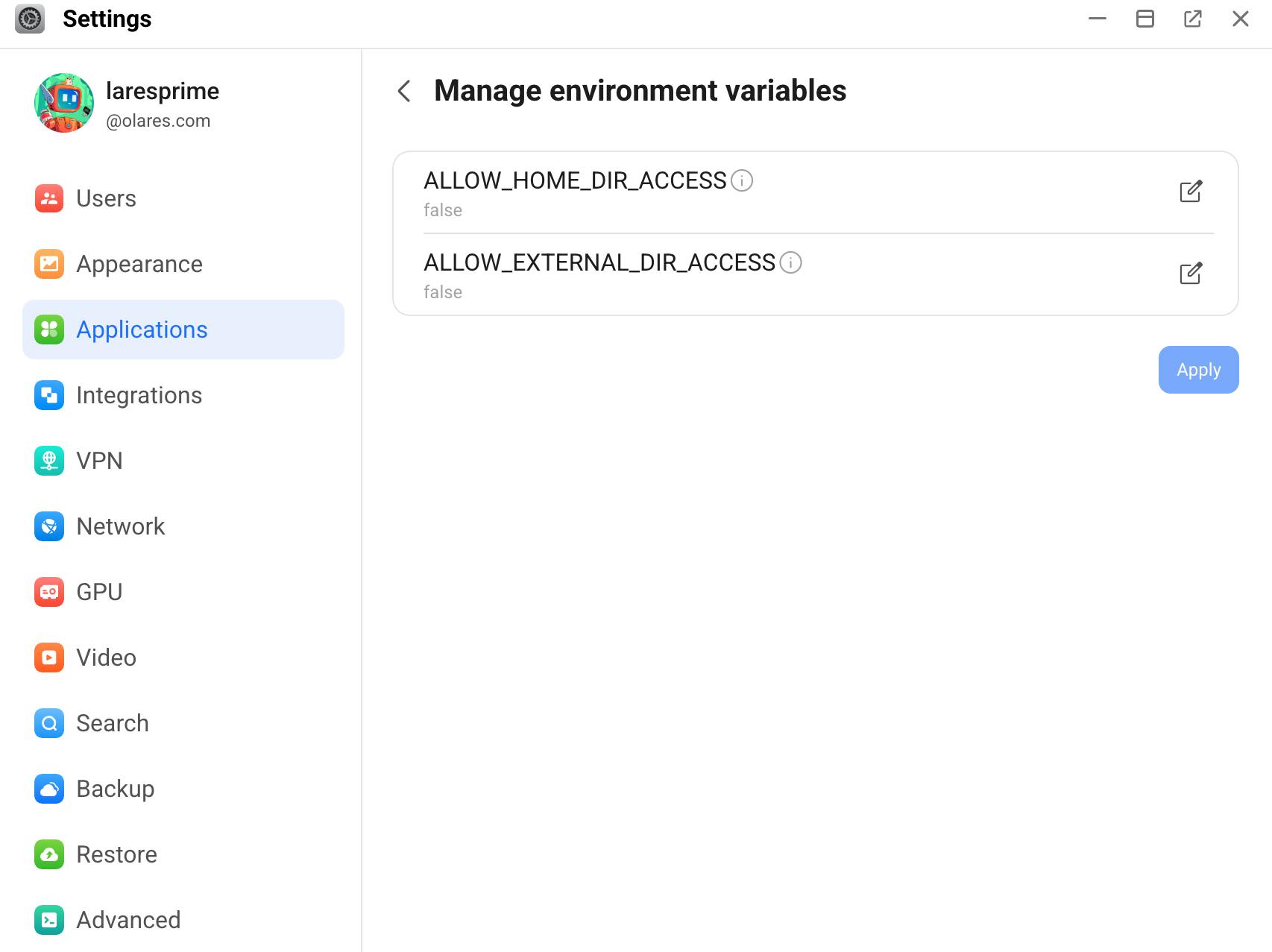
Two variables control file access:
- ALLOW_HOME_DIR_ACCESS: Allow access to the Home directory in the Files app.
- ALLOW_EXTERNAL_DIR_ACCESS: Allow access to the External directory in the Files app.
For each variable, click edit_square, set the value to true, and then click Confirm.
Click Apply.
Wait about a minute for the OpenClaw container to restart and apply the new permissions.
Step 2: Instruct the agent
After permissions are granted, Olares mounts your Home and External directories into the OpenClaw container at the following paths:
/home/userdata/home//home/userdata/external/
You must tell the agent about these locations. There are two ways to do this:
- (Recommended) Simply chat with the agent and ask it to remember them.
- Manually add the access rules to its core files by using the following steps.
Open the Control UI.
Go to Agents > Files, and then click TOOLS in the Core Files area.
Click the Content area to reveal the text.
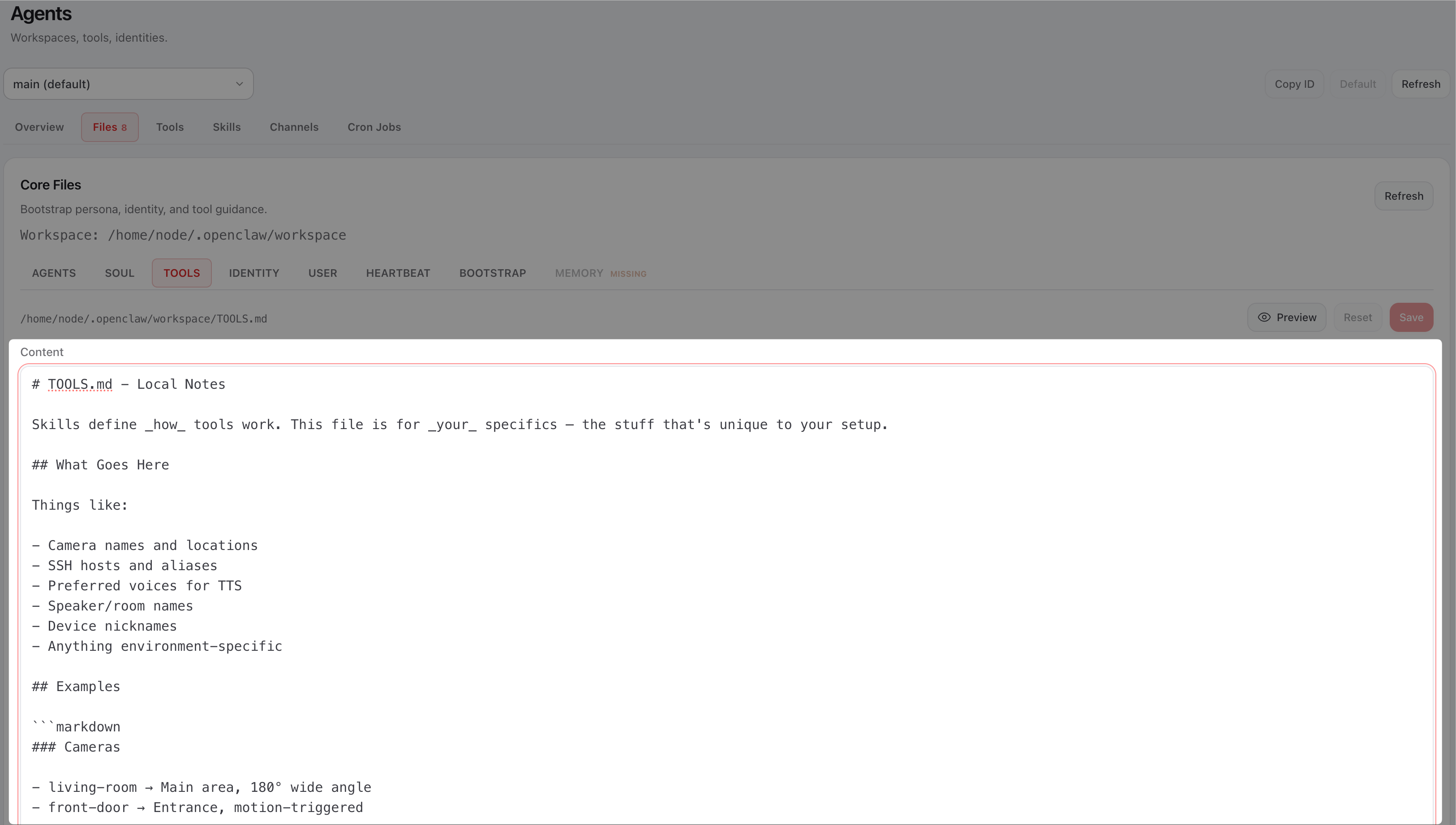
Copy and paste the following content at the end of the file, after the
## Why Separate?section:markdown## File Access Protocol on Olares You have access to user's files on Olares. ### Primary Storage: files on Olares primary stored in the directory `/home/userdata/home` - This is your default search directory. - Priority Trigger: When the user mentions keywords like "my Olares", prioritize searching this directory. ### External Storage: You can also access external storage devices (e.g., NAS, USB drives) connected to Olares in the directory `/home/userdata/external`. - Priority Trigger: When the user mentions keywords like "my NAS", "on my USB", or similar, prioritize searching this directory. ### Critical Security Rule Any deletion or modification of files within the `/home/userdata` requires explicit prior approval from the user before execution.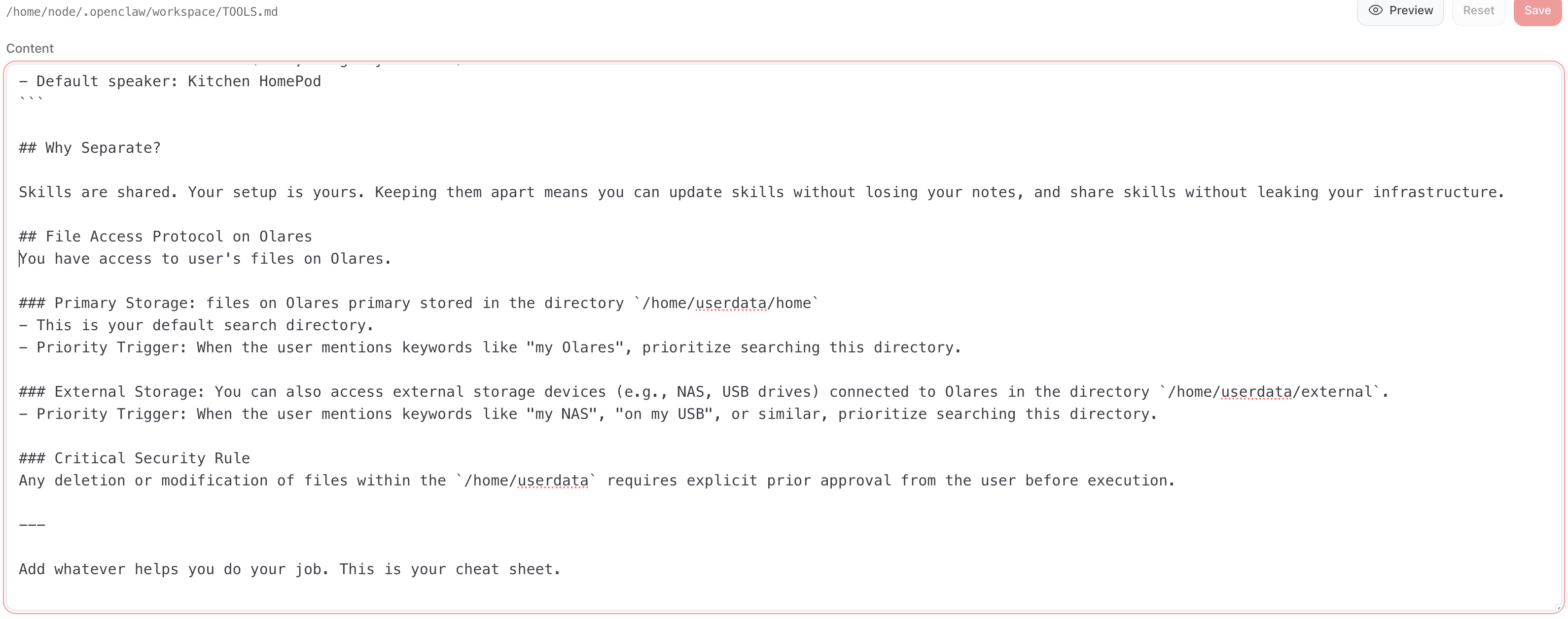
Click Save.
Step 3: Test the connection
Verify that OpenClaw can read and write to your Olares file system.
Go to the Chat page in the Control UI, or use your connected Discord bot.
Send a message to the agent like:
textIn my Olares documents directory, create a txt file introducing yourself.The agent will reply with a confirmation, indicating the file name and the path where it was created. For example:
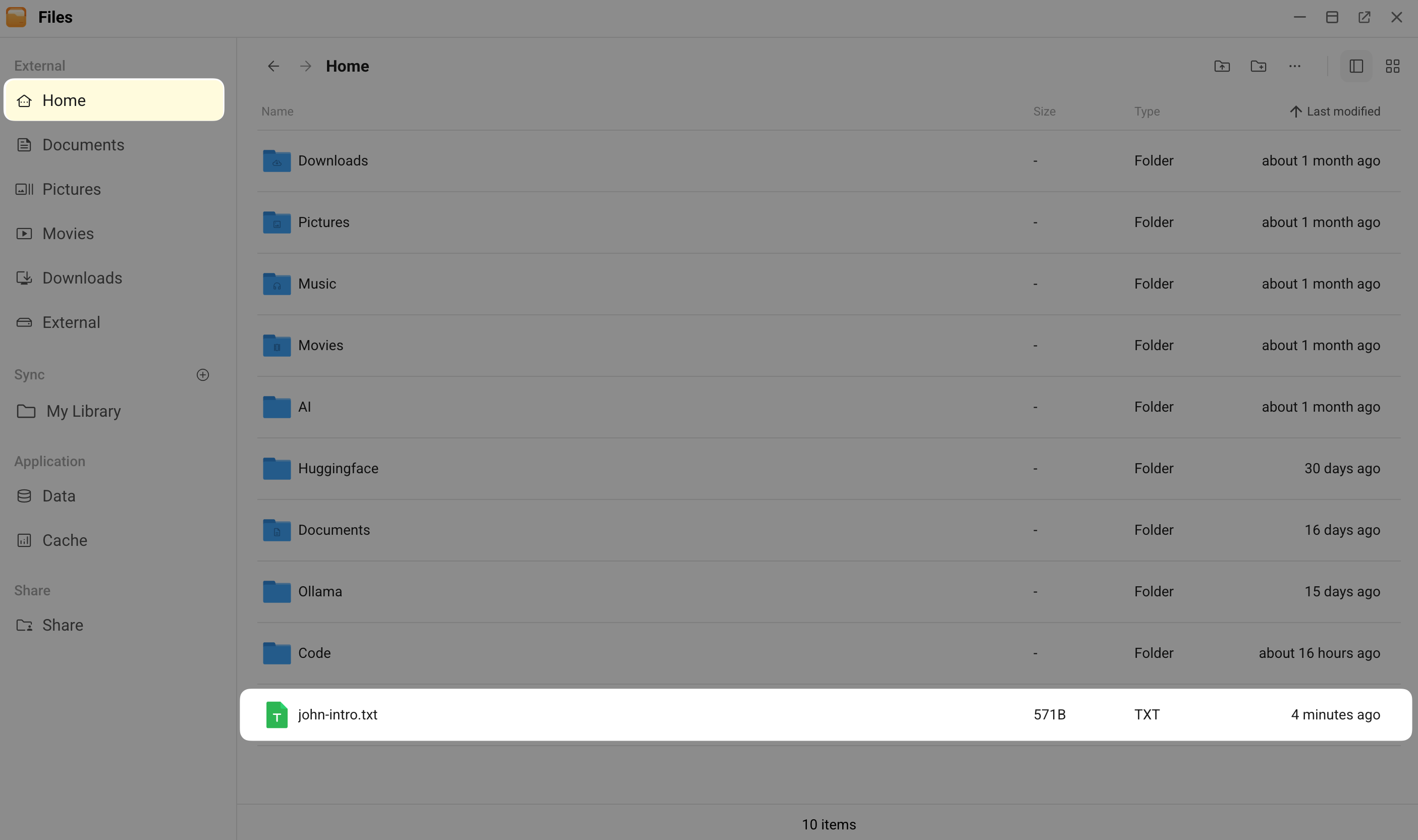
textDone! Created your intro file at `/home/userdata/home/john-intro.txt`. Let me know if you want me to tweak it!Open the Files app and check the path for the newly created file.