Monitor runtime security with Falco
Falco is an open-source cloud-native runtime security tool built on eBPF. It watches Linux kernel events in real time and fires alerts when it spots suspicious behavior on hosts, in containers, or across Kubernetes workloads.
On Olares, Falco runs as a shared application. Agents collect events on each node, and a central Falcosidekick UI brings everything into one place.
Use this guide when you want to install Falco on Olares and review runtime security alerts from hosts, containers, and Kubernetes workloads.
Learning objectives
In this guide, you will learn how to:
- View security alerts in the Falcosidekick UI.
- Configure event retention, detection rules, output channels, and plugins.
- Troubleshoot common plugin issues.
Prerequisites
- Admin access required: Falco runs in a client/server architecture, and only administrators can install or configure it. If you are a regular user, ask your administrator to install the Falco shared application first.
How Falco works on Olares
Falco uses distributed collection with centralized display, so you can monitor every node from a single UI.
Components
| Component | Kind | Role |
|---|---|---|
falco-agent | DaemonSet | Runs on every node and captures kernel events that match Falco rules. |
falco-plugin-installer | DaemonSet | Toolbox for installing plugins and rules. Ships with falcoctl. |
falco-sidekick | Service | Receives HTTP output from all falco-agent instances. |
webui | Service | Serves the dashboard and event views. |
Event flow
falco-agenton each node captures kernel events locally.- When an event matches a rule,
http_outputforwards it tofalco-sidekick. falco-sidekickwrites the event to Redis.- The Falcosidekick UI reads from Redis and renders the dashboard.
Install Falco
- Open Market and search for "Falco".
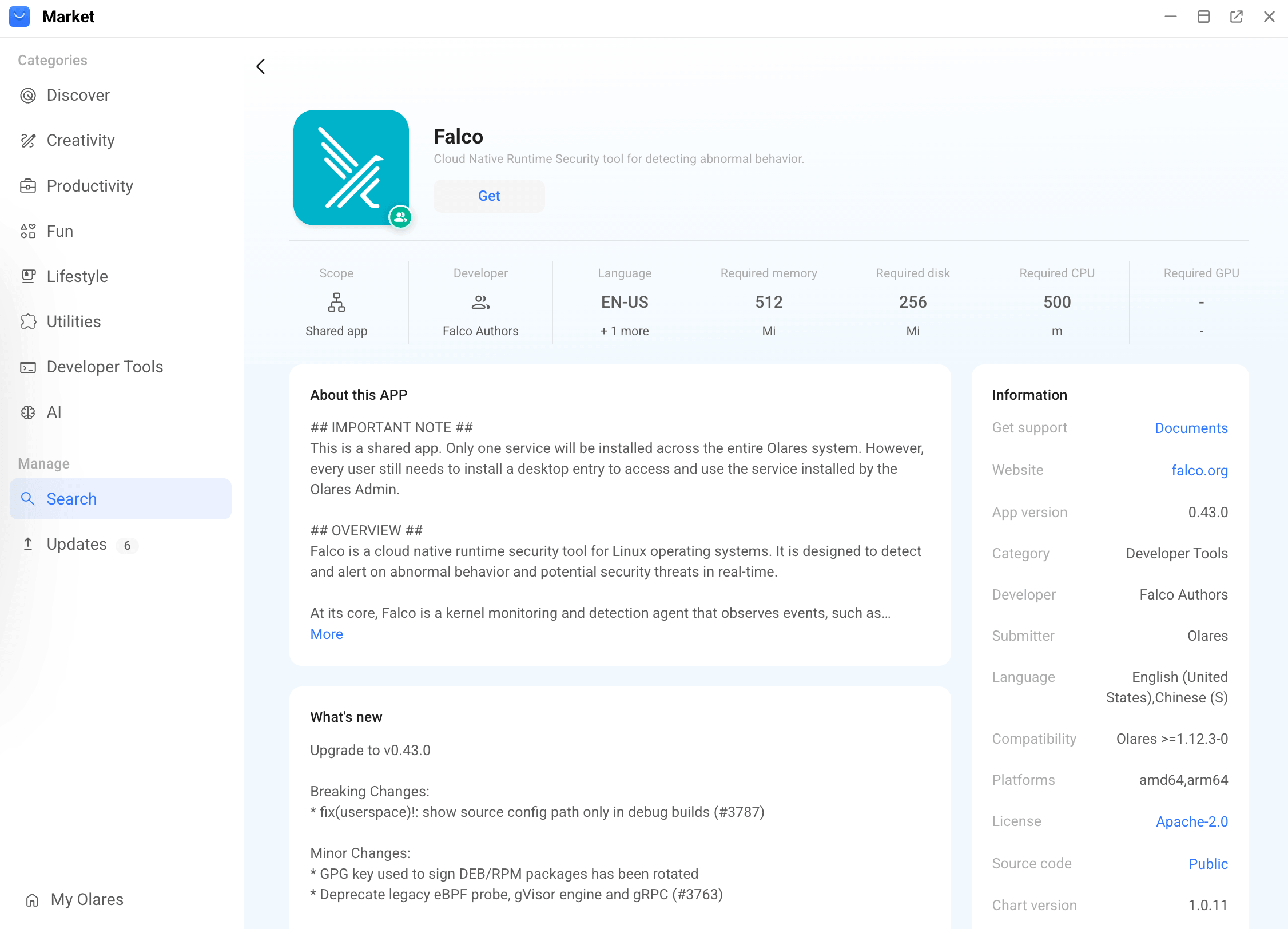
- Click Get, then Install, and wait for installation to complete.
View alerts in Falcosidekick UI
After Falco is installed, open the Falco application to access the Falcosidekick UI and review security alerts.
The Falcosidekick UI is the default place to review alerts on Olares. If needed, administrators can also forward alerts to external systems. See Configure output channels.
Dashboard
The Dashboard page gives you a real-time overview of alert activity across nodes.
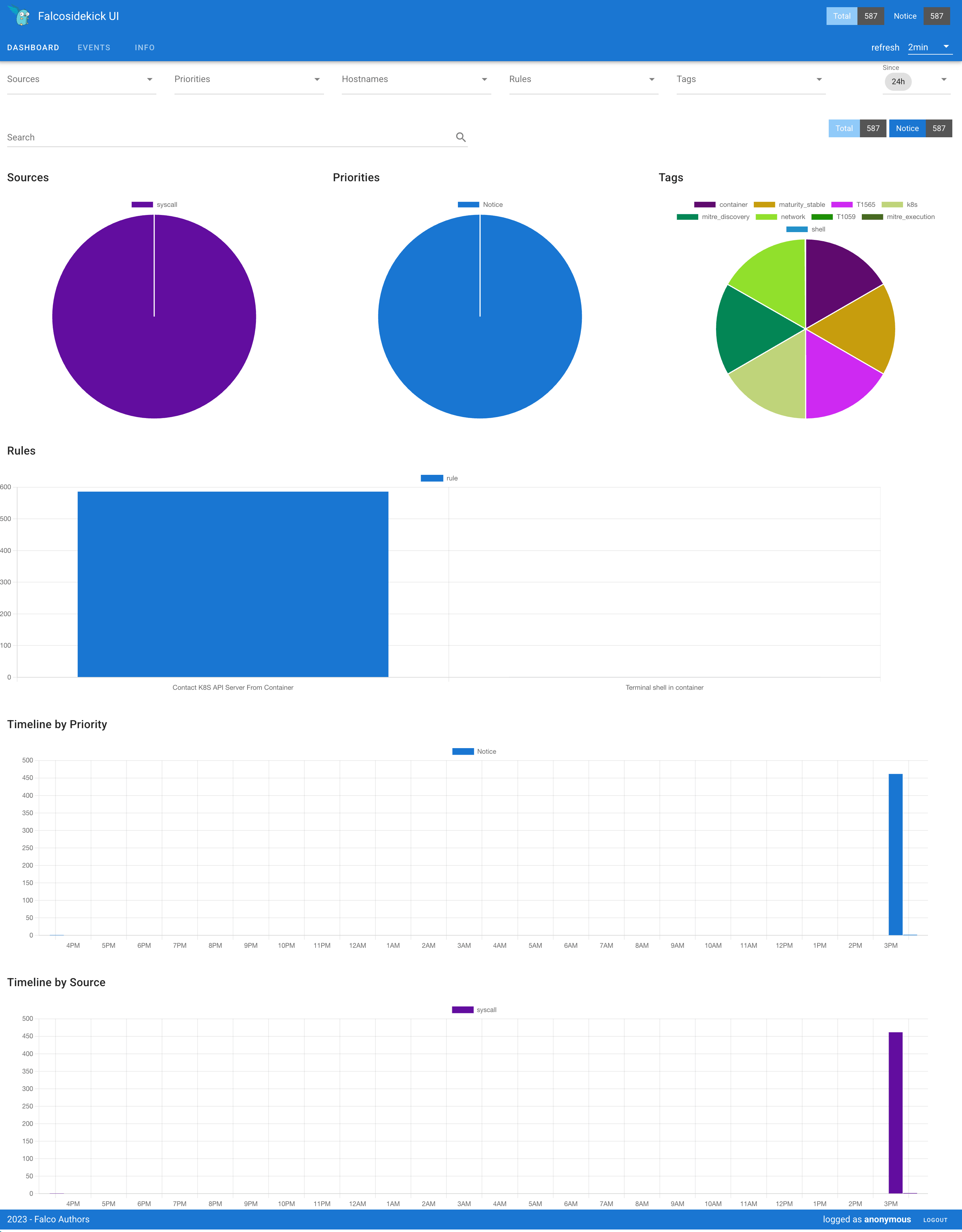
| Panel | What it shows |
|---|---|
| Global statistics | Aggregate alert counts for the selected time window. |
| Filter bar | Narrow results by source, priority, or tag. |
| Snapshot counters | Live totals under the current filter: Total, Critical, and Notice. |
| Pie chart | Alert distribution by source, priority, and tag. |
| Rule bar chart | Alerts grouped by rule. Useful for spotting noisy rules that need allowlists or threshold tuning. |
| Timeline by priority | Alert volume over time, split by priority. |
| Timeline by source | Alert volume over time, split by source. |
Events
The Events page lists every alert with its full context.
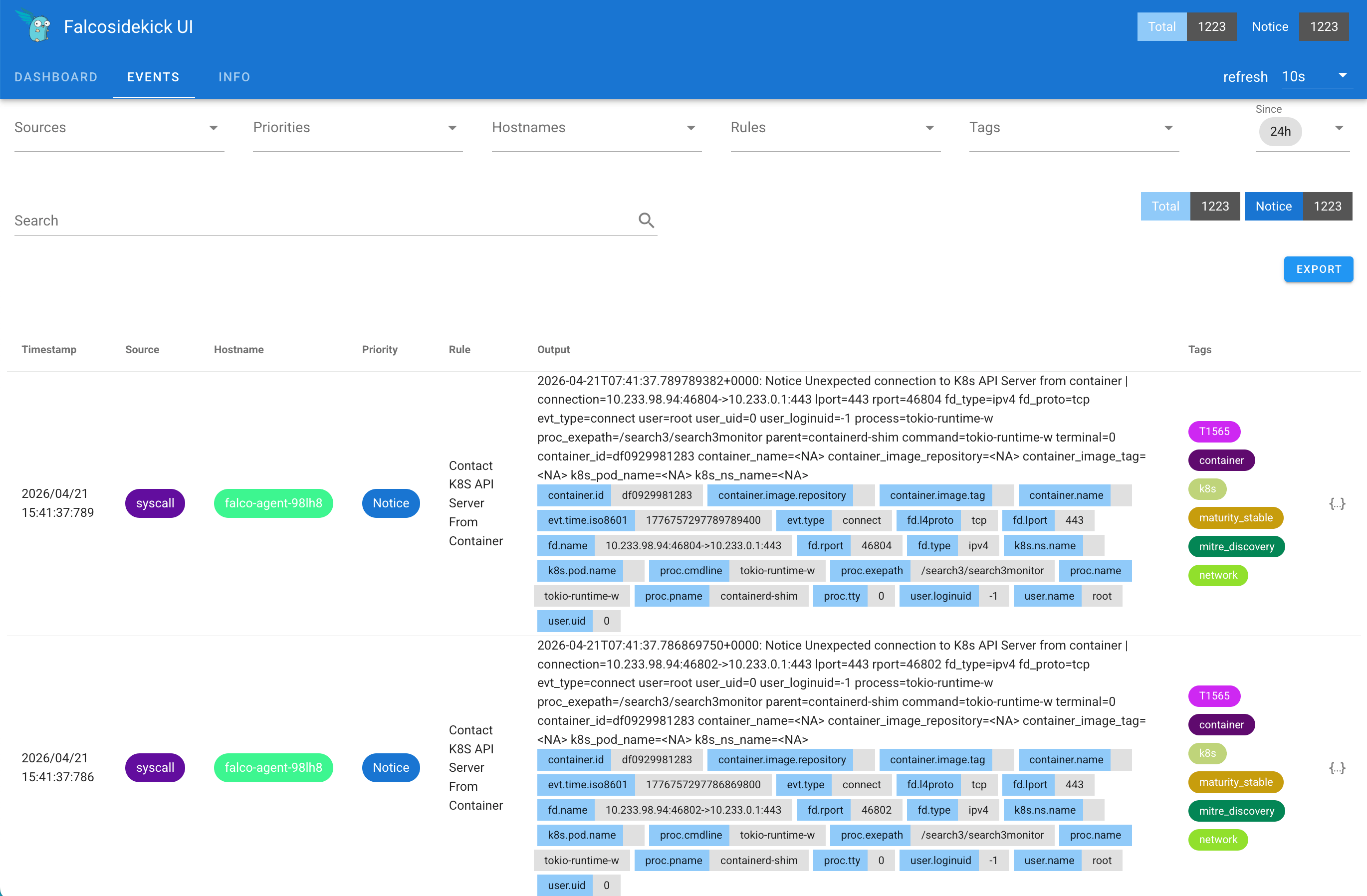
| Column | Description |
|---|---|
| Timestamp | When the alert was generated, for example 2026-04-14 20:35:37. |
| Source | Where the event came from. |
| Hostname | The host associated with the alert. |
| Priority | Alert severity, color-coded. |
| Rule | The rule name from the Falco rule library. |
| Output | The full alert message with context variables. |
| Tags | Classification tags. |
To inspect an alert in detail:
- On the Events page, find the alert you want to inspect.
- Click {…} on the right side of the row.
- Review the detail panel. Switch to the JSON tab if you need the raw payload.
Configure Falco
Use this section when you need to change how Falco stores, detects, or forwards alerts.
Admin only
Configuration requires admin privileges. Regular users cannot change Falco settings.
| Area | What you control |
|---|---|
| Event retention | How long alerts stay in the Falcosidekick UI before cleanup. |
| Detection rules | Which behaviors trigger alerts. |
| Output channels | Where alerts are sent (Falcosidekick UI, file, external systems). |
| Plugins | Extra event sources such as Kubernetes audit logs. |
Set event retention
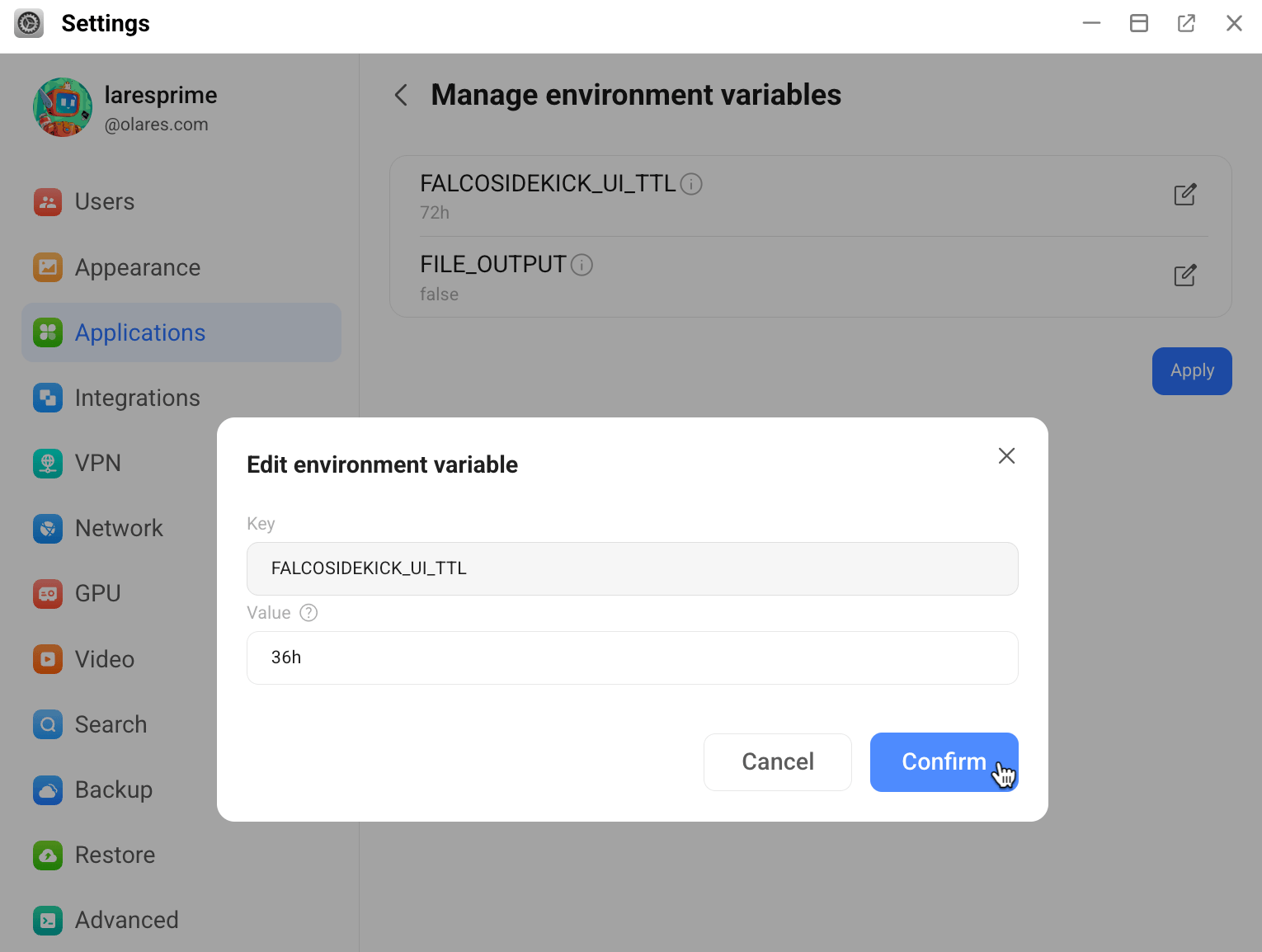
Falco keeps alerts for 72 hours by default. To change how long alerts are kept:
- Go to Settings > Applications > Falco > Manage environment variables.
- Click edit_square next to
FALCOSIDEKICK_UI_TTL. - Enter a duration with a unit suffix, such as
7dfor seven days. Supported suffixes includes,m,h,d,w,Mandy. Leave the value empty to keep events indefinitely. - Click Confirm, then click Apply.
- Optional: To verify that the new value is applied, open Control Hub, and go to Browse > System > falcoserver-shared > Deployments > falco-central.
- Click edit_square to open the YAML file, locate
FALCOSIDEKICK_UI_TTL, and check its value. - In the right panel, under Environment variables, click webui and check the value of
FALCOSIDEKICK_UI_TTL.
- Click edit_square to open the YAML file, locate
Manage detection rules
Falco uses rules to decide which behaviors should generate alerts.
Use this section when you want to:
- Check which rule files are currently loaded.
- Add a custom rule.
- Disable a rule that is not relevant in your environment.
Restart required
Rule changes take effect only after you restart the falco-agent DaemonSet.
Rule names must be unique and match exactly. A mismatched rule name can prevent falco-agent from starting.
Understand the rule format
A Falco rule usually includes:
- rule: Test - Terminal Shell In Container
  desc: Test rule to validate Falco custom rules pipeline
  condition: container and shell_procs and proc.name in (bash, sh, zsh)
  output: >
    TEST custom rule matched (user=%user.name command=%proc.cmdline container=%container.id image=%container.image.repository)
  priority: WARNING
tags: [container, test]| Field | Description |
|---|---|
rule | Unique rule name. |
desc | Short description. |
condition | The condition that triggers the alert. |
output | The alert message template. Supports fields like %proc.cmdline. |
priority | Alert severity. One of:EMERGENCY, ALERT, CRITICAL, ERROR, WARNING, NOTICE,INFORMATIONAL, DEBUG. |
tags | Tags for filtering and grouping. |
Check loaded rule files
Falco loads rule files at startup. The exact set of loaded files depends on your current configuration.
For example, Falco may load:
| File | Purpose |
|---|---|
falco_rules.yaml | Upstream default rules provided by Falco. |
custom_rules.yaml | Custom rules that you add for your own environment. |
falco_disable_rules.yaml | Rules that you explicitly disable. |
To check which rule files are currently loaded:
- Open Control Hub.
- Go to Browse > System > falcoserver-shared > Daemonsets > falco-agent.
- Click your pod to open the details panel.
- Under Containers, click article next to falco to open the logs.
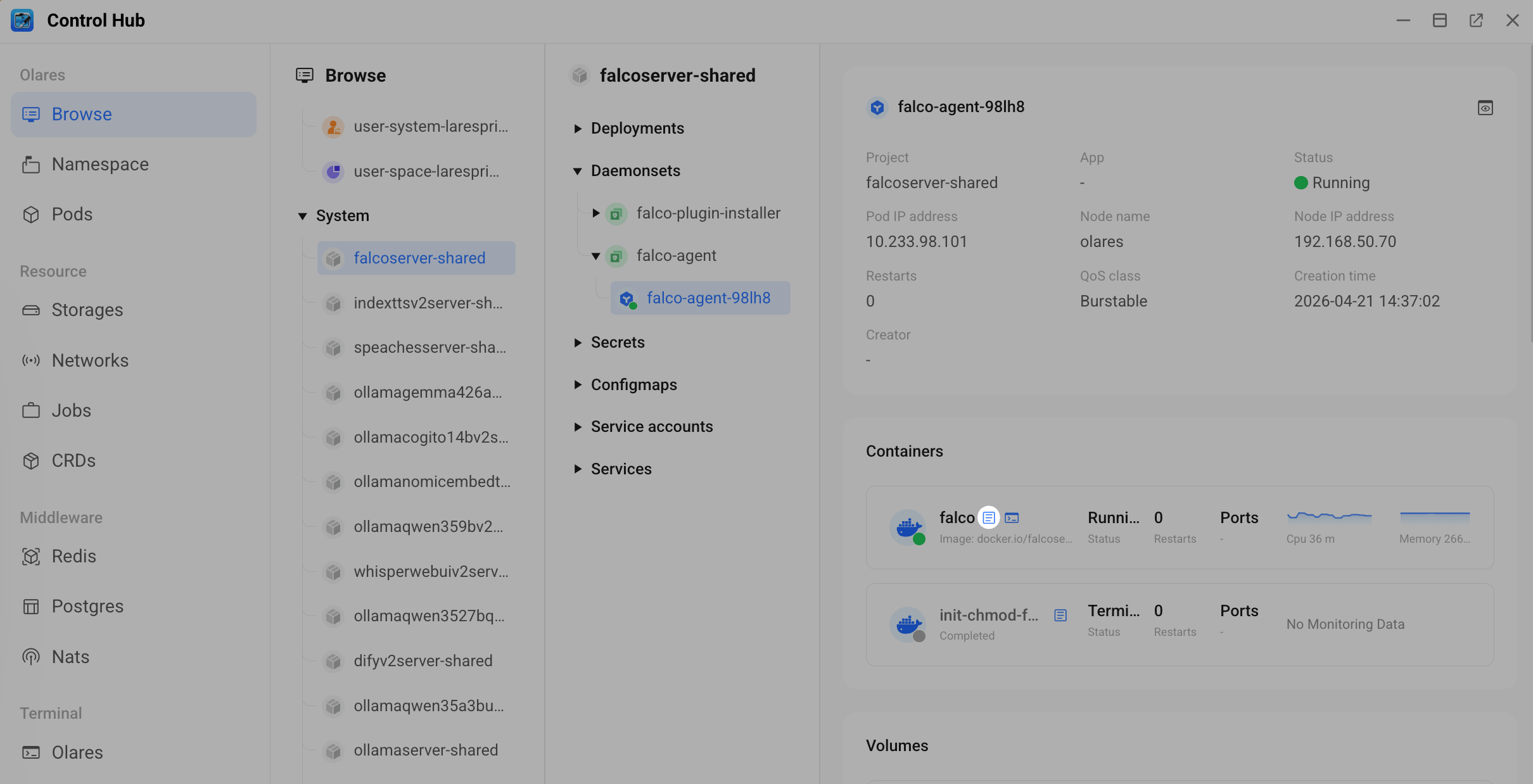
- Look for the
Loading rules from:section in the logs.
View default rules
To view the default Falco rules:
Open Control Hub, then go to Browse > System > falcoserver-shared > Daemonsets > falco-agent.
Click your pod to open the details panel.
Under Containers, click terminal next to falco to open the terminal.
Run the following command:
bashcat /etc/falco/falco_rules.yaml
Create a custom rule
Open Control Hub, then go to Browse > System > falcoserver-shared > Configmaps > falco-custom-rules.
In the right panel, click edit_square next to falco-custom-rules.
Change
custom_rules.yaml:tocustom_rules.yaml: |, then add your rule on the next line.Example:
yamldata: custom_rules.yaml: | - rule: Test - Terminal Shell In Container desc: Test rule to validate the custom rule pipeline condition: > evt.type in (execve, execveat) and container and shell_procs and proc.name in (bash, sh, zsh) and k8s.ns.name exists and not (k8s.ns.name in ("kube-system", "falco", "falcoserver-shared")) output: > TEST custom rule matched (ns=%k8s.ns.name user=%user.name command=%proc.cmdline container=%container.id image=%container.image.repository) priority: WARNING tags: [container, test]Click Confirm to save the changes.
Restart falco-agent.
a. Go to Browse > System > falcoserver-shared > Daemonsets > falco-agent.
b. In the right panel, click more_vert, then select Restart.
Optional: Verify that the rule is active.
- On the same page, click your pod to open the details panel. Under Containers, click terminal next to falco, then run:bash
cat /etc/falco/rules.d/managed/custom_rules.yaml - On the Falcosidekick UI dashboard, check the Rules dropdown list for the new rule. The rule only appears after it is triggered.
- On the same page, click your pod to open the details panel. Under Containers, click terminal next to falco, then run:
Disable a rule
Open Control Hub, then go to Browse > System > falcoserver-shared > Configmaps > falco-disable-rules.
In the right panel, click edit_square next to falco-disable-rules to open the YAML editor.
Add your rule on the line below
falco_disable_rules.yaml: |.For example, to disable the
Terminal shell in containerrule:yamldata: falco_disable_rules.yaml: | - rule: Terminal shell in container override: enabled: replace enabled: falseClick Confirm.
Restart falco-agent.
a. Go to Browse > System > falcoserver-shared > Daemonsets > falco-agent.
b. In the right panel, click more_vert, then select Restart.
Optional: Verify that the rule is disabled.
- On the same page, click your pod to open the details panel. Under Containers, click terminal next to falco, then run:bash
cat /etc/falco/rules.d/managed/falco_disable_rules.yaml - On the Falcosidekick UI dashboard, check the Rules dropdown list. The disabled rule may still appear from past events, but new events will no longer trigger it, and it will disappear once those historical records expire.
- On the same page, click your pod to open the details panel. Under Containers, click terminal next to falco, then run:
Configure output channels
By default, Falco sends alerts to the Falcosidekick UI. You can also write alerts to a local file or forward them to external systems.
Send alerts to the Falcosidekick UI
By default, falco-agent forwards alerts to Falcosidekick over HTTP, and the alerts are then displayed in the Falcosidekick UI.
Open Control Hub, then go to Browse > System > falcoserver-shared > Daemonsets > falco-agent.
In the right panel, click edit_square next to falco-agent to open the YAML editor.
Check for the following output configuration:
Example:
plain- '-o' - http_output.enabled=true - '-o' - http_output.url=http://falco-sidekick.falcoserver-shared:2801/
Write alerts to a file
To write alerts to a local log file:
Go to Settings > Applications > Falco > Manage environment variables.
Set
File_OUTPUTtotrue.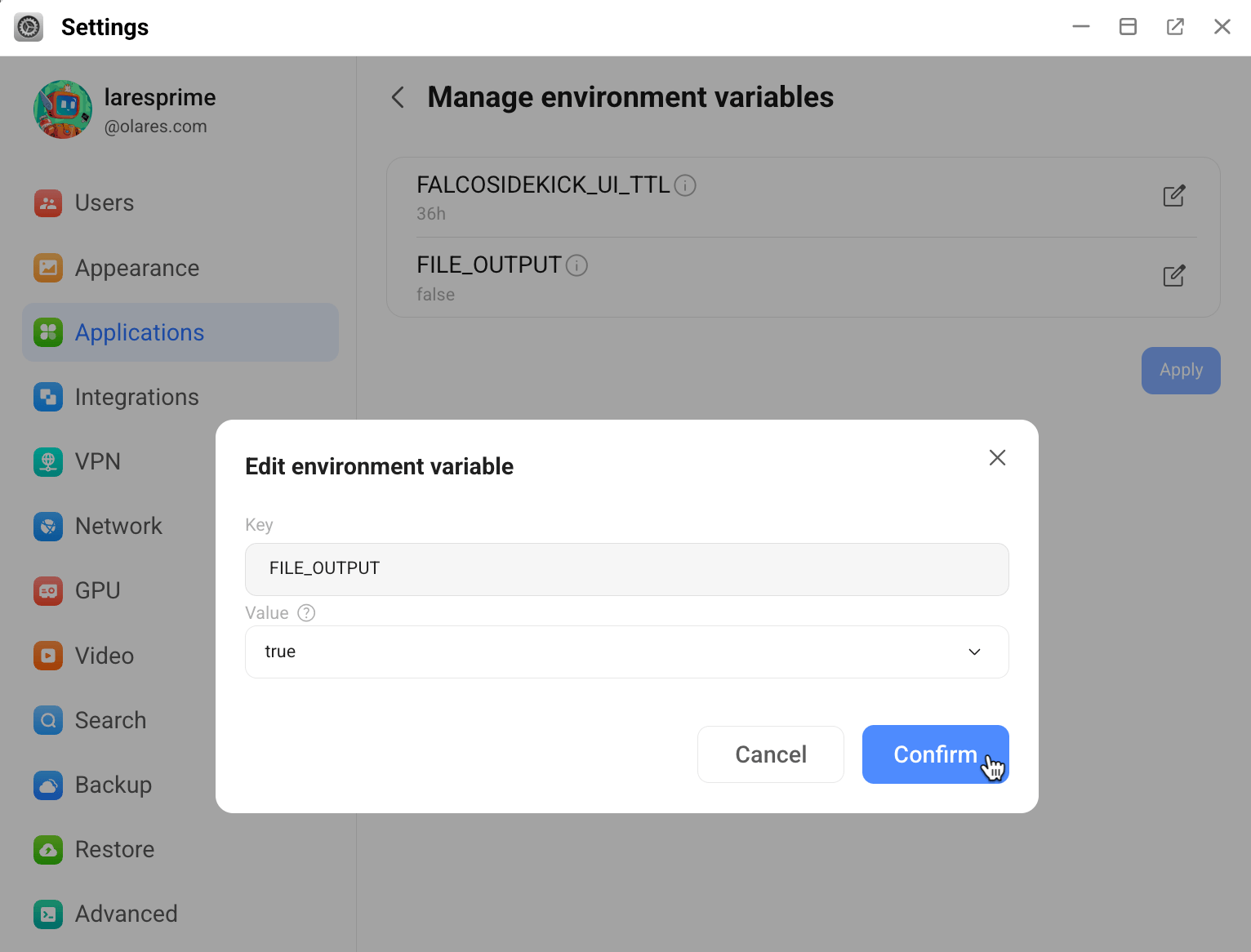
Click Confirm, then click Apply.
Optional: Verify that file output is enabled.
a. Open Control Hub, then go to Browse > System > falcoserver-shared > Daemonsets > falco-agent.
b. In the right panel, click edit_square next to falco-agent to open the YAML editor.
c. Check whether the configuration includes
file_output.enabled=true.New alerts are written to
events.login Files at/Data/falco/logs/.INFO
The log directory is mounted in the admin environment. Only administrators can read it.
Forward alerts to external systems
To forward alerts to Slack, Elasticsearch, Webhook, or other external destinations, configure Falcosidekick directly.
See the Falcosidekick documentation for the full list of supported outputs.
Set up plugins
Falco plugins add additional event sources. The example below installs the k8saudit plugin for Kubernetes audit logging.
Install plugins
Open Control Hub, then go to Browse > System > falcoserver-shared > Daemonsets > falco-plugin-installer.
Click your pod to open the details panel.
Under Containers, click terminal next to toolbox.
Run the following commands one by one to install the plugin artifacts:
bashfalcoctl artifact install k8saudit falcoctl artifact install k8saudit-rules falcoctl artifact install jsonOptional: Verify that the plugin is installed.
a. Go to Browse > System > falcoserver-shared > Daemonsets > falco-agent.
b. Click your pod to open the details panel.
c. Under Containers, click article next to falco.
d. Check whether
k8s_audit_rules.yamlappears in theLoading rules from:section.
Enable plugins
After updating plugins.local.yaml:
Restart falco-agent.
a. Go to Browse > System > falcoserver-shared > Daemonsets > falco-agent.
b. In the right panel, click more_vert, then select Restart.
Optional: Verify that the plugin is enabled.
a. Go to Browse > System > falcoserver-shared > Daemonsets > falco-agent.
b. Click your pod to open the details panel.
c. Under Containers, click article next to falco.
d. Check whether the following info appears in the log:
Enabled event sources: k8s_auditOpening 'k8s_audit' source with plugin 'k8saudit'
Troubleshooting
falco-agent fails to start after installing k8saudit rules
You may see an error like this in the logs:
LOAD_UNUSED_LIST (Unused list): List not referred to by any other rule/macro
Error: Plugin requirement not satisfied, must load one of: k8saudit (>= 0.7.0), k8saudit-aks (>= 0.1.0), k8saudit-eks (>= 0.4.0), k8saudit-gke (>= 0.1.0), k8saudit-ovh (>= 0.1.0)
Cause
If the k8saudit rules are installed but the plugin is not enabled successfully in plugins.local.yaml, falco-agent fails to start after restart.
Solution
Open Control Hub, then go to Browse > System > falcoserver-shared > Daemonsets > falco-plugin-installer.
Click your pod to open the details panel.
Under Containers, click terminal next to toolbox.
Remove the
k8s_audit_rules.yamlfile:bashrm /etc/falco/rules.d/managed/k8s_audit_rules.yamlRestart falco-agent.
a. Go to Browse > System > falcoserver-shared > Daemonsets > falco-agent.
b. In the right panel, click more_vert, then select Restart.
If you want to continue using k8saudit, repeat Install and use plugins from the beginning.
Learn more
- Falco official documentation: Full reference for rules, conditions, and plugins.
- Falcosidekick documentation: Supported output destinations and configuration options.