Common issues
This page lists common issues for NemoClaw on Olares and their workarounds.
Discord channel stuck in startup-not-ready state
After configuring Discord in the NemoClaw CLI sandbox, the channel might show startup-not-ready in the Web UI.
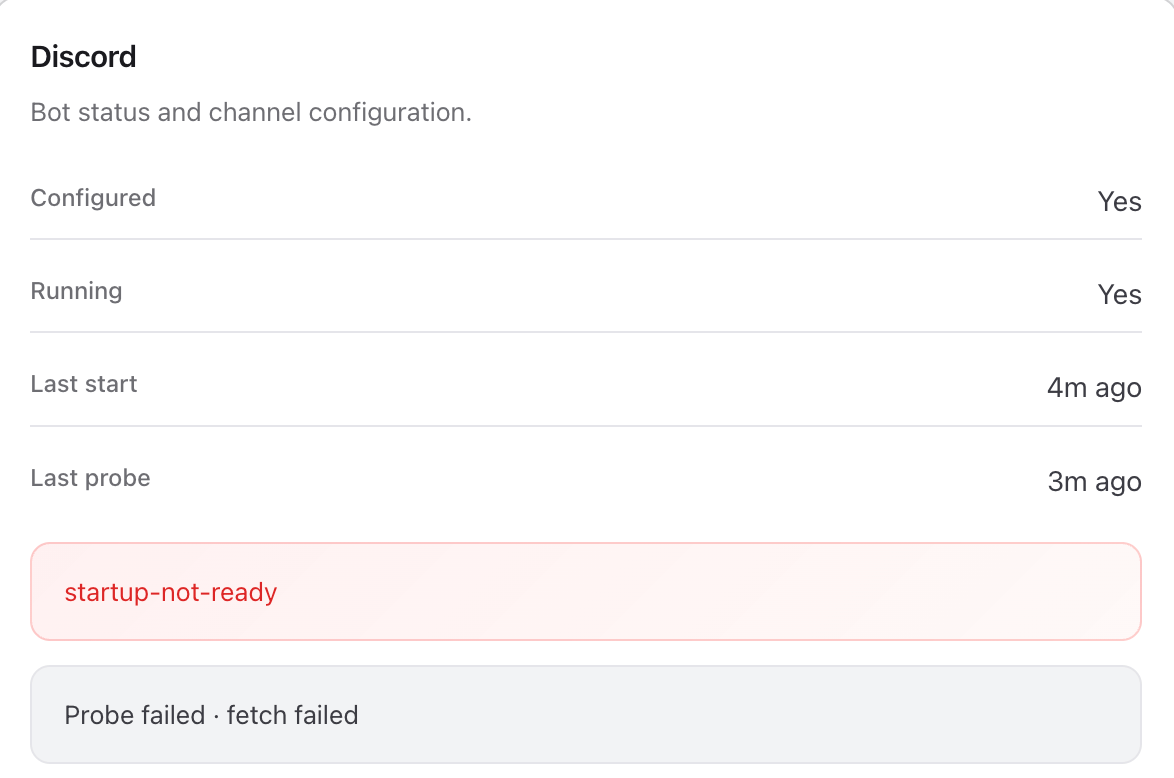
To recover, restart the gateway from the NemoClaw CLI:
Open the NemoClaw CLI app from Launchpad.
At the shell prompt, stop the gateway:
bashdocker exec openshell-cluster-nemoclaw kubectl -n openshell exec my-assistant -c agent -- \ sh -lc 'openclaw gateway stop 2>/dev/null || pkill -9 -f "openclaw.*gateway|openclaw-gateway|gateway run" 2>/dev/null || true'Start the gateway:
bashsh /opt/nemoclaw/sandbox-ensure-gateway.sh
Wait about 10 to 15 seconds, then refresh. The channel should now be ready.
Missing default workspace files
NemoClaw might fail to create the default workspace files during installation. As a temporary workaround, manually create the required files by referring to the OpenClaw default agent documentation and the official templates.
Olares CLI login and skills don't persist across restarts
NemoClaw doesn't persist your Olares CLI login or installed ClawHub skills across restarts. After restarting NemoClaw, log in to Olares CLI again and reinstall the Olares skills. For details, see Manage Olares with Olares CLI.
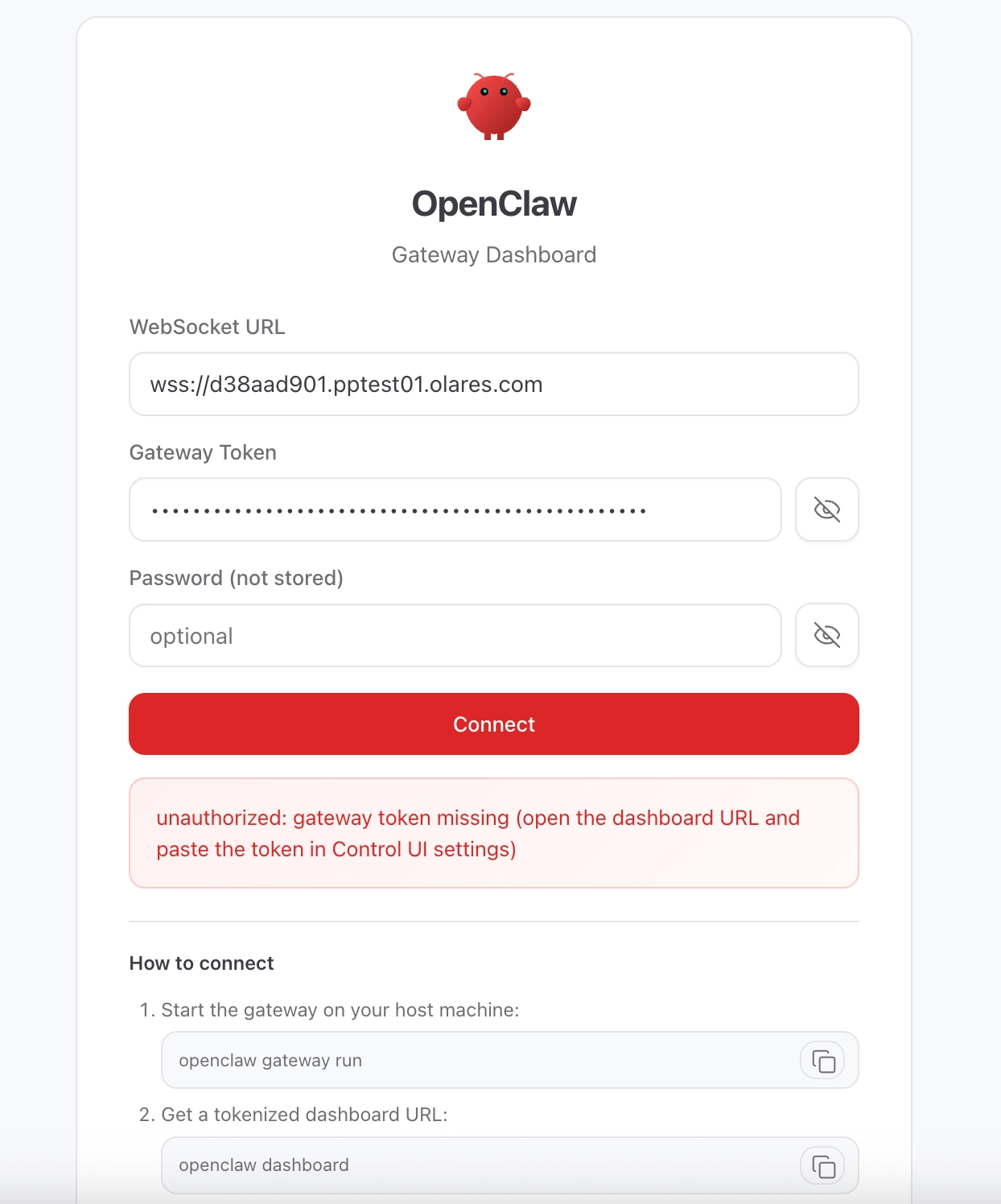
OpenClaw Web UI shows unauthorized: gateway token missing
After NemoClaw restarts, the OpenClaw Web UI might display the following error:
unauthorized: gateway token missing (open the dashboard URL and paste the token in Control UI settings)To recover, retrieve the gateway token from the NemoClaw CLI and paste it into the Control UI settings:
Open the NemoClaw CLI app from Launchpad.
At the shell prompt, run the following command to print the gateway token:
bashnemoclaw my-assistant gateway-token --quietCopy the token displayed in the terminal.
Return to the OpenClaw Web UI, paste the token in the Gateway Token field, then click Connect.