Enable web search
Add web search capabilities to Open WebUI to allow your local AI models to retrieve up-to-date information from the internet. This integration requires an active embedding model to process the documents and the SearXNG search engine to fetch the web results.
Learning objectives
In this guide, you will learn how to:
- Retrieve the required endpoint URLs for your embedding model and SearXNG.
- Configure the document embedding and web search settings in Open WebUI.
- Perform a web-assisted search during a chat session.
Prerequisites
Before you begin, ensure you have the following in place:
- Open WebUI installed and configured with at least one active model backend.
- SearXNG installed.
- An embedding model application installed, such as Qwen3 Embedding 0.6B (Ollama).
- Administrator privileges for the Open WebUI instance.
Retrieve service details
To link Open WebUI with your background services, you need to locate the connection endpoints for both your embedding model and SearXNG.
Get embedding model details
Open Qwen3 Embedding 0.6B (Ollama) from the Launchpad.
Note down the exact model name displayed on the main page. For example,
qwen3-embedding:0.6b.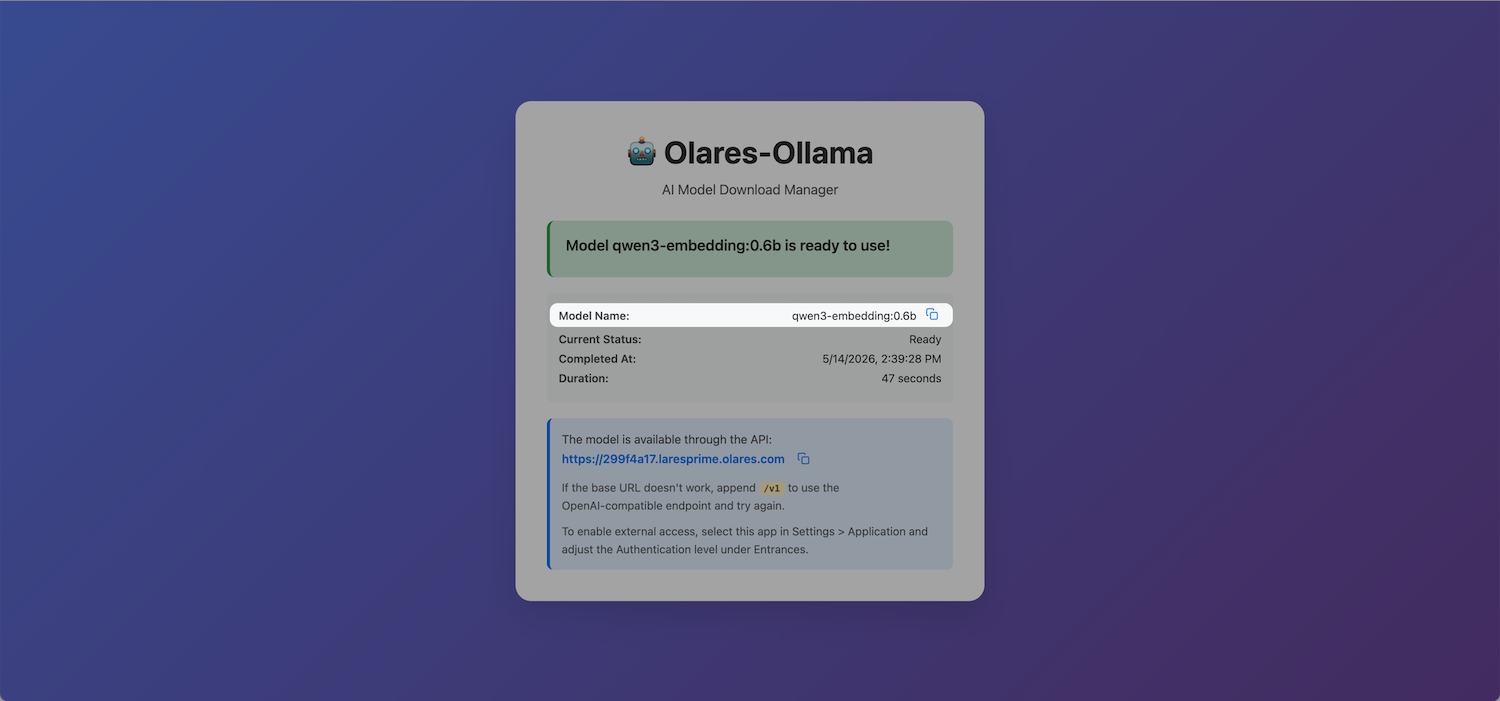
Open Olares Settings, and then go to Applications > Qwen3 Embedding 0.6B (Ollama).
Under Shared entrances, click Qwen3 Embedding 0.6B, and then copy the endpoint URL. For example,
http://eae5afcf0.shared.olares.com.
Get SearXNG endpoint
Open Olares Settings, and then go to Applications > SearXNG.
Under Shared entrances, click SearXNG, and then copy the endpoint URL. For example,
http://d1236e020.shared.olares.com.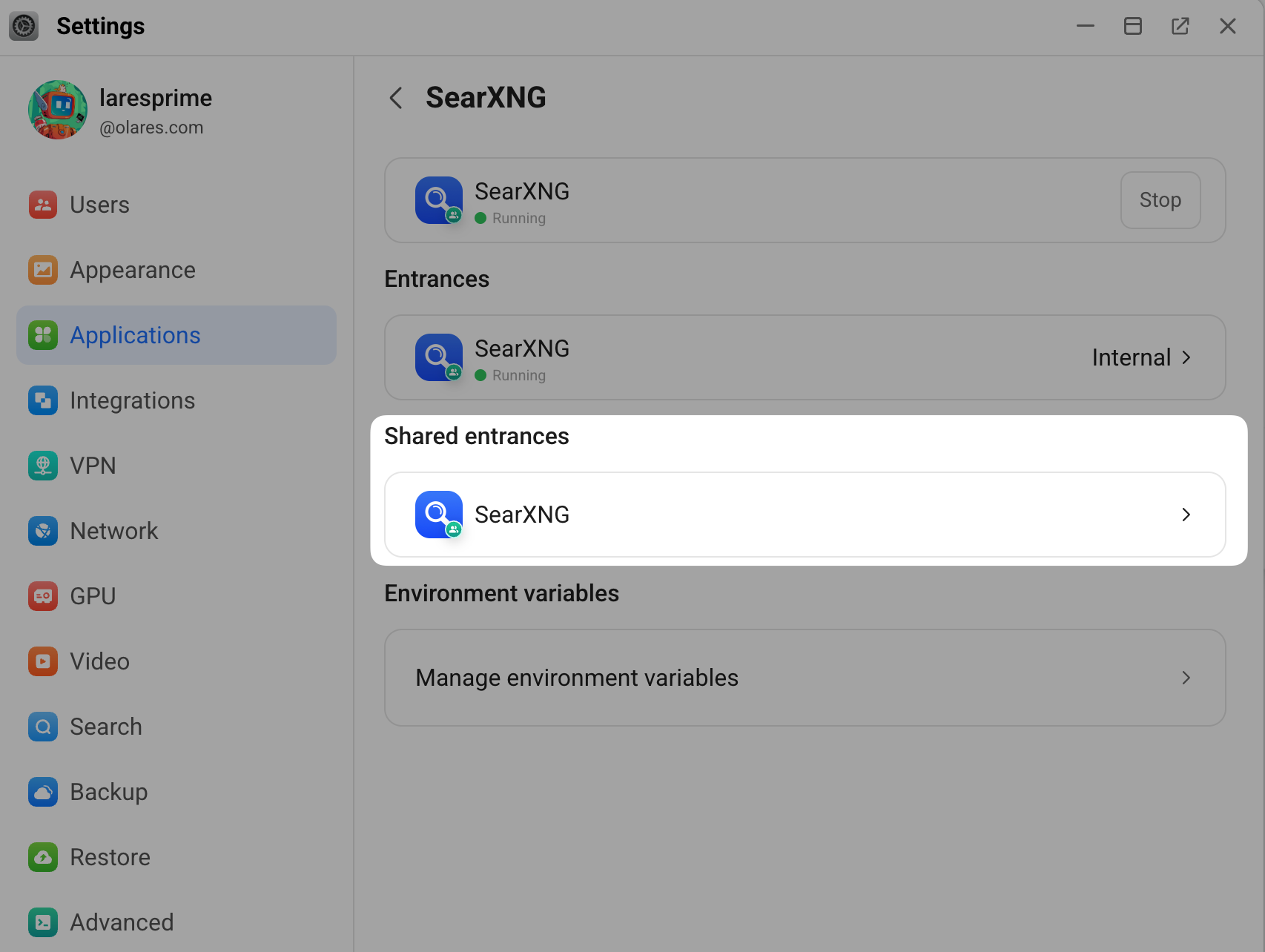
Configure Open WebUI
Apply the details you retrieved to the Open WebUI configuration panel.
Set up document embeddings
In Open WebUI, select your profile icon, and then go to Admin Panel > Settings > Documents.
Under the Embedding section, specify the following settings:
- Embedding Model Engine: Select Ollama.
- API Base URL: Enter the embedding model endpoint URL you noted earlier.
- Embedding Model: Enter the embedding model name you noted earlier.
Scroll down to the bottom of the page, and then click Reindex in the lower-right corner to apply the changes.
Select Save.
Enable web search
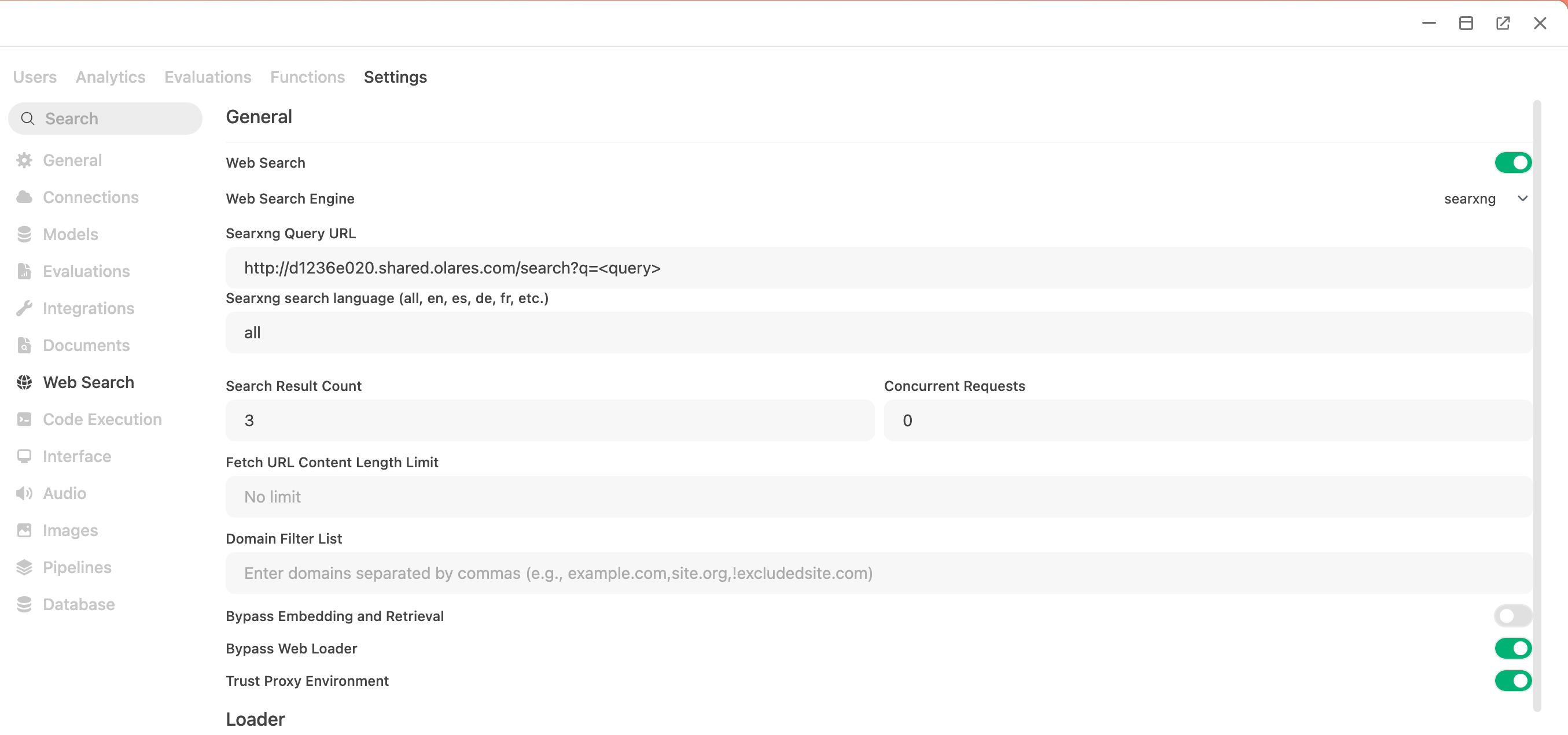
Go to Admin Panel > Settings > Web Search.
Specify the following settings:
Web Search: Enable this setting.
Web Search Engine: Select SearXNG.
Searxng Query URL: Enter your SearXNG endpoint URL and append
/search?q=<query>to the end.For example,
http://d1236e020.shared.olares.com/search?q=<query>.Bypass Web Loader: Enable this setting to use search engine summaries and avoid search failures caused by website anti-scraping protections.
Full-text retrieval
If you need the AI to read the full contents of web pages instead of search summaries, leave Bypass Web Loader disabled and configure a dedicated online extraction service such as Tavily in the Loader section on the same page.
Leave the other fields at their default values.
Select Save.
Verify the configuration
Test the feature to ensure the AI successfully retrieves up-to-date information from the web.
Start a new chat.
Select the model.
Click the Integrations icon under the message input field, and then enable Web Search.
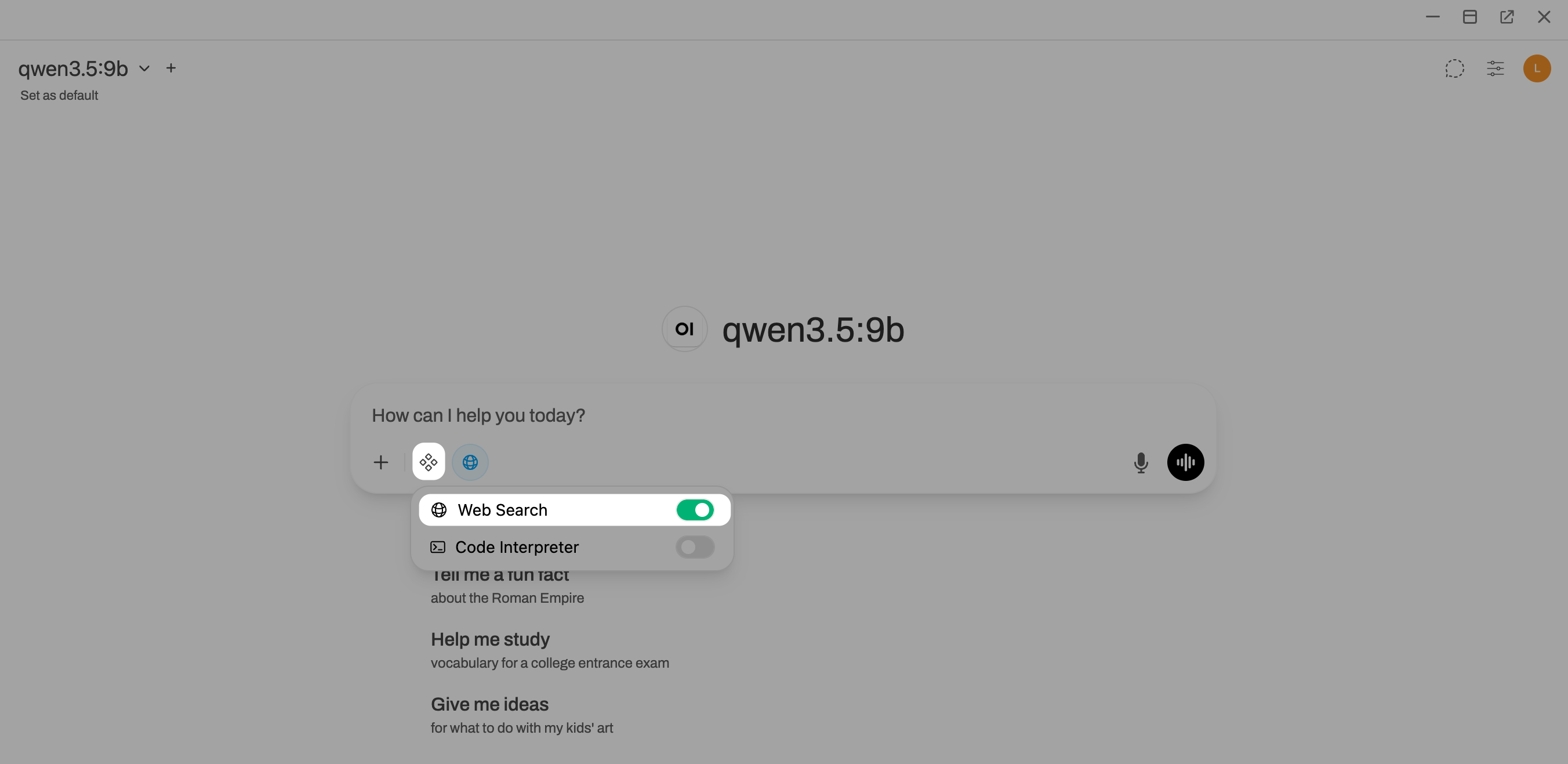
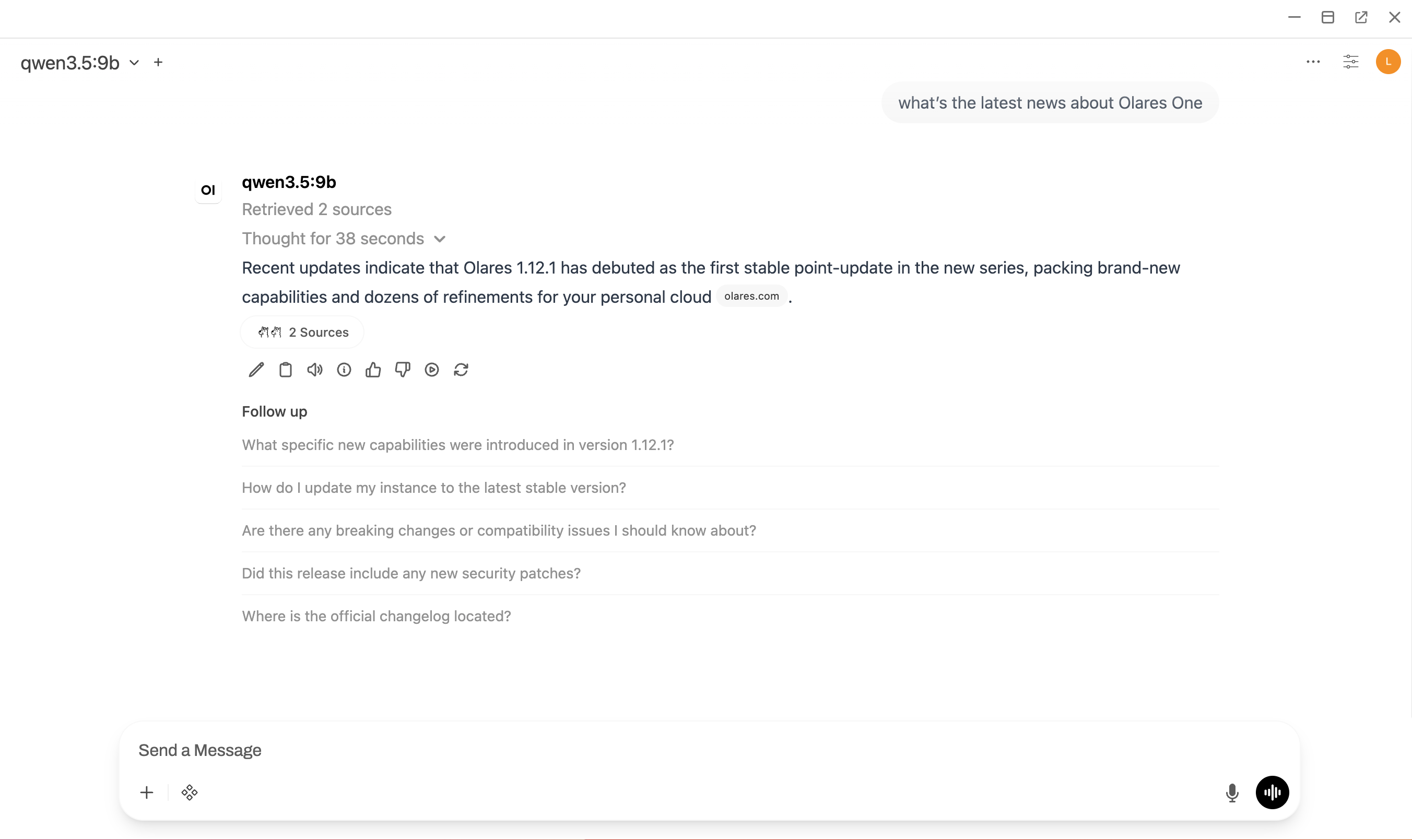
Enter a prompt that requires recent information. For example:
plainWhat’s the latest news about Olares OneSubmit the prompt. The AI generates a response that includes the retrieved search results and their source links.