Access Olares services locally
Olares is designed to provide seamless access to your self-hosted services anytime, anywhere.
However, accessing your devices locally provides several advantages:
- Maximum performance: Transfer files at full speed without the latency and potential bottlenecks of the internet.
- Enhanced privacy: Keep your traffic contained within your home network for added security.
- Offline independence: Access your data and apps even when your internet service is unavailable.
Objectives
By the end of this tutorial, you will learn how to:
- Establish a secure, high-speed local connection using the LarePass VPN.
- Access Olares services using
.localdomains. - Configure local DNS to allow standard URLs to resolve locally across your entire network.
- Manually map hosts files to ensure access on specific machines without internet.
Choose a connection method
There are four ways to establish a local connection:
- Method 1: Enable LarePass VPN
Uses LarePass VPN to automatically detect your local network and optimize the connection speed without changing settings. - Method 2: Use
.localdomain
Access the device via a specific local URL format. No installation required. - Method 3: Configure local DNS
Updates your router or computer's DNS settings to map the standard Olares URL to the local IP address. - Method 4: Modify hosts files
Manually maps the standard Olares URL to the local IP on a single computer.
Method 1: Enable LarePass VPN
The LarePass VPN is designed to secure your connection while optimizing performance. When enabled, LarePass detects if you are on the same network as your device and switches to Intranet mode.
Always enable VPN for remote access
Keep LarePass VPN enabled. It automatically prioritizes the fastest available route to ensure you always get the best speed possible without manual switching.
iOS and macOS setup
On iOS or macOS, you may be prompted to add a VPN Configuration to your system settings the first time you enable the feature. Allow this to complete the setup.
Enable the LarePass VPN directly on the device you are currently using to access Olares.
Once enabled, check the status indicator in LarePass to verify the connection type:
| Status | Description |
|---|---|
| Intranet | Direct connection via your local LAN IP. Fastest speeds. |
| P2P | Direct encrypted tunnel between devices. High speed. |
| DERP | Routed via a secure relay server. Used as a fallback. |
Method 2: Use .local domain
If you prefer not to install additional apps, you can access services using the .local domain. There are two domain formats available depending on your operating system.
Single-level domain (All operating systems)
Supported for community apps only
Olares system apps such as Desktop and Files do not support this URL format and will not load correctly.
This format uses a single-level domain by connecting the entrance ID and the username with hyphens (-).
Standard URL
https://<entrance_id>.<username>.olares.comLocal URL
http://<entrance_id>-<username>-olares.localMulti-level domain
The multi-level format below matches the structure of your standard Olares URL. Use it as shown.
When your device is on the same local network as Olares, you can use a .local domain to reach your services so traffic stays on your LAN.
Use a multi-level .local hostname that mirrors your standard URL. This format works with Olares system apps and community apps.
TIP
Use http://, not https://, with the .local URL.
Standard URL
https://<entrance_id>.<username>.olares.comLocal URL
http://<entrance_id>.<username>.olares.local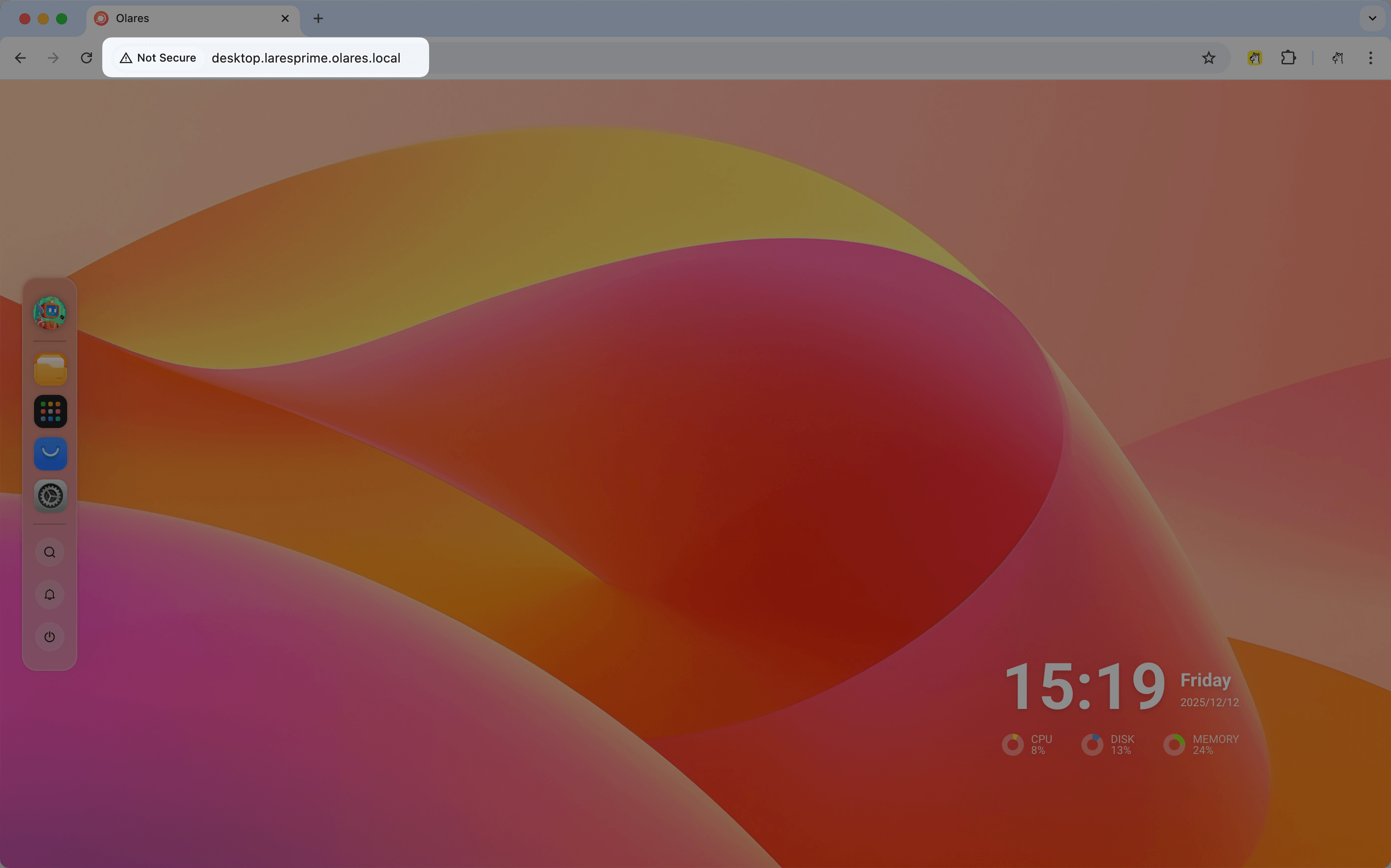
macOS and iOS
Apple devices support local service discovery via Bonjour (zero‑configuration networking), which can resolve multi‑label domains under .local on macOS and iOS.
Therefore, no extra setup is needed. You can directly use local URL in your browser.
Windows
On Windows, .local hostnames are not resolved by default. Use the LarePass desktop app to add the necessary entries to your hosts file so multi-level .local URLs resolve to your Olares device.
Open the LarePass app, click your avatar, then Settings.
Scroll to Enable local service domain and click Add. LarePass will update your hosts file automatically.
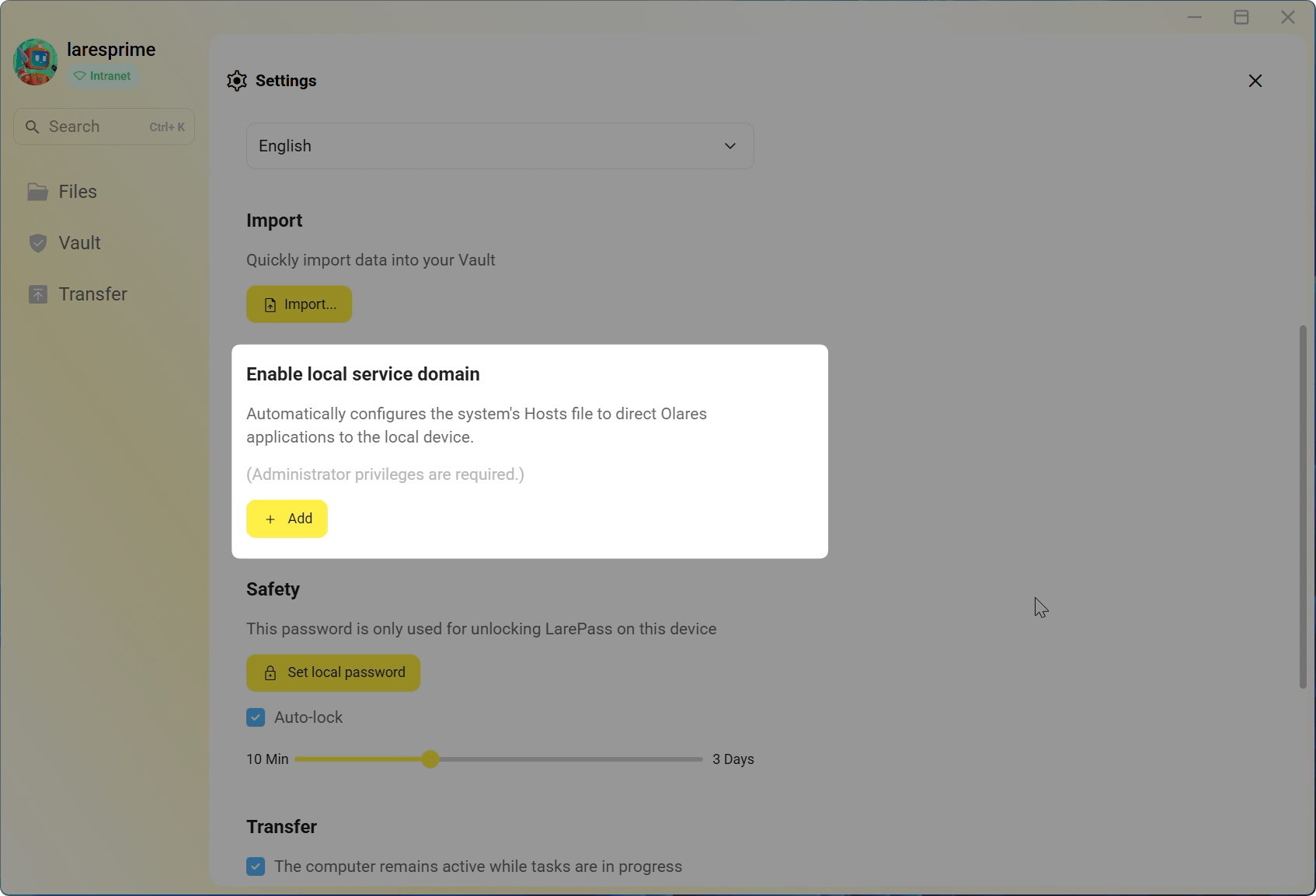
When the update completes, a success message appears. If a command line window opens, you can close it.
(Optional) To verify the changes to the hosts file:
a. Go to
C:\Windows\System32\drivers\etc\.b. Open the
hostsfile in a text editor. You should see the.localentries that LarePass added.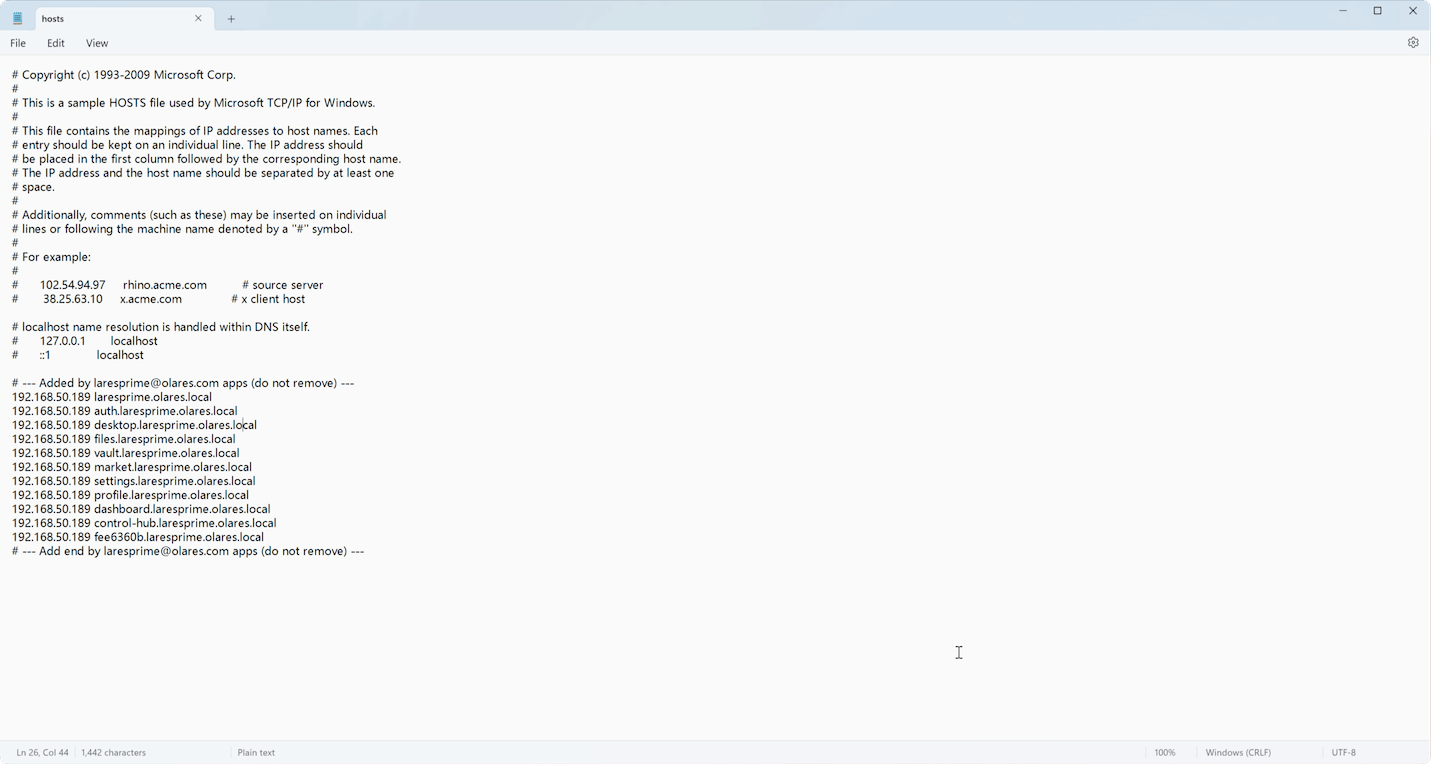
Method 3: Configure local DNS
For a seamless experience where standard URLs resolve to your local IP address automatically, you can configure your network DNS. This configuration ensures consistent access across all devices on the network without requiring individual client setup.
Find the internal IP for Olares device
To configure DNS, first you need to find the internal IP for your Olares device.
Configure DNS
With the internal IP address identified, you must now configure your DNS settings to route traffic correctly. You can apply this configuration to a single computer for individual access, or update your router to enable seamless local resolution for all devices on your network.
Once configured, you can access Olares using both your standard public address and your local address.
TIP
You can install AdGuard Home from the Olares Market to monitor traffic and manage DNS mappings graphically.
Method 4: Modify hosts files
If you cannot change router settings and need immediate offline access on a specific computer, you can manually map the domains in your hosts file.
- Locate your hosts file:
- Windows:
C:\Windows\System32\drivers\etc\hosts - macOS/Linux:
/etc/hosts
- Windows:
- Open the file with a text editor, which requires Administrator privileges.
- Add the mapping lines:plain
# Replace with the actual internal IP and the username # Olares apps 192.168.31.208 desktop.<username>.olares.com 192.168.31.208 auth.<username>.olares.com 192.168.31.208 files.<username>.olares.com 192.168.31.208 market.<username>.olares.com 192.168.31.208 settings.<username>.olares.com 192.168.31.208 dashboard.<username>.olares.com 192.168.31.208 control-hub.<username>.olares.com 192.168.31.208 profile.<username>.olares.com 192.168.31.208 vault.<username>.olares.com # Add other community apps as needed 192.168.31.208 <entrance_id>.<username>.olares.com - Save the file to apply changes and ensure local access without an internet connection.
Verify the changes by checking the URL for quick loading or using the terminal:
ping desktop.<username>.olares.comIf the IP address starts with 192.168, it indicates successful configuration.
FAQs
Why doesn't LarePass VPN work on my Mac anymore?
macOS blocks the VPN tunnel if the network extension or VPN configuration was not fully set up, or if the extension has become stuck or corrupted. See LarePass VPN not working to reset the extension and restore the VPN.
Why can't I enable LarePass VPN on Windows?
Third-party antivirus or security software may mistakenly flag LarePass as suspicious, preventing the VPN service from starting. See LarePass VPN not working to resolve the issue.
Why doesn't the .local domain work in Chrome on macOS?
Chrome may block local URLs if macOS has not granted it local network access.
- Open the Apple menu and go to System Settings.
- Go to Privacy & Security > Local Network.
- Find Google Chrome and Google Chrome Helper and turn their toggles on.
- Restart Chrome and try the
.localURL again.

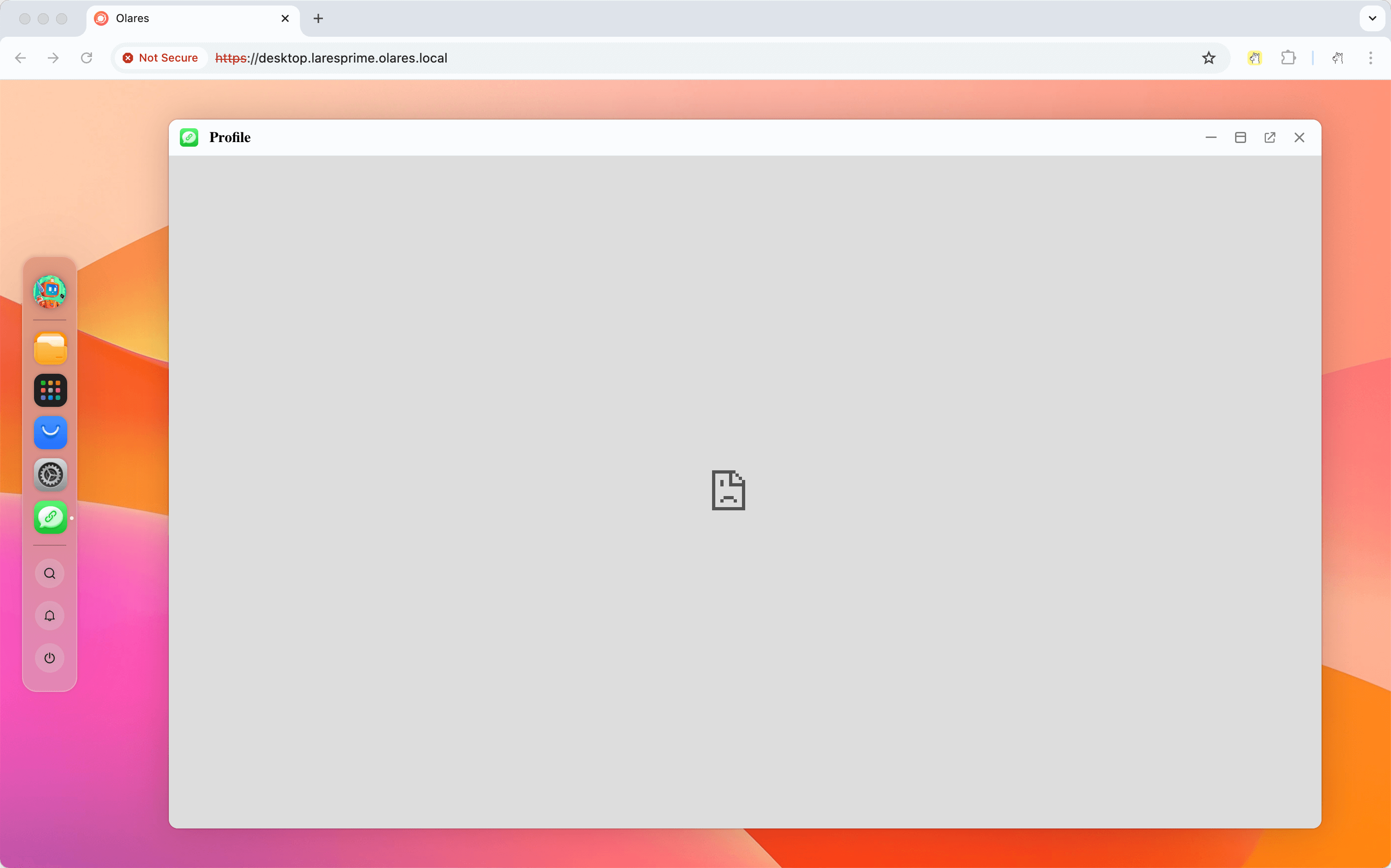
Why does the app show "connection not secure" or fail to load in Chrome?
Chrome sometimes forces HTTPS for .local hostnames, which is not supported.
Use http:// explicitly at the start of the URL (e.g. http://desktop.<username>.olares.local). On your home network, this unencrypted local connection is expected and keeps the .local domain working.
Why does the iframe flicker when I open a .local URL in Safari?
Safari applies stricter handling to .local (and other non-HTTPS) content in iframes, which can make the iframe flicker or reload. Enabling two options in Privacy settings fixes it.
To fix it:
Open Safari and go to Settings.
Open the Privacy tab.
Enable the two options:
- Prevent cross-site tracking
- Hide IP address from trackers

Reload the
.localpage.