Memory insufficient or not freed after stopping an app
Use this guide when you stop an app (for example in Settings) but system memory is not freed, or when installation or restore fails because of insufficient memory.
Condition
- Market reports that there is not enough memory to install or restore an app.
- You stop an application manually in Settings, but memory usage does not drop.
Cause
In Olares, some applications (for example Ollama and many LLM apps) are deployed as shared applications. They provide centralized resources or services to all users in the cluster.
Resource use for these apps is mainly on the server side. In Olares OS 1.12.4 and earlier, stopping a shared app from Settings only stops its user-facing client. The system-side service is not stopped by default, so the memory it uses is not released.
Solution: Free memory via Market
To free memory, stop apps and their server side from Market instead of only from Settings, then verify in Dashboard and Control Hub as needed.
INFO
This guide applies when you have admin privileges and the system currently does not have sub-accounts created.
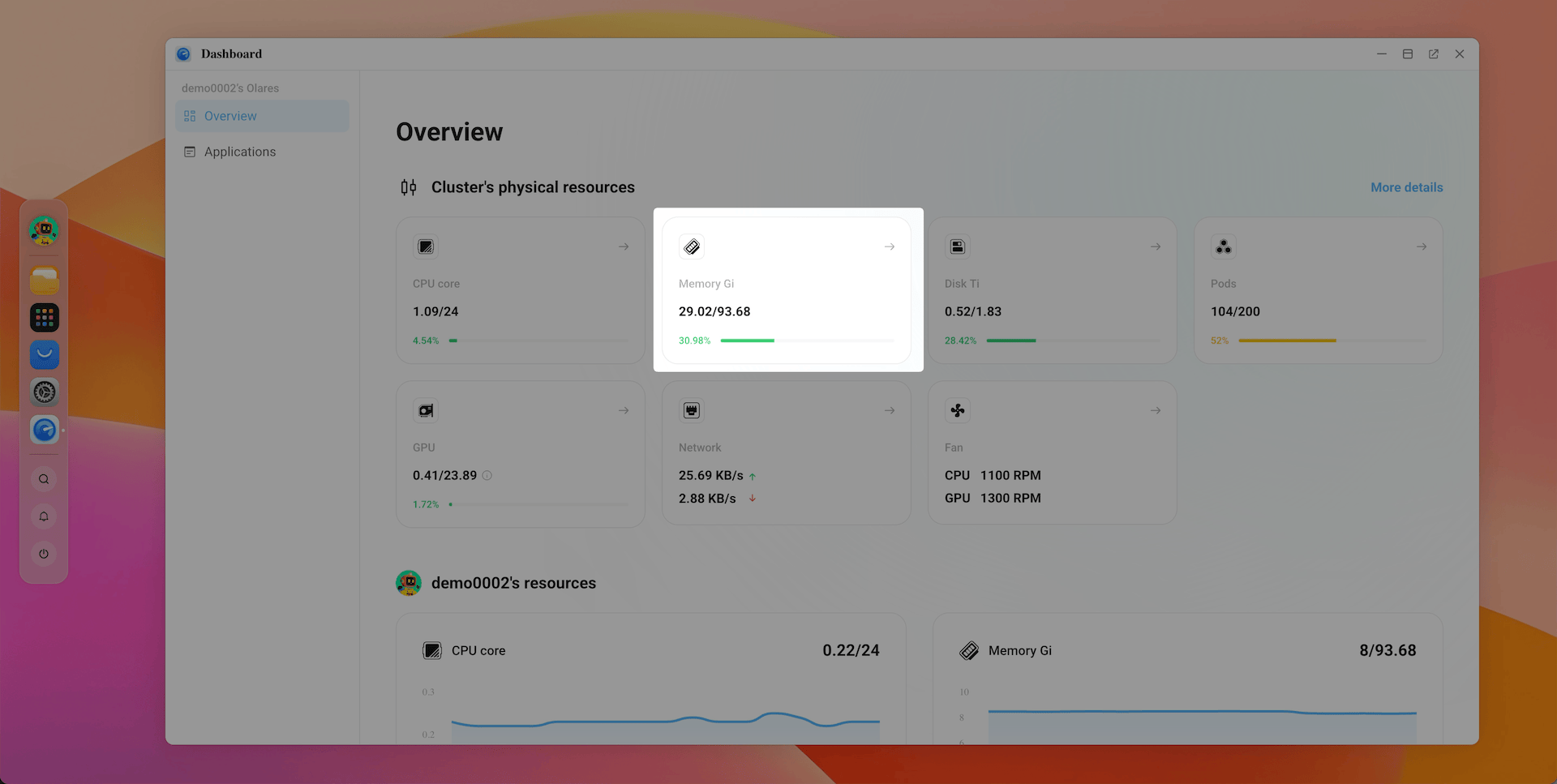
Step 1: Check current memory in Dashboard
Open Dashboard and check current memory usage.
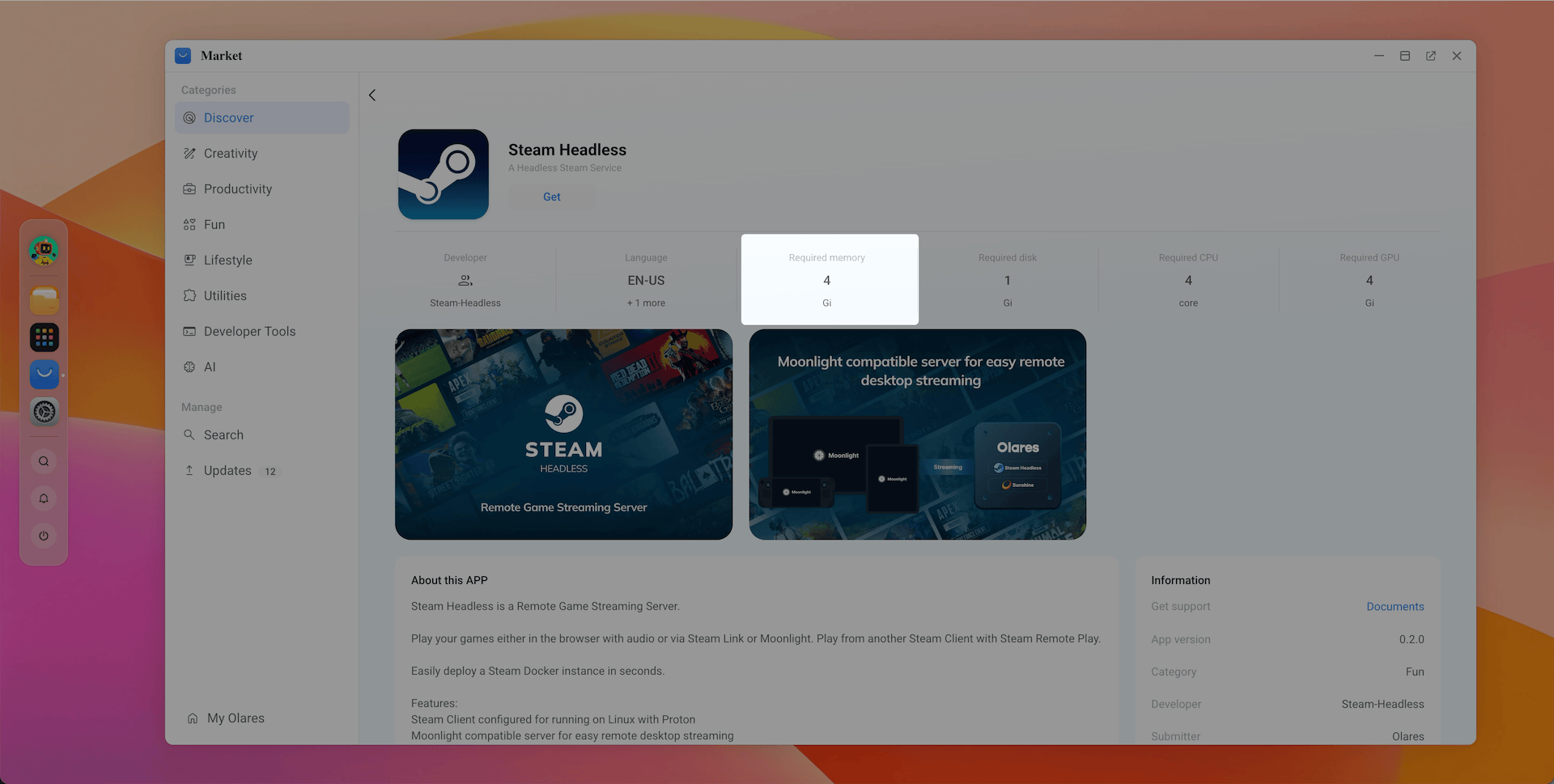
Step 2: Check the app's memory requirements in Market
In Market, open the app you want to install or resume and check its memory requirements. If the sum of used and required memory is greater than about 90% of total memory, installation or restore might fail.
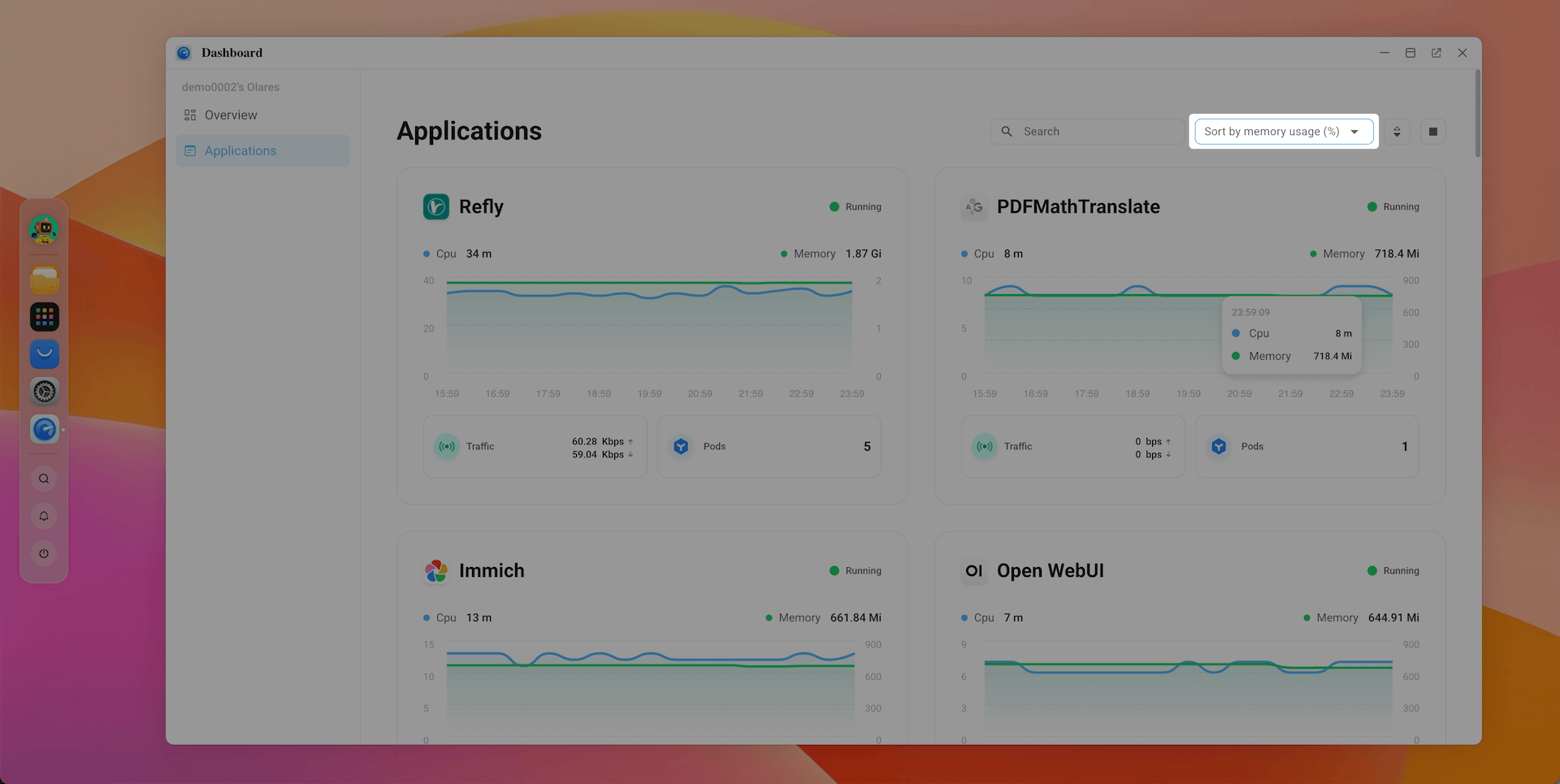
Step 3: Identify apps using the most memory in Dashboard
Back to Dashboard and navigate to the Applications section.
At the top right, use the sorting option to sort apps by memory usage.
Review the list to see which applications are consuming the most memory. Note apps you can close or temporarily stop to free up memory for your new app.
Step 4: Stop apps from Market
Stopping from Market allows you to stop the shared server and release its memory.
Open Market and go to My Olares.
Find the app you want to stop, click keyboard_arrow_down next to the app's operation button and select Stop.
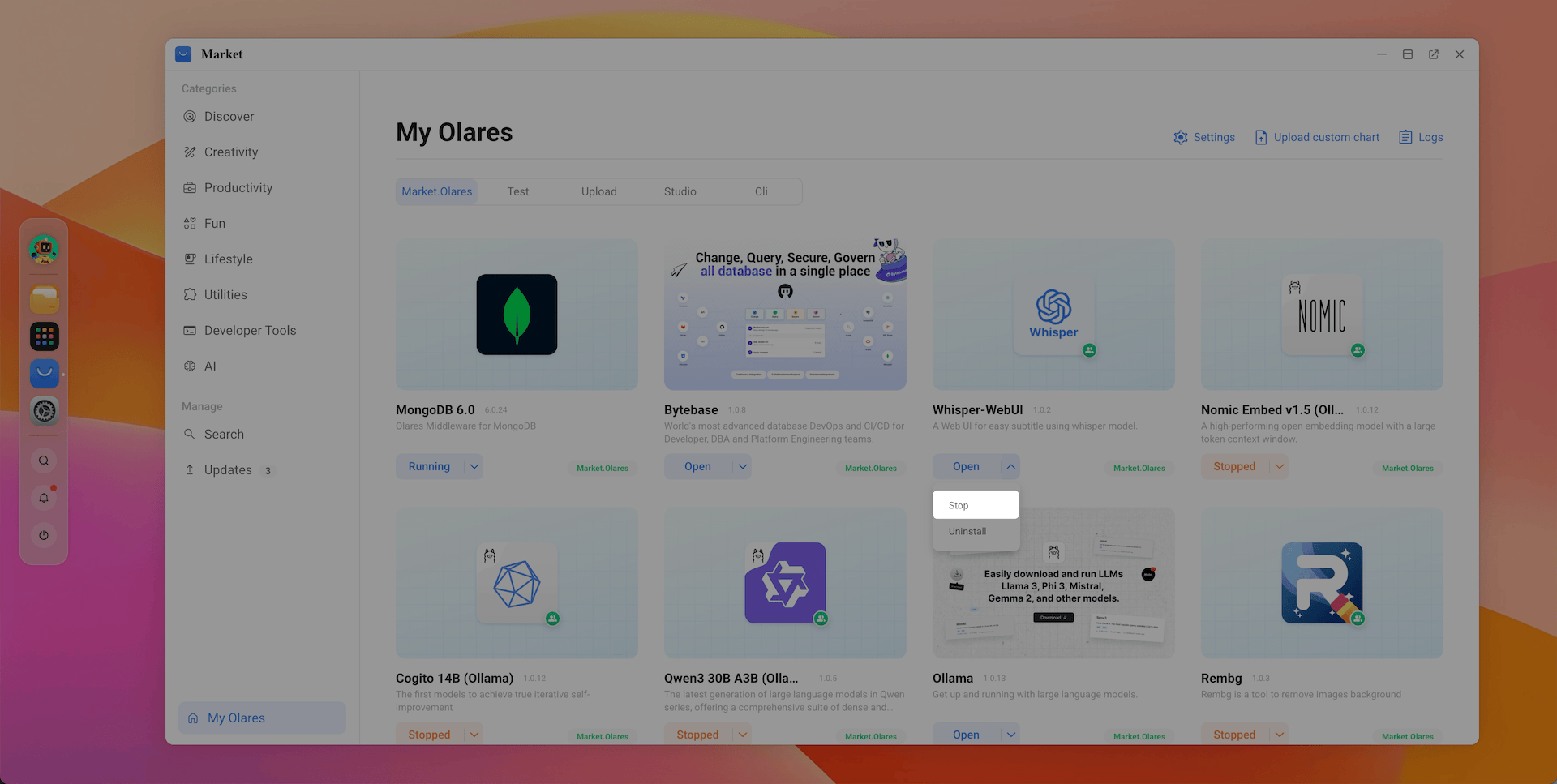
If a dialog appears when you stop the app, check Also stops the shared server (affects all users).
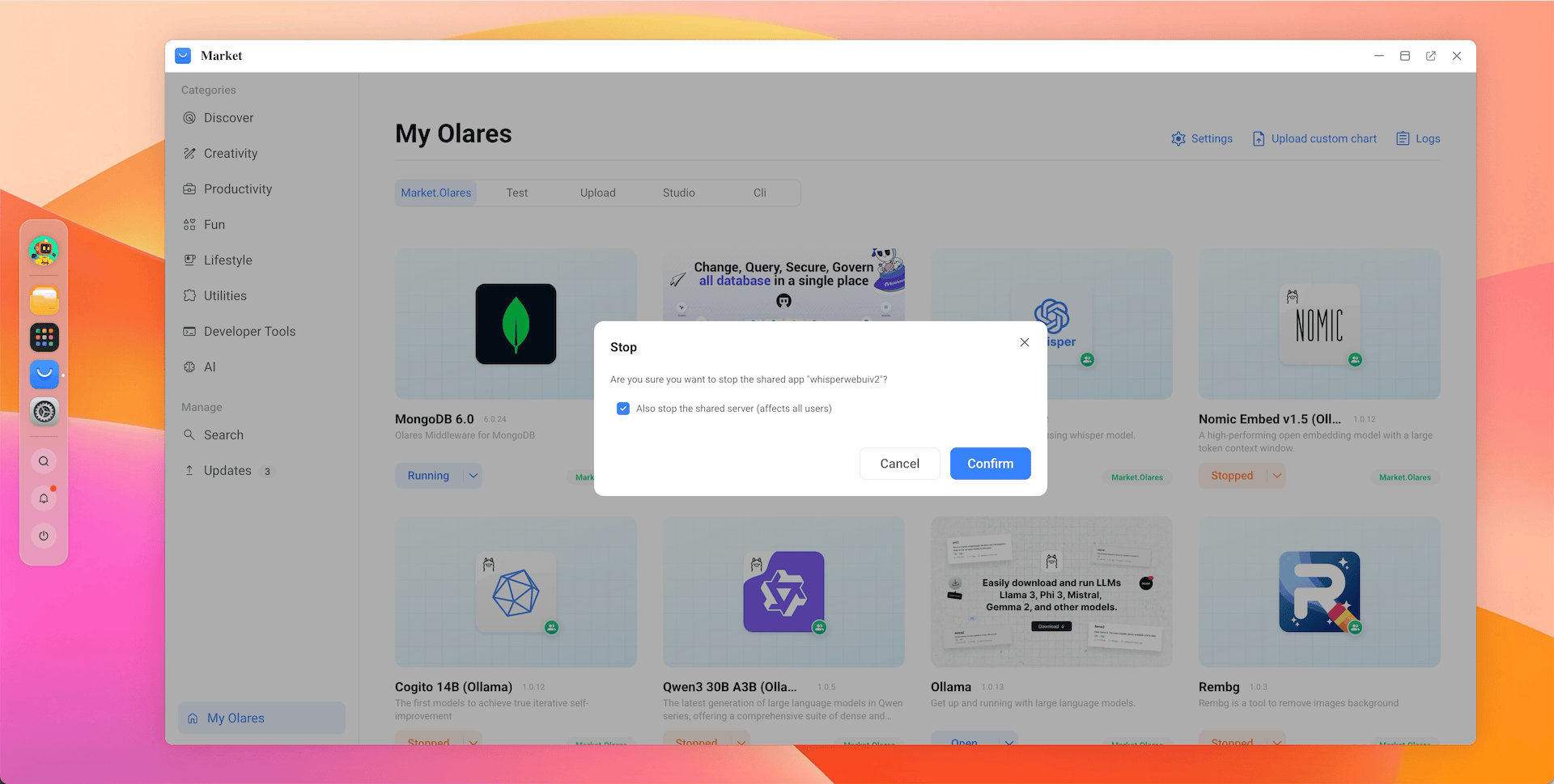
Uninstalling a shared app
If you are uninstalling a shared app, check Also uninstall the shared server (affects all users) so the server side is fully removed.
Step 5: Verify that memory has been released
After stopping apps, wait about 5 minutes, then reopen the Dashboard to review current memory usage.
If you notice that most memory-intensive apps are no longer listed at the top, but total memory usage remains high:
- Open Control Hub and navigate to the Namespaces section.
- Click the Memory usage column to sort namespaces by memory consumption.
- Look for any namespaces with a name ending in
server-shared. This indicates the server side of a shared app is still be running and holding onto memory.
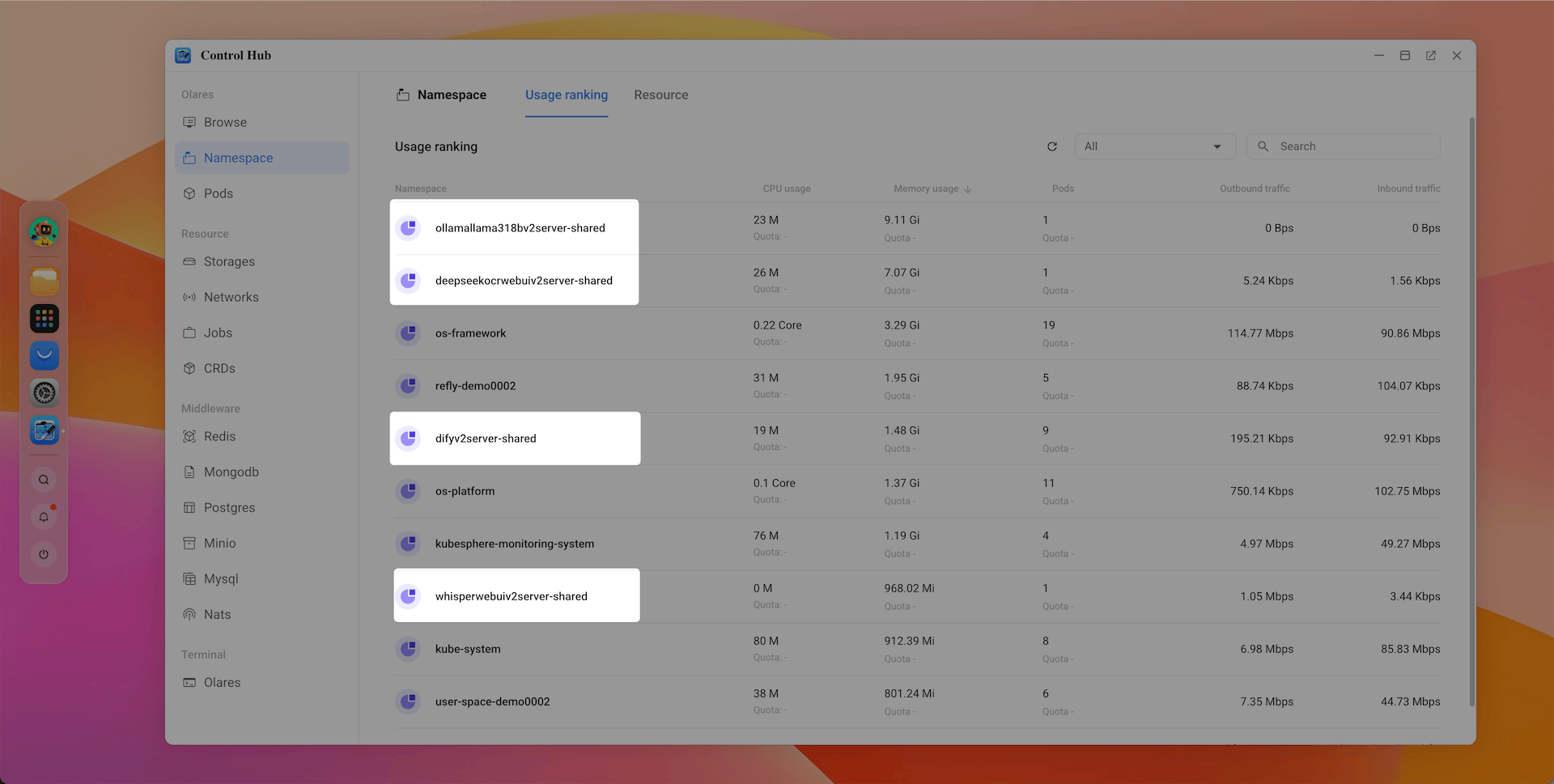
For any shared app that is still holding memory:
a. Go to Market > My Olares, resume the app, then stop it.
b. In the stop dialog, check Also stops the shared server (affects all users) so the server is fully stopped and memory is released.