Create an Olares ID with a custom domain
TIP
For a complete end-to-end walkthrough including domain setup, Olares installation, and member onboarding, see Set up a custom domain for your Olares.
In Olares, custom domains are managed through organizations. To use a custom domain, the domain owner first creates an organization, then adds members who can create their own Olares IDs under that domain.
Create a DID
A DID (Decentralized Identifier) is a temporary account state before you get your final Olares ID. You can only associate a custom domain with the account when it is in the DID stage. To create one:
In the LarePass app, go to the account creation page.
Tap Create an account.
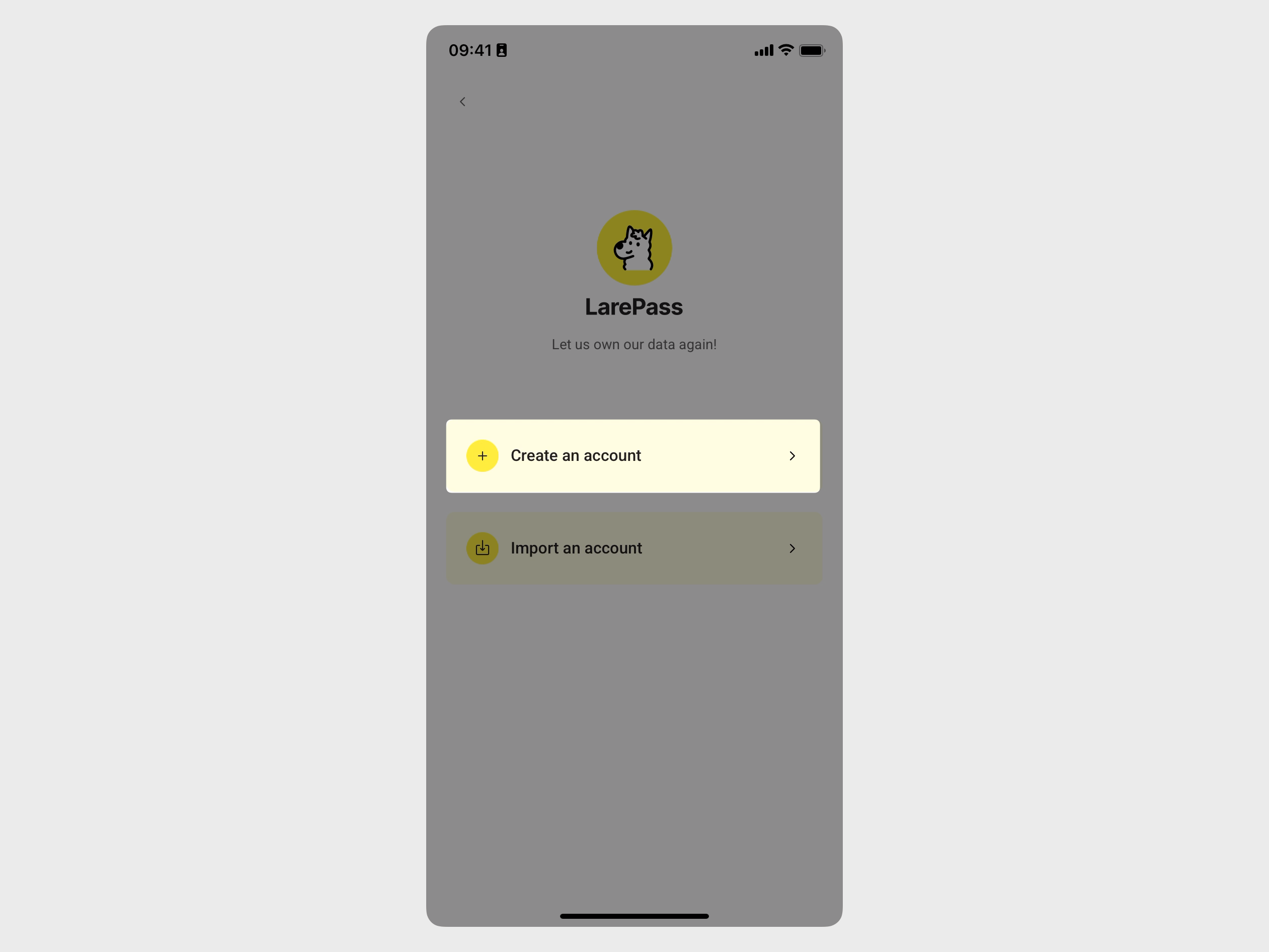
This creates an Olares account in the DID stage. On the Switch account page, it displays as "No Olares ID bound" with an identifier like
did:key:xxxx.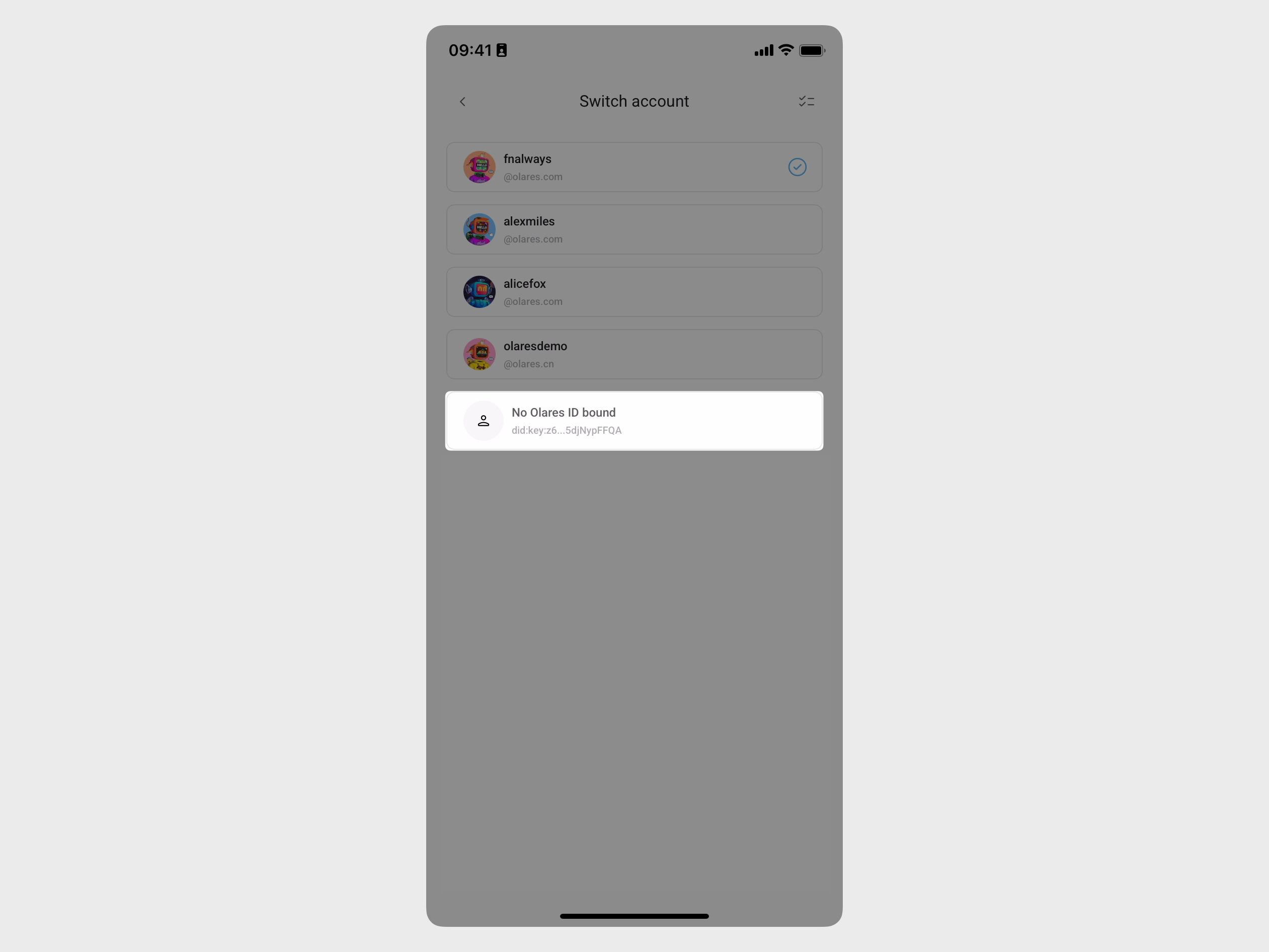
Once you have a DID:
- If you are the domain owner setting up the organization, continue to Create a new organization.
- If the admin has already created the organization and added you, skip to Join an existing organization.
Create a new organization
Before you start, make sure the custom domain has been set up in Olares Space.
As the domain owner, create an organization and get your Olares ID under your custom domain.
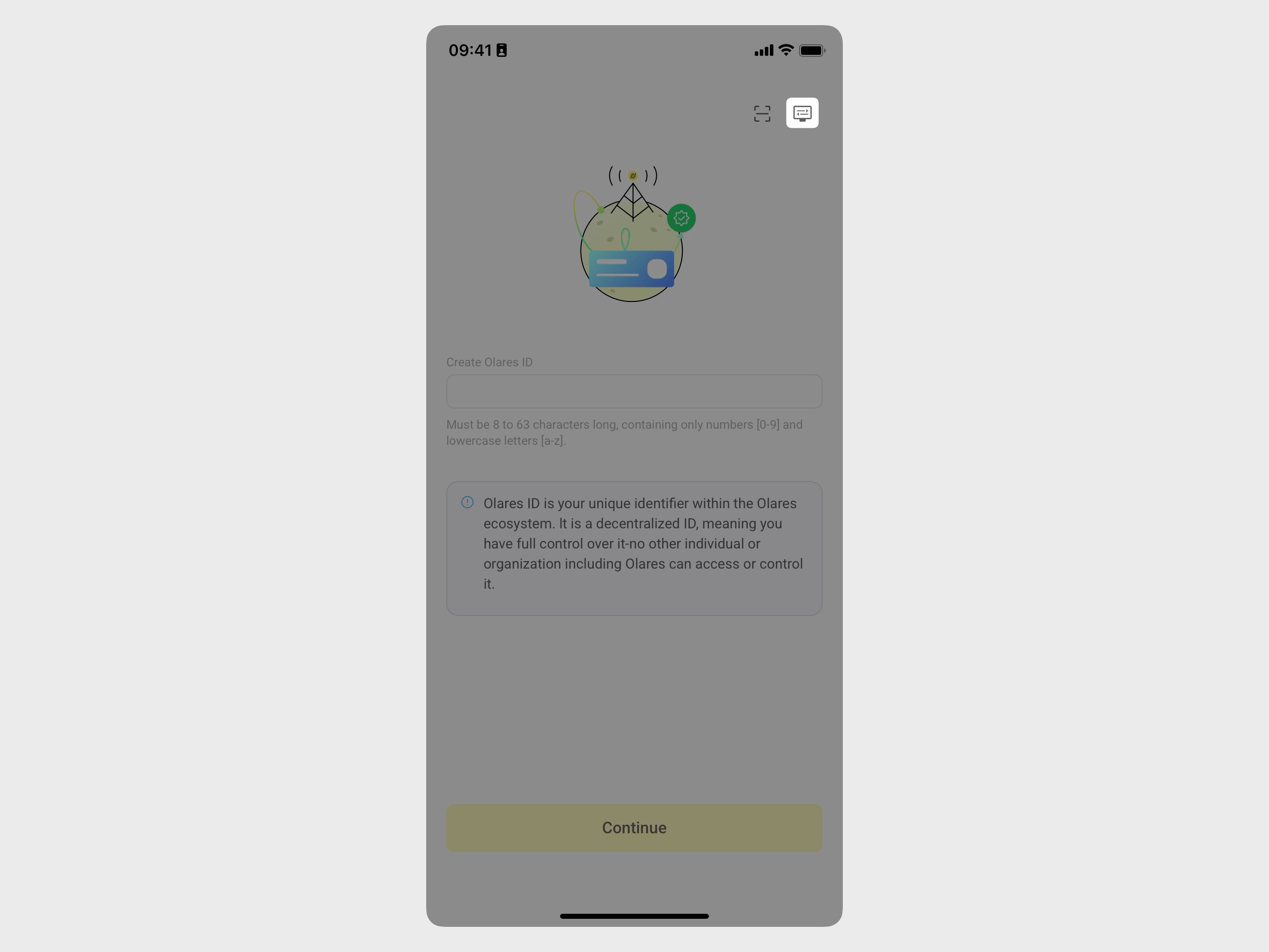
Open LarePass on your phone, and in the account creation page, tap display_settings in the top-right corner to go to the Advanced account creation page.
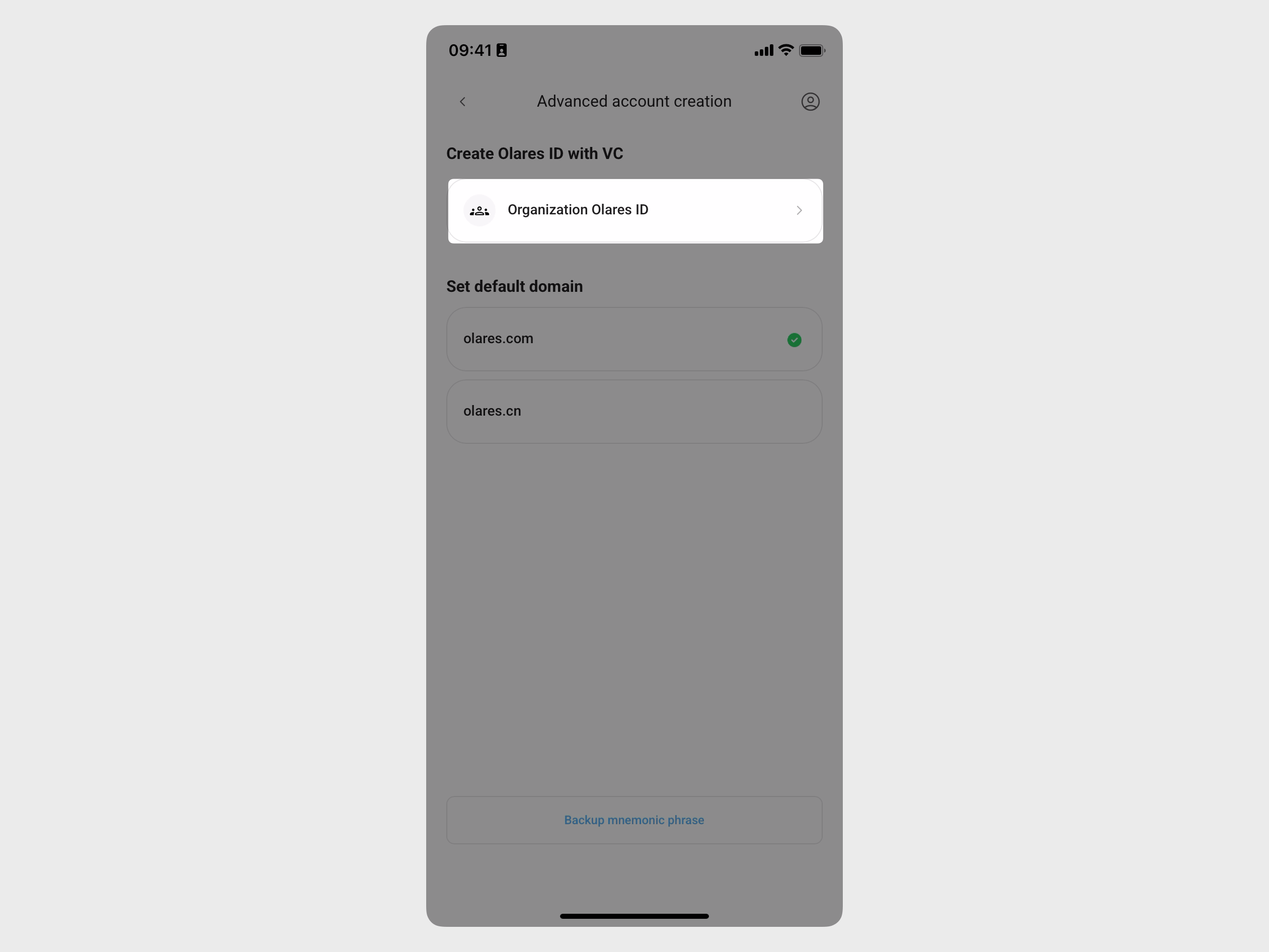
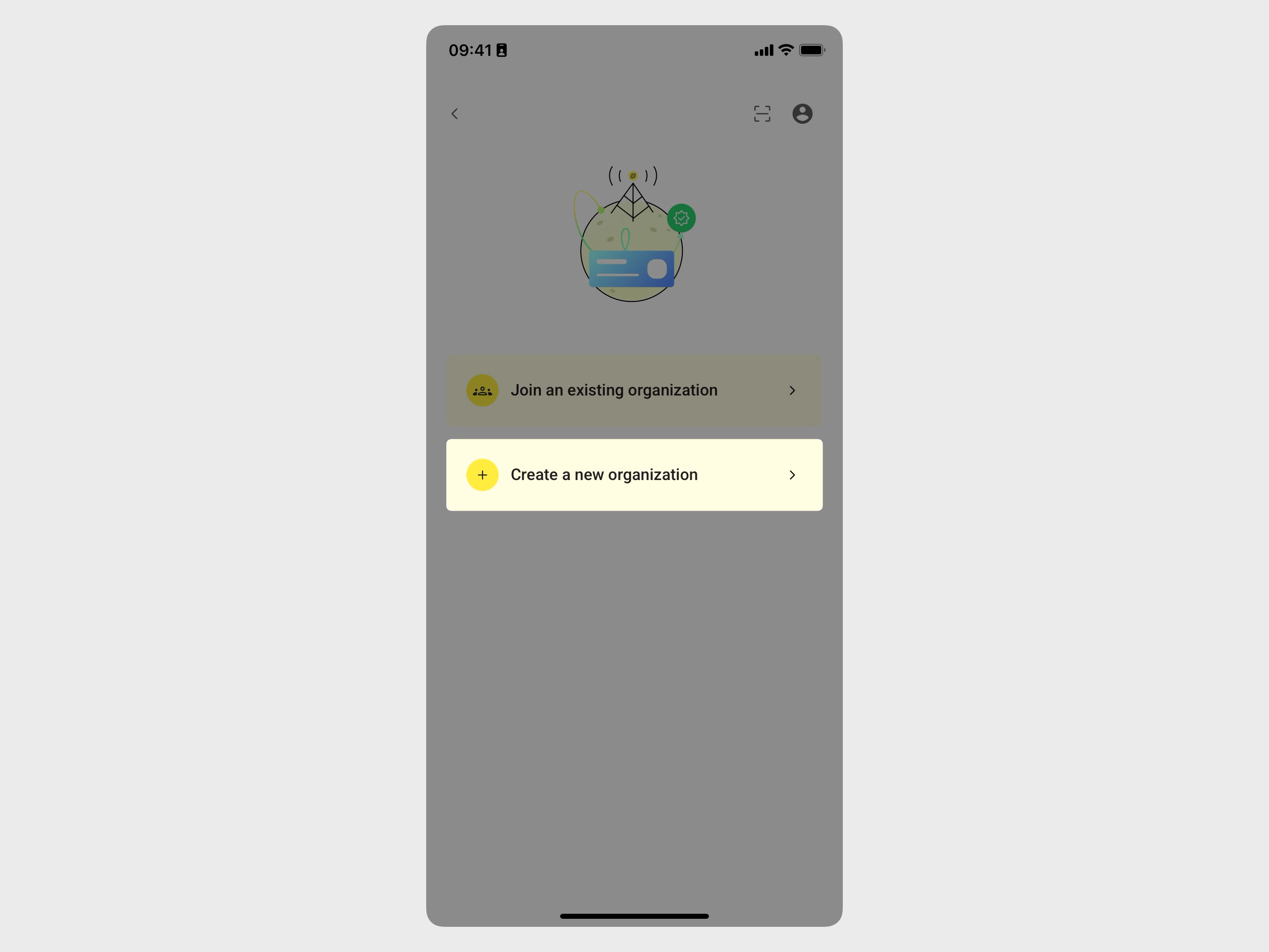
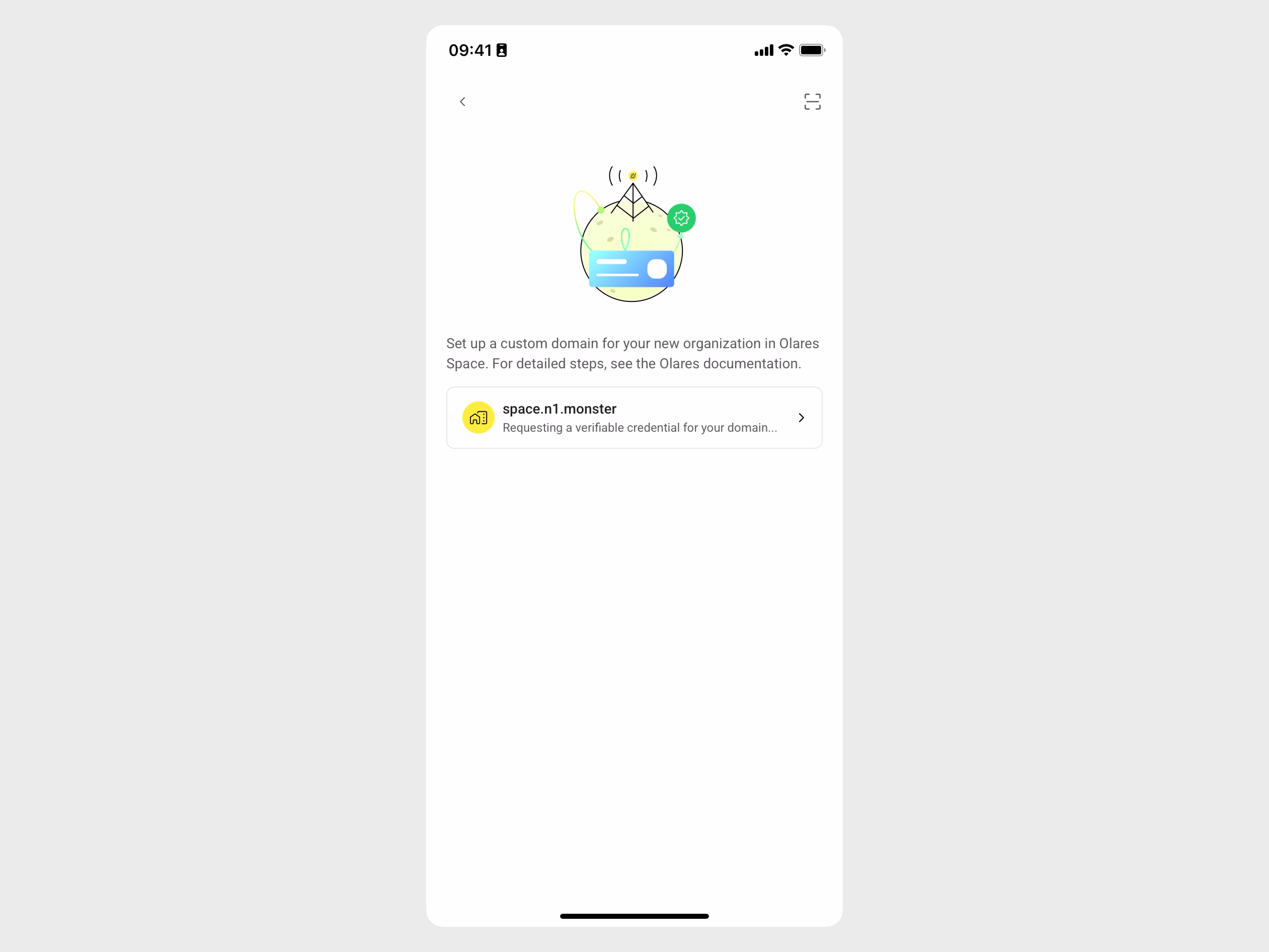
Go to Organization Olares ID > Create a new organization. Your verified domain will automatically show in the list.
Tap the domain name.
WARNING
Once an organization is created for a domain, the domain cannot be removed from Olares Space.
Enter the username for your Olares ID. For example, if you enter
alex, your Olares ID will be[email protected].INFO
The username part of your Olares ID should be 1-63 characters long, with lowercase alphanumeric characters only.
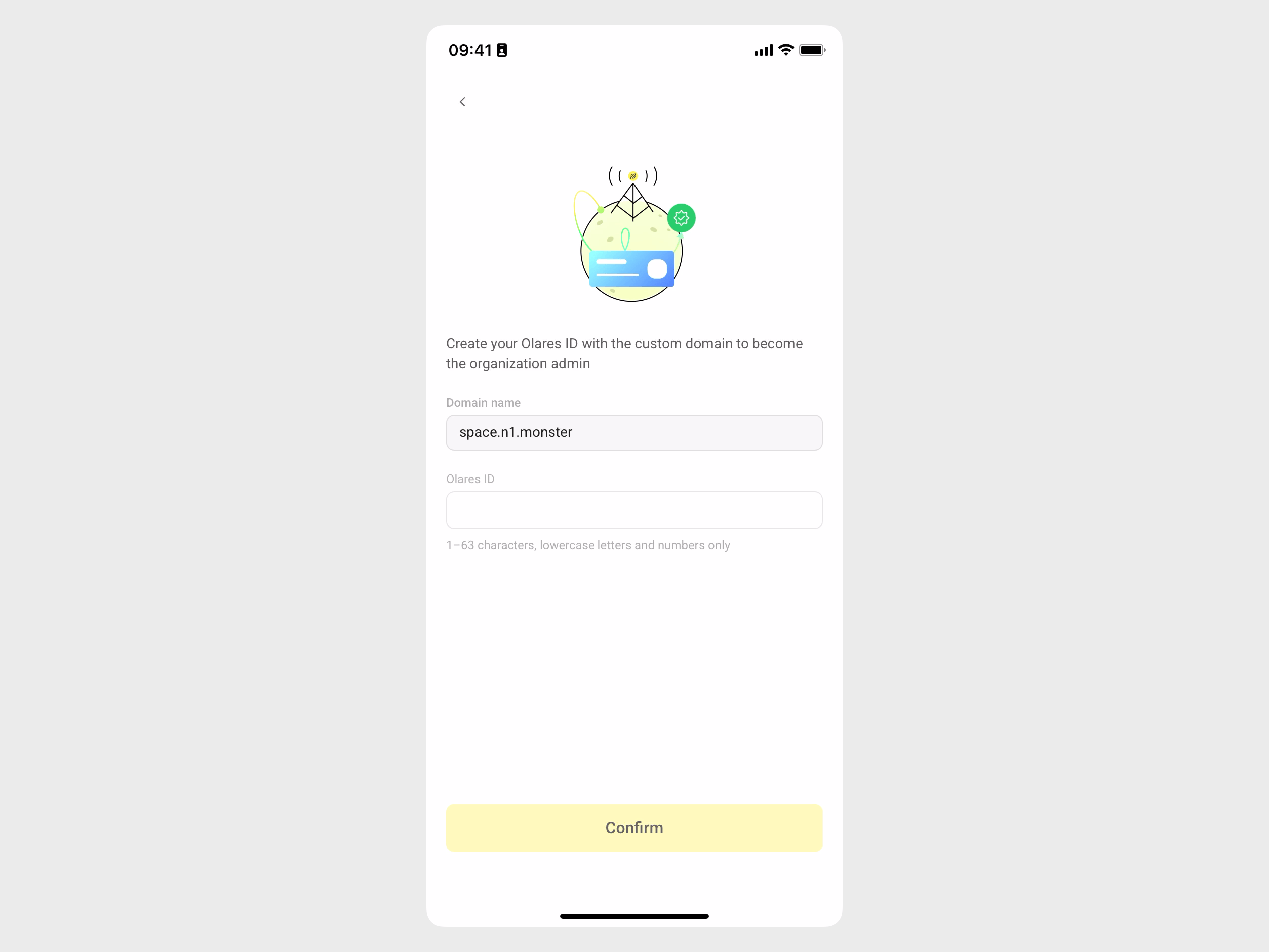
Tap Confirm.
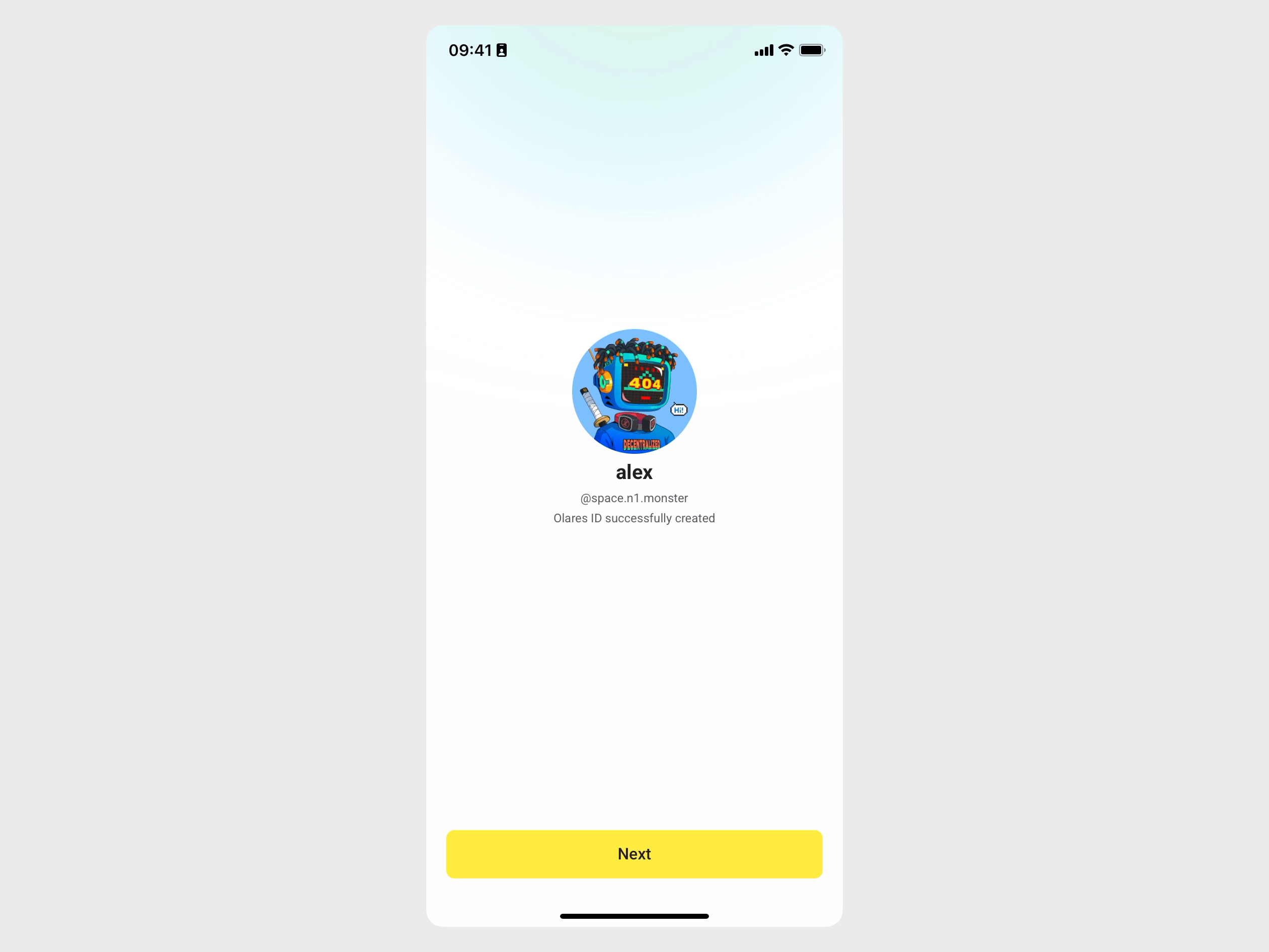
Your Olares ID is now created and has admin privileges to manage users under this domain.
After setting up the domain, you can add members in Olares Space.
Join an existing organization
If the domain admin has already created the organization and added you, use the username and password provided by the admin to join.
On the account creation page, tap display_settings in the top-right corner to go to the Advanced account creation page.
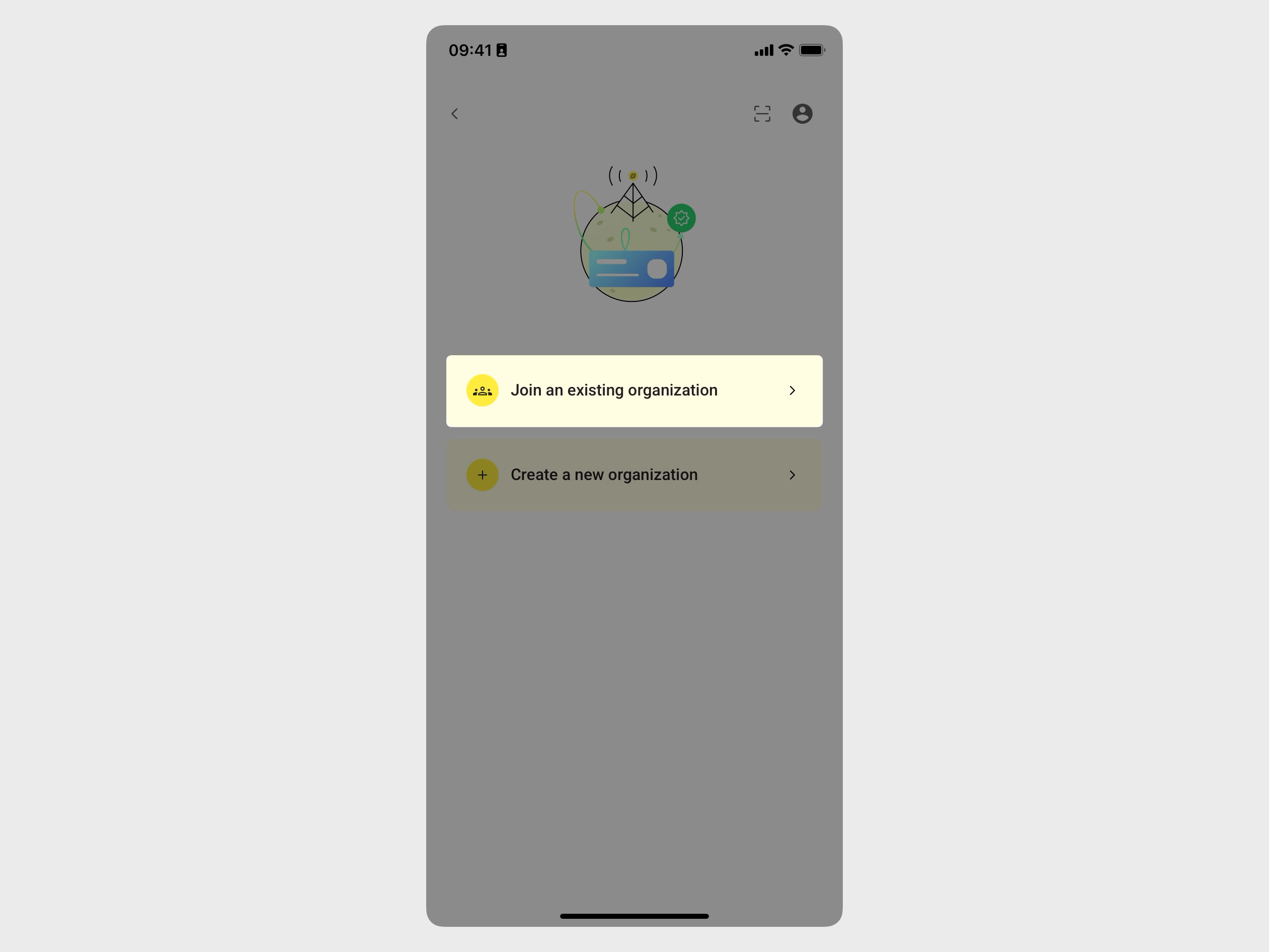
Go to Organization Olares ID > Join an existing organization.
Enter the username with the domain part (e.g.,
[email protected]) and the password provided by the admin.One-time password
This password verifies your identity when you create your Olares ID, and is for one-time use only.
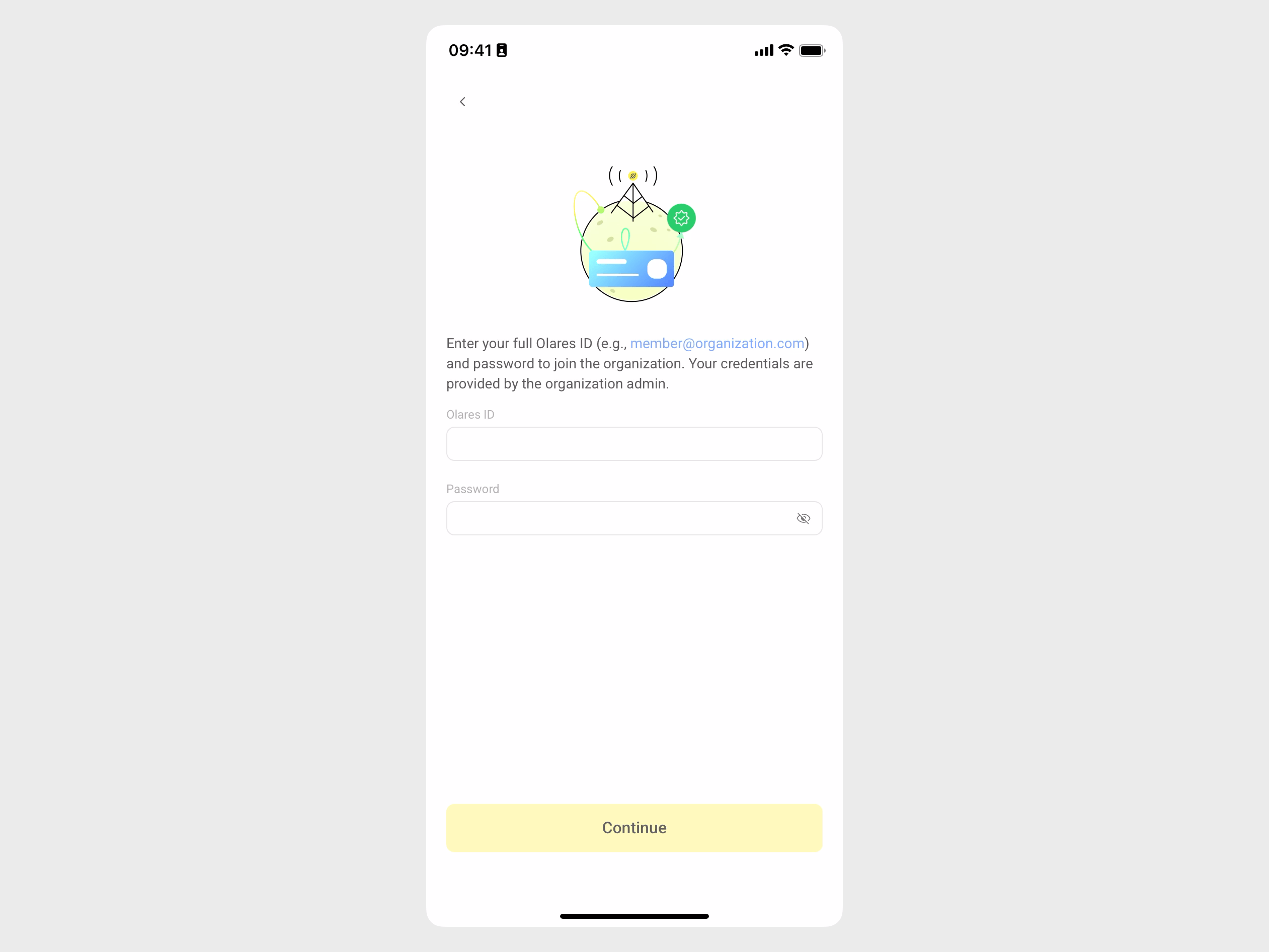
Tap Continue.
Your Olares ID is now created. You can proceed to install and activate Olares.