Expand storage in Olares
This document describes how to expand storage in Olares using different approaches. Choose the method that best matches your scenario:
- Connect to an SMB server to access shared files on a NAS or another computer over the network.
- Use USB auto-mount for plug-and-play external storage. No Linux commands required.
- Manually mount an HDD or SSD under
/olares/shareto keep a disk as independent external storage for large files. - Expand system storage via Olares CLI (
disk extend) to increase system capacity on LVM-based setups by merging new disk(s) into the system volume.
Connect to an SMB server
You can easily mount Server Message Block (SMB) shares in Olares to access and manage shared files.
On the Olares web interface, navigate to Files > External > Connect to server.
Enter the server address (for example:
//192.168.1.10/shared) and click Confirm.Once connected, you can access the shared directory under Files > External.
For details, please refer to Mount SMB shares.
Expand storage via USB devices
Olares automatically detects and mounts inserted USB storage devices.
Once you insert a USB device, it will be mounted automatically — no command-line operations are required.
You can access it in Files > External from both Olares and Larepass.
The system automatically unmounts the device when you unplug it.
You can manually eject the device via the Olares web interface. Right-click the USB drive in Files and select Unmount.
Manually mount an HDD or SSD
You can manually mount an HDD or SSD to Olares from your Linux hosting system.
This approach is recommended for large data storage (e.g., AI models) or long-term storage expansion.
Before you begin
Please ensure the following:
You have administrator (sudo) privileges on your Linux system.
Olares is properly installed and running.
The target drive is already formatted (recommended file systems:
ext4orXFS).
Mount path restriction
Currently, only mounts under the /olares/share directory are supported.
Mounting flexibility will be improved in future versions.
Identify the drive
Insert the hard drive into the host machine.
Run the following command to view detected drives:
bashfdisk -lIdentify the target drive type and device name from the output:
- NVMe SSD: typically appear as
/dev/nvme0n1,/dev/nvme1n1, etc. - SATA or HDD: typically appear as
/dev/sda,/dev/sdb, etc.
Each drive lists its partitions under the Device column, such as
/dev/nvme1n1p1,/dev/nvme1n1p2, or/dev/sdb1.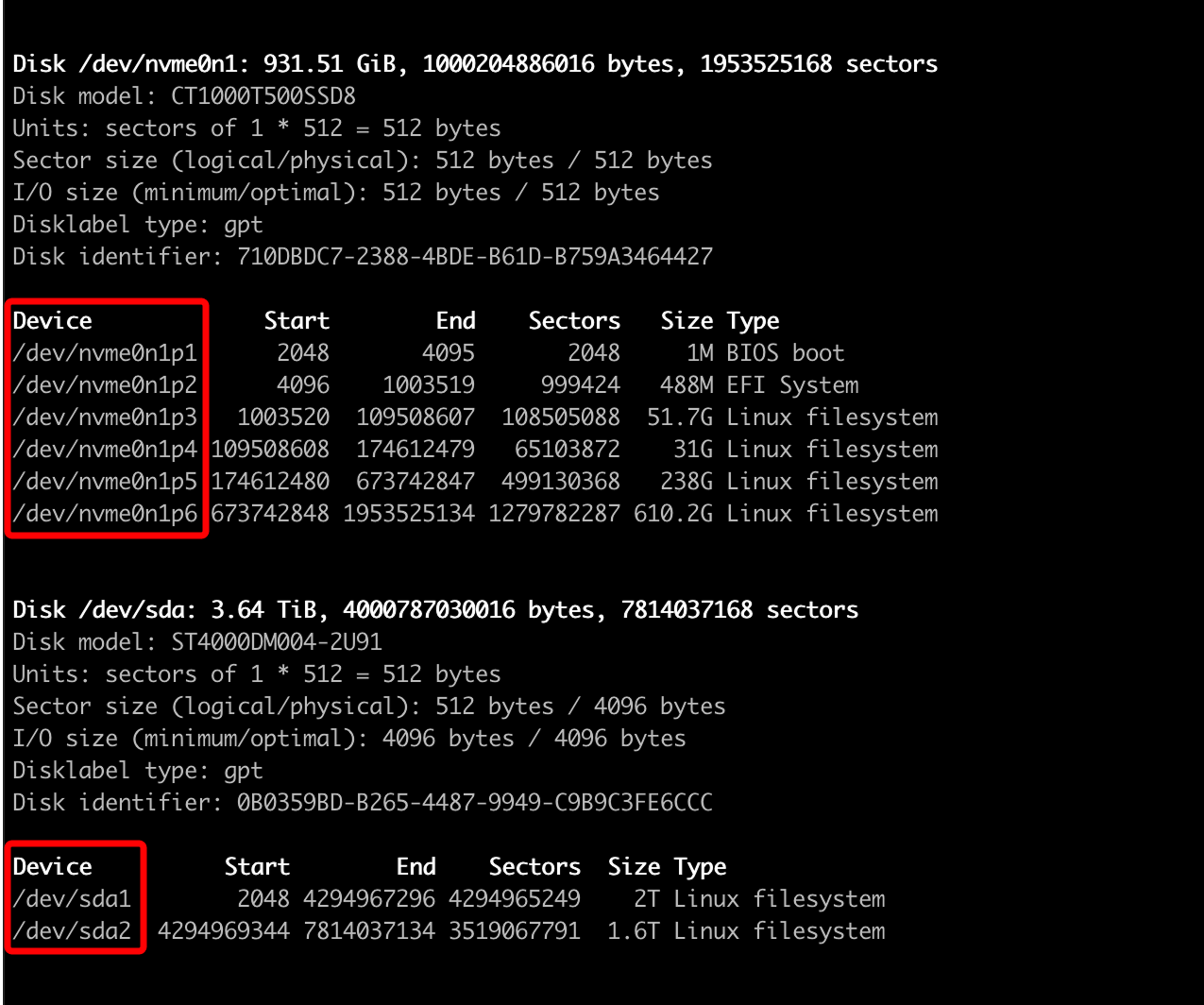
- NVMe SSD: typically appear as
Confirm the target partition to mount (e.g.,
/dev/nvme1n1p1).
Temporarily mount a partition
Temporary mounting is suitable for one-time or short-term use (e.g., file transfer).
The mount configuration will be lost after a Linux or Olares reboot.
Create a mount directory:
bashsudo mkdir -p /olares/share/<directory_name>Replace
<directory_name>with a custom name.Mount the partition:
bashsudo mount /dev/<partition> /olares/share/<directory_name>Example:
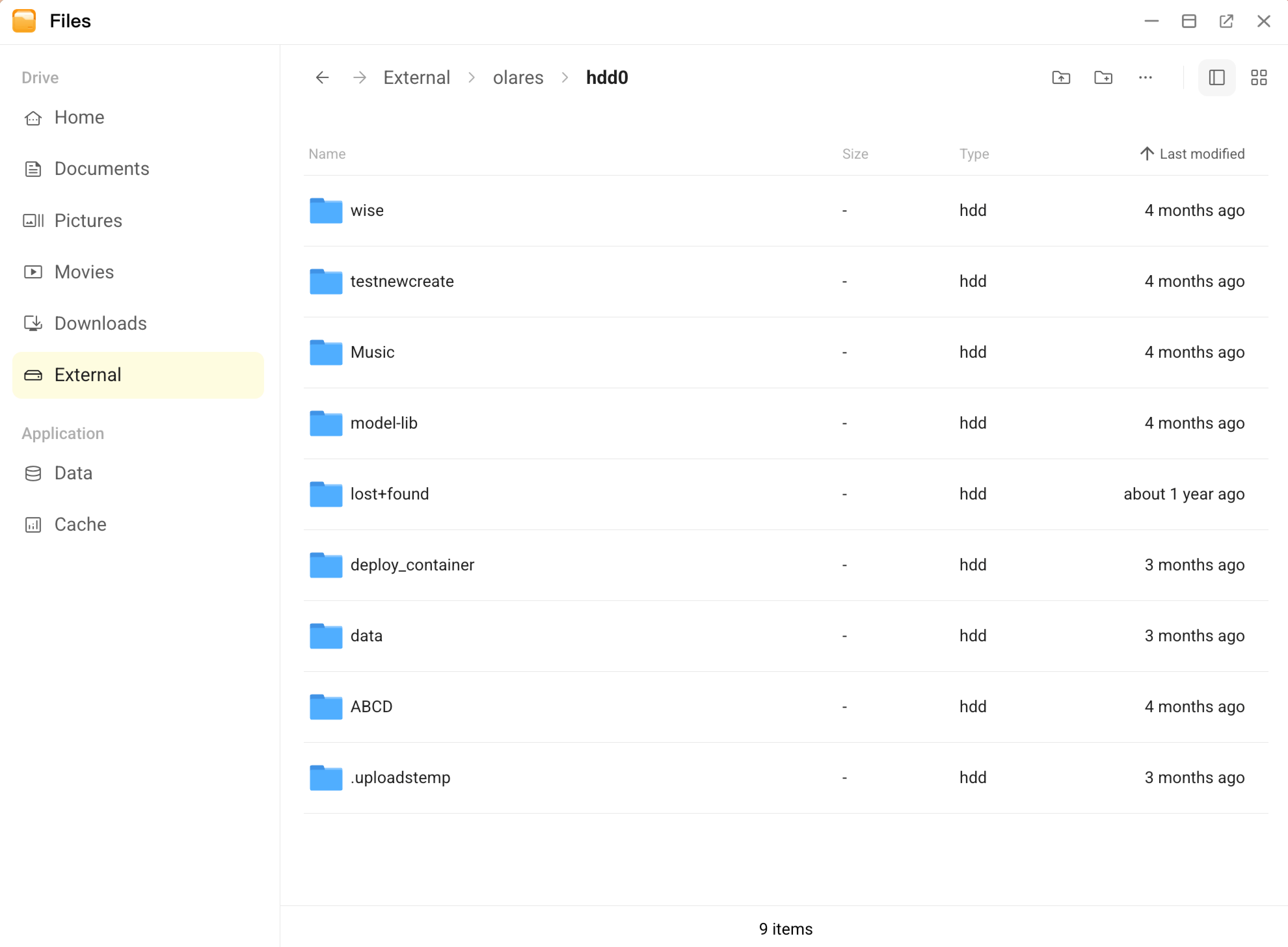
sudo mount /dev/nvme1n1p1 /olares/share/hdd0Verify the mount result:
After successful mounting, you can access the partition from Files > External.
Permanently mount a partition
If you want the mount configuration to remain after reboot, configure automatic mounting in /etc/fstab.
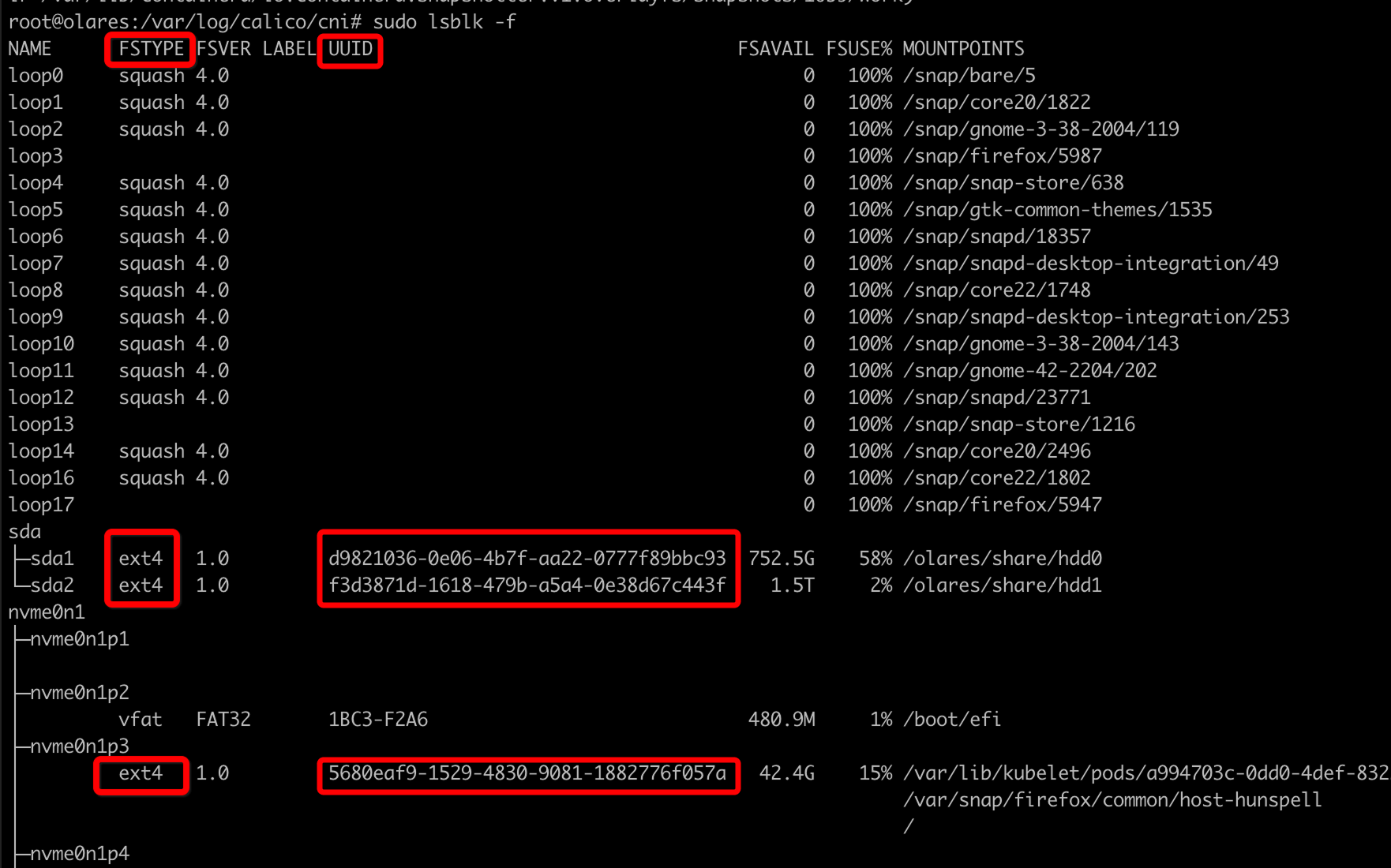
Run the following command to list all drives and find the target partition:
bashlsblk -fRecord the following information:
- FSTYPE: File system type (e.g.,
ext4,xfs). - UUID: Unique identifier of the partition.
- FSTYPE: File system type (e.g.,
Create a mount directory:
bashsudo mkdir -p /olares/share/<directory_name>Replace
<directory_name>with a custom name.Edit the mount configuration file:
bashsudo vi /etc/fstabAdd a mount entry using UUID (recommended to prevent issues if device names change):
UUID=<UUID> /olares/share/<directory_name> <FSTYPE> defaults,nofail 0 0Example:
UUID=1234-ABCD /olares/share/my_disk ext4 defaults,nofail 0 0Save and exit the editor.
Verify the configuration (recommended):
bashmount -aIf no errors appear, the setup is successful.
After reboot, confirm the drive is automatically mounted via Files > External.
WARNING
An incorrect /etc/fstab configuration may prevent your system from booting. It is strongly recommended to run
mount -afirst to validate the configuration before rebooting.
Unmount a partition
You can unmount partitions mounted using either temporary or permanent methods.
Unmount the partition:
bashsudo umount /olares/share/<directory_name>NOTE
Make sure no programs or terminals are accessing the directory before unmounting.
Remove the empty directory (optional):
bashrm -rf /olares/share/<directory_name>WARNING
Ensure the directory is empty and fully unmounted before deleting.
You can also view and remove this directory from Files in Olares.
Expand system storage via Olares CLI
If your Olares system uses LVM-based storage, you can expand its system storage capacity using the disk command.
Manual mounting adds an external drive under /olares/share. In contrast, disk extend expands Olares system storage. After extension, the added drive is no longer shown as an independent mount point.
Data loss
disk extend will destroy all data on the selected disk.
Make sure the disk does not contain important data, or back up the data before continuing.
Before you begin
- Connect the external drive to the Olares host machine.
- SSH into the Olares terminal.
Identify the unmounted disk
List block devices on the host:
lsblk | grep -v loopIdentify the newly added disk by checking its size and confirming it has no mount points. Do not select the disk that contains / or /boot.
Example output:
NAME        MAJ:MIN RM   SIZE RO TYPE MOUNTPOINTS
sda           8:0    0 931.5G  0 disk
├─sda1        8:1    0   512M  0 part /boot
└─sda2        8:2    0   931G  0 part /
nvme1n1     259:3    0 931.5G  0 disk
In this example, sda is the system drive which is mounted at / and /boot, while nvme1n1 is the newly connected disk.
Extend system storage
Verify that Olares recognizes the unmounted disk:
basholares-cli disk list-unmountedAdd the disk to the system volume:
bashsudo olares-cli disk extendType
YESto proceed when the command prompts for confirmation.textWARNING: This will DESTROY all data on /dev/<device> Type 'YES' to continue, CTRL+C to abort:Example output:
textSelected volume group to extend: olares-vg Selected logical volume to extend: data Selected unmounted device to use: /dev/nvme0n1 Extending logical volume data in volume group olares-vg using device /dev/nvme0n1 WARNING: This will DESTROY all data on /dev/nvme0n1 Type 'YES' to continue, CTRL+C to abort: YES Selected device /dev/nvme0n1 has existing partitions. Cleaning up... Deleting existing partitions on device /dev/nvme0n1... Creating partition on device /dev/nvme0n1... Creating physical volume on device /dev/nvme0n1... Extending volume group olares-vg with logic volume data on device /dev/nvme0n1... Disk extension completed successfully. id LV VG LSize Mountpoints 1 data olares-vg <3.63t /var,/olares 2 root olares-vg 100.00g / 3 swap olares-vg 1.00g ...
Verify the extension
You can verify the storage increase in both terminal and UI.
In terminal
Check the size of the
/olaresdirectory where data is stored to confirm expansion:bashdf -h /olaresExample output:
textFilesystem Size Used Avail Use% Mounted on /dev/mapper/olares--vg-root 1.8T 285G 1.4T 17% /olaresConfirm if the new disk is now part of the
olares--vg-datavolume:bashlsblk | grep -v loopExample output:
textNAME MAJ:MIN RM SIZE RO TYPE MOUNTPOINTS nvme0n1 259:0 0 1.9T 0 disk └─nvme0n1p1 259:2 0 1.9T 0 part └─olares--vg-data 252:2 0 3.6T 0 lvm /olares /var nvme1n1 259:3 0 1.9T 0 disk ├─nvme1n1p1 259:4 0 512M 0 part /boot/efi └─nvme1n1p2 259:5 0 1.9T 0 part ├─olares--vg-root 252:1 0 100G 0 lvm / └─olares--vg-swap 252:0 0 1G 0 lvm [SWAP]
In UI
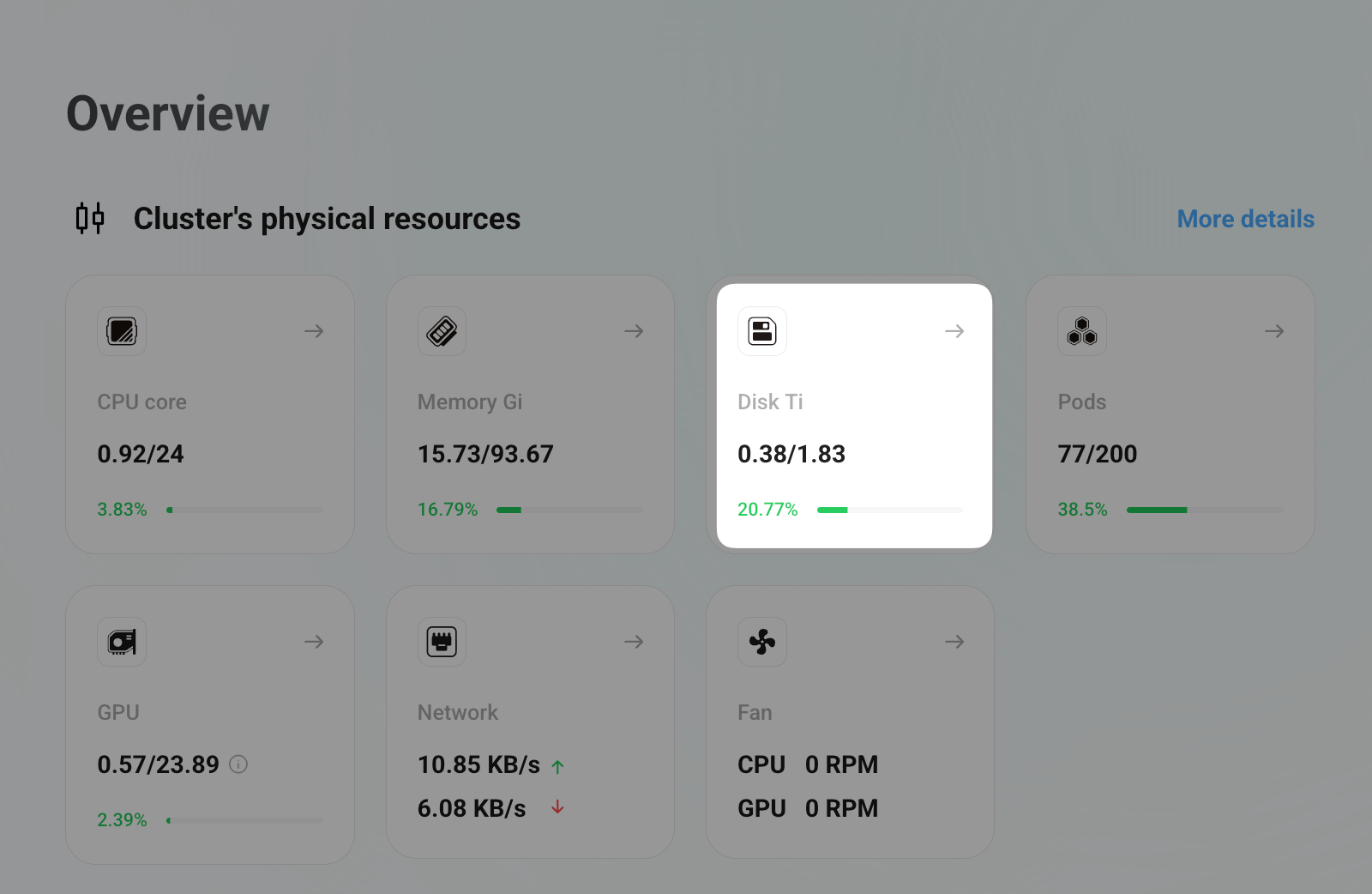
Open Dashboard from Launchpad and confirm that total system storage capacity has increased.
For full command usage and options, please refer to disk.