Sync files to local computer
With LarePass desktop, you can sync cloud files (organized by libraries or folders) to your local computer. This creates a corresponding folder on your machine. After set up, your files will stay updated bi-directionally in real time.
Note
The Sync to local feature is only available for libraries or folders within the Sync directory.
Create a library
Library is the fundamental unit for organizing, syncing, and sharing your digital content. Each user is automatically provided with their own personal library (My Library) as a starting point.
To create a new library:
- To the right of Sync, click add_circle to open the New library dialog.
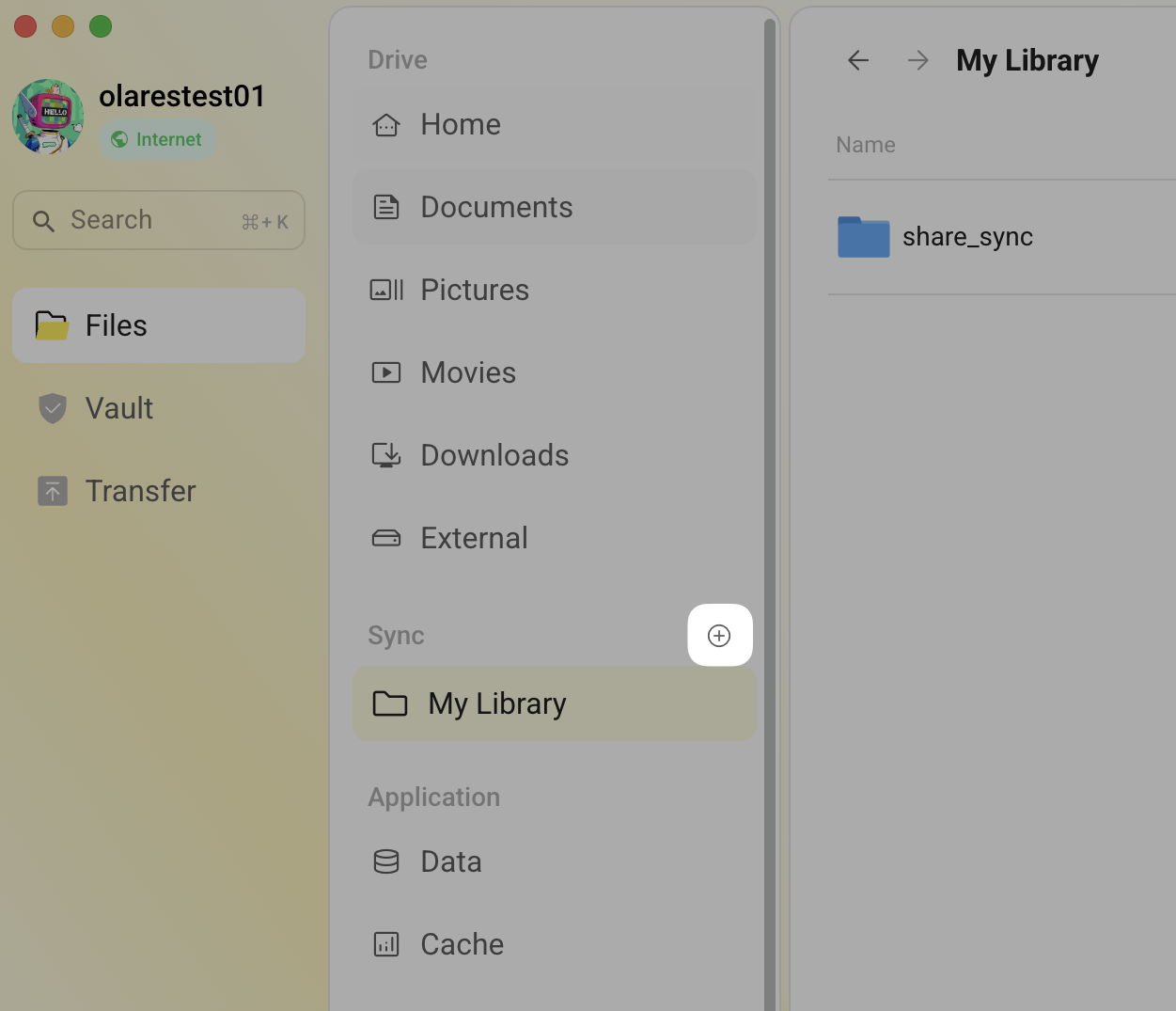
- Enter a name for the library and click Create.
Enable synchronization
To enable sync for a library or folder:
Open LarePass desktop and locate the Sync directory.
Hover your mouse over the target library or folder, click more_horiz that appears on the right, and then click Sync to local.
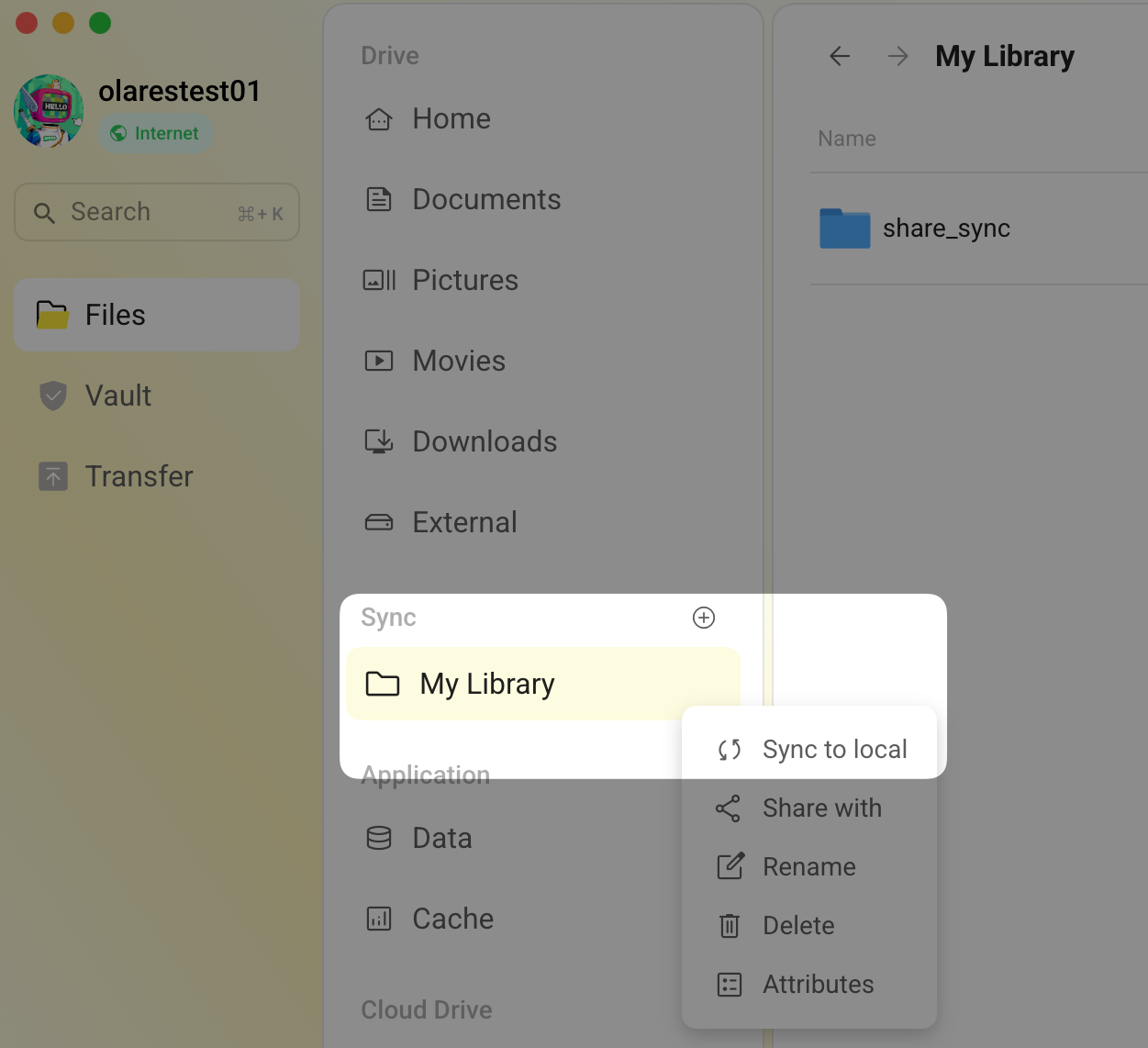
In the Sync library popup window, set the file download location, and then click Confirm.
Syncing will begin immediately. Once completed, a green checkmark will appear on the bottom-left corner of the folder icon, indicating that the sync is finished.
Manage synchronization
After setting up synchronization, you can manage your files and control the sync status with the following operations:
If you want to quickly locate the sync directory on your local drive, hover your mouse over the target library or folder, click more_horiz that appears on the right, and then click Open local sync folder. The system will directly open the folder's location on your computer.
If you no longer need to sync a folder, hover your mouse over it, click more_horiz that appears on the right, and then click Unsychronize.
If you want to temporarily stop data transfer, click pause_circle to the right of the Sync directory. All sync tasks will be paused.