LarePass VPN not working
Use this guide when LarePass VPN does not connect on macOS, Windows, or mobile devices.
Condition
- On any client, the VPN stays on Connecting for a while and then turns off automatically.
- On macOS:
- The VPN toggle does not respond, or the VPN status stays on Connecting.
- LarePass VPN used to work on this device but now fails to connect or drops immediately.
- On Windows, the VPN toggle does not respond or the VPN cannot be enabled.
Cause
Depending on the symptom, the issue may be caused by one of the following:
- Incorrect system time: If the system time on your LarePass client device is incorrect, the VPN handshake may fail and the VPN may turn off after remaining on Connecting for a while.
- macOS extension issue: LarePass requires a system-level network extension and VPN configuration. If the setup was incomplete, or if the extension became stuck or corrupted, macOS may block the VPN tunnel.
- Windows antivirus block: Third-party antivirus or security software may mistakenly flag LarePass as suspicious, preventing the VPN service from starting.
Solution
Follow the section that matches the symptom on your device.
Sync device time
- Open the date and time settings on the device where you are using LarePass.
- Turn on automatic time synchronization.
- Mobile: Check your phone's date and time settings.
- Desktop: Check your computer's date and time settings.
- Reopen LarePass and enable the VPN connection again.
macOS: Reset the network extension
Reset the network extension and complete the full setup flow to restore the VPN.
INFO
Depending on your macOS version, the UI might look slightly different.
Open System Settings, search for "Extension", and select Extensions.
Scroll to the Network Extensions section and click info to view loaded extensions.
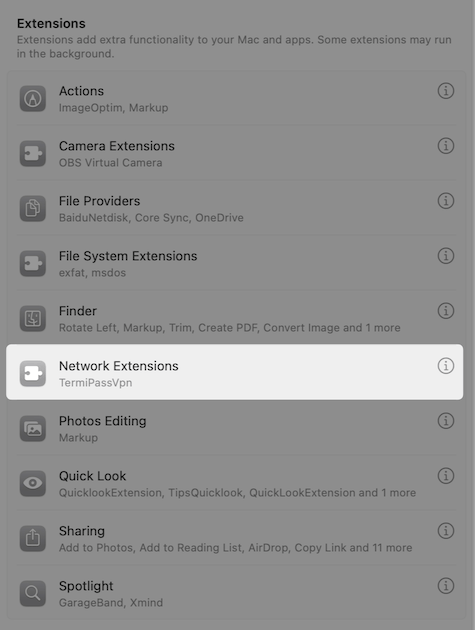
Find LarePass, click the three dots (...), and select Delete Extension.
Confirm the uninstallation.
Restart your Mac.
Open the LarePass desktop client and re-enable the VPN.
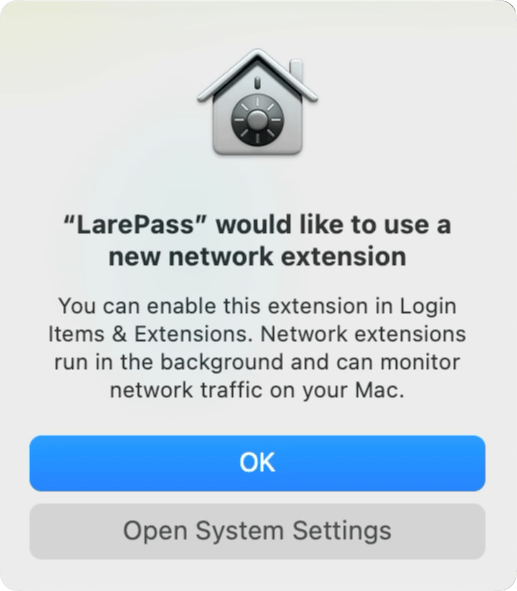
Complete the system prompts to restore the extension and VPN configuration:
a. When macOS prompts to add the LarePass network extension, click Open System Settings.
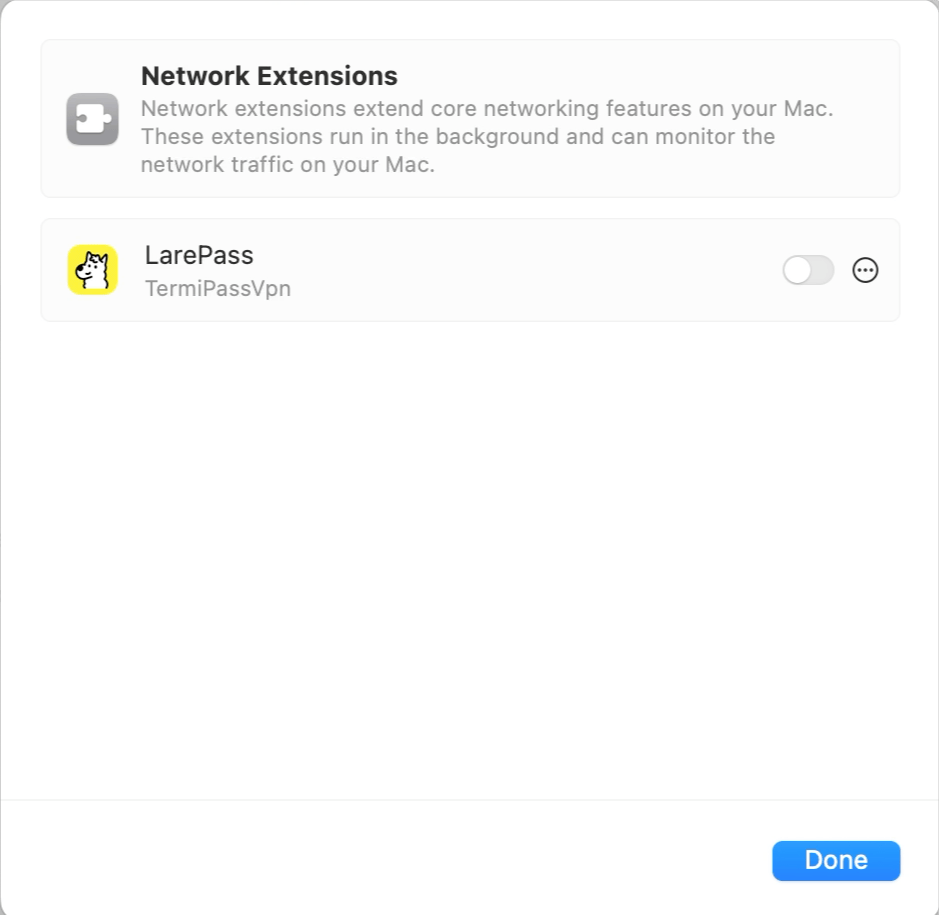
b. Toggle on LarePass.
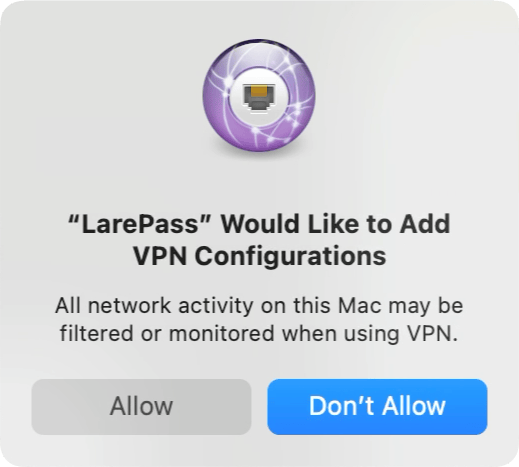
c. When prompted to add VPN configurations, click Allow.
Windows: Add LarePass to the allowlist
LarePass blocked on first launch
If your antivirus blocked LarePass when you first opened it after installation, allow the app in your security software before following the steps below.
- In your antivirus or security software, open the Allowlist, Exclusions, or Exceptions settings.
- Add the main LarePass executable or installation directory to the allowlist. Common locations include:
C:\Users\<your-username>\AppData\Local\LarePass\C:\Program Files\LarePass\
- Apply the changes and restart your antivirus or security software if required.
- Quit and reopen the LarePass desktop client.
- Try enabling VPN connection again from within LarePass.