Join an Olares cluster
If an admin invites you to join an existing Olares cluster, follow this guide to create your Olares ID and activate your account. You do not need physical access to the device.
Step 1: Create your Olares ID
An Olares ID is your identity across the Olares ecosystem. You need one before you can activate your account.
The domain of your Olares ID must match the domain used by the Olares cluster. Check with your admin before you create it.
See Create an Olares ID for instructions.
Step 2: Activate your account
Once your Olares ID is ready, use the wizard URL and one-time password shared by your admin to complete activation. This process connects the Olares cluster with your Olares ID using LarePass.
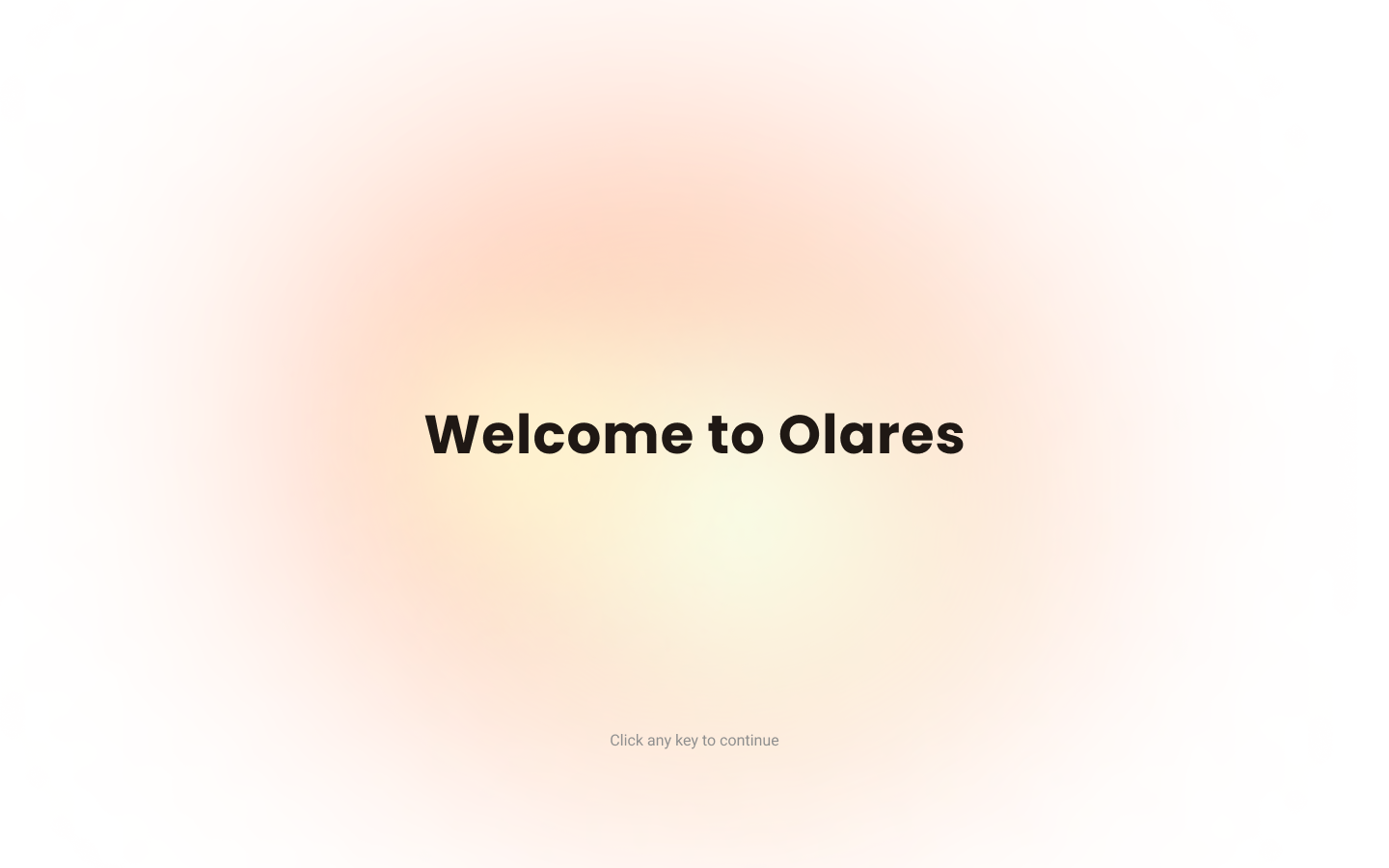
Enter the Wizard URL in your browser. You will be directed to the welcome page. Press any key to continue.
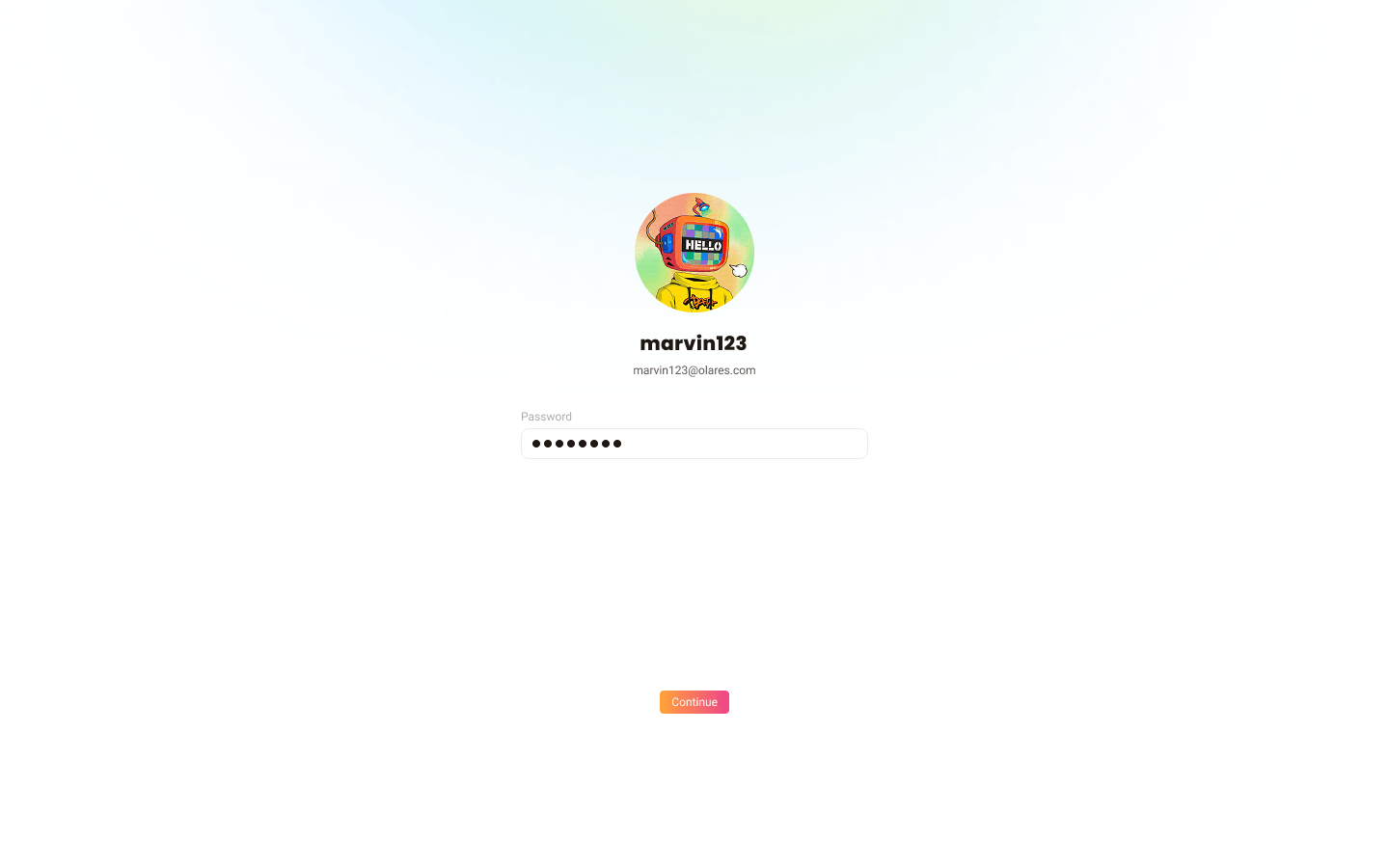
Enter the one-time password and click Continue.
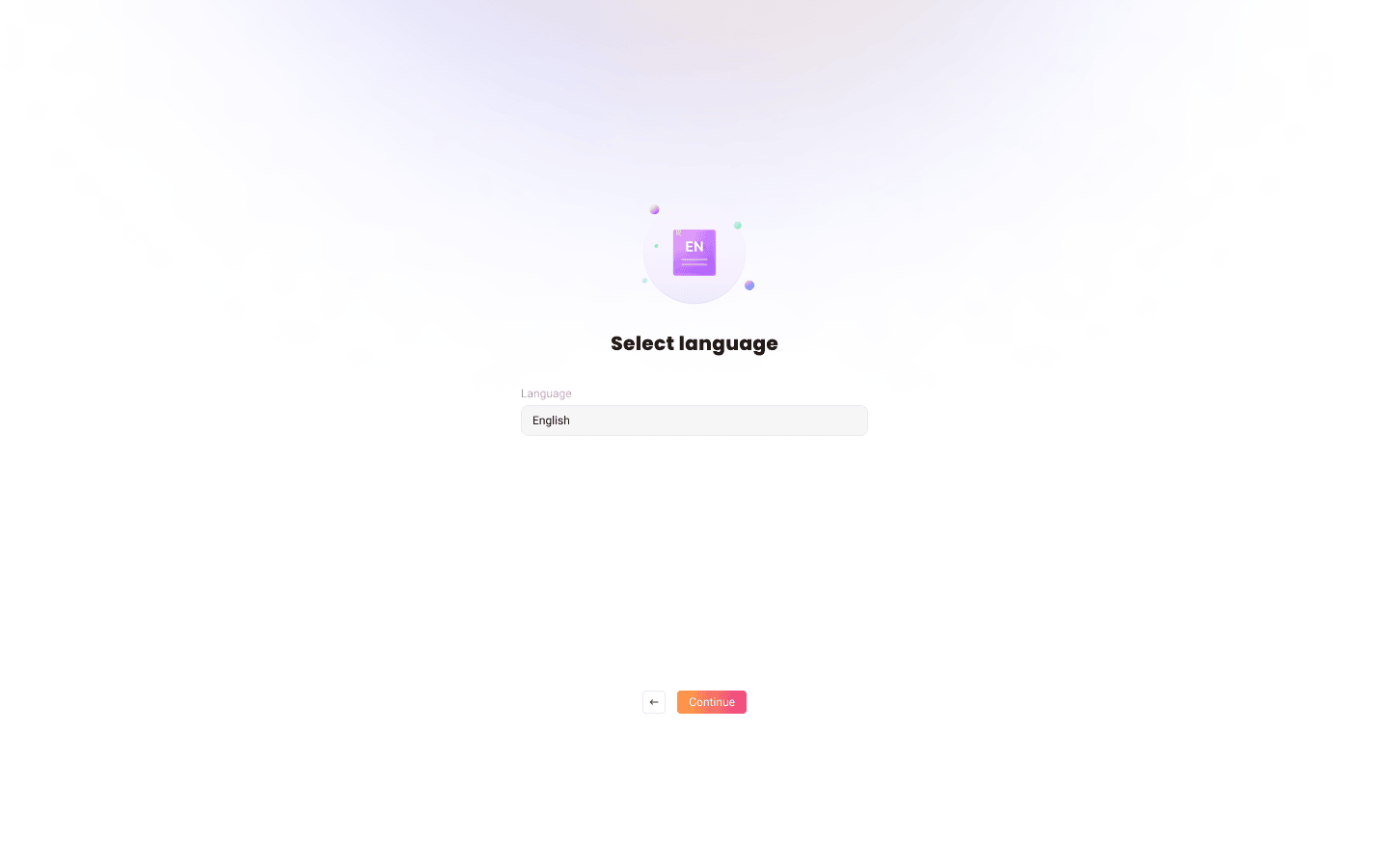
Select the system language.
Activate Olares using LarePass app. a. Open LarePass app, and tap Scan QR code to scan the QR code on the Wizard page and complete the activation.
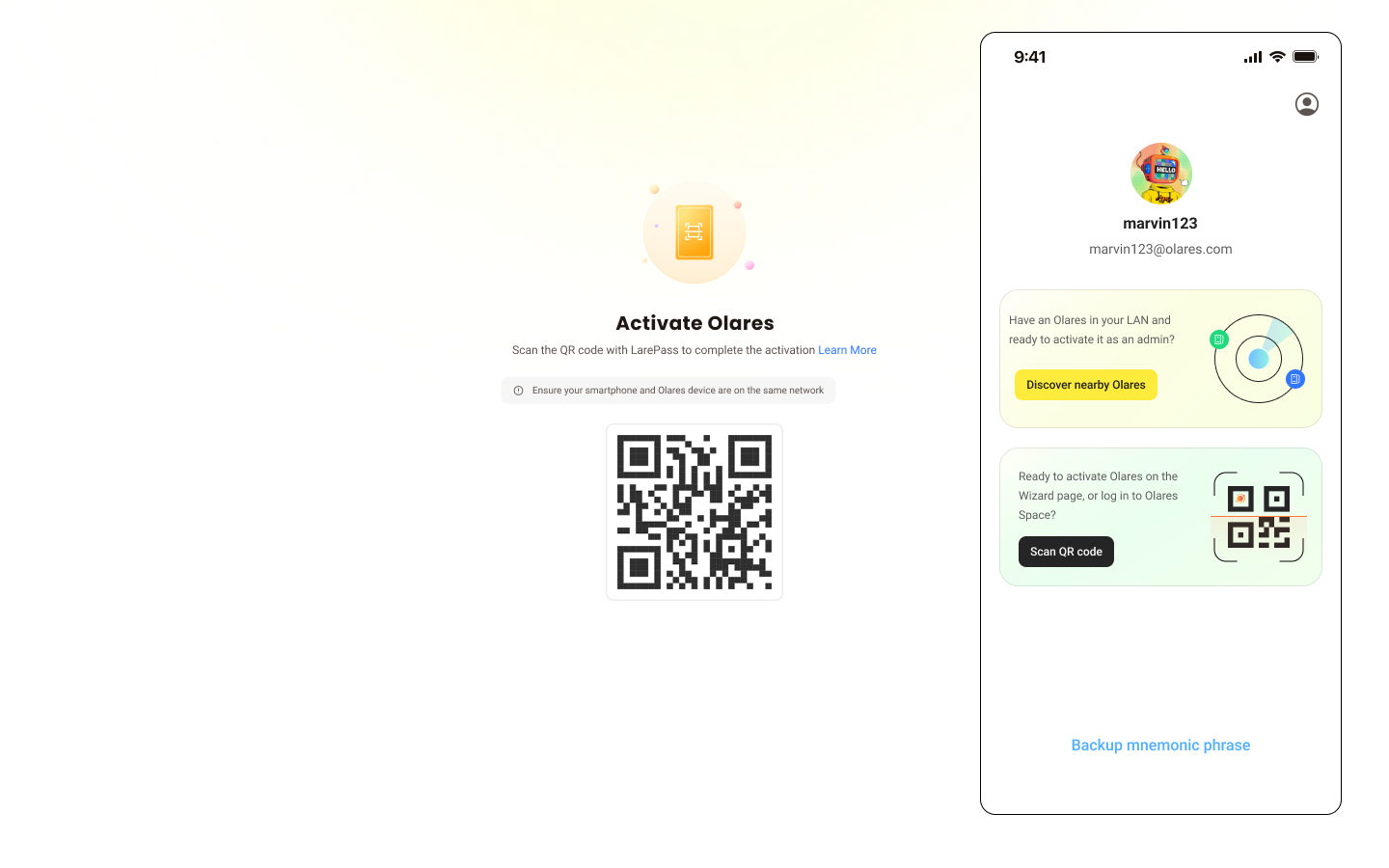
b. Reset the login password for Olares by following the on-screen instructions on LarePass.
After setup is complete, the LarePass app returns to the home screen, and the Wizard redirects you to the Olares login page.
Step 3: Log in to Olares
Open the Olares desktop address in your browser, and press any key to continue.
On the login page, enter your Olares login password.
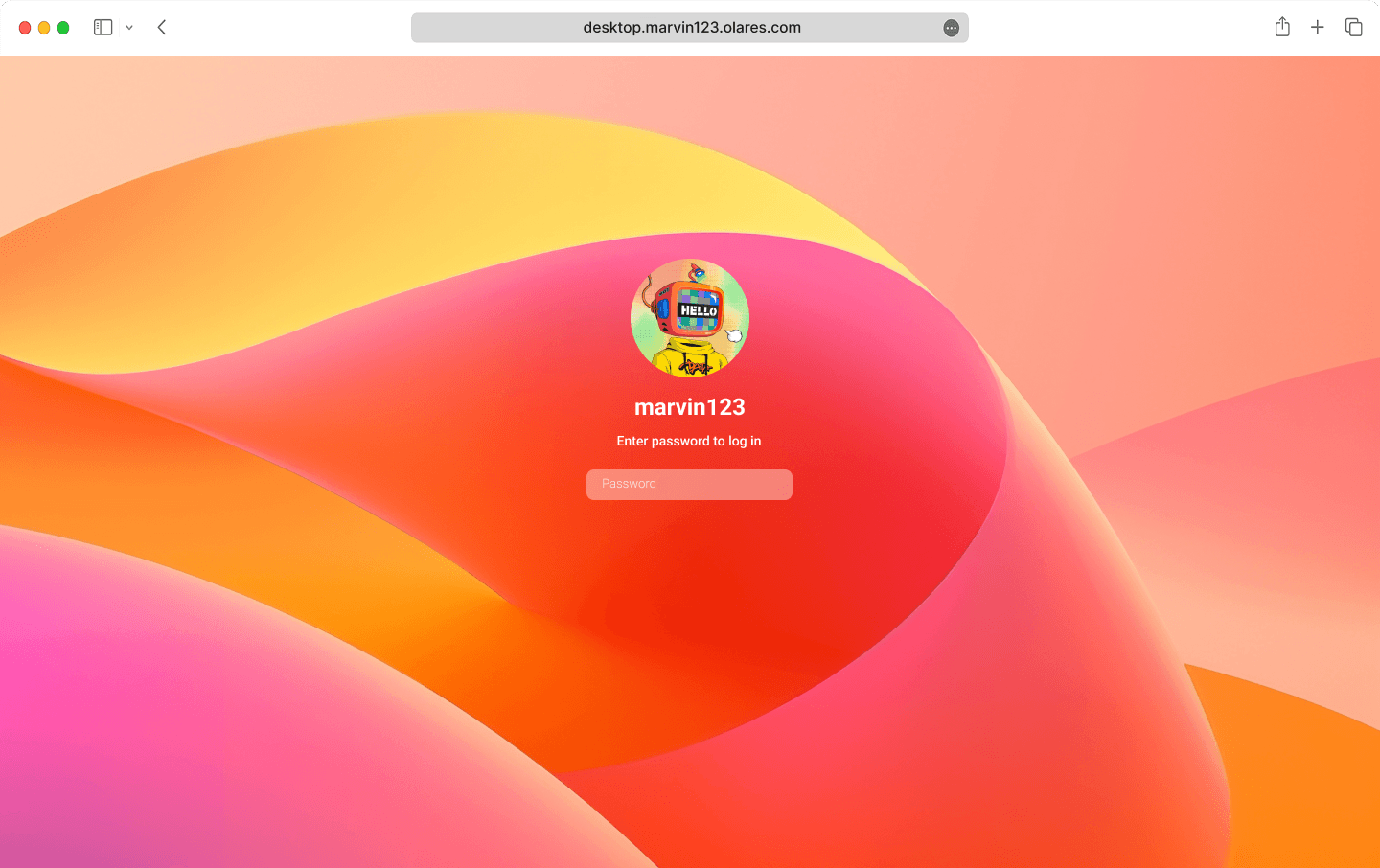
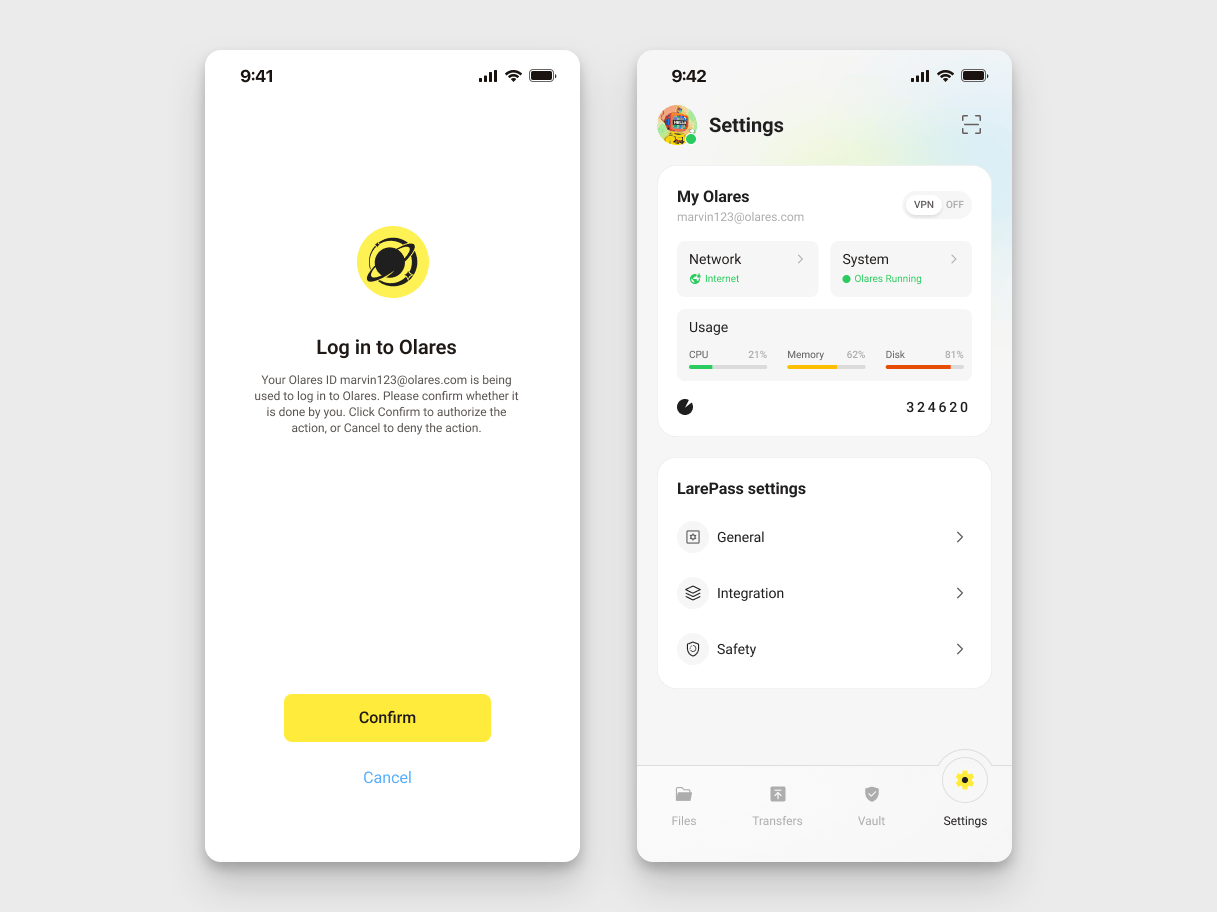
You will be prompted to complete two-factor verification. You can confirm the login on LarePass, or manually enter the 6-digit verification code.
INFO
The verification code is time-sensitive. Ensure you enter it before it expires.
Once you've logged in, you'll be directed to the Olares desktop.🎉
Resources
- Roles and permissions: Learn more about what you can do as a member.