Configure environment variables
Control Hub allows you to view and modify application environment variables for debugging, feature configuration, or temporary adjustments.
Before you begin
Check where the target variable should be configured before making changes.
| Metric | System-level variables | App-specific variables |
|---|---|---|
| Where to configure | Settings | Control Hub |
| Scope | Shared across all apps that reference them | Specific to a single app resource |
| What it covers | Common variables pre-configured by Olares, such as API keys and mail server settings | App-specific parameters not covered by system-level variables |
| Persist after app upgrades | Yes | No |
Check Settings first to see if the variable you need is already available there. If not, configure it directly in Control Hub using the steps below.
Identify where a variable is stored
Variables in an app can be stored in different Kubernetes resource types. Knowing which resource holds your target variable determines how you modify it and whether a restart is needed.
| Resource type | Typical content | Restart after editing |
|---|---|---|
| Deployment | Direct name/value pairs | Automatic |
| Configmap | Configuration data, startup parameters, config files | Manual restart required |
| Secret | Sensitive data such as passwords, tokens, credentials | Manual restart required |
Standard apps
To determine where a variable is stored, open the Deployment in the YAML editor and check the spec > containers section. The injection method tells you the source:
env: The variable is defined directly in the Deployment as a name/value pair.envFromwithconfigMapRef: The variable is stored in the referenced Configmap.valueFromwithsecretKeyRef: The variable is stored in the referenced Secret.
For example, in the following YAML, envFrom references the Configmap lobechat-config, while env directly defines PGID, PUID, and TZ.
spec:
  containers:
    - name: lobechat
      image: docker.io/beclab/lobehub-lobehub:2.1.18
      ports:
        - name: http
          containerPort: 3210
          protocol: TCP
      envFrom:
        - configMapRef:
            name: lobechat-config
      env:
        - name: PGID
          value: '1000'
        - name: PUID
          value: '1000'
        - name: TZ
          value: Etc/UTC
C/S apps
Some applications use a Client/Server (C/S) architecture, such as Ollama. Their variables are distributed across two namespaces: the User namespace for client-side resources and the System namespace for server-side resources.
For C/S apps, environment variables are typically stored in Configmaps across both namespaces. Navigate to the correct namespace based on what you want to change:
- To modify external access behavior, go to the User namespace and look for Configmaps containing
nginxorsidecarin the name. - To modify core application parameters, go to the System namespace and look for Configmaps containing
env,config, or similar identifiers.
Modify variables in a Deployment
Use this method for direct adjustments to a workload. The following example changes the time zone for Jellyfin so the media library displays local timestamps instead of UTC.
In Control Hub, select the Jellyfin project from the Browse panel.
Under Deployments, click jellyfin, then click edit_square.
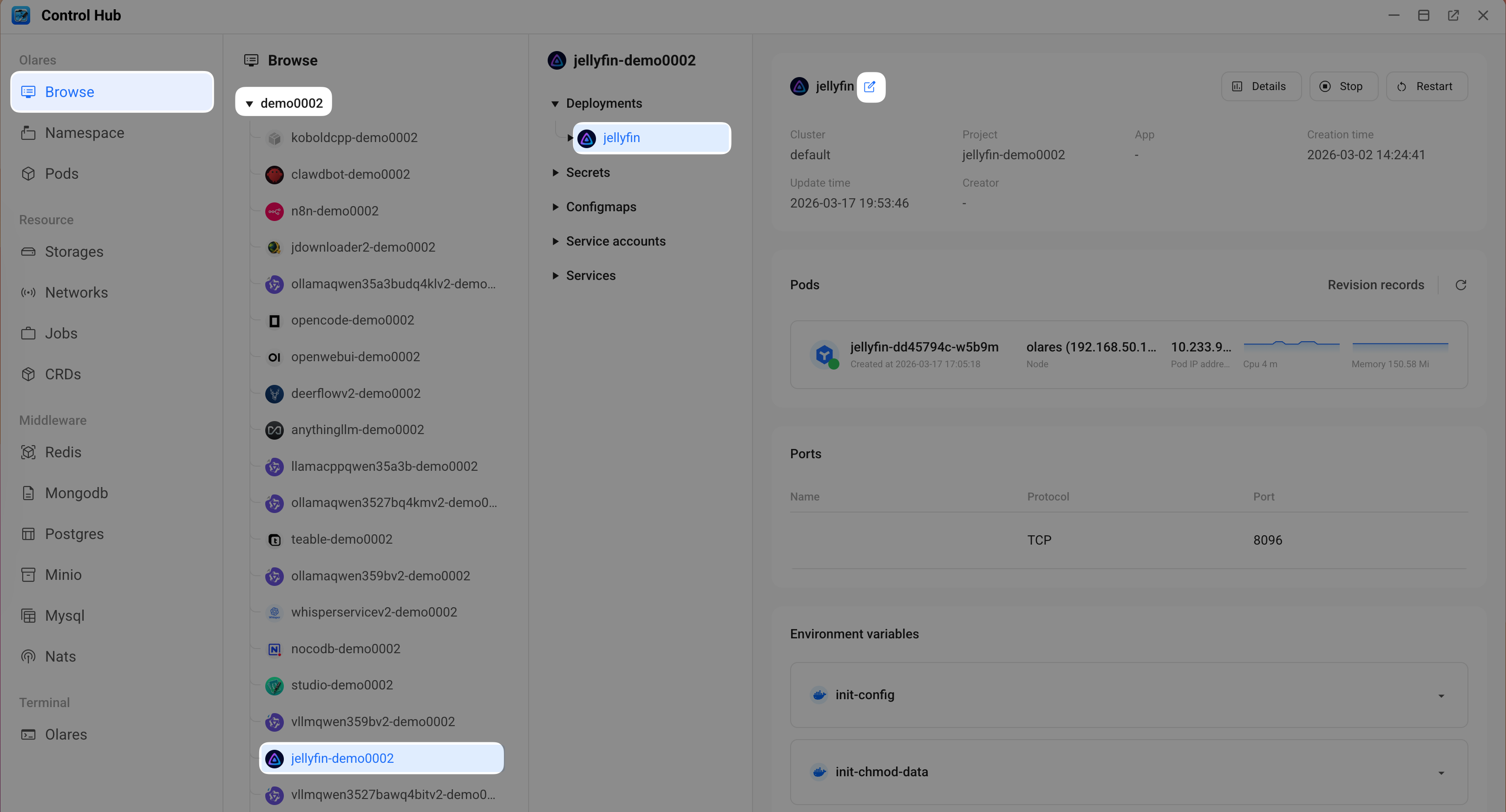
In the YAML editor, find the
containerssection, locate theenvfield for jellyfin, and then change the value ofTZ:yamlenv: - name: PGID value: '1000' - name: PUID value: '1000' - name: UMASK value: '002' - name: TZ value: Asia/Shanghai # changed from Etc/UTCClick Confirm. The pod restarts automatically to apply the changes.
Modify variables in a Configmap
Use this method to add third-party API keys, modify startup parameters, or update configuration files.
Standard apps
The following example adds a Tavily API key to DeerFlow's configuration to enable web search.
In Control Hub, select the DeerFlow project from the Browse panel.
Under Configmaps, click
deerflow-config.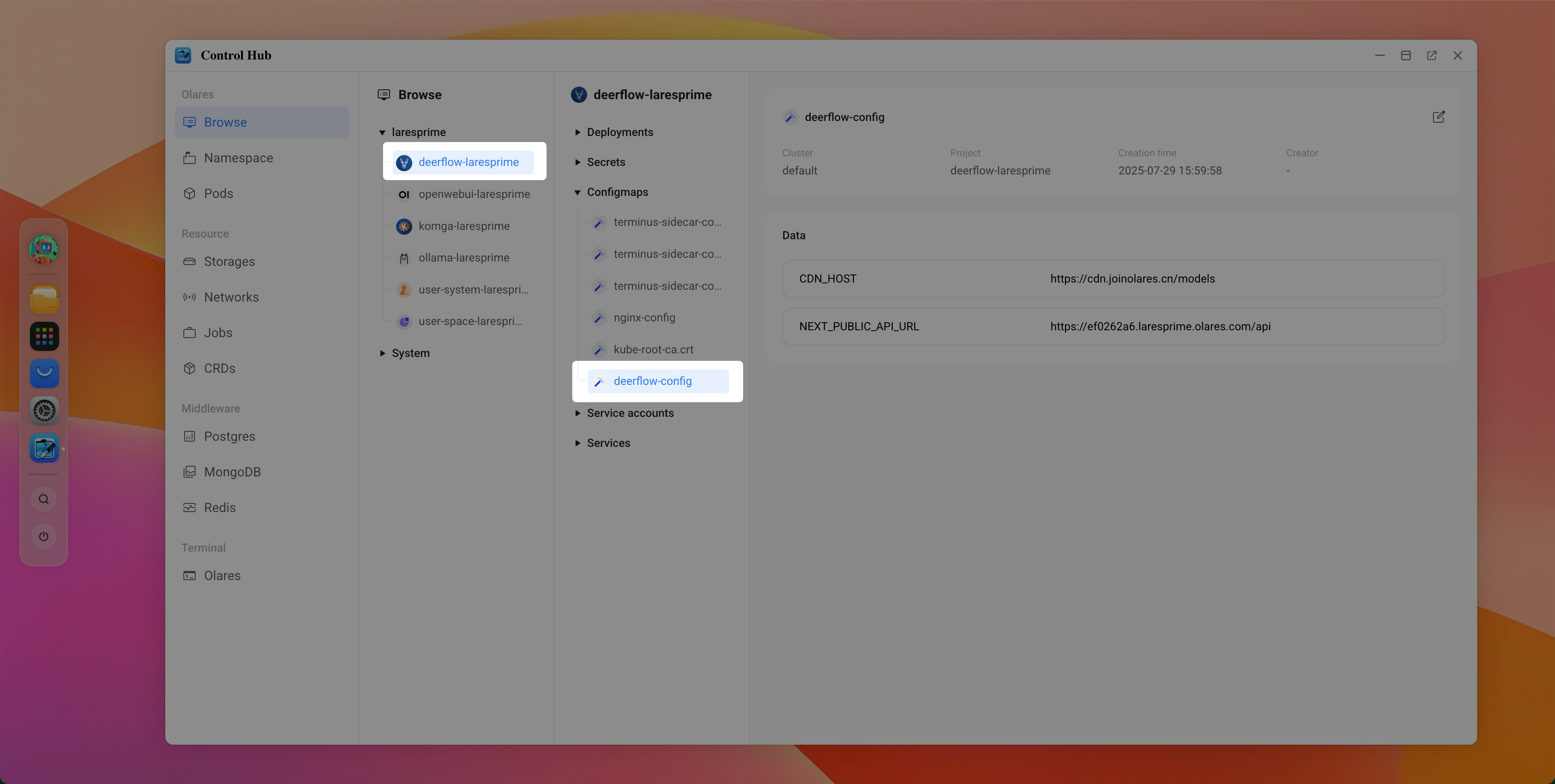
On the resource details page, click edit_square in the top-right to open the YAML editor.
Add the following key/value pairs under the
datasection:yamlSEARCH_API: tavily TAVILY_API_KEY: tvly-xxx # Your Tavily API Key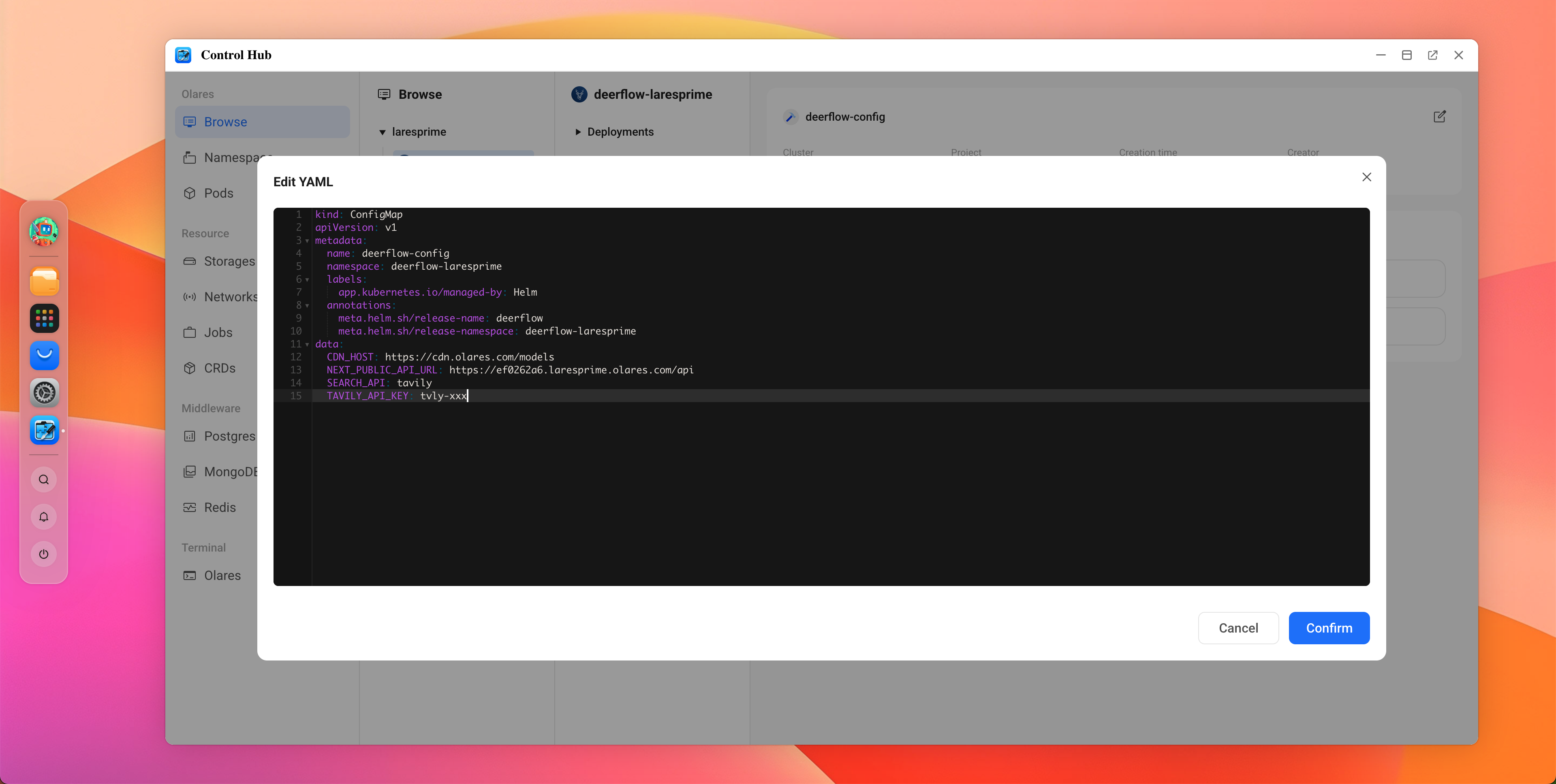
Click Confirm to save the changes.
Return to Deployments > deerflow, and then click Restart.
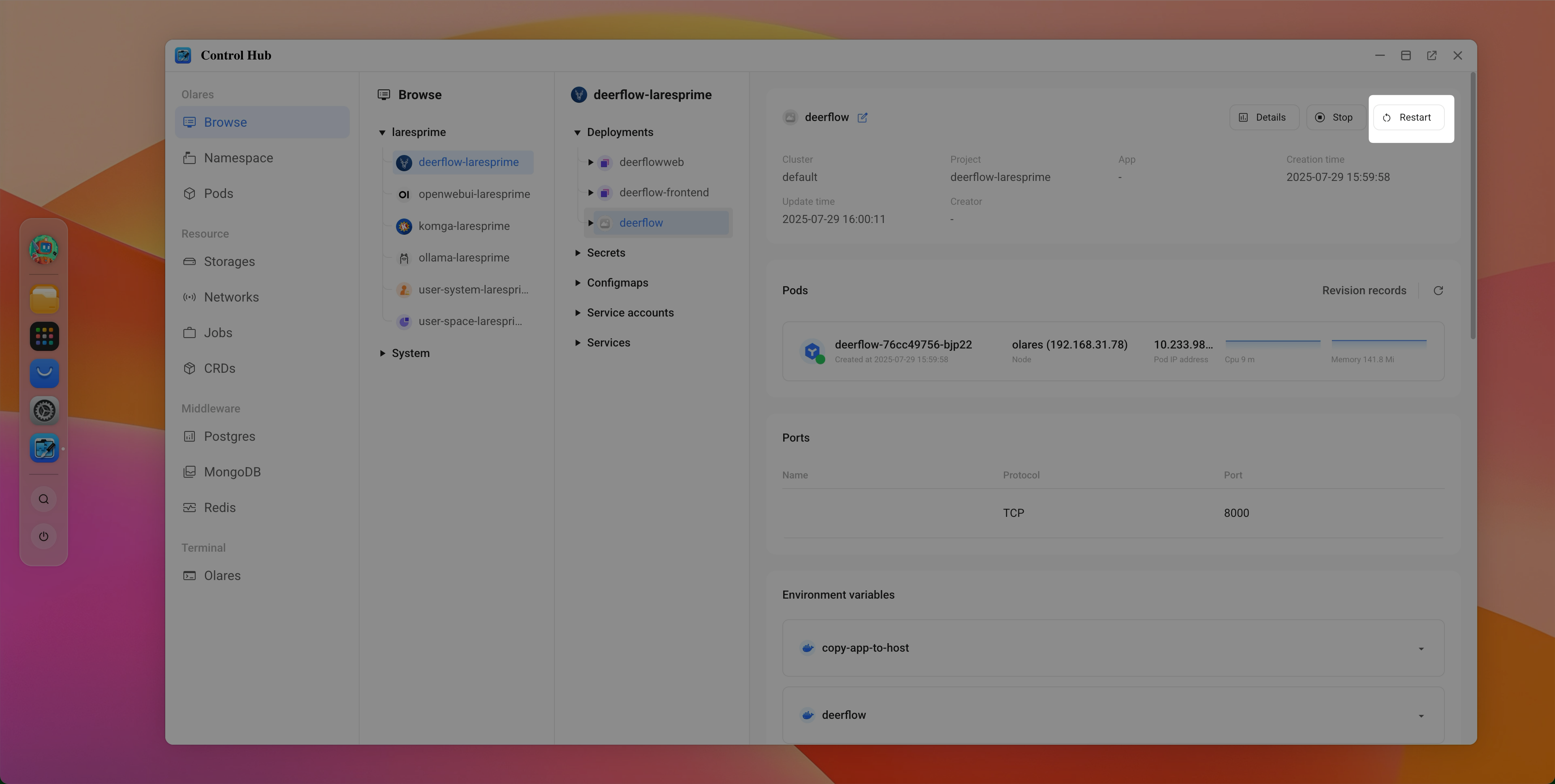
In the confirmation dialog, type
deerflow, and then click Confirm.
Wait for the status icon to turn green, which indicates the new configuration has been loaded.
C/S apps
Depending on what you want to change, you may need to modify variables in the User namespace, the System namespace, or both.
Modify client settings in the User namespace
The following steps change Ollama's proxy read timeout from 300s to 600s.
In Control Hub, select the Ollama project from the Browse panel.
Under Deployments, click ollamav2, then click edit_square.
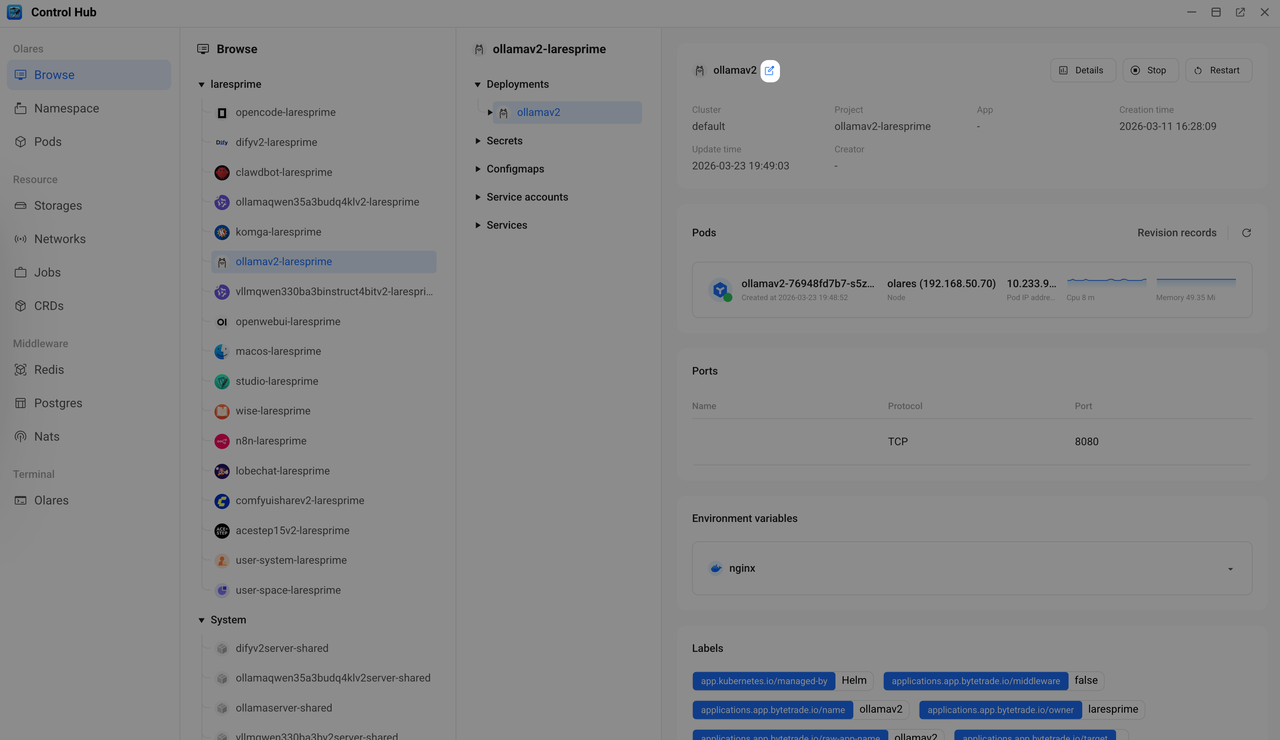
In the YAML editor, find the
containerssection, locate and check theenvfield. The configuration here referencesnginx.conf.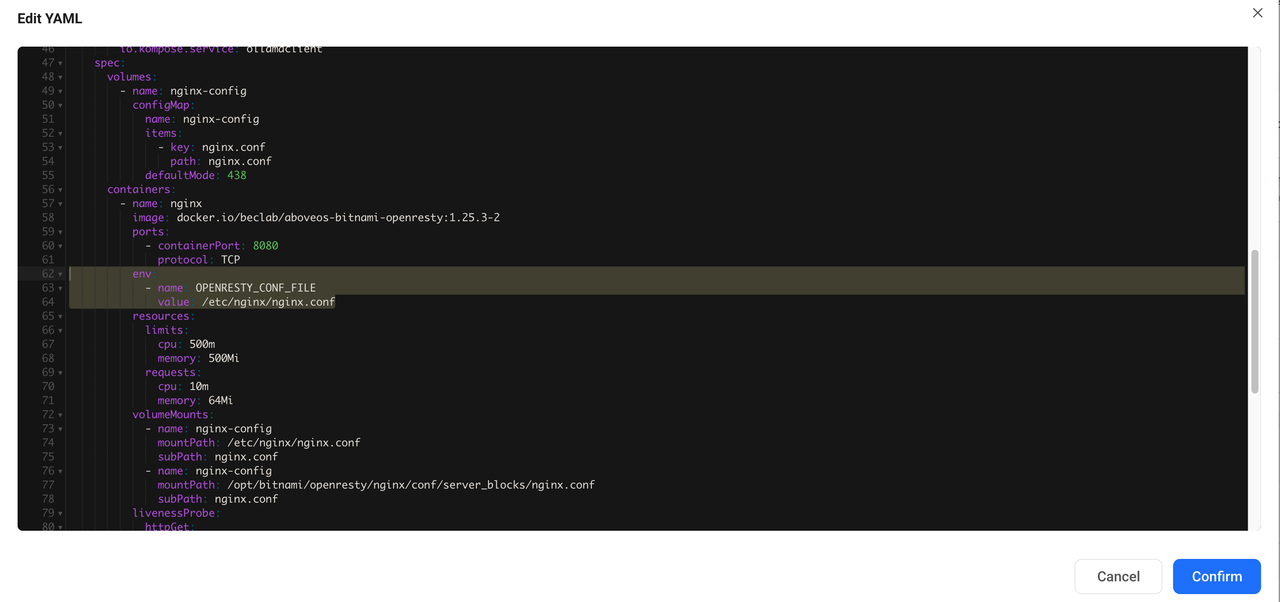
Click Cancel to close the editor.
Click Configmaps to expand the resource group, click
nginx-config, and then click edit_square in the upper-right corner.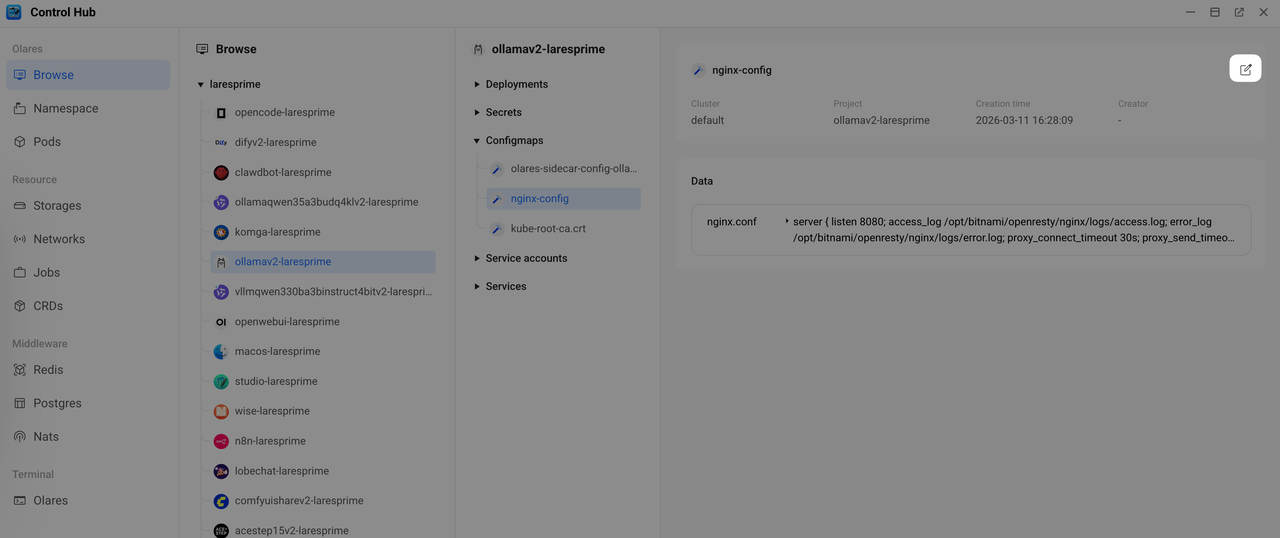
In the YAML editor, find the
datasection, locate thenginx.confkey, and then modify theproxy_read_timeoutvalue from300sto600s.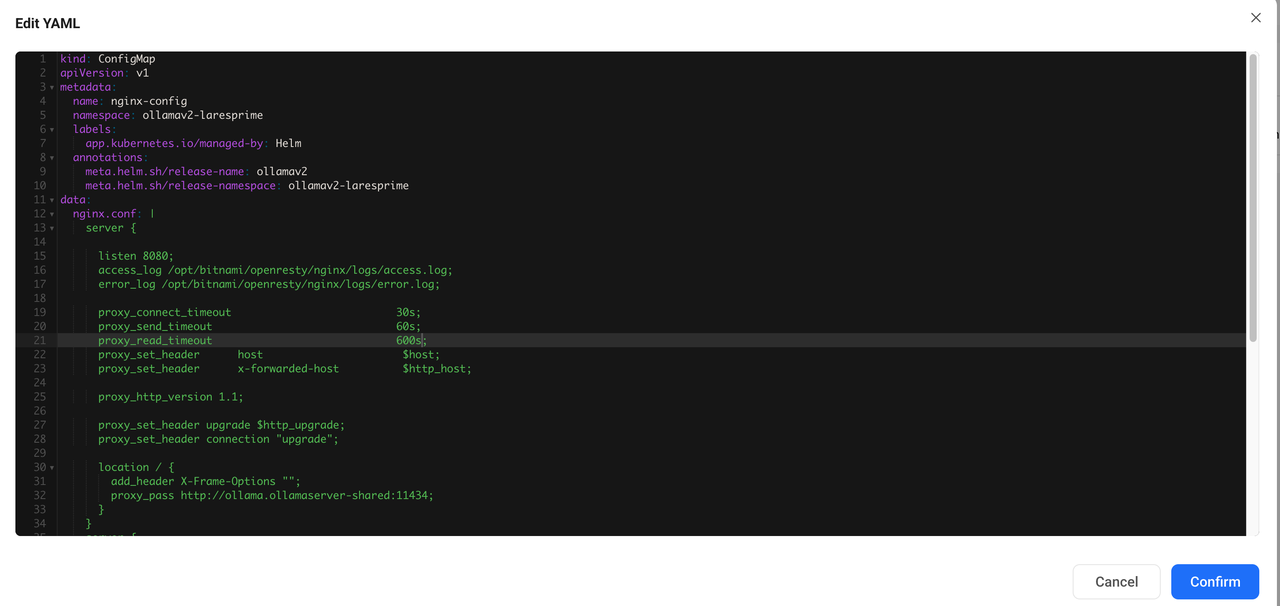
Click Confirm.
Return to Deployments > ollamav2, and then click Restart to apply the change.
Wait for the status icon to turn green, which indicates the new configuration has been loaded.
Modify server settings in the System namespace
The following steps change Ollama's maximum loaded models from 3 to 5.
In Control Hub, scroll down in the Browse panel and click System to expand the system section.
Select ollamaserver-shared, and under Deployments, click ollama, and then click edit_square.
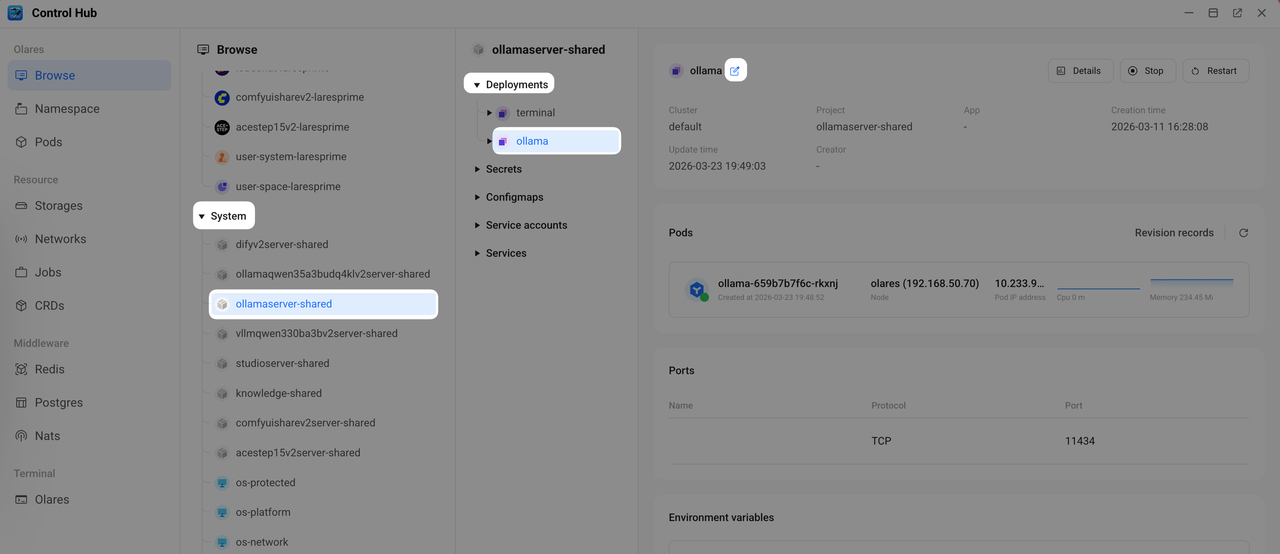
In the YAML editor, find the
containerssection, and check theenvFromfield. The configuration here referencesollama-env.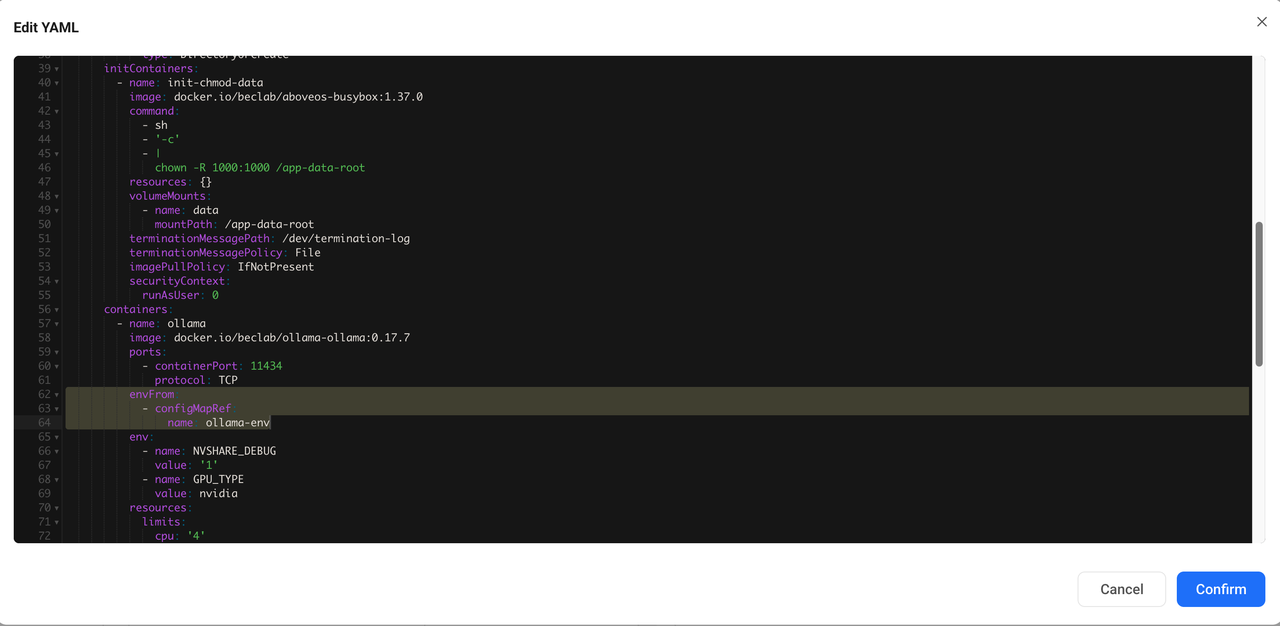
Click Cancel to close the editor.
Return to the resource group Configmaps, click the
ollama-envinstance, and then click edit_square in the upper-right corner.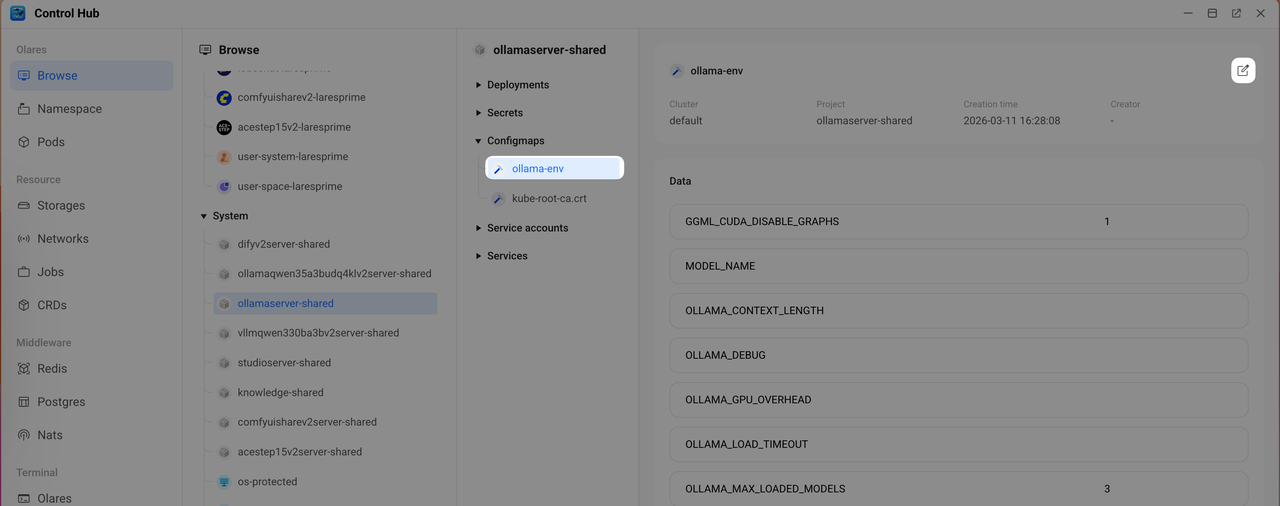
In the YAML editor, find the
datasection, and then change the value ofOLLAMA_MAX_LOADED_MODELSfrom3to5.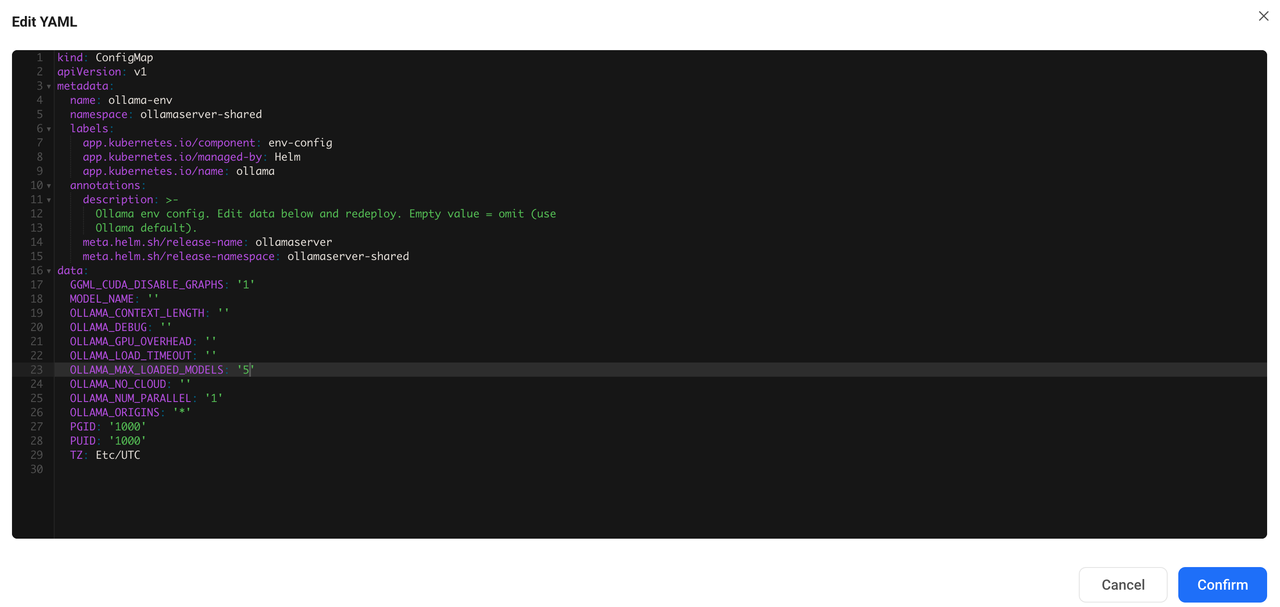
Click Confirm.
Return to Deployments > ollama, and then click Restart to apply the change.
Wait for the status icon to turn green, which indicates the new configuration has been loaded.
Modify variables in a Secret
The workflow for Secrets is the same as for Configmaps. Follow the steps for standard apps or C/S apps, depending on your app type.
INFO
When you open the YAML editor for a Secret, all values under the data field must be Base64 encoded.
FAQ
Changes to a ConfigMap or Secret are not applied
After you modify a ConfigMap or Secret, the associated workload (Deployment) does not automatically reload the configuration. You must restart the workload to pick up the new values.
Use one of the following methods to restart the workload:
In Control Hub
Go to Deployments under the app's namespace, click the target workload, and then click Restart.
Via Market or Settings
If you are not sure which Deployment to restart, stop and then resume the app:
- Go to Market > My Olares, click keyboard_arrow_down next to the app's operation button, click Stop, and then click Resume.
- Go to Settings > Applications, click the app, click Stop, and then click Resume.
Both methods will apply and load the latest configuration from the ConfigMap or Secret.