Share files
This feature supports sharing folders with internal members or external users through different methods. You can flexibly set access permissions, passwords, and expiration dates, and manage or cancel these shares at any time.
Share types and support scope
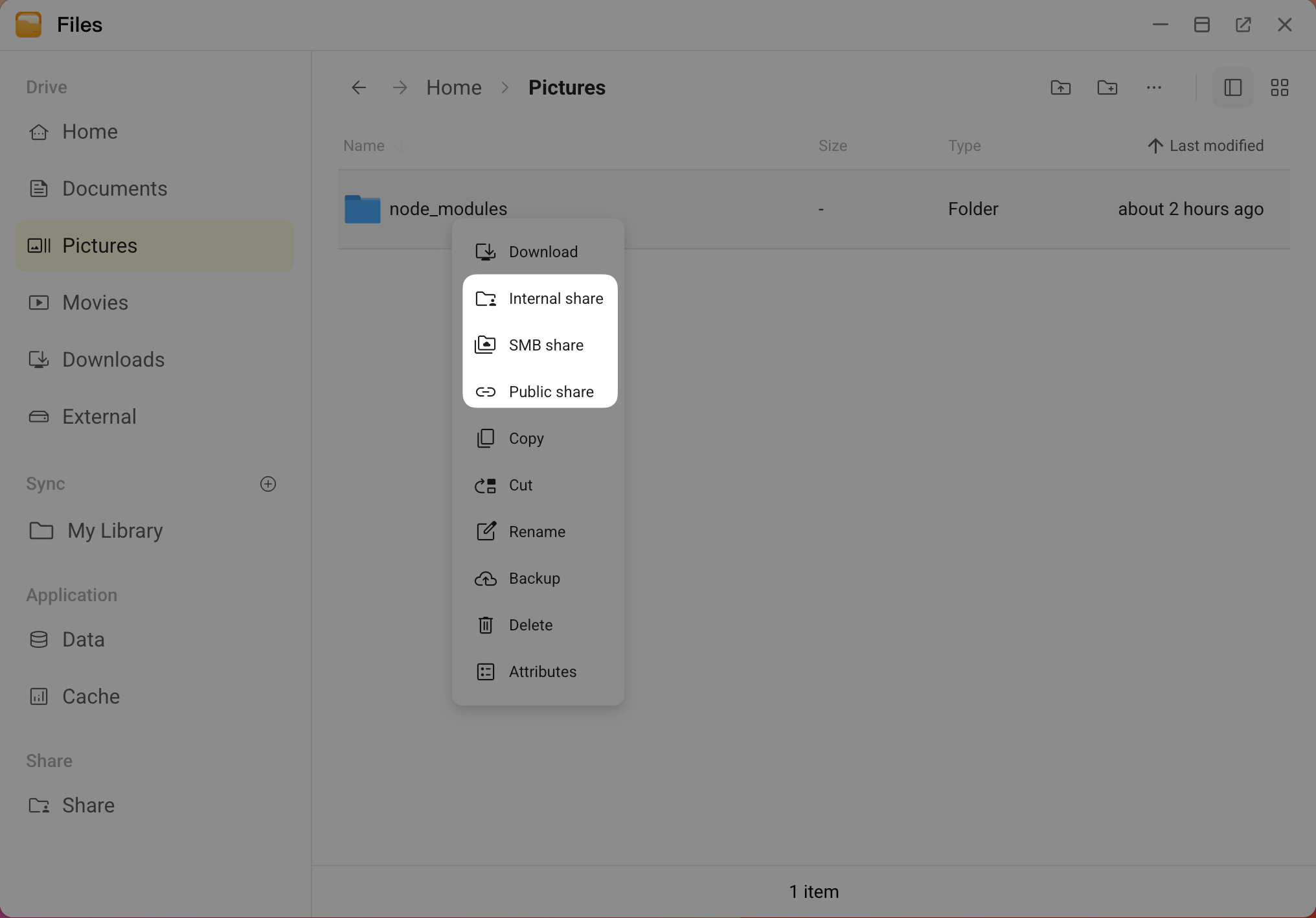
Currently, file sharing is only supported at the folder level. Supported sharing types vary depending on the directory location of the folder. Refer to the following table for details:
| Directory type | Public share | Internal share | SMB share |
|---|---|---|---|
| Home | Supported | Supported | Supported |
| External | - | Supported | Supported |
| Sync | - | Supported | - |
| Data | Supported | Supported | Supported |
| Cache | - | Supported | Supported |
Where,
- Public share: Generates an access link with password protection supported, suitable for external sharing.
- Internal share: Restricted to members within the same Olares cluster, suitable for internal team collaboration. For more information, see Manage your team.
- SMB share: Shared via the SMB protocol within the Local Area Network (LAN).
User permissions
You can assign specific permissions to members in Internal share and SMB share to control their level of access and allowed operations.
| Permission | Description |
|---|---|
| Admin | The user has the full access, including:
|
| Edit | The user can add, view, modify, and delete files. |
| View | The user can only open, view, and download files. They cannot upload, modify, or delete any content. |
Create share
Create Internal share
- Right-click the target folder,and then click Internal share.
- In the Invite users section, click add, search for and select the target user or group, and then click Invite.
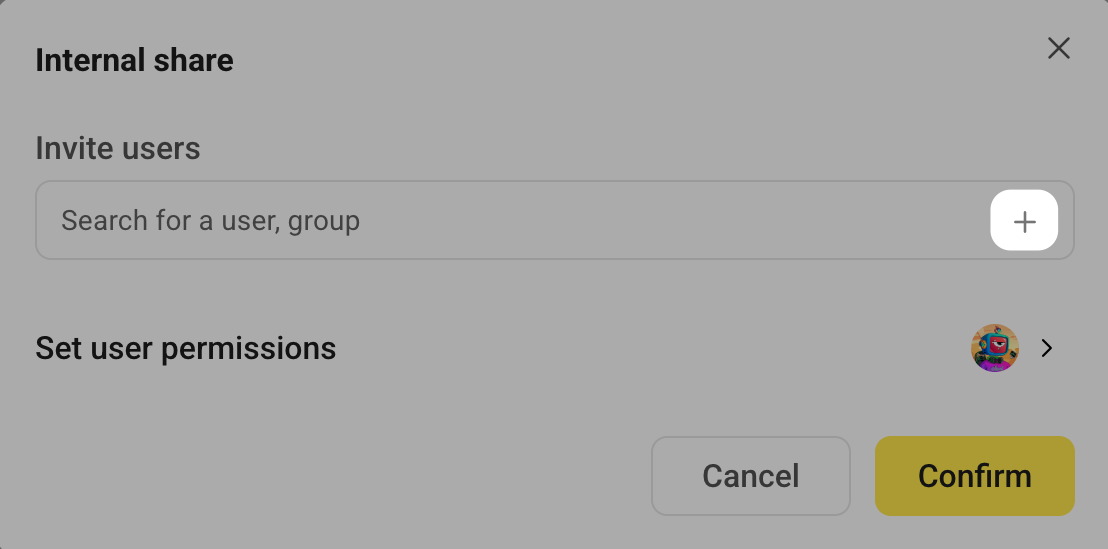
- In the Set user permissions list, click chevron_forward to the right of the user avatar to assign specific permissions, and then click Submit.
- Click Confirm.
Create SMB share
SMB sharing utilizes a dedicated local Linux account system. The SMB accounts generated within this system are independent of Olares members, strictly for LAN file access.
Right-click the target folder, and then click SMB share.
Select whether to make it Public.
- If you selected Yes, click Confirm, and then it will be accessible to anyone on the LAN.
- If you selected No, authentication is required. You must select or create a dedicated SMB account by using Step3 or Step4.
Select an existing SMB account to authorize.
a. In the Invite users field, click add.
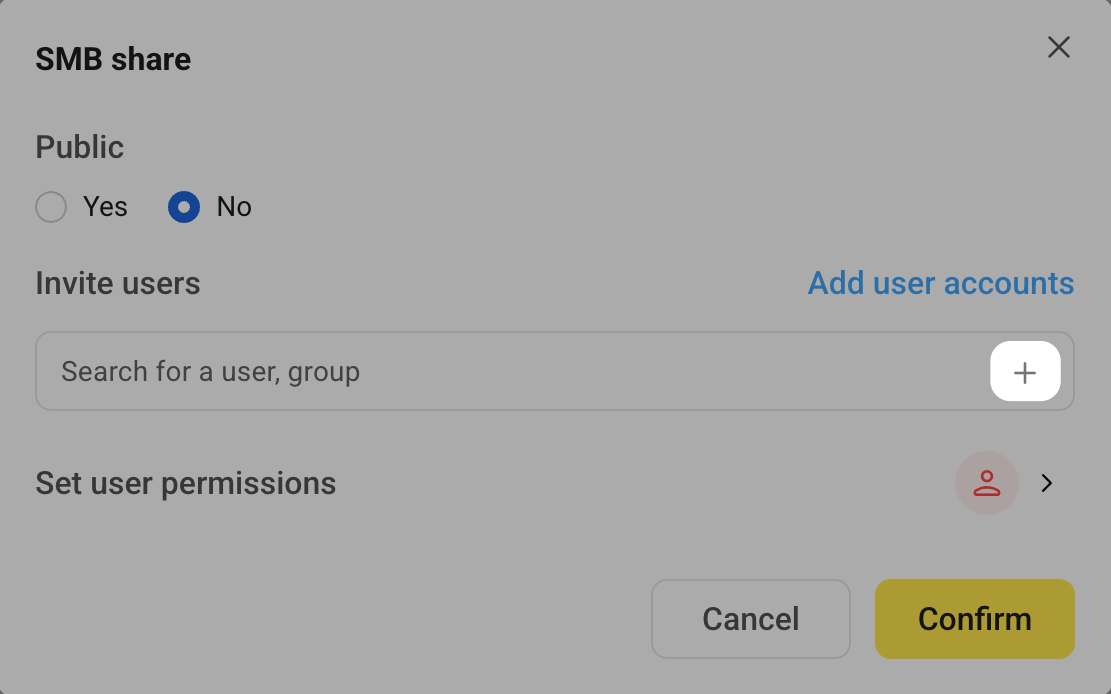
b. Search for the SMB account, select it, and then click Invite.
c. In the Set user permissions list, click chevron_forward to the right of the user avatar to assign specific permissions, and then click Submit.
d. Click Confirm.
Create a new SMB account to authorize.
a. To the right of Invite users, click Add user accounts.
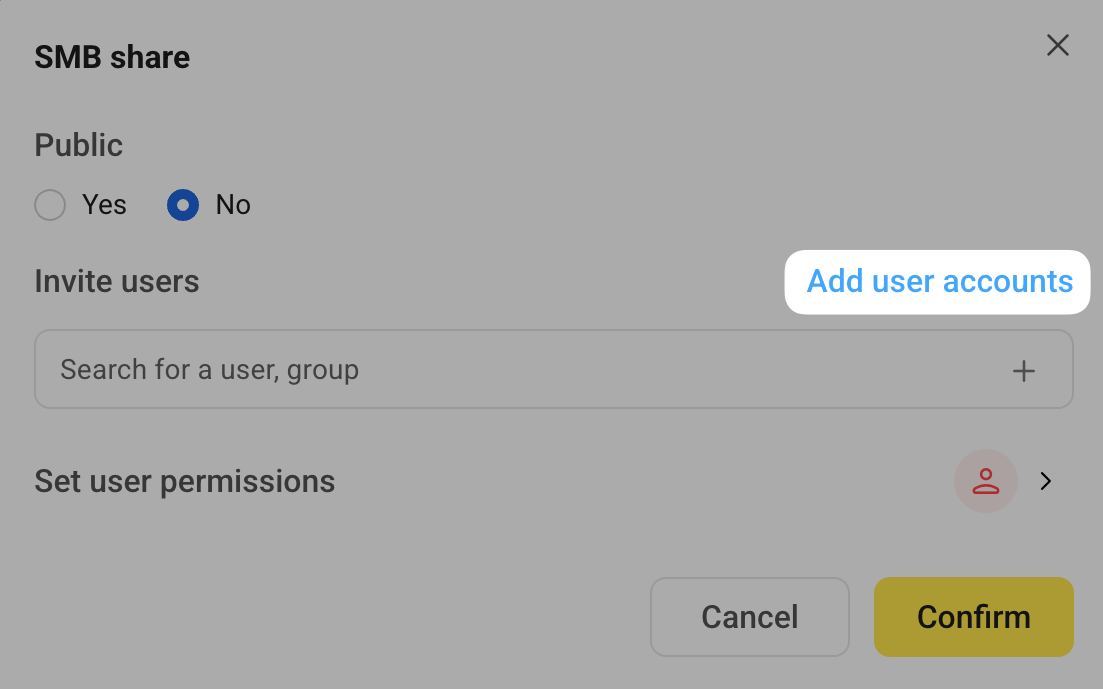
b. Enter a unique user name.
c. In the Set password field, a secure system-generated password is provided by default. You can also manually enter a new password or click Regenerate to create a new random one.
d. Click Confirm. The system will automatically generate this account for you.
e. In the Invite users field, click add.
f. Search for the newly created account, select it, and then click Invite.
g. In the Set user permissions list, click chevron_forward to the right of the user avatar to assign specific permissions, and then click Submit.
h. Click Confirm.
Create Public share
- Right-click the target folder, and then click Public share.
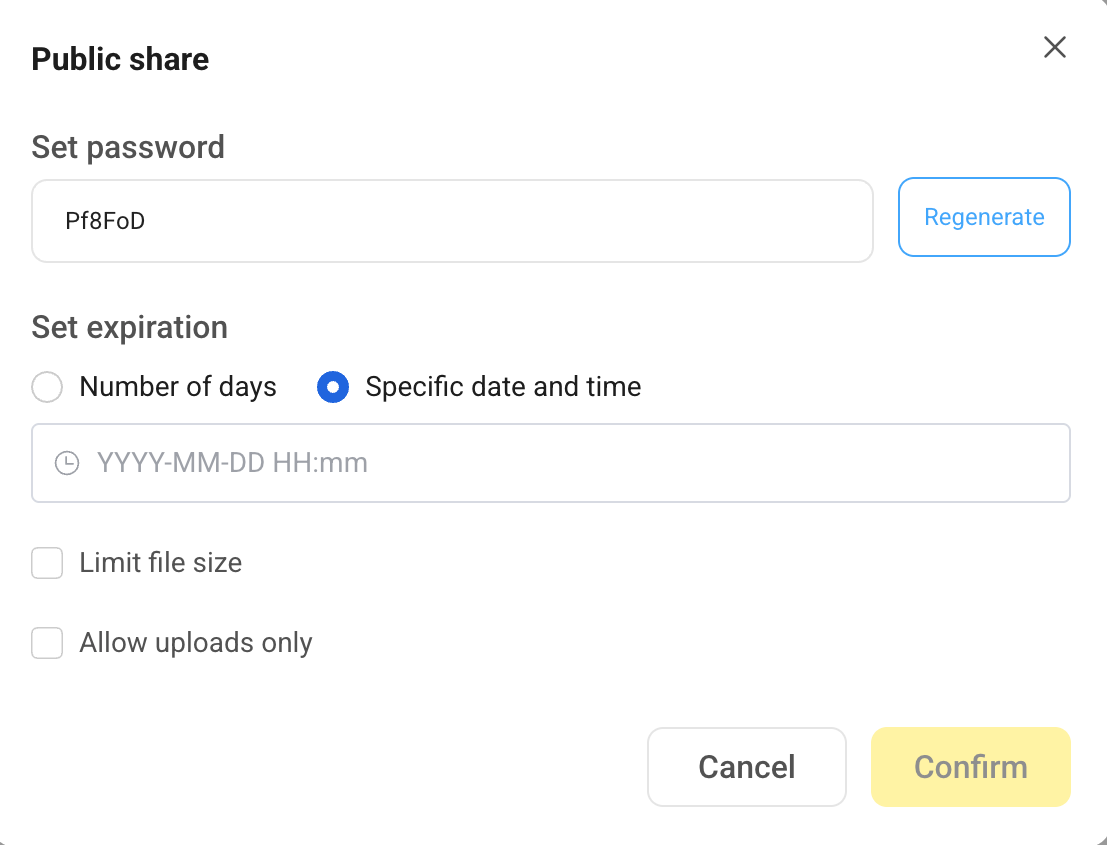
- In the Set password field, a secure system-generated password is provided by default. You can also manually enter a new password or click Regenerate to create a new random one.
- In the Set expiration region, select the specific expiration time for the share link.
- Select the following restrictions as needed:
- Limit file size: To limit the size of files uploaded by visitors, select this checkbox, enter a value, and then select the unit (Mi/Gi/Ti).
- Allow uploads only: If you select this checkbox, visitors can only upload files and cannot view or download existing content.
- Click Confirm to generate the link.
- Copy or note down the link address, and then click Confirm.
Manage shares
You can view and manage all shared folders in the Share list.
View share list and attributes
Open the Files application from the Dock or Launchpad on Olares.
Click Share in the left sidebar.
You can view the list of all currently shared folders on the right.
If you want to view the details of a specific folder, right-click the target folder and click Attributes.
You will see the sharer, current path, original path, share scope, owner, current permissions, expiration date, and link details.
Modify password or permissions
For shared folders, you can change their password and permission settings at any time.
Open the Files application from the Dock or Launchpad on Olares.
Click Share in the left sidebar to view the Share list on the right.
To reset password (Public share only):
a. Right-click the folder and select Reset Password.
b. Enter a new password or click Regenerate.
c. Click Confirm.
To edit permissions (Internal share and SMB share only):
a. Right-click the folder and select Edit permissions.
b. Add or remove users, or modify permissions for existing users.
c. Click Confirm.
Cancel share
If you no longer need to share a folder, you can cancel the share at any time.
- Open the Files application from the Dock or Launchpad on Olares.
- Click Share in the left sidebar, and then to the Share list is displayed on the right.
- Right-click the target folder and click Revoke sharing.
- Click Confirm.