Network not ready or olares connection error
Use this guide to troubleshoot an Olares One device that appears powered on and connected to the network but has unexpectedly stopped responding.
Condition
- The LarePass app displays Network not ready and accessing your Olares desktop shows an olares connection error, but your router shows the device is connected and the device responds to a network
ping. - Restarting the device and your router does not fix the issue.
Cause
Your device's underlying operating system is running normally, which is why it successfully connects to your router and appears online. However, the core Olares software services (the Kubernetes cluster) have unexpectedly frozen or crashed.
Solution
Follow these steps to gather diagnostic information so Olares team can help you get back online.
Step 1: Attempt SSH connection
Try this method first because it is the most convenient way to access your device and collect diagnostic information.
Get the local IP address of Olares One.
a. Open the LarePass app, and go to Settings > System to navigate to the Olares management page.
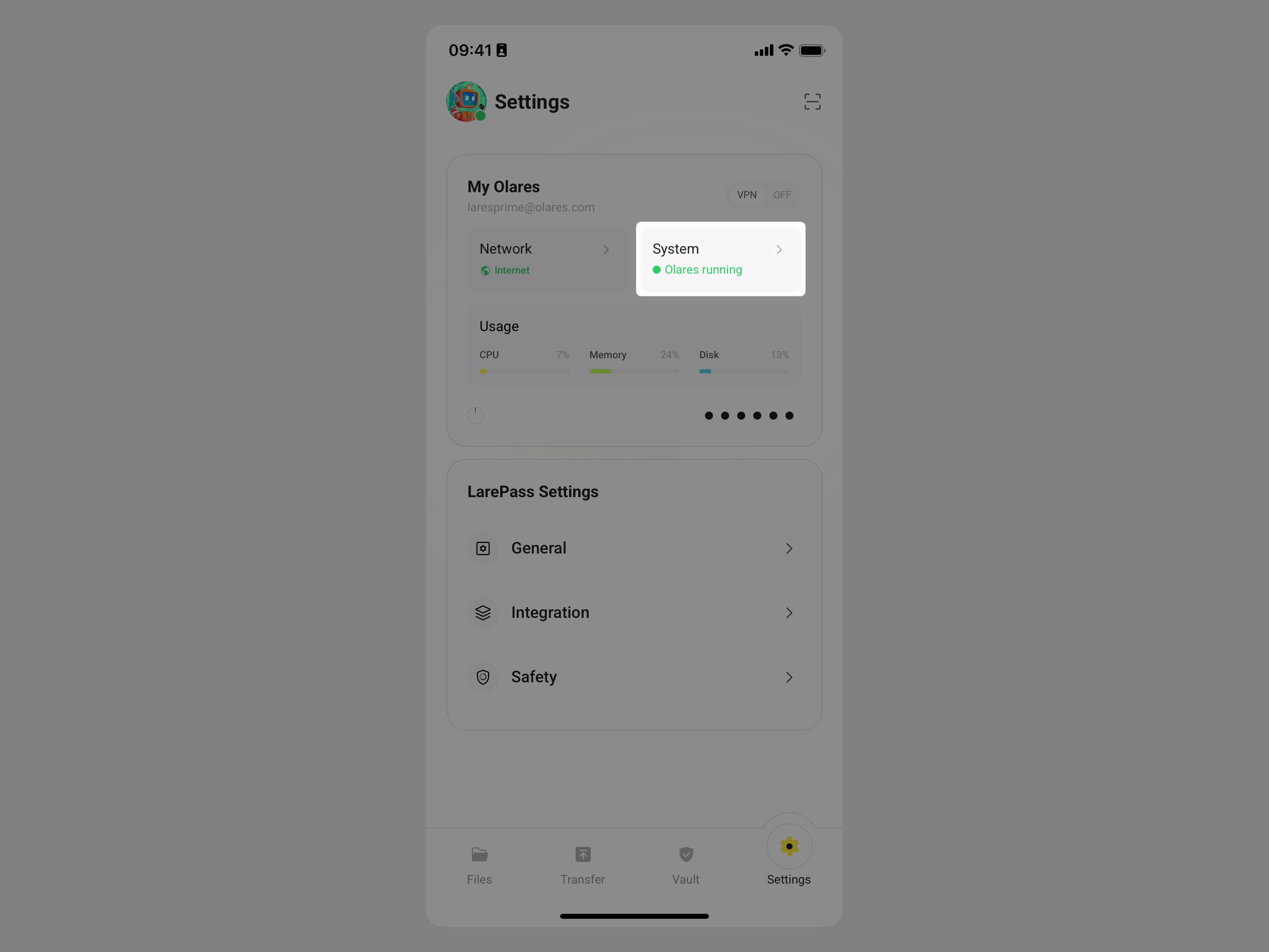
b. Tap the Olares One device card.
c. Scroll down to the Network section and note the Intranet IP.
Check SSH password in Vault.
a. Tap Vault in the LarePass app. When prompted, enter your local password to unlock.
b. In the top-left corner, tap Vault to open the side navigation, and then tap All vaults to display all saved items.
c. Find the item with the terminal icon and tap it to reveal the password.
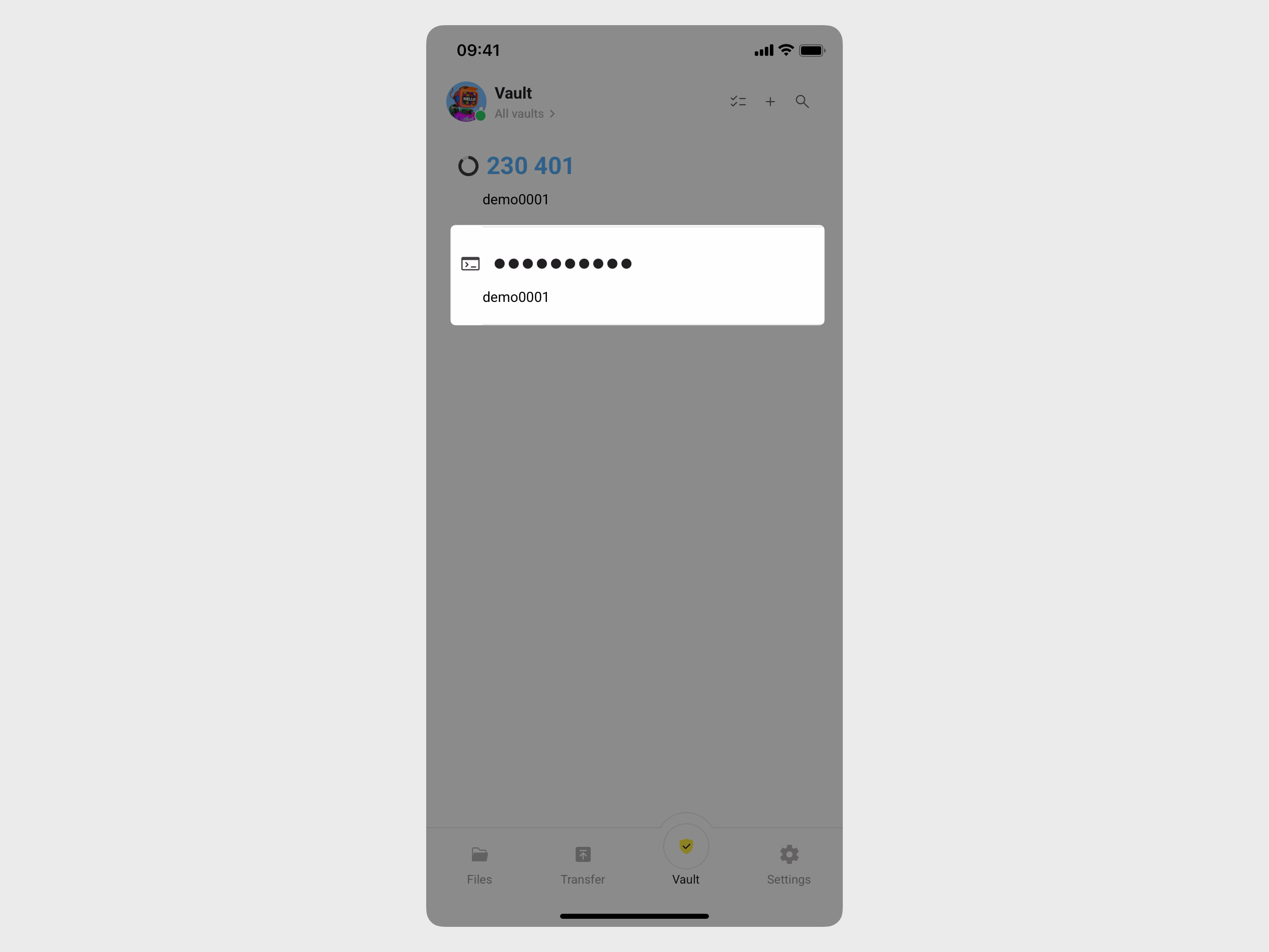
Connect via SSH.
a. Open a terminal on your computer.
b. Type the following command, replace
<local_ip_address>with the Intranet IP, and then press Enter:bashssh olares@<local_ip_address>c. When prompted, type the SSH password, and then press Enter.
d. If the connection is successful, skip to Step 3.
Step 2: Log in locally
When the SSH access is unavailable, log in to the device locally using a monitor and keyboard.
Connect a monitor and keyboard to your Olares One. A text-based login prompt is displayed on your screen automatically.
textolares login:Type the username
olaresand press Enter.Type the same SSH password obtained in Step 1 and press Enter.
Step 3: Check system pod status
Once you log in successfully, type the following command and then press Enter to to get the status of all pods across all namespaces:
bashkubectl get pods -ACheck the STATUS column for any pods that are not in the
Runningstate.Take a clear photo or a screenshot of the full command output, or manually note down the problematic pods.
Attach this photo or your notes with descriptions to Olares team by submitting a GitHub Issue.