Manage paid applications
You can purchase paid applications directly from the Olares Market, or restore your previously purchased apps without additional payment.
Purchase paid applications
You can purchase paid applications directly from the Olares Market. The payment process requires coordination between the Olares system, the LarePass mobile app, and a digital wallet such as MetaMask.
Prerequisites
Before you begin, ensure that you have completed the following tasks:
- You have installed and logged into a browser wallet extension, such as MetaMask. To successfully complete the transaction, ensure that your wallet holds both of the following funds:
- Application fee: Used to pay for the software license. The specific token required is determined by the app's
price.yamlconfiguration, typically USDC or USDT. - Network gas fee: Used to pay for blockchain transaction costs. Note that gas fees must be paid in ETH.
- Application fee: Used to pay for the software license. The specific token required is determined by the app's
- You have installed the LarePass app on your phone and logged into the same account as your Olares system.
Step 1: Initiate purchase and identity verification
Open the Olares Market.
Search for the target paid app, click Get, and then click Buy.
In the Verify payment access popup, click Verify now.
Open your LarePass mobile app:
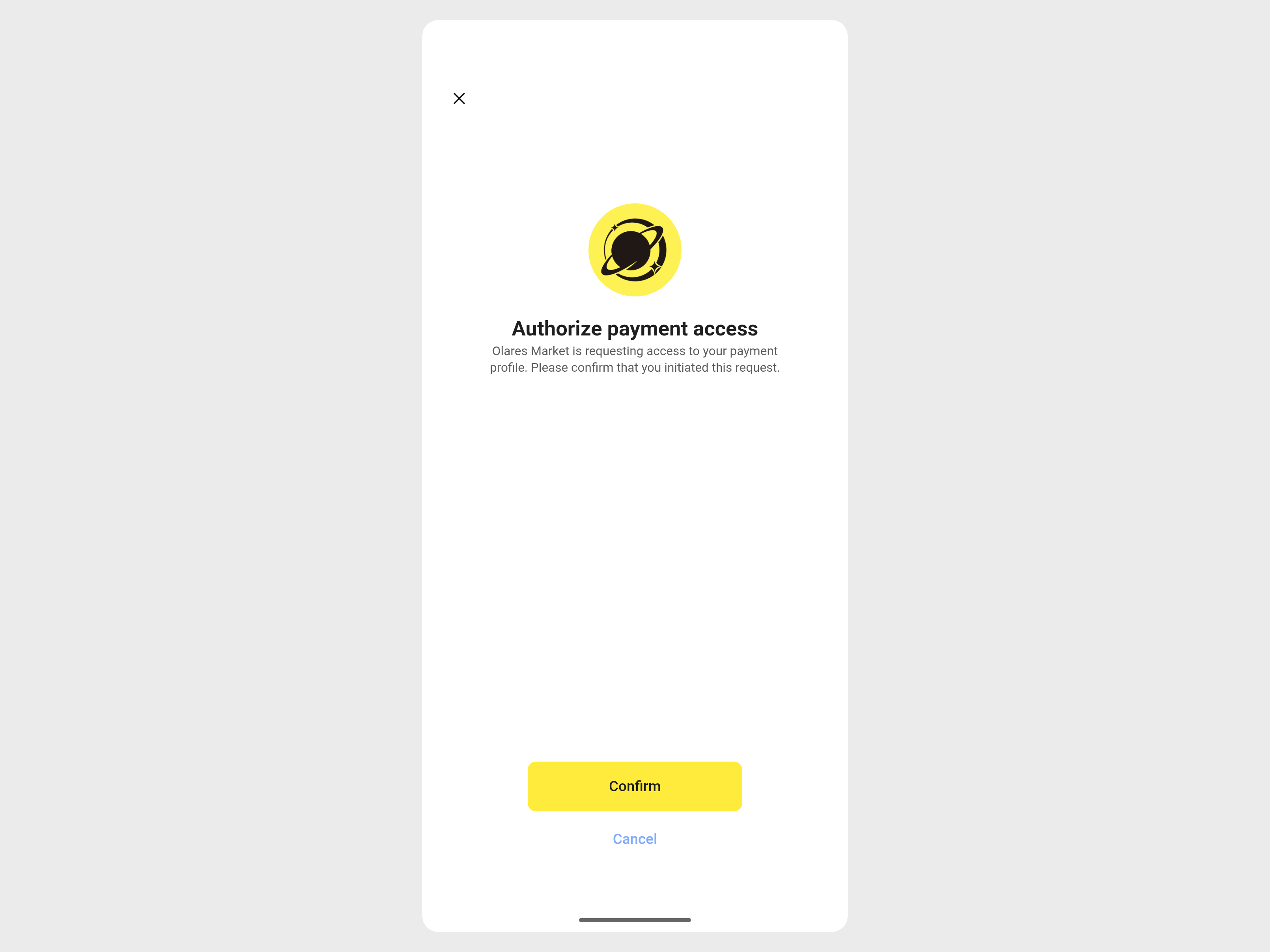
a. Review the request popup titled Authorize payment access.
b. Tap Confirm.
c. If the popup does not appear, return to the app page in Olares Market and click Buy again to re-initiate the request.
Step 2: Confirm order
After successful verification, return to the app page in Olares Market and click Buy again.
In the Verify purchase request popup, click Verify now.
Check your LarePass mobile app again:
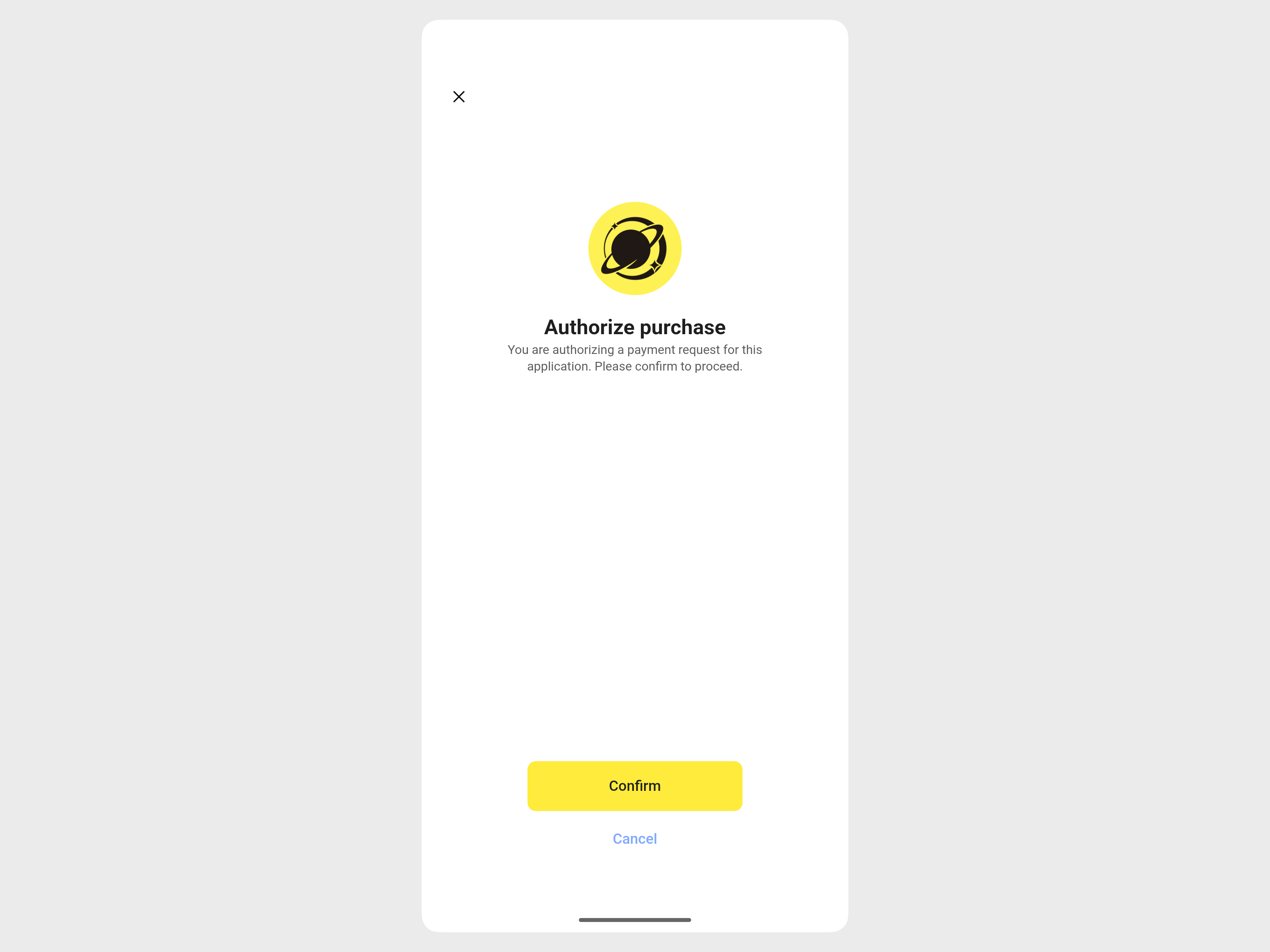
a. Review the request popup titled Authorize purchase.
b. Tap Confirm.
Step 3: Complete payment via wallet
- Return to the app page in Olares Market and click Pay.
- The browser will automatically open MetaMask or your connected wallet extension.
- Review the amount in the wallet popup, and then confirm and approve the transaction.
- Wait for the blockchain to confirm the transaction.
- Once the payment is successfully completed, click Install to install the application.
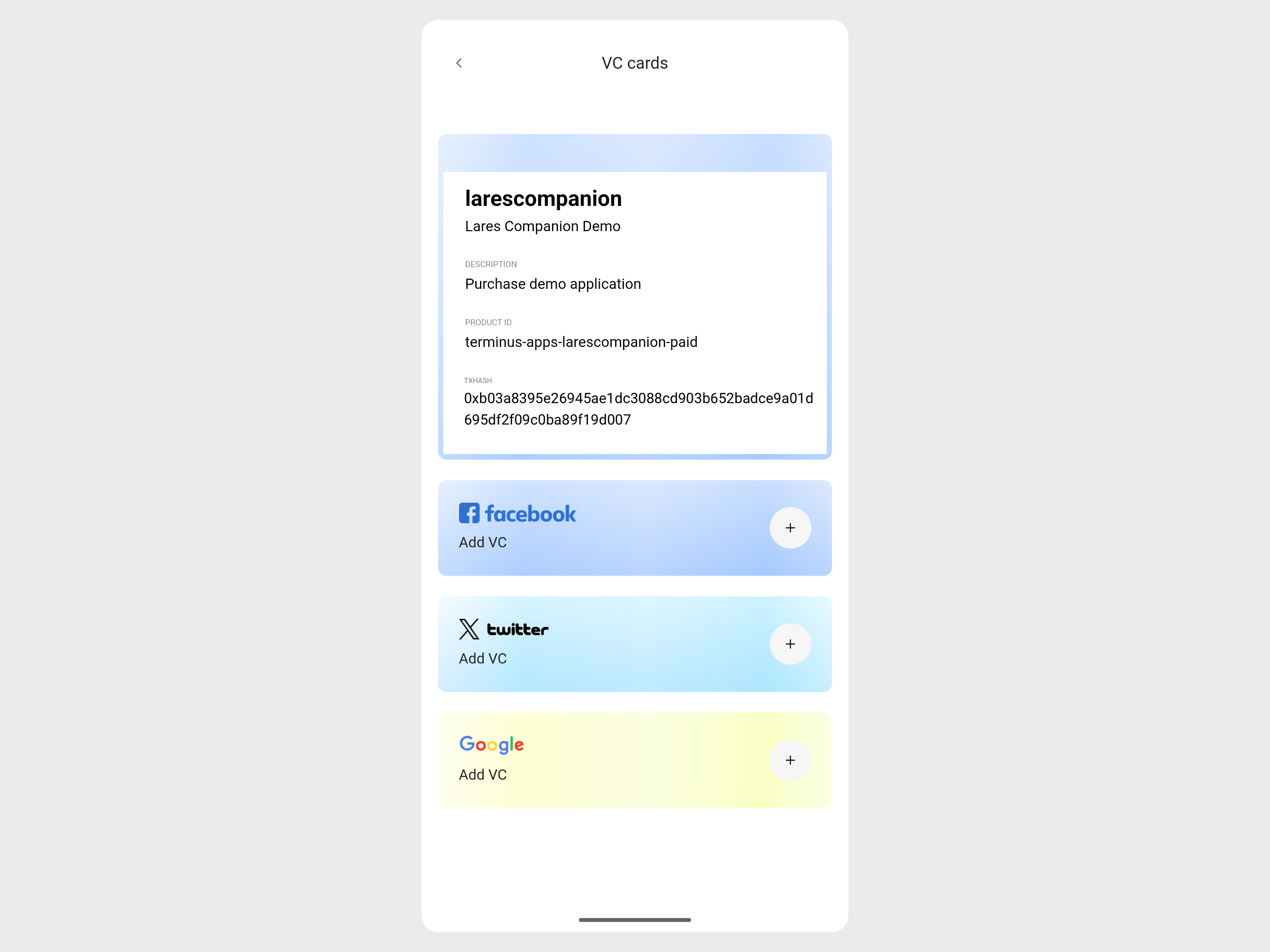
- After the payment is completed, navigate to Settings > Safety > VC cards to verify your purchase credential from your LarePass mobile app.
Restore purchased applications
If you have previously purchased a paid application, you can restore and re-install it without additional payment, whether you simply uninstalled the app, reset your system, or migrated to a new Olares host.
Re-install after uninstallation
If you are re-installing a paid app that was uninstalled from your current Olares system, the system preserves your license locally.
You can find the app in the Market, click Get, and then click Install to re-install it.
Restore after system reset or migration
Identity binding
Your purchase history binds to your Olares ID rather than specific hardware. If you have access to LarePass or a backup of your mnemonic phrase, you can activate the new system with the same Olares ID and restore your apps.
Risk of data loss
If you lose your mnemonic phrase, you permanently lose your digital identity and all paid apps. In this case, you must create a new account and repurchase the application. Note that license restoration also requires the developer's service to be online. If their service is unavailable, you might be unable to restore the application.
If you have reset Olares OS or switched to new hardware, your local license data is cleared. You must verify your on-chain identity to retrieve your purchase rights, which will allow you to re-install the application.
Ensure that the current Olares OS is activated with the same Olares ID used for the original purchase.
Open the Olares Market.
Search for the target paid app, click Get, and then click Buy.
INFO
The system will detect your on-chain purchase record and will not charge you again.
In the Authorize payment access popup, click Verify now.
INFO
This step verifies your identity ownership and does not initiate a new transaction.
Once verified, the button will change to Install. Click it to start installation.