Configure file search
File search settings allow you to customize how Olares indexes and searches your data. By defining specific rules, you can control which files are excluded from global search and which directories support deep content searching.
This guide helps you understand and configure indexing rules to optimize your search experience.
See also Search within Olares for how to use global search.
Search scope
These settings apply only to your own files in Olares.
Files or folders shared with you by other team members are searchable globally by default and do not need to be manually added to these rules.
Understand search settings
Olares file search is configured in File search, which contains three main sections:
- Search index: Shows the current indexing status and lets you manually rebuild the index when needed.
- Excluded files: Acts as a global ignore list for the search engine, defining which files are excluded from the index.
- Full-text search directories: Lists the folders where content search is enabled, so files are searchable by both filename and text content.
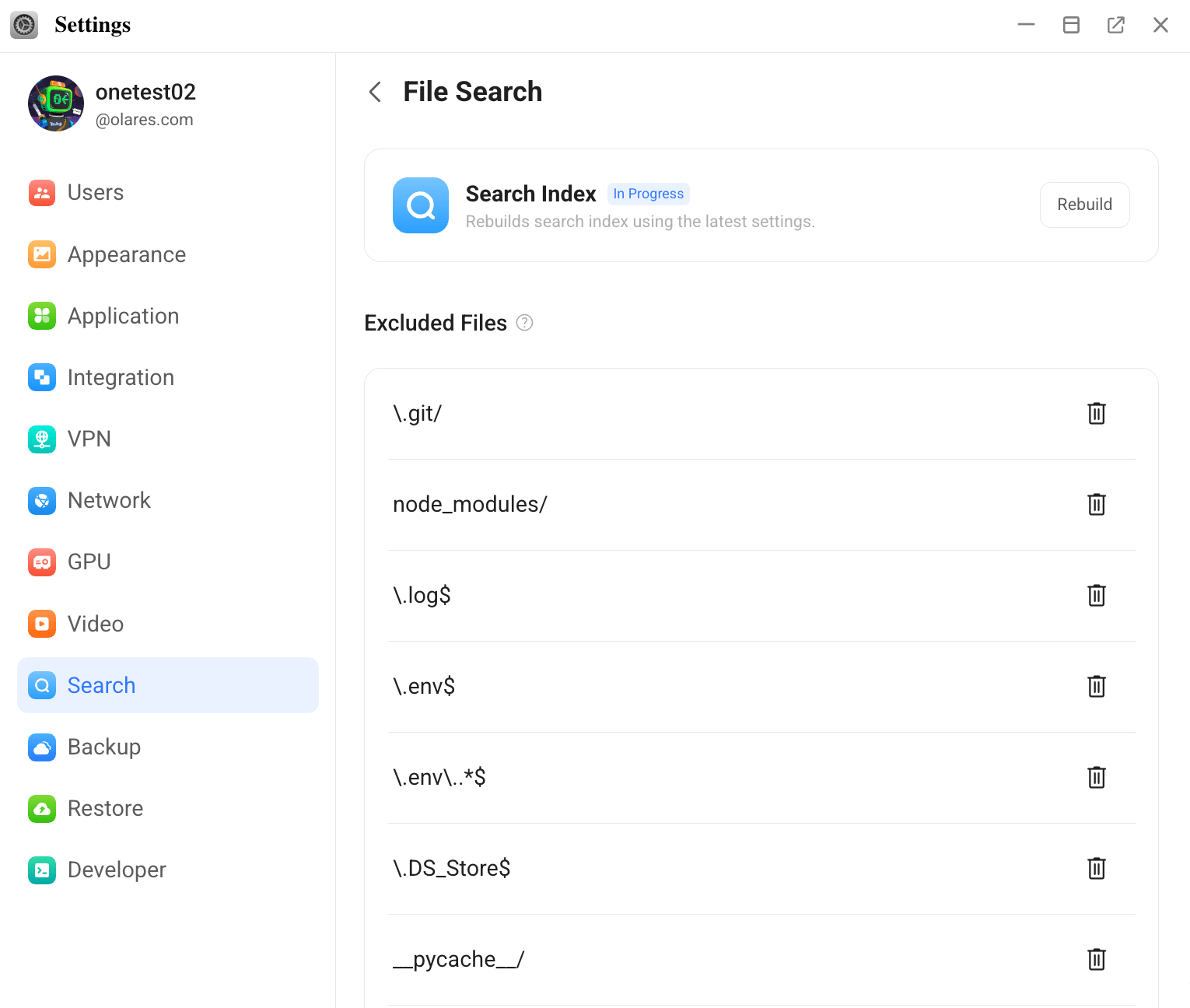
View search index status
To view the current search indexing status:
- Open Settings from the Launchpad.
- Go to Search > File search.
- Locate the Search Index section at the top of the panel.
If you need changes reflected immediately, click Rebuild.
Exclude files from search
Use the Excluded files section if certain files, such as logs or temporary files, clutter your search results.
You exclude them by adding exclusion rules. Each rule uses a regex pattern to specify the file paths you want Olares to ignore.
Add a rule
- Under Excluded files, click Add pattern.
- Enter a valid regular expression (regex) to match the files you wish to ignore.
- Click Confirm.
Remove a rule
- Under Excluded files, locate the target rule.
- Click the delete icon next to the pattern.
- In the prompt window, click Confirm.
Regex patterns
If you are not familiar with regular expressions, start with simple patterns and test them carefully. Incorrect patterns may cause important files to disappear from search results
Search inside file content
Use the Full-text search directories section when you want to search inside documents, not just by filename.
By adding a folder to the full-text directory list, you enable full-text search. Once added, supported files in that folder become searchable by both filename and content.
Add a rule
- Under Full-text search directories, click Add directory.
- Select the target folder from the file picker.
- Click Confirm to add it to the list.
Remove a rule
- Under Full-text search directories, locate the target directory.
- Click the delete icon next to the directory.
- In the prompt window, click Confirm.
Supported formats
Full-text search is supported for the following file types:
.pdf, .doc, .docx, .csv, .rtf, .txt, .md, .json, .xml.