Manage cookies for Wise
Some websites require you to log in to access their content. To allow Wise to fetch content from these protected sources, you may need to upload cookies so Wise can authenticate its requests.
This allows Wise to authenticate access, ensuring that features like Save to library, Subscribe to RSS feed and Download file work securely on restricted sites.
This guide explains how to manage cookies in Olares for Wise.
Upload cookies
Olares provides flexible options for uploading cookies, depending on whether you want to capture them instantly while browsing or manage them manually in batch.
Upload via LarePass browser extension
This is the easiest way to handle cookies. When you are browsing a site that requires a login, LarePass browser extension can capture and upload the cookies for the current page in one flow.
- Navigate to the target website and make sure you are logged in.
- Open the LarePass browser extension and select the "Collect" icon.
- Click Upload to upload the cookies for the current page.
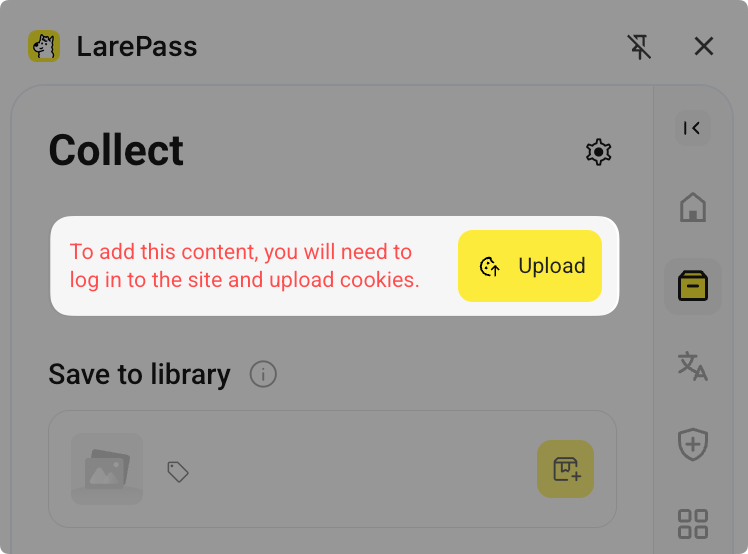
After upload, Wise will use these cookies when you Save to library or Subscribe to RSS feed for that site.
Upload manually in batch
You can manually paste cookie strings in Netscape, JSON, or Header String formats. This is useful if you use browser extensions like Cookie-Editor to export credentials from specific websites.
You can upload cookie strings via the Wise app interface or directly through the system Settings.
Manage cookies
You usually do not need to manage cookies frequently, but it can be helpful to review or clean them up from time to time.
Check cookie status
To view existing cookies and their details:
- Open Settings from the Launchpad.
- Go to Integration > Manage Your Cookies.
When needed, you can update them by re-uploading new cookie strings using the same steps as above.
Remove cookies
If you no longer need access to a particular site, or want to clean up old credentials:
- Open Settings from the Launchpad.
- Go to Integration > Manage Your Cookies.
- Find your target cookie item and click delete or Delete All.
After removal, Wise will no longer use those cookies and may not be able to access protected content for that site until new cookies are provided.