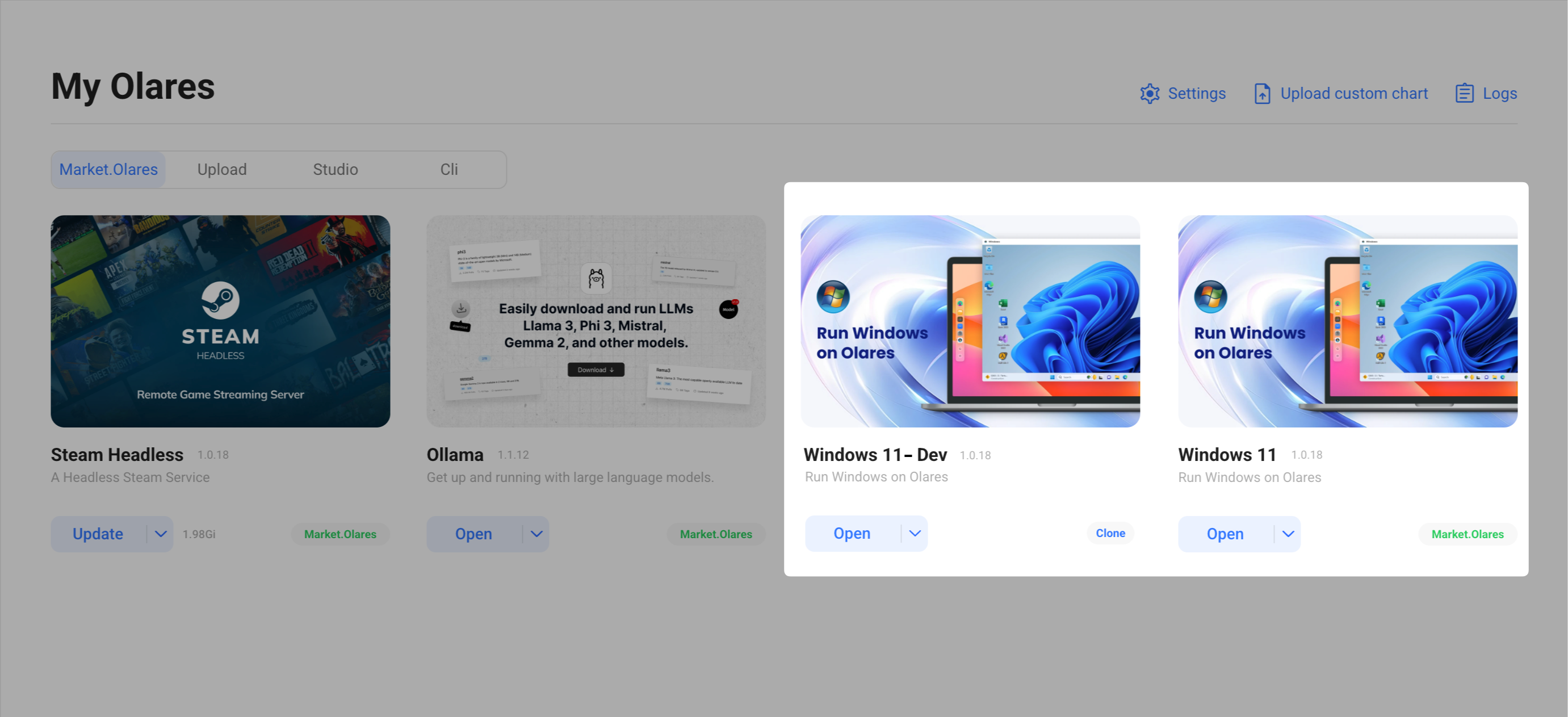
Clone applications
You can install multiple instances of the same application, which is also known as "clone". This is useful for scenarios requiring different configurations or versions, such as running multiple Windows virtual machines.
Clone an application
The following steps demonstrate the cloning workflow by using the Windows application as an example.
Step 1. Verify cloning support
Confirm that the target application supports cloning:
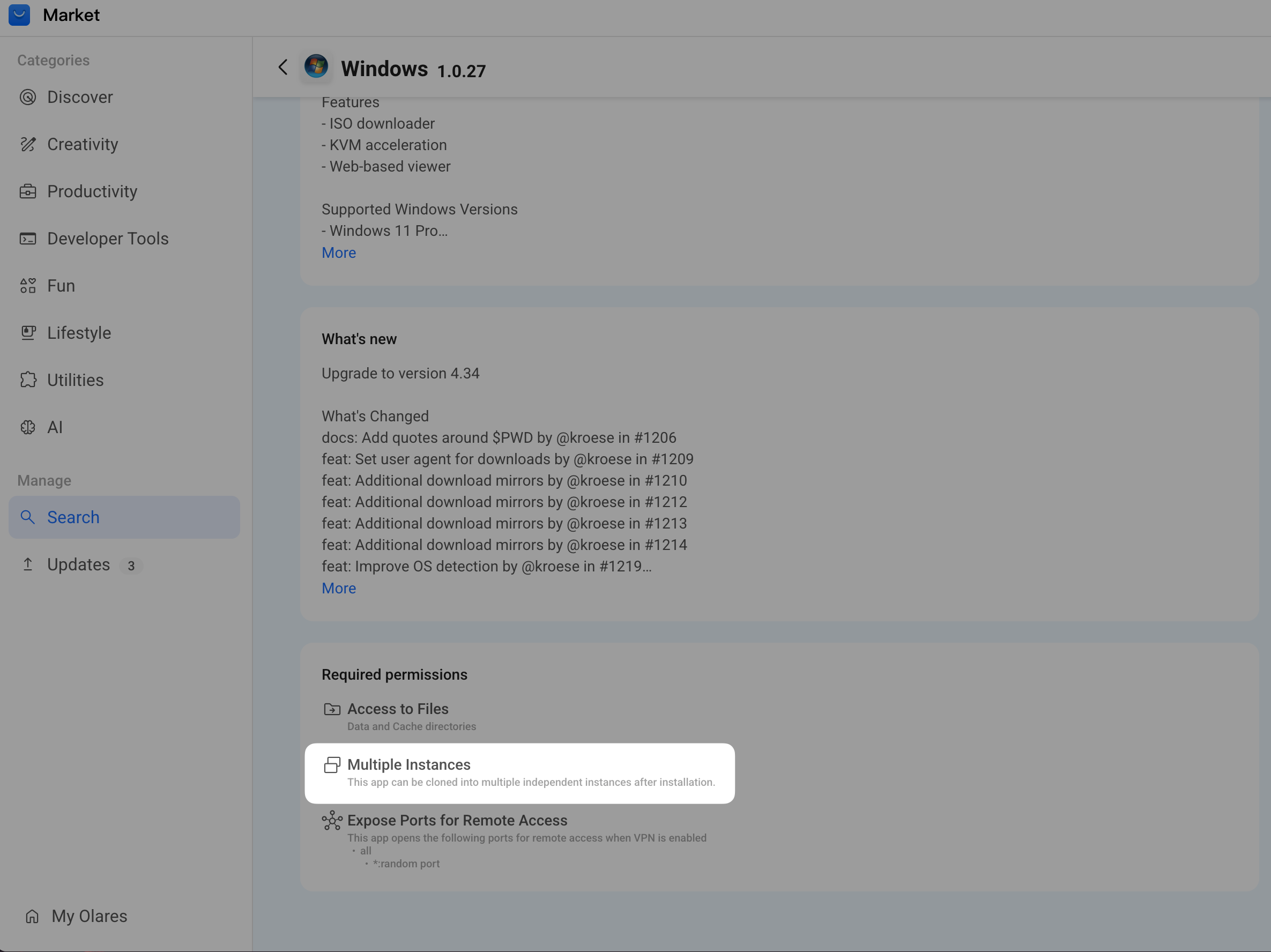
Open Market from Dock or Launchpad, and click the application to open the details page.
Check the Required permissions section. Only applications with the Multiple Instances property support cloning.
Step 2. Clone and configure the instance
To create a clone, a primary instance must exist on your system. Ensure that the application is installed, and then complete the following steps:
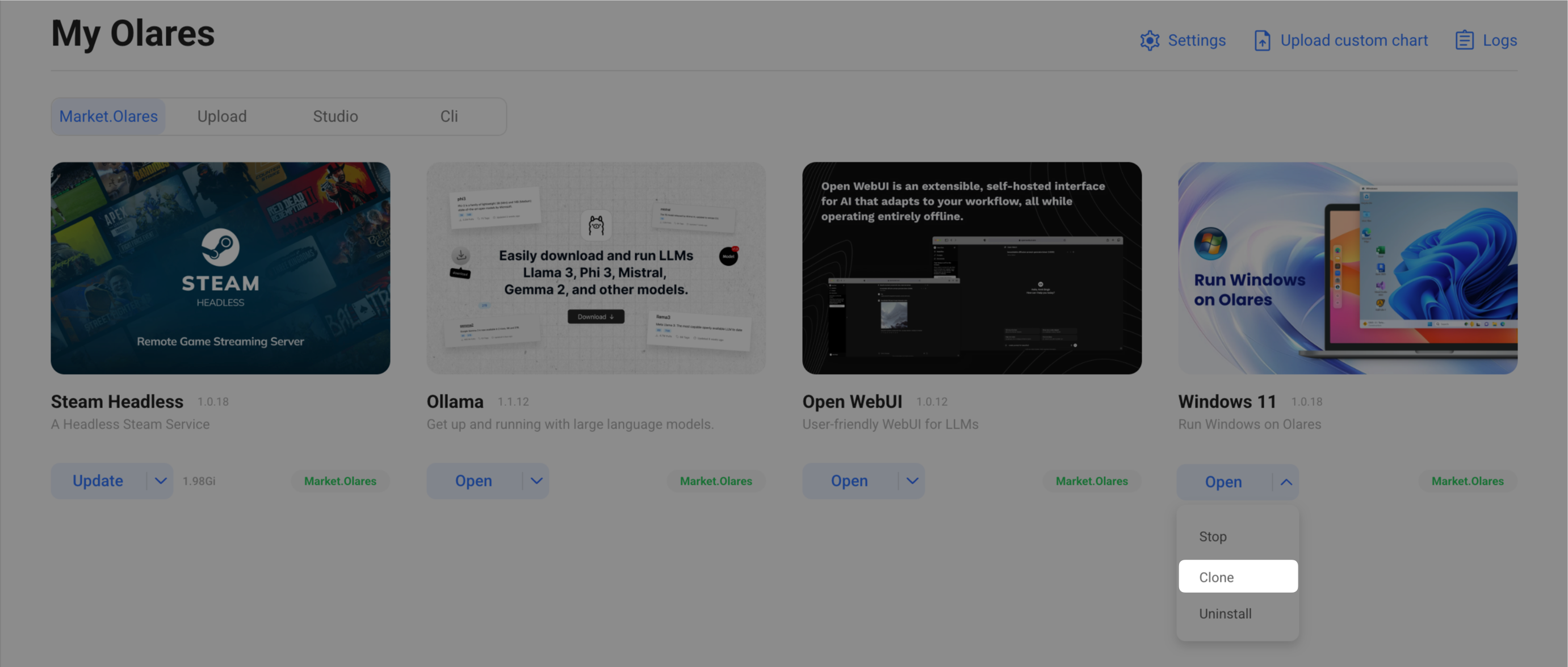
Click My Olares from the left sidebar of Market. The list of installed applications will appear on the right.
Locate the target application, click the drop-down arrow next to the Open button, and then click Clone.
In the Clone app window, configure the instance details:
a. New app title: Enter a unique name to identify the application in the Market and My Olares list.
b. Desktop shortcut name: Set the name for the desktop shortcut. You can name each icon individually if the application has multiple entry points.
Click Confirm to proceed.
In the Configure Environment Variables window, complete the corresponding setup, and then click Confirm.
In the installed applications list, the newly created application will appear with a "Clone" tag next to it.