Manage applications in Market
Olares Market is an open and permissionless application platform. It provides one-click installation for a variety of applications and content recommendation algorithms from both Olares and third-party developers.
This guide helps users understand how to install, update, and uninstall applications through the Market. We'll also cover how to install custom applications.
Before you begin
Before you start, it is recommended to familiarize yourself with a few concepts for Olares applications:
| Terminology | Description |
|---|---|
| System application | Built-in applications that come pre-installed with Olares, such as Profile, Files, and Vault. |
| Community application | Applications that are created and maintained by third-party developers. |
| Shared application | A special category of community applications on Olares designed to provide unified, shared resources or services to all users within an Olares cluster. Shared applications expose standard APIs or shared entrances that can be directly invoked by any application in the cluster. |
| Dependencies | Prerequisite applications that must already be installed before a user can access an application that requires them. |
Find applications
The Olares Market offers various ways to discover and browse applications.
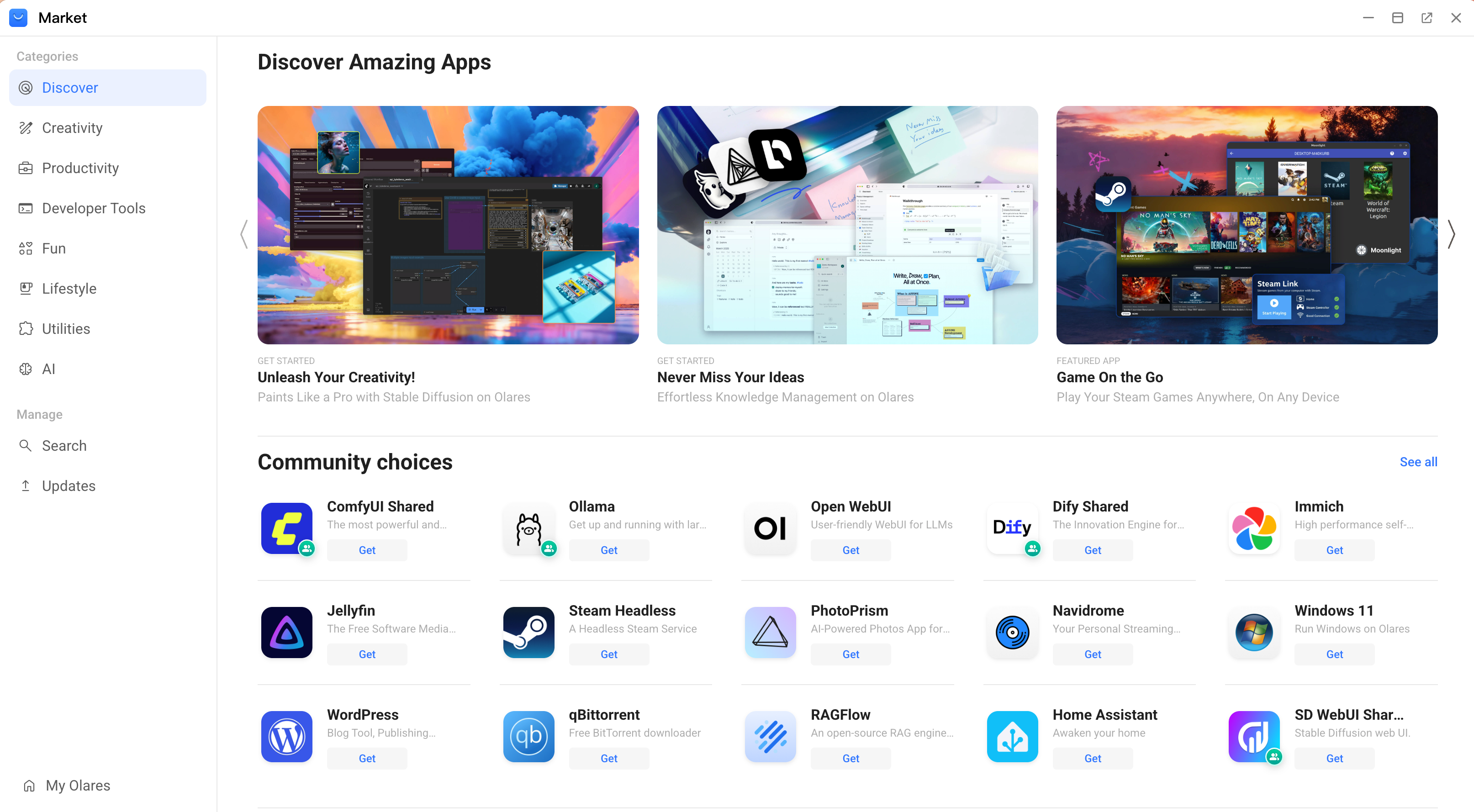
Browse by categories
Upon launching the Market app, the Discover page serves as your central hub for exploration, organizing content into intuitive sections to guide your journey:
- Discover Amazing Apps: Featured applications curated by the editorial team, showcasing trending and seasonally relevant apps. Click these banners to access in-depth editorial features such as comprehensive guides, industry use cases, and detailed app comparisons to help you choose the right tools.
- Community choices: Most loved and recommended apps by the Olares community.
- Top apps on Olares: Apps with the highest usage and download rates.
- Latest apps on Olares: Recently added applications to the market.
You can also browse applications based on their functionality:
- Creativity: Apps for creating and publishing digital content, from AI-generated art and 3D models to blogs and design projects.
- Productivity: Apps for team collaboration, project management, data organization, and building custom AI-powered agents.
- Developer Tools: Toolchain for the software development lifecycle, including code hosting, CI/CD, observability, and database management.
- Fun: Self-hosted applications for entertainment and fun such as gaming, video streaming, and connecting with people.
- Lifestyle: Self-hosted applications for managing your smart home, personal photo libraries, and AI identity.
- Utilities: Tools for system management, file sharing, data backup, and running local AI models.
- AI: Latest open-source LLMs and generative tools for text, audio, and 3D assets.
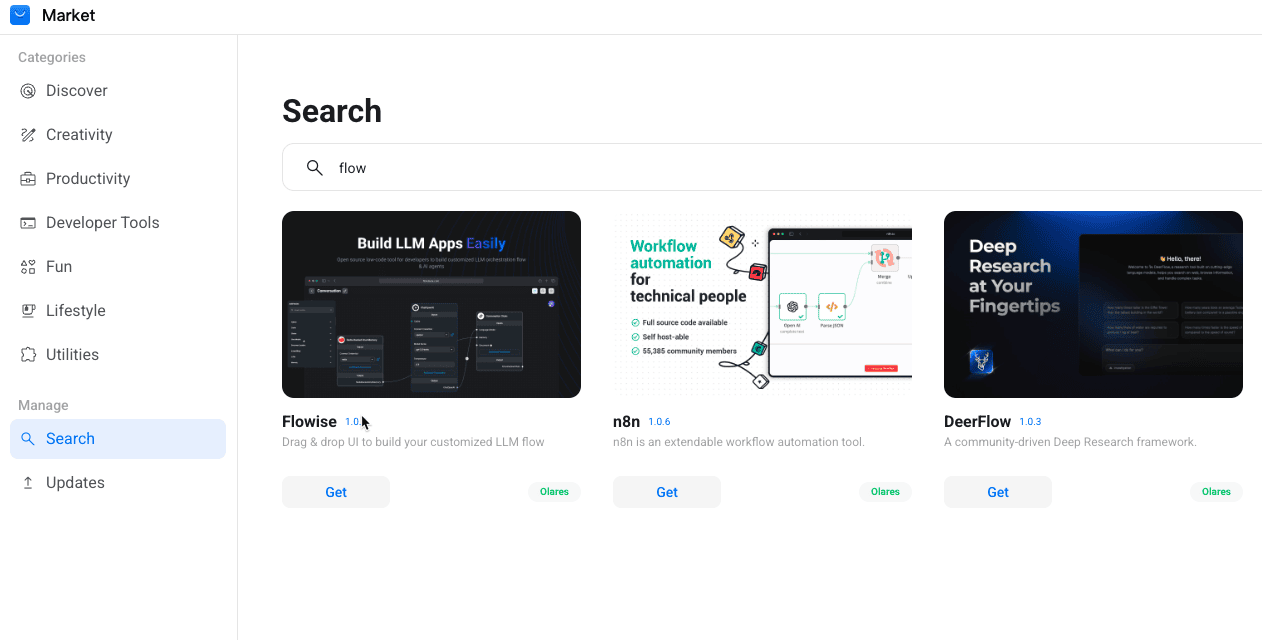
Search using keywords
To search an app in the market:
- Open the Market app from the Dock or Launchpad.
- In the Manage submenu on the left, click Search.
- Enter the keywords. The relevant results will appear as you type.
Switch market source
You can switch market sources to speed up browsing, searching, and downloading, or to install apps exclusive to a particular source. To switch market sources:
- Open Market, and navigate to My Olares > Settings from the left sidebar.
- Under Market sources, click Add source to add a new app source. The current official sources include:
- Global:
https://api.olares.com/market - China:
https://api.olares.cn/market
- Global:
- Fill in the source name, URL, and description as required, then click Confirm to finish adding.
- In the source list, select the target source to activate it. Wait for about 10 minutes for the store page to switch.
INFO
Applications from different installation sources will generate corresponding tabs in My Olares for easier application management.
Install applications
To install an application from Market:
- Open Market from Dock or Launchpad.
- Navigate to the app you want, and click Get.
- When the operation button changes to Install, click it to start the installation.
- (Optional) To cancel the installation, click close_small on the right of the button.
- Once finished, the button will change to Open.
Install shared applications
To ensure a shared service is running and accessible within the cluster, follow the installation process based on the type of shared application:
Headless backend service:
This type of shared application provides API services and does not include a graphical user interface. No dedicated reference application is required. Any client that supports the corresponding API can directly invoke the service. Take Ollama as an example:
The administrator installs Ollama first. Once installed, the shared service starts within the cluster and exposes a standard API endpoint.
Cluster members access the shared service:
a. Retrieve the access address of Ollama in Olares Settings > Applications > Ollama > Shared entrances.
b. Install a third-party client that supports the Ollama API, such as LobeChat or Open WebUI, and enter the access address in the client's configuration settings.
Applications with built-in UI:
This type of shared applications include both a backend service and a Web UI. They can provide services to users independently. Typical examples are Dify Shared and ComfyUI Shared.
The administrator installs the shared application first. This not only launches the shared service for the cluster, but also installs the client-side interface as the access point.
ComfyUI Launcher
ComfyUI Shared contains a web launcher component to facilitate the management of related services and resources. The administrator needs to configure and start the service from the ComfyUI Launcher.
Cluster members install the same application. For these users, only the access point to the shared application is installed.
Install custom applications
To install a custom application:
- Prepare an Olares Application Chart file (in
.zip,.tgz,.tar, or.gzformat). - Open Market from the Dock or Launchpad.
- From the left sidebar, click My Olares > Upload custom chart, and select the chart file to install.
You can view all installed custom applications under the My Olares > Upload tab.
Setting environment variables
During app installation, if an environment variable is required for the app but it either has no default value or its referenced system variable is unset, Market will display a settings pop-up:
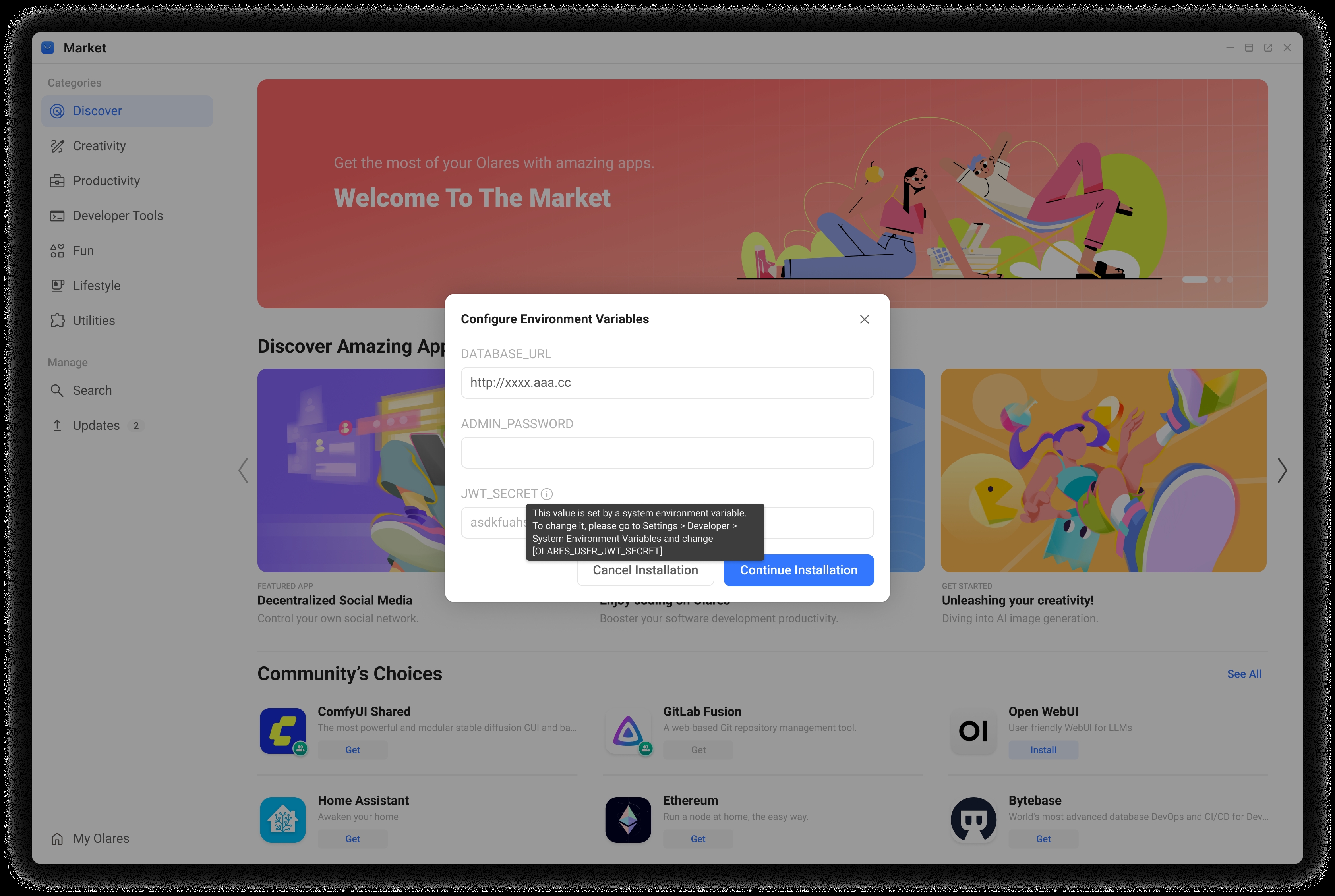
- Custom variables: Enter the value directly in the installation pop-up.
- Referenced system variables: You must first go to the Settings > Developer > System Environment Variables page to set the value for the corresponding variable.
After completing the environment variable setup, you can continue the installation.
Update applications
To update an application from Market:
- Open Market from the Dock or Launchpad.
- In the left sidebar, click Updates under the Manage section. If there are available updates, a notification badge will display.
- The Available updates panel will display the applications with available updates.Click Update all to update all applications at once, or update each application individually.
Uninstall applications
Uninstall an application from Market or LaunchPad.
View app operation logs
The application operation log details the processes and statuses of app operations within Market, such as installation, download, update, and uninstallation. To access these logs:
- Open Market from Dock or Launchpad.
- In the left sidebar, navigate to My Olares.
- Click Logs in the top right corner.
You can also click the download button to download the logs.
FAQs
Why can't I install an application?
If you can't install an application, it might be due to:
- Insufficient system resources: Try freeing up system resources, or increasing your resource quota.
- Missing dependencies: Check the Dependency section on the application details page and make sure all required apps are installed.
- Incompatible system version: Try upgrading Olares to the latest version.
- Shared service dependency (for Olares members): The application requires a shared service to be running in the cluster. Contact your admin to install the shared application first before you can install it.
Why was my application stopped?
An application is usually stopped due to one of the following reasons:
- System auto stop: To ensure Olares's stability, the Olares system monitors resource usage. If an application consumes excessive resources (such as CPU or memory) causing a high system load, the system might automatically pause it to prevent the entire device from freezing or crashing.
- Manual stop: You or an administrator might have manually stopped the application previously, and the application has not been resumed yet.
Why can't I resume my application?
Starting an application requires reserving a specific amount of computing resources. If other running applications are already occupying most of the resources, the remaining free resources are not enough for the application you want to start.
Therefore, when you try to resume the application, you might encounter the following messages, and you need to stop other applications to free up resources.
| Error message | Description |
|---|---|
| Insufficient system CPU/memory | The physical resources of the entire system are nearly exhausted. |
| Insufficient disk space | The hard drive is full, and new data cannot be written. |
| Available CPU/memory insufficient | There are some resources left, they are less than the minimum amount required by this specific application. |
How to resume my application?
To resume your application, you need to free up some occupied resources:
- Go to Settings > Application to view the applications that are currently Running.
- Find applications that you do not need to use right now.
- Stop each application by clicking the app and clicking Stop.
- After resources are freed, go back to your target application and click Resume again.
How to free up resources from unused apps?
If certain applications are not in use and you want to free up the system resources they are using, you can stop them from Market or Settings.
Free up shared application resources
To fully release resources for shared applications such as Ollama, the system-side service must be stopped. This action can only be performed by an administrator.
When the admin stops a shared application, the Also stop the shared server (affects all users) checkbox appears in the Stop window:
- To fully release the resources, this checkbox must be selected.
- Once selected, the service is disabled for the entire cluster, and other users will no longer be able to use the application.
- This checkbox only appears in multi-user clusters. In a single-user scenario, the system automatically stops both the user-facing application and the system-side service by default.
Notes for Olares V1.12.4 and earlier
In Olares 1.12.4 and earlier versions, to fully release resources, you must use Market:
- Stop the app in Market and ensure that the Also stop the shared server (affects all users) option is selected.
- If the user-facing application has already been stopped through Settings, you must first resume it in Market, and then stop the shared application while ensuring the Also stop the shared server (affects all users) option is selected.