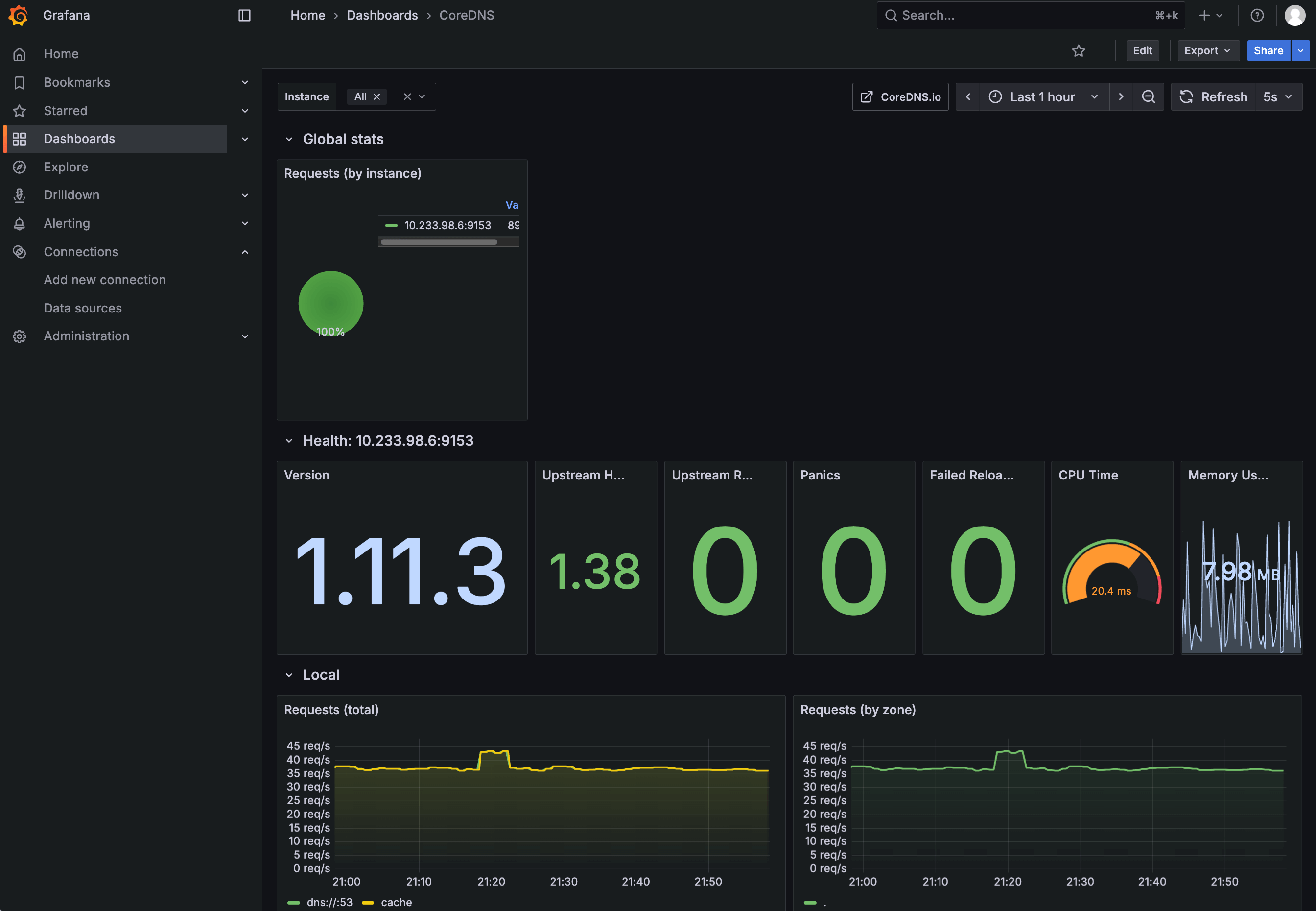
Use Grafana dashboards
To visualize system metrics in Olares, you can run Grafana and connect it to the built-in Prometheus service. This guide explains how to install Grafana, connect the data source, and import a standard dashboard.
Install Grafana
Before using Grafana, install it from Market.
- Open Market from Launchpad and search for "Grafana".
- Click Get, then Install.
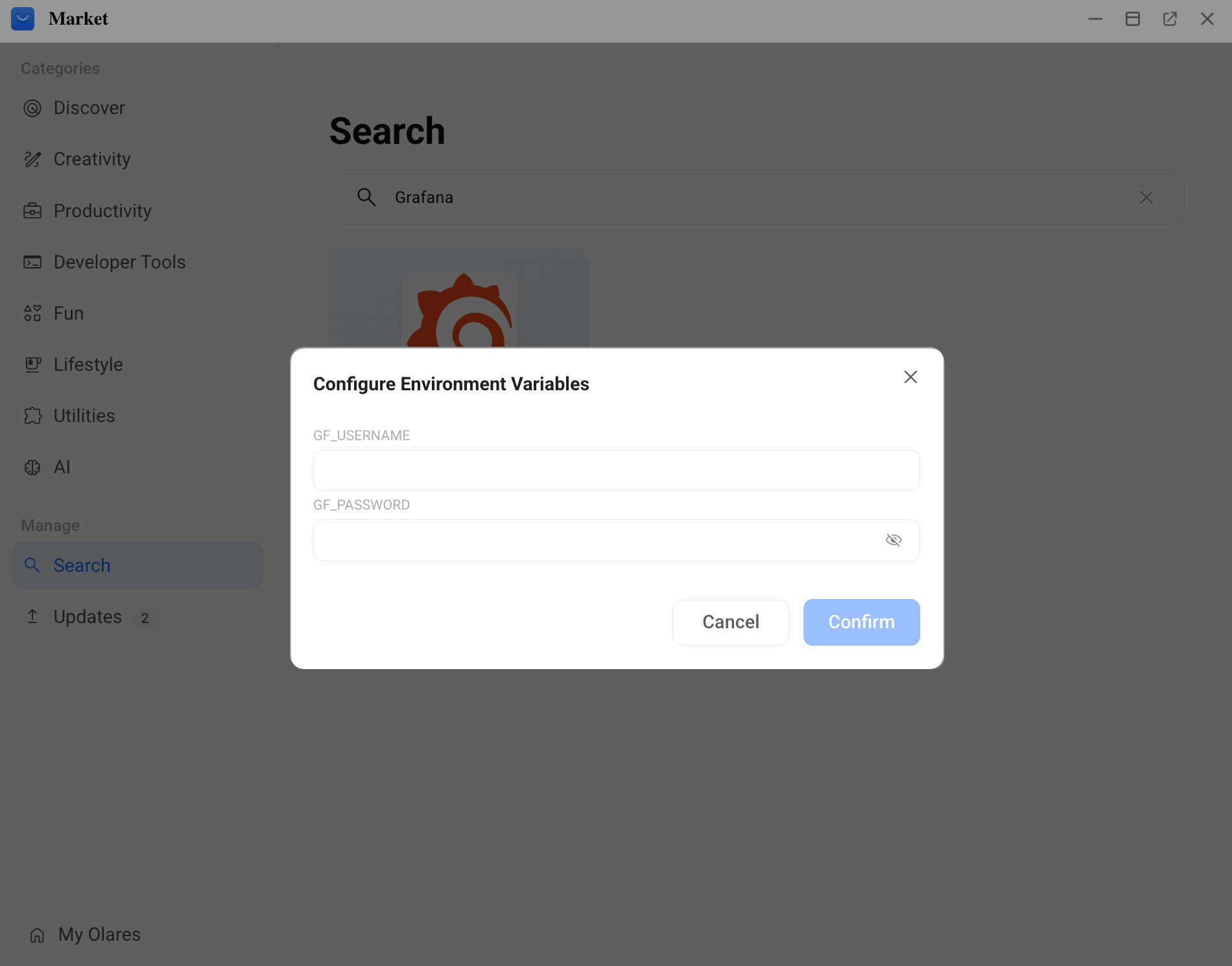
- In the pop-up window, set your login credentials:
GF_USERNAME: Grafana login username.GF_PASSWORD: Grafana login password.
Remember your login credentials
These are the login credentials for Grafana. You will need them if you access Grafana later.
- Wait for the installation to complete.
Access Grafana
- Open Grafana from Launchpad, then click open_in_new to open it in a new tab.
- On the login screen, enter the
GF_USERNAMEandGF_PASSWORDyou configured during installation.
After logging in, you will see the Grafana home page.
Add Prometheus data source
Olares runs a built-in Prometheus service that collects system metrics.
To connect Grafana to this internal service:
- In the Grafana left navigation pane, go to Connections > Data sources.
- Click Add data source, then select Prometheus.
- For the Prometheus server URL field, enter:textReplace
http://dashboard.<olaresid>.olares.com<olaresid>with your Olares ID. - Click Save & test at the bottom of the page. If the connection is successful, you will see the prompt below.

Create a dashboard
This approach is suitable when you need custom metrics and visualizations and are familiar with PromQL.
- In the left navigation pane, click Dashboards.
- Click + Create dashboard, then select + Add visualization.
- Select prometheus as the data source.
- Configure panels, PromQL queries, and expressions as needed.
- Click Save dashboard in the top-right corner for future use.
Import a dashboard (recommended)
If you do not need to build dashboards from scratch, you can import existing dashboards.
- Visit the Grafana Dashboard library.
- Download the required dashboard as a
JSONfile. - In Grafana, click add_2 in the top-right corner and select Import dashboard.
- Upload the
JSONfile, and select prometheus as the data source. - Click Import to complete the import.
Imported dashboards provide predefined panels and queries and can be customized after import.