View MongoDB data
To use MongoDB in Olares, install it from Market first. This guide walks you through the installation steps and shows how to access it from Olares.
Install MongoDB service
Before connecting, install the MongoDB service from Market.
- Open Market from the Launchpad and search for "MongoDB".
- Click Get, then Install, and wait for the installation to complete.
Once installed, the service and its connection details will appear in the Middleware list in Control Hub.
Get connection information
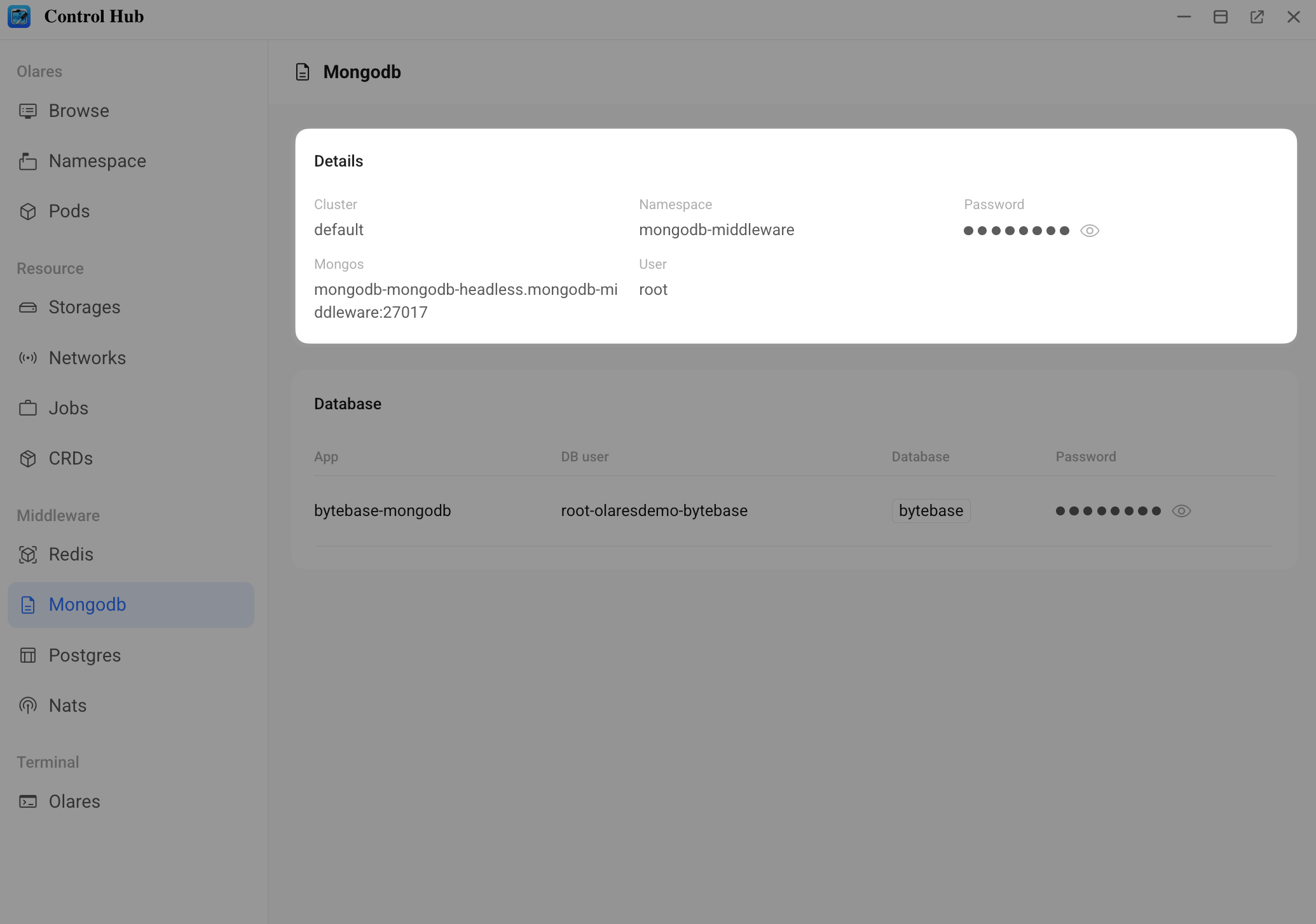
Before connecting, obtain MongoDB connection details from the Control Hub.
Open Control Hub from Launchpad.
In the left navigation pane, go to Middleware and select Mongodb.
On the Details panel, record the following information:
- Mongos: The host address provided by Control Hub. Used for Bytebase connection.
- User: Used for Bytebase connection.
- Password: Used for both CLI and Bytebase.
Access via CLI
You can use the Olares terminal to access the MongoDB container.
In Control Hub, open the Olares terminal at the bottom of the left navigation pane.
Retrieve the Pod name for the middleware:
bashkubectl get pods -n os-platform | grep tapr-middlewareRecord the Pod name that starts with
tapr-middleware, then enter the container:bashkubectl exec -it -n os-platform <tapr-middleware-pod> -- shConnect to MongoDB using
mongosh:bashmongosh "mongodb://root:<your password from controlhub>@mongodb-mongodb-headless.mongodb-middleware:27017"
Manage via Bytebase
Bytebase provides a graphical interface for database management and schema changes.
Install Bytebase
- Open Market and search for "Bytebase".
- Click Get, then Install.
First-time setup
When launching Bytebase for the first time, you must configure an administrator account.
TIP
Remember these credentials. Only the admin account can create new database instances.
- Open Bytebase from Launchpad.
- Follow the on-screen prompts to set up your admin account with email and password.
Create a MongoDB instance
- Log in to Bytebase with your admin account.
- In the left navigation pane, select Instances, then click + Add Instance.
- Choose MongoDB as the database type.
- Fill in the connection fields using values from Control Hub:
- Host or Socket: Enter the Mongos host address and do not include the port.
- Port: Keep the default, usually
27017. - Username: Enter the User value from Control Hub.
- Password: Enter the Password value from Control Hub.
- Click Test Connection to verify connectivity, then click Create.
Creating an instance in Bytebase does not create a new database. Once the instance is created, you can use the corresponding client tools to inspect and manage data.