View RabbitMQ data
This guide explains how to install RabbitMQ and manage data using RabbitMQ Dashboard in Olares.
Install RabbitMQ service
Before using RabbitMQ, install the RabbitMQ service from Market.
- Open Market from the Launchpad and search for "RabbitMQ".
- Click Get, then Install, and wait for the installation to complete.
After installation, RabbitMQ service and its connection details will appear in the Middleware list in Control Hub.
Install RabbitMQ Dashboard
RabbitMQ Dashboard depends on the RabbitMQ service and can only be installed after RabbitMQ is available.
- In Market, search for "RabbitMQ Dashboard".
- Click Get, then Install, and wait for the installation to complete.
Get connection information
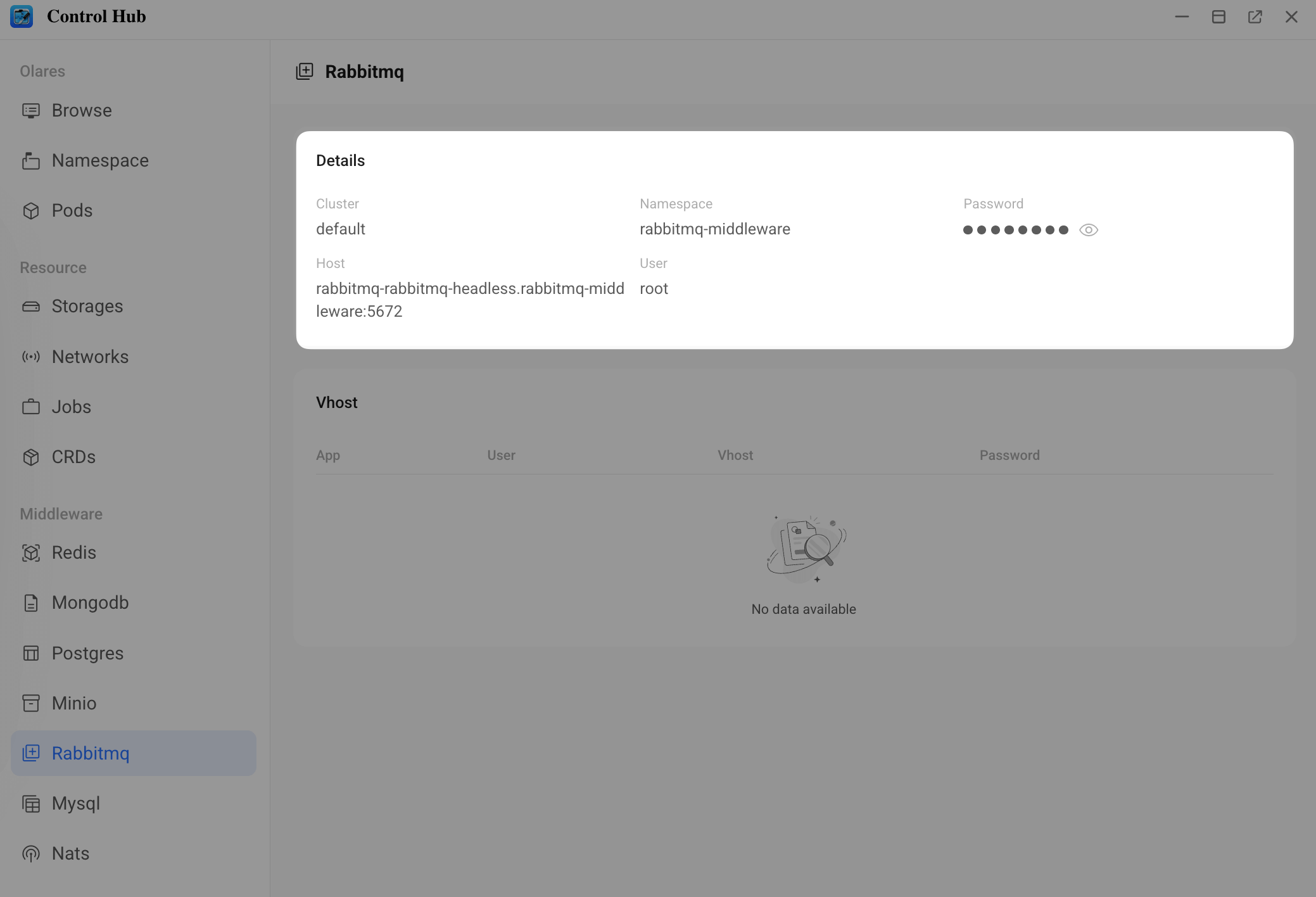
Before connecting, obtain RabbitMQ connection details from the Control Hub.
Open Control Hub from Launchpad.
In the left navigation pane, go to Middleware and select Rabbitmq.
On the Details panel, record the following information:
- User: Used for RabbitMQ Dashboard connection.
- Password: Used for RabbitMQ Dashboard connection.
Manage via RabbitMQ Dashboard
RabbitMQ Dashboard provides a graphical interface for viewing and managing RabbitMQ resources.
- Open RabbitMQ Dashboard from the Launchpad.
- On the login screen, enter the User and Password values obtained from Control Hub.
Upon successful login, access the management interface to view and manage RabbitMQ resources.