Create an Olares One bootable USB drive 15 min
Create a bootable USB drive with the latest Olares One ISO when you need to reinstall or recover Olares OS on Olares One.
Use this guide if the included USB drive is unavailable, contains an earlier OS image, or if you want to reinstall Olares One directly with the latest OS image.
Use the Olares One ISO only
Use only the Olares One ISO linked in this guide to create the bootable USB drive.
Do not use Olares ISO images linked from other Olares installation documentation, as they are intended for generic hardware. If you use a standard self-hosted ISO, your device may be recognized as Generic instead of Olares One, and some Olares One-specific features may be unavailable.
Prerequisites
USB flash drive: A drive with 8 GB or larger capacity.
Data loss
The selected USB drive will be erased when you create the bootable drive. Back up any important files before continuing.
Computer: A Windows, macOS, or Linux computer to perform the setup.
Internet connection: A stable connection for downloading the ISO file and Balena Etcher.
Create the bootable USB drive
Download the latest official Olares One ISO image to your computer.
Download and install Balena Etcher.
Insert the USB flash drive into your computer.
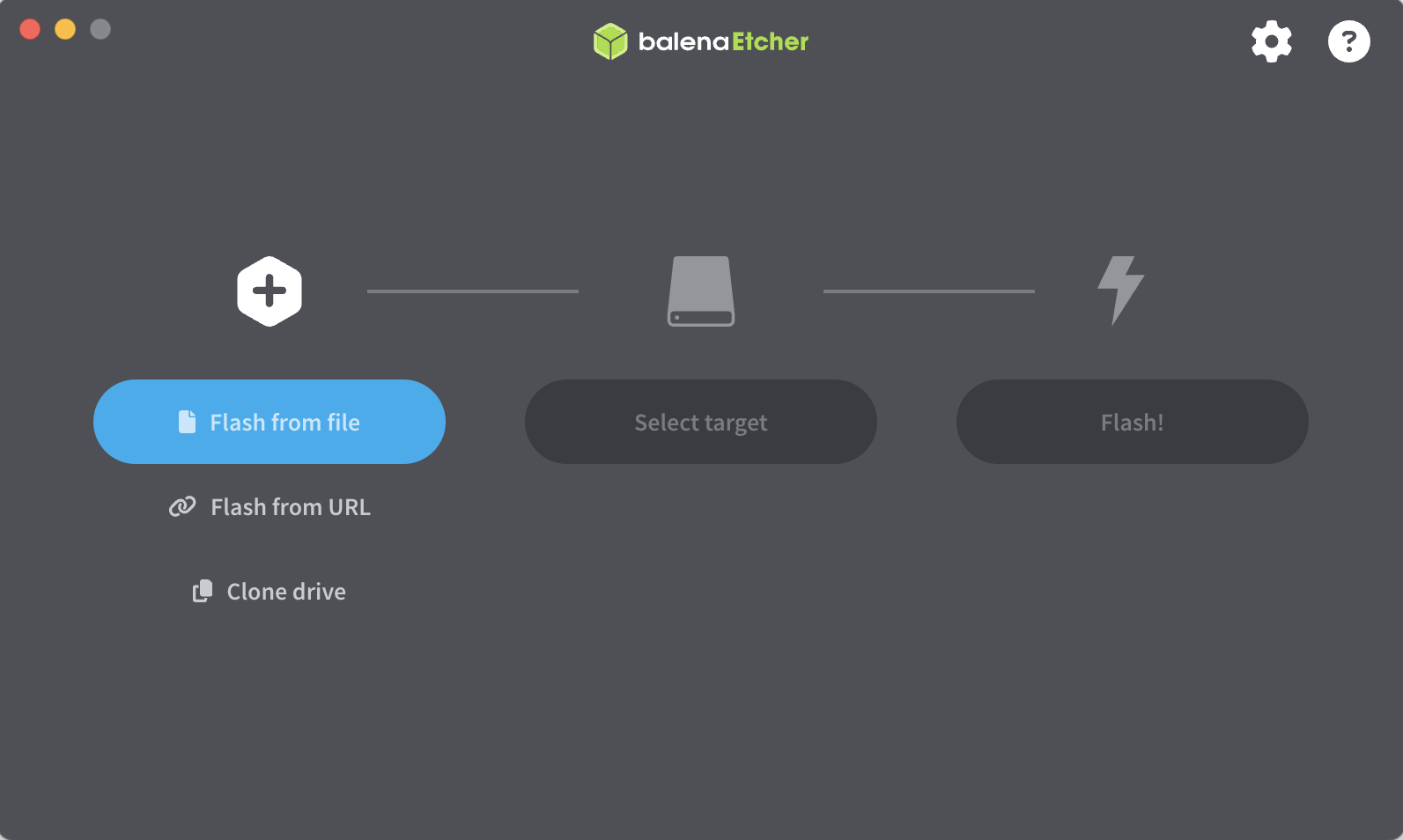
Open Balena Etcher and follow these steps:
a. Click Flash from file and select the Olares One ISO you downloaded.
b. Click Select target and select your USB drive.
c. Click Flash! to write the installer to the USB drive.
Wait until flashing and validation are complete.
Safely eject the USB drive.
Next steps
Use the bootable USB drive to reinstall Olares OS on Olares One. For detailed instructions, see Reinstall Olares OS using bootable USB.