Reset SSH password
Reset upon activation
After you activate Olares, you will be prompted to reset the SSH password on the LarePass app. The password is automatically generated and saved to your Vault.
To view the saved password in Vault:
Open the LarePass mobile app, and then tap the Vault tab.
When prompted, enter your local password to unlock.
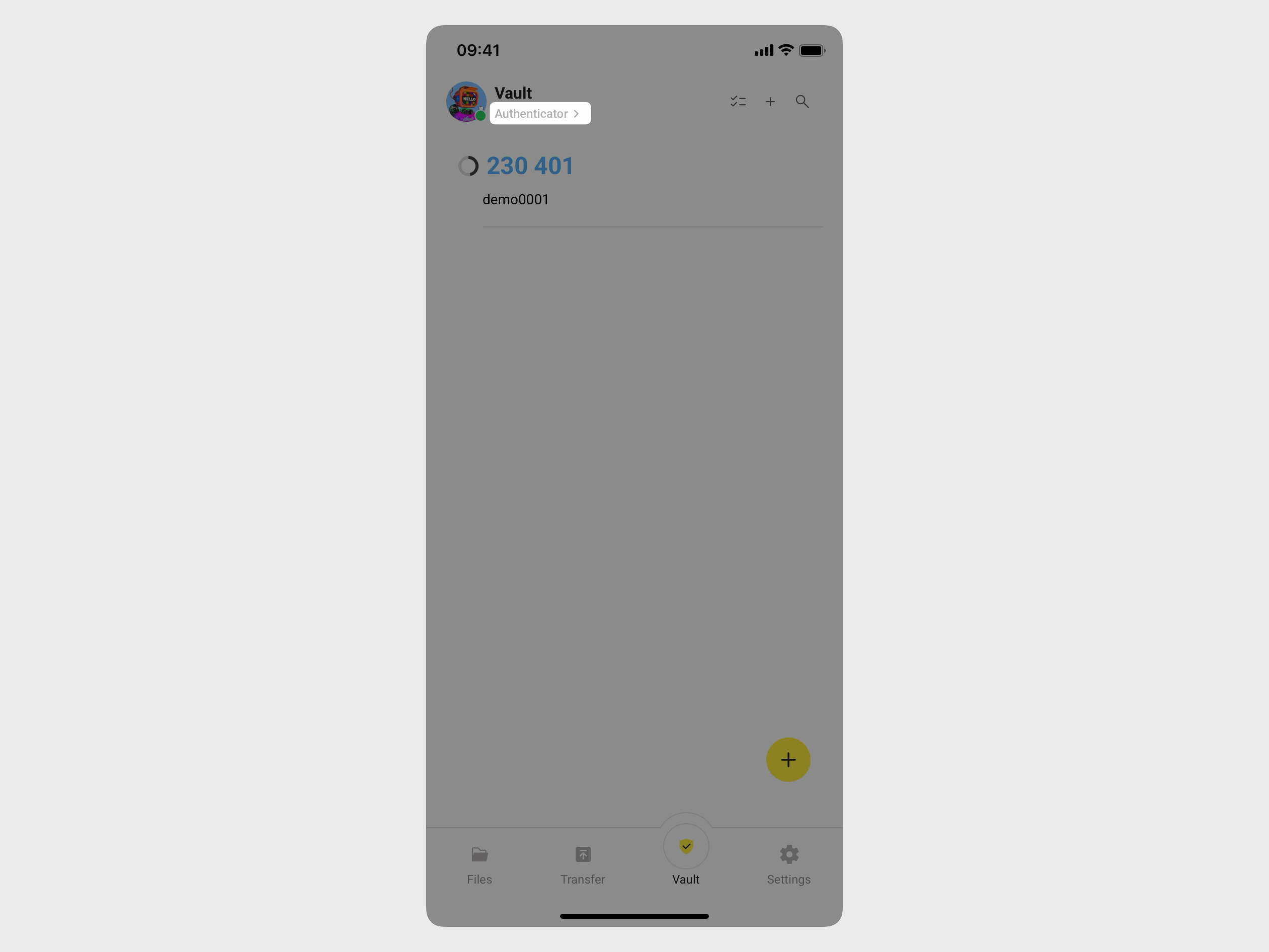
In the top-left corner, tap Authenticator to open the side navigation, and then tap All vaults to display all saved items.
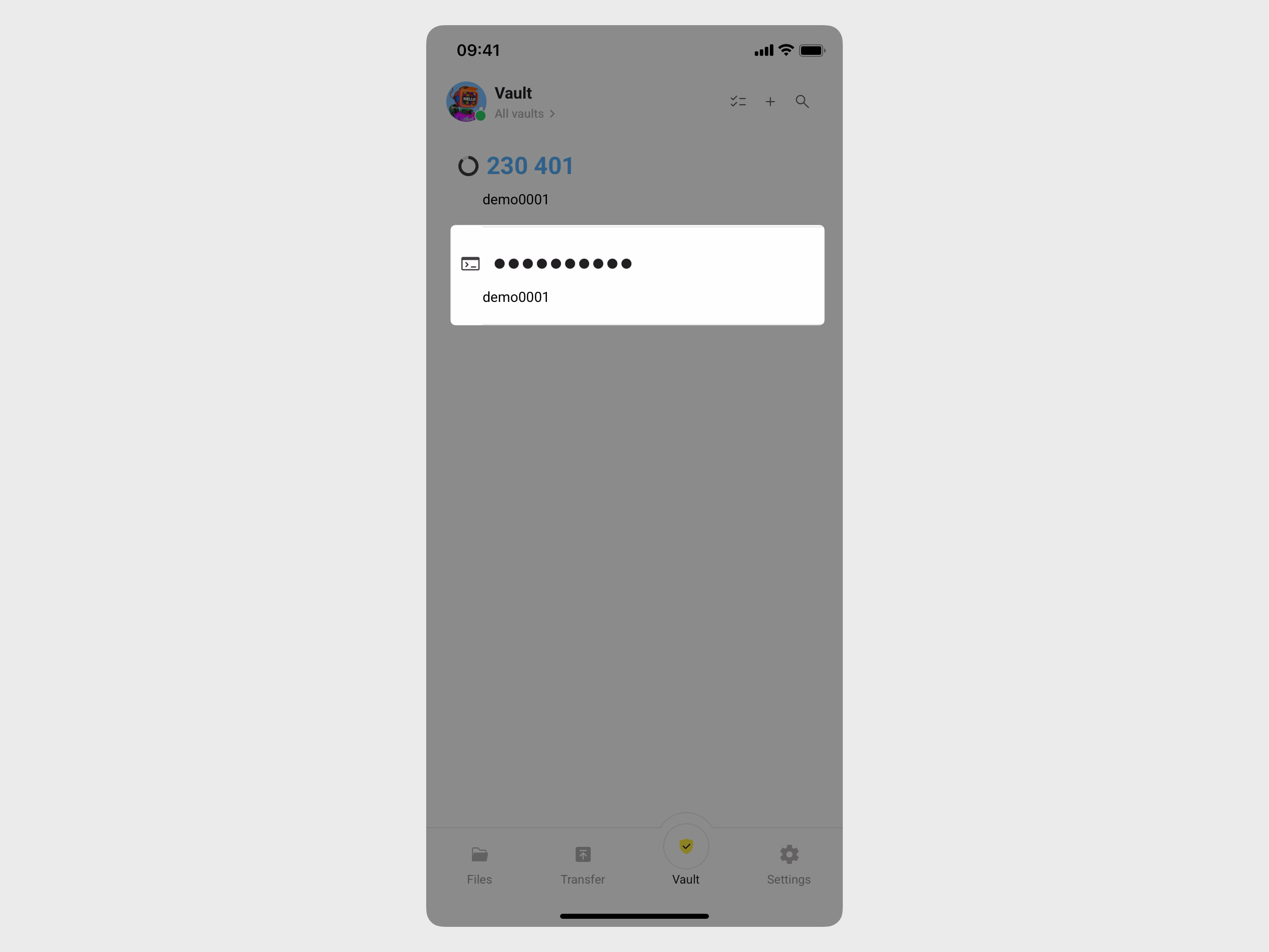
Find the item with the terminal icon and tap it to reveal the password.
Reset in Olares Settings
If you prefer to use an SSH password instead of the automatically generated one, you can manually reset the password in Settings.
Open Settings. On the My Olares page, select My hardware.
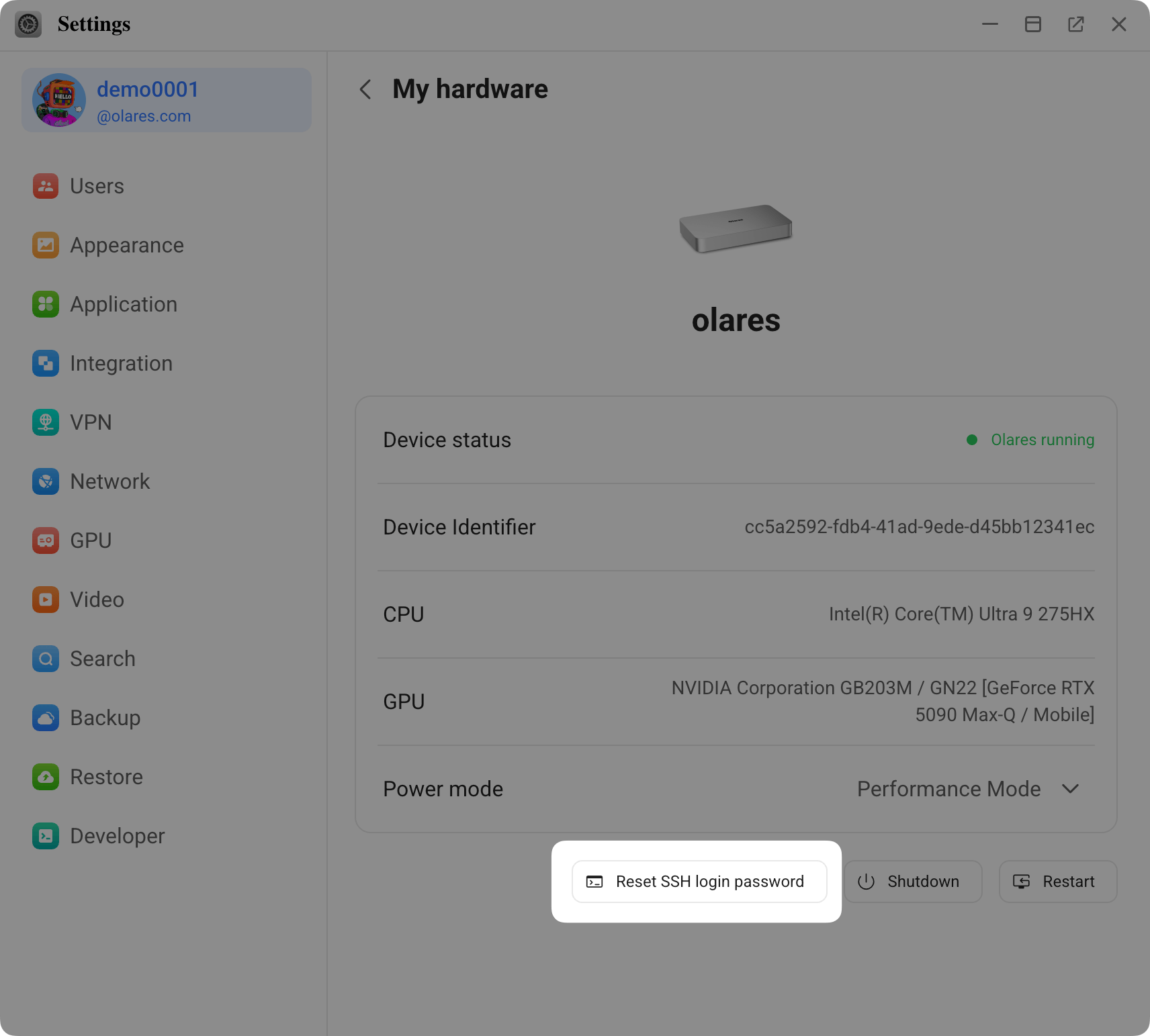
Select Reset SSH login password at the bottom.
In the dialog, enter a new SSH password that meets all strength requirements, then click OK.
Open the LarePass app and scan the QR code shown on the screen.
Click Confirm on LarePass to finish. Your reset SSH password will be saved to Vault.