Install Olares on DGX Spark via script
This guide explains how to install Olares on NVIDIA DGX Spark using the command-line installation script.
Having trouble?
If you run into any issues, submit a GitHub Issue and include your platform, installation method, and error details.
System requirements
- DGX Spark: Ensure your device has completed the initial setup, with a user account created and network configured.
- Storage: At least 150 GB of available SSD storage on DGX Spark.
- Access method: You need access to the terminal on DGX Spark, either via:
- Direct access: Connect a monitor, keyboard, and mouse to DGX Spark.
- Remote access: Connect via SSH from another computer on the same network.
- Network: An Ethernet cable connecting DGX Spark to your router (recommended for stable connection).
Prepare DGX Spark
Before installing Olares, you need to remove the pre-installed container runtime on DGX Spark.
Olares installs and manages its own containerd runtime. If the system already has Docker or containerd installed, it will cause conflicts that prevent Olares from functioning properly.
Impact of removing container runtime
The following steps will:
- Uninstall Docker packages
- Stop and disable the existing containerd service
- Clear existing network rules
On DGX Spark, open a terminal and run:
sudo apt remove docker*
sudo systemctl disable --now containerd
sudo rm -f /usr/bin/containerd
sudo nft flush ruleset
Install Olares
- In the same terminal, run the following command:
curl -fsSL https://olares.sh | bash -Root user password
During the installation, you may be prompted to enter your root password.
Errors during installation?
If an error occurs during installation, use the following command to uninstall first:
olares-cli uninstall --allAfter uninstalling, retry the installation by running the original installation command.
Prepare Wizard URL
At the end of the installation process, you will be prompted to enter your domain name and Olares ID.
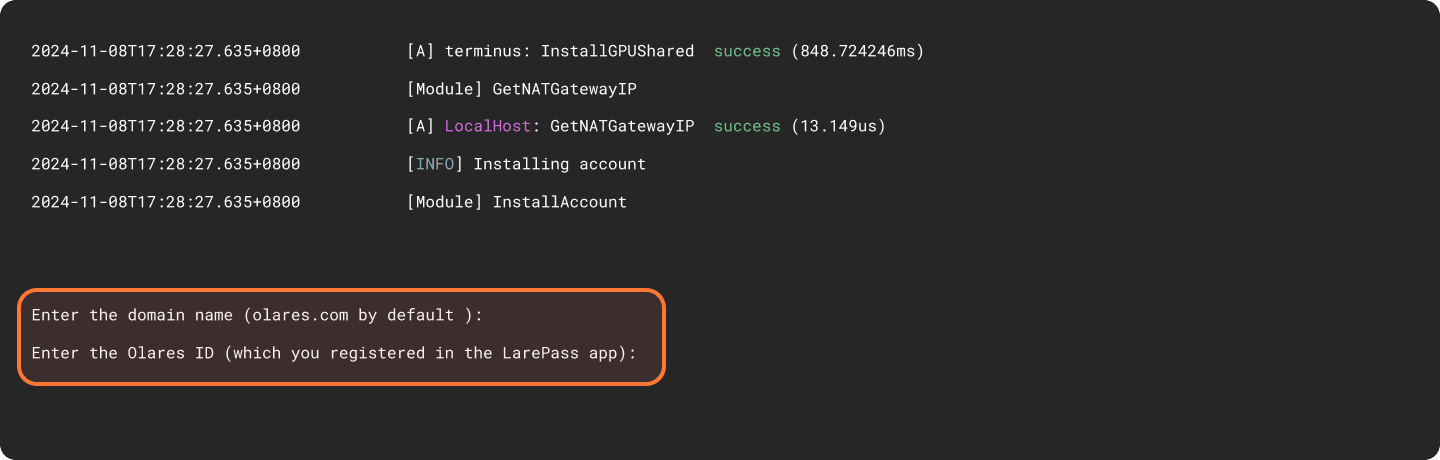
For example, if your full Olares ID is [email protected]:
- Domain name: Press
Enterto use the default domain name or typeolares.com. - Olares ID: Enter the prefix of your Olares ID. In this example, enter
alice123.
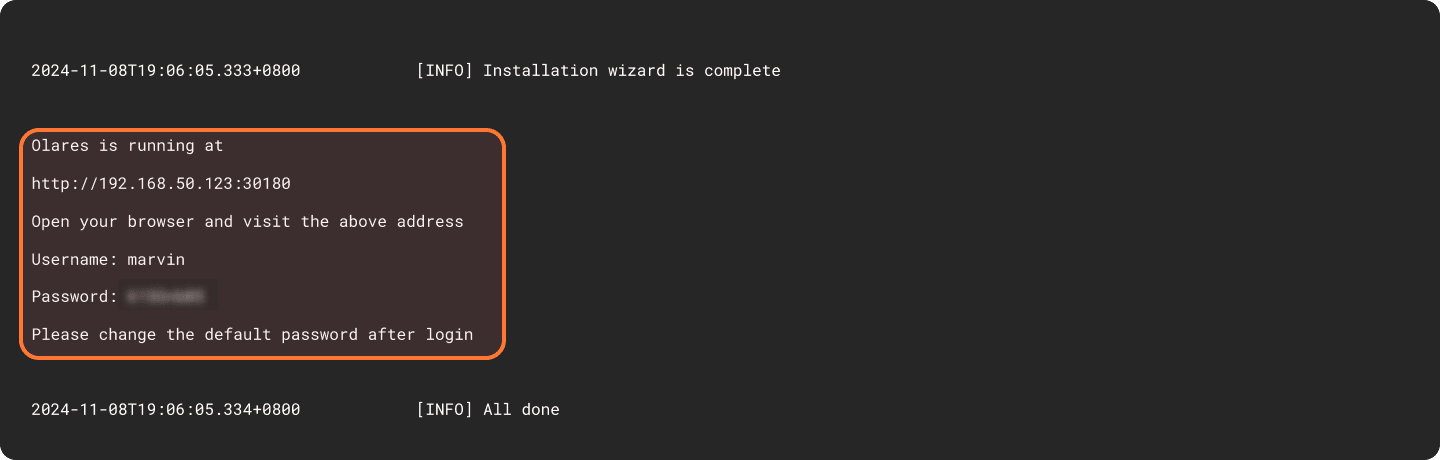
Upon completion of the installation, the initial system information, including the Wizard URL and the initial login password, will appear on the screen. You will need them later in the activation stage.
Activate Olares
Use the Wizard URL and initial one-time password to activate. This process connects the Olares device with your Olares ID using LarePass.
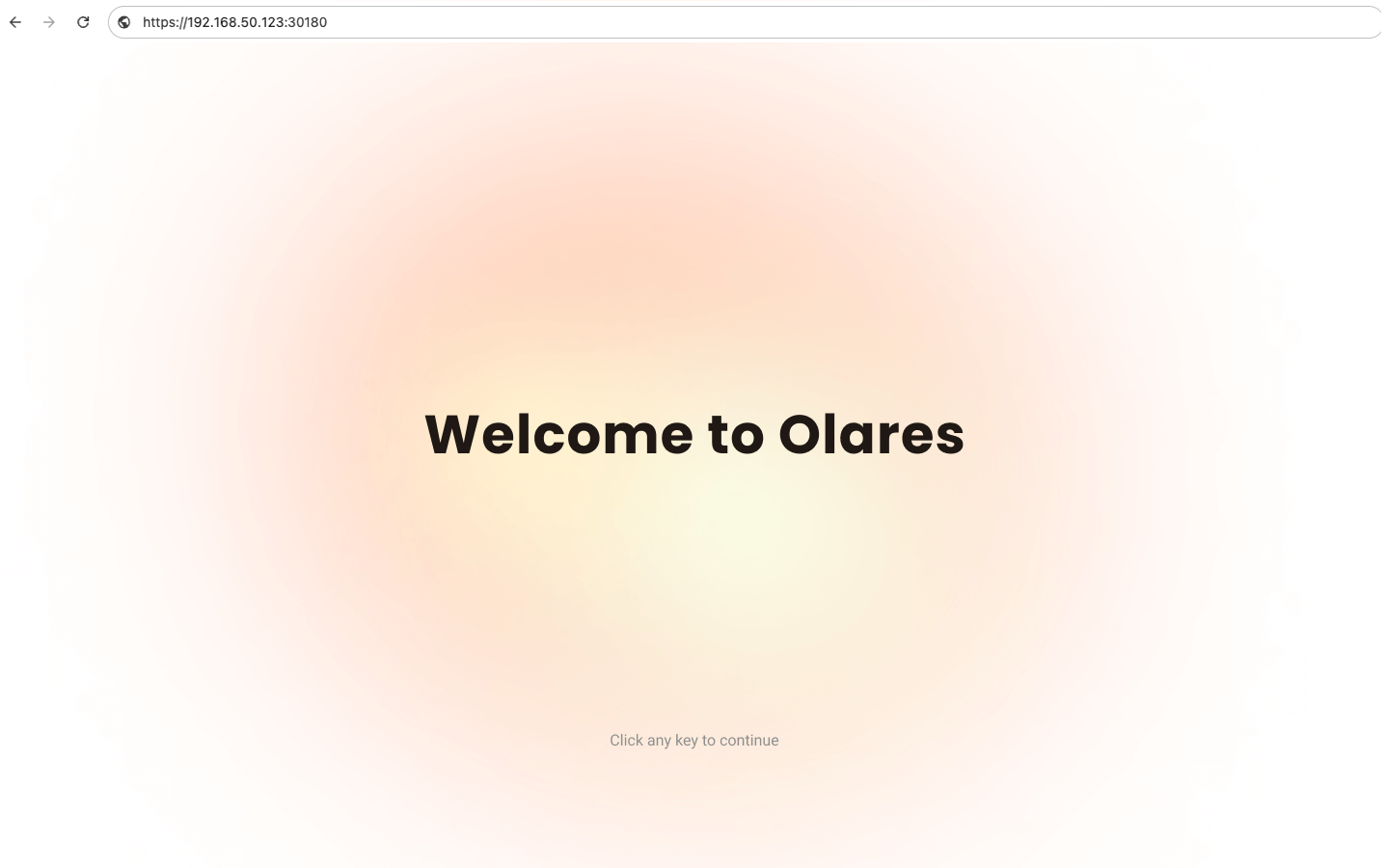
Enter the Wizard URL in your browser. You will be directed to the welcome page. Press any key to continue.
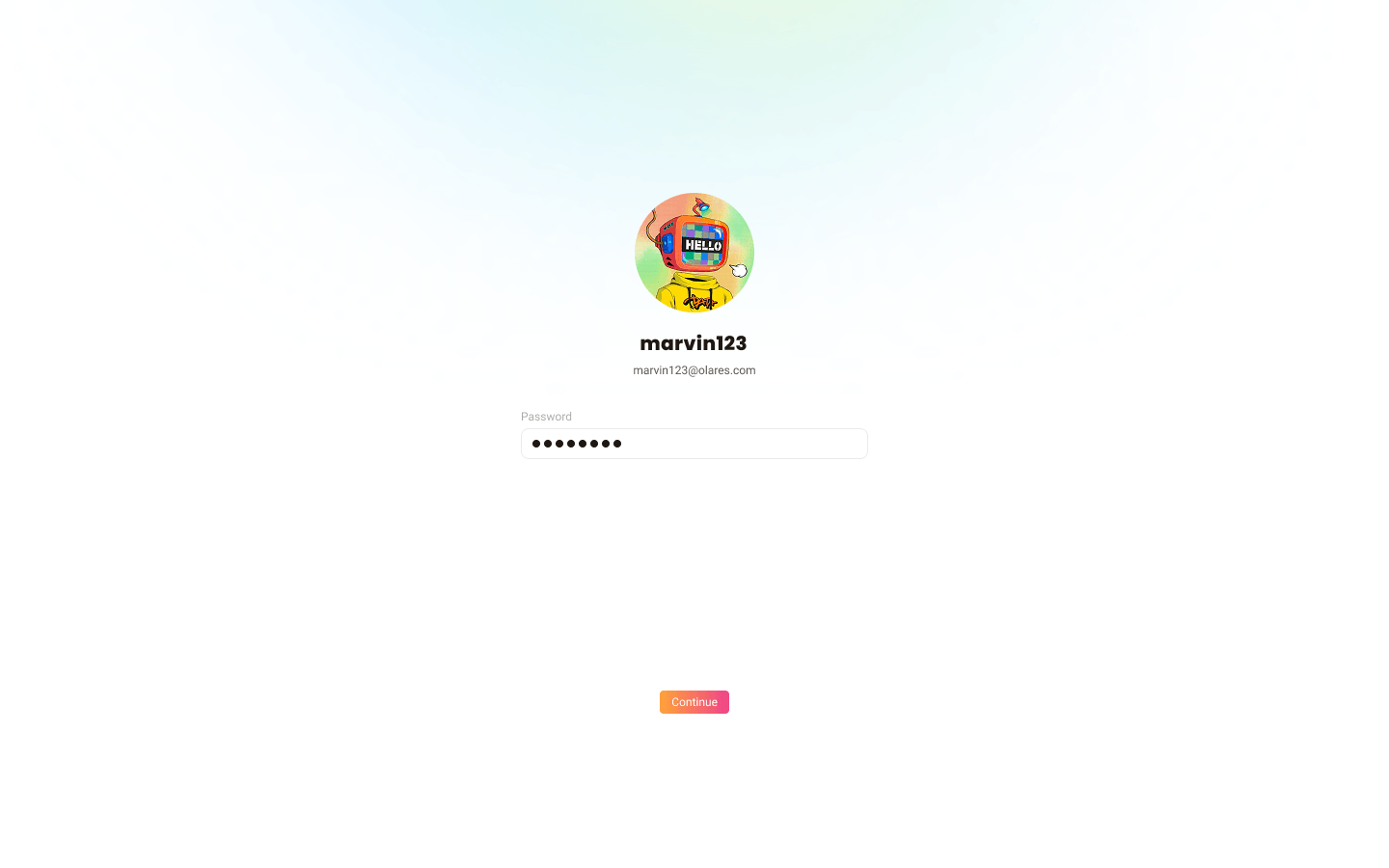
Enter the one-time password and click Continue.
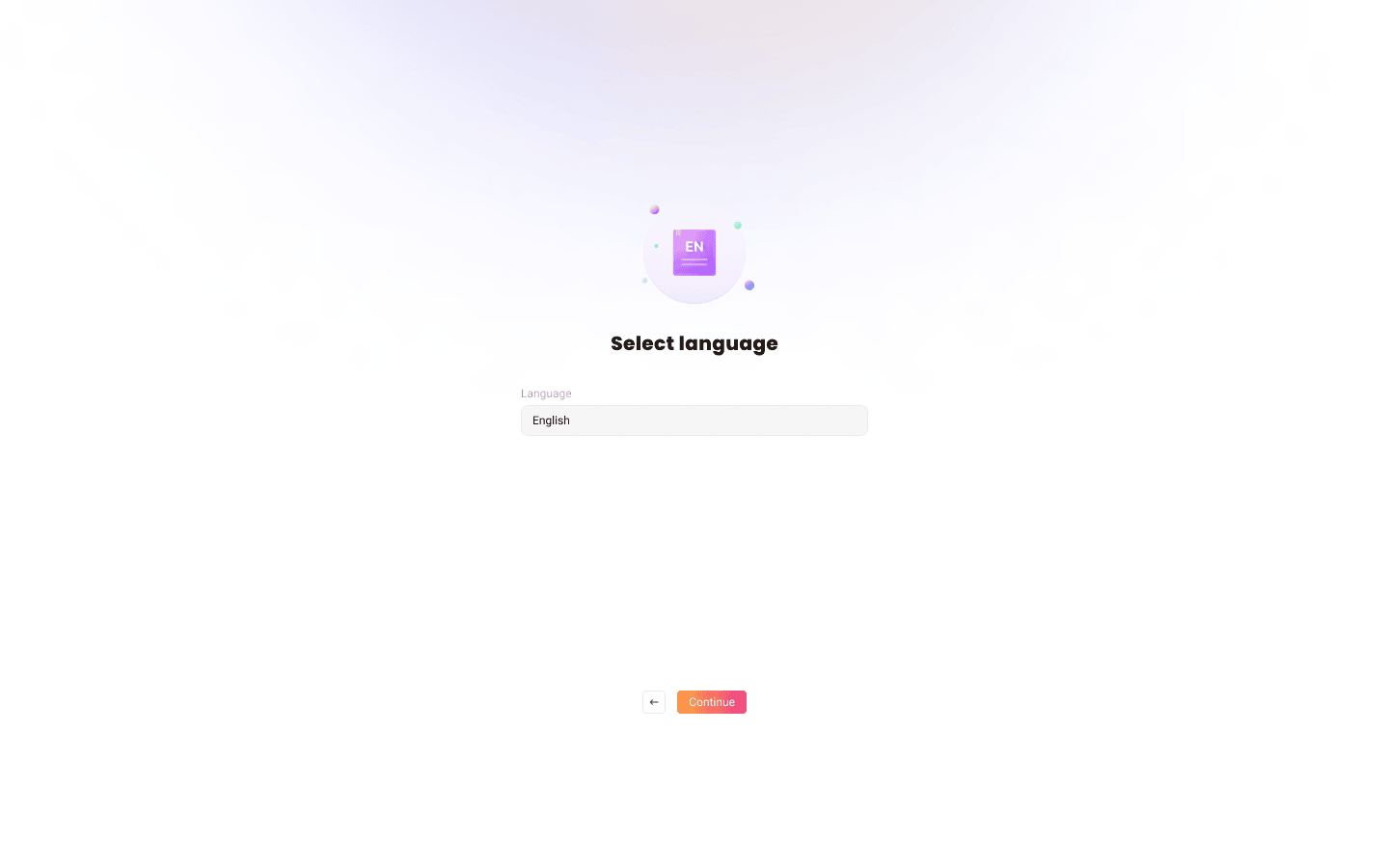
Select the system language.
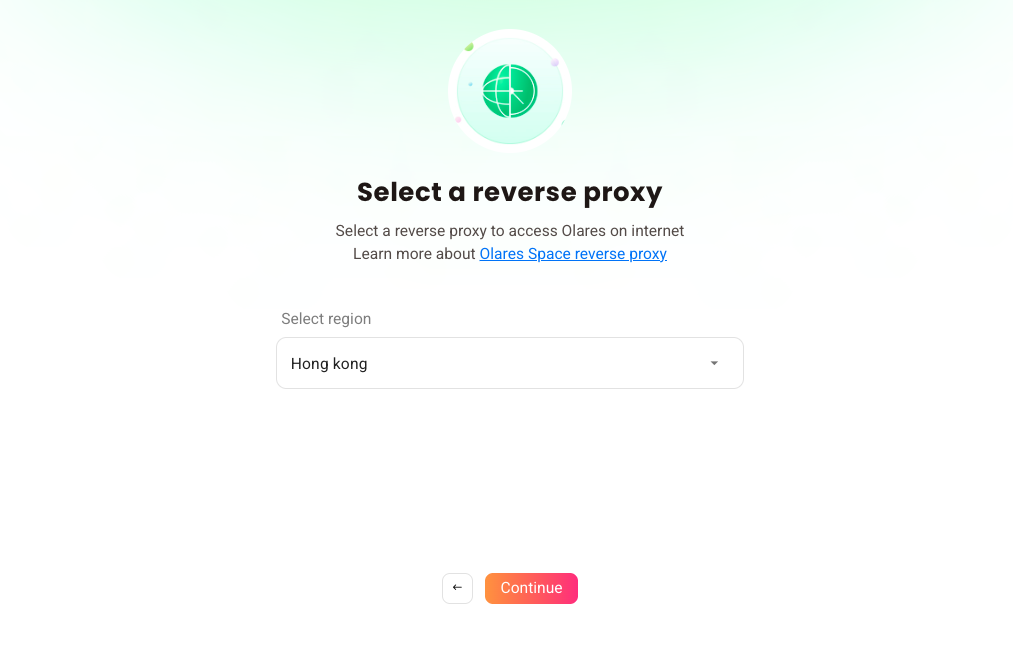
Select a reverse proxy node that is geographically closest to your location. You can adjust this later on the Change reverse proxy page.
Activate Olares using LarePass app.
Same network required for admin users
To avoid activation failures, ensure that both your phone and the Olares device are connected to the same network.
a. Open LarePass app, and tap Scan QR code to scan the QR code on the Wizard page and complete the activation.
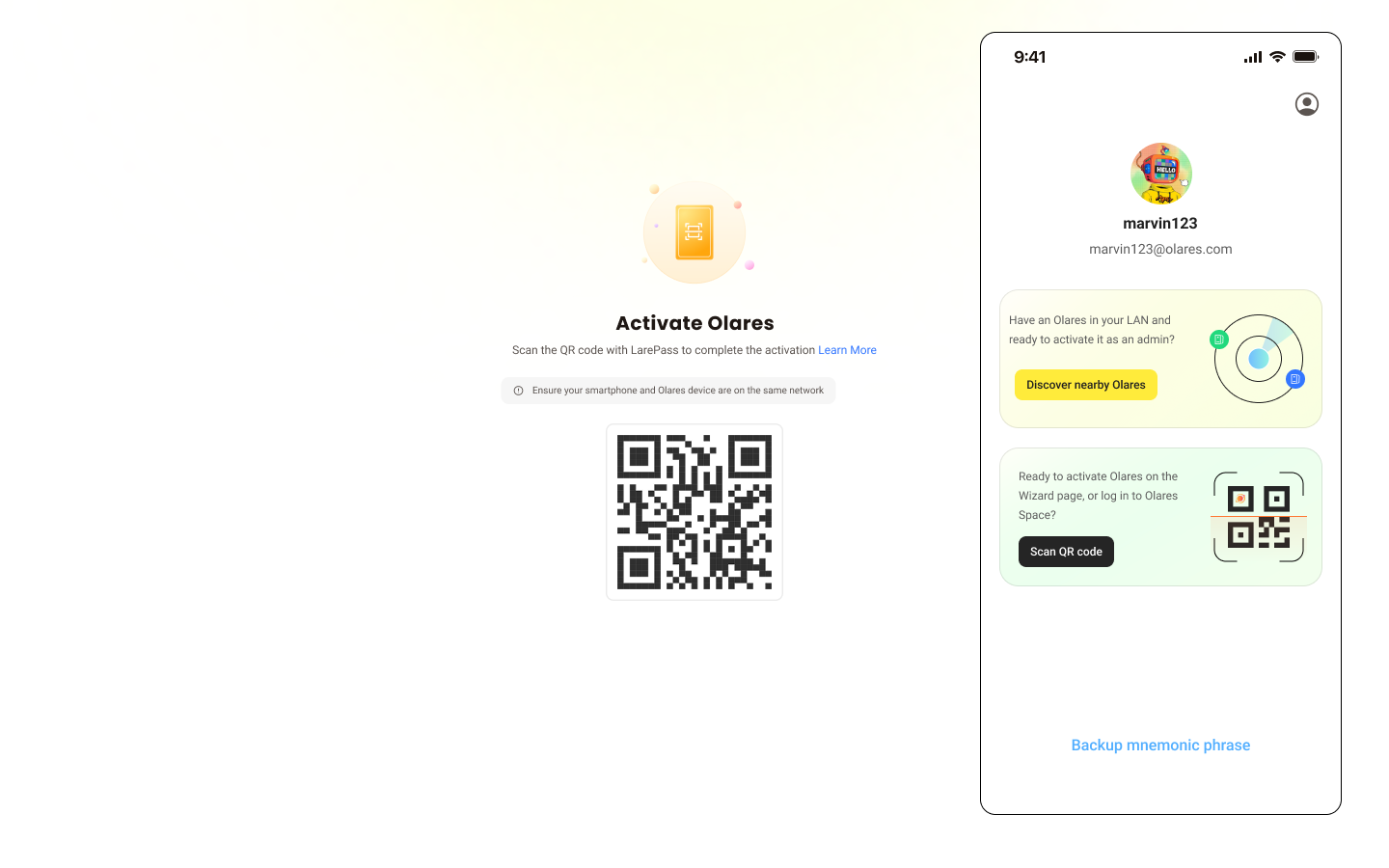
b. Reset the login password for Olares by following the on-screen instructions on LarePass.
After setup is complete, the LarePass app returns to the home screen, and the Wizard redirects you to the Olares login page.
Log in to Olares
Open the Olares desktop address in your browser, and press any key to continue.
On the login page, enter your Olares login password.
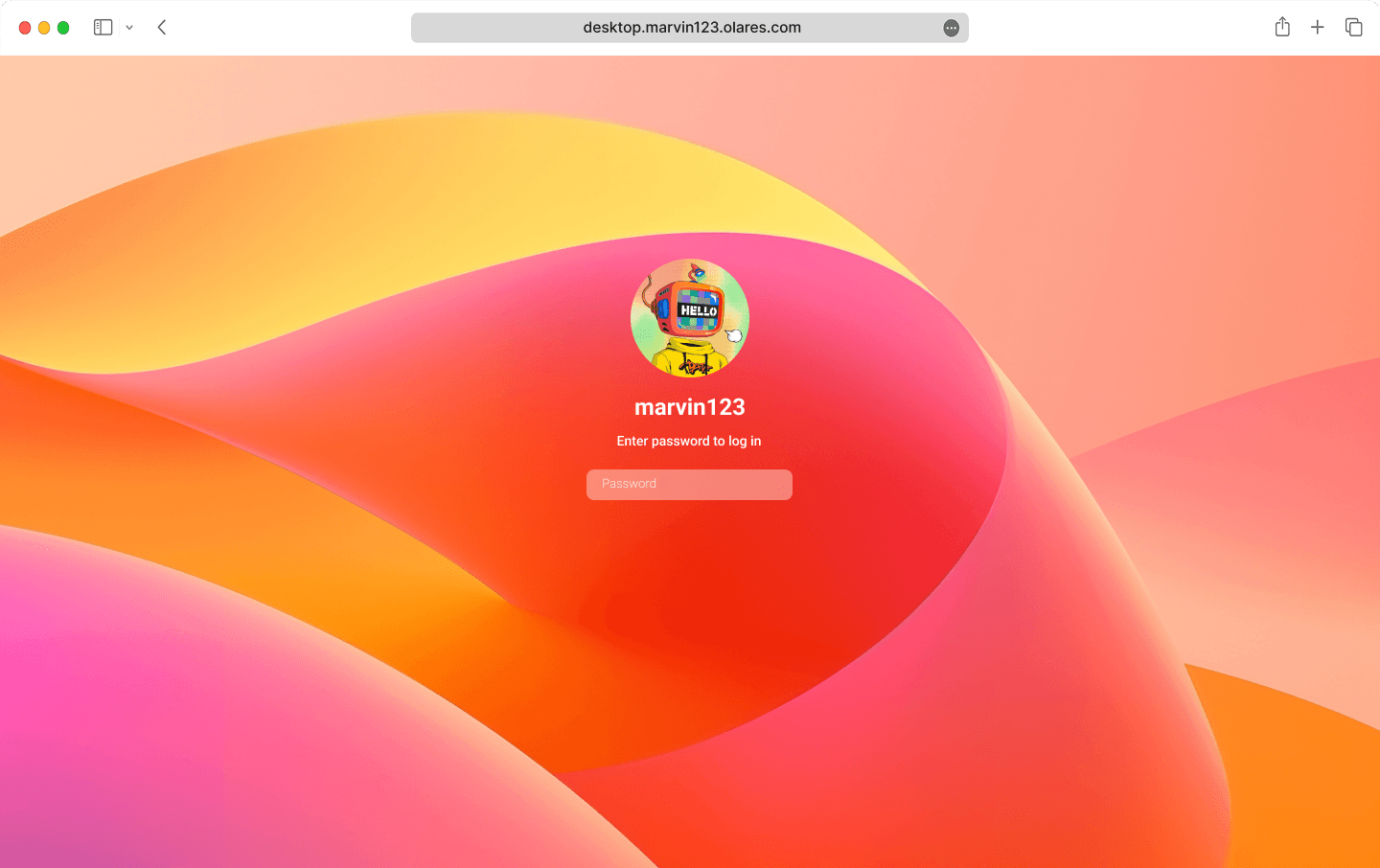
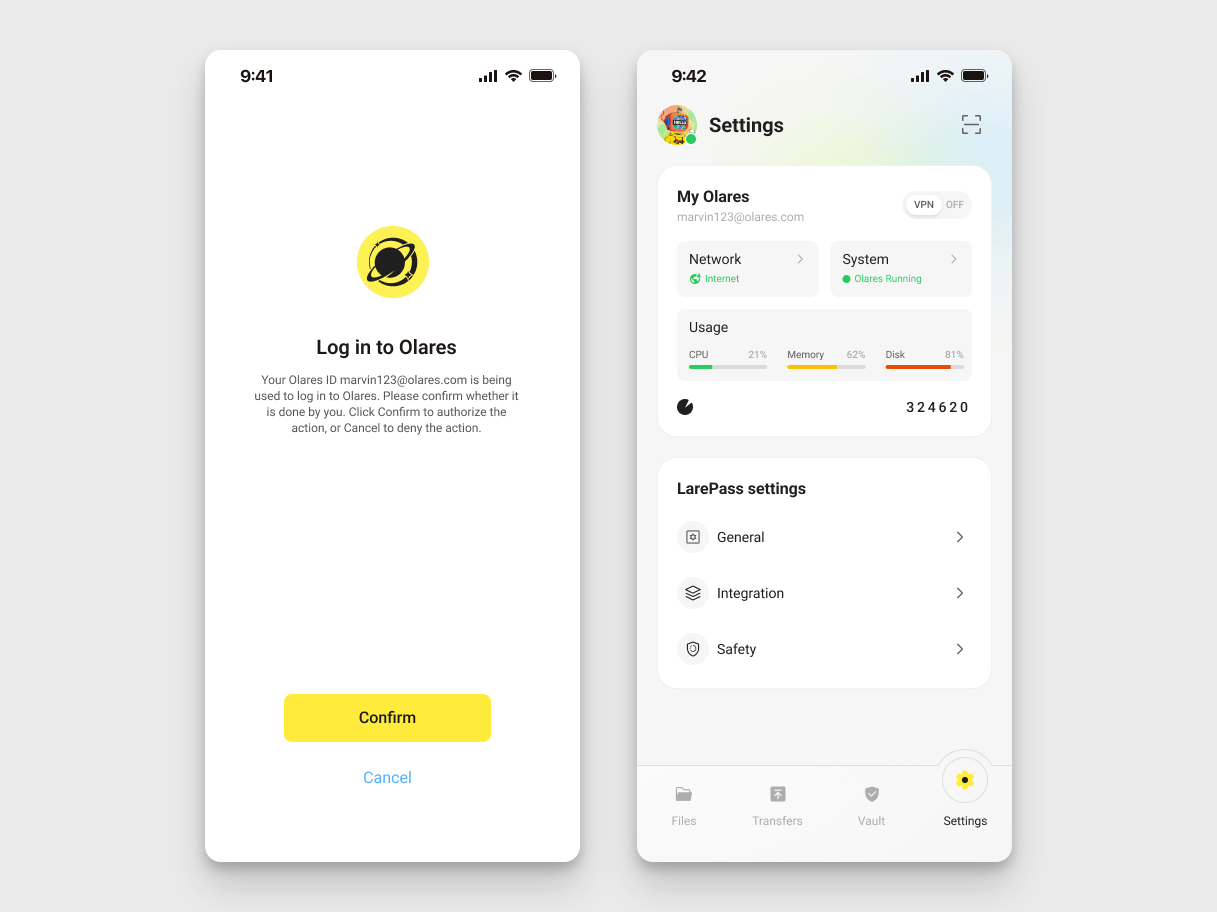
You will be prompted to complete two-factor verification. You can confirm the login on LarePass, or manually enter the 6-digit verification code.
INFO
The verification code is time-sensitive. Ensure you enter it before it expires.
Once you've logged in, you'll be directed to the Olares desktop.🎉
Configure GPU memory for AI apps
DGX Spark features a unified memory architecture where the CPU and GPU share 128 GB of LPDDR5x memory. Unlike traditional GPUs with dedicated VRAM, DGX Spark does not distinguish between system memory and GPU memory.
On DGX Spark, Olares uses Memory slicing mode by default for GPU resource management. When you install an AI application, Olares automatically allocates the minimum required memory to ensure the app can start and run properly.
If needed, you can manually adjust the memory allocation for each AI application:
Open Settings from Olares, and then navigate to GPU.
In the Allocate VRAM section, find the target app.
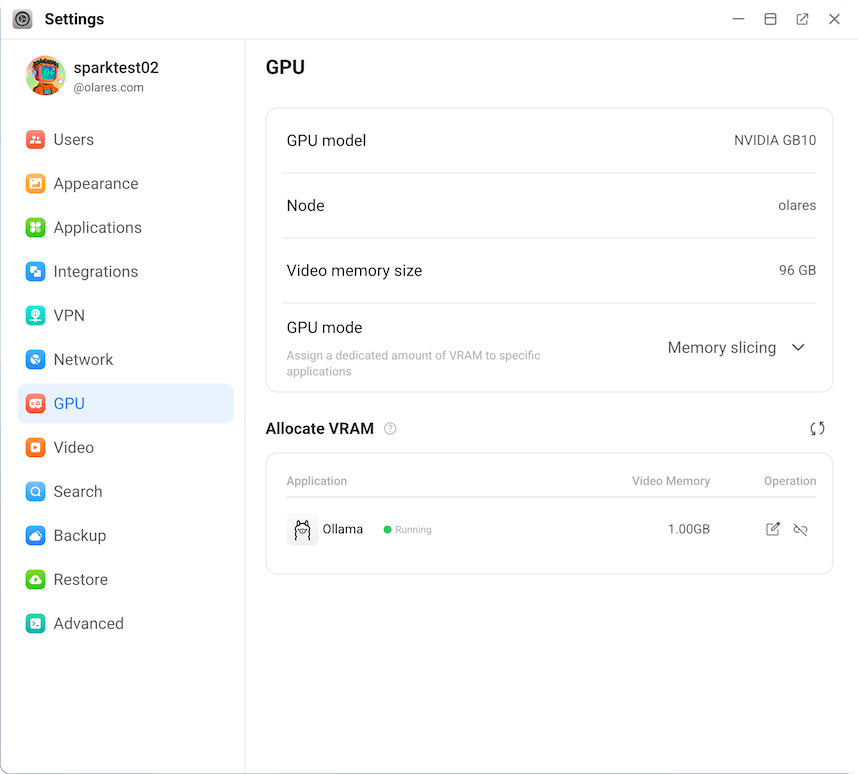
Click edit_square next to the VRAM value.
In the Edit VRAM allocation dialog, enter the desired VRAM amount in GB and click Confirm.
Next step: Protect your Olares ID
You're almost ready to start using Olares! Before diving in, it's crucial to ensure your Olares ID is securely backed up. Without this step, you won't be able to recover Olares ID if needed.