Get familiar with Desktop
Desktop is the primary interface for interacting with Olares. From here, you can open and manage built-in system apps as well as the apps you install.
Desktop basics
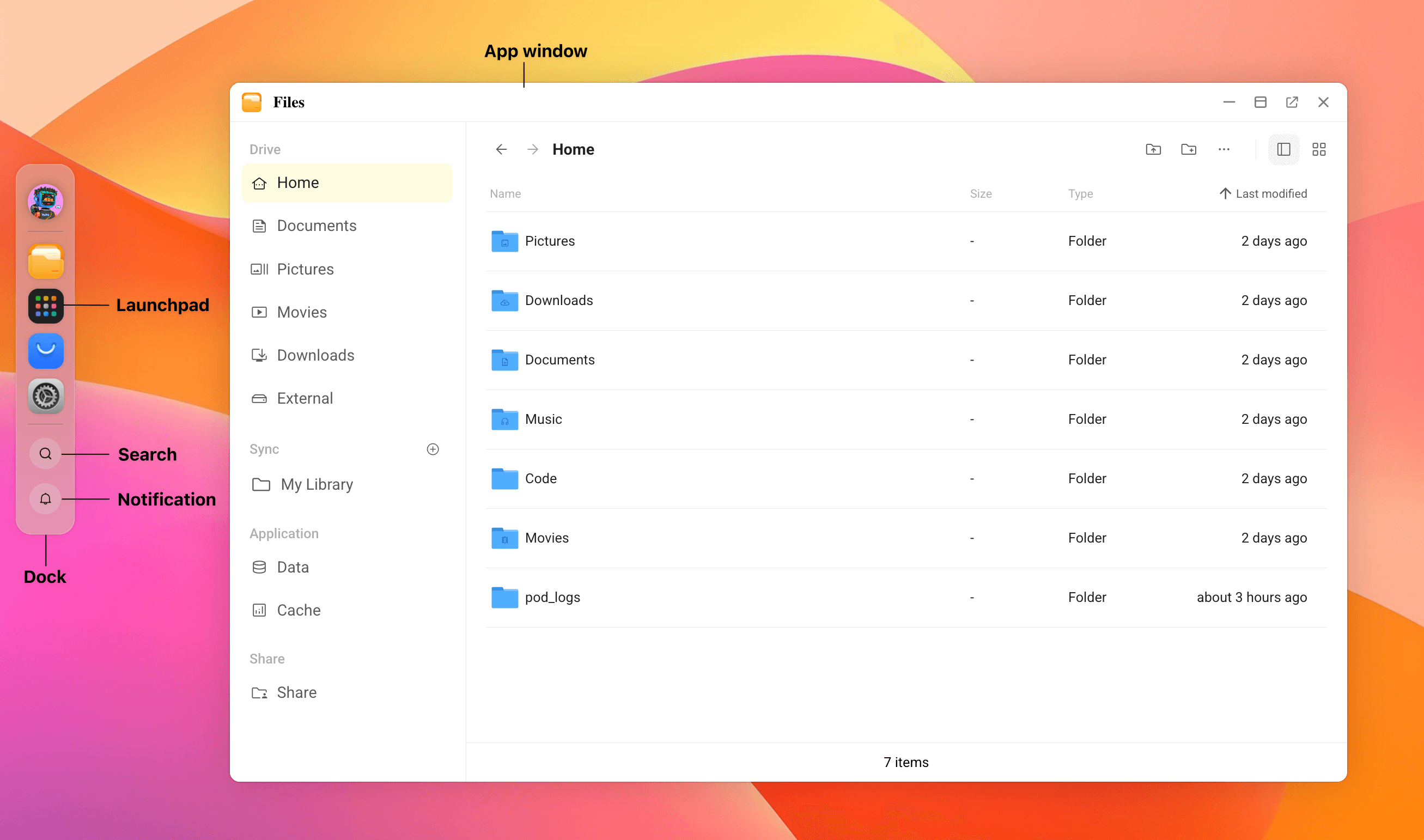
Dock
The Dock is an application quick-launch bar on the left side of the screen. Use it to open frequently used apps and access key Desktop features.
Launchpad
Launchpad shows all installed applications. Click the Launchpad icon in the Dock to open it.
Application windows
By default, applications open in window mode as an embedded page within Desktop. You can manage windows like you would on a standard computer:
- Drag the title bar to move the window.
- Drag the window edges to resize it.
- Minimize, maximize, or close the window.
- Click open_in_new to open the app in a new browser tab.
INFO
Some applications only support opening in a browser tab.
Search and notifications
- Search: Quickly launch applications and find supported content across Olares.
- Notifications: Click the notification icon to view system and application notifications.
Use Launchpad
From Launchpad, you can:
- View all installed applications.
- Click an application icon to open it.
- Drag icons to reorder them within Launchpad.
- Drag an icon to the Dock for quick access.
Uninstall applications
- Press and hold an application icon to enter editing mode.
- If a close_small icon appears in the top-left corner of the app icon, click it to uninstall the application.
INFO
Built-in system applications such as Files, Market, and Settings cannot be uninstalled.
Search within Olares
You can quickly open global search using one of the following methods:
- Press the keyboard shortcut:
Shift + Space - Click the search icon in the Dock.
Global search can find applications, files, and other supported search targets.
| Supported search target | Supported search capability |
|---|---|
| Applications (built-in and installed) | Search by application name and open the app directly. |
| Directories enabled for full-text search | Search files by filename and by text content inside supported documents. |
| Other directories in File manager storage | Search files by filename only. |
| Team shared files | Search shared files by filename only. |
| Syned files | Search synced files by filename only. |
| Wise reader content | Search RSS feeds, web pages, and PDFs by name. |
Configure file search rules
By default, global search searches files by filename only.
To improve search efficiency or enable searching file contents, go to Settings > Search > File Search to configure full-text search and exclusion rules.
For details, see Configure file search.