Manage application entrances
Entrances define how users access your applications on Olares. For more details, see the Entrance concept.
Entrance management in Olares includes two main components:
- Endpoint settings: Define the network address and routing configuration for the application.
- Access policies: Control the authentication methods required to access the application.
Access entrance management
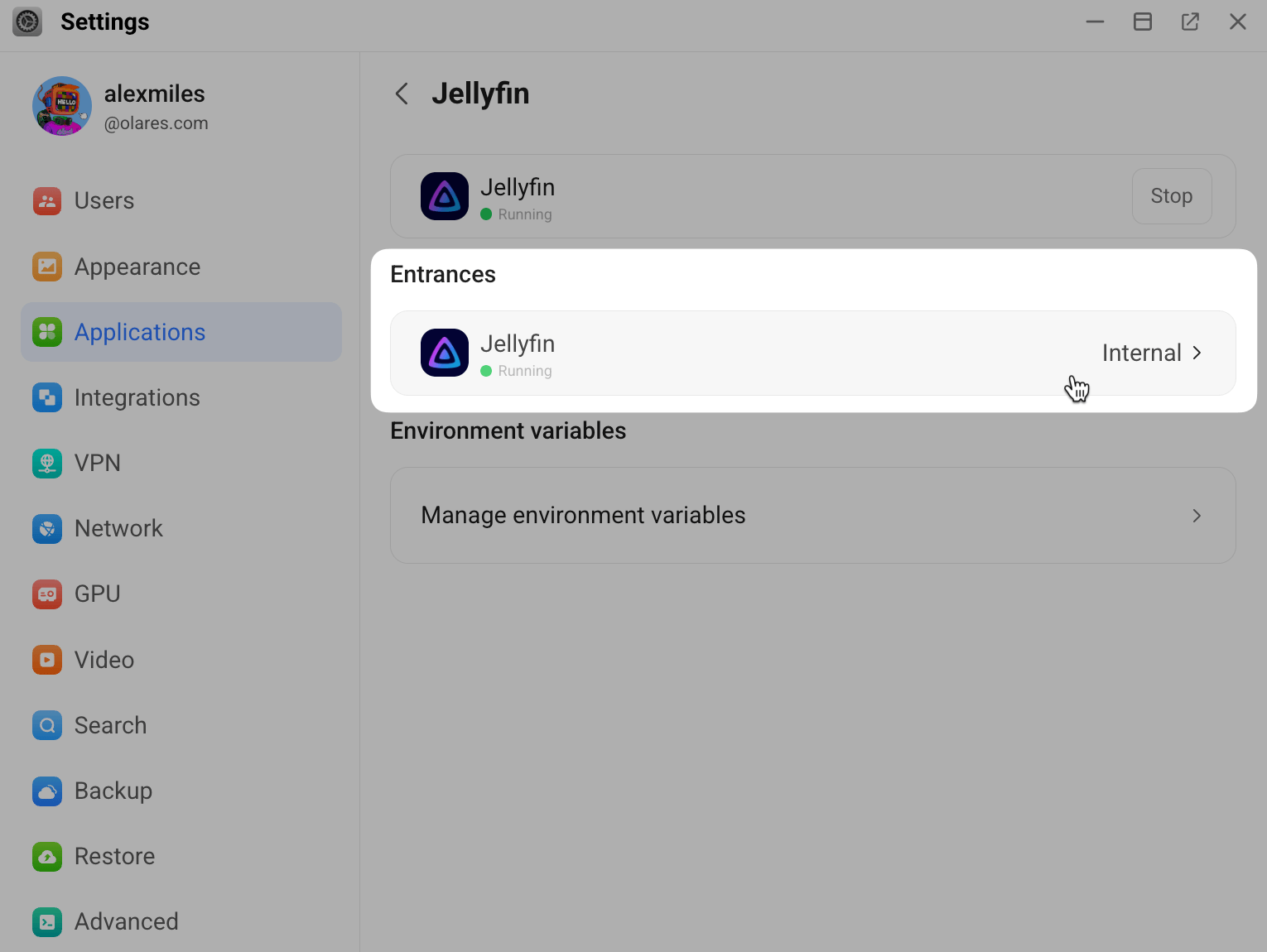
Go to Settings > Application.
Click the target application.
Under Entrances, click the target entrance.
Endpoint settings
The Endpoint settings panel lets you customize how your application is accessed externally through a dedicated URL.
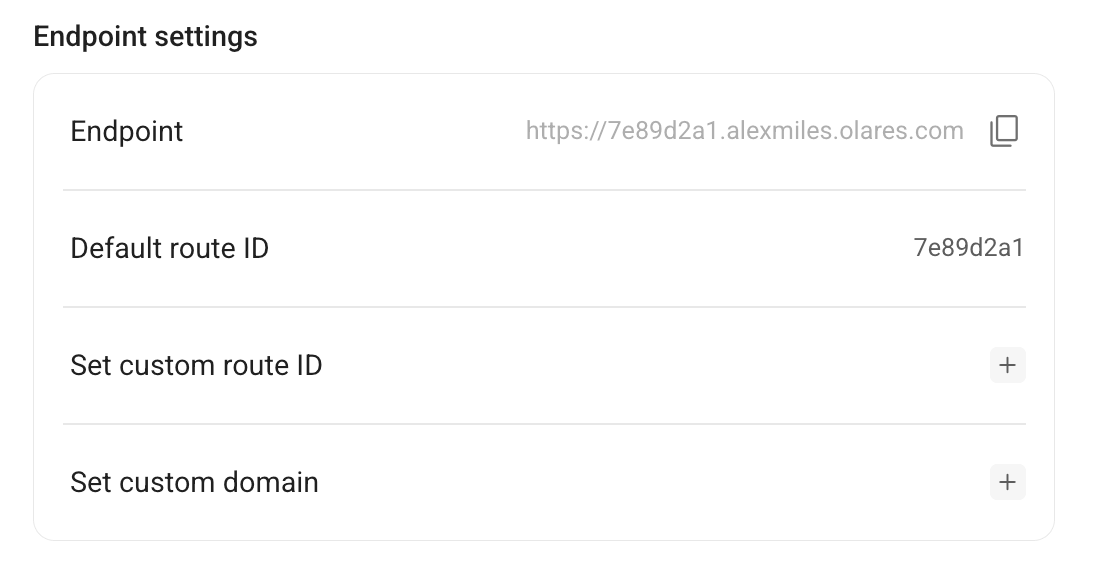
Options include:
Endpoint: The domain for accessing your app. Click content_copy to copy the URL.
Default route ID: The system-assigned identifier for the app route. In this example, the default route ID for Jellyfin is
7e89d2a1.Set custom route ID: Click add to replace the default route ID. For example, if you set it to "jellyfin", the app will be available at both
https://7e89d2a1.alexmiles.olares.comandhttps://jellyfin.alexmiles.olares.com. For detailed instructions, refer to Custom route ID.Set custom domain: Click add to add your own domain to this application. For example,
app.yourdomain.com. You need to configure the required DNS records before the domain can work. For detailed instructions, refer to Custom domain name.
Access policies
Access policies control who can access your application and their required authentication method.
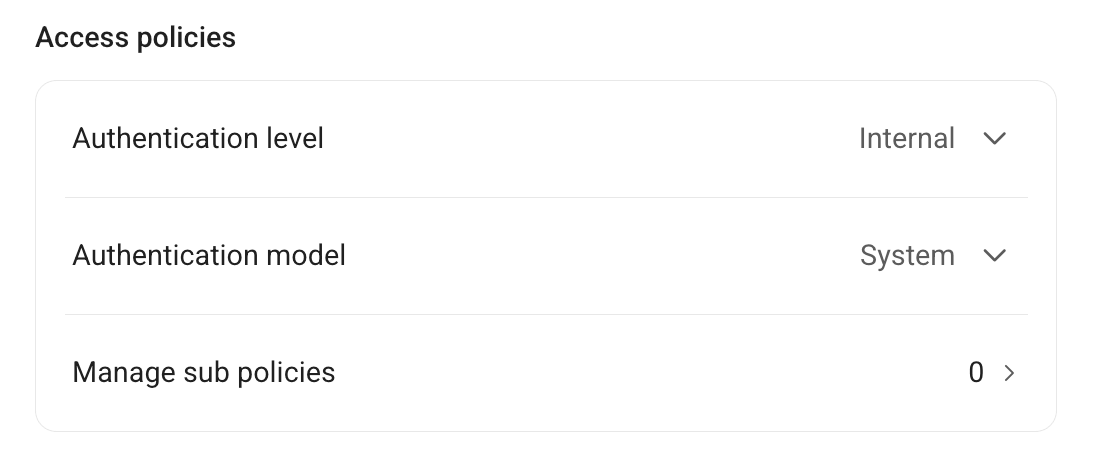
Options include:
Authentication level: Set the overall authentication requirement for the application:
- Public: Accessible to anyone, with no login required.
- Private: Requires users to log in to access.
- Internal: No login is required if accessing the application via VPN.
Authentication mode: Specify the method used for verifying user identity:
- System: Inherits the system-wide authentication rules defined on the My Olares page.
- One Factor: Requires only the Olares login password.
- Two Factor: Requires the Olares login password plus a second verification code.
- None: No authentication is required for access.
Manage sub-policies: Apply fine-grained access rules to specific paths within the application using regular expressions.
- Click chevron_forward to open the Manage sub policies page.
- Click Add sub policy, then enter the target paths in Affected URLs and select an Authentication mode.
- Click Submit.