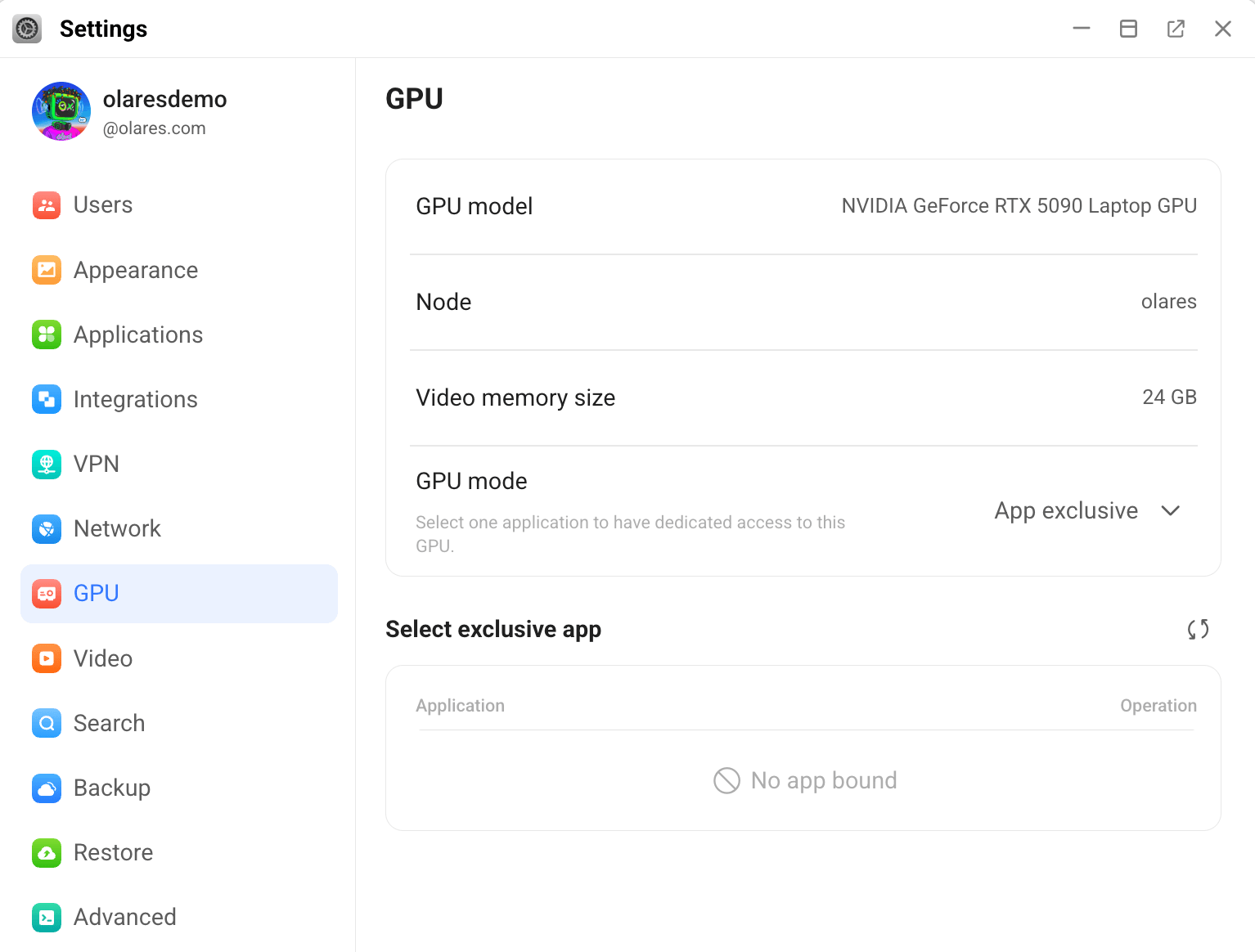
Cannot remove a stopped app in App exclusive mode
Use this guide when an app still appears in App exclusive mode after you stop and remove it, preventing you from assigning the GPU to another app.
Condition
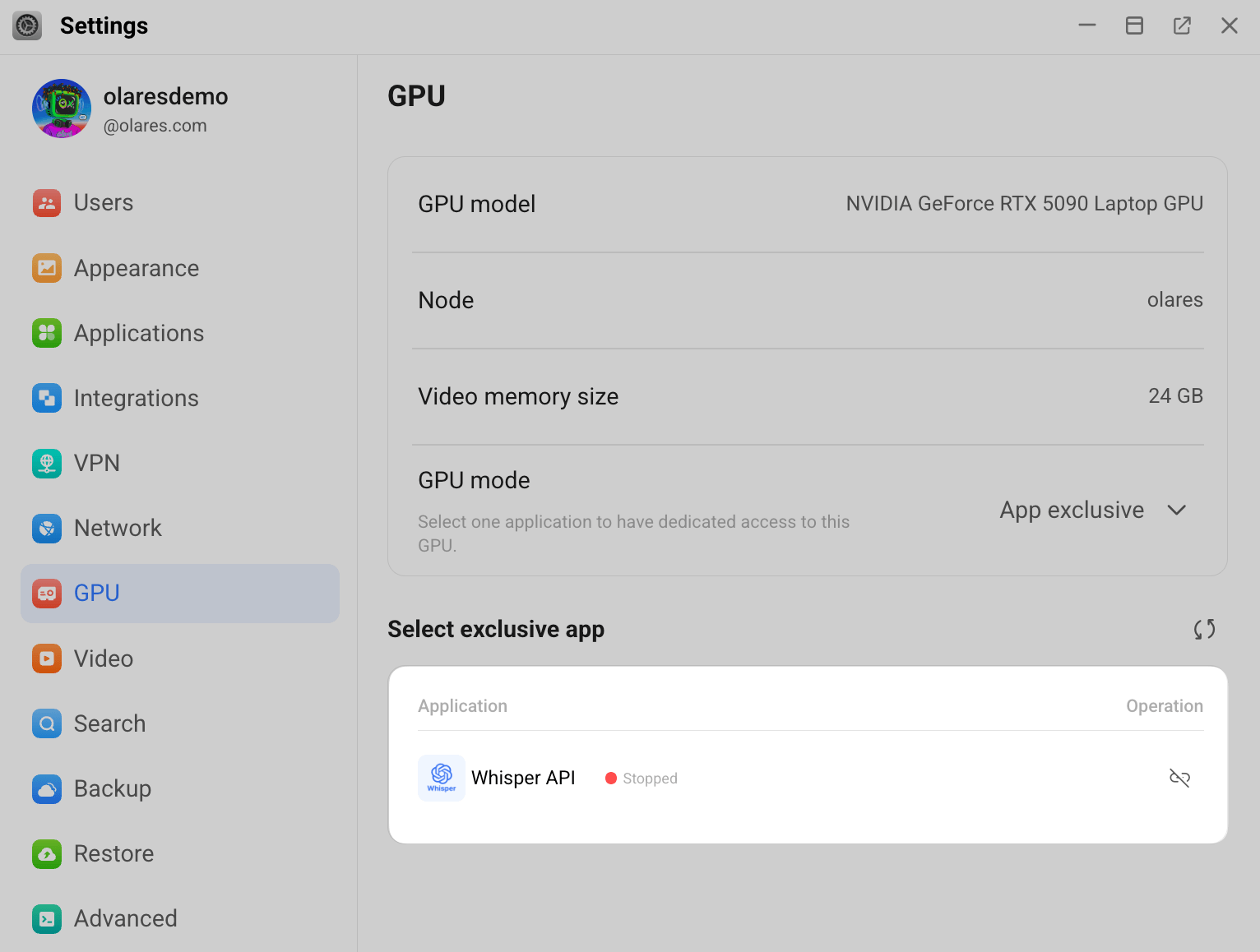
- In App exclusive mode, after you stop an app and remove it, it appears again in the Select exclusive app section.
- The app is still shown as Stopped in Settings, Market, and Launchpad.
Cause
In Olares 1.12.5, when you switch the GPU mode to App exclusive, the system automatically selects an app as the exclusive app. To remove that app, you must stop it first.
However, some apps are deployed as shared applications. Even if such an app shows as Stopped, its server may still be running in the background and occupying GPU resources. As a result, the app reappears in the Select exclusive app section after you remove it.
Solution
To fully stop both the client and server, resume the app first, then stop it again.
Open Settings > GPU and check which app is currently shown in the Select exclusive app section.
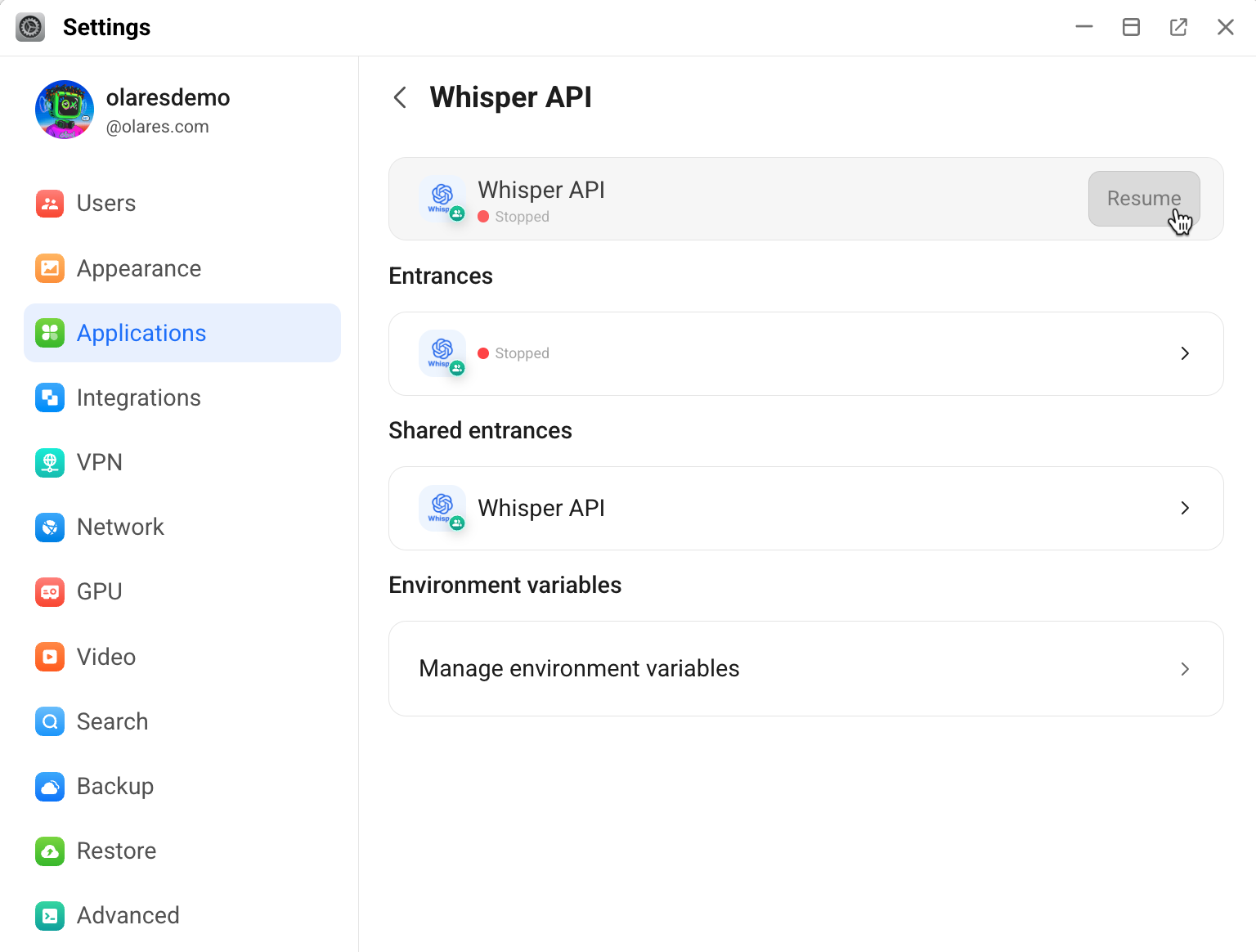
Go to Settings > Applications, find the same app, and then click Resume.
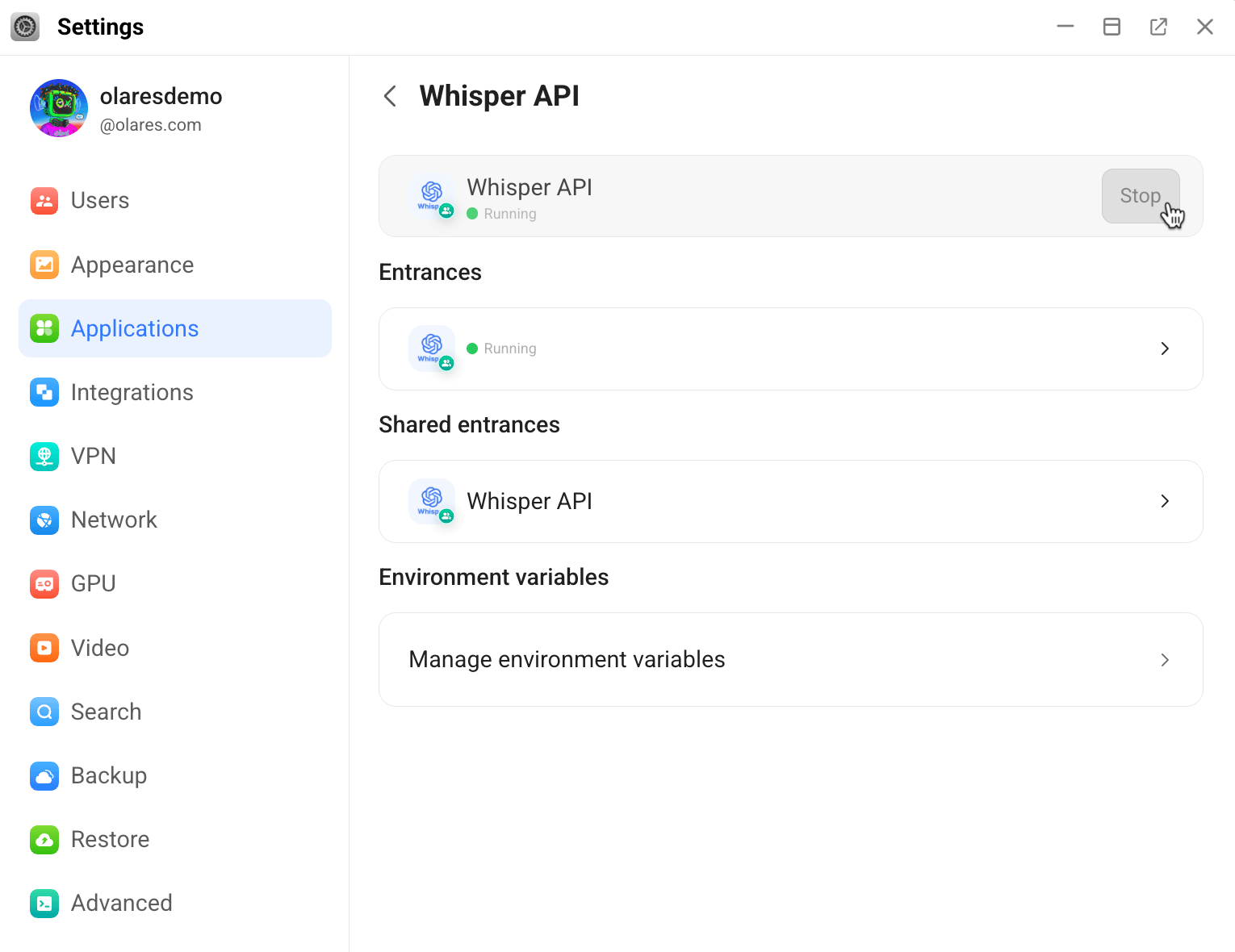
Wait a few moments for the app to start, and then click Stop.
Go back to Settings > GPU, and then click link_off to remove the app again.
Refresh the list and verify that the app no longer appears in the Select exclusive app section.