Slow or delayed Steam streaming
Use this guide when Steam streaming from Olares feels slow or delayed during gameplay.
Condition
Steam streaming feels slow or delayed during gameplay, which may appear as high latency, stuttering, sudden disconnections, or input delay.
Cause
Slow or delayed Steam streaming can result from one or more of the following:
- nginx restarts: An nginx restart interrupts the active streaming session.
- Network: The Olares device is connected through Wi-Fi instead of Ethernet.
- GPU allocation: GPU resources are occupied by other apps.
- GPU power: The GPU is throttled by power management settings.
- Compatibility: The game does not run well with the current Proton version.
- Resource limits: Steam Headless is hitting its configured CPU or memory limits.
Solution
Check the following items in order of priority.
Avoid interruptions from nginx restarts
- If you are running Olares 1.12.4, update to 1.12.5 or later.
- Avoid installing, uninstalling, or updating apps while streaming a game.
Use a wired connection
If your Olares device is connected through Wi‑Fi, use a wired connection instead.
Set the GPU to App exclusive mode
Grant Steam Headless full GPU access to maximize performance.
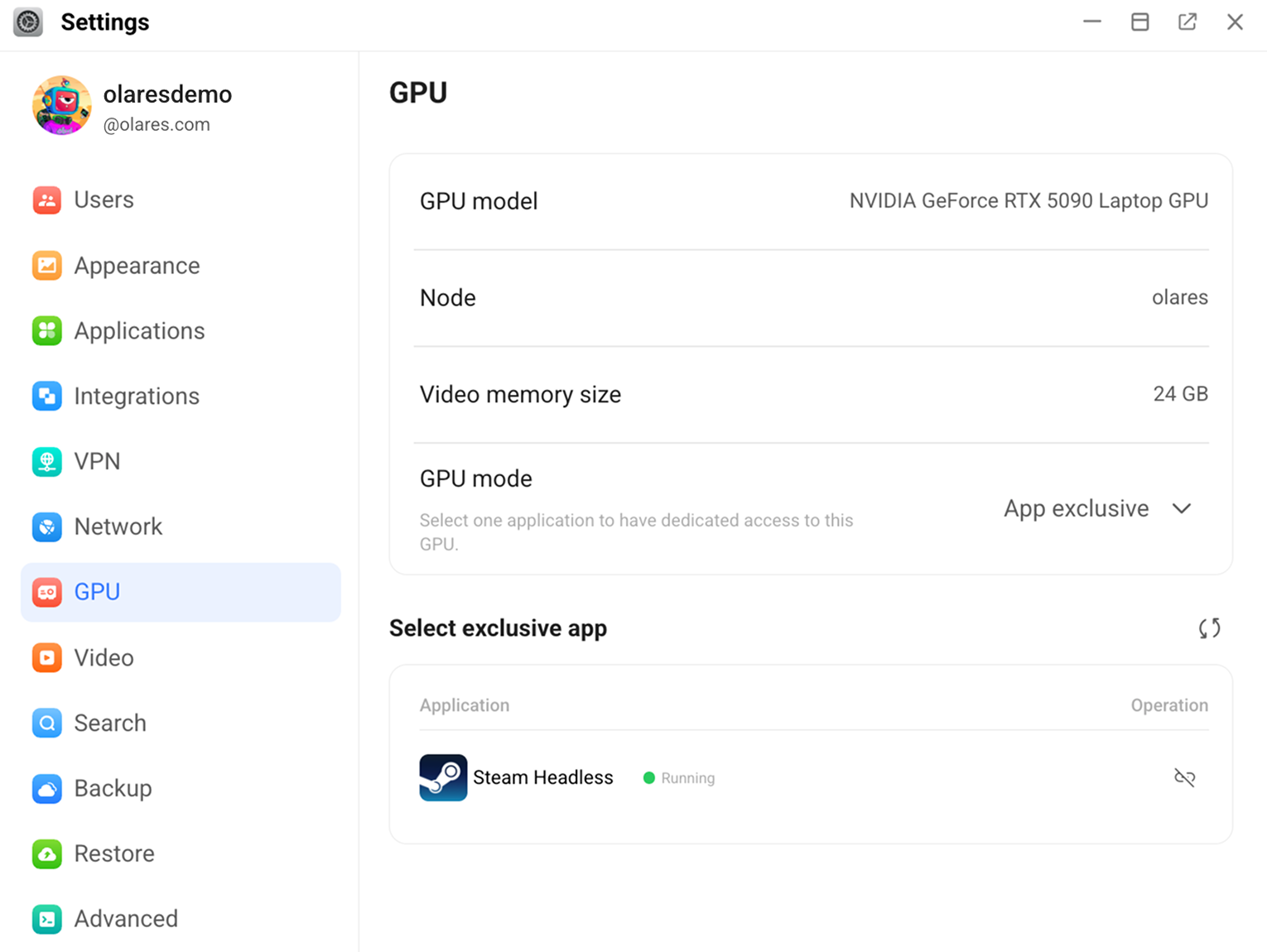
Go to Settings > GPU and select App exclusive from the GPU mode dropdown.
Select Steam Headless as the exclusive app. If another app is currently bound, stop that app first in Settings > Applications, then return to bind Steam Headless.
Check GPU power state
The GPU on your device may be throttled by power management settings. Make sure the GPU is running at full power.
For Olares One users:
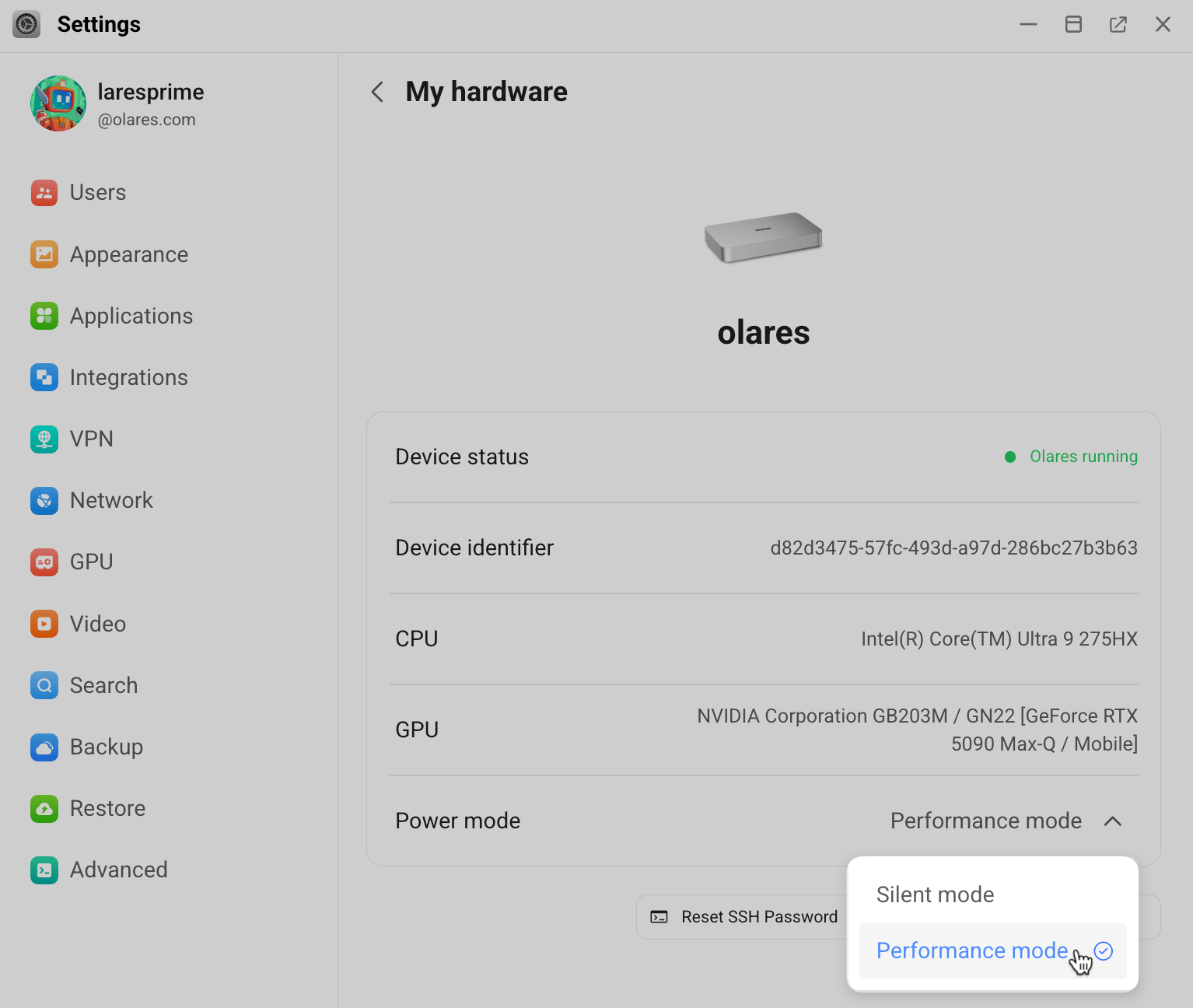
- Go to Settings > My Olares > My hardware.
- Click keyboard_arrow_down next to Power mode and select Performance mode.
Try a different Proton version
If the issue only happens with a specific game, try changing the game's Proton version in Steam. Proton is Steam's compatibility layer for running Windows games on Linux-based systems, and different versions can affect game performance.
In Steam, open the target game in your Library, then click settings > Properties….
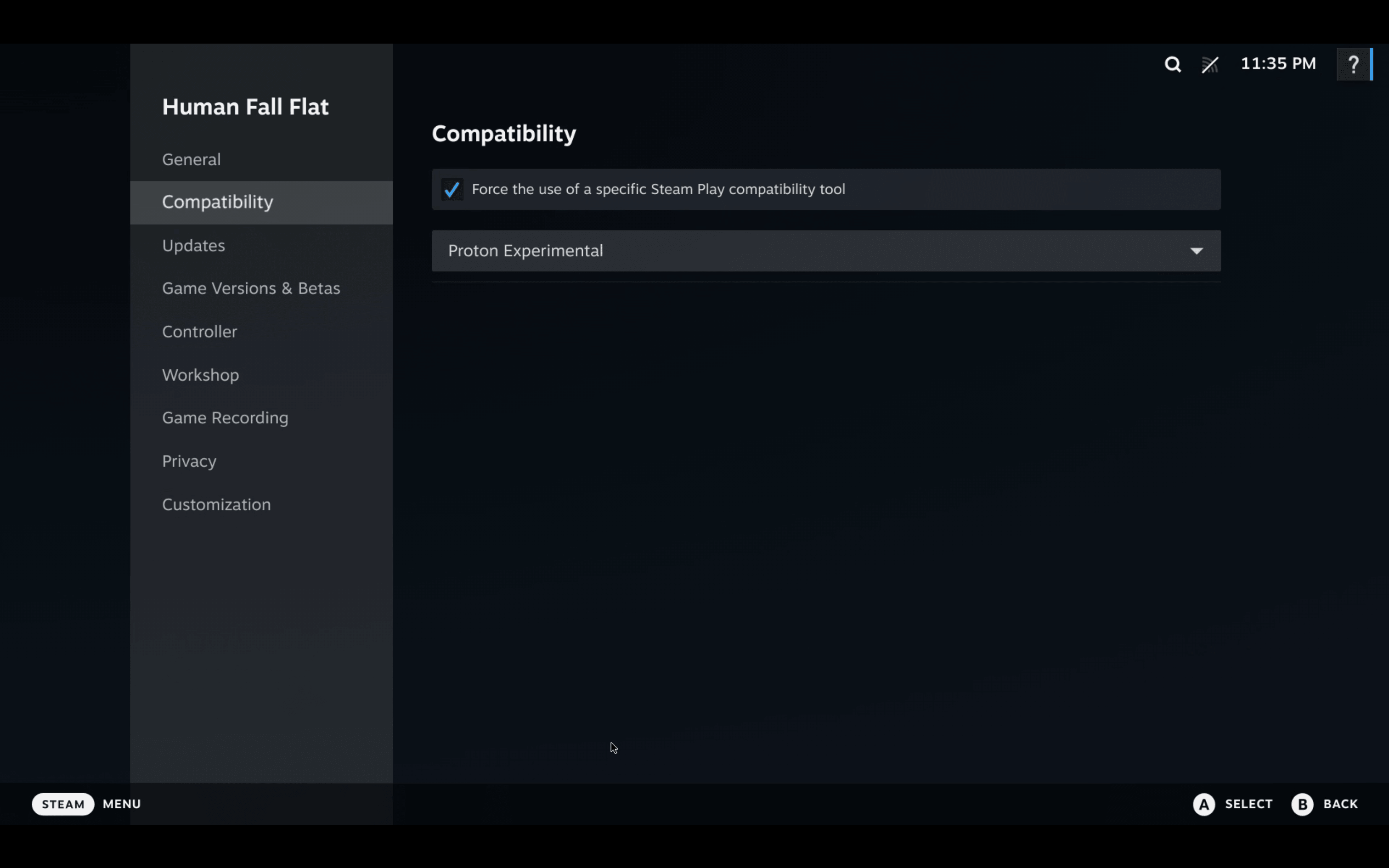
Go to Compatibility.
Enable Force the use of a specific Steam Play compatibility tool.
Select a Proton version from the dropdown list.
TIP
You can check ProtonDB for compatibility reports and recommended Proton versions for specific games.
Launch the game again and check whether streaming performance improves.
Check and adjust CPU and memory limits
Steam Headless may be hitting its configured CPU or memory limits. Launch the game first, then check whether the actual usage is close to the limits.
Open Control Hub from the Launchpad. In the left sidebar, click Browse, expand your project and then Deployments, and select the Steam Headless deployment.
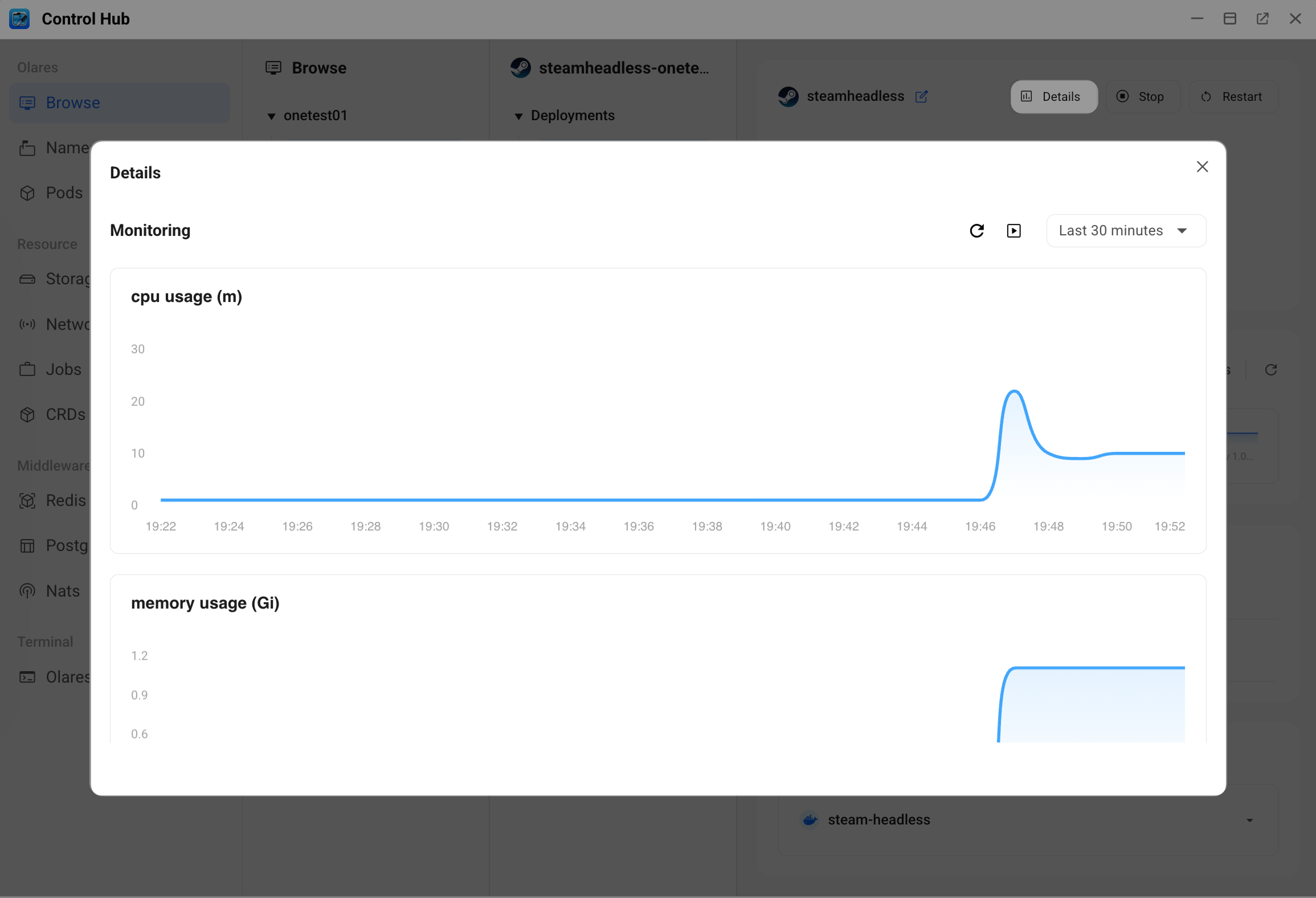
In the upper-right corner of the details pane, click more_vert > Details and note the highest CPU and memory usage values while the game runs.
- CPU usage is shown in
m(millicores), where 1000 m = 1 CPU core. - Memory usage is shown in
Gi.
- CPU usage is shown in
Back on the Steam Headless deployment page, click edit_square to edit the YAML file. Find
cpuandmemoryunderlimits.For example:
yamllimits: cpu: '18' memory: 64Gi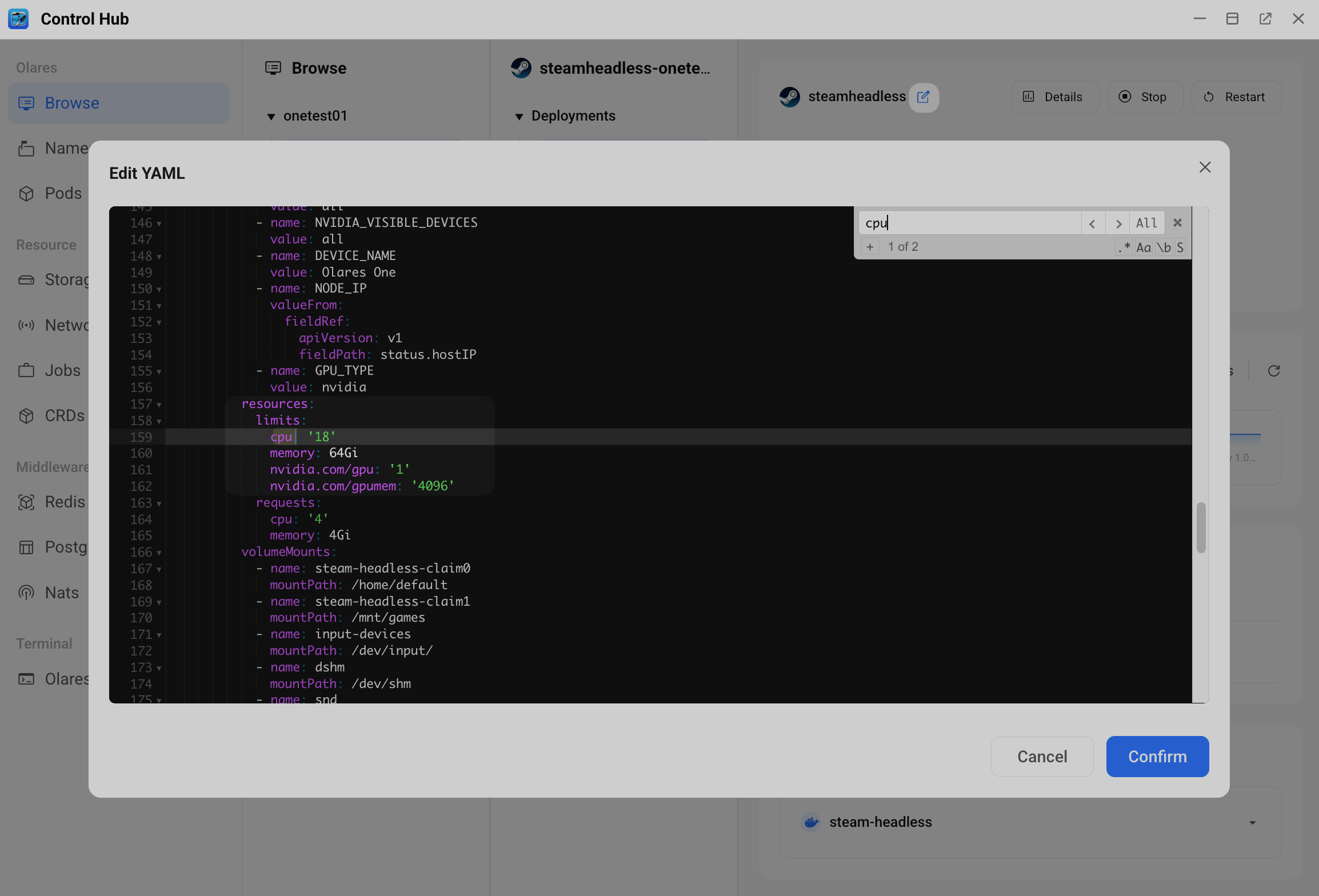
If the actual usage is consistently close to these limits, increase the cpu or memory value based on your device capacity.
Click Confirm to save the changes, then test the game again.
If the issue persists
If the issue persists after completing the steps above, create an issue in the Olares GitHub repository and share the results of your checks, including:
- The current
cpuandmemorylimits configured for Steam Headless. - A screenshot showing Steam Headless CPU and memory usage while the game is running.
- The game title and Proton version in use.
- A short description of the issue.
- The device you are streaming to, such as a laptop, handheld device, phone, or TV.
Providing this information helps the team narrow down the cause.