Set up a custom domain
Whether you're an organizational user wanting employees to use a company-specific domain, or you simply want to use a domain that you own, Olares Space allows you to set up a custom domain for your Olares system.
First time setting up a custom domain?
For a complete end-to-end walkthrough including DID creation, Olares installation, and member onboarding, see Set up a custom domain for your Olares.
Prerequisites
Make sure you have:
- An account in the DID stage. A custom domain can only be associated with an account in the DID stage. See Create a DID for instructions.
- Logged into Olares Space with your DID. See Log in and manage accounts.
- A domain name registered through a domain registrar. The domain should not already be associated with another account in Olares Space.
- LarePass installed on your phone.
- Access to the DNS settings of your domain for configuring TXT and NS records.
Add your domain
The following steps use space.n1.monster as an example custom domain.
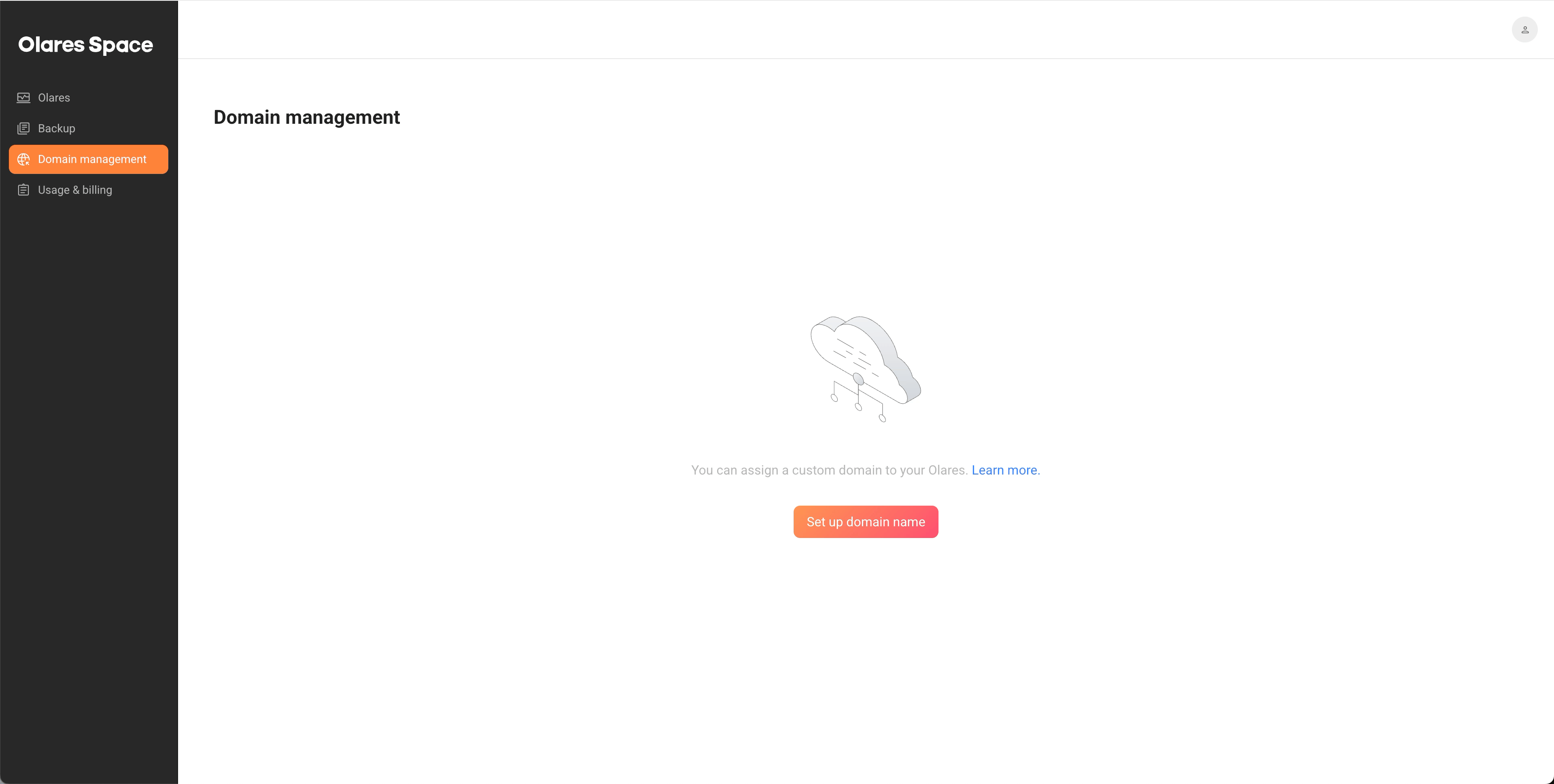
In Olares Space, go to the Domain management page and select Set up domain name.
In the pop-up dialog, enter a valid subdomain, and click Confirm.
Do not use a primary domain
Using a primary domain like
yourdomain.comwill move all DNS management to Olares Space and will not transfer your existing records automatically. Use a subdomain likeapp.yourdomain.cominstead.Add and verify a TXT record to prove ownership of the domain.
a. Click Guide in the Action column.
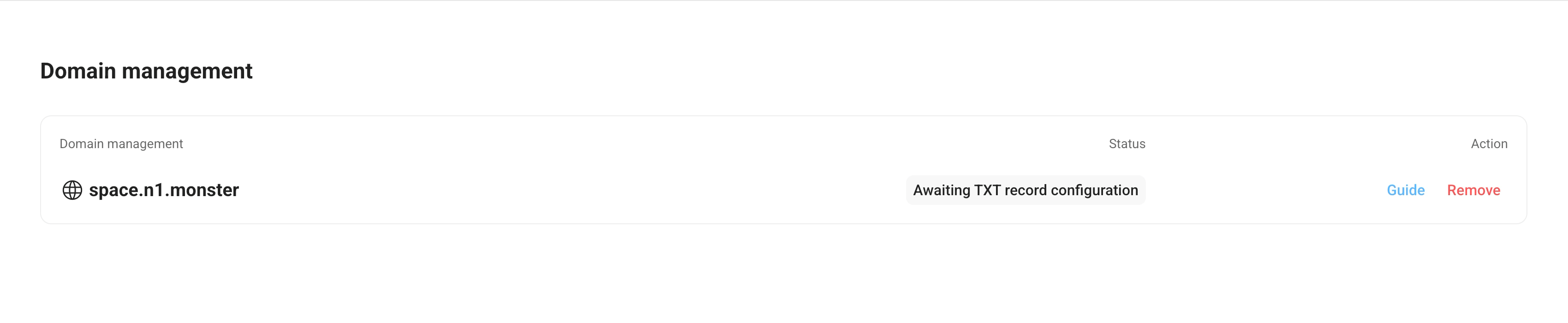 b. In your DNS provider's settings, add a TXT record with the name and value provided in the dialog.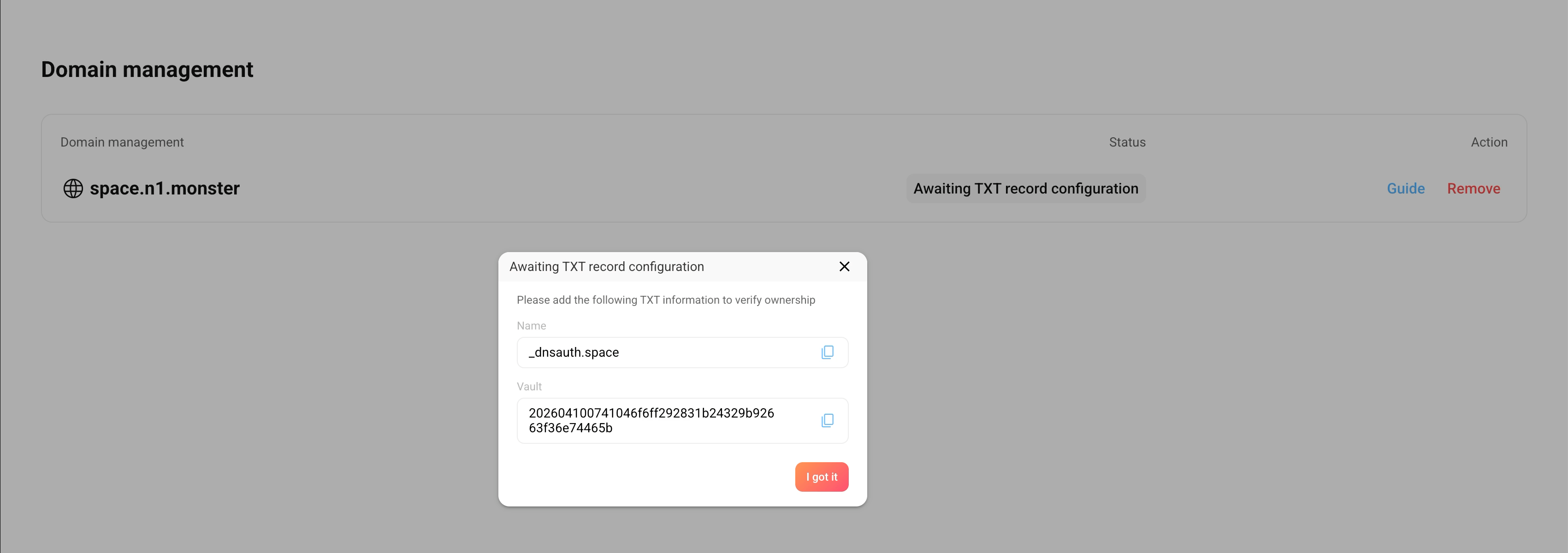
Once verified, the status updates to Awaiting NS record configuration.
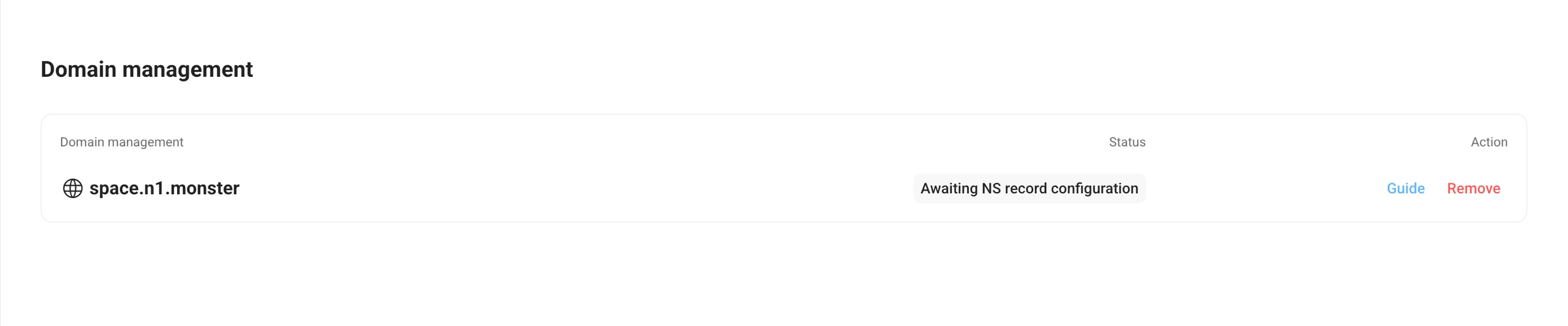
Verify the Name Server (NS) record for your custom domain. This delegates the DNS resolution for your domain to Olares's Cloudflare.
a. Click Guide in the Action column.
b. In your DNS provider's settings, add two NS records for your subdomain with the values provided in the dialog.
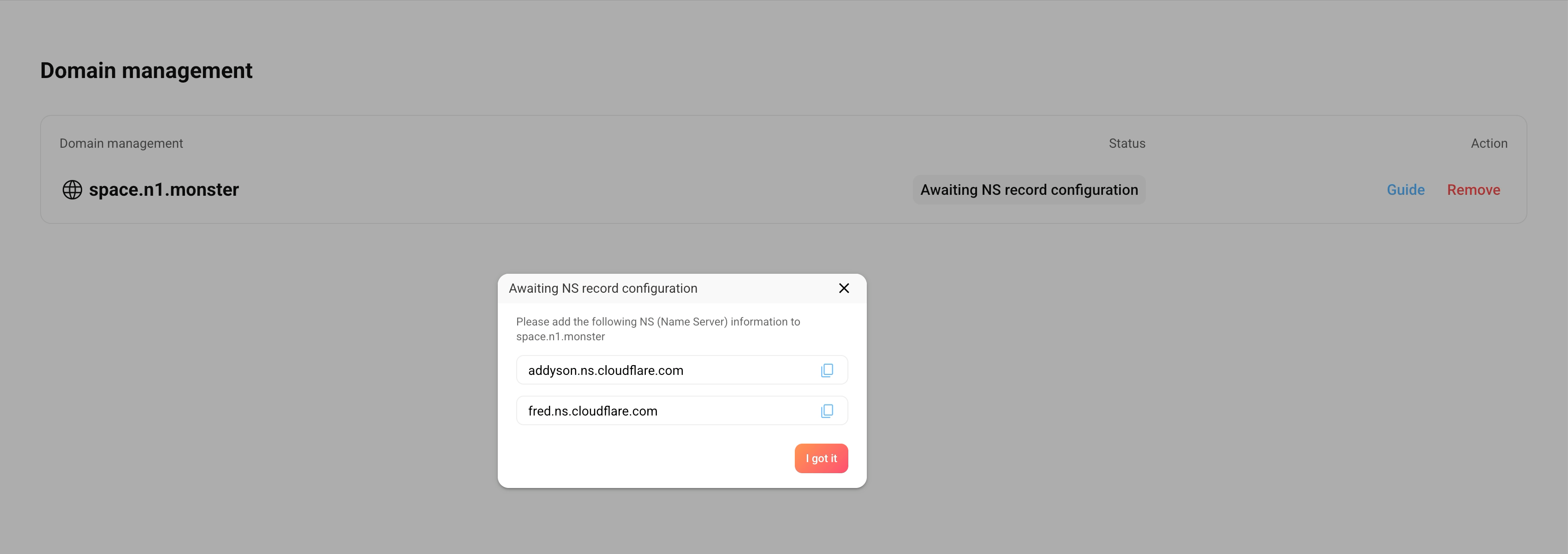
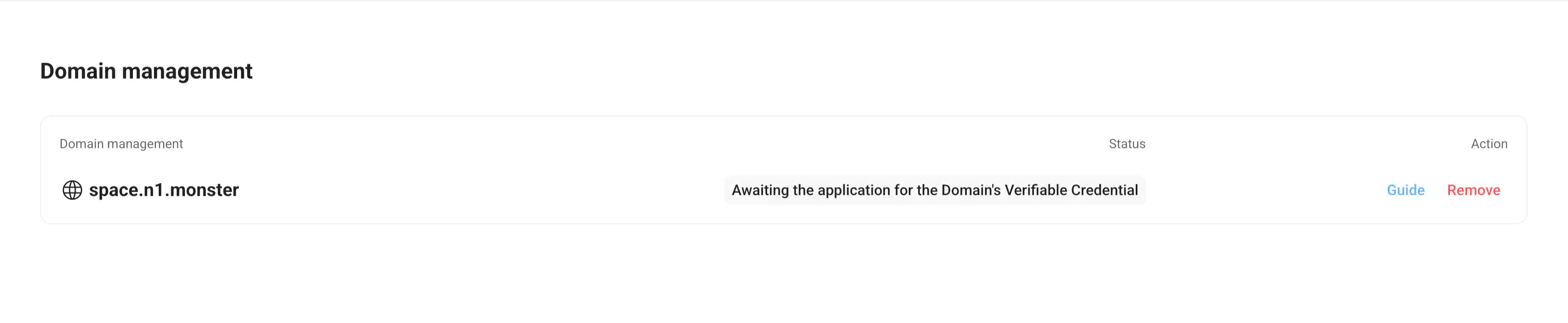
Once verified, the domain status will update to Awaiting the application for the Domain's Verifiable Credential.
WARNING
Once verification is successful, do not modify the NS record. Doing so will cause the custom domain resolution to fail, making it inaccessible.
Once TXT and NS records are verified, you can proceed to create an organization in LarePass.
What's next
In LarePass, create your organization and Olares ID on the domain you added here. For details, see Create an Olares ID with a custom domain.