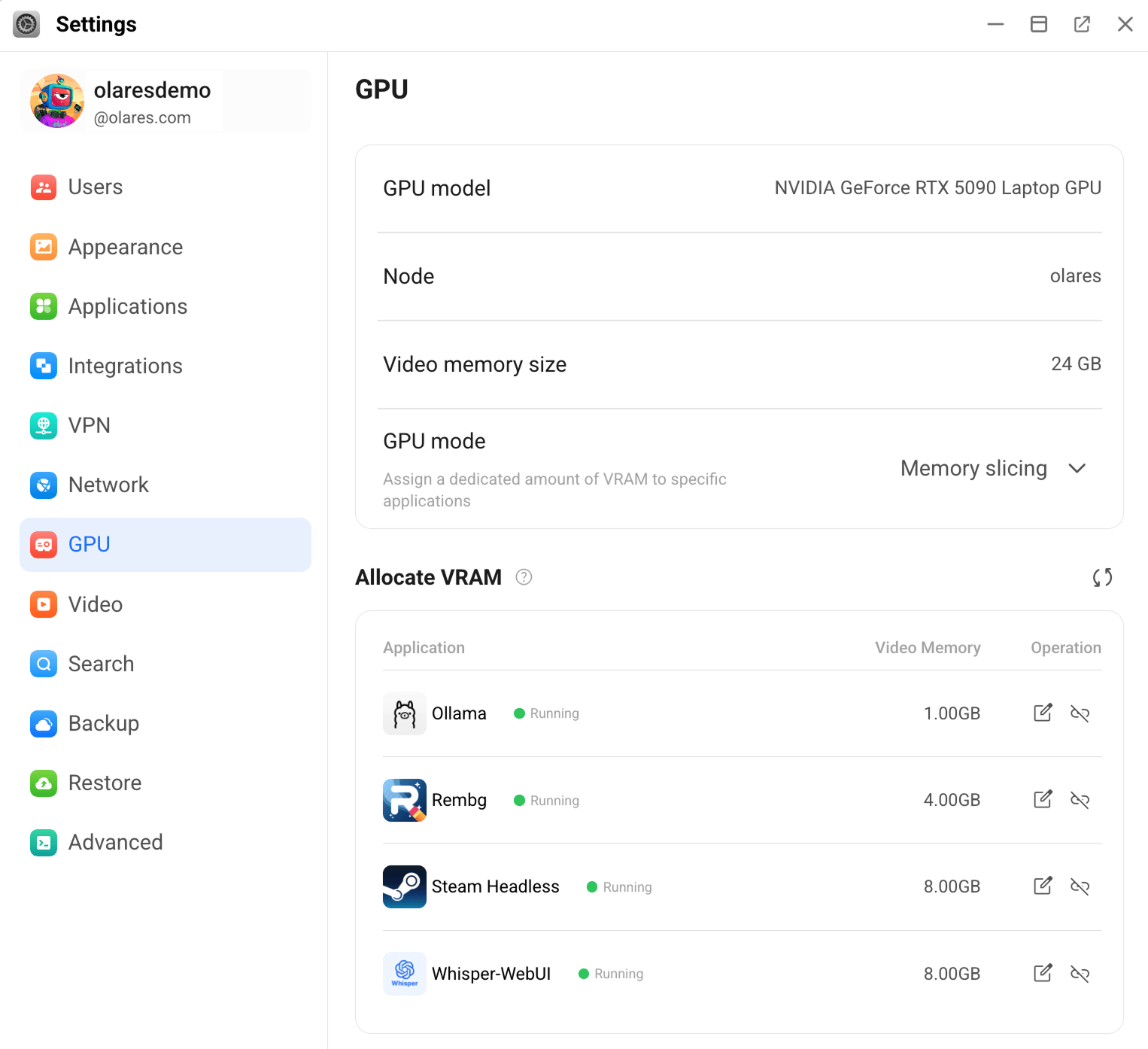
GPU app remains stopped after installation or resume
Use this guide when a GPU-dependent app remains in the Stopped state after installation or resume in Memory slicing mode.
Condition
The GPU mode is set to Memory slicing, and you encounter either of the following:
- After installing a GPU-dependent app, it remains in the Stopped state.
- After clicking Resume on a GPU-dependent app, it remains in the Stopped state.
Cause
In Olares 1.12.5, Memory slicing mode automatically allocates VRAM to a GPU-dependent app when it is installed or resumed. If most VRAM has already been allocated to other apps, the system cannot provide enough VRAM for the target app to run, so the app cannot initialize and remains in a Stopped state.
Solution: Free up VRAM
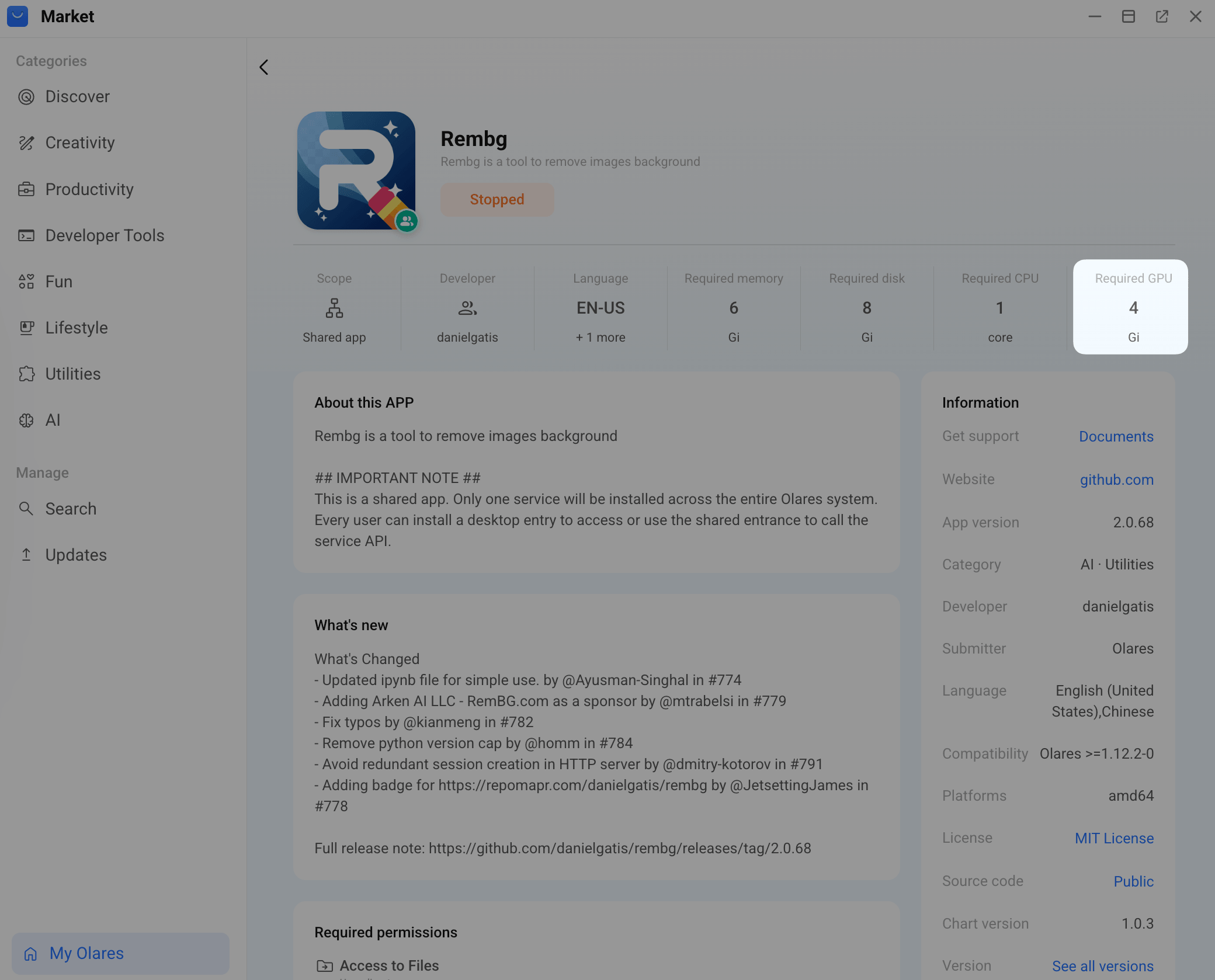
Step 1: Check the app's required VRAM
- Go to Market > My Olares.
- Click the card of the target app.
- In the app details page, note the app's VRAM requirement.
Step 2: Check current VRAM availability
- Go to Settings > GPU.
- In the Allocate VRAM section, note the total VRAM currently allocated across all apps in the list.
- Subtract this from your GPU's total VRAM capacity to get the available VRAM.
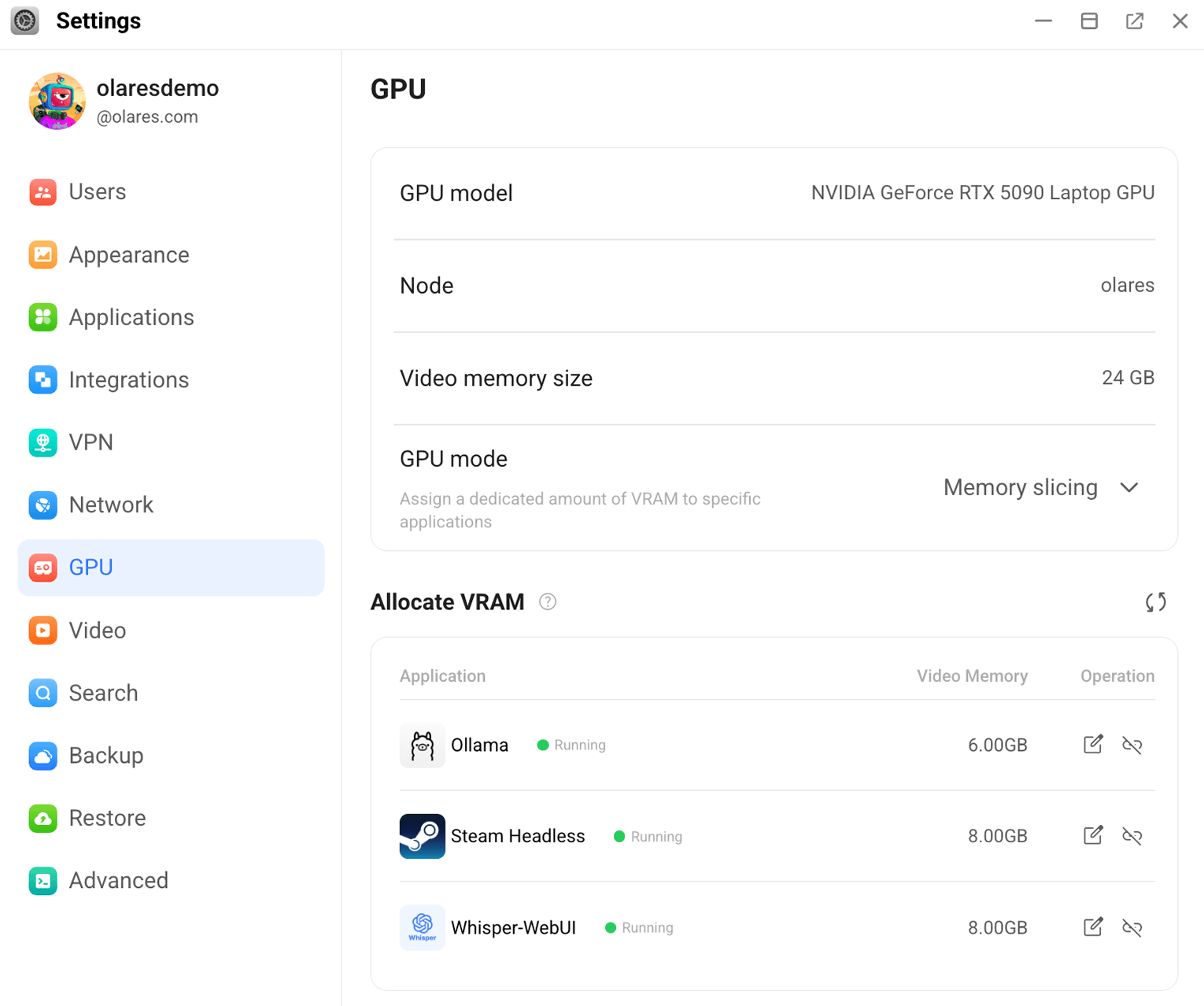
In the example above, 22 GB of VRAM is currently allocated, leaving only 2 GB available, which is less than the 4 GB required by the target app.
Step 3: Free up VRAM
Use one or both of the following approaches to free up enough VRAM.
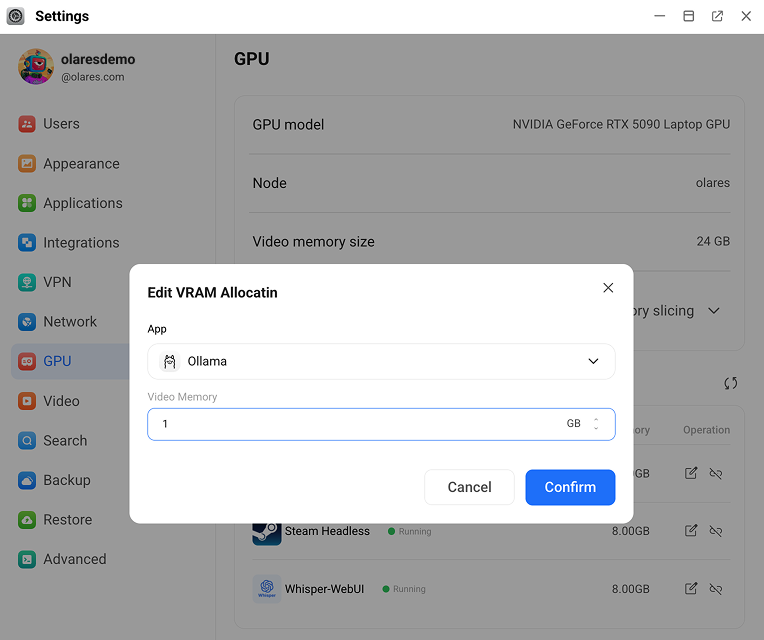
Reduce the allocation of an active app
- In the Allocate VRAM section, click edit_square next to an app's VRAM value.
- Reduce the allocation without going below the VRAM required by that app, then click Confirm.
Stop unused apps and release their VRAM
- Stop an app that is not currently needed using one of the following methods:
- In Market > My Olares, click keyboard_arrow_down next to the app's operation button and click Stop.
- Or go to Settings > Applications, select the app, and click Stop.
- Return to Settings > GPU.
- In the Allocate VRAM section, click link_off next to the stopped app, then click Confirm.
- Repeat until enough VRAM is available.
Step 4: Resume the target app
- Resume the target app:
- In Market > My Olares, click keyboard_arrow_down next to the app's operation button and click Resume.
- Or go to Settings > Applications, select the app, and click Resume.
- Wait for the app status to change to Running.