Log in and manage accounts
This guide covers logging in to Olares Space, managing multiple accounts, and logging out.
Log in to Olares Space
Open Olares Space in your browser, and scan the QR code using LarePass to log in. The available features depend on the account type you use.
Log in with an Olares ID
Log in with an Olares ID to create and manage your Olares directly.
- In the LarePass app, select the Olares ID you want to use.
- Tap the scan icon in the top-right corner and scan the QR code on the Olares Space login page.
Log in with a DID
Log in with a DID if you haven't created an Olares ID yet. This allows you to set up a custom domain for your organization.
First time setting up a custom domain?
See Set up a custom domain for your Olares for a complete end-to-end walkthrough.
In the LarePass app, create a DID or select a DID from your account list.
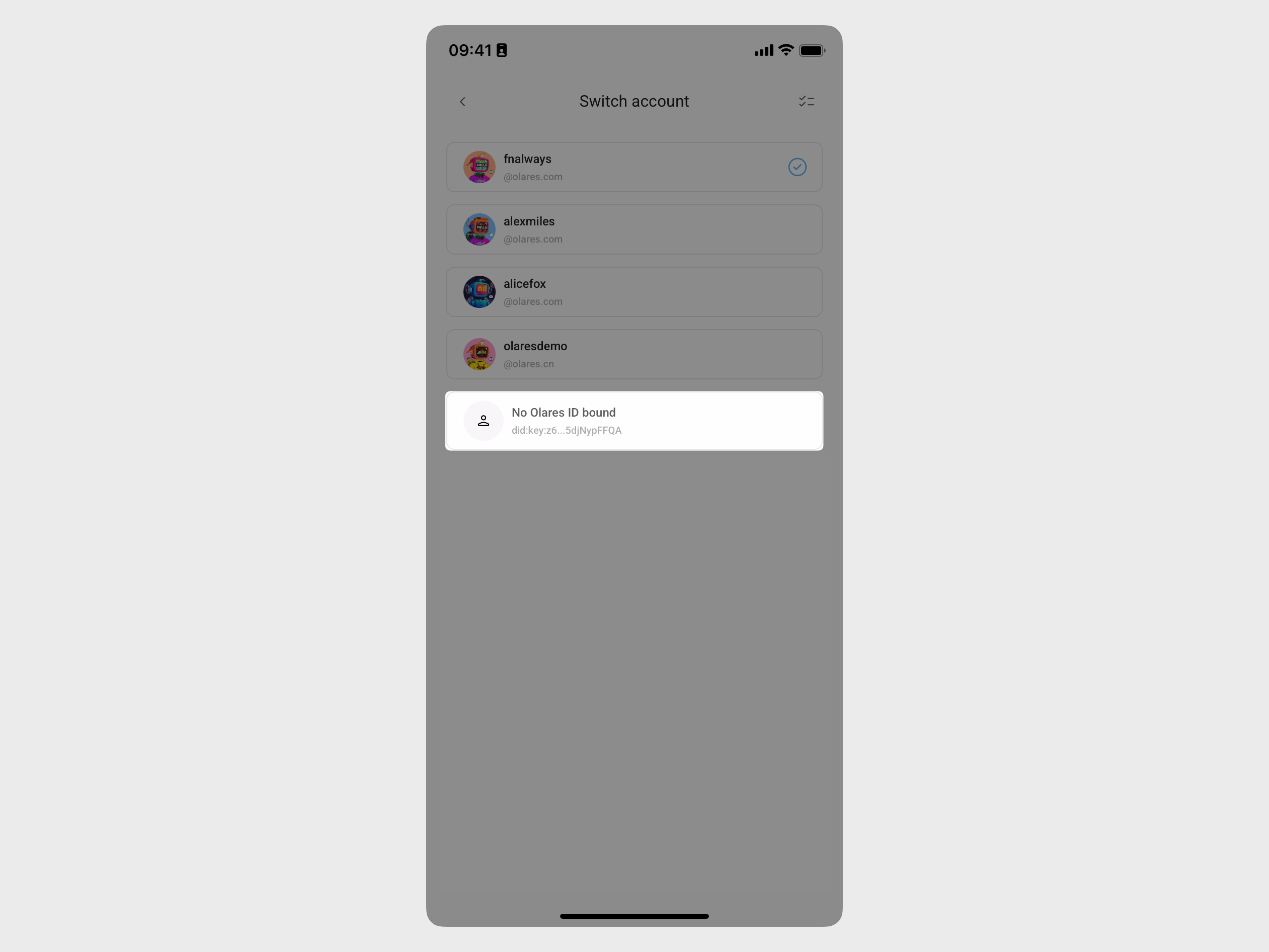
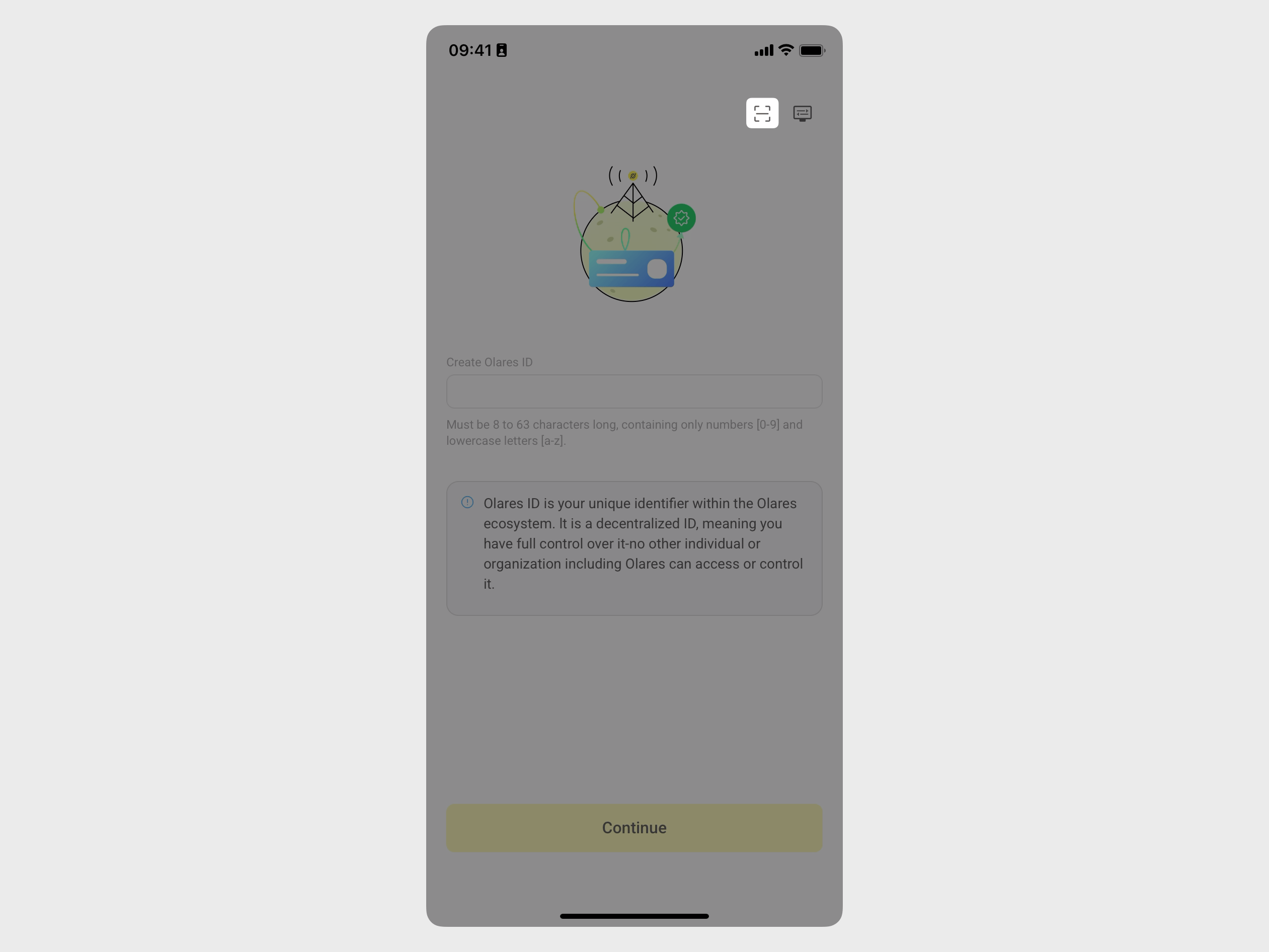
Tap the scan icon in the top-right corner and scan the QR code on the Olares Space login page.
Log out
To log out of your account:
- Click your avatar in the top-right corner.
- Select Log Out.
Alternatively, you can:
- Choose Switch Account from the menu.
- Click logout next to any listed account.
Manage multiple accounts
Each Olares ID is linked to only one Olares. With multi-account management in Olares Space, you can switch between different accounts to manage multiple Olares IDs and instances.
To add an account:
- Click your avatar in the top-right corner.
- In the pop-up menu, select Import Account.
- Launch LarePass, and scan the QR code to log in.
Once you've added multiple accounts, switch between them using the Switch Account option in the menu. If the account is logged out, you'll be redirected to the QR code login page.