Run NemoClaw with a local LLM
NemoClaw is an open-source reference stack from NVIDIA that runs OpenClaw with the NVIDIA OpenShell runtime bundled.
This guide walks you through running NemoClaw on Olares with the Qwen3.5 27B Q4_K_M model app as the backend LLM.
Prerequisites
- A local model app installed and running on your Olares device.
- Admin privileges to install apps from Market and edit application settings.
Get the model name and endpoint URL
NemoClaw needs the model name and its shared endpoint URL during installation.
Open your model app from Launchpad and note the model name shown on the page. In this example, it's
qwen3.5:27b-q4_K_M.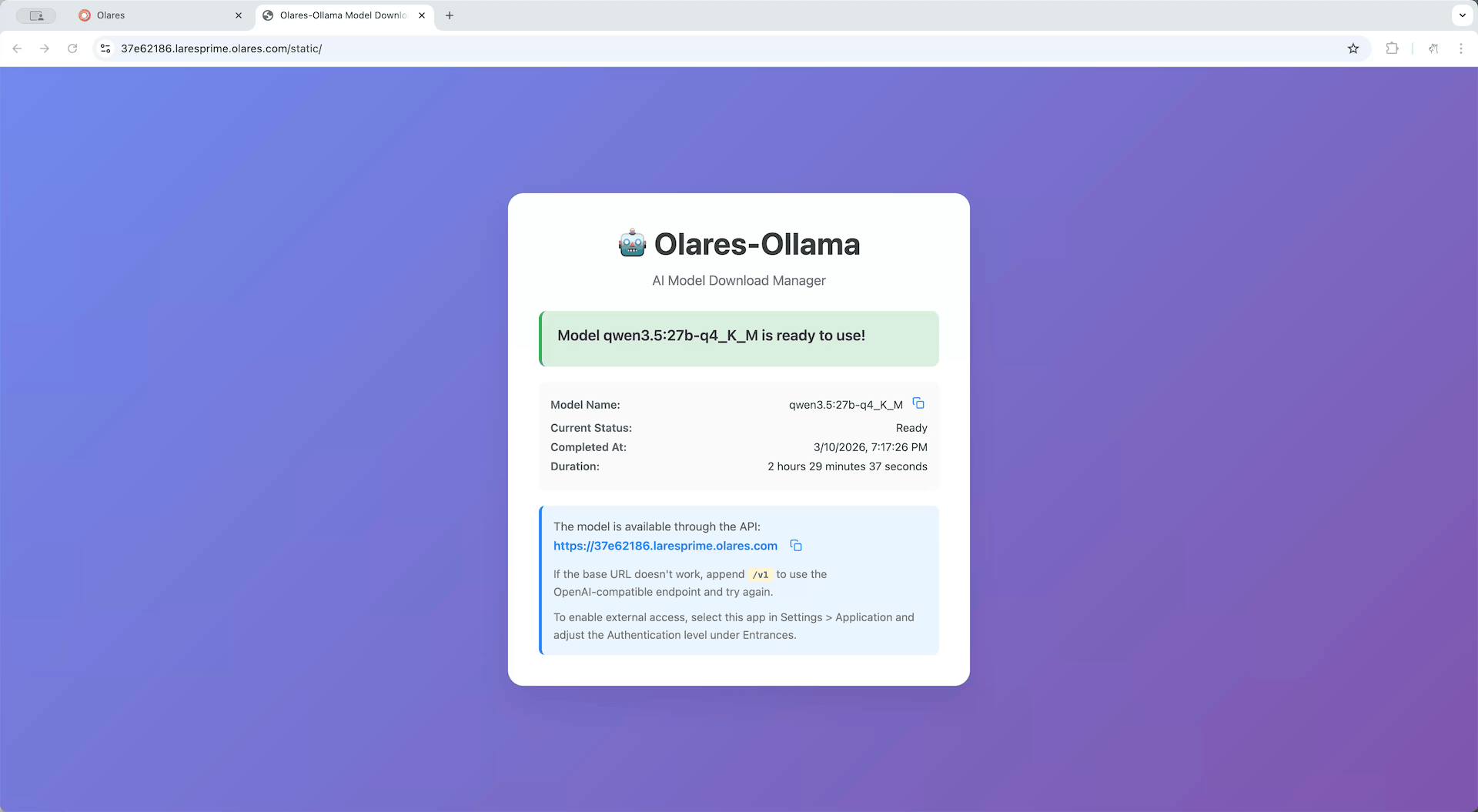
Open Settings, then go to Applications > Qwen3.5 27B Q4_K_M (Ollama).
In Shared entrances, select Qwen3.5 27B Q4_K_M to view the endpoint URL.
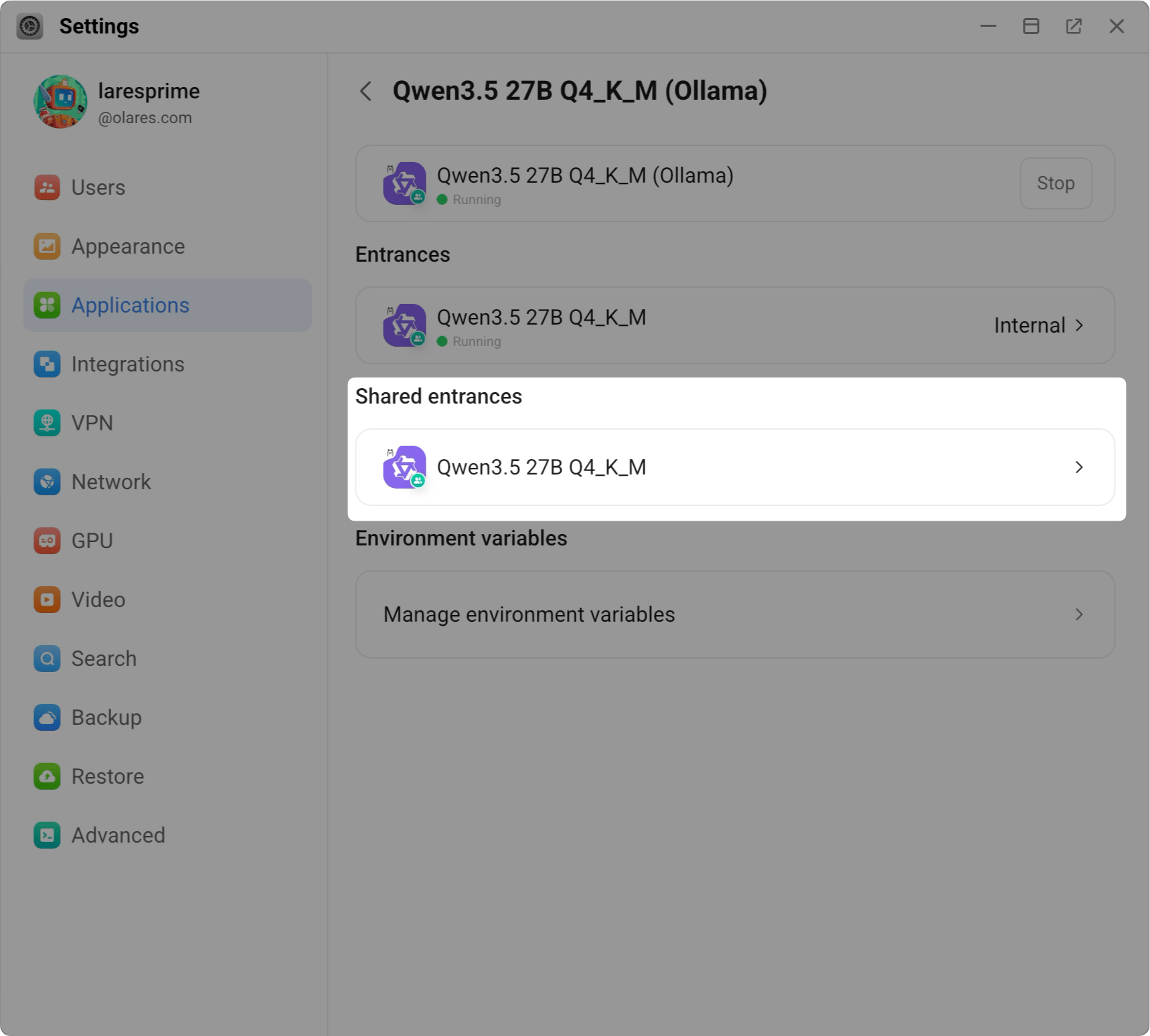
Note the shared endpoint. For example:
plainhttp://94a553e00.shared.olares.comWhy the shared endpoint?
The URL on the model app's main page is user-specific and routes through the browser. The shared endpoint is reachable from other apps on Olares without sign-in or CORS issues, which is what NemoClaw needs.
Install NemoClaw
Open Market and search for "NemoClaw".
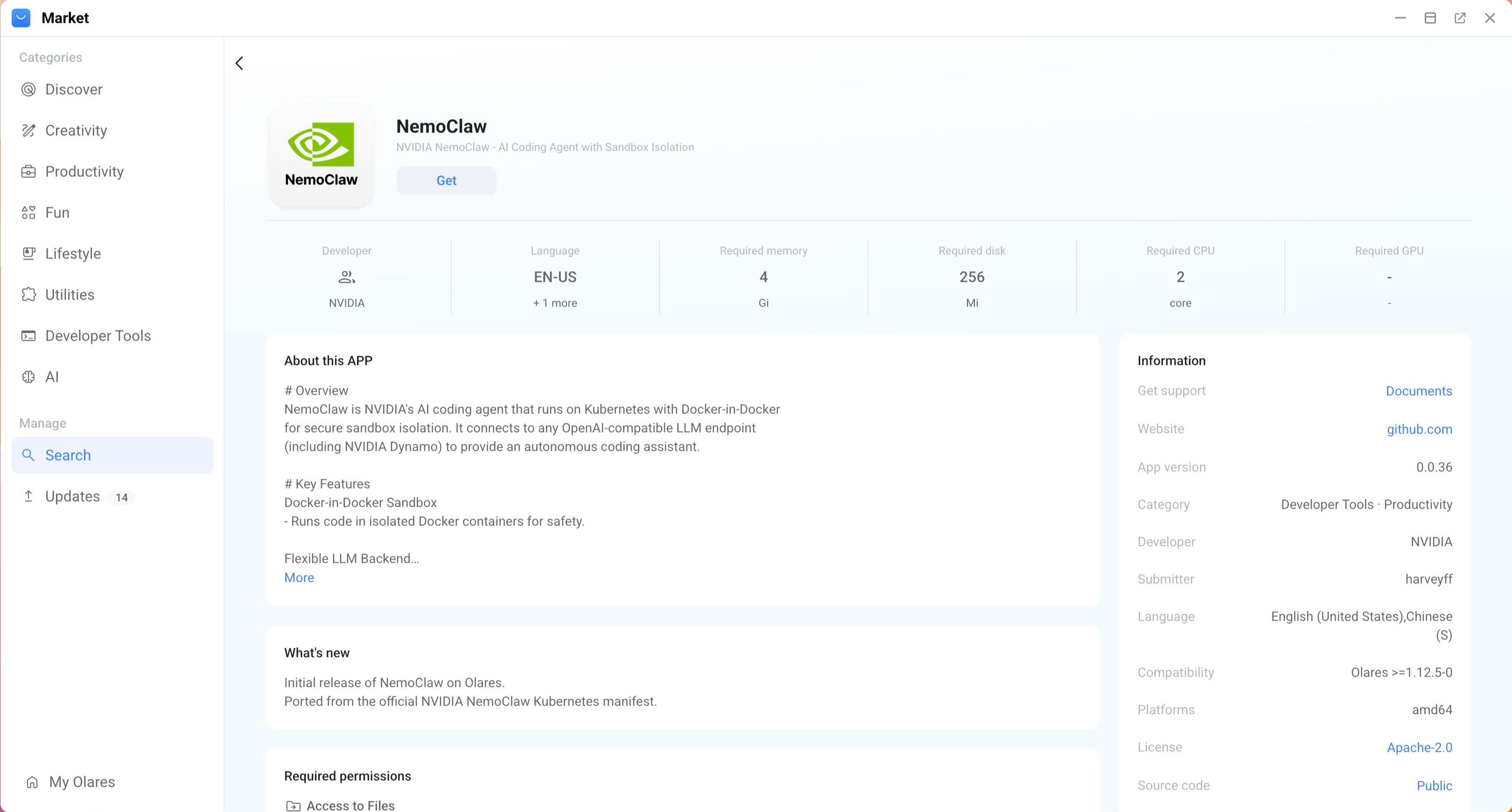
Click Get, then Install.
When prompted, set the environment variables:
- NEMOCLAW_ENDPOINT_URL: Enter or paste the shared endpoint URL, and append
/v1, such ashttp://94a553e00.shared.olares.com/v1. - NEMOCLAW_MODEL: Enter or paste the model name, such as
qwen3.5:27b-q4_K_M.
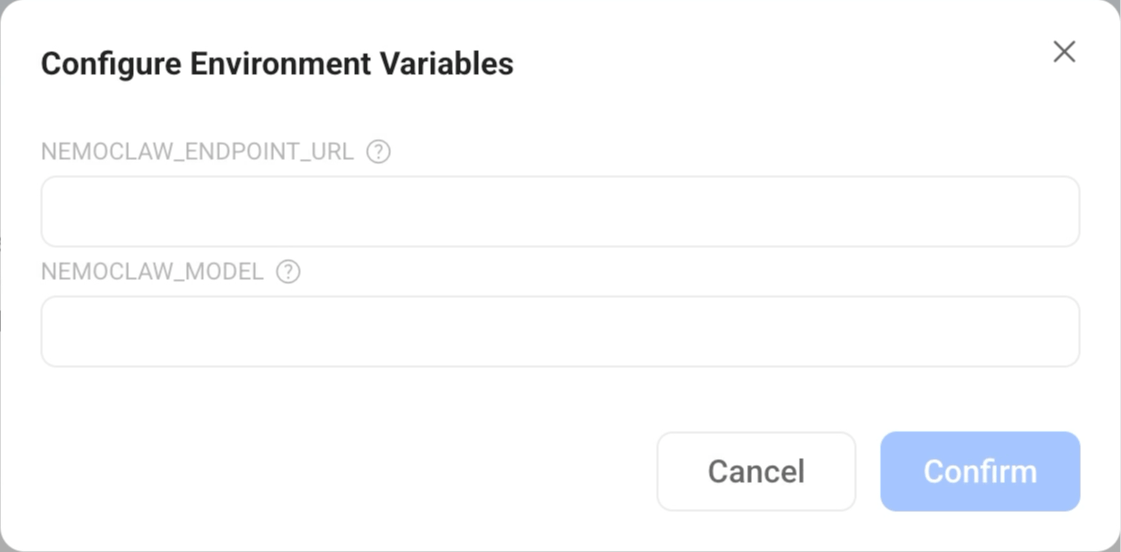
TIP
You can change these environment variables later in Settings > Applications > NemoClaw > Manage environment variables.
- NEMOCLAW_ENDPOINT_URL: Enter or paste the shared endpoint URL, and append
Click Confirm and wait for installation to complete.
Installation takes about 15 minutes, depending on your network. During this time, NemoClaw installs the NVIDIA OpenShell runtime and runs the initial agent onboarding.
When the installation finishes, two shortcuts appear on Launchpad:
- NemoClaw CLI: The terminal interface for running NemoClaw and OpenClaw commands.
- OpenClaw Web UI: The browser-based dashboard for OpenClaw.
Keep the model loaded (optional)
By default, the local LLM unloads from memory after 5 minutes of inactivity, and the next reply has to wait for the model to reload. For an always-on agent, enable the keep-alive setting on the model app to keep it resident in memory.
Open Settings and go to Applications > Qwen3.5 27B Q4_K_M (Ollama) > Manage environment variables.
Find KEEP_ALIVE, click edit_square, set the value to true, and click Confirm.
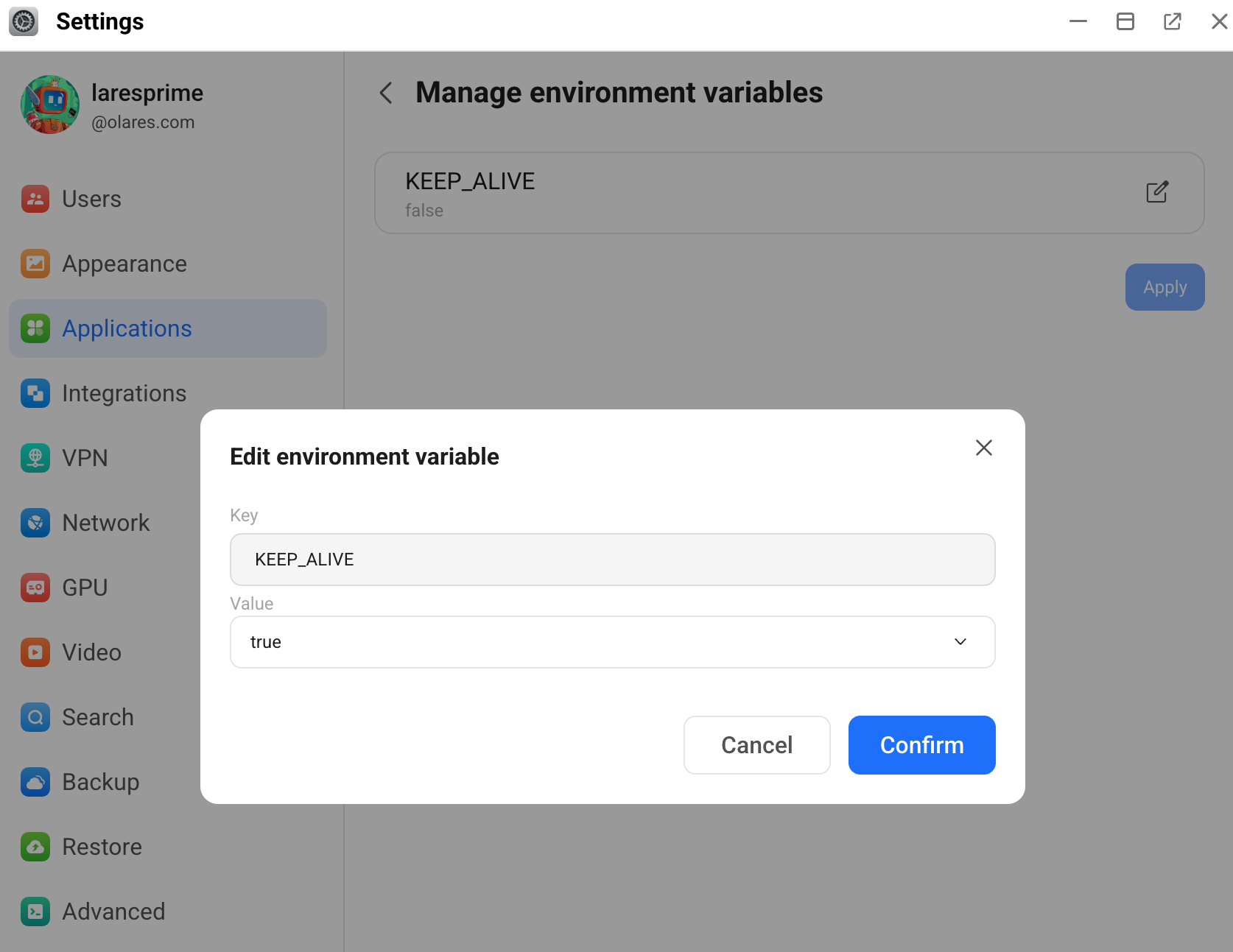
Click Apply.
When to leave KEEP_ALIVE unset
Keeping the model loaded consumes VRAM continuously. If you only use the agent occasionally and don't mind the cold-start delay, leave KEEP_ALIVE unset.
Start your first chat
NemoClaw lets you chat with your agent in either the OpenClaw Web UI or the OpenClaw TUI inside the NemoClaw CLI. Because the model and endpoint were configured during installation, you can skip the manual onboarding and go straight to a session.
Integrate with Discord
To chat with your NemoClaw agent remotely, connect it to a Discord bot. You need a Discord account and a server where you have permission to add bots.
Step 1: Create a Discord bot
Log in to the Discord Developer Portal with your Discord account.
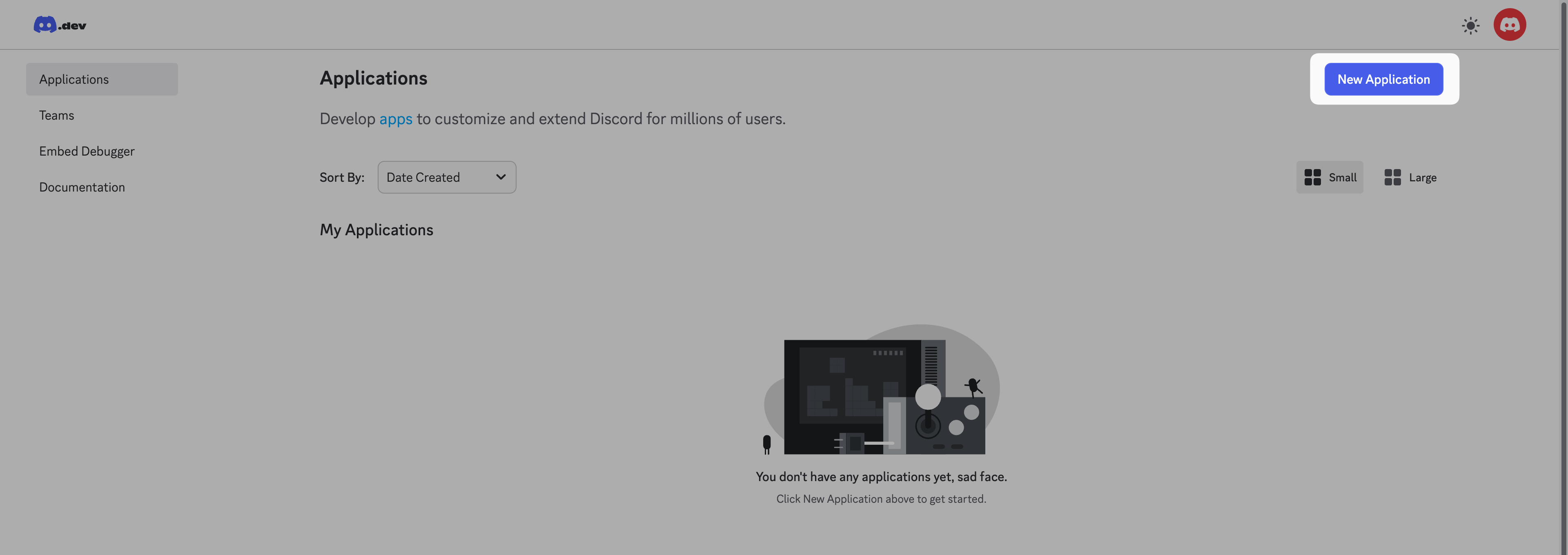
Click New Application.
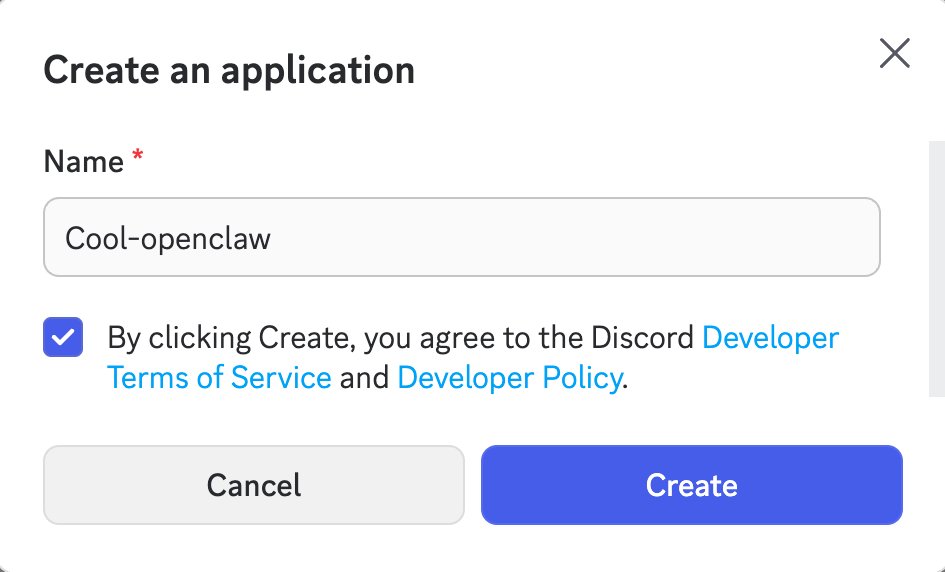
Enter a name for the new app, agree to the terms, and click Create.
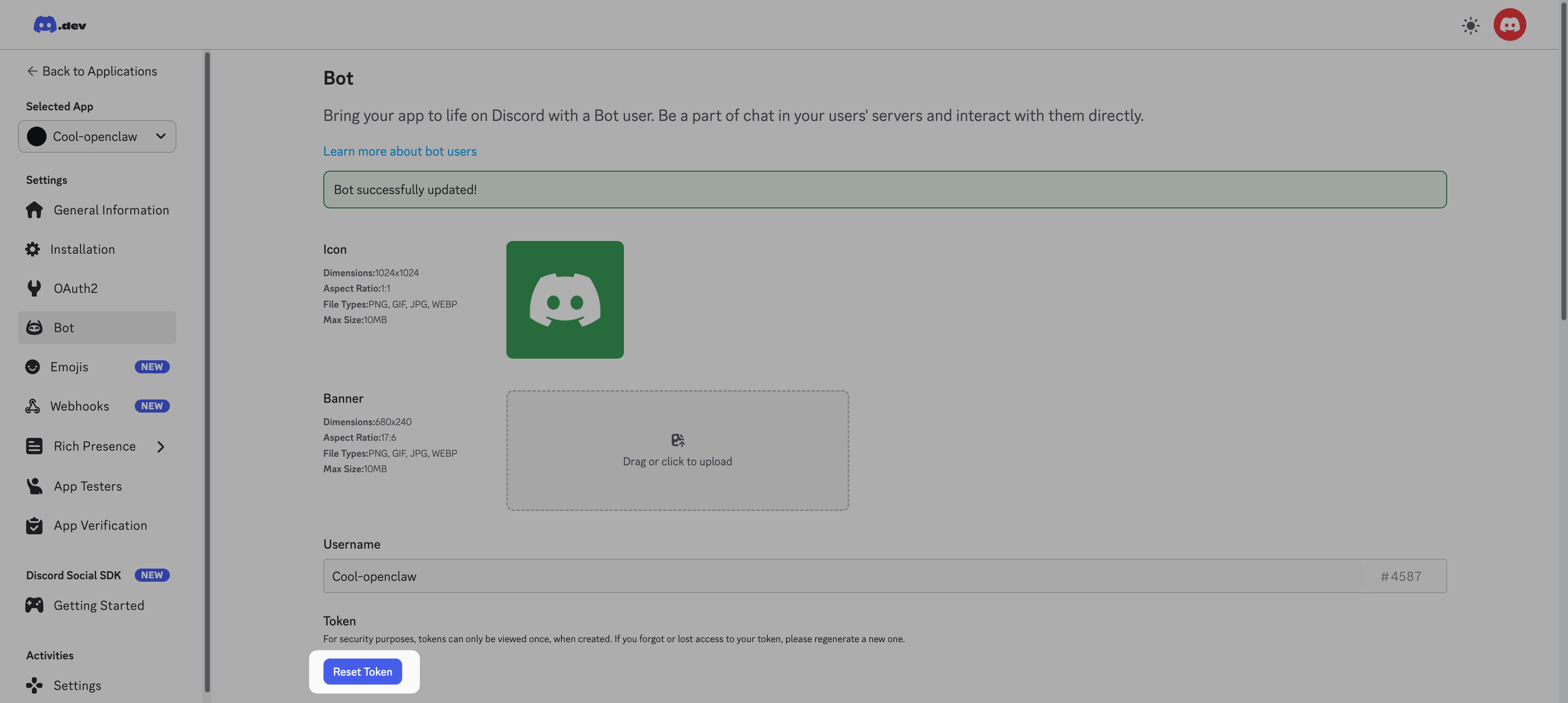
From the left sidebar, select Bot.
Scroll down to the Privileged Gateway Intents section and enable the following settings:
- Presence Intent
- Server Members Intent
- Message Content Intent
Click Save Changes.
Scroll up to the Token section, click Reset Token, and copy the generated token. You need this token in Step 3.
Step 2: Invite the bot to your server
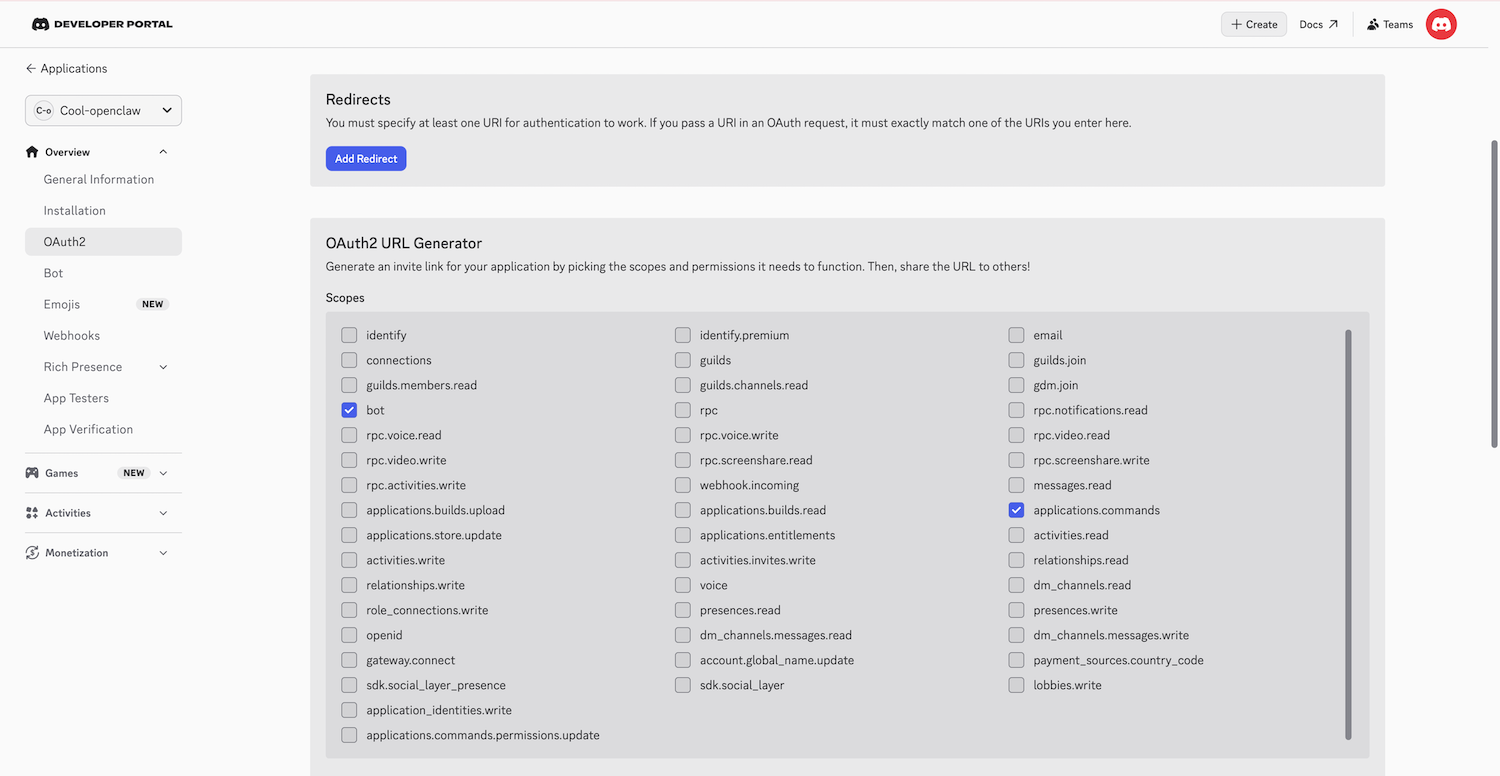
From the left sidebar, select OAuth2 and find the OAuth2 URL Generator section.
a. In Scopes, select Bot and applications.commands.
b. Scroll down to Bot Permissions and configure them as shown. You can adjust these later.
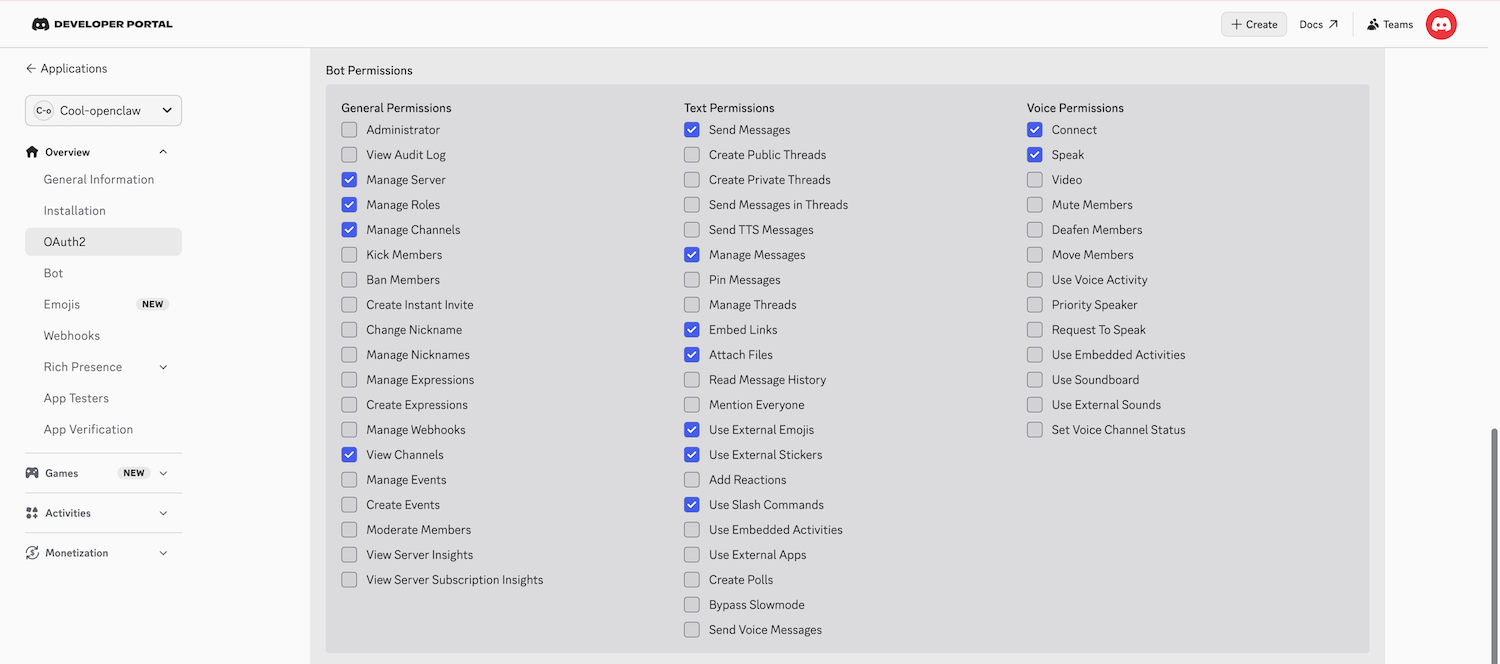
Copy the Generated URL at the bottom.
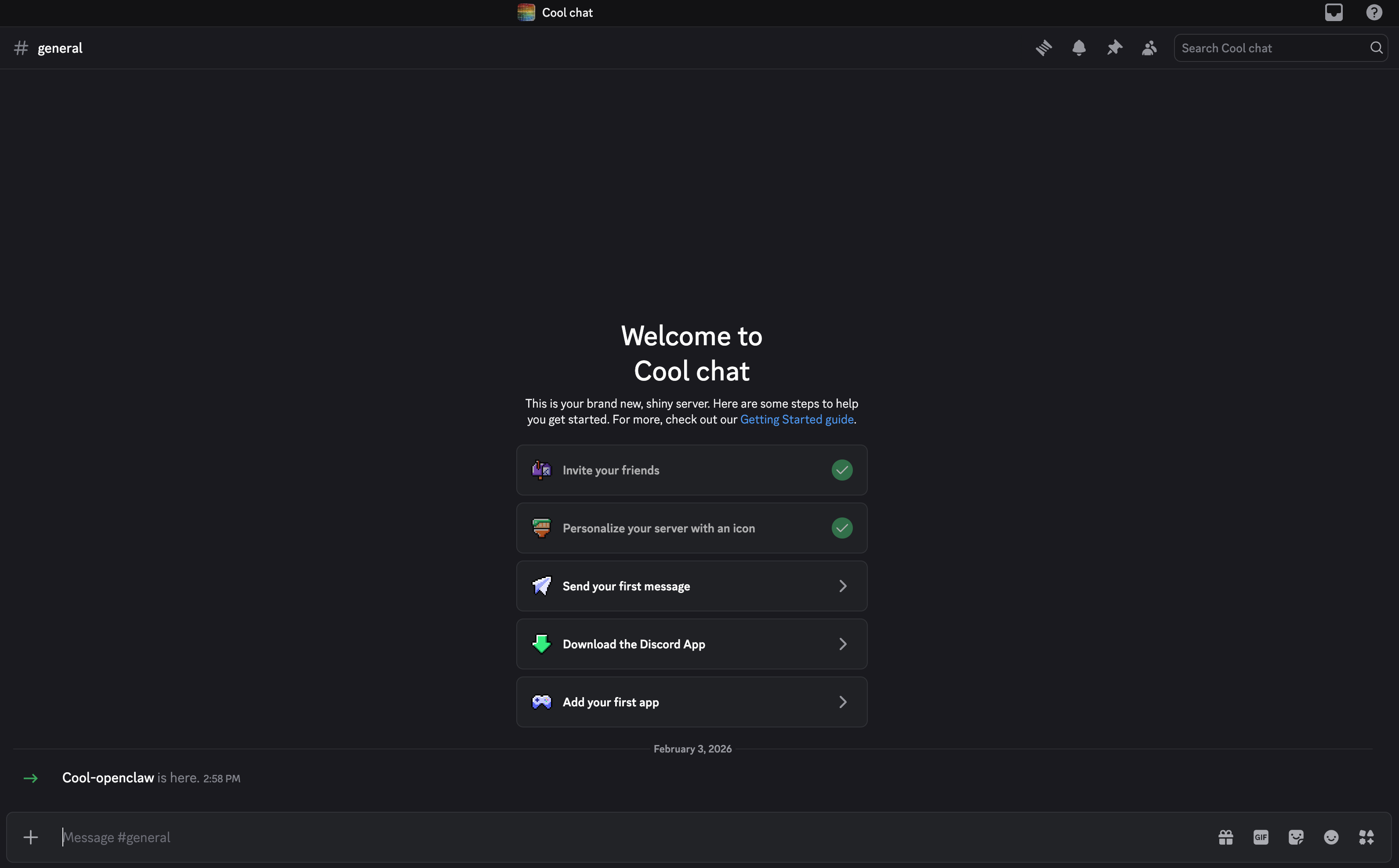
Paste the URL into a new browser tab, select your Discord server from Add to server, click Continue, and click Authorize.
The bot is authorized and added to your server.
Step 3: Configure the Discord channel
NemoClaw runs OpenClaw inside a sandboxed runtime, so you must configure the channel from within the runtime shell.
Open the NemoClaw CLI app from Launchpad.
Connect to the runtime sandbox:
bashnemoclaw my-assistant connectWait until the terminal shows the sandbox prompt, such as
sandbox@my-assistant:~$.Run the channel configuration wizard:
bashopenclaw configure --section channelsFollow the prompts to add Discord:
Settings Option Where will the Gateway run Local (this machine) Channels Configure/link Select a channel Discord (Bot API) Bot token Paste the token from Step 1. DM policy Pairing
Step 4: Authorize your Discord account
For security, the bot doesn't respond to unauthorized users. You must pair your Discord account with the bot.
Open Discord and send a Direct Message (DM) to your bot.
The bot replies with a pairing code, such as
M9ZEHYT7.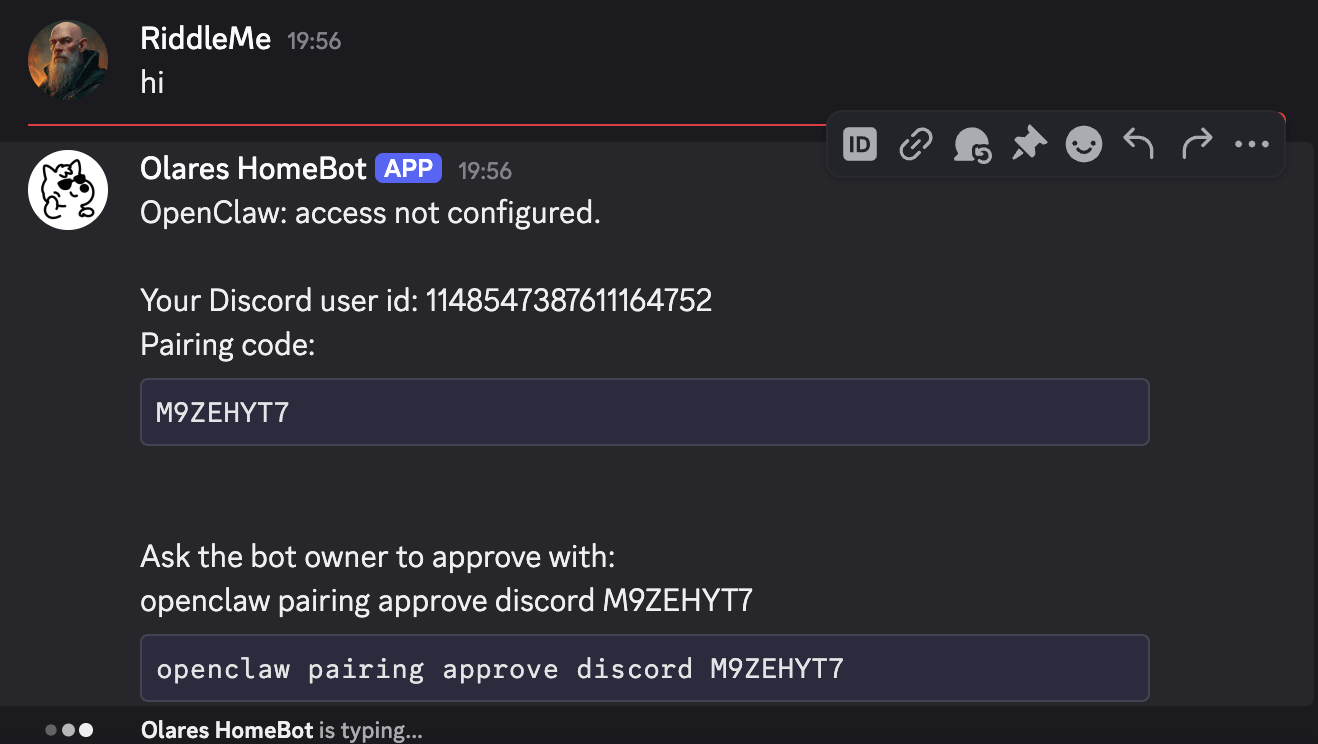
Switch back to the NemoClaw CLI sandbox shell and approve the pairing:
bashopenclaw pairing approve discord {Your-Pairing-Code}For example:
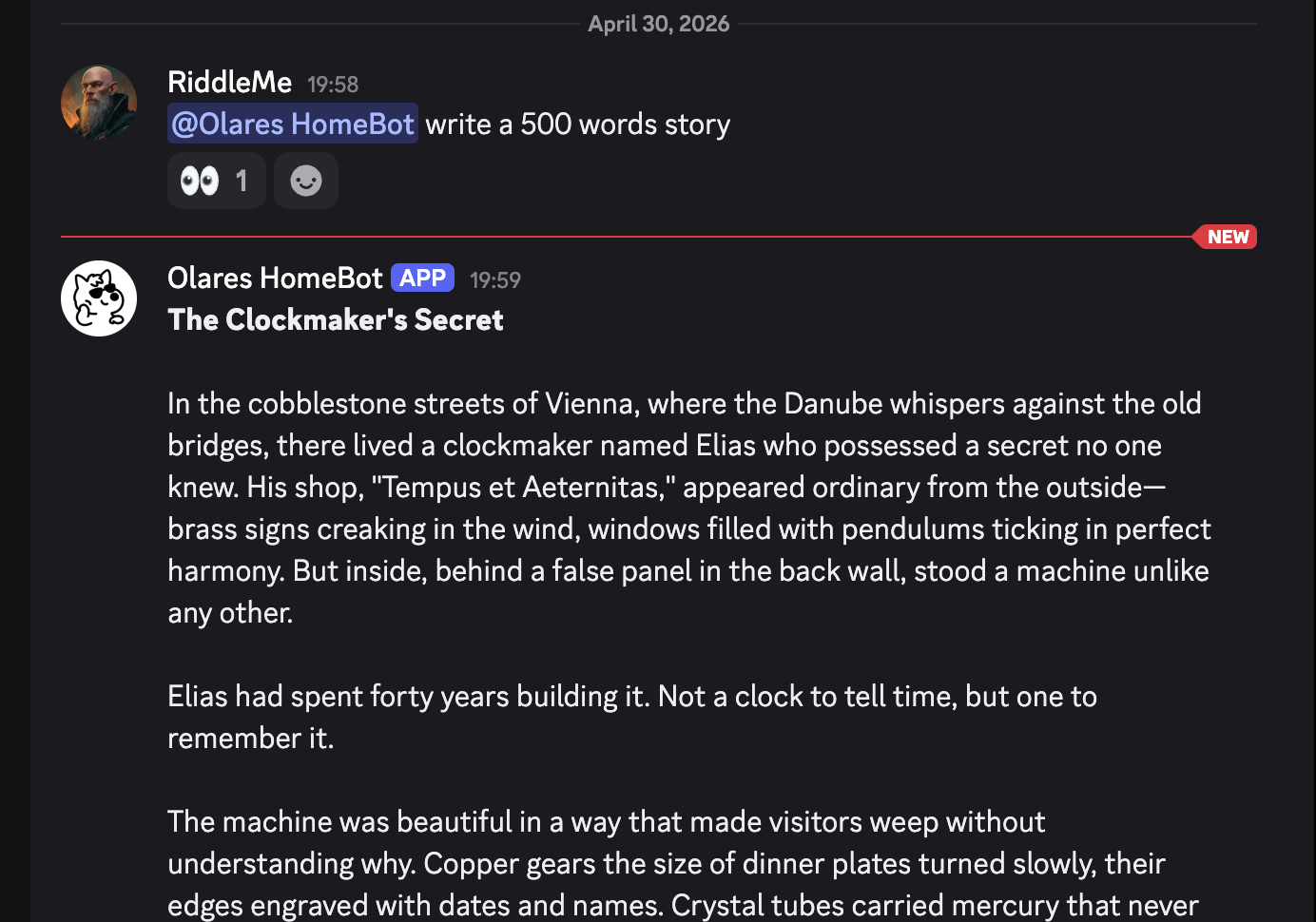
bashopenclaw pairing approve discord M9ZEHYT7After approval, you can chat with your agent directly in Discord.
Enable web search
By default, the agent answers only from its training data. To let it fetch real-time internet information, enable the web search tool with Brave Search.
You need a Brave Search API key. The free "Data for Search" tier is usually enough for personal use.
Open the NemoClaw CLI app from Launchpad.
Connect to the runtime sandbox:
bashnemoclaw my-assistant connectRun the web tool configuration wizard:
bashopenclaw configure --section webConfigure as follows:
Settings Option Where will the Gateway run Local (this machine) Enable web_search Yes Search provider Brave Search Brave Search API key Your Brave Search API key Enable web_fetch (keyless HTTP fetch) Yes To verify, ask your agent a question that requires real-time information. For example:
textWhat are today's top tech news headlines?The agent should fetch and cite live web results.
Manage Olares with Olares CLI
Skills add new capabilities to the agent. The Olares CLI skills let the agent manage files and apps on your Olares device through natural language. For other skills, see Manage skills and plugins.
Step 1: Log in to Olares CLI
Olares CLI requires your account password and two-factor authentication code. Sign in from the NemoClaw CLI before the agent can use the Olares CLI skills.
Open the NemoClaw CLI app from Launchpad.
Connect to the runtime sandbox:
bashnemoclaw my-assistant connectWait until the terminal shows the sandbox prompt, such as
sandbox@my-assistant:~$.Log in to your Olares account. Replace
<your-olares-id>with your Olares ID:basholares-cli profile login --olares-id <your-olares-id>For example:
basholares-cli profile login --olares-id [email protected]Follow the prompts to enter your Olares login password and the two-factor authentication code from the LarePass app.
If you encounter an X.509 certificate error, run the following commands to work around the certificate check:
a. Extract the certificate chain. Replace
<username>with your Olares username (the part before@):bashopenssl s_client -proxy 10.200.0.1:3128 -connect auth.<username>.olares.com:443 -showcerts </dev/null 2>/dev/null \ | awk '/BEGIN CERTIFICATE/,/END CERTIFICATE/{print}' > /tmp/openshell-chain.pemb. Set the trusted CA certificate file for the current shell:
bashexport SSL_CERT_FILE=/tmp/openshell-chain.pemc. Run the login command from step 3 again.
Step 2: Install Olares skills from ClawHub
Open the OpenClaw Web UI and go to Skills.
In the ClawHub search box, enter
olaresto find Olares skills.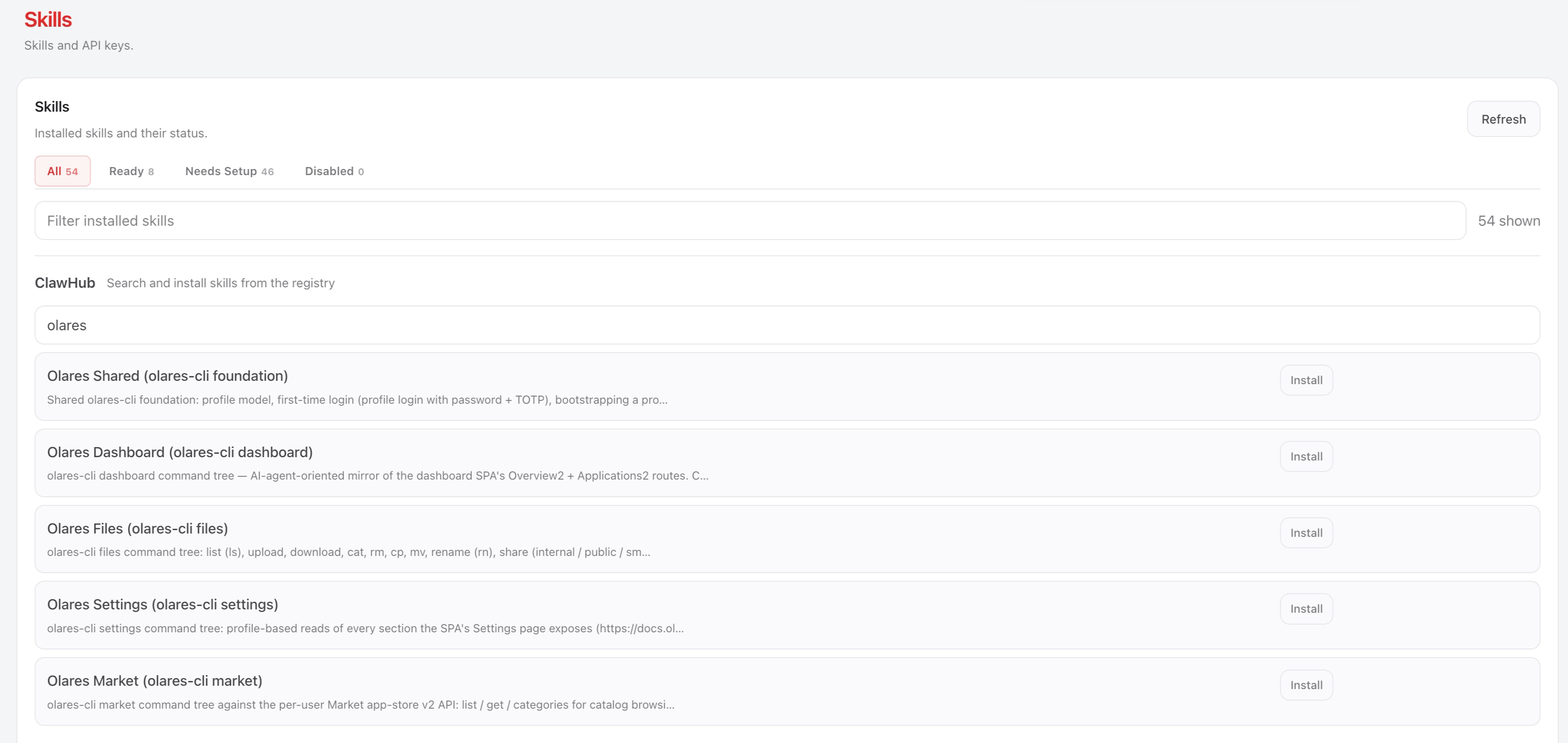
Install Olares Shared first because it's the foundation of the other Olares skills.
Install the remaining Olares skills, such as Olares Files and Olares Market.
Retry on 429 errors
If you see a 429 error when downloading a skill, wait a moment and try again.
Step 3: Chat with the agent in natural language
Open the OpenClaw Web UI or the OpenClaw TUI and ask the agent in natural language. For example:
To list all files and folders under
/drive/Home/:textList drive/Home/To read a file:
textRead the last 10 lines of the nemoclaw.log file in the Home directory.To install an app from Olares Market:
textInstall FirefoxTo uninstall an app from Olares Market:
textUninstall Firefox
Install plugins
Plugins extend OpenClaw with additional channels and integrations.
Open the NemoClaw CLI app from Launchpad.
Connect to the runtime sandbox:
bashnemoclaw my-assistant connectInstall the BlueBubbles plugin:
bashopenclaw plugins install @openclaw/bluebubbles
For other plugins, use the standard openclaw plugins list and openclaw plugins install <name> commands inside the runtime. For details, see Manage skills and plugins.
Known issues
Duplicate messages
Each message you send and each agent reply might appear twice in the chat. This is a known issue in the current NemoClaw version on Olares and doesn't affect the underlying agent state.
Olares CLI login and skills don't persist across restarts
NemoClaw doesn't persist your Olares CLI login or installed ClawHub skills across restarts. After restarting NemoClaw, log in to Olares CLI again and reinstall the Olares skills. For details, see Manage Olares with Olares CLI.
Learn more
- NVIDIA NemoClaw: Official reference stack and documentation from NVIDIA.
- OpenClaw: Set up OpenClaw features such as persona setup.
- Common issues: Troubleshoot model timing and context window settings.