Manage packages
You can install additional packages in the OpenCode environment:
- System packages: OS-level tools installed through
pkg-install, a wrapper around the Alpine Linux package manager. - Language packages: Dependencies installed through native package managers such as
pipandnpm.
Learning objectives
By the end of this tutorial, you will learn how to:
- List, search, install, and remove system packages with
pkg-install. - Install system packages through the OpenCode chat interface using the
system-adminskill. - Install language-specific dependencies with
pip,npm,go install, andcargo install. - Understand how installed packages persist across container restarts and app upgrades.
System packages
The OpenCode container runs as a non-root user, so sudo and apk are not available directly. All system package management goes through pkg-install.
Check pre-installed packages
OpenCode includes many common packages by default. To view the full list of installed packages, open the OpenCode terminal and enter the following command:
pkg-install --list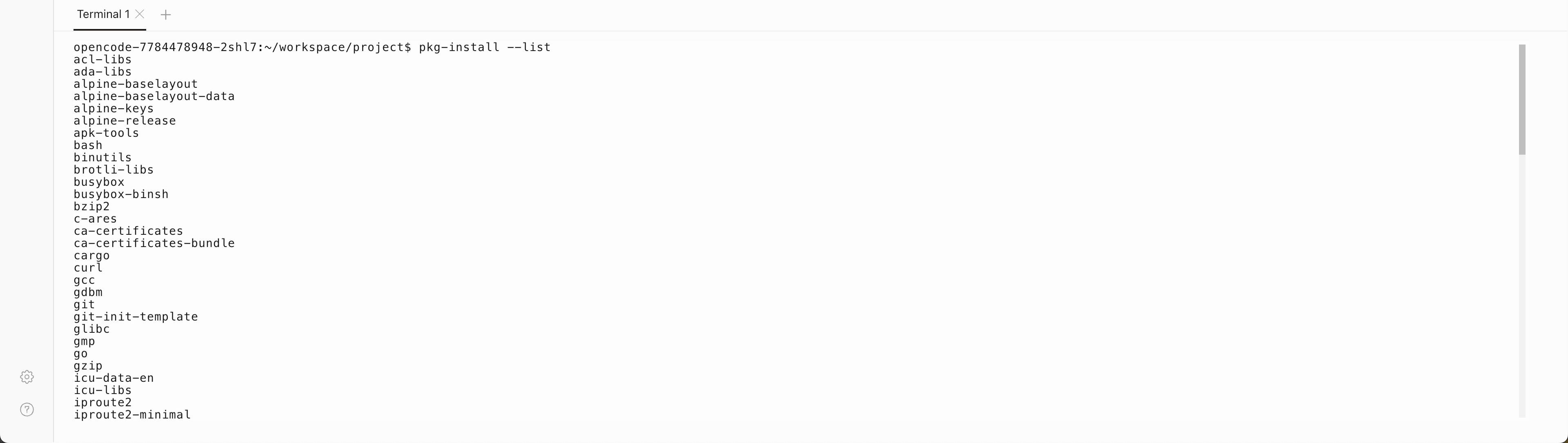
To search for a specific package by keyword:
pkg-install --search <keyword>To view detailed information about a package:
pkg-install --info <package>Install and remove packages
To install a system package:
pkg-install <package>To install a specific version:
pkg-install <package>=<version>To remove an installed package:
pkg-install --remove <package>TIP
OpenCode runs on Alpine Linux. Package names may differ from those on Debian or Ubuntu. Use pkg-install --search to find the correct package name.
Install via AI chat
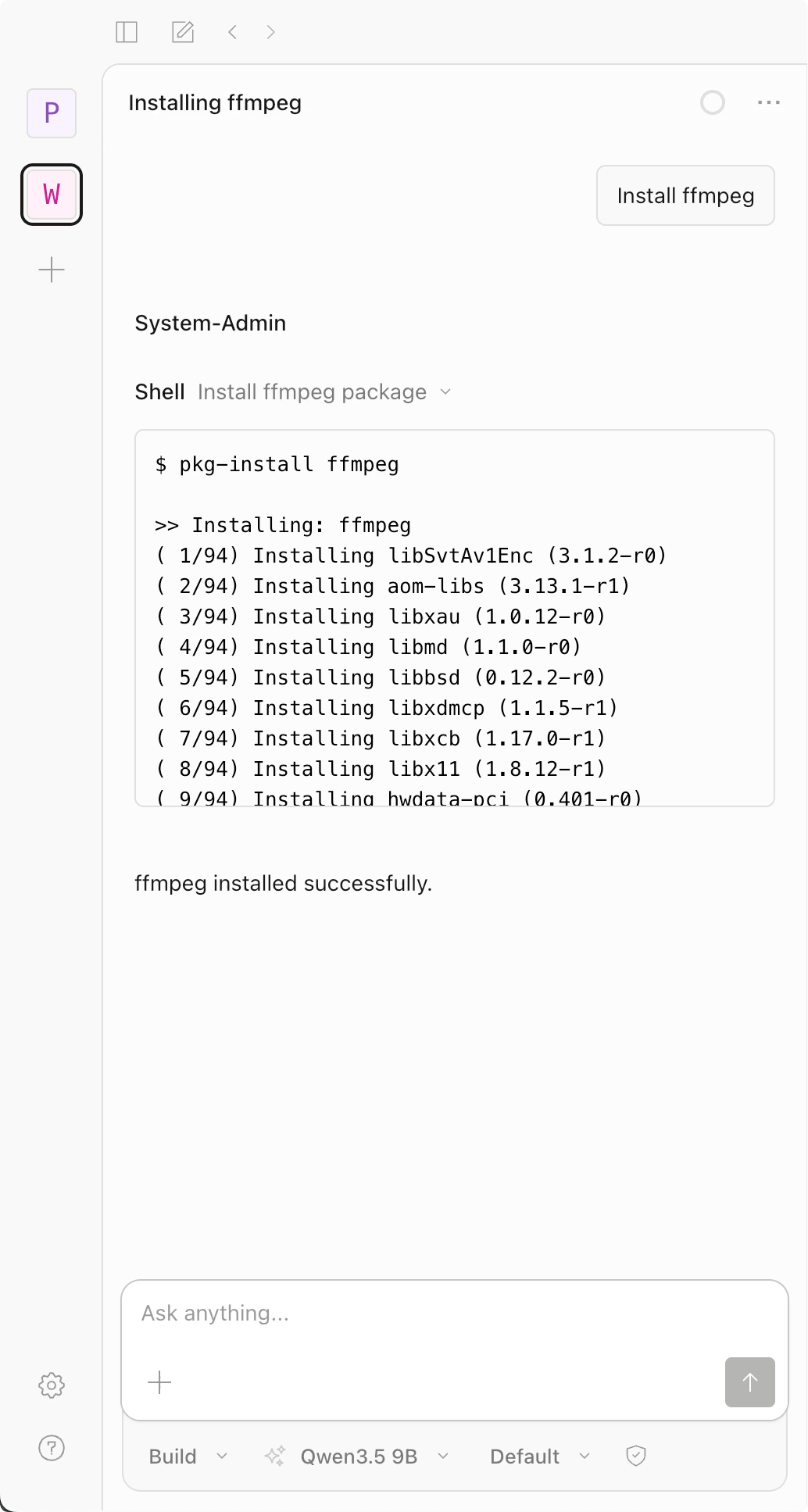
You can also install system packages through the OpenCode chat interface. Send a message such as "Install ffmpeg", and the system-admin skill runs the appropriate pkg-install command automatically.
If the skill does not activate, load it manually by entering the following command in the chat:
/skill load system-admin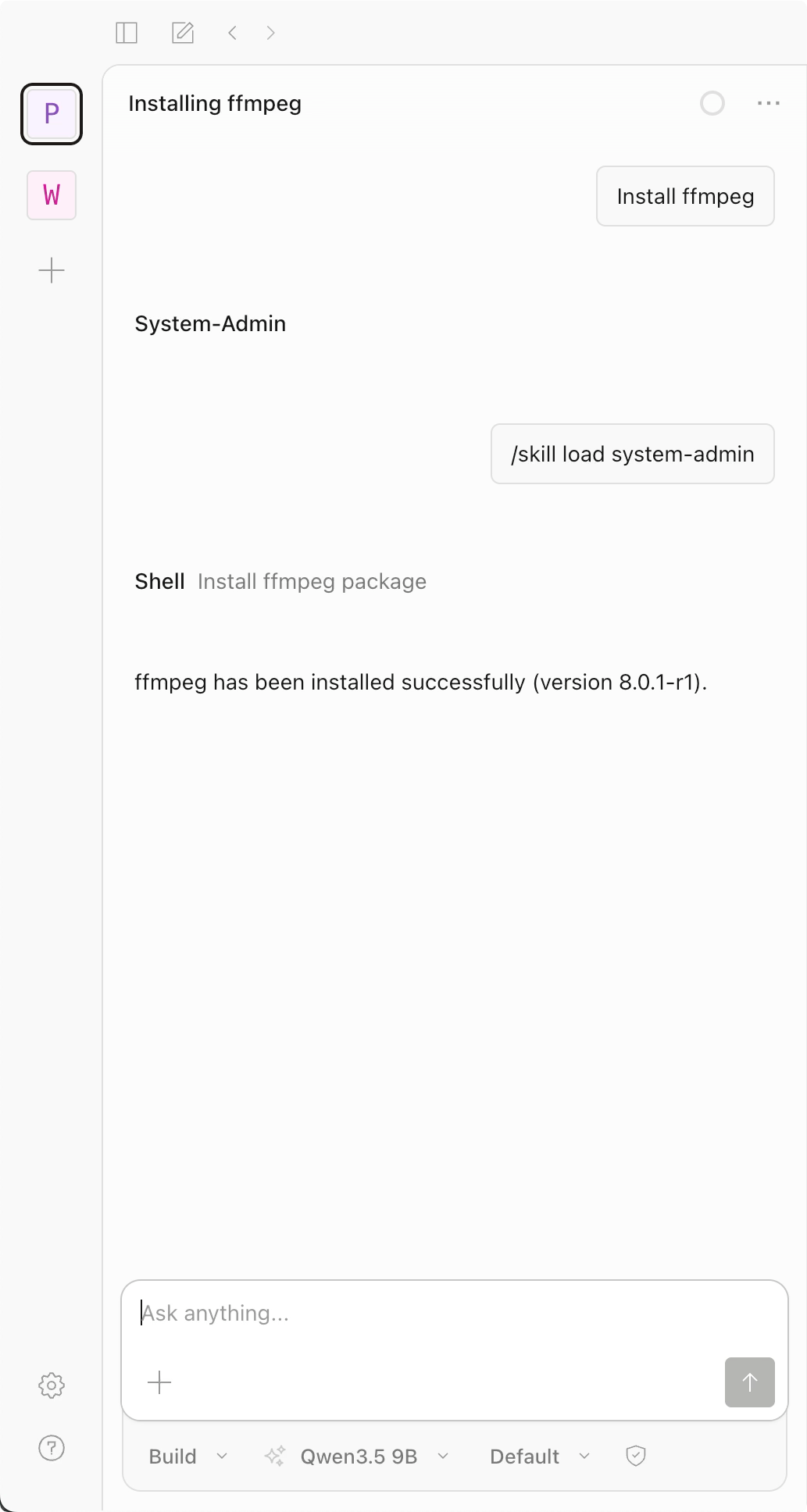
Language packages
For language-specific dependencies, use the appropriate native package manager in the OpenCode terminal:
pip install <package>          # Python
npm install <package>          # Node.js
go install <package>@latest    # Go
cargo install <package>        # Rust
Package persistence
Packages installed through pkg-install persist across container restarts within the same app version. During an app upgrade, OpenCode records your installed packages and reinstalls them automatically after the new version initializes.